Netflix Download Guide: Everything About Offline Viewing, Limits & Fixes
 By Miles Kent
Netflix lets you download movies and TV shows for offline viewing, but the feature comes with limits. Official downloads work through the Netflix app on supported devices like iPhone, iPad, Android, and Google Play-enabled Chromebook. However, these downloads are temporary, cannot be moved freely, and may expire depending on the title and your viewing status.
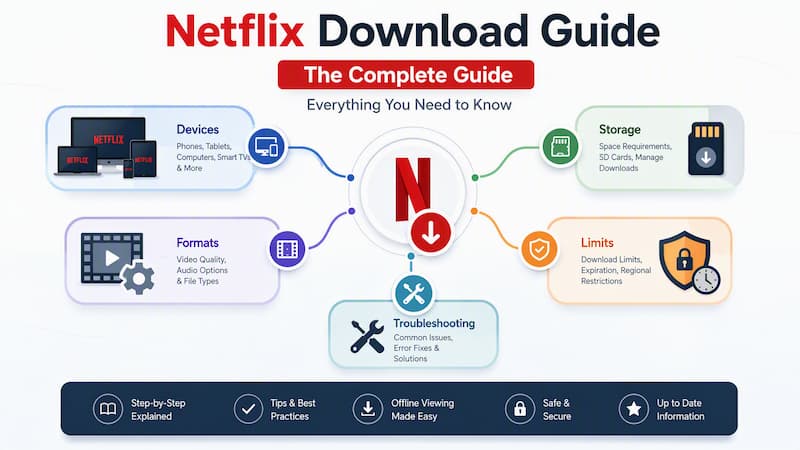
This Netflix Download Guide covers everything you need to know. You will learn how downloads work, how to download on different devices, where files are stored, what the limits are, common errors and fixes, and how to save Netflix videos in portable formats.
Part 1. Netflix Downloads Explained: How Offline Viewing Works
To download movies and shows from Netflix, you need an active Netflix membership and the Netflix app on a supported device. Eligible titles can be saved for offline viewing on Netflix, but Netflix downloads work differently from regular video files.
When you download a title, Netflix does not save a standard video file to your device. Instead, it stores an encrypted copy inside the Netflix app using DRM (Digital Rights Management). This means:
- Downloaded titles can only be played in the Netflix app on the device where they were downloaded.
- You cannot access the files through a file manager, copy them, or transfer them to another device.
- Each download has an expiration period based on Netflix rules and the content license.
Part 2. How to Download Netflix Movies on Any Device
Netflix downloads are available on supported devices through the Netflix app, but the experience differs across platforms. The table below shows Netflix download options for each device.
| Device | Official Netflix download support | Best available method | Notes |
|---|---|---|---|
| Windows PC | No, not in the current Netflix app | Use a desktop downloader, Android emulator, or screen recording workaround | Rolling back to an older Netflix app is unreliable and may trigger service-ending popups |
| Mac | No native Netflix download app | Use a macOS-compatible Android emulator, screen recording, or a desktop downloader | Browser streaming works, but browser downloading does not |
| Chromebook | Yes, if Google Play Store is installed | Netflix app from Google Play Store > Downloads > Find More to Download | Browser streaming and app downloading are separate; netflix.com does not download |
| iPhone / iPad | Yes | Netflix app > title page > Download | Season Download is available for supported shows |
| Android phone / tablet | Yes | Netflix app > title page > Download | Some older Android versions or devices may not support downloads |
| Amazon Fire tablet | Yes, on supported Fire OS versions | Netflix app download feature | Fire OS 7 or later is typically required |
| Web browser | No | Stream online or use another supported method | Netflix.com does not offer a download button |
Download Netflix Movies on Windows PC
Netflix's native Windows app supported offline downloads for years. But Netflix retired that app on July 25, 2024 and replaced it with a lightweight Microsoft Edge-based web app that simply loads netflix.com. The new app does not support downloads at all.
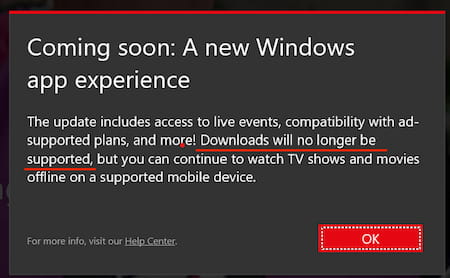
So if you want offline Netflix on a PC in 2026, you need one of these workarounds:
Method 1: Use a dedicated Netflix downloader
A dedicated Netflix downloader can save videos as standard MP4 or MKV files, giving you more flexibility for offline playback. Unlike official Netflix downloads, these files are not locked inside the Netflix app and can be moved to compatible devices. (Learn more in Part 6.)
Method 2: Roll back to the old Netflix app
We previously covered reinstalling an older version of the Windows app (v6.99.5.0) to bring downloads back. While that method can still work, Netflix has since pushed a "service stopped" pop-up that interrupts the app, so we no longer recommend it for daily use. Details are in our guide on how to download Netflix movies on PC.
Method 3: Use an Android emulator
If you don't mind running an emulator like BlueStacks, LDPlayer, or MEmu, you can install the Android Netflix app on your PC and use its built-in downloads. It works, but it is resource-heavy, quality is capped, and files stay locked inside the emulator. The same expiration rules also apply.
Method 4: Screen record
You can also capture the video with a screen recorder while it streams. It is free and requires no special tools, but you will be limited to screen quality and the recording takes as long as the movie. See our tutorial on how to screen record Netflix. If you are working on a laptop specifically, our guide to downloading Netflix movies on a laptop covers the portable angle.
Download Netflix Movies on Mac
There has never been a native Netflix app for macOS. Mac users have always watched through Safari, Chrome, or Firefox, and browsers don't support downloads. So your options mirror the PC situation:
- Method 1. Use a Netflix Video Downloader to save the shows and movies from Netflix as MP4 or MKV files onto your macOS computer.
- Method 2. Run a macOS-compatible Android emulator (e.g., BlueStacks for Mac, Genymotion) and download inside the Android app. However, downloads remain locked inside the app and follow Netflix's expiration rules.
- Method 3. Screen recording can capture Netflix content while it plays, but it requires real-time recording and may not provide the same convenience as downloading a video file.
For the full step-by-step, see our guide on how to download Netflix movies on a MacBook.
Download Netflix Movies on Chromebook
Chromebooks are one of the few laptop-style devices that support official Netflix downloads. If your Chromebook has access to the Google Play Store and can install the Netflix app, you can download selected movies and shows for offline viewing.
Here's how to download Netflix movies or TV shows on a Chromebook:
-
01
Open the Google Play Store and install the Netflix app.
-
02
Sign in to your Netflix account.
-
03
Open the Netflix app.
-
04
Go to Downloads and select Find More to Download.
-
05
Choose a movie or show and click the Download icon. For TV shows, you can download individual episodes or use the season download option when available.
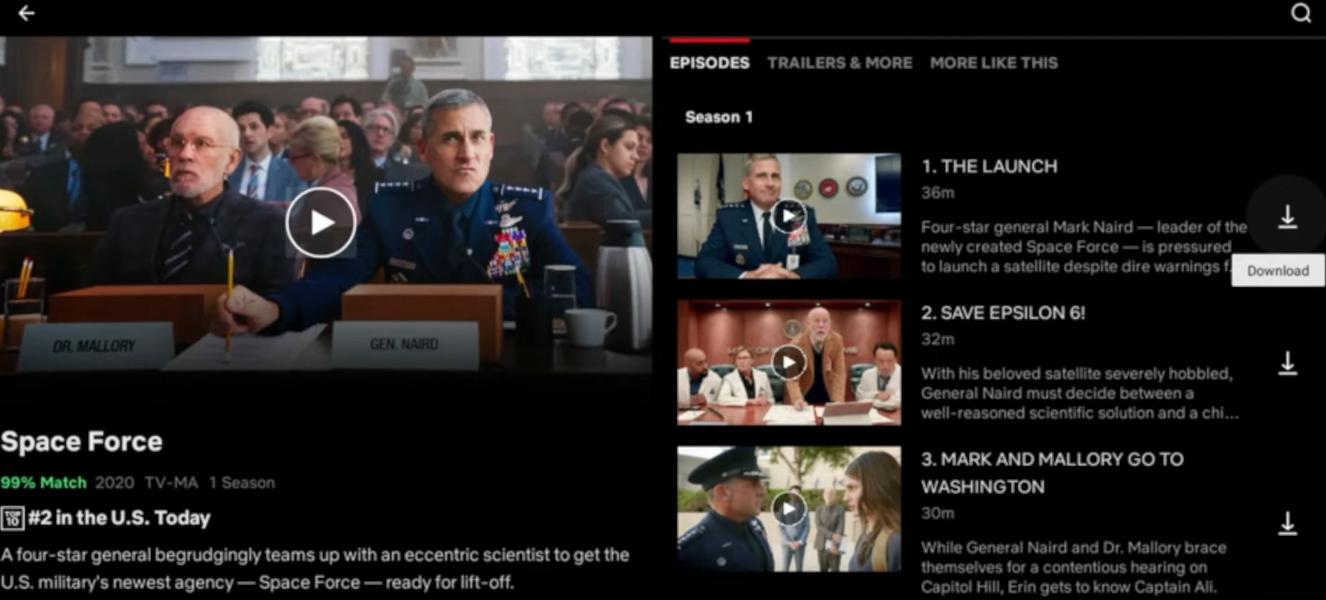

Netflix downloads on Chromebook still follow the same rules as other supported devices. Download quality may be limited to 720p, and older Chromebooks or managed devices such as school-issued laptops may not support Netflix downloads.
Download Netflix Movies on iPhone and Android Devices
As long as your device supports the Netflix app, you can download selected movies and TV shows for offline viewing on both iPhone and Android devices.
Before downloading, make sure your device meets the minimum requirements. iPhone and iPad users need iOS 18.0 or later, while Android devices need Android 5.0 or later.
The download process is almost the same on both platforms:
-
01
Open the Netflix app and sign in to your account.
-
02
Select a movie or TV show, then tap the Download icon (↓). For TV shows, you can download individual episodes or use the Download Season option when available.
-
03
Tap the Downloads icon to view your saved titles.
-
04
Once the download is complete, open the title and watch it offline without an internet connection.
-
05
To manage downloads, go to My Netflix > App Settings > Downloads. From there, you can delete downloaded titles or enable Smart Downloads, which automatically downloads the next episode when available.
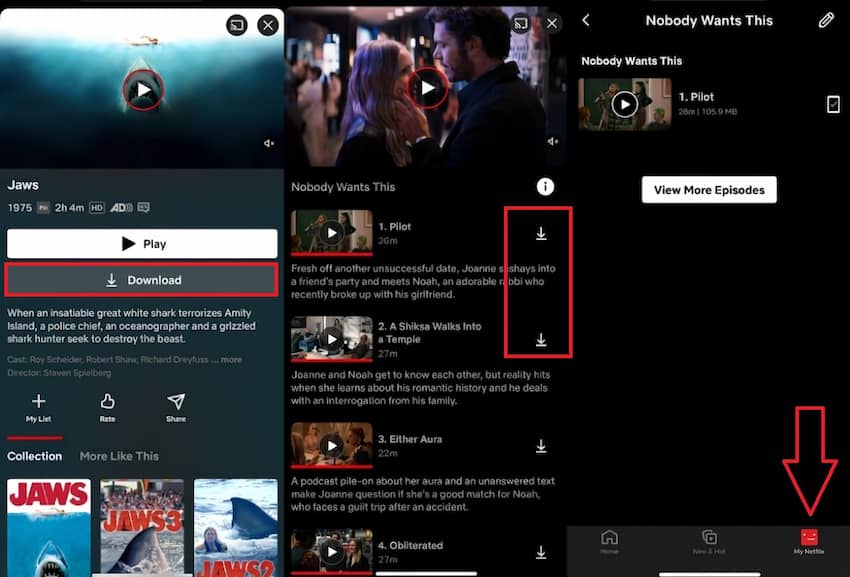
For more details on downloading Netflix on mobile devices, see our guide on how to download Netflix episodes on iPhone.
Can You Download Netflix Movies on a Web Browser?
No. Netflix downloads are not available from netflix.com in a normal desktop or mobile browser. A browser can stream Netflix, manage your account, and play videos online, but it does not provide an official offline download button.
Some browser extensions and scripts claim to download Netflix videos, but their availability and reliability can vary. For a closer look at whether these methods work, including tests of tools like Video DownloadHelper and open-source Netflix downloader scripts, see our guide on how to download Netflix movies on a web browser.
Part 3. Where Are Netflix Downloads Stored and Can You Move Them?
After downloading movies or shows from Netflix, many users wonder where these files are stored and whether they can be moved to another device or storage drive. The short answer is that official Netflix downloads are designed to stay inside the Netflix app, but here is how the storage works.
Where Are Netflix Downloads Stored?
Official Netflix downloads are stored in hidden, app-protected folders and you won't find them in your regular Movies or Downloads folder:
- iOS (iPhone/iPad): Stored inside the Netflix app's sandboxed storage and not accessible through the Files app.
- Android: Typically under
Device Storage > Android > data > com.netflix.mediaclient > files > Download > .of(Android 11+ hides this from file managers by default). - Chromebook / Fire Tablet: Stored in similar app-protected locations.
Even if you locate these files, they are encrypted and cannot be opened with regular video players. For a deeper look at Netflix download locations and storage paths, see our guide on where Netflix downloads are stored.
Can You Transfer Netflix Downloads to USB?
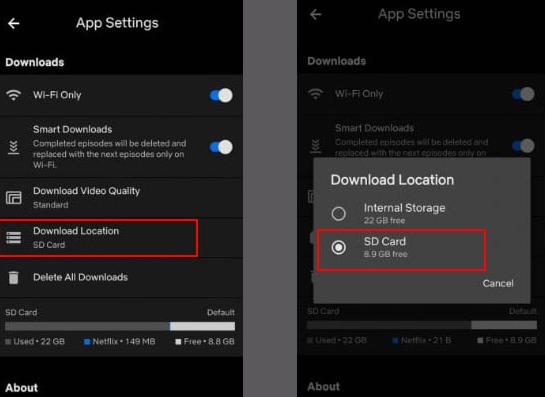
Official Netflix downloads cannot be transferred to a USB drive as playable video files. You may be able to move app storage on some Android devices or use SD card storage where Netflix allows it, but that does not turn the download into a portable movie file.
To play Netflix content from a USB drive on a TV, car screen, or another computer, official downloads won't work because they are locked to the Netflix app. You need to convert the Netflix videos to MP4 or MKV format before transferring them to the USB. See the full guide on downloading Netflix movies to USB for more detailed steps.
Can You Save Netflix Downloads to an External Drive?
Official downloads cannot be transferred. Attempting to do so will result in a DRM restriction. To create a permanent Netflix library on an external hard drive, the best option is to download the content as MP4 or MKV using VidiFab, then move the files. Refer to our comprehensive guide on saving Netflix downloads to an external drive for detailed instructions.
Part 4. Netflix Download Limits and Expiration Explained
Netflix download limits depend on your Netflix plan, device, and the licensing rules for each title. Make sure you are aware of those limits so you can get the most out of your downloads.
How Many Netflix Downloads Can You Have?
The number of Netflix titles you can download depends on your plan and the content license. In general:
- Ad-Supported Plans: Downloads are limited to 15 titles per device each calendar month, and downloads are available on up to 2 devices.
- Ad-Free Plans (Standard/Premium): You can typically keep up to 100 active downloads per device. Standard allows downloads on up to 2 devices, while Premium supports up to 6 devices.
- There is also a per-title download limit. Some movies or shows can only be downloaded a certain number of times within a year because of licensing agreements. Netflix may not show this limit until you reach it.
- When you hit a cap, you'll see messages like "You have too many downloaded videos" or "You have downloaded on too many devices". For ad-free plans, deleting old downloads or removing unused devices can help free up download slots.
- According to the Netflix Help Center, deleting downloads does not reset the monthly download limit for ad-supported plans. Users on these plans must wait until the 1st of each month for their allowance to refresh, or choose to upgrade to ad-free plans.
For a complete breakdown of Netflix download restrictions, see our guide on Netflix download limits.
How Long Do Netflix Downloads Last?
Two clocks are running on every download:
- Before watching: Many downloads expire within 7–30 days after being downloaded.
- After starting playback: Once you press play, the download may expire after 48 hours.

There are also a few situations where downloads can disappear earlier. For example, if Netflix no longer has the rights to a title, the downloaded video may be removed from your device. Downloads can also become unavailable if your subscription expires or you sign out for an extended period.
When a download expires, reconnecting to the internet on Netflix and renewing the title may refresh the license if the title is still available.
Netflix's Help Center explains how expired downloads work and how to renew them. For the full timeline and edge cases, see how long Netflix downloads last. And if the expiration rules drive you crazy, our keep Netflix downloads forever guide tests the methods that actually work.
Part 5. Fix Netflix Download Problems, Errors, and Failed Downloads
Before troubleshooting, determine if the issue is with a specific title or the device. If just one movie or episode won't download, the problem is likely with that title. Try downloading a different title first. If downloads fail on the same device, check the Netflix app, storage space, network connection, and device compatibility. If the issue occurs on multiple devices, check your Netflix plan, download limits, and if the title is still available for offline viewing.
The table below covers common Netflix download problems, their possible causes, and the quick solutions.
| Problem | Most common cause | Quick fix | Full guide |
|---|---|---|---|
| Download stuck at 0% | Network restrictions, cache, or server glitch | Force-stop the app, clear cache, retry on Wi-Fi, free up storage, and try another downloadable title | Netflix downloads stuck at 0% |
| Error 10021 (iOS) | Too many download devices / expired security token | Remove downloads on other devices, reinstall app | Netflix download error 10021 |
| Downloads disappeared | Title license removed, logout, or app update | Check title availability; re-download if licensed | Netflix downloads disappeared |
| Downloads are slow | Network congestion, storage pressure, server load | Lower download video quality, set data usage to Maximum, close other apps, free space | How to make Netflix downloads faster |
Part 6. How to Download Netflix Videos as MP4/MKV for Offline Playback
If you need files that can be moved to a USB drive, external hard drive, phone, tablet, TV, or media player, official Netflix downloads are not built for that. This is where the VidiFab Netflix Video Downloader becomes useful.
VidiFab Netflix Video Downloader
Download Netflix videos as MP4/MKV in 1080p with Dolby Atmos for offline viewing on your iPhone, Android, desktop, and more devices.

- Download Netflix movies and shows, along with content from Prime Video, Disney+, HBO Max, Hulu, and Apple TV+.
- Save videos as MP4/MKV files that work with more devices and media players.
- Keep up to 1080p Full HD quality with Dolby Atmos or 5.1 surround sound.
- Download subtitles in multiple languages, either embedded or as separate SRT files.
- Batch download movies and entire seasons without official Netflix download limits.
- Keep saved files without the expiration rules that apply to Netflix app downloads.
How to Download Netflix Movies as MP4/MKV with VidiFab
Step 1. Install VidiFab and Open Netflix
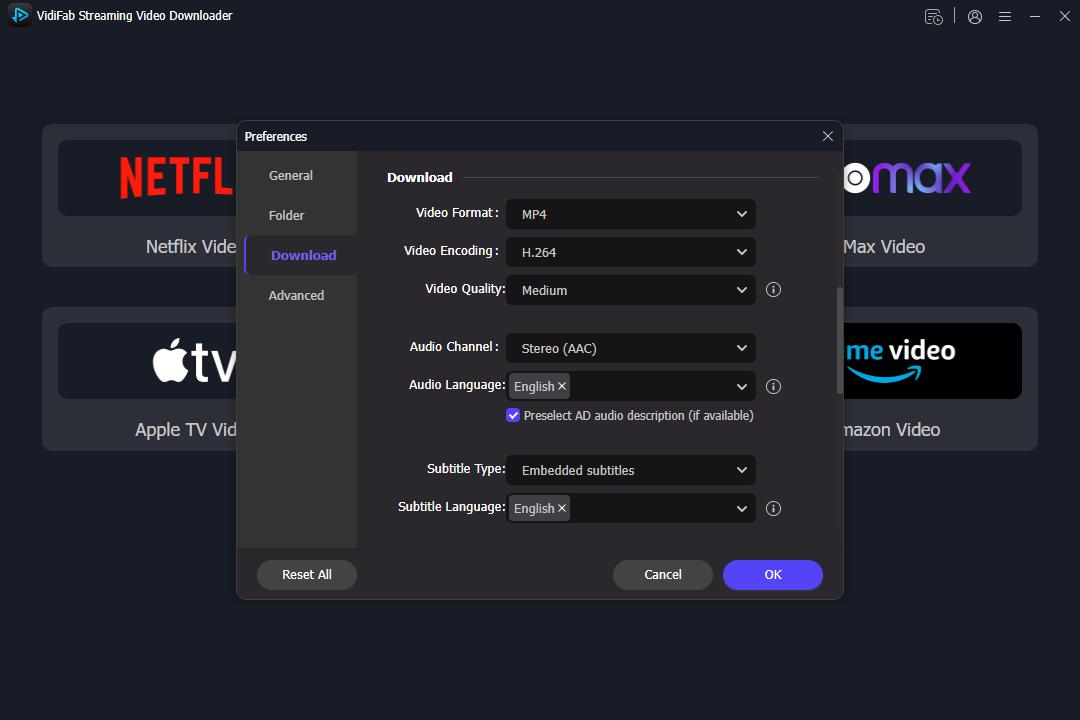
Download and install VidiFab Streaming Video Downloader on your computer. Launch the program, click the menu icon, and select Preferences. Choose MP4 or MKV as your output format, and designate a folder for your downloads. Return to the main interface and click on the Netflix card. Log into your Netflix account in the built-in web player to access the entire library.
Step 2. Search for a Netflix Movie or Show
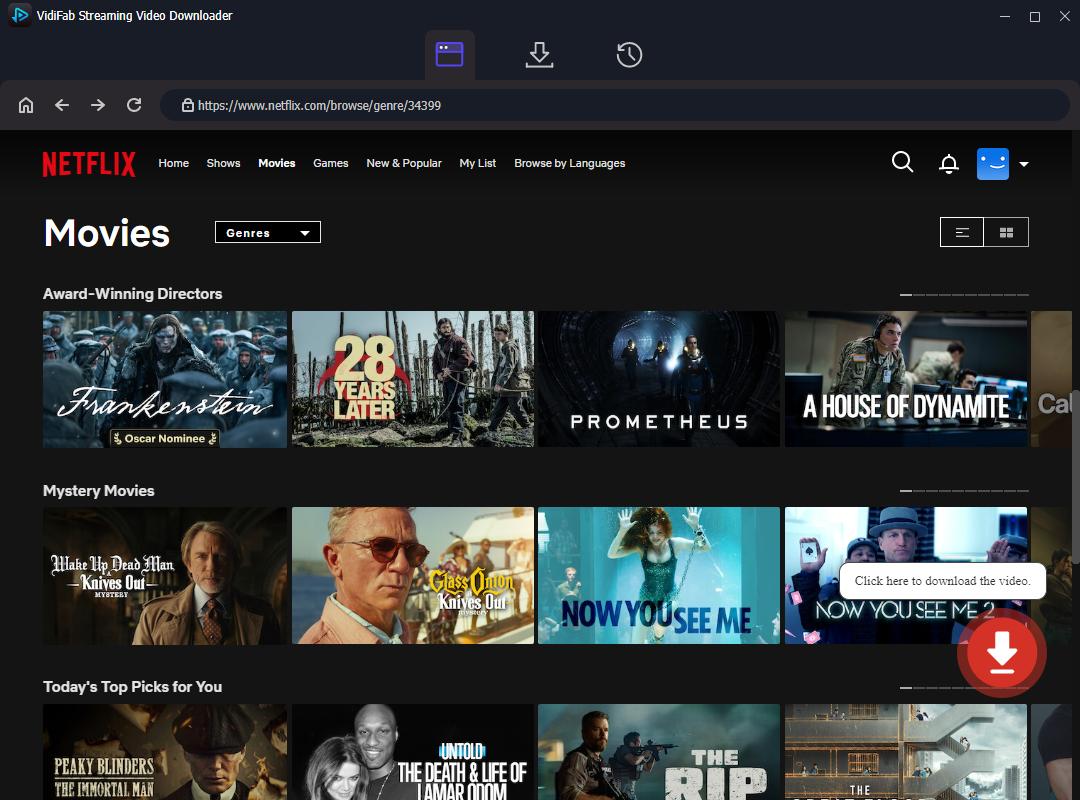
Browse Netflix within VidiFab or enter the URL of the title you wish to download into the search box. Open the video page, and a download button will appear in the bottom right corner. Click on it.
Step 3. Choose Video Quality, Audio, and Subtitle Settings
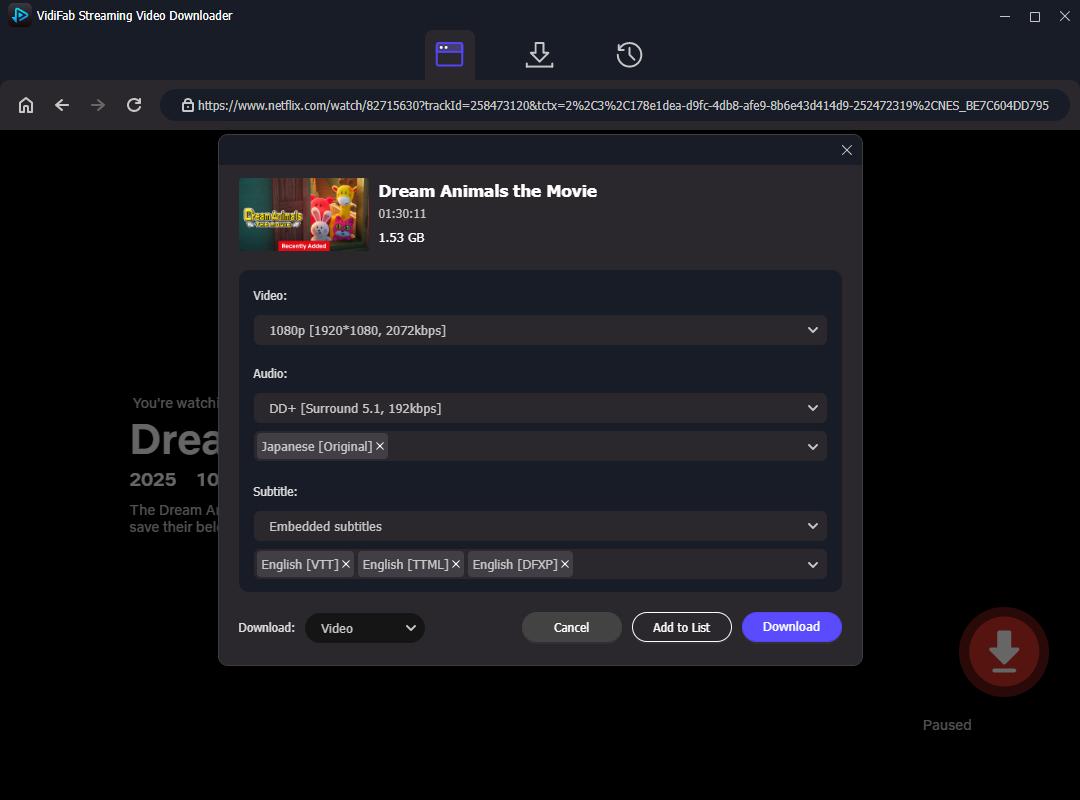
In the download settings window, select your desired video quality, audio track quality and language, as well as your preferred subtitle language and format. For a TV series, check the Select All box to enable batch downloads. Once everything is set, click Download.
Step 4. Save Netflix Videos as MP4/MKV Files
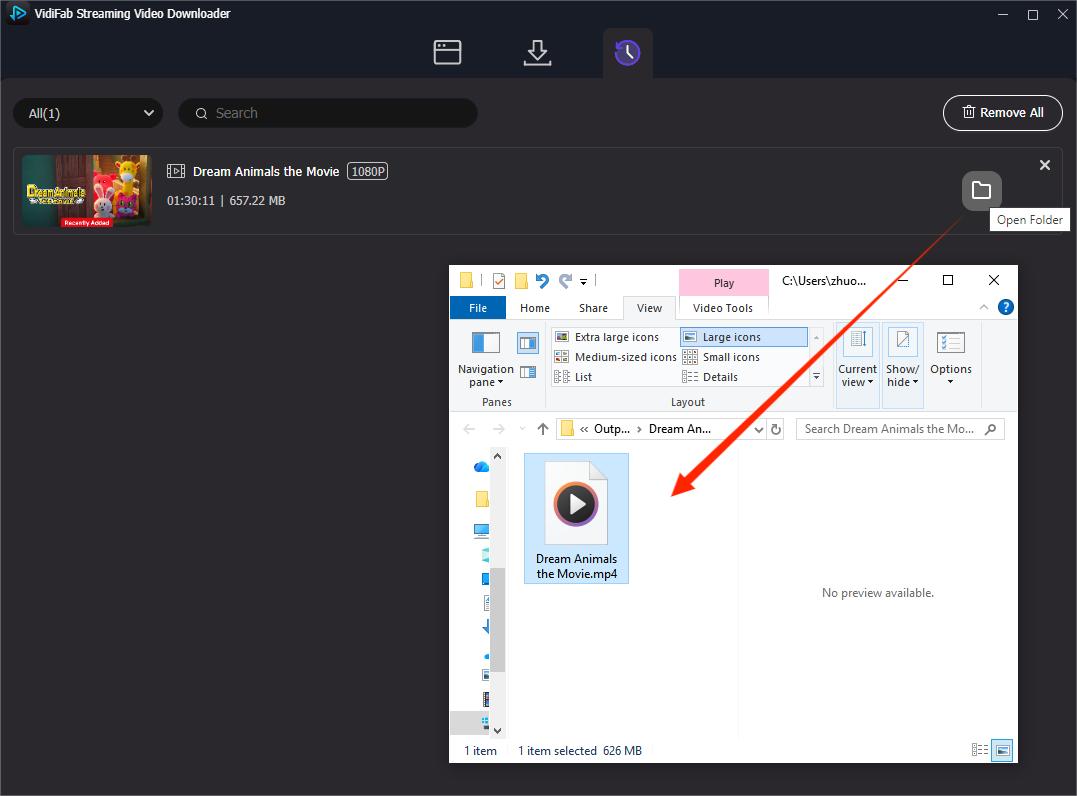
After the download is complete, go to the History tab and click the folder icon to find your saved files. You can play the video with any media player and transfer the downloads to other devices like USB sticks, phones, or tablets, as long as they support MP4 or MKV formats.
Official Netflix Downloads vs. VidiFab: At a Glance
| Feature | Official Netflix Downloads | VidiFab Netflix Video Downloader |
|---|---|---|
| Devices supported | Mobile apps only (no PC/Mac/browser) | Windows and Mac |
| File format | Encrypted, app-only | Standard MP4 / MKV files |
| Max quality | Up to 1080p (varies by title and device) | Up to 1080p (varies by title and device) |
| Expiration | 7-30 days / 48 hours after play | Never expires |
| Download limits | Subject to Netflix plan, device, and title restrictions | No Netflix app download limits |
| Move to USB / external drive / TV | ❌ Not supported | ✅ Supported |
| Subtitles | In-app only | Embedded subtitles or external SRT files |
- Here's a friendly reminder: VidiFab is meant for personal use only while you have an active Netflix subscription. You can download files for your own offline viewing, but please don’t share or distribute them.
Part 7. FAQs About Netflix Downloads
Can I download Netflix movies on a laptop?
Netflix does not provide official download support on most laptops, including Windows PCs and Macs. Official downloads are mainly available through the Netflix app on supported mobile devices and some Chromebooks. If you want to save Netflix videos on a laptop, you need an alternative method such as saving videos in a portable format using a Netflix video downloader.
Can I watch Netflix downloads without Wi-Fi?
Yes. Once a Netflix title is fully downloaded through the Netflix app, you can watch it offline.
Why can't I download some Netflix movies or shows?
Not every Netflix title is available for offline viewing. A movie or show may not have a download option because of licensing restrictions, regional availability, or content rights. If other titles can be downloaded normally, the issue is likely title-specific.
Can I download Netflix movies to an SD card?
Netflix supports downloads to certain storage locations on some Android devices, but the files remain encrypted and can only be played through the Netflix app. You cannot move them from the SD card and play them as normal video files.
Can I download Netflix movies in 4K?
Official Netflix downloads do not support 4K offline viewing. The offline downloads limit the quality up to 1080p.
Can I share Netflix downloaded movies with another person?
No. Netflix downloads are tied to the account and device where they were downloaded. They cannot be copied, transferred, or shared as regular video files.
Part 8. Conclusion
Official Netflix downloads are a fast, free, built-in convenience, but they're mobile-only, temporary, and locked to the app. Use them for quick trips and short-term offline needs. When you want to own your library, use a dedicated downloader like VidiFab. It gives you permanent 1080p MP4/MKV files you can keep forever and play on a TV, in a car, or from a USB drive. It is the only method that truly works.
 Free Download
 Secure Download
 Free Download
Secure Download
Free Download
Secure Download



I'm a video tech specialist with over 10 years of experience in digital media and streaming. I focus on making complex workflows simple and practical. Through my guides, you'll learn how to convert media, keep high-quality playback across devices, and manage your streaming video library with ease.
 Leave Your Comment