Netflix Download Error 10021: Causes & Easy Fixes
 By Miles Kent
If you keep seeing Netflix download error 10021, you are not alone. This error usually appears when Netflix fails to save a title for offline viewing, even when your internet connection seems fine.
In most cases, the problem is tied to app glitches, device storage limits, Netflix download limits, or temporary account and licensing issues. The good news is that there are several fixes you can try right away. And if Netflix downloads keep failing, there is also a more flexible workaround using VidiFab Netflix Video Downloader to save Netflix videos for offline playback without depending entirely on the Netflix app.

Before troubleshooting specific errors, explore our Netflix Download Guide to understand the download process and common restrictions.
Part 1. What Is Netflix Download Error 10021?
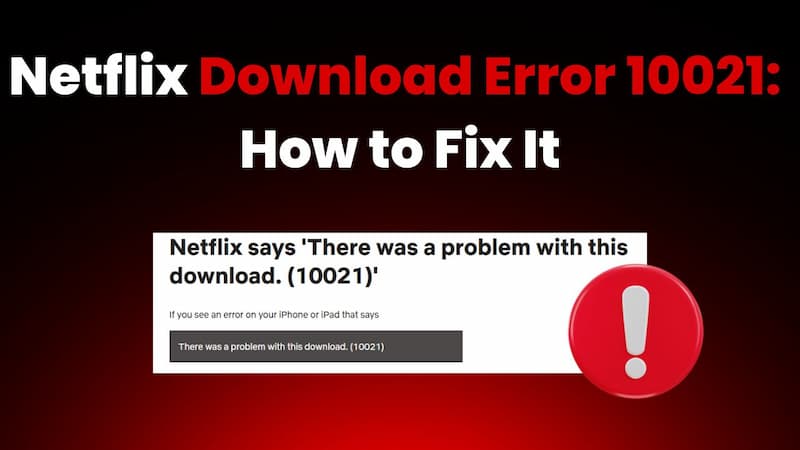
Netflix Error 10021 is a download issue that occurs when you try to save a movie or TV show for offline viewing on the Netflix app. This error is specific to Apple devices, mainly affecting iPhone, iPad, or iPod Touch users. When it happens, you will see a popup notification stating: "There was a problem with this download (10021)."

Error 10021 arises when the Netflix app on your Apple device can't connect to the Netflix servers properly. It often relates to your Netflix subscription limits or outdated data in your app's cache.
How Is 10021 Different from 10020/1002?
It is easy to get confused because many error codes look similar. Here is how to tell them apart:
Both Netflix codes 10021 and 1002 (or 10020) are common on iOS, but 1002 usually appears when you try to play a video already saved on your device. It's a playback error, while 10021 occurs before the video finishes downloading.

If you see 10021, your hardware is fine. The problem is usually that your Netflix app needs a "refresh" or your account has too many active download devices linked to it.
Part 2. Why Does Netflix Download Error 10021 Happen?
Error 10021 isn't about a "bad internet" connection; it's about permissions. Your account might have too many devices linked, or your app's permissions might need renewal.
Here are the main reasons your download could fail:
1. Too Many Download Devices
Depending on your Netflix plan, you can have downloads on either 2 or 6 devices. Premium users can download on 6 devices, while Standard users can only use 2. If you want to download on a new device, make sure to remove an old one, as Netflix may still think the previous device is active.
2. Expired Security "Tokens"
To prevent piracy, the Netflix app uses a digital key called a "token" to verify your subscription. Sometimes, this token expires or gets stuck due to network issues. If Netflix can't confirm your identity or membership status, it triggers Error 10021 to protect its content.
3. Corrupted "App Data" or Cache
The app saves small bits of information called cache each time you use it. If your iPhone is low on storage or the app crashes during an update, this data can become corrupted. This can stop the app from creating a new file for your offline movies. Even when the download starts, it will be stuck at 0 percent.
4. Outdated Netflix App Version
Netflix regularly updates its app to stay compatible with Apple's iOS updates. If you're using an older version from the App Store, it may struggle with the latest download protocols, leading to unexpected download failures.
5. Network Restrictions
Using Public Wi-Fi (like at a hotel or airport) or a VPN can create a weak or restricted connection, making it hard to download large video files. Netflix might detect this unstable connection and stop the download to prevent issues.
Part 3. How to Fix Netflix Download Error 10021
If you see Error 10021, try these fixes to resolve your download issue. One of these steps should help get your Netflix downloads back on track.
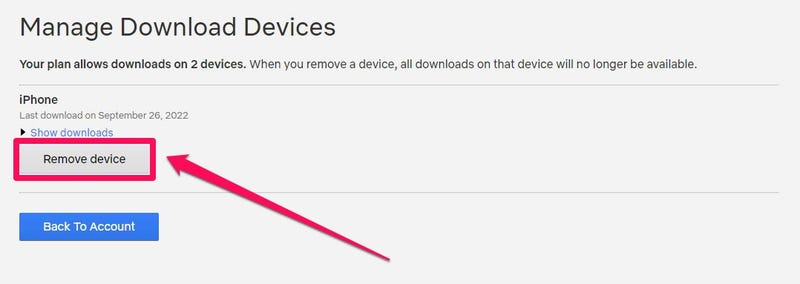
Fix 1. Remove Downloads from Other Devices
As we mentioned, 10021 often means your account has too many download devices. You need to tell Netflix to "forget" an old phone or tablet.
-
01
Open your web browser and visit netflix.com
-
02
Log into your account and click your profile icon in the top right corner.
-
03
Select Account and look for the Settings section. Click on "Manage Download Devices."
-
04
Find a device you don't use anymore and click "Remove Device."
-
05
Try downloading your show again on your current iPhone or iPad.
Fix 2. Delete and Re-download the Video
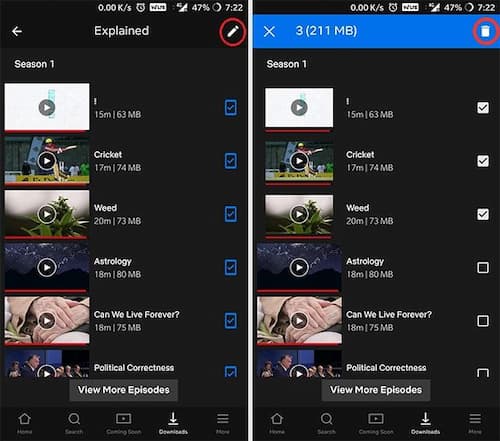
Sometimes the specific file you are trying to save has a small error in the app data. Here's how to fix it:
-
01
Go to My Netflix > Downloads section.
-
02
Tap the pencil icon. Select the movie or episode with the error and tap the trash can icon.
-
03
Search for the show again and tap the Download icon for a fresh copy.
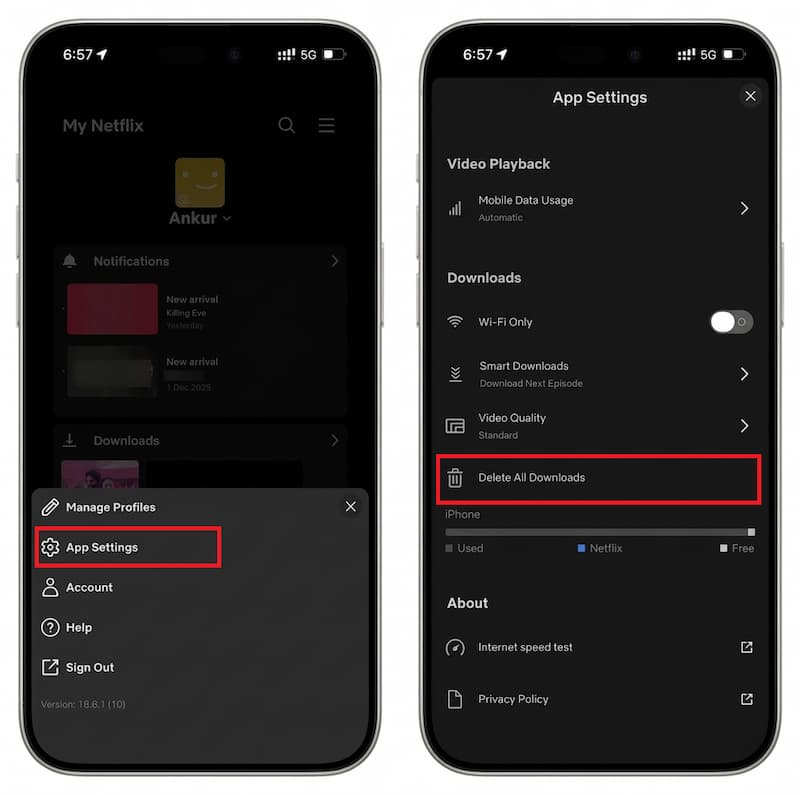
If you want to delete all your Netflix downloads at once:
-
01
Go to My Netflix > Menu icon > App Settings.
-
02
Scroll to the Downloads section and select Delete All Downloads.
-
03
Tap Delete to confirm.
Fix 3. Force Restart the App and Sign In Again
This refreshes your security token and clears minor glitches in the app's memory.
-
01
Swipe up from the bottom of your screen to close the Netflix app completely.
-
02
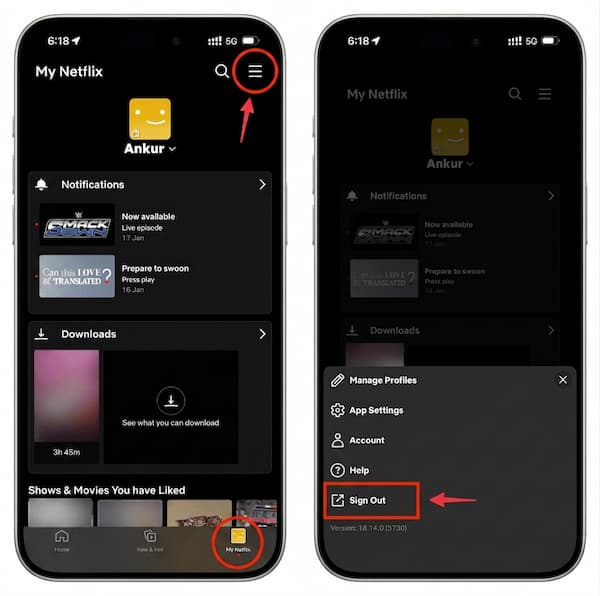
Re-open Netflix, go to My Netflix, tap the Menu icon, and tap Sign Out.
-
03
Sign back in using your email and password.
Fix 4. Reinstall the Netflix App
If the steps above don't work, there might be a deeper problem with the app files in your iOS storage. This fix will delete all your current downloads, but it is the best way to clear a corrupted cache.
-
01
Long-press the Netflix app on your home screen and select Remove App, then Delete App.
-
02
Go to the App Store, search for Netflix, and download it again.
Fix 5. Upgrade to Netflix Premium Plan
If you have a large family, your current plan might not be enough. Upgrading to the Premium Plan lets you download content on up to 6 devices, which usually prevents Error 10021.
-
01
Visit netflix.com and sign in.
-
02
Click your profile icon and choose Account.
-
03
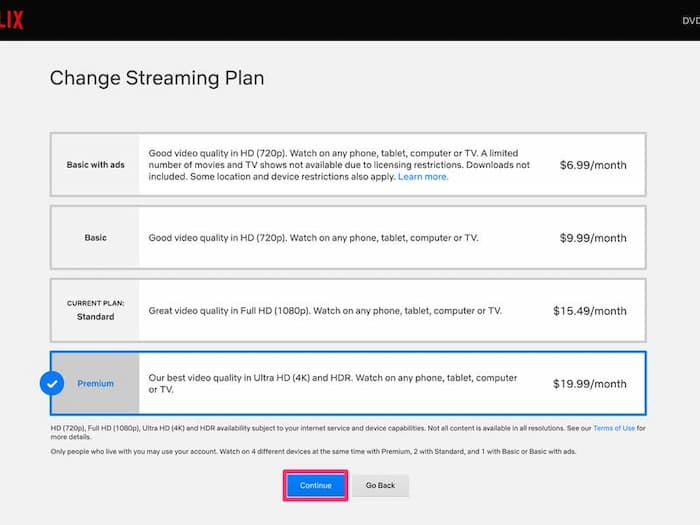
Under Plan Details, select Change Plan.
-
04
Choose the Premium plan and tap Continue. The change usually happens immediately.

Fix 6. Try Another Title
Some titles may have licensing restrictions or temporary glitches. Try downloading a different movie or show.
- If the new title downloads perfectly, the problem is with the first movie you picked. You may need to wait a few days for Netflix to fix that specific file.
- If the new title also fails with Error 10021, the problem is definitely with your device limit or app cache (refer back to Fix 1 and Fix 5).
Part 4. What If Netflix Still Won't Download?
If you have already tried all the fixes and Netflix download error 10021 still appears, it might be due to DRM checks, regional limits, or app issues on your device.
Try VidiFab Netflix Video Downloader as an Alternative
One practical workaround is VidiFab Netflix Video Downloader. Instead of relying only on the Netflix app's built-in offline feature, VidiFab is designed to help you download Netflix videos to a PC or Mac for local playback.
Why Use VidiFab to Bypass Error 10021?
- No Device Limits: Forget about the "too many devices" rule that triggers Error 10021. Once you download a video with VidiFab, you can transfer it to any device, like your iPhone, iPad, or Apple TV, without the 2 or 6 device limits.
- High-Quality Downloads: Enjoy 1080p HD resolution and original 5.1 Dolby Sound, along with multilingual subtitles and audio tracks. The quality matches the official stream. The quality is just as good as the official stream.
- Permanent Files (MP4/MKV): Unlike official Netflix downloads that expire, VidiFab saves videos in MP4 or MKV format, so they stay on your hard drive, even if your subscription ends.
- Batch Mode: You can download entire seasons of a TV show at once with high speed. Plus, these downloads work outside the Netflix app, so you won't encounter server errors.
VidiFab Netflix Video Downloader
Download Netflix videos as MP4/MKV in 1080p with Dolby Atmos for offline viewing on your iPhone, Android, desktop, and more devices.

How to Use VidiFab to Avoid Netflix Error 10021
Step 1. Launch VidiFab and Set Up Your Format
Download and install VidiFab Netflix Video Downloader. Click the Menu icon in the top right corner and select Preferences. Set your Download Video Format to MP4 or MKV. These formats are compatible with almost any device without needing the Netflix app. Once saved, click the Netflix icon on the main screen and log in through the secure built-in browser.

Step 2. Search for the Content You Want
Browse the Netflix library like you do on your phone, or paste the URL of the movie or TV show you want into the search bar. Open the video's detail page. When the Download button appears in the bottom corner, click it.

Step 3. Select Quality and Subtitles
A settings window will pop up. For the best experience, choose 1080p resolution. Select your preferred audio language and set subtitles to "embedded" in the file, ensuring they display correctly on any screen. If you're downloading an entire season, check the "Select All" option to download them in batch mode.

Step 4. Start the Netflix Download
Click the Download button. VidiFab will save an MP4/MKV file directly to your computer. Unlike the official app, these files never expire and don't count toward your Netflix download limit. You can find your completed videos in the "History" tab. Click the folder icon to access your downloaded Netflix files.

Step 5. Quick Transfer to iPhone for Offline Viewing
To watch your videos offline without the Netflix app, transfer the file from your computer to your phone:
- For Mac Users: Use AirDrop to send the MP4 file directly to your iPhone in seconds.
- For Windows Users: Connect your iPhone via USB. Open iTunes, click your device icon, and drag the downloaded Netflix videos into the Movies section. Check "Sync Movies," select the video you just added, and click Apply.
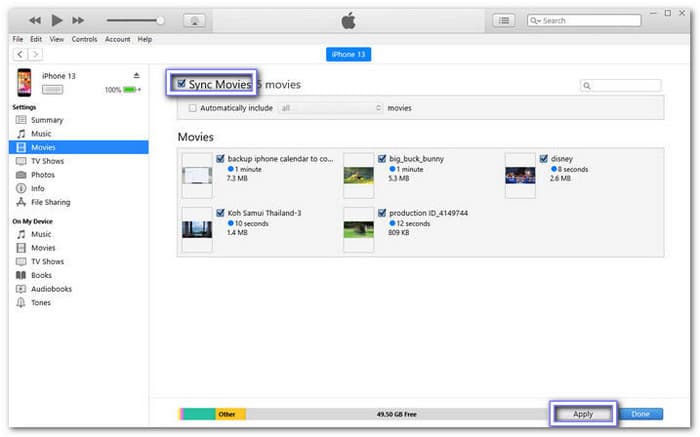
Now, find your Netflix videos in the Photos App if you used AirDrop, or in the Apple TV app under Library > Home Videos if you used iTunes.
Part 5. Tips to Avoid Netflix Download Problems in the Future
Fixing Error 10021 is great, but it's better to prevent it from happening again. Here are some easy tips to keep your Netflix downloads smooth, so you never run out of shows to watch.
Tip 1. Use Smart Download
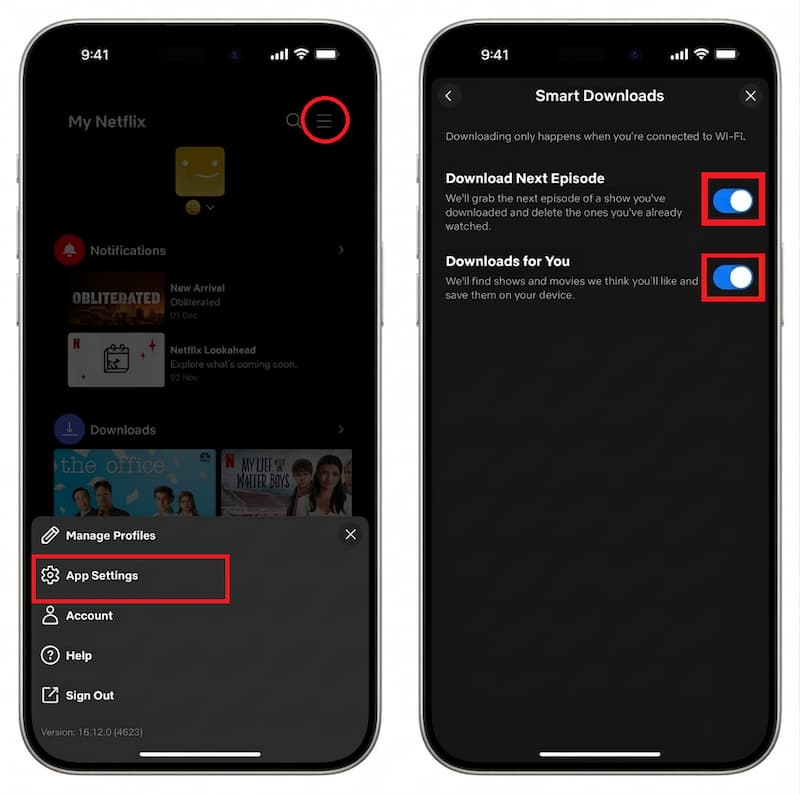
Netflix's Smart Downloads feature helps manage your storage and downloads automatically. It includes two handy options:
- Download Next Episode: After you finish a downloaded episode, Netflix deletes it and automatically downloads the next one when you connect to Wi-Fi. This keeps your device from getting crowded.
- Downloads for You: Netflix can download movies and shows it thinks you'll enjoy based on your viewing history. This way, you'll always have something to watch offline, even if you forget to download it yourself.
Tip 2. Regularly Check Your Download Devices
Error 10021 often happens when you have too many devices linked to your account. Clean up your device list occasionally to avoid this issue. You can manage your devices here: Manage Devices page.
Tip 3. Keep Your Netflix App Updated
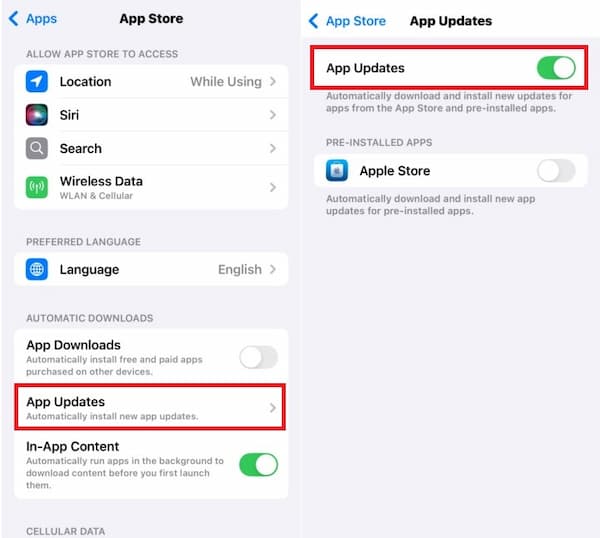
Netflix regularly releases updates to fix bugs and improve performance. To ensure your app is always up to date on your iPhone or iPad, turn on Automatic App Updates:
-
01
Open the Settings app.
-
02
Tap on Apps, then App Store.
-
03
Tap App Updates and switch it to On (green).
Tip 4. Avoid VPNs During Download
When downloading a video, Netflix checks your location. If a VPN makes your location seem suspicious or changes too quickly, it might block the download and trigger Error 10021. For the best results, disable your VPN before starting your download.
Part 6. FAQs about Netflix Download Error 10021
Can Netflix download error 10021 fix itself?
Does Netflix download error 10021 mean my account is blocked?
Why does Error 10021 happen even if I only use one device?
Will upgrading my Netflix plan fix Error 10021 immediately?
Is Netflix Download Error 10021 related to DRM protection on certain shows?
Final Thoughts
If you encounter Netflix download error 10021, you can usually fix it with some simple troubleshooting steps. Try removing downloads, upgrading to a Premium plan, updating the app, signing back in, or reinstalling the app. If the error keeps disrupting your offline plans, consider a more reliable workaround.
For a smoother offline experience, check out VidiFab Netflix Video Downloader. It's a great option if the Netflix download feature isn't working for you. This tool lets you save your favorite movies as local video files, so you can avoid the device limits and technical issues of the official app.
 Free Download
 Secure Download
 Free Download
Secure Download
Free Download
Secure Download


I'm a video tech specialist with over 10 years of experience in digital media and streaming. I focus on making complex workflows simple and practical. Through my guides, you'll learn how to convert media, keep high-quality playback across devices, and manage your streaming video library with ease.
 Leave Your Comment