How to Download Netflix Movies on Web Browser
 By Miles Kent
I opened Netflix in Chrome the other day, hit play on a movie, then looked for the download button. There wasn't one. If you have ever done the same thing, this guide is for you.
Here is the short answer: you cannot download Netflix movies on a web browser through any official channel. The web player only streams. No download button, no offline mode, no "save for later" option. Netflix built it that way on purpose.
But that does not mean you are stuck. I spent two weeks testing four real workarounds on Chrome, Edge, and Firefox, and three of them actually work. One does not. Let me save you the trial and error.
Part 1. Can You Download Netflix Movies on a Web Browser?
No, you cannot download Netflix movies on a web browser using Netflix's official tools.
The Netflix web player — the one you reach at netflix.com — is a streaming-only interface. It does not have a download button, it does not cache videos for offline use, and it does not save files to your hard drive. Whether you are on Chrome, Edge, Firefox, Safari, or Brave, the answer is the same: stream only.

For a complete guide to Netflix download options, supported devices, and available methods, read our Netflix Download Guide.
Why Netflix Doesn't Offer Web Browser Downloads
First, Widevine DRM. Every Netflix title is encrypted using Google's Widevine digital rights management system. Widevine works with the browser to keep the video stream locked away. The web player can decrypt the stream for display, but it does not let anything copy the file out. That is the whole point of DRM.
Second, licensing. Netflix signs deals with studios that limit where and how content can be played. Most of those deals say the studio's movies can only be downloaded on phones and tablets, not on a browser. So Netflix simply does not build the feature.
Which Devices Do Support Native Netflix Downloads?
Here is the short list of devices where Netflix's official download feature is available:
- Android phones and tablets
- iPhone and iPad
- Amazon Fire tablets
- Google Chromebook (via the Android app)

If you are wondering about your computer specifically, you should know that Netflix removed the download feature from its Windows 10 and Windows 11 app, which used to be the one way to get Netflix downloads on a PC. The official replacement is the web player, which has no download function at all. So if you want to download Netflix movies on PC, on Mac, on a MacBook, or on any laptop browser, you are in the same boat: no built-in option.
But you can check out these workarounds for downloading Netflix onto your computer:
Part 2. How to Download Netflix Movies on a Web Browser: 4 Methods Compared
Before I walk through each method, here is a quick comparison so you can pick the one that fits your situation. I will explain each one in detail below.
All four methods were tested in July 2026 on Windows 11 (Chrome 126, Edge 126, Firefox 128) and macOS Sonoma (Safari 17, Chrome 126). A Netflix Standard with Ads plan was used unless noted.
| Method | Difficulty | Output Quality | Safety | Cost | Best For |
|---|---|---|---|---|---|
| 1. Video DownloadHelper | Easy | Does not work | Safe extension, but cannot capture Netflix | Free | Failing quickly and moving on |
| 2. GitHub / open-source script | Hard | 720p–1080p | Mixed (varies by project) | Free | Technical users who like command line |
| 3. Screen recording after disabling hardware acceleration | Medium | Matches your screen (up to 1080p) | Safe | Free | One-off clips, no install needed |
| 4. VidiFab built-in web player | Easy | Up to 1080p MP4/MKV with 5.1 audio | Safe, signed installer | Paid (free trial) | Anyone who wants a real file in one click |
Method 1 — Try Video DownloadHelper (Free Chrome Extension)

Spoiler: this one does not work for Netflix. I include it because it is the first thing most people try, and I want to save you the install.
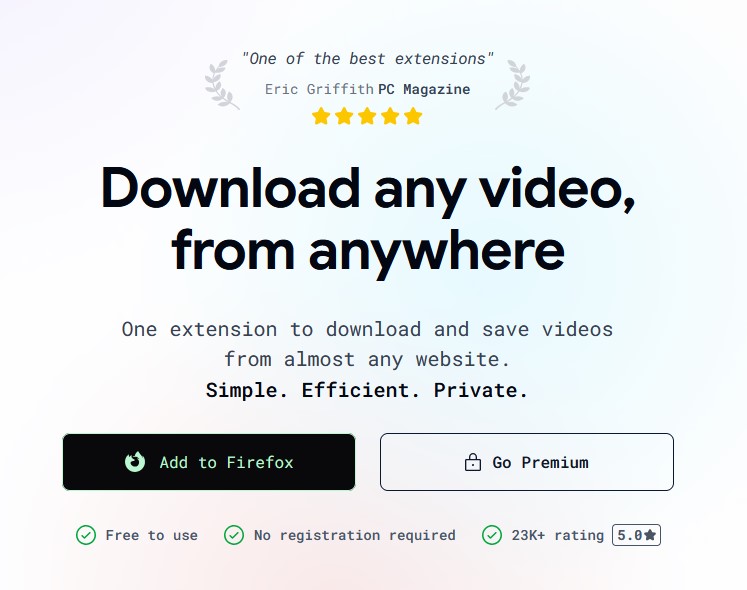
Video DownloadHelper is a popular browser extension for Chrome, Firefox, and Edge. When you visit a page with a video, the extension's icon lights up. Click it, and you can download the video file to your computer. It works on Dailymotion, Vimeo, Facebook, and thousands of others.
What Happens When You Try It on Netflix
I installed Video DownloadHelper from the Chrome Web Store, opened Netflix in Chrome, signed in, and started playing a movie. The extension icon did not light up at all, because Netflix's video stream is encrypted by Widevine and the extension cannot see the unencrypted file.
For fun, I tried a different version of the extension — the one with "coapp" support, which is designed to grab HLS and DASH streams. The icon lit up, but when I clicked download, all I got was a series of tiny encrypted MP4 segments that would not play in any media player. These are the same encrypted chunks Netflix sends to the browser. Without the Widevine decryption key, they are useless.
Verdict
Do not waste your time on Video DownloadHelper for Netflix. It cannot do it. If you are still curious, install it and confirm for yourself in 5 minutes, but do not expect a working file. That is why I keep it on the list: it is a fast no, and that saves you hours.
Method 2 — Use a GitHub / Open-Source Netflix Downloader Script
If you are the type of person who is comfortable with Python, command line, and the occasional broken dependency, there are some open-source projects on GitHub that claim to download Netflix videos.
The script I tested: Kiko023/Netflix-DL
Here is how I used Kiko023/Netflix-DL to download Netflix movies from the web browser:
Step 1. Install Python 3.10.7 and Visual C++ Redistributable.
Download Python 3.10.7 from python.org and be sure to check "Add Python to PATH" during install. Then install the Visual C++ Redistributable Packages for Visual Studio 2013 from Microsoft's site. Both are required unless the script will not run without them.
Step 2. Install dependencies and add your Netflix login.
Open the downloaded project folder, then double-click install.requirements.bat. Wait for it to finish. Next, open the configs folder and edit config.py in Notepad++. Find the email and password lines, and replace the placeholder text with your real Netflix email and password. Save the file.
Step 3. Export your Netflix cookies.
Install the "Get cookies.txt" Chrome extension (the official one the README links to, by bagder). Open netflix.com, make sure you are signed in, then click the extension icon and download your cookies. Rename the file to cookies.txt and drop it into the configs/Cookies folder. That is how the script proves you are a paying subscriber.
Step 4. Run the download.
Double-click download.video.bat in the project folder. The script will ask you to paste a Netflix URL. Try something like Rick and Morty on Netflix (a common test title). The file lands in downloads/netflix as an MP4 or MKV.
Step 5. Wait, and accept that it will break.
A 90-minute movie takes 30 to 60 minutes on a fast connection. When Netflix updates its MSL API (every few weeks, in my testing), the script stops working until the maintainer pushes a fix. If you only need one movie, that is fine. If you need a long-term solution, keep reading.
If the script throws a "title is not available in your Netflix region" error, you can delete cookies_nf.txt in the Cookies folder and re-export a fresh cookies.txt. If you are on a VPN, switch servers. Not every VPN works with this script.
Pros:
- Free and open source
- Can hit 1080p when everything works
- Full control over audio track, subtitle language, and quality
- Active maintainer — fixes usually arrive within days of a Netflix API change
Cons:
- Windows only, no macOS or Linux support
- Requires you to put your Netflix password in a plain-text config file
- Setup takes 1 to 2 hours the first time
- Breaks every few weeks when Netflix pushes API changes
- No official support
Verdict
If you are on Windows, comfortable with command line, and only need to grab a few titles, the Kiko023 script is a free option. For everyone else, the time cost is simply not worth it for a movie you could have downloaded in 10 minutes another way. This is exactly why Method 4 exists.
Method 3 — Screen Record Netflix in a Web Browser
This is the method I used the most before I switched to a dedicated tool, and it works reliably. The one setting to make this work is to disable the hardware acceleration in the browser you use to play Netflix.
- In Chrome: Open a new tab and go to chrome://settings/system. Find "Use graphics acceleration when available" and toggle it off. Click Relaunch to restart Chrome and apply the changes.
- In Edge: Go to edge://settings/system. Find the "System" section. Toggle off "Use graphics acceleration when available". Click Restart to refresh Edge.
- In Mozilla Firefox: Go to about:preferences. Select "Tabs and browsing". Scroll down to the "Performance" section. Uncheck "Use recommended performance settings". Uncheck "Use hardware acceleration when available" when it appears underneath. Restart Firefox manually.
Once hardware acceleration is off, you can use any screen recorder. Here are the easiest options I have tested.
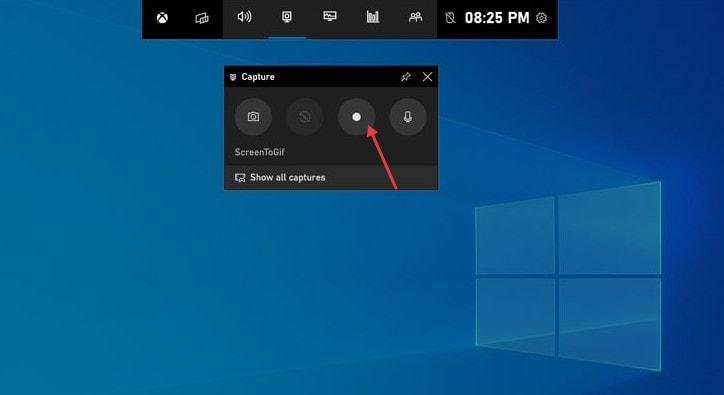
Option A: Windows Game Bar (Built-in, Free)
-
01
Press Win + G to open Game Bar.
-
02
Click the record button (or press Win + Alt + R to start).
-
03
Switch to Netflix and play the movie full screen.
-
04
Press Win + Alt + R again to stop.
-
05
The file saves to your Videos folder as an MP4.
Option B: macOS Screenshot Toolbar (Built-in, Free)
-
01
Press Cmd + Shift + 5.
-
02
Choose "Record Selected Portion" or "Record Entire Screen".
-
03
Make sure "Record Audio" is checked.
-
04
Click Record, switch to Netflix, and play.
-
05
Click the stop button in the menu bar.
-
06
The file saves to your Desktop as an MOV.
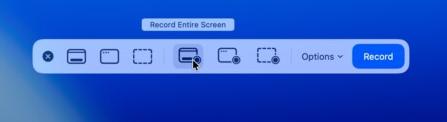
Built-in macOS tools often capture your mic instead of internal system sound. To route internal audio directly, you may need a virtual sound driver. For full setup steps, check out How to Screen Record on Netflix Without Black Screen (2026).
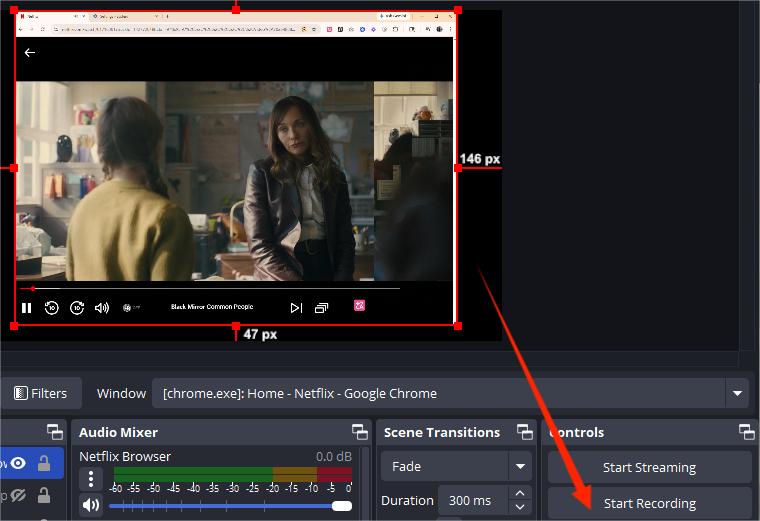
Option C: OBS Studio (Free, More Control)
-
01
Download OBS Studio from obsproject.com and install.
-
02
Add a "Display Capture" source for the whole screen, or a "Window Capture" for Netflix only.
-
03
In Settings > Audio, set the desktop audio source.
-
04
In Settings > Output, choose MP4, MKV, or any other format you prefer as the output format.
-
05
Click "Start Recording" and play the movie.
-
06
Click "Stop Recording" when done. The recorded file is saved to the local folder on your computer.
Pros:
- Works on any browser, including Chrome, Edge, Firefox, Safari
- No extra software needed if you use Game Bar or macOS Screenshot
- No install, no script, no terminal
- Captures exactly what you see, including subtitles
Cons:
- Lower quality if your screen is not 1080p
- Larger file sizes than a direct download
- Captures system sounds and notifications unless you mute them
- You have to record in real time
- A small CPU hit, since hardware acceleration is off
Verdict
If you only need to save a couple of episodes for a flight, this is a solid choice. For batch downloads or a long binge, the real-time recording gets old fast.
Method 4 — Download Netflix Videos Directly with VidiFab's Built-In Web Player
VidiFab Netflix Video Downloader
Download Netflix videos as MP4/MKV in 1080p with Dolby Atmos for offline viewing on your iPhone, Android, desktop, and more devices.

After testing the other three methods, this is the one I keep coming back to. It is also the closest thing to a real "download Netflix on web browser" experience you can get, because the VidiFab Netflix Video Downloader is literally a web player with a download button built in.
Before the step-by-step, here is how VidiFab stacks up against the other three methods.
| What you get | Video DownloadHelper | GitHub script | Screen recording | VidiFab |
|---|---|---|---|---|
| Works on Netflix | No | Sometimes | Yes | Yes |
| Output file format | None | MP4 or MKV | MP4, MKV, MOV, etc. | MP4 or MKV |
| Max video quality | N/A | 720p–1080p | Whatever your screen is | 1080p |
| Audio tracks | N/A | Original | Original (with system audio) | Original 5.1 / Atmos |
| Subtitles | N/A | Sometimes | Burned in | Hard/soft subtitles |
| Batch download | N/A | Manual | One at a time | Yes |
| Time for a 90-min movie | N/A | 30–60 min | 90 min real time | About 10–15 min |
| Setup time | 1 min | Several hours | 5 min | 5 min |
Step-by-Step: How to Download Netflix Movies on Web Browser via VidiFab
Step 1. Launch VidiFab and Access the Built-In Browser
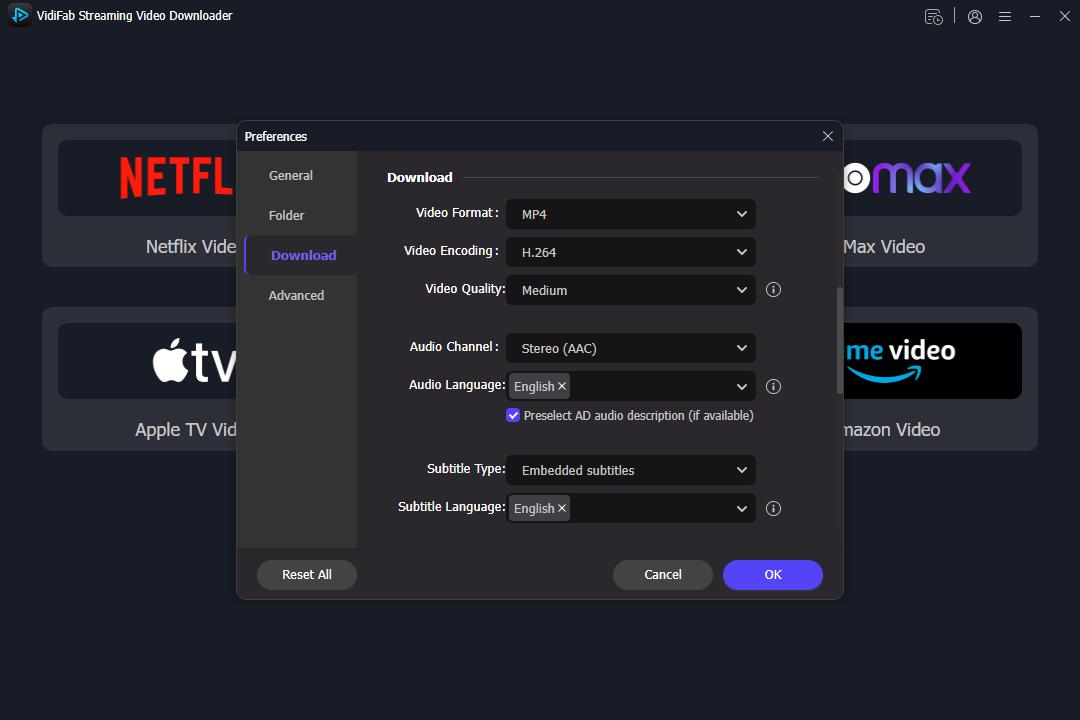
Install and open VidiFab Netflix Video Downloader on your PC or Mac. Open Preferences from the top-right menu to select MP4 or MKV format. Click the Netflix icon on the main screen to launch the secure, built-in browser interface. Log into your account within this browser to safely unlock your regional Netflix library.
Step 2. Locate Movies Directly via Browser Search or URL
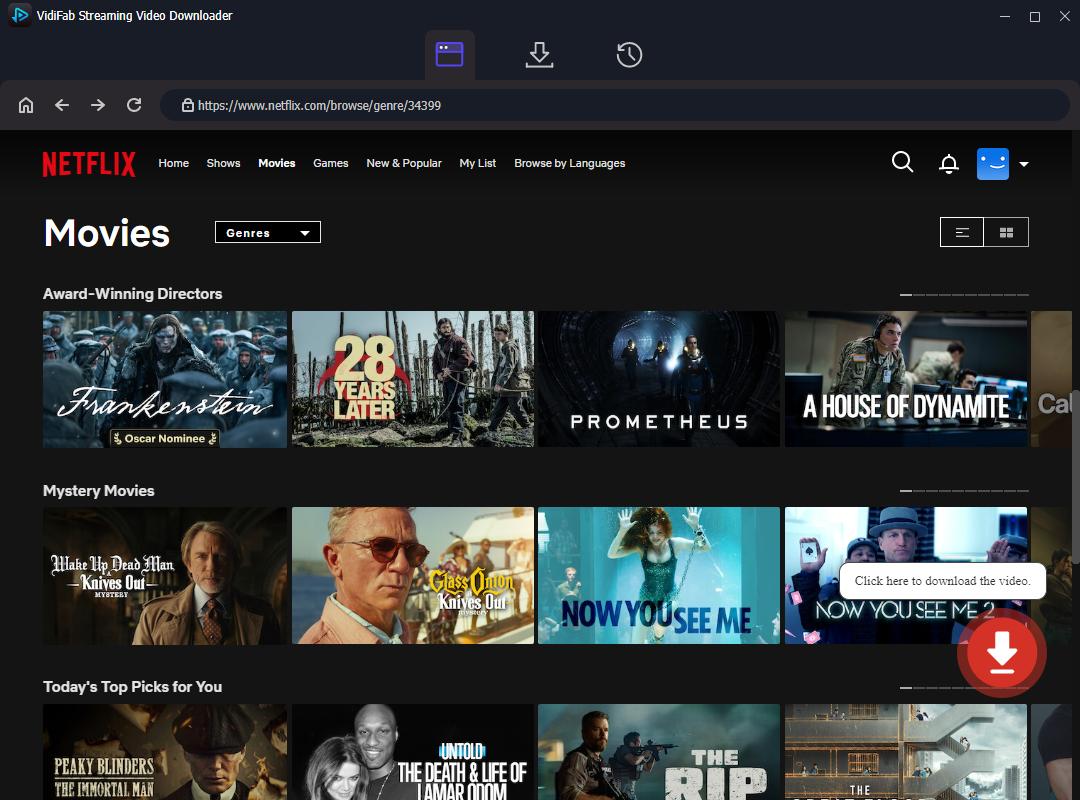
Browse Netflix naturally using the built-in browser interface just like a standard web browser. Paste a video URL directly into the search bar if you already have the link from Chrome or Safari. Open the detail page of your chosen movie or show to let VidiFab automatically analyze the stream. Click the Download button that instantly appears in the bottom-right corner of the browser window.
Step 3. Customize Your Web Browser Download Settings
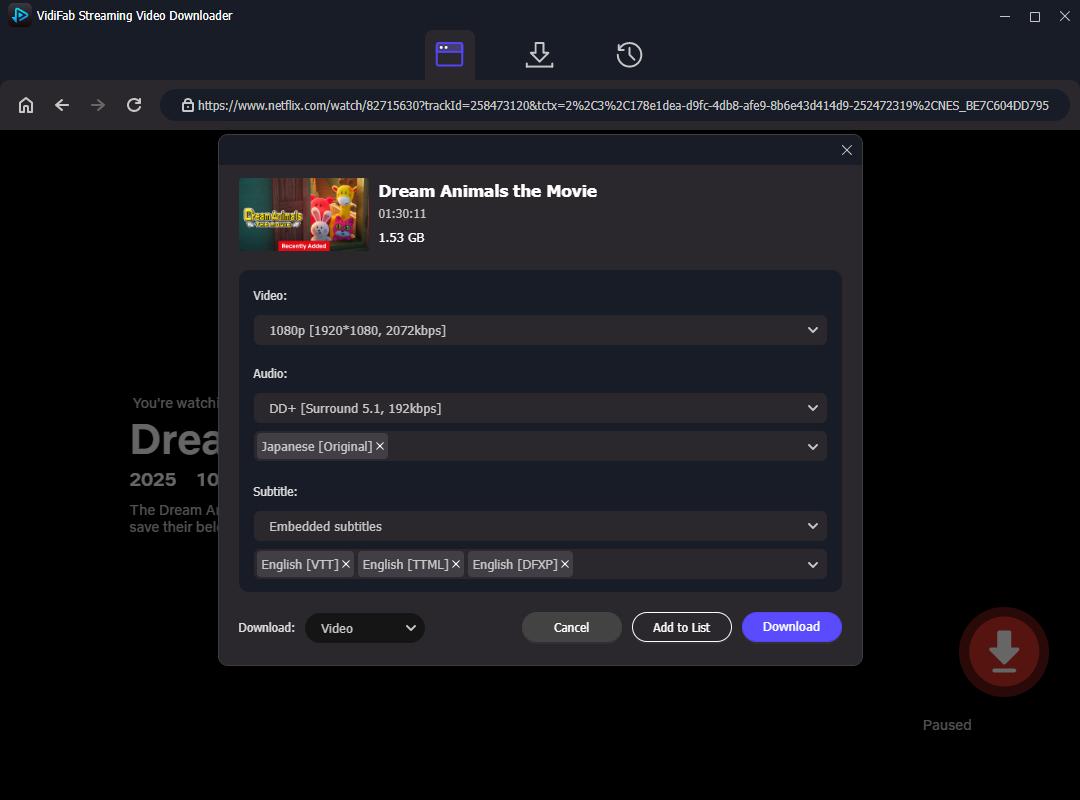
Review the options panel that pops up automatically after the browser analysis finishes. Select 1080p Full HD to ensure premium quality that matches or beats browser streaming limits. Choose audio tracks and select your preferred languages for the download. Set Subtitles to "Embedded" so you can easily toggle them on or off on any media player later.
Step 4. Download and Export Your Permanent Video File
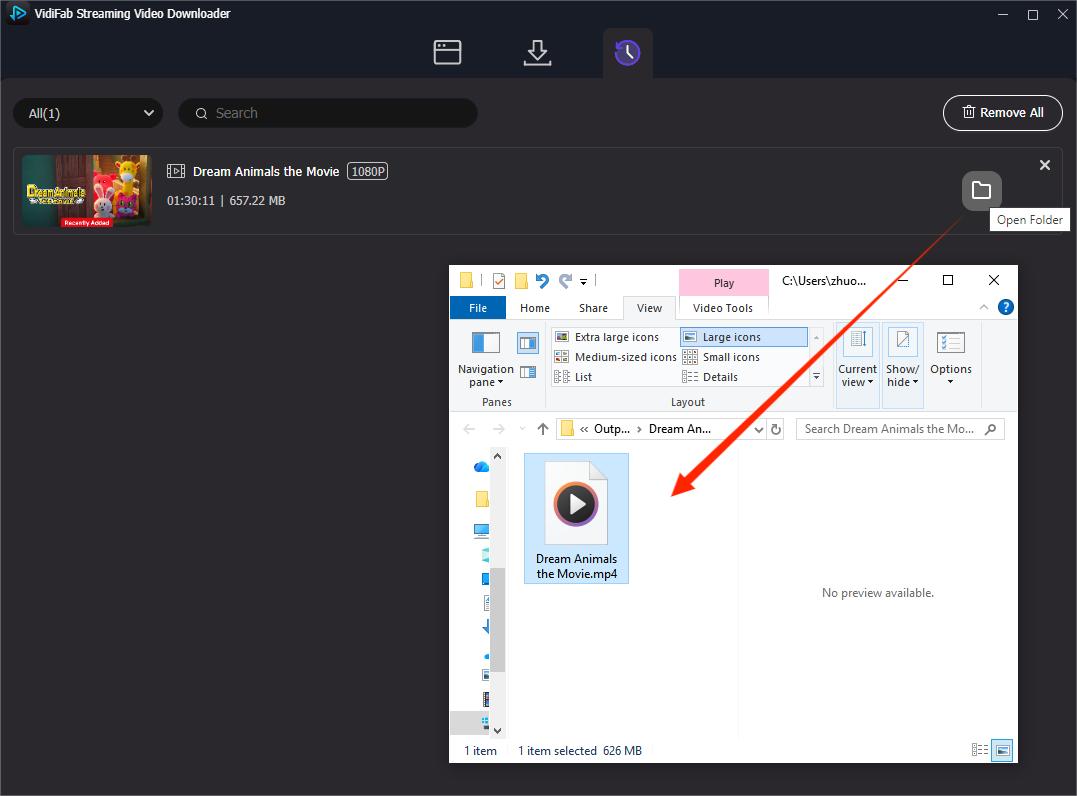
Click Download to pull the video stream directly from the browser interface to your hard drive. Go to the History tab once the high-speed download finishes to find your permanent MP4/MKV file. Watch anywhere by opening the file in VLC, or moving it to your iPhone, Android, or tablet without needing the official Netflix app.
Verdict
VidiFab is ideal for users who want a simple way to achieve Netflix offline viewing on a PC or Mac. Unlike browser streaming, downloaded videos can be watched without constant internet access, making it a practical solution for people who frequently deal with slow connections, buffering problems, or unstable Wi-Fi.
Warning: Downloads from VidiFab are intended for personal offline viewing only. Respect Netflix's terms of service and the rights of content creators. Do not redistribute or sell the files. If you are unsure what counts as fair use in your country, check your local copyright rules.
Part 3. Netflix Web Browser Download FAQs
Why is the Netflix download button missing on Chrome browser?
There is no download button in the Netflix web player on Chrome because Netflix has never offered a download feature for browsers. The web player is for streaming only. If you used to see a download button on your Windows laptop, that was the old Windows Netflix app. Netflix removed the download feature from the Windows app in August 2024, so even there it is gone. To download Netflix videos today, you need a third-party tool, a screen recorder, or an Android or iOS device.
Is there a free Netflix video downloader for PC?
There are free open-source downloaders on GitHub, but they require Python, command-line skills, and frequent maintenance. The only truly free options that work for non-technical users are screen recording, which costs you real time and quality, or the free trial of a paid tool like VidiFab. Free browser extensions like Video DownloadHelper cannot capture Netflix because of Widevine DRM.
Can I rip movies from Netflix in my browser?
In the strictest sense, you cannot "rip" a Netflix video the way you can rip a DVD, because Netflix does not expose the decrypted file to the browser. What you can do is either record the video as it plays on your screen, or use a tool that handles the decryption and download for you. Both approaches give you a file you can keep, but neither is a "one-click rip." Make sure whatever you do is for personal use only and complies with your local laws.
Is it legal to download Netflix videos using a third-party tool?
It depends on where you live and what you do with the file. In most countries, making a personal copy of a stream for offline viewing falls into a legal gray area — not explicitly allowed, but not always prosecuted. Distributing the file, sharing it, or selling it is illegal pretty much everywhere and violates Netflix's terms of service. If you use a third-party downloader, keep the files for personal use and do not share them.
Final Verdict
So, how do you actually download Netflix movies on a web browser? Here is my honest take after two weeks of testing.
- For a simple solution, use VidiFab Netflix Video Downloader. It's the only method that provides a real MP4 or MKV file at full 1080p quality with original audio in about 10 minutes, without needing command line. The free trial allows you to download the first 3 minutes to evaluate it.
- If you just need a short clip and prefer not to install anything: turn off hardware acceleration in your browser, press Win + G (or Cmd + Shift + 5 on Mac), and record. This is the closest free, no-install method that works.
- If you're a developer and enjoy a challenge: try one of the GitHub scripts. You'll learn about DRM, but don't expect it to work without regular updates.
Whichever method you pick, the days of "Netflix download button missing on Chrome browser" driving you crazy are over. Pick your method, follow the steps, and you will have a Netflix file on your laptop in under 15 minutes. Happy watching.
 Free Download
 Secure Download
 Free Download
Secure Download
Free Download
Secure Download



I'm a video tech specialist with over 10 years of experience in digital media and streaming. I focus on making complex workflows simple and practical. Through my guides, you'll learn how to convert media, keep high-quality playback across devices, and manage your streaming video library with ease.
 Leave Your Comment