Complete Fix: Netflix Downloads Not Starting or Stuck at 0%
 By Miles Kent
If your Netflix download is stuck at 0%, the problem is not the video itself, but a blocked connection, a full download queue, stale app data, or a device that needs a quick refresh. The fastest fix is usually to check the network first, then the app state, then your download limits.
Besides the universal fixes you've probably tried, I've added some specific solutions for Android, iPhone, iPad, and Amazon Fire tablets to help get your Netflix downloads back on track. Let's jump in!

You can check out our Netflix Download Guide to understand how downloads work and what restrictions may affect them.
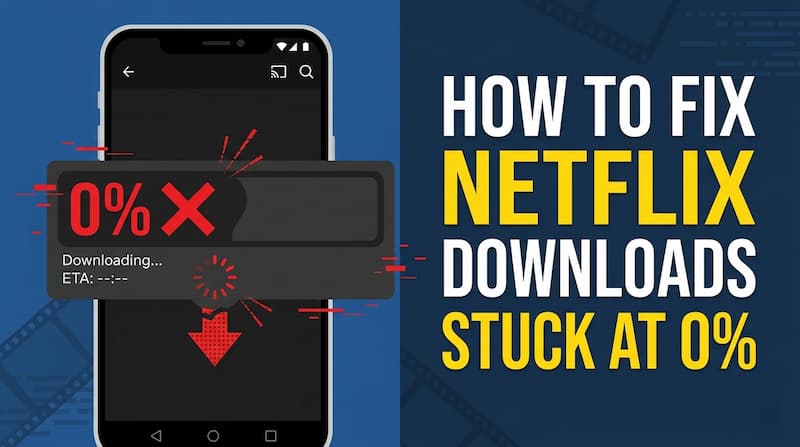
Part 1. Why Netflix Downloads Get Stuck at 0%
A download that never gets past 0% usually means Netflix has not been able to start writing the file locally or has not finished validating the connection. That can happen for several different reasons, and the right fix depends on which one is blocking the process. The key is to separate network problems, account limits, and device issues instead of retrying the same download over and over.
You can use the table below to quickly identify what your issue looks like, match it with the most likely cause, and try the recommended first fix. If Netflix still doesn't start downloading, move on to the quick fixes in Part 2 and the advanced solutions in Part 3.
| Likely cause | What it usually looks like | Best first move |
|---|---|---|
| Public Wi-Fi or restricted network | Downloads never start or stall at 0% on hotel, school, airport, or office Wi-Fi | Switch to a stable home Wi-Fi or cellular data and retry the download |
| Download-device limit | Netflix app opens normally, but new downloads fail or get stuck at 0% | Remove an old device in My Netflix → Account → Manage Download Devices, or wait until the device limit resets |
| App data issue | Download freezes at 0% on a single device while other devices work fine | Clear Netflix app cache/data, force close and reopen the app, or reinstall it |
| Low storage | Netflix opens, but download doesn't start or stops immediately | Free up storage space (at least 1–2 GB recommended) and try again |
| App or OS mismatch | Download progress stuck, app behaves abnormally, or errors appear after an update | Update the Netflix app and the device's operating system to the latest version |
| Download setting conflict | Downloads stuck at 0% when using cellular, or Wi-Fi-only downloads never start | Check App Settings → Downloads, enable full data usage, or adjust Wi-Fi-only restrictions |
One useful rule: if the same title works on another device or another network, the title itself is probably fine. In that case, you are dealing with a device, network, or plan issue, not a bad file on Netflix's side.
Part 2. Quick Fixes for Netflix Download Stuck on 0%
Start here. These basic fixes resolve the majority of download won't start issues and take less than a minute each to try.
Fix 1. Check Your Internet Speed and Free Storage
- Internet speed: Visit fast.com and confirm your download speed is at least 5 Mbps. If you're on public Wi-Fi and the speed looks fine but downloads still won't start, switch to cellular data.
- Storage space: Open your device settings and check available storage. Make sure you have at least 2–3 GB free before attempting a download.
Tip: On Android, check Settings > Storage. On iPhone, go to Settings > General > iPhone Storage for a quick breakdown.
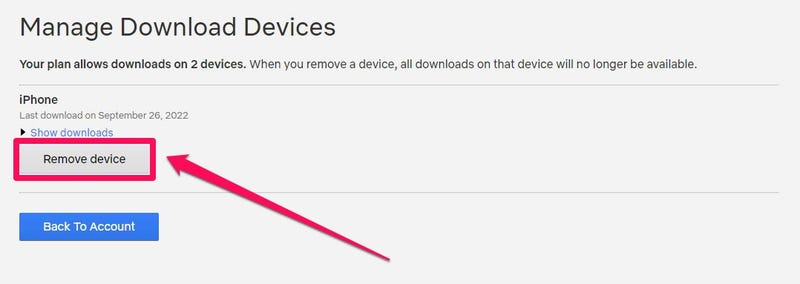
Fix 2. Remove Download Device Limits from Your Account
If you've been using Netflix across multiple devices over the years, you may have quietly hit your plan's download device limit.
Step 1. Open Netflix and tap My Netflix (bottom right corner).
Step 2. Tap the menu icon (top right) > Account.
Step 3. Your browser will open. Scroll down and tap Manage Download Devices.
Step 4. Remove any old or unused devices from the list to free up a download slot.

Fix 3. Force Close and Reopen Netflix App
Sometimes the app is simply stuck in a bad internal state. Force-closing it clears the active session and resets the download queue without losing your account data.
- Android: Go to Settings > Apps > Netflix > Force Stop, then reopen the app.
- iPhone/iPad: Swipe up from the bottom edge and pause, then swipe the Netflix card upward off the screen.
- Amazon Fire Tablet: Go to Settings > Apps & Notifications > Manage All Applications > Netflix > Force Stop.
Fix 4. Restart Your Device Completely
A full device restart clears RAM, resets network adapters, and terminates any background processes that may be interfering with Netflix's download manager.
iPhone/Android: Hold the power button and tap Restart.
Amazon Fire Tablet: If the device feels sluggish or unresponsive, hold the power button for 40+ seconds to force a hardware-level cold reboot.
Fix 5. Update the Netflix App
An outdated Netflix app can lose compatibility with the server's current download protocol, causing the process to freeze before it begins.
iOS: Open the App Store > search Netflix > tap Update if the button is available.
Android: Open Google Play Store > tap your profile icon > Manage apps & device > check for a Netflix update.
Tip: Enable automatic updates so this never catches you off guard. See Section 5.1for how to set this up on each platform.
Fix 6. Uninstall and Reinstall Netflix
If none of the above works, uninstall the Netflix app, then reinstall from the App Store or Google Play Store.

Warning: You'll need to log back in, and any existing offline downloads will be permanently lost.
Part 3. Advanced Fixes If Netflix Download Still Won't Start
If the quick fixes haven't resolved it, the problem is likely casued by a misconfigured app setting, a platform-specific issue, or a corrupted data layer. Here's how to go further.
3.1 Universal Netflix App Configurations
These steps apply across all platforms: Android, iOS, and Amazon Fire Tablet.
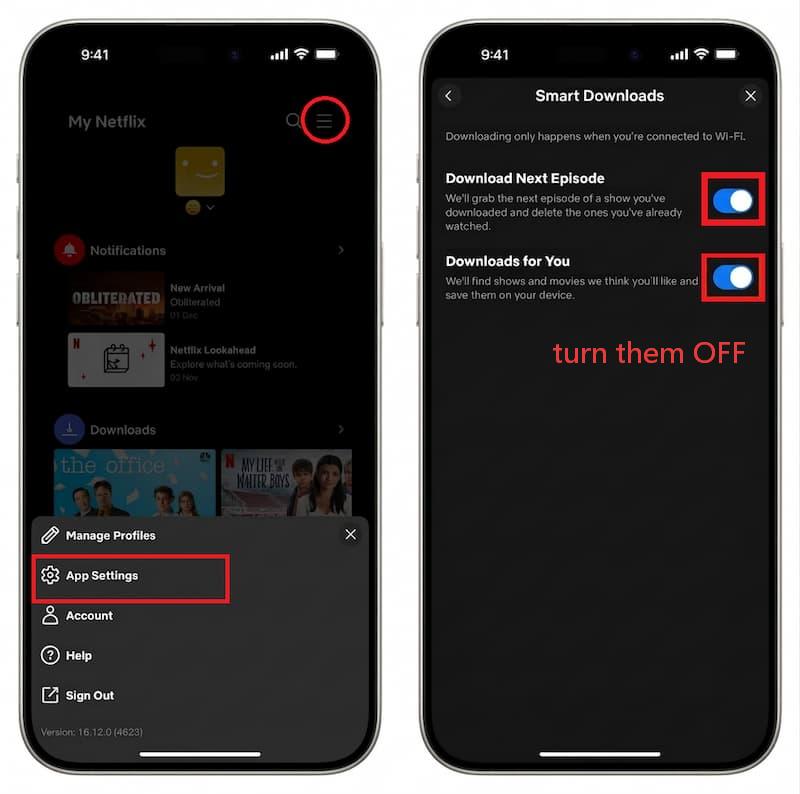
1. Toggle off Smart Downloads
Smart Downloads automatically downloads the next episode in a series and deletes the one you've already watched. It's convenient, but on an unstable network, its background sync logic can lock up the entire download queue, blocking your manual downloads in the process.
Step 1. Open Netflix > My Netflix > tap the menu icon (top right) > App Settings.
Step 2. Under the Downloads section, toggle Smart Downloads off.
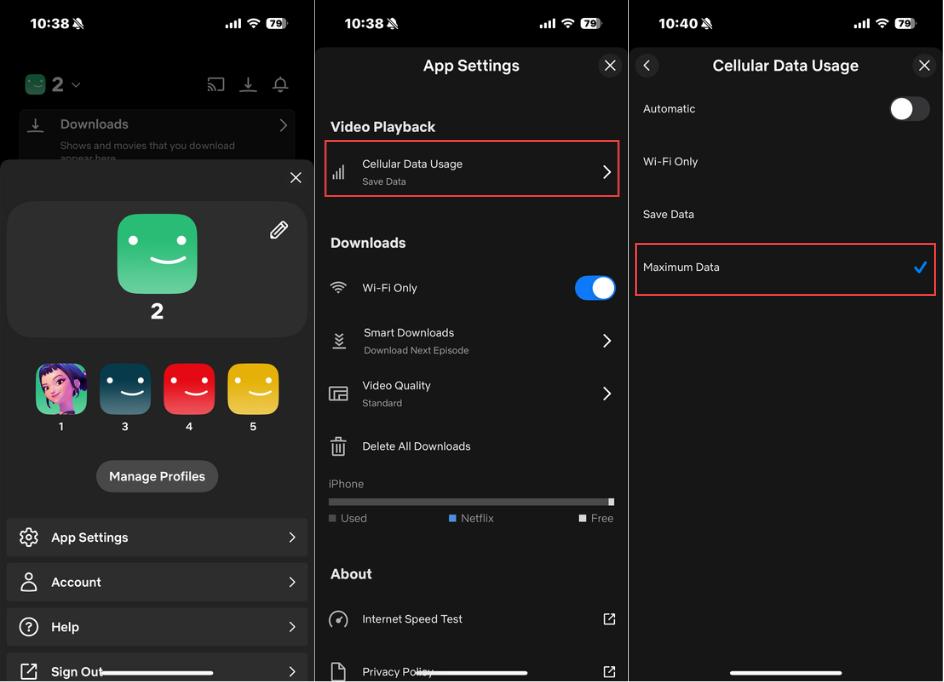
2. Set Cellular Data Usage to Maximum
Netflix's default data-saver mode limits the size of each data packet request. When initializing large video files, this cap can cause the first request to fail before any data arrives at all. Switching to maximum data removes that restriction.
Step 1. Go to App Settings in Netflix.
Step 2. Tap Cellular Data Usage > change from Automatic to Maximum Data.
3.2 iOS-Specific Fix (iPhone / iPad)
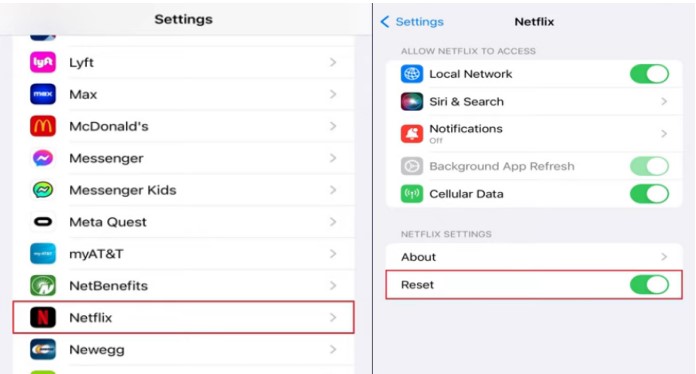
Trigger the Hidden In-App Reset
This is an official but little-known Netflix reset mechanism built into iOS. It forces the app to completely rebuild its security authentication tokens from scratch.
Warning: This will delete all existing offline downloads on your device. Note what you've saved before proceeding.
Step 1. Fully close Netflix.
Step 2. Open the iOS Settings app > Apps > scroll down and tap Netflix.
Step 3. Toggle the Reset switch to On.
Step 4. Reopen Netflix, log back in, and retry the download.
3.3 Android-Specific Fixes
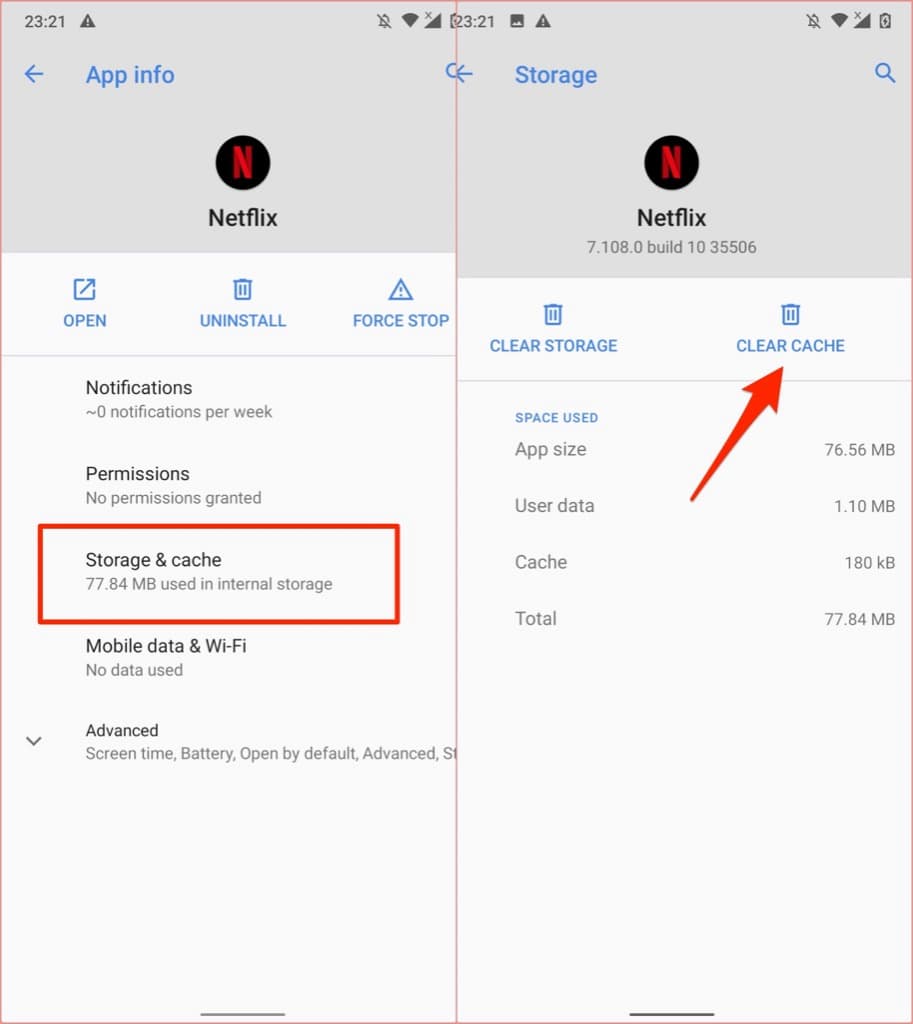
Clear Cache and App Data
Extended Netflix use leaves behind fragmented index files in local storage. Over time, these can corrupt the download path and prevent new downloads from initializing. Clearing the cache forces the app to rebuild everything cleanly.
Step 1. Go to Settings > Apps > Netflix > Storage & Cache.
Step 2. Tap Clear Cache first, then retry the download.
Step 3. If that doesn't work, tap Clear Storage / Data. This fully resets the app to its default state (you'll need to log back in).
Disable Battery Optimization for Netflix
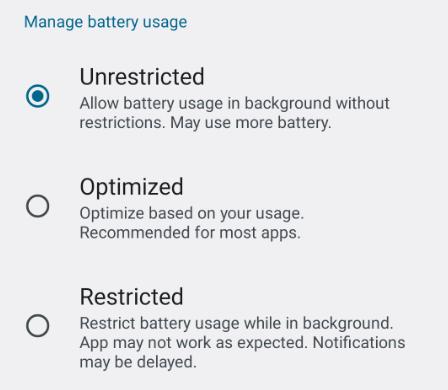
If your Netflix download progress bar stops moving the moment your screen turns off, Android's battery optimization is almost certainly the cause.
Step 1. Go to Settings > Apps > Netflix > Battery.
Step 2. Change the setting from Optimized or Restricted to Unrestricted.
Will this drain my battery significantly?
3.4 Amazon Fire Tablet-Specific Fixes
Update Your FireOS Firmware
Amazon manages its DRM security layer aggressively. If your FireOS version is out of date, the tablet's decryption component may no longer match what Netflix's servers require, causing the download request to be rejected before it starts.
Step 1. Go to Settings > Device Options > System Updates.
Step 2. Tap Check Now.
Step 3. If a FireOS update is available, install it immediately and retry your downloads.
Switch to an Adult Profile
If the download is failing inside an Amazon Kids profile, this is a known platform issue. Kids profiles carry content and network restrictions that can silently block download requests.
Step 1. Pull down the notification shade, tap the user icon, and switch to your primary adult profile.
Step 2. Try the download again from there.
Part 4. When the Problem Is Not Your Device
If you've worked through everything above and downloads still won't start, the issue may have nothing to do with your phone, tablet, or the Netflix app itself.
1. Restricted Public Wi-Fi
If you're downloading on airport, hotel, school, office, or airplane Wi-Fi, the network itself may be blocking Netflix downloads. This is common on public networks that limit large downloads to save bandwidth.
Switch to mobile data or a personal hotspot and try again. If the download starts immediately, the public Wi-Fi was the cause.
2. Mobile Data Restrictions
Netflix has said that if you use US providers like Verizon and AT&T, it will slow your mobile video streaming to about 600 Kbps. This is to manage network congestion and prevent data overages. This speed is way too slow for Netflix's download system, which will freeze and time out at 0% when it can't get data quickly enough.
Use a VPN. Connect to a nearby VPN server and retry the download. This can help if your carrier is limiting Netflix traffic.
3. Temporary Netflix Server Problems
Sometimes the issue isn't on your device at all. Netflix occasionally has problems with specific shows, movies, or regional servers, which can cause downloads to sit at 0%.
- Check downdetector.com or Netflix's own status page for widespread service issues.
- Try downloading a different title from a completely different studio.
- If the second title downloads fine but the first still won't, the original title likely has a regional CDN problem and you'll need to wait for Netflix to resolve it on the backend (usually within 24 hours).
Part 5. How to Prevent Netflix Downloads Getting Stuck Again
Once the immediate issue is fixed, a few simple habits will keep it from recurring.
Tips to Avoid Netflix Downloads Not Starting or Freezing
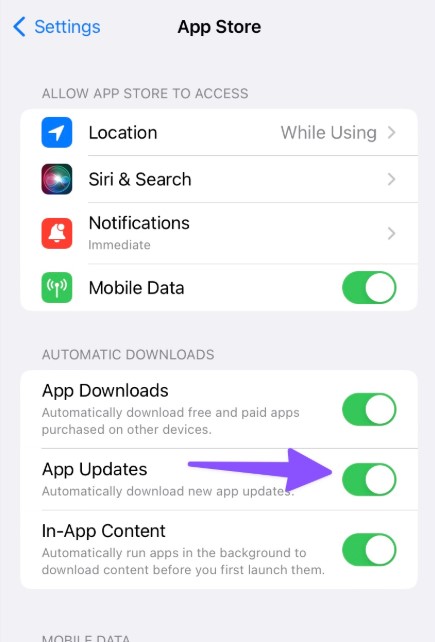
Tip 1. Keep Your App and System Updated
Netflix and the device OS both affect whether downloads start cleanly, especially after major app changes. If you wait too long between updates, you are more likely to run into a broken app state or compatibility issue.
- iOS: Go to Settings > Apps > App Store > enable App Updates.
- Android: Open Google Play Store > Profile icon > Settings > Network preferences > Auto-update apps > set to Over Wi-Fi only.
- Fire Tablet: Go to Settings > Device Options > System Updates > Check Now periodically.
Tip 2. Don't Switch Networks Mid-Download
Avoid changing networks during a download. Moving from Wi-Fi to cellular, or from one Wi-Fi network to another, can interrupt the download session and force Netflix to start over. If you know you will be downloading a large title, stay on one stable network until it finishes.
Tip 3. Keep at Least 5 GB of Free Storage at All Times
Even if a phone looks "not full," Netflix still needs room to create and manage the file. Clearing out old downloads before you are out of space is a lot easier than fixing a stalled download after the fact.
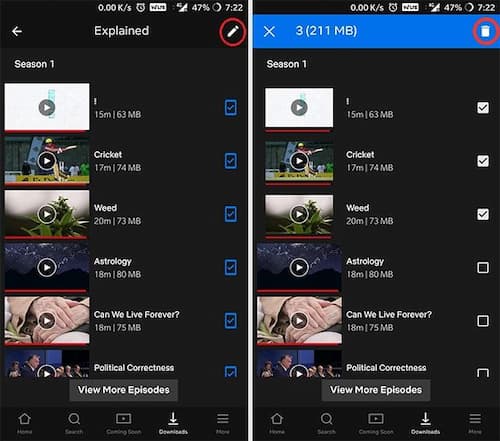
Steps to clear out old downloads:
Step 1. Open Netflix > My Netflix > Downloads.
Step 2. Tap Edit (top right) > select all completed or no-longer-needed titles.
Step 3. Tap Delete to remove them completely.
A Simpler Alternative If Netflix Downloads Keep Failing
If you've tried the fixes above and Netflix downloads still get stuck at 0%, you may want a solution that doesn't rely on Netflix's built-in download feature at all.
VidiFab Netflix Video Downloader lets you save Netflix videos to your computer as MP4 or MKV files in up to 1080p quality. Thanks to GPU hardware acceleration, downloads can be up to 7× faster than real-time playback, helping you avoid common Netflix download issues such as downloads getting stuck at 0% or freezing at 99%.
VidiFab Netflix Video Downloader
Download Netflix videos as MP4/MKV in 1080p with Dolby Atmos for offline viewing on your Smart TV, game console, phone, desktop, and more devices.

Once the download is complete, the video is stored locally on your computer and can be played with popular media players like QuickTime Player or VLC Media Player. Since the files are saved as regular video files, you can watch them offline anytime without relying on Netflix's built-in download system.
How to Download Videos from Netflix Using VidiFab
Step 1. Set Up Download Preferences
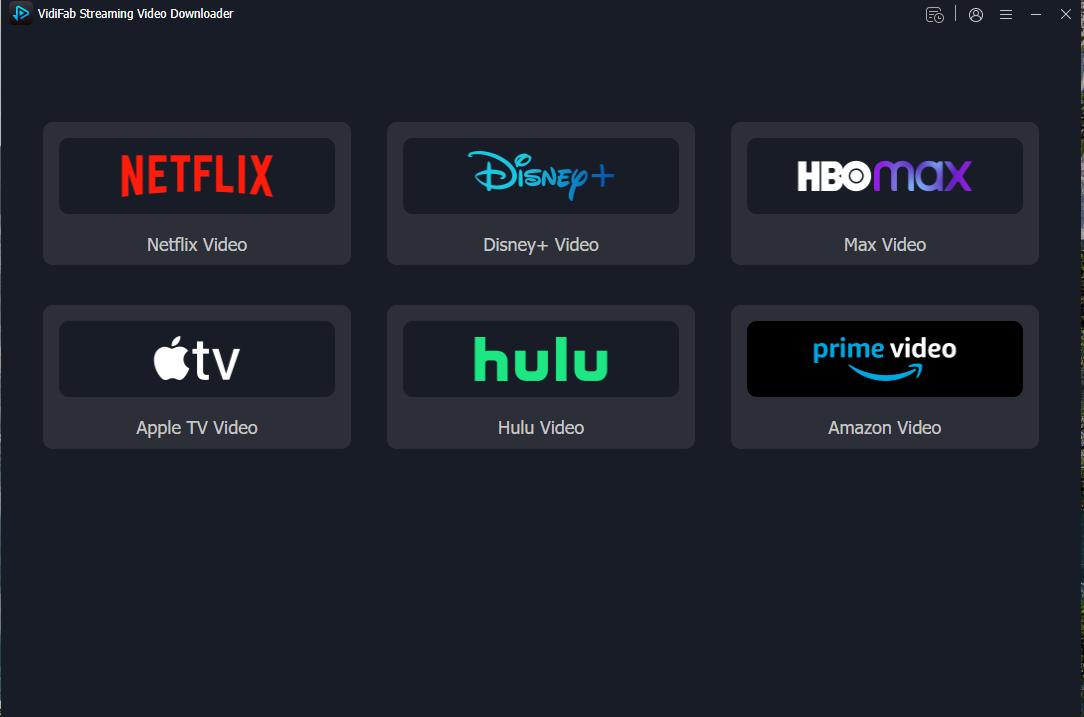
Launch VidiFab Netflix Video Downloader and click the menu icon in the top-right corner. Select Preferences to customize your download settings. Here, you can choose MP4 or MKV as the output format and select a folder where downloaded videos will be saved.

After that, return to the main screen and click the Netflix icon. Sign in to your Netflix account through the built-in browser to access the titles available in your region.
Step 2. Find the Netflix Video You Want to Download
Browse Netflix normally within the built-in browser and open the movie or TV show you want to save. You can also paste a Netflix video URL directly into the address bar. Once the page loads, VidiFab will detect the video automatically. When the Download button appears, click it to continue.

Step 3. Choose Download Settings
Before downloading, you can customize several options:
- Resolution: Up to 1080p full HD
- Audio: Choose from all available language tracks
- Subtitles: Embed directly into the video file, or export as a separate SRT file
- Batch episodes: For a series, tick Select All to queue an entire season at once
Click Download to begin.

Step 4. Download and Access Your Videos
VidiFab will begin downloading the selected titles to your computer. You can monitor the progress from the download queue. When the download is finished, open the History section and click the folder icon next to the completed video to locate the saved file.

Final Thoughts
Most Netflix downloads stuck at 0% are caused by network issues, low storage, corrupted app data, or download limits. In most cases, the quick fixes in Part 2 resolve the problem within minutes.
If the issue continues, try the device-specific steps in Part 3 to reset the app or clear cache.
If you want to avoid these problems entirely, VidiFab lets you save Netflix videos as local MP4 or MKV files on your computer for more stable offline viewing.
 Free Download
 Secure Download
 Free Download
Secure Download
Free Download
Secure Download


I'm a video tech specialist with over 10 years of experience in digital media and streaming. I focus on making complex workflows simple and practical. Through my guides, you'll learn how to convert media, keep high-quality playback across devices, and manage your streaming video library with ease.
 Leave Your Comment