The Ultimate Guide to Watching Netflix Offline on Any Device in 2026
 By Miles Kent
Want to watch Netflix offline but not sure where to start or stuck on a device that officially doesn't support it? I've put together this complete guide covering everything from the official download steps on mobile to practical workarounds for Windows, Mac, Smart TVs, and game consoles.
Part 1. Can You Watch Netflix Offline?
Yes, you can watch Netflix offline. If you're on a Standard with Ads, Standard, or Premium plan, Netflix officially lets you download content for offline viewing. That covers movies, full TV seasons, you name it. But here's the catch: the official download feature is only available on a handful of devices.
As of 2026, Netflix's native offline support works on:
- iPhone, iPad, and Android phones/tablets
- Amazon Fire Tablets
- Chromebooks with the Google Play Store
What's not on that list? Windows PCs, Macs, Smart TVs, game consoles, and any web browser.
Here's a quick reference so you know exactly where you stand before downloading anything:
Netflix Offline Viewing Compatibility Matrix
| Device | Examples | Offline Viewing? | Notes |
|---|---|---|---|
| iPhone & iPad | iPhone 13, iPad Pro, iPad Air | ✅ YES | Requires iOS/iPadOS 16 or later |
| Android | Samsung Galaxy, Google Pixel, Xiaomi | ✅ YES | Requires Android 7.0+; supports SD card storage |
| Amazon Fire Tablet | Fire HD 8, Fire HD 10 | ✅ YES | Requires Fire OS 6.0 or later |
| Chromebook | Google Pixelbook, ASUS/HP Chromebooks | ✅ YES | Must have Google Play Store; install Android Netflix app |
| Windows PC | Windows 10 & 11 Laptops/Desktops | ❌ NO | Download feature removed in the 2024 app update |
| Mac (macOS) | MacBook Air, MacBook Pro, iMac | ❌ NO | No official Netflix macOS app; browser streaming only |
| Smart TV | Samsung, LG, Sony, Apple TV, Fire TV, Roku | ❌ NO | TV apps are online-streaming only |
| Game Console | PS5, PS4, Xbox Series X/S | ❌ NO | Console apps don't permit offline downloads |
| Web Browser | Chrome, Edge, Firefox, Safari | ❌ NO | No browser-based offline playback |
What Do You Need Before You Start Downloading?
Before jumping into steps, make sure you have these five things:
-
1. An active Netflix subscription. All plans support downloading:
Plan Price Downloads per Device Simultaneous Download Devices Standard with Ads $8.99/mo 15 per calendar month 2 Standard $19.99/mo 100 2 Premium $26.99/mo 100 (4K supported) 6 - 2. A supported device.
- 3. The latest Netflix app. Older app versions can have sync issues and missing download features.
- 4. Enough storage. A standard-definition movie runs roughly 500MB–1GB. An HD film can easily hit 2–3GB or more. Clear space before a long trip.
- 5. An internet connection for the initial download. Once it's saved, you're free to go fully offline.
Part 2. How to Watch Netflix Offline on Supported Devices
As long as you're on a supported device. Here's how it works to watch Netflix offline across each one.
On iPhone, iPad, and Android
The iOS and Android Netflix interfaces are nearly identical, so these steps work the same on both platforms.
Step 1. Launch Netflix and sign into your account.
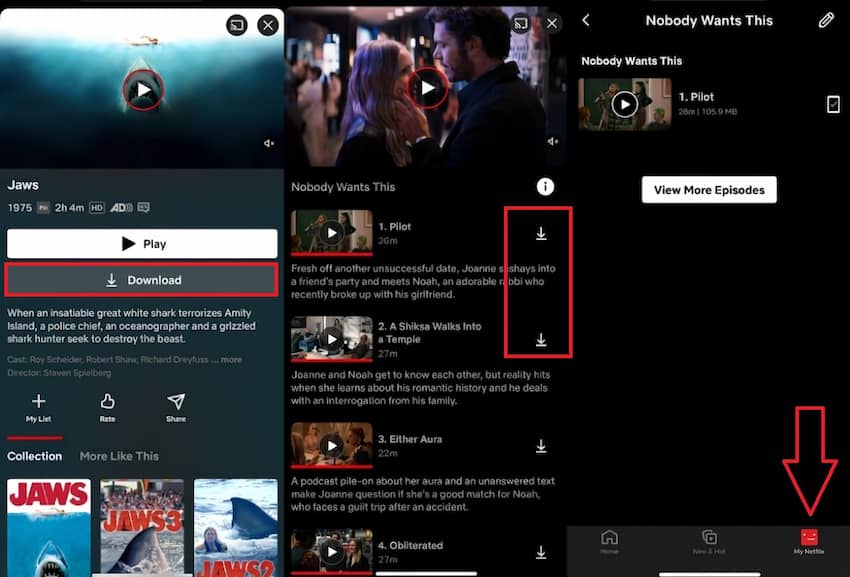
Step 2. Tap My Netflix at the bottom of the screen, then select Downloads icon at the top right > See What You Can Download. Alternatively, search for a specific title directly.
Step 3. Start downloading.
- For a movie: Open the title's detail page and tap the Download ⬇️ button.
- For a TV series: Scroll to the episode list. Each episode has its own download icon. Tap individual episodes, or use the Download Season button to grab everything in one go.
- Two common reasons: either the content is licensed from a third-party studio that hasn't granted Netflix download rights, or you're on the Standard with Ads plan and that specific title is restricted from offline use due to ad-placement agreements.
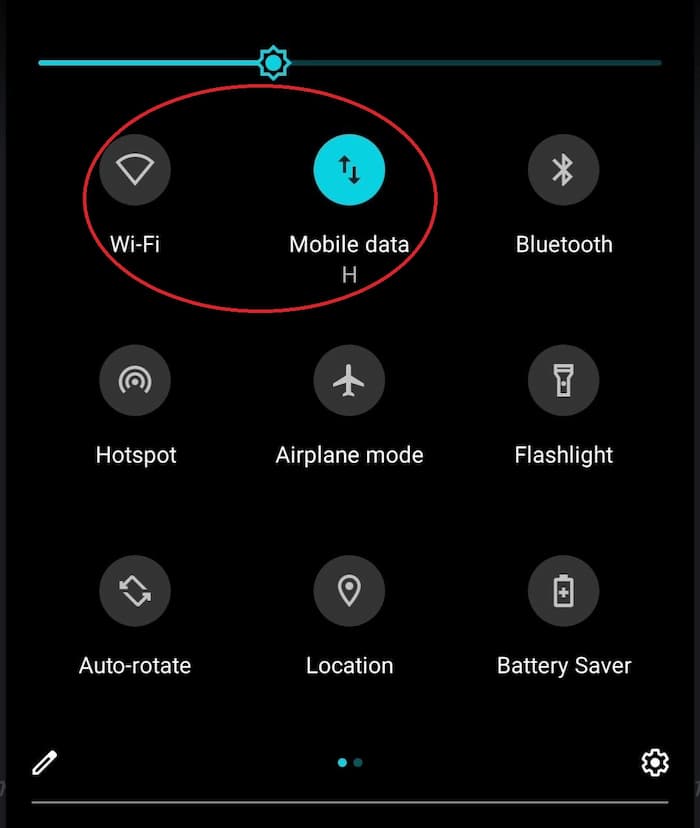
Step 4. Once downloads finish, switch on Airplane Mode or manually turn off both cellular data and Wi-Fi. This step is essential, as your downloads might disappear if you're connected to a place where the title is not available.
Step 5. Go to My Netflix > Downloads, tap any title, and it plays without touching your data.

On Amazon Fire Tablets
Fire tablets use a heavily customized version of Android (Fire OS), but downloading Netflix works the same way as on mobile devices.
Step 1. While connected to Wi-Fi, open the Netflix app and download the episodes you want.
Step 2. Swipe down from the top of the screen to open the quick-settings panel, then tap the Wi-Fi icon to turn it off completely.
Step 3. Open Netflix, tap Downloads at the bottom, and you'll see everything saved locally. Tap to play.

Warning: Disable Smart Downloads before you travel. Netflix enables Smart Downloads by default on Fire tablets. This feature automatically deletes an episode you've finished and tries to download the next one the moment your tablet sniffs any Wi-Fi signal — even a weak airport or hotel network. On a spotty connection, this can cause downloads to stall mid-trip. Before you leave, go into Netflix Settings and turn Smart Downloads off, then manually confirm all your episodes are fully saved.
On Chromebook with Google Play Store
Chromebook support requires a couple of extra setup steps because you need the Android app, not the web browser.
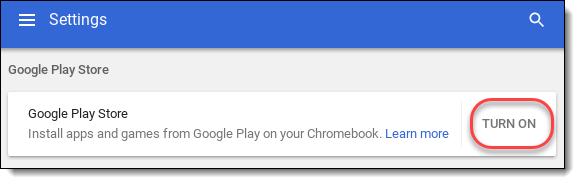
Step 1. Enable Google Play Store. Open Chromebook Settings and confirm the Play Store is turned on.
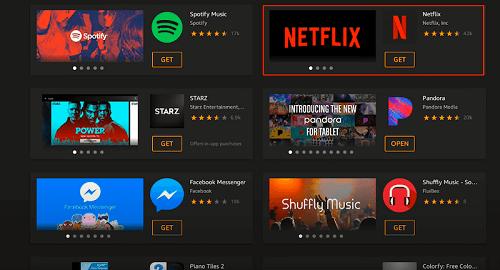
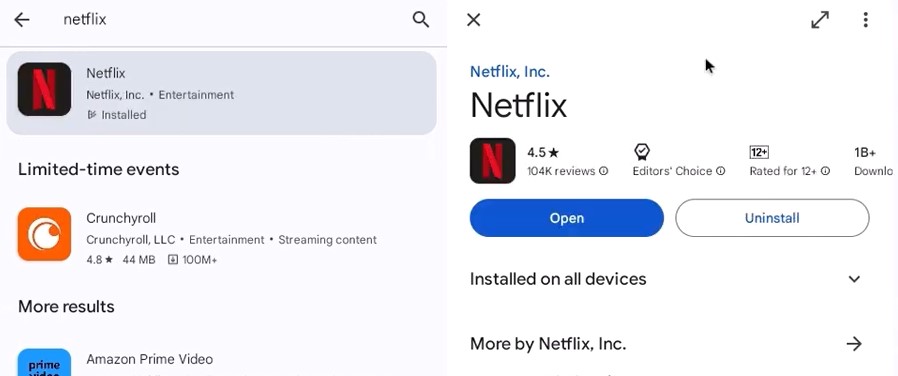
Step 2. Install the Android Netflix app. Search for Netflix in the Play Store and install it. This opens as its own app window, separate from Chrome.
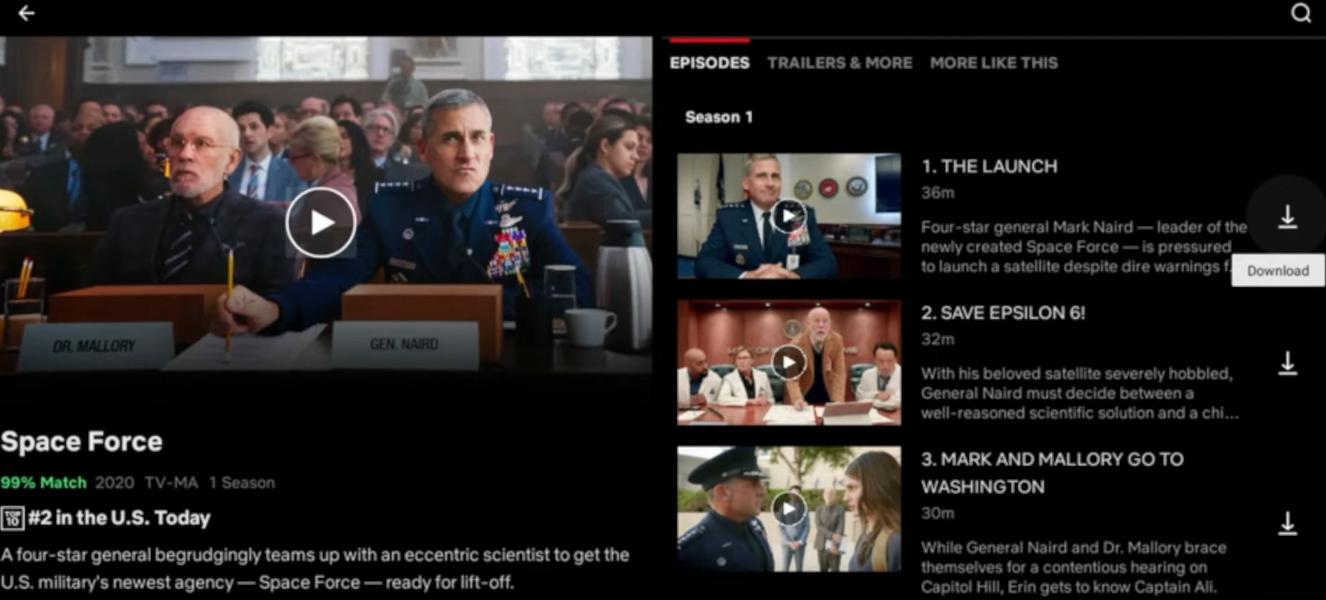
Step 3. Log in and download. The interface looks identical to the mobile app. Use the Download ⬇️ button on any supported title.
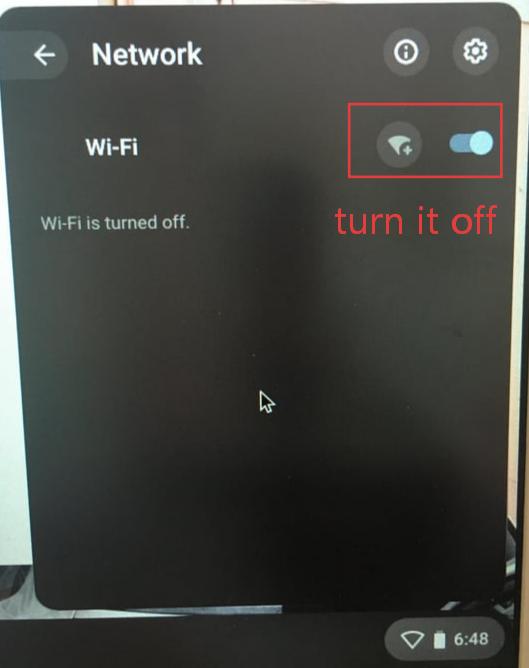
Step 4. Disconnect Wi-Fi. Click the clock in the bottom-right corner and toggle Wi-Fi off.
Step 5. Launch the app offline. Netflix will open directly to your Downloads page.
- Display Aspect Ratio: Most Chromebook displays use a 3:2 or 16:10 aspect ratio, but Netflix offline video is locked to 16:9, which often results in black bars around the frame.
- Resolution Cap: Due to Widevine DRM hardware certification restrictions, offline playback is capped at 480p (SD) on most Chromebooks.
Quick Tips: Essential Rules for a Seamless Netflix Offline Experience
The official offline steps mentioned above are a great starting point, but they aren't always enough. Netflix enforces several strict download limits and hidden rules that can suddenly make your saved titles unavailable right when you are offline mid-trip. To ensure a flawless viewing experience, here are some insider tips to help you navigate these restrictions like a pro:
| Rule | The Limit | What to Do |
|---|---|---|
| Viewing window | 48 hours after you start watching. | Don't tap "Play" until you're ready to actually watch. Once started, finish within two days. |
| Expiration date | 7–30 days even if unwatched. | Download the night before a trip, not a week ahead. You might need: Ways to make your Netflix downloads forever |
| Total downloads | 100 per device (15/month for Ads plan). | Clear watched titles before long trips to free up slots. |
| Device limits | 2 or 6 devices depending on plan. | If you hit the cap, visit netflix.com/manageaccountaccess to remove old devices remotely. |
| Video quality | Up to 1080p on mobile; often 480p on Chromebook. | For the best offline quality, mobile devices are your safest bet. |
Part 3. Offline Workarounds for PC, Mac, Smart TVs, and Game Consoles
Netflix hasn't announced any plans to restore offline downloading on Windows or expand it to Mac, Smart TVs, or consoles. These platforms are officially online-only, and that's unlikely to change soon.
That said, there are legitimate workarounds. The approach that actually works across all these unsupported devices involves downloading your Netflix content as a standard MP4 or MKV file on your computer, then playing it however and wherever you like.
On Windows and Mac
The most reliable tool I've tried for this is VidiFab Netflix Video Downloader. It works on both Windows and Mac by embedding a Netflix web player right inside the app. You log in through VidiFab, browse Netflix as usual, and click the download button that appears on any title.
VidiFab Netflix Episodes Downloader
Download Netflix videos as MP4/MKV in 1080p with Dolby Atmos for offline viewing on your iPhone, Android, desktop, and more devices.

- Up to 1080p HD downloads in MP4 or MKV
- Files stored permanently on your hard drive with no 48-hour or 30-day expiration
- Playable on any media player, like VLC, PotPlayer, or QuickTime
- Portable files you can copy to a USB drive, upload to cloud storage, or AirDrop to your iPhone; they'll play on almost any device that supports MP4 or MKV
- Note: Using a USB drive also keeps your account safe. If you've already used a public screen on your trip, learn how to remove your Netflix account from a hotel TV immediately.
How to Download Netflix Videos for Offline Viewing on Windows and Mac with VidiFab
Step 1. Configure Your Download Preferences
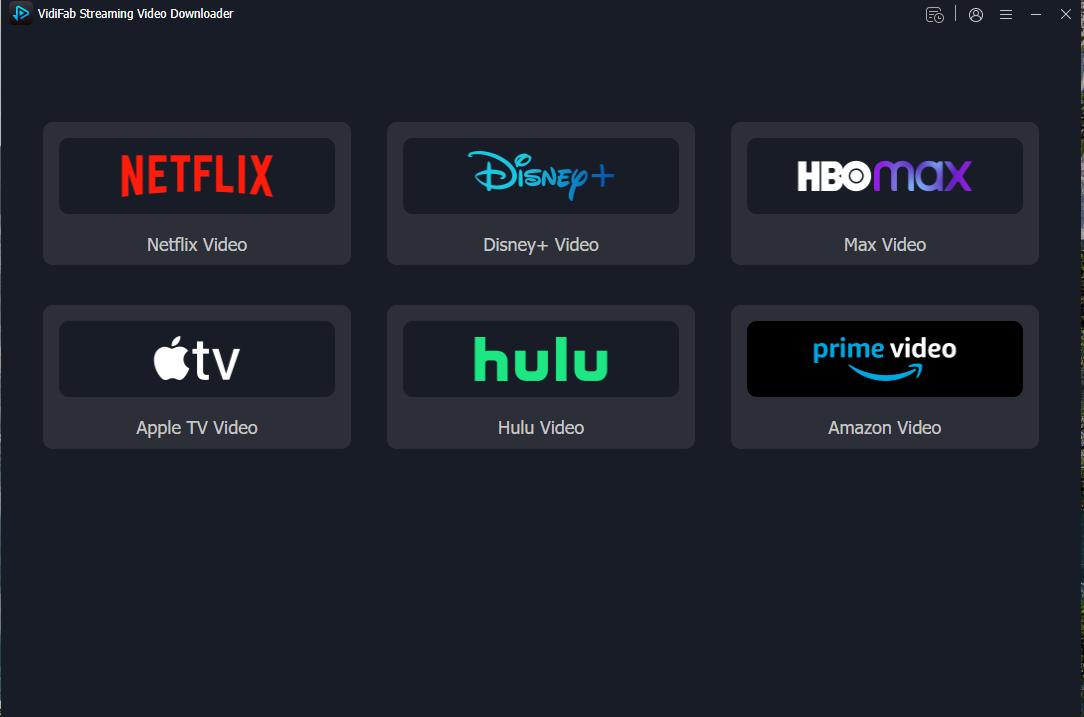
Open VidiFab Netflix Video Downloader. Click the menu icon in the top-right, go to Preferences, and set your output format to MP4 or MKV. Set your preferred download folder.

From the main screen, click the Netflix logo. This opens the built-in Netflix web player. Log in with your account. This step is only used to access your Netflix library in your region, and your personal information is not stored or visible to the tool.
Step 2. Find the Title for Offline Viewing
Navigate to the movie or series you want to download, or paste the title's URL directly into the address bar. VidiFab analyzes the video stream and places a Download button in the bottom-right corner. Click the Download button.

Step 3. Configure Download Settings
A settings window appears where you can select resolution (up to 1080p), audio language, subtitle language, and whether subtitles are embedded or saved as a separate file. If you are downloading a TV series, you can also select all episodes at once. Once everything is set, click Download.

Step 4. Download and Find Your File
VidiFab begins downloading. When it's done, click the History section (clock icon), then the folder icon next to any completed download. This opens the file's location in your system file explorer.

From there, you can play the video with your built-in media player, or transfer the Netflix video files to a USB drive, external hard drive, cloud storage, or AirDrop it to your iPhone. The files can be played offline on most devices.
On Smart TVs
Samsung, LG, Sony, Apple TV, Fire TV Stick, Roku, none of them support Netflix offline. Their apps are purely online streaming clients.
The cleanest workaround: download your content to MP4/MKV with VidiFab, copy it to a USB drive, and plug it into your TV.
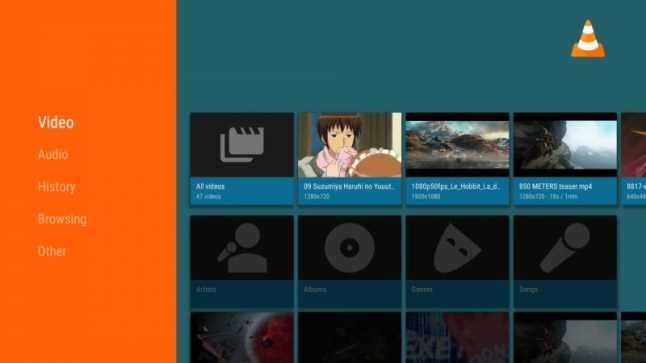
Most modern Smart TVs have a USB port (usually on the side or rear panel). Once you plug in the drive, you can use your TV's built-in Media Player app, or install a free app like VLC for Android or Kodi from your TV's app store. Either way, you get smooth 1080p local playback without any network connection.
Can I AirPlay or Chromecast Netflix from my phone to the TV instead?
The only exception is older Chromecast (3rd gen or earlier) and certain legacy Vizio TVs, which can receive Netflix casting over an active internet connection; not offline.
What about an HDMI cable from my phone to my TV?
It's technically possible, but the requirements are strict.
For iPhone or iPad: You need Apple's official Lightning Digital AV Adapter (A1438/A1621) or, for USB-C models like iPhone 15 and newer, an adapter that supports HDCP — either Apple's USB-C Digital AV Multiport Adapter or a certified third-party USB-C to HDMI cable (USB 3.1 or higher).
For Android: Your phone must support DisplayPort Alt Mode over USB-C (usually only on flagship models) and the cable must also support HDCP. Any adapter that doesn't meet these specs will fail silently and show a black screen.
On Game Consoles (PS5, PS4, Xbox)
PlayStation and Xbox ship with excellent media hardware, but the Netflix app on both platforms is strictly online. No downloads, no offline mode.
Here's the workaround: the same MP4/MKV files you downloaded with VidiFab play perfectly through the consoles' built-in media players.
Step 1. Format your USB drive as exFAT or FAT32 on your computer.
Step 2. Create a folder named "Videos" at the root of the drive.
Step 3. Copy your downloaded MP4 or MKV files into that folder.
Step 4. Safely eject the USB drive from your computer and plug it into your game console.
Step 5. Start watching your videos offline.
On PS5/PS4: Open the built-in Media Player app (or download it if needed). Your files will appear automatically. If you need a step-by-step guide on how to watch Netflix on PlayStation, check this out: How to Get and Watch Netflix on PS5, PS4, PS3, and Portal
On Xbox Series X/S: Open the Movies & TV app and switch to the USB or external storage source to access your videos.
Part 4. How to Fix Netflix Offline Not Working
Problem 1: Netflix Forces You to "Sign In" When You're Offline
You're on a plane, you open Netflix, and instead of your downloads, you get a login screen or a "No internet connection" error. The downloads are there, but Netflix won't let you touch them.
Why it happens: Netflix runs a background authentication system that periodically refreshes a security token on Netflix's servers. If the app hasn't connected to Netflix's servers within the past several hours, that token expires. When you open the app offline, it tries to renew the token and can't, so it locks you out.
- Fix 1. Before you travel: While connected to Wi-Fi, open Netflix, go to your Downloads, and actually play one of your videos for a few minutes. This refreshes the security token. Then exit the app (don't force-quit it) and leave it running in the background. Don't close it from your app switcher.
- Fix 2. If it happens mid-trip: Use another phone's mobile hotspot for 10–15 seconds, just enough for the Netflix app to complete its check-in. Once you see your Downloads page load, turn off the hotspot and go fully offline. Playback will continue without any data.
Problem 2: Downloads Disappear When You Cross a Border
You land in a new country, connect to hotel Wi-Fi, and your entire Netflix download library gets wiped.
Why it happens: Netflix's app detects an IP address change at a country level and immediately wipes your local offline cache. Each country's Netflix library uses separate DRM license manifests, and the app's response to detecting a region change is to delete everything, including content that would have been valid in the new country.
- Stay in Airplane Mode throughout your trip. If you never let the app see a foreign IP address, it can't trigger the wipe.
Part 5. FAQs
Can I adjust or change languages and subtitles while watching Netflix completely offline?
Why does my device consume mobile data even when I am watching Netflix offline content?
If I cancel my subscription, can I still access and watch my offline videos?
Will my offline Netflix videos disappear if my device remains disconnected from the internet for too long?
Final Thoughts
Netflix offline viewing works well on mobile devices, but it is a different story on PCs, Macs, TVs, and game consoles.
If you're in that second camp, the VidiFab workaround is currently the most practical path to watching Netflix content on unsupported devices. It's not the official route, but for permanent local files that play anywhere without expiration timers or regional wipe risks, it's hard to beat.
No matter what device you use, you now have a clear idea of what is possible and how to make it work.
 Free Download
 Secure Download
 Free Download
Secure Download
Free Download
Secure Download


I'm a video tech specialist with over 10 years of experience in digital media and streaming. I focus on making complex workflows simple and practical. Through my guides, you'll learn how to convert media, keep high-quality playback across devices, and manage your streaming video library with ease.
 Leave Your Comment