How to Download Netflix Movies on Laptop: Windows, Mac & Chromebook Guide
 By Miles Kent
If you recently opened Netflix on your laptop and noticed the download icon is missing, you're not the only one. After the Netflix 2024 update, Netflix switched from a native app to a web-based "PWA" (Progressive Web App). Plus, there's never been a native app for macOS. This makes downloading Netflix movies on a laptop a bit tricky. But don't stress! This guide will walk you through effective ways to download Netflix movies on your laptop, whether you're using a MacBook Air, Pro, Windows 11 PC, or a Chromebook. You'll be able to download movies and enjoy them offline on your desktop screen without any hassle.

Before choosing a method, learn how Netflix downloads work across PC, Mac, Chromebook, and mobile devices in our Netflix Download Guide.
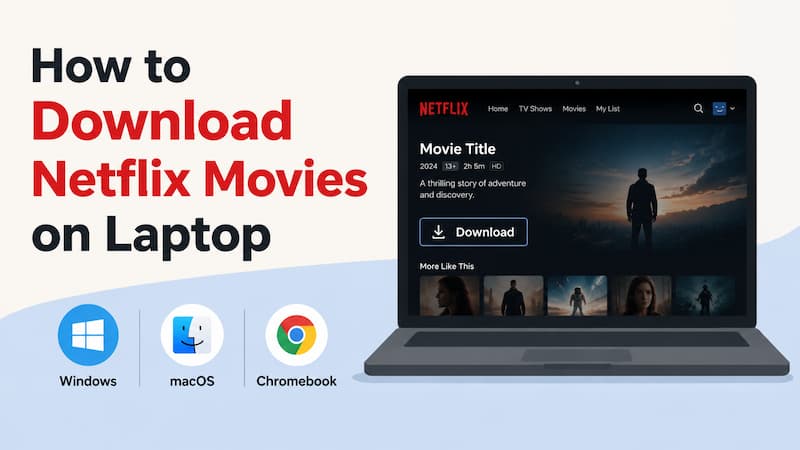
Part 1. Can You Download Netflix Movies on Laptop?
No, you cannot officially download Netflix movies on all laptops. However, depending on your operating system, you can still download and watch Netflix movies offline. Here's a quick overview of the available Netflix laptop download options:
| Device Type | Native Download Support | Best Workarounds |
|---|---|---|
| Windows 10/11 |

|
VidiFab Netflix Video Downloader, Android Emulator (BlueStacks) |
| MacBook (Intel/M1/M2/M3/M4) |
|
VidiFab Netflix Video Downloader, iPad App (Silicon Macs only) |
| Chromebooks |

|
Official Netflix Android App |
According to the table above, Netflix doesn't officially support downloads on all laptops. But don't worry, there are third-party methods to make offline viewing happen.
You can use tools like Android emulators, iPadOS apps, or the Netflix Android app on a Chromebook to download videos, but keep in mind they come with Netflix download limitations. You'll need an active Netflix subscription, and the downloaded content usually expires in 7 to 30 days, plus there are restrictions on how many you can download.
If you're looking for a more flexible option, check out VidiFab Netflix Video Downloader. It works on Windows and macOS, lets you download without limits, and even supports exporting videos to other devices for offline playback. This is a great choice for frequent travelers or anyone wanting more control over their Netflix downloads.
Part 2. How to Download Netflix Movies on Both Windows and Mac
One reliable way to download Netflix movies on a laptop is using a dedicated downloader for Netflix like VidiFab Netflix Video Downloader. The software works on Windows 10 or later and macOS 11 or later.
One of its primary advantages is that it works across all Netflix subscription tiers. Whether you are on the Standard with Ads, Standard, or Premium plan, you can bypass the official 15-download limit and the 7-30 day or 48-hour expiration window.
VidiFab Netflix Video Downloader
Download Netflix videos as MP4/MKV in 1080p with Dolby Atmos for offline viewing on your MacBook.

- Permanent File Formats: You can save videos as MP4 or MKV files, allowing you to keep your downloads for as long as you want, even if you cancel your Netflix subscription.
- High-Definition Quality: It supports up to 1080p resolution with Dolby Atmos 5.1 surround sound for a cinematic experience.
- Multilingual Support: You can choose to preserve multiple audio tracks and download subtitles as either SRT files (external) or "remuxed" (embedded) text.
- Batch Downloading: If you want to archive a movie collection, you can add all titles to a queue and download them simultaneously.
- 7x Fast Performance: In my testing, the hardware acceleration allowed for download speeds up to 7 times faster than real-time recording.
- Avoid Browser Playback Errors: Since videos are downloaded and played locally, you don't have to rely on browser-based streaming. This helps avoid common Netflix playback issues, including browser-related errors such as Netflix Error Code M7361-1253, ensuring a smoother viewing experience.
Bonus: VidiFab is not free, but it offers a free trial. If you decide to use it, the license also gives access to download content from other streaming services like Apple TV+, Amazon Prime Video, Disney+, Hulu, and HBO Max.
How to Use VidiFab to Download Netflix Movies on Laptop
Step 1. Install VidiFab and Set Your Format
Download and install the VidiFab Netflix Video Downloader on your device. Before searching for content, click the three-line icon (Menu) in the top-right corner, select Preferences, and go to the Download tab. Here, choose your preferred video format as MP4 or MKV. Once saved, select the Netflix icon from the main interface and sign in to your account through the secure, built-in browser.

Step 2. Locate the Movie You Want to Download
Use the built-in Netflix web player to browse the library or use the search bar to find a specific movie or series. Since you are using a secure internal browser, your Netflix profile and watch history will appear just like they do on the web. Once you click on a title to open its detail page, VidiFab will give you a download button in the bottom right corner. Click on it.

Step 3. Customize Quality, Audio, and Subtitles
A settings window will appear, allowing you to fine-tune the download to your needs. You can select 1080p resolution, choose specific Audio Tracks such as 5.1 Surround Sound, and pick your Subtitle language. For a better viewing experience, you can choose to embed subtitles directly into the video or save them as external SRT files.

Step 4. High-Speed Download and Offline Playback
Click Download to start the process. VidiFab utilizes hardware acceleration to download at 7x speed, meaning a full-length movie is often ready in minutes. Once finished, click the History tab (clock icon) to find your file. From here, you can open the folder location on your PC or Mac and watch the movie using any media player, or follow this guide on how to play Netflix videos with VLC for offline playback.

Downloading movies for personal offline use does not violate Netflix's terms in most regions. However, sharing or distributing downloaded videos online is illegal. As for the VidiFab software, it is a secure tool that uses a built-in browser to protect your login credentials, so you can use it safely to download Netflix movies to your laptop for private viewing.
Pros:
- Videos do not expire
- Playable on any media player or other devices
- Download in 1080p with Dolby Atmos audio
- Works on Windows 10/11 and macOS 11+
- One-click batch downloads for movies or collections
Cons:
- Requires an active Netflix subscription
- Paid software, though trial is available
Part 3. How to Download Netflix Movies on Windows 10 & 11
While VidiFab offers the most seamless experience, there are other methods to get Netflix movies onto your Windows laptop. If you prefer not to use third-party downloaders, you can try using an Android Emulator or Screen Recording software.
Method 1: Using an Android Emulator
Since the Netflix Windows app removed its download feature, the only way to get a native "Download" button on a PC is to trick Netflix into thinking your laptop is an Android tablet. You can do this using an emulator like BlueStacks or LDPlayer.
How to Use BlueStacks to Download Netflix Movies on Windows 10/11:
-
01
Install the Emulator: Download and install BlueStacks on your Windows 10/11 laptop. Ensure Virtualization (VT) is enabled in your BIOS for smooth performance.
-
02
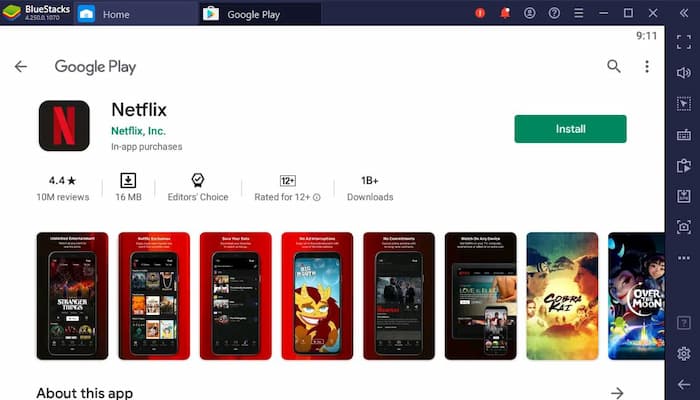
Access Google Play: Open the emulator, sign in to your Google account, and download the official Netflix app from the Play Store.
-
03
Configure Quality: Launch Netflix, log in, and go to App Settings. Set the "Video Quality" to High.
-
04
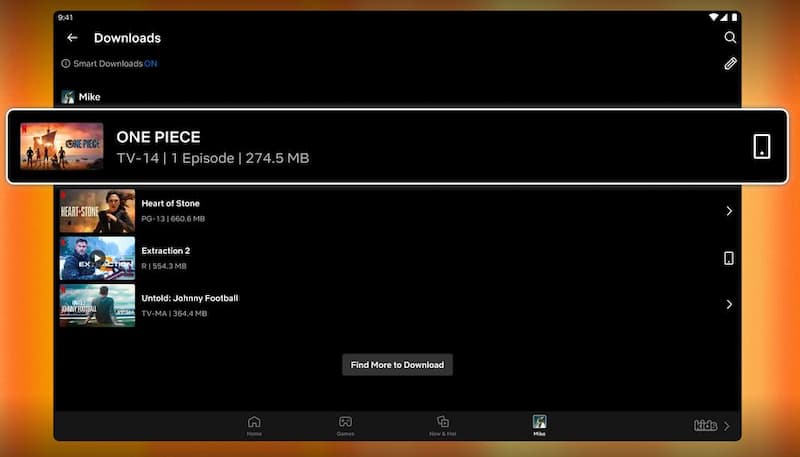
Download Movies: Find a title with the downward arrow icon and click Download. The movie will be saved within the emulator's virtual storage.
Pros:
- Free to use
- Uses the official Netflix interface
- Supports Netflix Smart Downloads
Cons:
- Resolution is often capped at 720p (HD) due to Widevine DRM limits
- Uses high CPU/RAM
- Downloads are hidden on your laptop
- Downloads will expire
- Downloads are only playable inside the emulator
Method 2: Screen Recording with OBS Studio (The Manual Way)
If the Android emulator method feels a bit complicated way, you can capture the Netflix movie while it plays in the browser. OBS Studio is the industry standard for this, though it requires your laptop to run for the full duration of the movie.
How to Use OBS Studio to Save Netflix Movies on Windows 10/11:
-
01
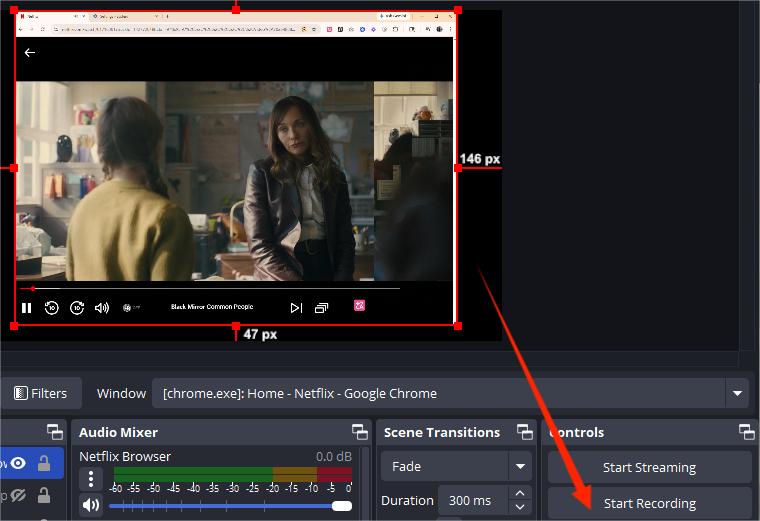
Setup OBS: Install OBS Studio. Add a Window Capture source and select your web browser (Note: You may need to disable "Hardware Acceleration" in browser settings to avoid a black screen).
-
02
Set Audio & Format: In OBS Settings, set the output to MP4 or MKV. Ensure "Desktop Audio" is active to capture the movie's sound.
-
03
Record: Play the Netflix movie in full-screen and click Start Recording in OBS. You must leave the movie playing until the end.
-
04
Finish: Click Stop Recording. Your video will be saved in your "Videos" folder.
Pros:
- Save downloads directly to your computer.
- Downloads will not expire
- Free to use
Cons:
- Record in real time.
- Subtitles are permanently embedded and can't be altered later.
- Experience potential frame drops or audio lag.
- Quality relies on your screen resolution.

Part 4. How to Download Netflix Movies on Laptop MacBook
MacBook users have dealt with a frustrating issue: Netflix hasn't launched an official app for macOS. This means Mac owners have been stuck streaming through the browser.
But there are still some solid ways to download Netflix movies on your MacBook for offline viewing, depending on your hardware.
Method 1: Running the iPad App on Apple Silicon (M1, M2, M3, M4 Macs)
If you own a newer MacBook with an Apple Silicon chip, you can install and use the Netflix iPad app on your MacBook so that you can use the download feature and offline viewing.
How to Use Netflix iPad App to Donwload Movies from Netflix:
-
01
Check the App Store: Open the Mac App Store and search for "Netflix." Switch the tab to "iPhone & iPad Apps."
-
02
Sideloading (The PlayCover Method): Since Netflix often hides the app from the Mac Store, you can use a tool like PlayCover. This allows you to install a decrypted Netflix .ipa file (the iPad version) onto your Mac.
-
03
Sign In & Download: Once the iPad version is running, the interface will show the mobile Download icon.
-
04
Watch Offline: Movies will save to your Mac's storage just like they do on an iPad.
Pros:
- Supports native offline viewing
- Preserves high-quality subtitles and audio tracks
Cons:
- Only works on Apple Silicon Macs
- Downloads expire in 7–30 days
- Limited video quality (depends on Netflix app)
- Netflix frequently updates its code to block sideloading
Method 2: The AirPlay Workaround (For All Mac Models)
If your goal is to watch Netflix movies on your MacBook laptop offline, you can download Netflix videos on your iPhone or iPad via the mobile app. Then, use AirPlay to stream it to your MacBook's bigger screen.
How to Use AirPlay to Watch Netflix Movies on MacBook Offline:
-
01
Download on Mobile: Open the Netflix app on your iPhone or iPad and download your movie.
-
02
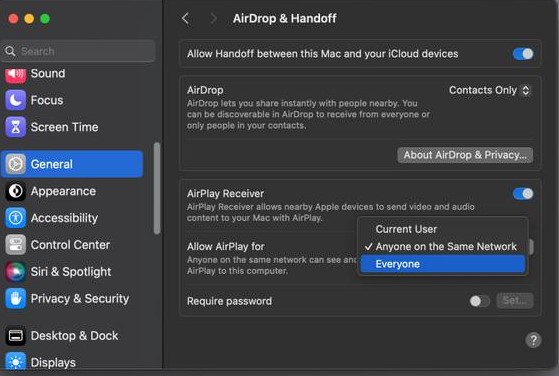
Enable AirPlay on Mac: Go to System Settings > General > AirPlay & Handoff and turn on AirPlay Receiver.
-
03
Mirror the Content: Connect your phone and Mac to the same Wi-Fi, or use a lightning/USB-C cable if there's no Wi-Fi. Choose your MacBook from the AirPlay list on your phone.
-
04
Watch: The downloaded movie will play on your MacBook screen.
Pros:
- It offers high reliability and a great success rate
- It functions on both Intel and M-series Macs
- It delivers videos in high quality
Cons:
- You need a second device to use it
- Ensure your phone has enough storage, not just your Mac
- It drains the battery of both your phone and laptop
Method 3: QuickTime Screen Recording (The Last Resort)
If you use an olader Intel-based MacBooks, you can use QuickTime Player to record the screen while a movie plays in a browser.
How to Use QuickTime to Save Netflix Movies on MacBook:
-
01
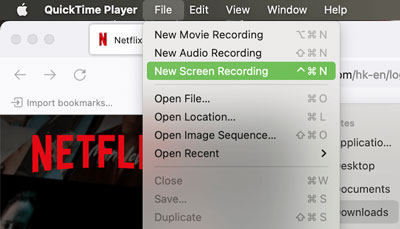
Open QuickTime: Go to File > New Screen Recording.
-
02
Disable Hardware Acceleration: Before recording, go to your browser settings and turn off "Use hardware acceleration when available." This prevents the "Black Screen" error caused by DRM (Digital Rights Management).
-
03
Capture: Record the specific area of your screen where the movie is playing.
-
04
Save: Go to the top menu bar and click File > Save... Choose a folder and give your file a name.
-
05
Watch: Locate the file and double-click it to play with QuickTime Player.
Pros:
- Creates an MP4 that lasts forever
- Compatible with older Intel MacBooks
Cons:
- Records in real-time
- Generates large file sizes
- Often limits resolution to 720p
Part 5. How to Download Netflix Movies on Chromebook
Thanks to ChromeOS's integration with the Google Play Store, you can use the Netflix app's mobile version, which still supports downloads, which is something the Windows app recently lost.
How to Download Movies from Netflix on ChromeOS Laptop:
-
01
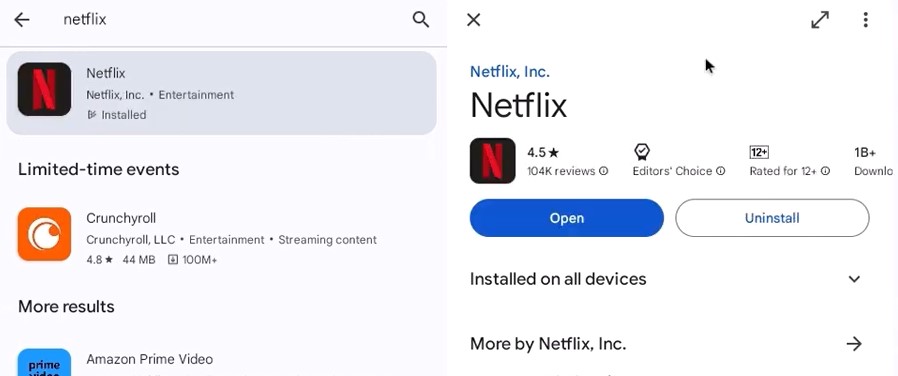
Install the Netflix App: Open the Launcher, click on the Play Store, search for "Netflix," and hit Install. After it's installed, open the app and sign in.
-
02
Set Download Quality: Go to My Netflix, click the Profile icon, then App Settings. Under Downloads, select Video Quality and choose High.
-
03
Download Movies: Find the movie you want and look for the Download icon. Tap it to start downloading.
-
04
Watch Your Movies: Go to the Downloads tab at the bottom of the screen to find and watch your movies on your Chromebook.
Pros:
- Official and secure
- Familiar Netflix interface
- Supports smart downloads
Cons:
- You can only watch downloads in the Netflix app on that Chromebook.
- Downloads will expire.
- The Android app may have issues on older ChromeOS devices.
Part 6. FAQs
Can I download Netflix movies to a USB flash drive or external HDD?
How many movies can I download at once on my laptop?
Why is my Netflix download quality stuck at 720p on my laptop?
Why do some movies not have a download option?
Final Thoughts
Downloading Netflix movies on your laptop isn't as easy as it used to be. The "Download" button is missing for a lot of users, but you still have options. Whether you go for the speedy VidiFab Netflix Video Downloader, use an Android emulator, or keep it simple with a Chromebook, there's a solution for everyone on the go.
Just find the right balance between video quality and how much effort you want to put into setup. For the best ad-free, high-quality experience, stick with professional downloaders like VidiFab. Pick your method, free up some disk space, and enjoy your favorite movies anywhere without needing Wi-Fi!
 Free Download
 Secure Download
 Free Download
Secure Download
Free Download
Secure Download


I'm a video tech specialist with over 10 years of experience in digital media and streaming. I focus on making complex workflows simple and practical. Through my guides, you'll learn how to convert media, keep high-quality playback across devices, and manage your streaming video library with ease.
 Leave Your Comment