How Long Do Netflix Downloads Last? The Real Answer
 By Miles Kent
You downloaded a movie for tomorrow's flight, opened it tonight to 'test' it for two seconds, and now Netflix says you have 48 hours left. Sound familiar? The 48 hours has nothing to do with the 7 days Netflix first showed you. The app just runs two hidden timers at the same time.
In this guide, I will explain the Netflix download rules for you, show you how to check the expiration date, and how to renew titles that have just expired. Most importantly, I will show you how to keep your favorite Netflix movies or shows on your device forever. Let's dive in.
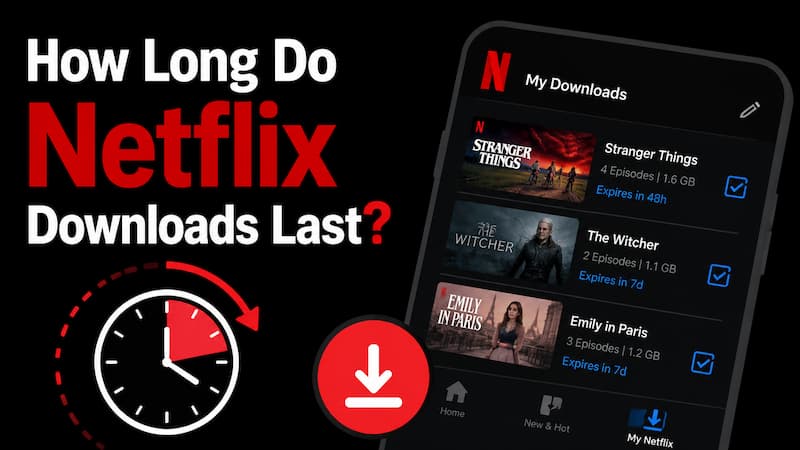
Part 1. Quick Answer: How Long Do Netflix Downloads Last?
Netflix download expiration comes down to three timers running at once. Here is the quick breakdown:
| Timer | How Long It Lasts | When It Starts |
|---|---|---|
| Unwatched window | 7 to 30 days | The moment the file saves to your device |
| Post-play clock | 48 hours | The moment you press play (even for one second) |
| Title leaves Netflix | Instant | Whenever Netflix loses the license |
These timers don’t work the same for all Netflix downloads. Some expire faster, while others last longer. The expiration rules vary depending on the title and viewing status. Learn more about download methods, limits, and storage in our complete Netflix Download Guide.
Part 2. How the 7-Day and 48-Hour Netflix Download Rules Work
Before You Start Watching
When you first download a title from Netflix on iPhone or Android device, it gives you a "watch window" that starts on the day the file is saved to your device.
For most titles, Netflix gives you 7 days to watch them. However, some titles, such as Netflix Originals, last for 30 days. The exact window depends on the content owner's license, not on Netflix itself. Netflix does not publish a list, so you cannot predict it from the title alone.
After You Press Play
The moment you tap the play button, even for one second, a new 48-hour clock starts.
From that point on, the original 7-day (or 30-day) window does not matter anymore. You can have 25 days "left" and still have only 48 hours before the file dies.
Why Netflix does this: It mimics the old video-rental model. The studio wants you to watch the download in a short burst, not stretch a single file over weeks.

WARNING: Do not "test" a download the night before your trip. Open the Netflix app to confirm the file is there, but do NOT press play. The 48-hour clock is a one-way trip.
What Happens in Airplane Mode or Without Internet?
Offline playback on Netflix works fine. The 48-hour timer keeps counting even when you are offline, because the timer is stored inside the download itself; not on Netflix's servers.
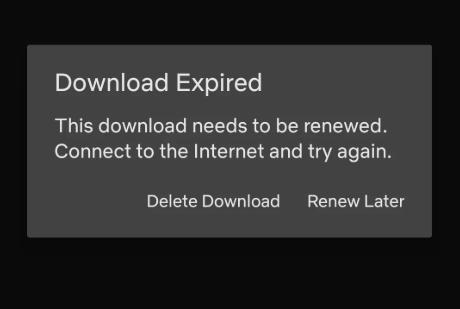
The good news: 48 hours is enough for almost any flight on Earth, even a 20-hour long-haul with a layover, as long as you do not restart the app.

Tip: Before takeoff, put your phone in Airplane Mode and do not turn Wi-Fi back on until you land. The moment you reconnect, the app may try to re-validate the license, which can force a re-download on some titles. Check this Netflix Plane Full Guide for steps to avoid wasting your Netflix downloads.
Why Some Netflix Downloads Expire Faster?
The timer said 7 days. And yet the download died in 2. There are only a few reasons this happens, and they are all the same problem at the licensing level.
| Reason | What You See | How to Tell |
|---|---|---|
| Title left Netflix's catalog | Download disappears with no warning | The title is also gone from search and browse |
| You hit the per-title yearly limit | "You have reached the yearly download limit for this video" | The Renew button is gone, even on Wi-Fi |
| You re-opened the app on layover Wi-Fi | Download expired the same day you landed | The 48h clock was almost out and the app re-validated |
| Region or account issue | Downloads won't play even with Wi-Fi | You traveled, or payment failed on your account |
If your downloads have vanished from the app entirely, our Netflix Downloads Disappeared? Why It Happens and How to Fix It guide covers the deeper fixes.
Part 3. How to Check Your Netflix Download Expiration Time
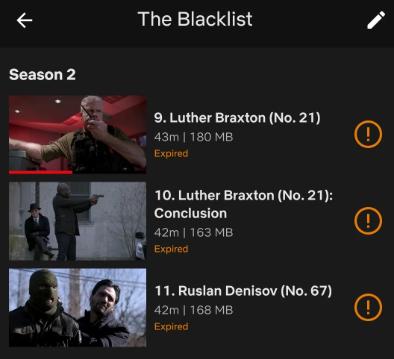
The Netflix app only shows the warning when you have 7 days or less left. The warning displays a small yellow message under the title in the Downloads tab, and it will show you the exact remaining time for your downloads, like: Expires in 3 days, or Expires in 18 hours.
If you wonder how to check the Netflix download expiration date, here's how you can do it on the Netflix mobile app:
Step 1. Open Netflix.
Step 2. Tap My Netflix → Downloads.
Step 3. Look under each title for one of these: Expires in 6 days, or Expires in 23 hours.
Step 4. No message? You have more than 7 days. Safe to ignore.

Note: In my Netflix app, sometimes Netflix does not remind me within the 7 days, it just shows me the Expired orange text. So I think it's worth setting a reminder for yourself to watch the download within 7 days.
Part 4. How to Renew Expired Netflix Downloads (The Official Way)
Netflix has a built-in Renew Download button, but it only works under specific conditions.
When Netflix Lets You Renew Downloads
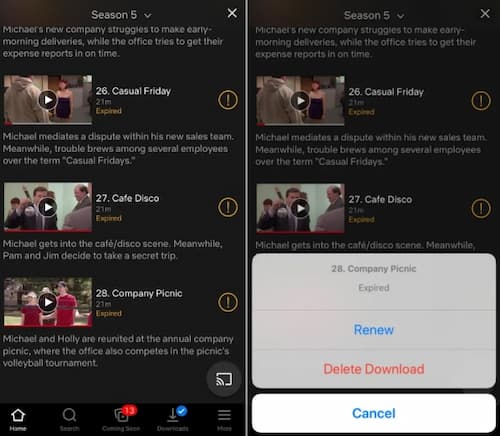
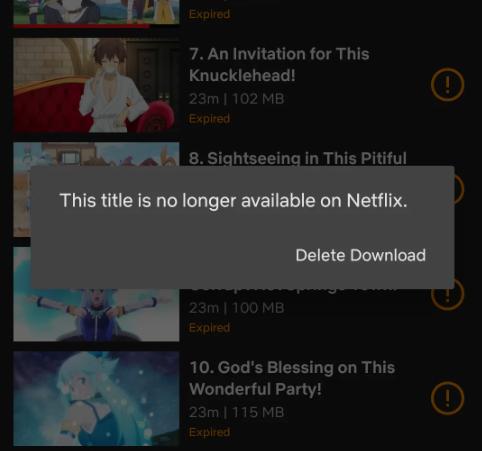
You will see the orange exclamation icon next to the title in the Downloads tab, and tapping it shows the Renew Download option.
- The title is still on Netflix.
- You have not hit the per-title yearly limit.
- You have an active internet connection.
If all three are good, here is the official way to renew on iPhone, iPad, and Android:
Step 1. Open Netflix and tap Downloads.
Step 2. Find the expired title.
Step 3. Tap the orange exclamation icon.
Step 4. Choose Renew. If you don't see the Renew button in your Netflix app, try deleting the download and then re-downloading the title.
Step 5. Wait on Wi-Fi or cellular until the file re-validates.
You will see the new 7-day (or 30-day) window reset, and the 48-hour post-play clock will also be back to zero.
Heads up: Each renewal uses up one of your yearly allowances for that title. Do not waste renewals.
When the "Renew" Button Is Missing
If you try to renew the expired title in the Netflix app but there is no Renew option, there are only three possible reasons:
- You hit the yearly download limit for that title. This is the most common one. Some studios let you download a title only 2 or 3 times a year. Netflix does not tell you the number, but it will say "You have reached the yearly download limit for this video." There is no official fix. You either wait for the year to roll over, or use a third-party downloader (Part 5).
- The title left Netflix's catalog. When you tap on the expired title, a message will appear saying, "This title is no longer available on Netflix." That's why it's important to back up your Netflix downloads for longer access.
- Your account is paused or past due. Fix the billing, then come back. The download will not auto-restore, but you can usually re-download once your account is active again.
Can You Extend Netflix Download Time Without Renewing?
No, you can't. The 48-hour post-play clock is hard-coded into the license. There is no setting, hack, or trick to pause it.
WARNING about "time change" tricks: Some Reddit posts claim you can change your device's clock to delay the 48-hour timer. This does NOT work on modern Netflix apps. Netflix verifies the time against its own servers the next time you connect, and any mismatch can mark the download as expired immediately. It can also flag your account, so do not try it.
Part 5. How to Keep Netflix Downloads Forever
If you want to keep a Netflix download for more than a few days, the official app will never get you there. That is because the download is encrypted to your specific device. You may be able to find where Netflix downloads are stored on your device, but they are not playable files like MP4.
So, the real workaround is to use a third-party Netflix downloader like VidiFab Netflix Video Downloader that saves the file as a regular MP4 or MKV. Once it is an MP4, the 48-hour clock is gone, the yearly limit is gone, and the file is free to play anytime you want it.
How VidiFab Netflix Video Downloader Works
The VidiFab tool includes a web player for Netflix that allows you to download movies or TV shows in standard video formats like MP4 or MKV at 1080p with Dolby Atmos audio and multiple audio tracks and subtitles. After downloading, the files are saved in a local folder on your Windows or Mac computer. You can then play them with the default media player or transfer them to other devices for easy playback without concerns about expiration.
VidiFab Netflix Video Downloader
Download Netflix videos as MP4/MKV in 1080p with Dolby Atmos for offline viewing on your iPhone, Android, desktop, and more devices.

How to Save Netflix Downloads Permanently Using VidiFab
Step 1. Set Up VidiFab and Choose Your Format
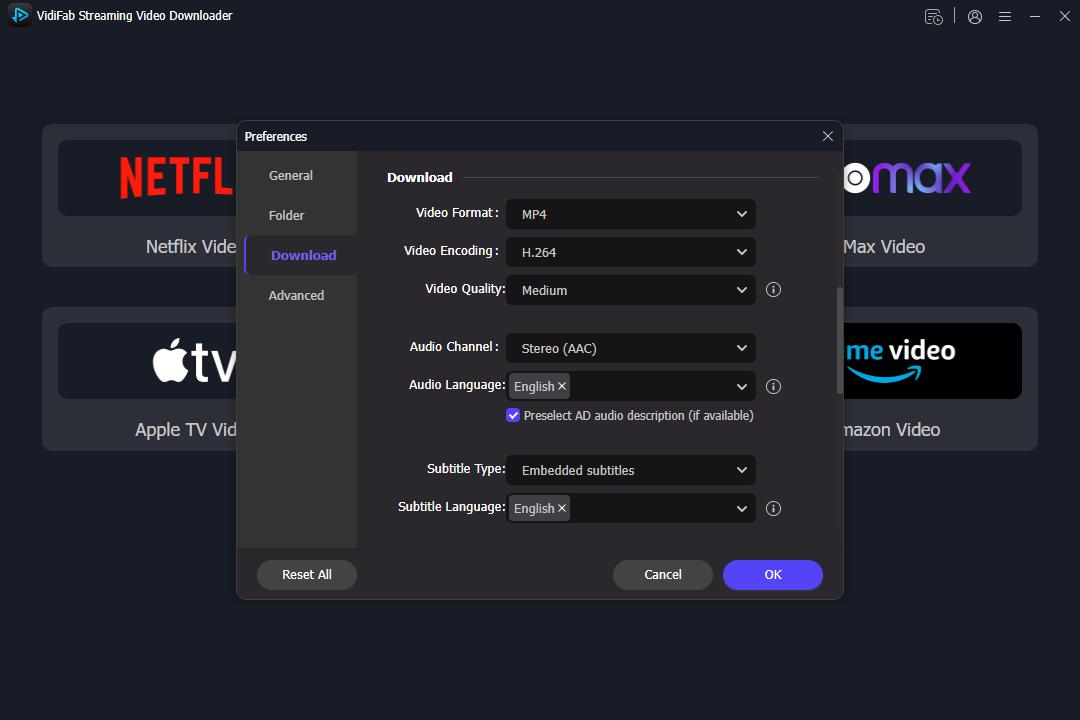
Install and open VidiFab Netflix Video Downloader on your PC or Mac. Open Preferences by clicking the menu icon in the top right corner. Select MP4 or MKV as your output format to ensure the video never expires. Choose a local folder on your hard drive to store your permanent downloads. Log into Netflix via the built-in browser to access your local video library.
Step 2. Locate Your Desired Video Title
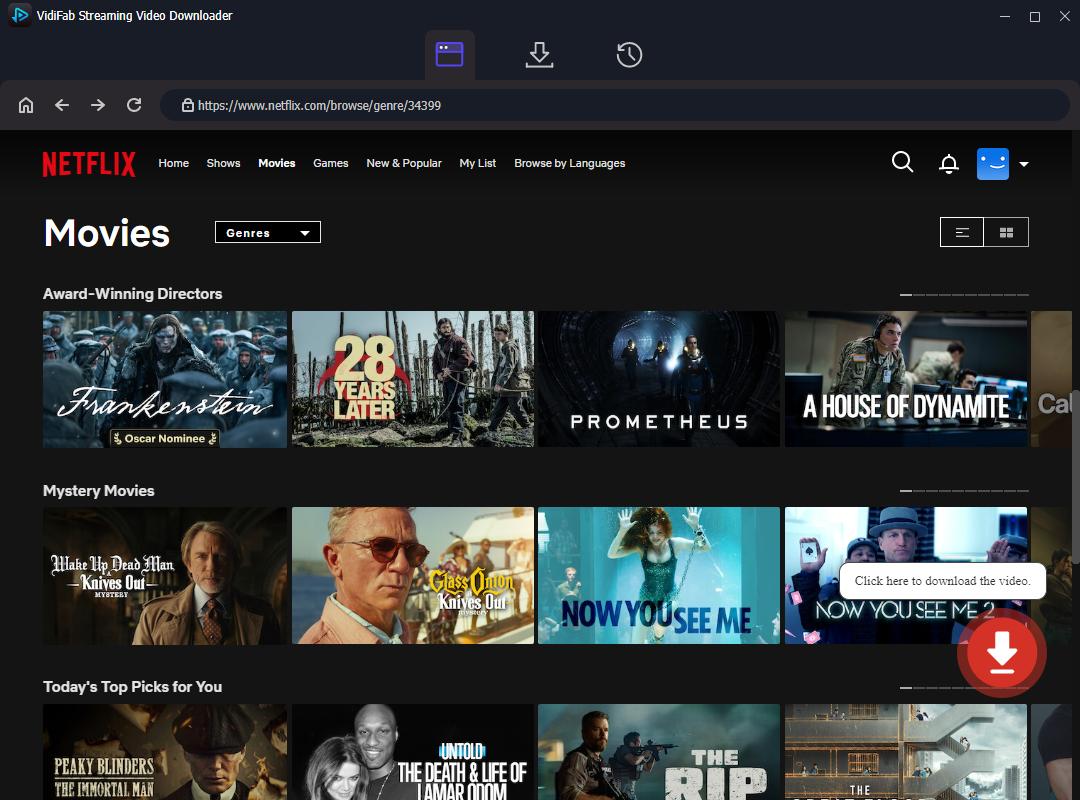
Search for the movie or show directly within the built-in VidiFab browser. Open the detail page of the specific video title you want to keep. Click the Download button that automatically appears in the bottom-right corner.
Step 3. Select Quality for Your Downloads
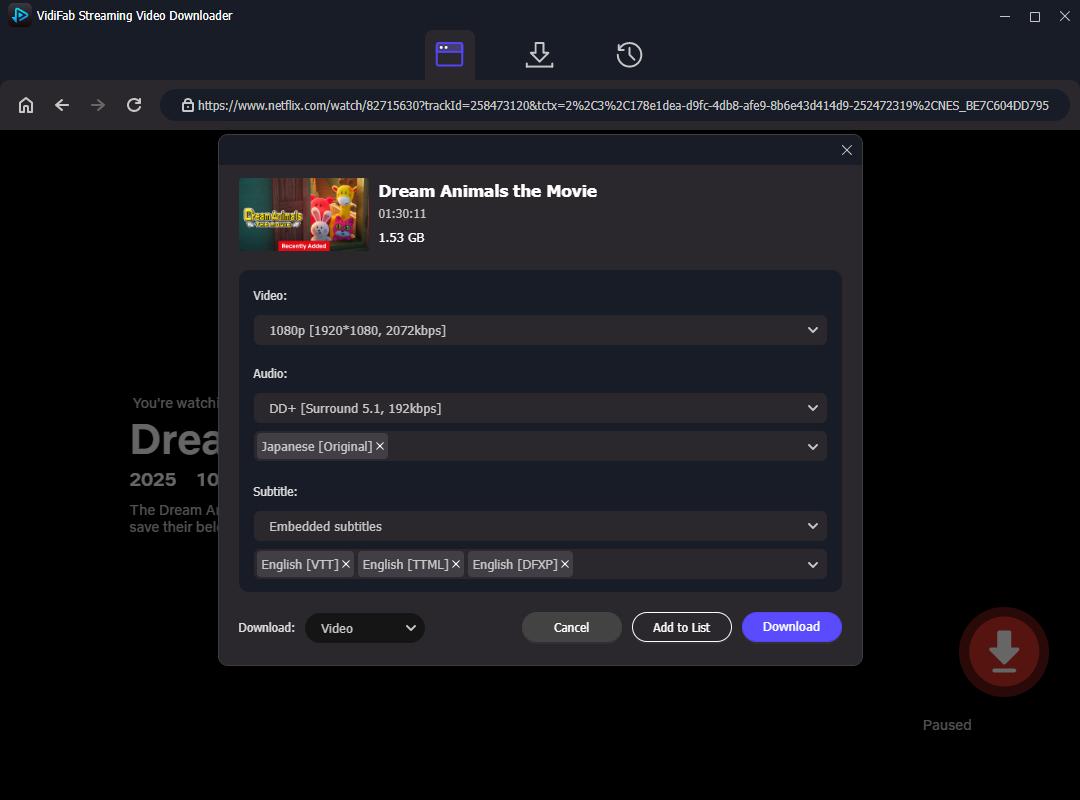
View the options panel that automatically pops up before the download begins. Choose 1080p Full HD to maintain high quality. Pick your audio preference, choosing between standard AAC stereo or 5.1 surround sound. Select subtitle languages and choose to either embed them or save them as separate SRT files.
Step 4. Download and Keep Your Videos Forever
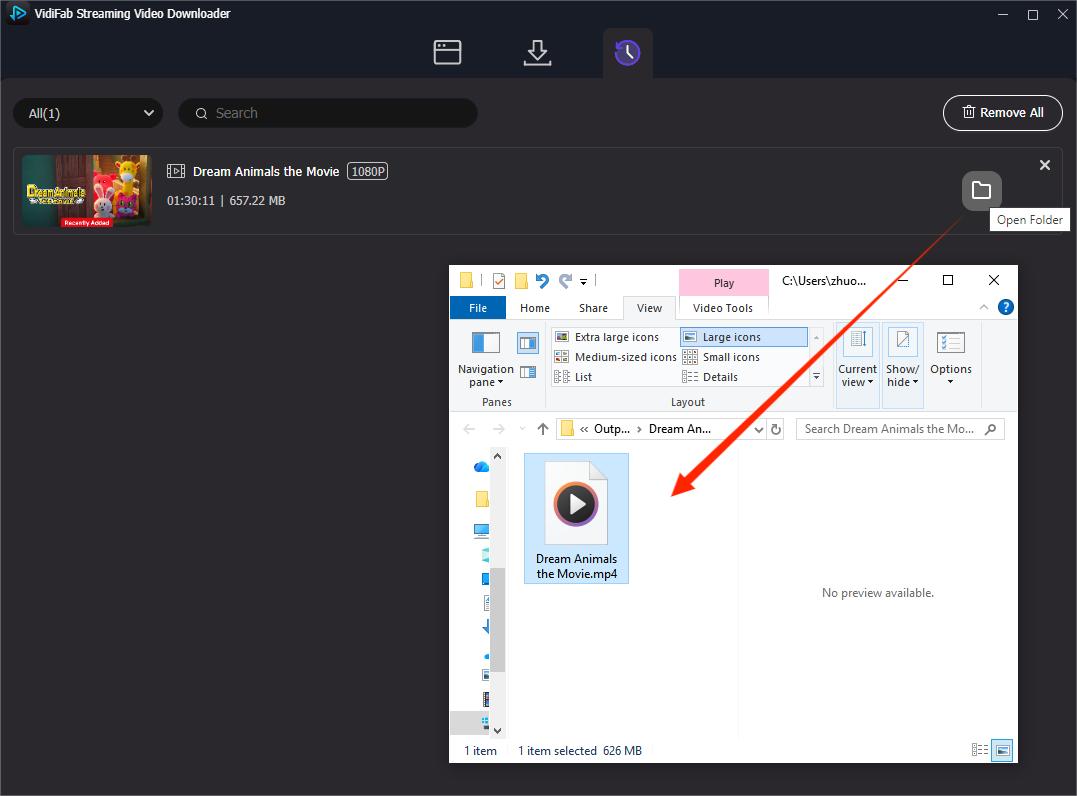
Click Download to start saving the file directly to your local storage. Wait 15–17 minutes for a full 2-hour movie. Check the History tab and click the folder icon to locate your Netflix video file. Watch anytime using local players like VLC without worrying about sudden Netflix deletion or offline time limits.
Part 6. FAQs About Netflix Download Expiration
Does Netflix send a warning before my download expires?
Do movies and TV show episodes have the same expiration timer?
Can I change my device's clock to delay the 48-hour timer?
Final Thoughts
By now, I'm sure that you know how long Netflix downloads last. Even though most unwatched titles only last for 7 days and expire once you hit play, you can build some habits to tackle this wisely. For example, only download the title the day before, and do not press play until you are ready to watch it. And use Airplane Mode the whole time you watch it offline. For a more advanced solution, use VidiFab Netflix Video Downloader to save Netflix videos as MP4 or MKV files for long-term storage.
 Free Download
 Secure Download
 Free Download
Secure Download
Free Download
Secure Download


I'm a video tech specialist with over 10 years of experience in digital media and streaming. I focus on making complex workflows simple and practical. Through my guides, you'll learn how to convert media, keep high-quality playback across devices, and manage your streaming video library with ease.
 Leave Your Comment