A Step-by-Step Tutorial on How to Download Netflix Episodes on iPhone
 By Miles Kent
Downloading Netflix episodes on your iPhone makes it super easy to catch up on shows offline, especially when your internet isn't great. With the Netflix app, you can save certain titles directly to your device for later. Just keep in mind that not everything is available for download, and things like storage space, app version, and download settings can change what you can access and how smoothly it works.
In this guide, I’ll break down how to download Netflix episodes on your iPhone, step by step. I’ll also dive into features like Smart Downloads and automatic downloads. Plus, I’ll show you how to adjust your download settings for video quality and decide between Wi-Fi or cellular data. Finally, I’ll help you find, manage, renew, or delete your downloads, and bypass Netflix’s download limits.

For everything you need to know about Netflix downloads, check out our complete Netflix Download Guide.
Part 1. Can You Download Netflix Episodes on iPhone?
Yes, you can download Netflix episodes on an iPhone and watch your downloads offline. However, downloads only work for supported titles and require an active account, enough storage space, a compatible iOS version, and the latest app version. Check that you meet these requirements before diving into those downloads.
1.1 Device and OS Requirements
- Operating System: To download Netflix in-app, you need at least iOS 18.0 or later. You can check your version in Settings > General > About.
- App Version: Make sure you’re using the latest Netflix app from the App Store.
- Storage Space: A single hour of HD video can use 3GB, and a full HD season library typically requires 20GB or more of free space.
1.2 Subscription Tier Limits
- Standard with Ads: You can download up to 15 titles per device per month.
- Standard or Premium (Ad-free): You can download up to 100 active downloads per device at any given time.
- Standard (with/without Ads): You can download on 2 supported devices at once with no monthly limit.
- Premium: You can download on up to 6 supported devices simultaneously in 4K Ultra HD + HDR quality.
1.3 Content Availability
- Downloadable Content: Most Netflix Originals and many licensed shows feature a downward arrow icon.
- Non-Downloadable Content: Some titles can’t be downloaded due to licensing agreements. If you don’t see the download icon, you can’t save that title offline.
- Ad-Tier Restrictions: Certain titles are "locked" on ad-supported plans because of licensing, and they’ll show a lock icon.
Not meeting those requirements? No worries! Grab the VidiFab Netflix Episodes Downloader to download Netflix videos without limits. Enjoy them on more devices or even older iPhone models without any playback issues. Check how it works in Part 5!
 Free Download
 Secure Download
 Free Download
Secure Download
Free Download
Secure Download
Part 2. How to Download Netflix Episodes on iPhone (Step-by-Step)
You can download Netflix episodes in the iPhone app. Netflix has recently added automation features to make managing your library easier. Follow these steps to save one episode, a full season, or turn on auto downloads.
2.1 How to Download Single Episodes on iPhone
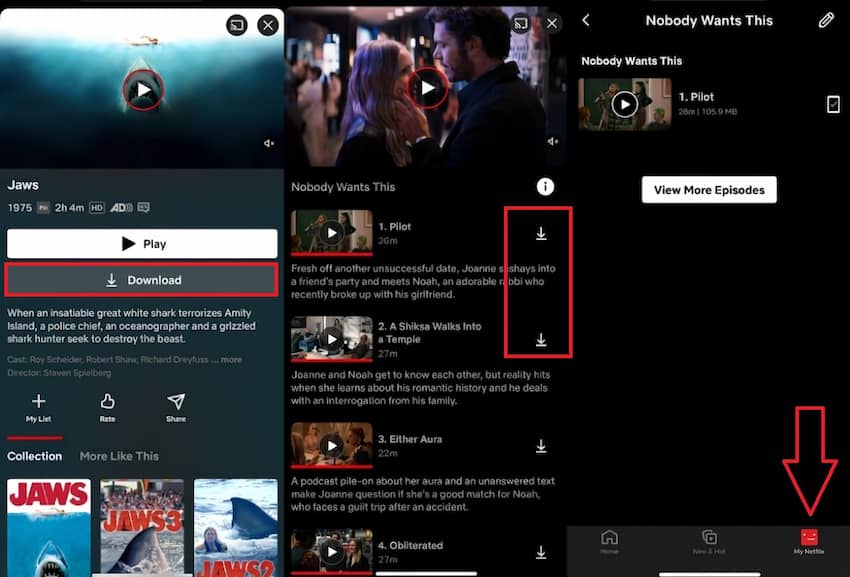
Step 1. Open the Netflix app and sign into your preferred profile.
Step 2. Browse the home screen or use the search feature to find a show.
Step 3. Tap the show to open its page.
Step 4. Scroll down to the episode list and choose one.
Step 5. Hit the download icon, which looks like a downward arrow, right next to the episode title.
Step 6. When it’s done, find it in Downloads under My Netflix.
2.2 How to Download a Full Season on iPhone
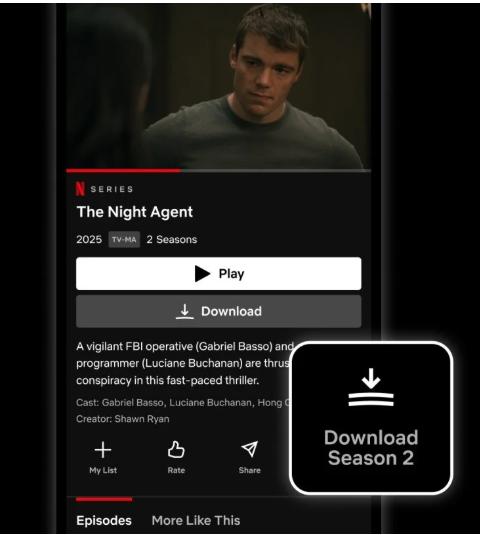
In 2025, Netflix added one-tap season downloads. You don’t have to pick episodes one by one anymore. But first, make sure your storage space have at least 20GB, if you want to download an entire full HD season.
Step 1. Open the show's detail page.
Step 2. Choose a season.
Step 3. Hit the Download Season [X] button next to "Share" and below the season.
Step 4. Wait while the app downloads in the background.
2.3 How to Download Netflix Episodes Automatically
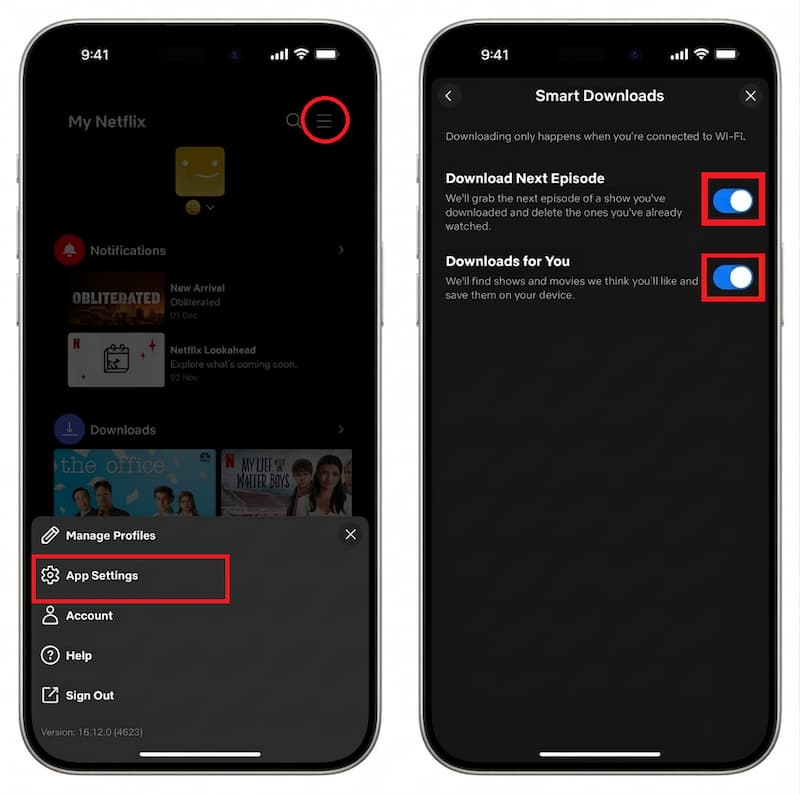
Netflix Smart Download includes two features: Download Next Episode and Downloads for you.
What Is Download Next Episode on Netflix?
After you watch an episode, Netflix deletes it and downloads the next one. This saves space and keeps playback smooth.
What Is Downloads for You on Netflix?
Netflix picks shows and movies you may like. You can set a limit (0.5GB to 9.5GB). After you watch, the app deletes them to free space.
Note: These features need an ad-free plan and work on Wi-Fi only.
How to Enable Netflix Smart Downloads on iPhone:
Step 1. Open Netflix and tap My Netflix.
Step 2. Tap the menu (three lines) in the top right.
Step 3. Tap App Settings.
Step 4. Tap Smart Downloads.
Step 5. Turn on Download Next Episode or Downloads for You. If you use Downloads for You, set your storage size.
Part 3. How to Adjust Netflix Download Settings on iPhone
You can adjust settings in the Netflix app and iPhone to speed up downloads and save space. These changes help you control data use and avoid slow or failed downloads.
How to Change Netflix Download Quality on iPhone
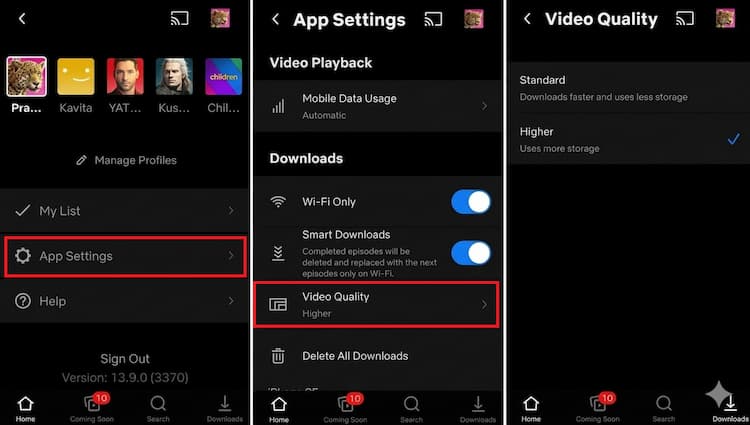
Netflix has two quality levels: Standard and High.
- Standard is great for saving space. It downloads faster and uses about 250MB–300MB per hour in Standard Definition (SD).
- High/Higher is perfect for big screens like the iPhone Pro Max or iPad. It delivers up to 1080p HD quality but needs more storage and takes longer to download.
How to Change Video Quality for Netflix Downloads:
Step 1. Open the Netflix app and go to My Netflix.
Step 2. Tap Menu > App Settings > Video Quality.
Step 3. Choose your preference.
How to Download Over Wi-Fi Only or Cellular
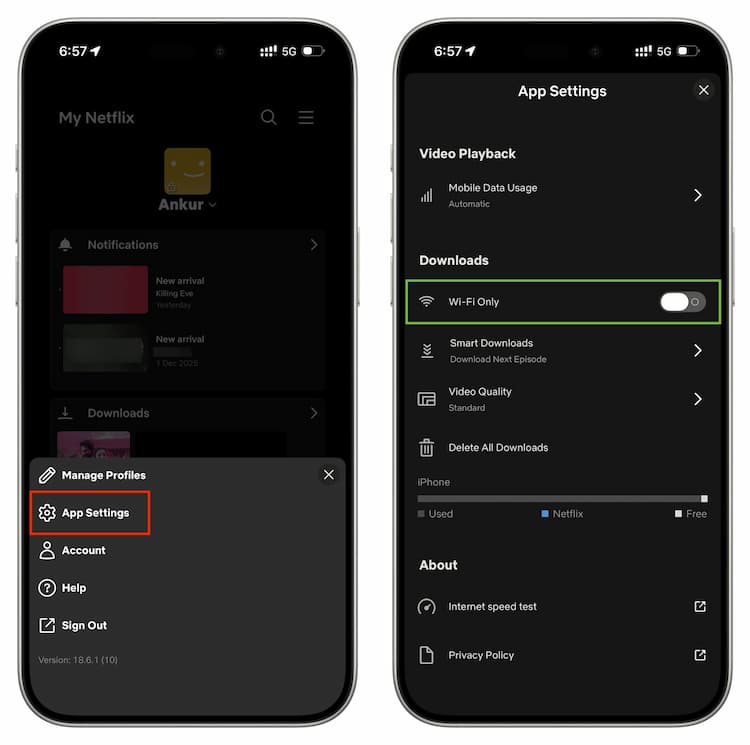
Netflix usually downloads over Wi-Fi to avoid big mobile data charges, but you can switch this if you have an unlimited plan.
How to Download Netflix Episodes Only on Wi-Fi:
Step 1. Go to My Netflix > Menu > App Settings.
Step 2. In the Downloads section, turn on Wi-Fi Only to save mobile data.
Step 3. Turn it off to enable downloads over cellular.
How to Enable Background App Refresh for Downloads
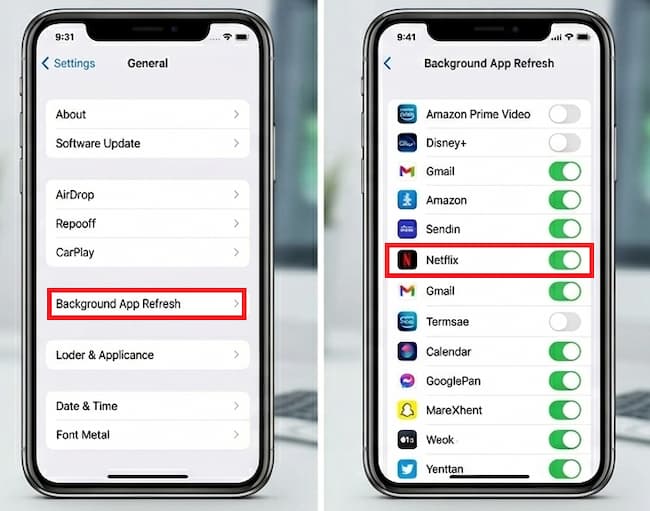
If your downloads stop or are stuck at 0% when you lock your phone or switch apps, you probably need to turn on Background App Refresh (BAR).
How to Download Netflix Episodes Only on Wi-Fi:
Step 1. Open your iPhone Settings (not the Netflix app).
Step 2. Go to General > Background App Refresh.
Step 3. Make sure the main toggle is On and that the switch for Netflix is enabled.

If you're on iOS 18.3, a bug might occasionally disrupt Netflix downloads in the background. Restarting your device usually fixes this.
How to Make Netflix Downloads Shows Faster on iPhone
If your Netflix downloads are slow, try these three tips to make Netflix download faster:
- Disable Low Power Mode: If your battery icon is yellow, iOS limits background data. Disable Low Power Mode in your Control Center to get full speed back.
- Stay in the App: While Background App Refresh helps, the fastest download speeds occur when the Netflix app is active and visible on your screen.
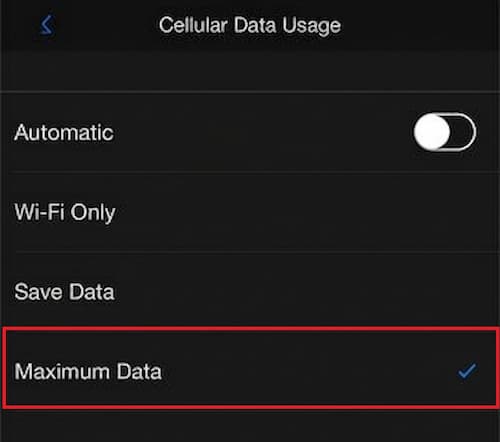
- Use 5G "Maximum Data": If you have a strong 5G connection, turn off "Wi-Fi Only" under the Downloads section of App Settings. Then, go to App Settings in the Netflix app, toggle Automatic to Off, and select Maximum Data. This can let you download a full-length HD movie in under five minutes!
Part 4. How to Manage Your Netflix Downloads on iPhone
Once you’ve saved your favorite shows, you need to know how to find and manage them. Since iOS uses a "sandboxed" file system, you’ll handle everything within the Netflix app.
Where Do Netflix Downloads Go on iPhone?
Your Netflix downloads won’t show up in your iPhone’s "Files" app or Photo Gallery. They’re stored as encrypted data in a private section of the Netflix app. Thus, you can’t transfer these files to iCloud Drive or any external storage. If you uninstall the Netflix app, all your downloaded episodes will be deleted automatically and permanently.

How to Find, Check Expiry, and Renew Downloads
How to Find Downloads in Netflix App on iPhone?
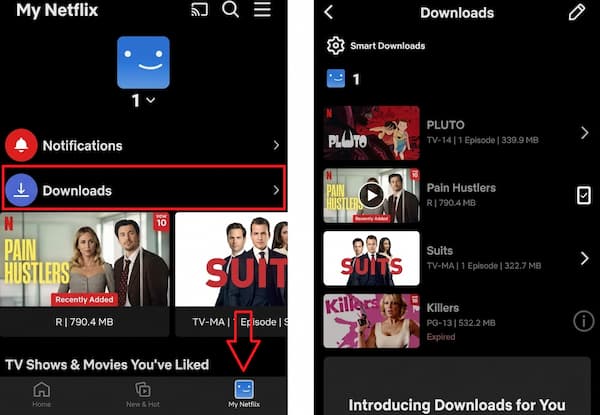
Tap the "My Netflix" icon in the bottom-right corner of the app to see your downloads. You can also find a "Downloads" tab in this area.
How Long do Netflix Downloads Last on iPhone?
Most titles stick around for 7 to 30 days. Once you hit play, a 48-hour timer usually starts. You can check the remaining time next to each title.
How to Renew Netflix Downloads?
If a title expires, just tap the orange exclamation mark while connected to the internet to renew the license.
Remember, all your downloads in the Netflix app will expire in 7 to 30 days. This applies to all Netflix users. Plus, some titles might get removed from Netflix, causing your downloads to disappear instantly.
Want to sidestep this download limit? There’s a way to download Netflix videos to your iPhone without an expiry timer or device limit. Keep reading to find out how!
Part 5. How to Download Netflix Episodes on iPhone Without Limits
VidiFab Netflix Episodes Downloader is a professional streaming video downloader that lets you save Netflix content as local files. It can download movies, shows, documentaries, and series from Netflix as MP4 or MKV on Windows and Mac. You can then transfer the files to your iPhone for permanent offline viewing.
Unlike screen recording Netflix, VidiFab downloads Netflix content directly and can save episodes much faster without waiting for the entire playback process. In our tests, VidiFab can download videos up to 7x faster than real-time screen recording, depending on the video length, network speed, and download settings.
VidiFab Netflix Episodes Downloader
Download Netflix videos as MP4/MKV in 1080p with Dolby Atmos for offline viewing on your iPhone, Android, desktop, and more devices.

What VidiFab Netflix Video Downloader Offers?
- No Expiration Dates: Unlike Netflix’s 48-hour window, your downloads never expire. They stay on your device for as long as you want.
- High-Quality Output: Enjoy your Netflix shows in 1080p HD with 5.1 surround sound, all in universal formats like MP4 and MKV.
- Multi-Language Options: Keep original audio tracks and subtitles in different languages for a more authentic experience.
- Batch Downloading: Download entire seasons at once with super-fast speeds.
- Ad-Free Viewing: If you have a "Standard with Ads" subscription, VidiFab removes all commercials from your downloaded videos.
How to Use VidiFab Netflix Video Downloader for iPhone
Step 1. Install and Open the VidiFab Software
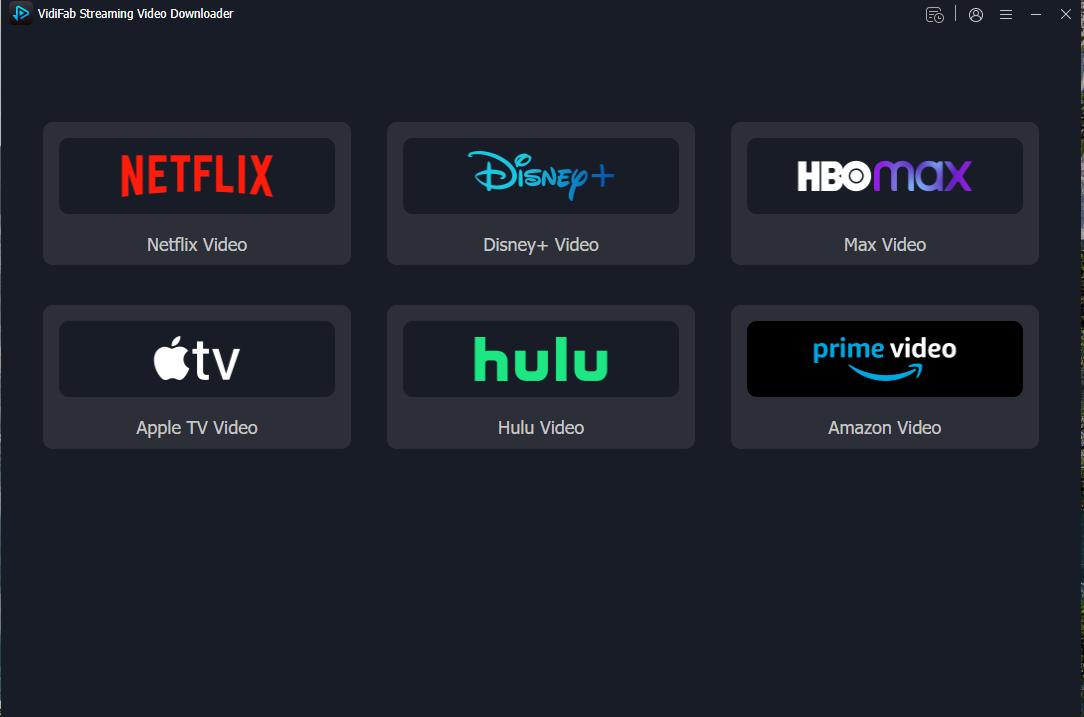
Download and install VidiFab Netflix Video Downloader on your Windows or Mac. Open the software and choose Netflix. Sign in to your Netflix account using the built-in web player.
Step 2. Find the Netflix Episodes You Want
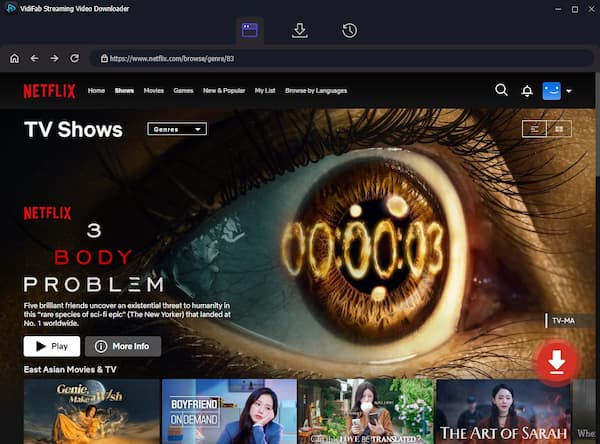
Use the search bar or browse through the Netflix library in the tool to find your movie or TV show. Open the title’s detail page and hit the Download button in the corner.
Step 3. Customize Download Settings
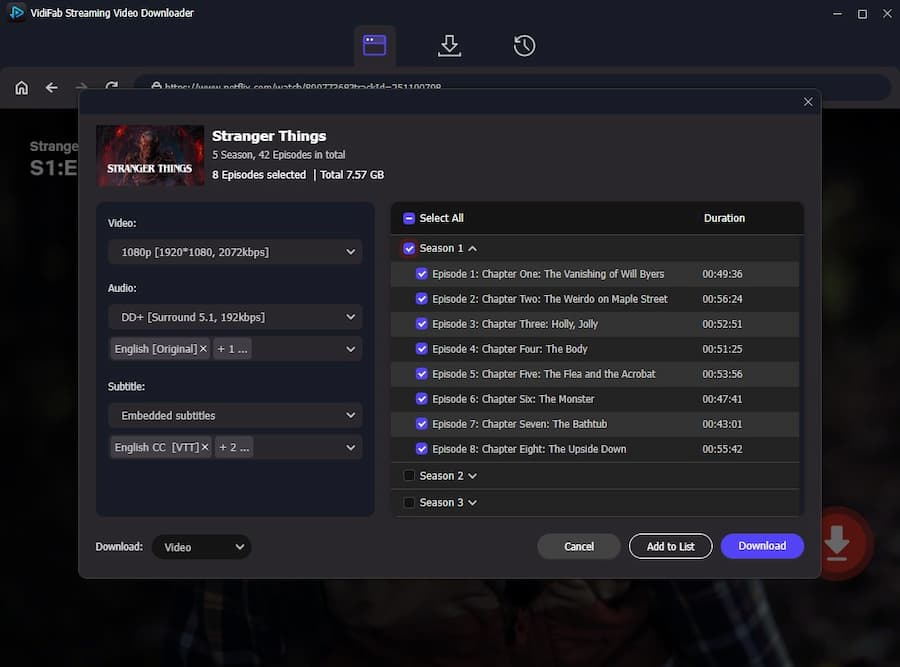
A list of available episodes and seasons will pop up, letting you select all episodes with one click. For the best viewing on your iPhone's Retina display, pick 1080p (High) quality. You can also choose your favorite audio tracks, like 5.1 Surround Sound, and decide if you want to remux subtitles into the video or save them as separate SRT files. Click Add to List.
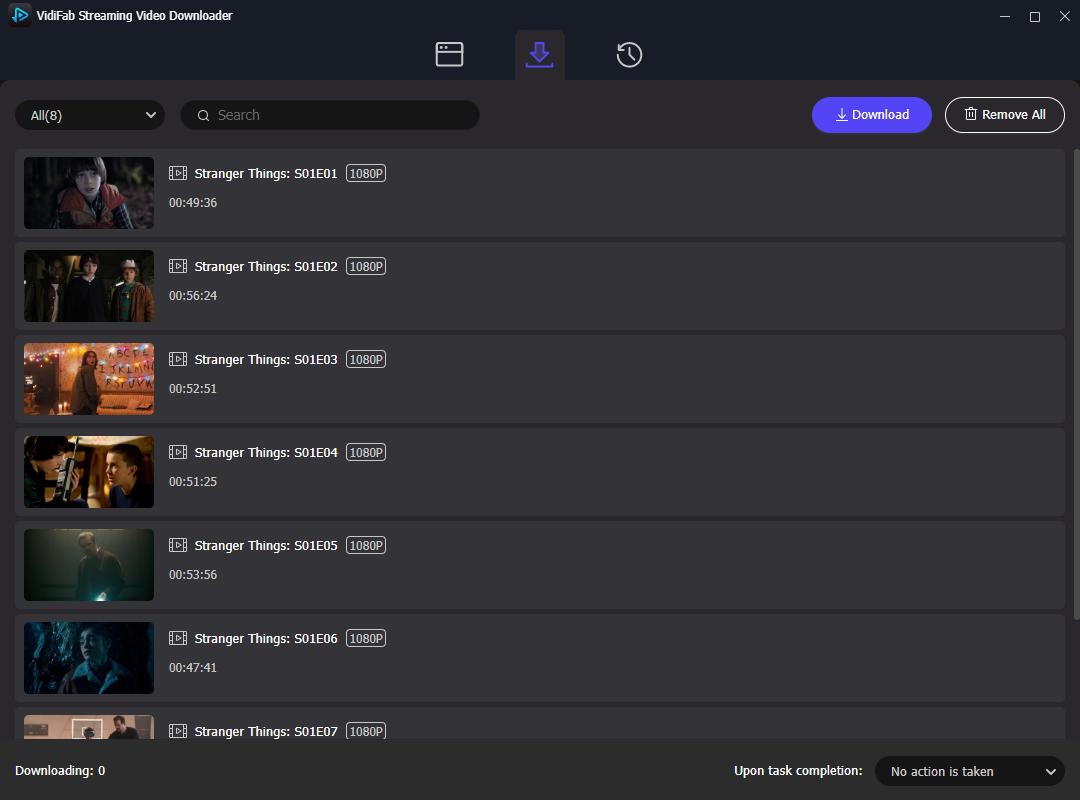
Step 4. Download the Videos to Your Computer
Click the Download button. Sit back and wait as it downloads at 7x faster speeds. When it’s done, click the folder icon to locate your downloaded episodes on your computer.
Step 5. Transfer Videos to iPhone for Offline Viewing
Once the download is complete, you will have a standard MP4 file on your computer. To move it to your iPhone:
For Mac users
Use AirDrop to send the file directly to your iPhone’s "Files" or "Photos" app.
For Windows Users
Since Windows doesn’t support AirDrop, you can use one of these methods:
- Method A: iCloud for Windows (Recommended). Sign in to iCloud.com on your PC. Upload your MP4 file to iCloud Drive. On your iPhone, open the Files app → iCloud Drive to access the video for offline viewing.
- Method B: iTunes File Sharing (USB). Connect your iPhone to your PC with a USB cable and open iTunes. Click the device icon. Go to File Sharing, choose a video app (like VLC), and drag the MP4 file into the Documents section.
- Method C: Snapdrop (Wireless). Open Snapdrop.net on both your PC and iPhone (same Wi-Fi). Tap your iPhone on the PC and send the file instantly.
Final Thoughts
Now you know how to download Netflix episodes on your iPhone, both in and out of the app. For most users, the Netflix app works great for temporary viewing, as long as you keep an eye on your storage and remember that episodes expire 48 hours after you start watching.
But if you often run into the "too many devices" error or lose access to your favorite shows because of licensing changes, check out VidiFab Netflix Video Downloader. It lets you convert episodes into permanent MP4 files, so you can skip the DRM restrictions, avoid the "15 downloads per month" limit on ad-supported plans, and keep your content forever.
Free Download
Secure Download
Free Download
Secure Download



I'm a video tech specialist with over 10 years of experience in digital media and streaming. I focus on making complex workflows simple and practical. Through my guides, you'll learn how to convert media, keep high-quality playback across devices, and manage your streaming video library with ease.
 Leave Your Comment