How to Download Netflix Videos as MP4 on PC and Mobile
 By Miles Kent
Netflix's download feature is convenient for offline viewing, but it does not save videos as MP4 files. Netflix downloads are stored in an encrypted NFV or MOV format that other media players can't read. That means you can't simply copy, transfer, or convert them into standard MP4 files.
In this guide, you'll learn 4 practical ways to download Netflix videos as MP4 on Windows, Mac, Android, and iPhone. We'll also compare the available methods, explain why existing Netflix downloads can't be converted directly, and answer common questions about Netflix to MP4 conversion.
- Best overall for Windows and Mac: Use a dedicated Netflix downloader such as VidiFab Netflix Video Downloader to save Netflix videos as MP4 or MKV files for permanent offline playback.
- Best recording-based solution: Use a screen recorder such as PlayOn Home if you prefer recording playback instead of downloading.
- Best free online option: Online converters can only work with non-protected video files and cannot directly convert Netflix downloads.
- Already downloaded a Netflix title? Official Netflix downloads cannot be converted to MP4 because they are protected and only playable inside the Netflix app.
- Best mobile workflow: Download the MP4 on a computer first, then transfer it to your Android phone, iPhone, or tablet for offline viewing.
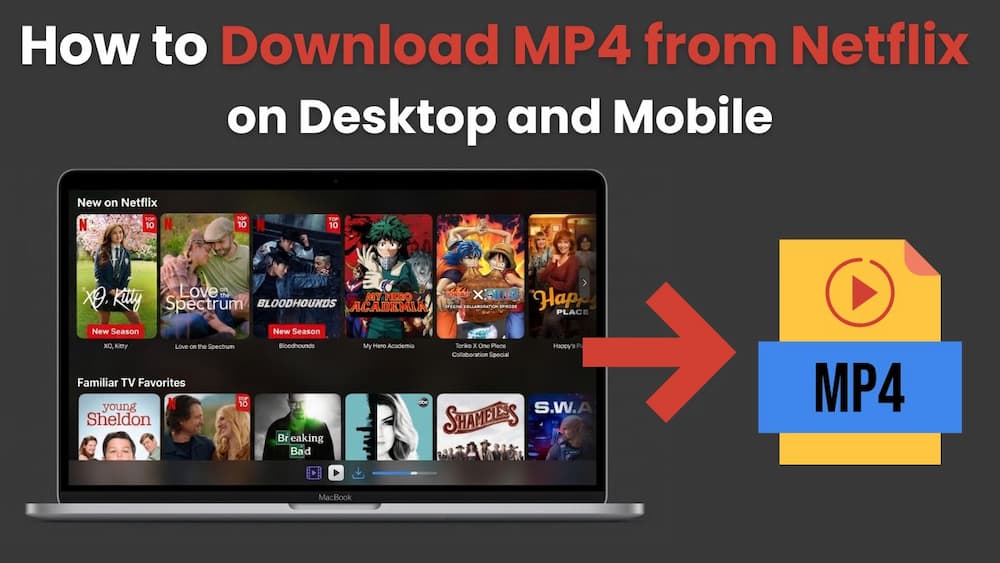
Can You Convert Netflix Downloads to MP4?
No, you cannot take an official Netflix app download and convert it to a normal MP4 file with a standard video converter.
Netflix downloads are not standard video files. According to the Netflix Help Center, downloaded titles are intended for offline viewing within the Netflix app on supported devices. Downloads are also tied to the device and account used to download them.
Even if you find where Netflix stores its downloads on your device, you won't find a normal video file that you can open or convert. Netflix uses DRM (Digital Rights Management) to protect downloaded content, so the files are stored in a protected format like NFV, which cannot be directly converted to MP4 with a regular video converter.
So, if you want to save Netflix videos as MP4 files, you need to use a different method. You can use a dedicated Netflix downloader to save the video as MP4, or use a screen recorder to capture playback and save the recording as an MP4 file.
Best Ways to Download Netflix Videos as MP4
There are different ways to save Netflix videos as MP4 files, and the best choice depends on what you need. To help you choose, we compare the three main methods below: desktop downloaders, screen recorders, and online converters.
| Feature | Netflix to MP4 Video Downloader | Netflix Screen Recorder | Netflix to MP4 Online Converter |
|---|---|---|---|
| Representative Tools | VidiFab, MovPilot, KeepStreams, Keeprix | PlayOn, Audials One, OBS Studio | ConverterFactory |
| Supported OS | Windows & macOS | Windows, macOS, Android, iOS | Any (Web-based) |
| Download Speed | 5x - 10x (Ultra Fast) | 1x (Real-time playback) | Slow |
| Max Resolution | 1080p Full HD | Up to 1080p (Depends on connection) | N/A (Usually fails) |
| Batch Support |  |
|
 |
| Audio & Subtitles | Stereo or 5.1 / Softcode SRT or Hardcoded | Stereo or 5.1 / Hardcoded | None (Extraction fails) |
| Ads Removal | Yes (Strips ads automatically) | Yes (Skips ads during playback) | No (Contains risky site ads) |
| DRM Risk | Zero (Direct decryption) | Low (Captures video signal) | High (Cannot bypass DRM) |
| Success Rate | |||
| Pricing Model | Starts at $49.95/month (Unlimited downloads) | Starts at $3.90/month (Plan/Credit-based) | 100% Free (High failure rate) |
| Best For | High-quality, lightning-fast batch archiving | Flexible, budget-friendly background recording | Converting unprotected local files only |
Method 1. Download Netflix to MP4 on Windows and Mac
Best for: Users who want permanent, high-quality Netflix downloads in MP4 for offline playback on any device.
Option 1. Use VidiFab Netflix Video Downloader to Get MP4 Videos from Netflix
To download video from Netflix to MP4, you'll need a MP4 Netflix downloader such as VidiFab Netflix MP4 Downloader. This desktop software works on Windows and Mac computers. It batch downloads Netflix videos to standard formats like MP4 or MKV at 7x speed. You can customize the video quality up to 1080p, keep Dolby Atmos audio, and save multilingual subtitles and audio tracks.
After downloading Netflix videos to your PC, you can keep these downloads for as long as you like. There are no expiration limits. You can also transfer the downloads to Android phones, iPhones, tablets, or TVs for offline playback without ads or restrictions.
VidiFab Netflix MP4 Downloader
Download Netflix videos as MP4/MKV in 1080p with Dolby Atmos for offline viewing on your iPhone, Android, desktop, and more devices.

How to Download Netflix Movies to MP4 Using VidiFab Software

Hands-on test note: In our September 2026 test on a Windows laptop, VidiFab downloaded a 44-minute 1080p episode in about 6 minutes and produced a 1.1 GB MP4 with Dolby Atmos 5.1 and embedded English subtitles. And you can eventually play Netfix on VLC Media Player or other video players if you like.
Step 1. Launch and Access the Netflix Library
Grab the VidiFab Netflix to MP4 Downloader and install it. Hit the menu icon in the top right corner and pick Preferences. In the pop-up window, set the Download Video Format to MP4. Choose your video encoding method and quality if you want. Click OK to save your settings. Next, select the Netflix icon from the list of supported services. Log in to your account using the secure built-in browser to access your profile. This way, the tool can access the same library that's available in your region.

Step 2. Search for Content to Download as MP4
Browse the Netflix library or paste the URL of the specific movie or TV show into the search bar. Once you open the video's detail page, VidiFab will automatically analyze the stream. Click the Download button in the right bottom corner.

Step 3. Select MP4 Format and 1080p Quality
In the settings, choose 1080p for the best picture quality. Remember to select your audio quality and language, and set the subtitles to embedded with the right language. This way, your MP4 downloads will be just how you want them.
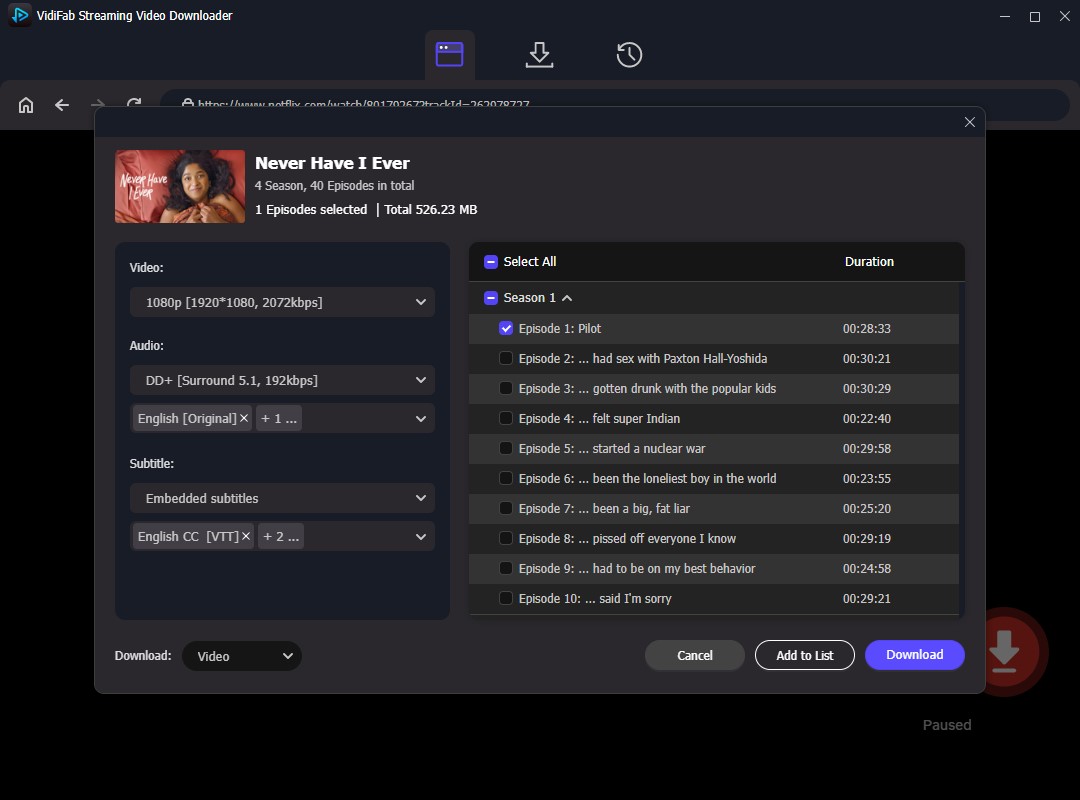
Step 4. Save Netflix as MP4 Files
Click Download to start the high-speed extraction. Unlike the official Netflix app, which hides encrypted files in system folders, VidiFab saves a standard MP4 file directly to your PC. Once the process is finished, go to the History tab and click the folder icon. Now you can move these Netflix files to a USB drive, your Mac, Android phone, or Smart TV for offline viewing without needing the Netflix app.
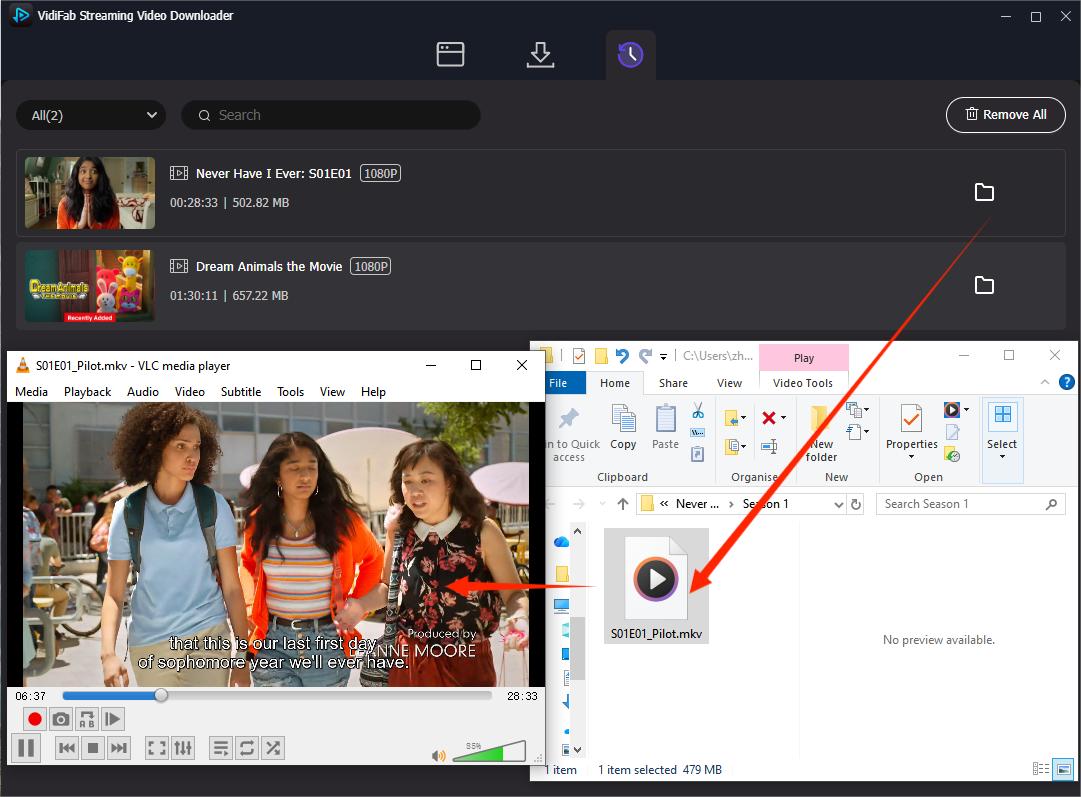
Video Tutorial: How to Download Videos from Netflix to MP4 on PC & Mac
Option 2. Try Other Netflix MP4 Video Downloaders
VidiFab isn't the only desktop tool that can save Netflix videos as MP4. MovPilot, Keeprix, and KeepStreams also offer dedicated Netflix downloaders with different pricing, output options, and download features. The table below gives you a quick way to compare them.
| Feature | VidiFab | MovPilot | Keeprix | KeepStreams |
|---|---|---|---|---|
| Price |
$59.95/month $89.95/year $149.95/lifetime |
$49.95/month $109.95/year $149.95/lifetime |
$49.95/month $99.95/year $159.95/lifetime |
$34.99/month $99.99/year $269.99/lifetime |
| Output | MP4, MKV | MP4, MKV | MP4, MKV | MP4, MKV |
| Video Quality | Up to 1080p | Up to 1080p | Up to 1080p | Up to 1080p |
| Audio | AAC / 5.1 / Dolby Atmos | AAC / 5.1 / Dolby Atmos | AAC / 5.1 / Dolby Atmos | AAC / 5.1 / Dolby Atmos |
| Ads Removal | Yes | Yes | Yes | Yes |
| Batch Download | Yes | Yes | Yes | Yes |
All these video downloaders provide similar features for obtaining a clear MP4 file from Netflix, so you can select one based on your budget. If you want to try something for a month, consider KeepStreams to see if it suits your needs. For a one-time purchase, VidiFab or MovPilot may be better choices. To learn more, check out our full MovPilot Netflix Video Downloader Review.
To help you save money on your first try, here's a 25% discount code for VidiFab.
Method 2. Record Netflix Videos to MP4
Best for: Users who want to record Netflix videos on Windows, Android, iOS, or macOS and don't mind recording in real-time.
Option 1. Save Netflix Videos as MP4 Using PlayOn Home
One of the best-known tools for recording Netflix is PlayOn Home, which is positioned as a streaming recorder or DVR-style solution.
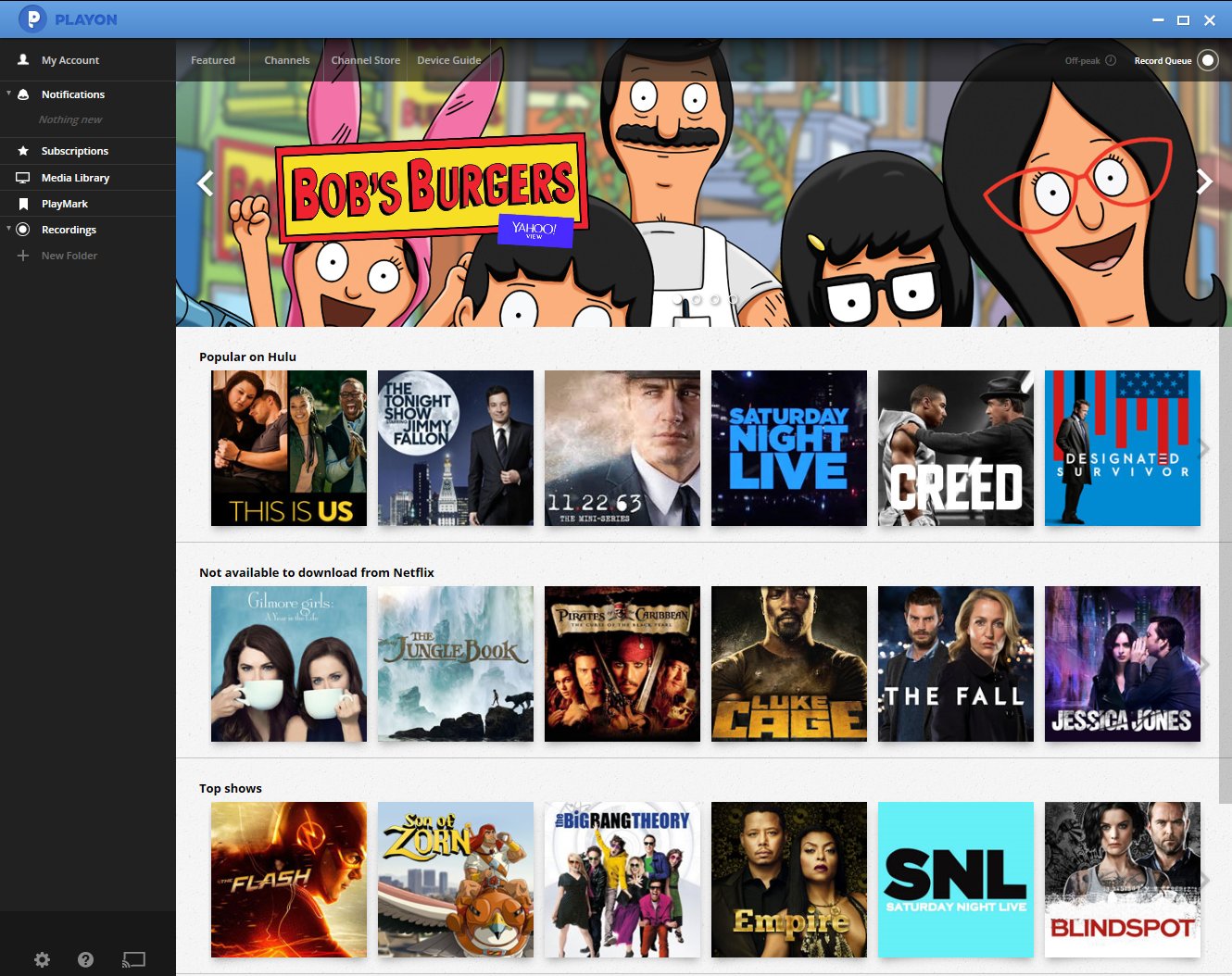
There are two versions of PlayOn: PlayOn Cloud, a mobile app for Android, iOS, and macOS, and PlayOn Home, which is software for Windows PCs.
Since it works as a DVR, it records without the annoying black screen issues that other apps have. PlayOn Cloud saves your recordings to a free cloud locker, so you don't fill up your device storage, and you can sync downloads across devices using the app. On the other hand, PlayOn Home saves files directly to your PC's hard drive.
Just keep in mind that it isn't free; you need a monthly plan. For instance, if you want to record and download about 85 hours of Netflix in 1080p MP4, it costs $4.99 a month for the 100GB plan. Check out their pricing options for more details!
How to Record Netflix to MP4 Using PlayOn Home on Windows PC
Step 1. Download the PlayOn Home application from the official website and install it on your Windows computer.
Step 2. Open the app and head to "PlayOn Settings." Find the Netflix option, click "Login," and enter your Netflix details in the pop-up to give the app access to your library.
Step 3. Check out the Netflix categories or use the search feature in PlayOn to find the movie or series you want to record.
Step 4. Hit the "Record" button next to the video thumbnail. If you're looking to record an entire series, you can usually choose to record the whole season. Remember, PlayOn records in real-time, so if you're recording a two-hour movie, it will take two hours to finish.
Step 5. Once the recording wraps up, the file saves directly to your PC's hard drive in MP4 format, which you can watch offline using any compatible media player like VLC.
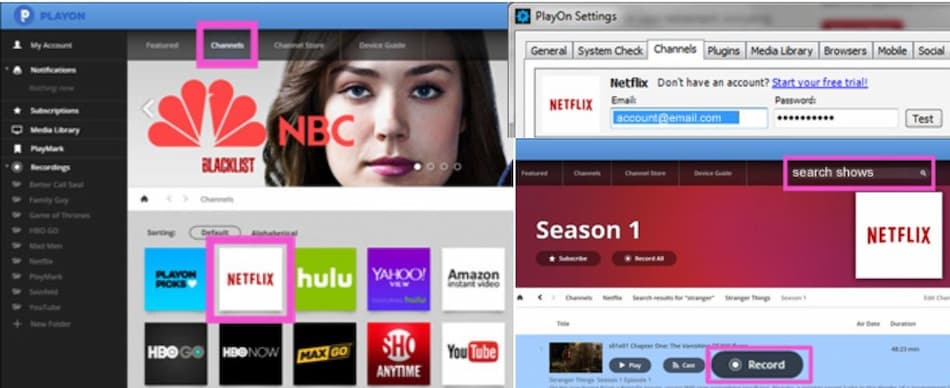
Option 2. Try Alternative Recording Tools to Capture Netflix Videos as MP4
Here are some recording tools that can help you capture Netflix content directly in MP4 format, aside from PlayOn Home.
1. Audials One
Audials One is a recording tool designed for capturing streaming videos. It automatically detects and records Netflix playback in Full HD 1080p. The software allows for high-speed recording of up to 4 times faster than normal, enabling you to save an entire movie quickly. It also removes ads, supports batch recording for entire series playlists, and has smart subtitle detection.
Step 1. Open the software and select "Video Streaming" from the left sidebar.
Step 2. Click the "Netflix" icon to open the settings window.
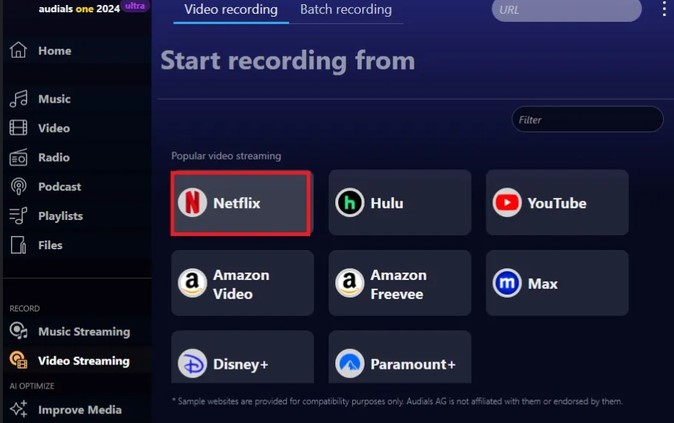
Step 3. Choose your desired recording speed (like 2x or 4x), adjust subtitle settings, and set the output format to MP4.
Step 4. Click "Record."
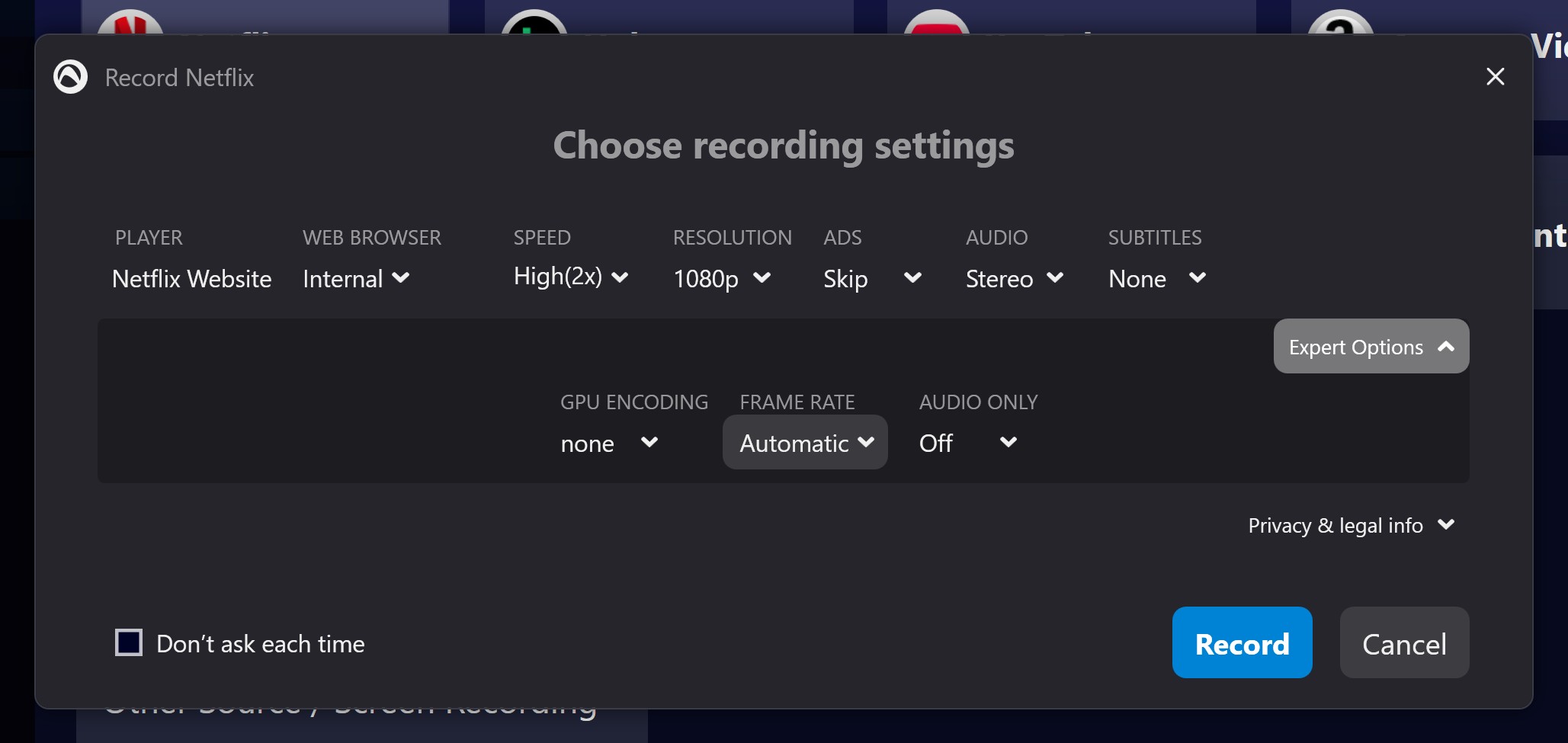
Step 5. Play the Netflix video in your browser or the built-in Audials browser; the software will automatically detect and start recording the stream.
2. OBS Studio (Open Broadcaster Software)
OBS Studio is a free, open-source software for screen recording and live streaming. While it's not specifically tailored for streaming platforms, it gives you full control over video and audio settings. To prevent OBS from recording a black screen when capturing Netflix, you need to disable hardware acceleration in your browser. Here's how to set it up:
Step 1. Open your web browser, go to settings, and turn off "Hardware Acceleration" to avoid a black screen in OBS.
Step 2. Launch OBS Studio, go to Settings > Output, and set the Recording Format to MP4.
Step 3. In the "Sources" panel at the bottom, click the "+" icon and choose "Window Capture" or "Display Capture," then select your browser window playing Netflix.
Step 4. Click "Start Recording" in OBS, play the Netflix video in full screen, and click "Stop Recording" when the video finishes.
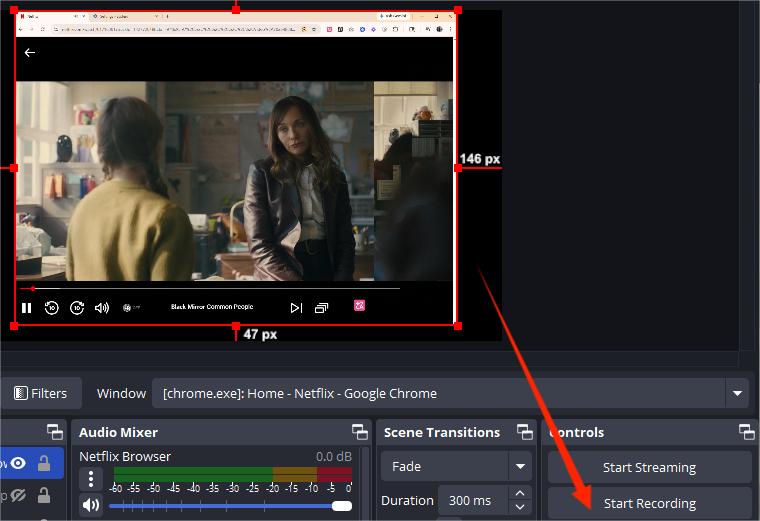
Comparison: PlayOn Home vs. Audials One vs. OBS Studio
| Feature | PlayOn Home | Audials One | OBS Studio |
|---|---|---|---|
| Price |
$4.99/month $14.97/quarter $39.99/year |
From $3.90/month From $46.74/year |
100% Free & Open-source |
| Recording Speed | 1x Real-time | Up to 4x fast recording | 1x Real-time recording |
| Ease of Use | Beginner-friendly | Beginner-friendly | Complex (Manual setup) |
| Black Screen Fix | Cloud/Server-side managed | Automatically managed | Requires manual browser tweak |
| Batch Recording | Supported | Supported | Not supported |
| Ad Removal | Supported | Supported | No (Records everything) |
| Primary Output | MP4 | MP4, MKV, AVI, etc. | MP4, MKV, MOV, etc. |
If you are okay with recording in real-time, OBS Studio is a good option, but it may include ads and possible buffering problems. For quicker, ad-free, and more stable recordings, consider trying Audials One, which is also more affordable.
Method 3. Are Online Netflix to MP4 Converters Real?
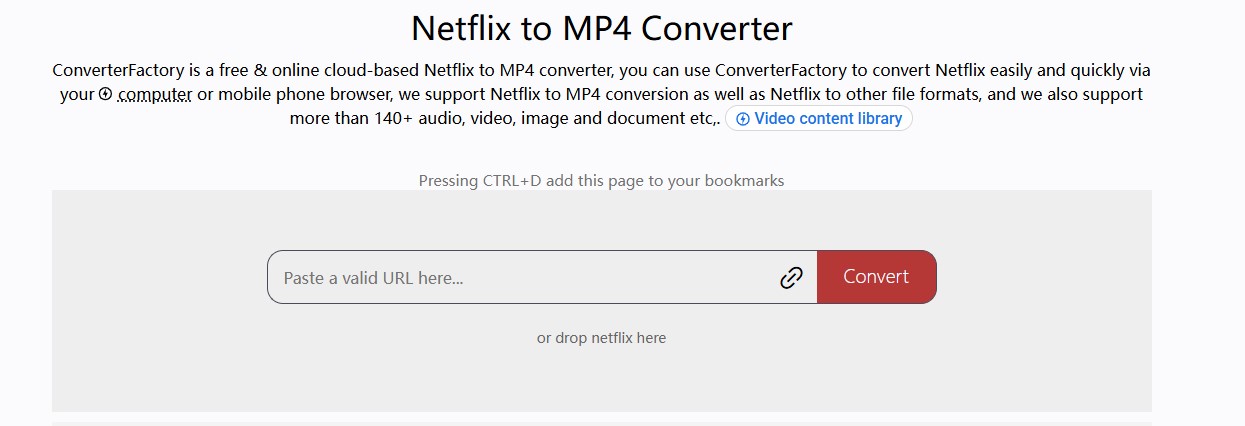
No. Most online Netflix to MP4 converters are not real in the way you expect them to be. While platforms like ConverterFactory describe themselves as cloud-based Netflix to MP4 converters, they fall short in real-world use. In my testing, you cannot simply copy and paste a Netflix video URL into the site and magically get an MP4 file.
That is because these free web tools are completely incapable of decrypting Netflix's strict copy protection (DRM) on their own. In practice, they behave more like basic file format changers rather than actual Netflix downloaders.
However, if you still want to give ConverterFactory a shot just in case it works for a specific, unprotected file or link, you can follow the steps below. Just keep your expectations low; during my testing, the vast majority of attempts failed with a "URL not supported" error.
How to Use ConverterFactory to Get Netflix MP4 Files
Step 1. Open your web browser and go to the ConverterFactory Netflix to MP4 page: https://converterfactory.com/netflix-to-mp4 .
Step 2. Find the URL of the Netflix movie or show you want to convert from your browser's address bar.
Step 3. Paste the copied link into the input box on the ConverterFactory page, or drag and drop the downloadable Netflix file onto the page.
Step 4. Click the Convert button. The default output format is MP4. If needed, you can click Convert to to choose other formats.
Step 5. Wait for the tool to analyze the video. Once the process is complete, a download option will appear. Click it to save the MP4 file to your device.
If you want to get Netflix videos as MP4, you can consider the methods mentioned in this "Download Netflix on Web Browser" guide.
Method 4. Get Netflix MP4 Files on Android and iOS Devices
Best for: Users who want to watch a desktop-created MP4 on mobile devices.
If you want Netflix MP4 files on Android or iPhone, the most reliable method is to convert Netflix to MP4 using a Netflix video converter like VidiFab on a computer first and then transfer it to your mobile device. In testing, mobile-only Netflix-to-MP4 methods are far less dependable because Netflix downloads are cached and protected rather than stored as normal video files.

Some Android users try changing the Netflix download location to an SD card and then using apps such as Video Format Factory to convert the file. In practice, this approach often fails because the app cannot properly read or convert Netflix cached data. On iPhone and iPad, the limitations are even stricter, and there are no practical iOS conversion apps for protected Netflix downloads.
How to Transfer MP4 Downloads to Mobile Devices
Once you have converted Netflix videos to MP4 on your computer, you can transfer them to your phone using the methods below.
- USB File Transfer: Plug your phone into the computer via a USB cable and set the connection mode to "File Transfer" or "MTP". Open your file explorer on the computer, locate your Android device, and drag-and-drop the Netflix MP4 files into the "Movies" or "Downloads" folder.
- Wireless Transfer: You can use tools such as a local network transfer or a media server like Plex to sync MP4 files over Wi-Fi so they can be accessed on your Android device without expiration limits.
- iCloud Drive: Sign in with your Apple ID on your computer and upload the MP4 files to iCloud Drive. Then open the Files app on your iPhone or iPad to download and play the videos.
- AirDrop (Mac only): Use AirDrop to send MP4 files directly from your Mac to a nearby iPhone or iPad over a wireless connection.
- iTunes or Finder: Connect your iOS device to your computer using a USB cable. On Windows or older macOS versions, use iTunes; on macOS Catalina or later, use Finder. Head to the File Sharing section. Choose a compatible media player like VLC or any app that plays MP4s from the list. Now, drag and drop your MP4 files into the app's document area. Your files will start syncing to your device automatically.
FAQs about Netflix to MP4 Conversion
Why does my screen recording of Netflix show a black screen?
Can I get 4K resolution in an MP4 file?
Why can't I just change the file extension of a Netflix download to .mp4?
Do these MP4 files ever expire?
Is it safe to download Netflix videos to MP4?
Netflix to MP4: Which Method Should You Choose?
- If you want high quality and speed: Choose VidiFab Netflix Video Downloader or any other downloaders that meets your need. It gives you fast, 1080p MP4 batch downloads with original subtitles and 5.1 audio while avoiding DRM issues completely.
- If you want to record on a budget: Choose OBS Studio. It is completely free, but you must be patient with the real-time recording speed.
- If you want to record without ads: Choose PlayOn Home, PlayOn Cloud, or Audials. They automatically remove ads, and Audials even gives you up to 4x faster recording speed.
- If you just need a free format changer: Choose ConverterFactory. It is a free online tool perfect for changing your existing, unprotected Netflix MP4 videos into other formats.
- If you want to watch on your mobile phone: There is no direct mobile downloader. You must create the MP4 on your desktop first using VidiFab, and then transfer the file to your Android or iPhone.
No matter which method you choose, each approach has its own trade-offs regarding speed, price, and ease of use. I suggest you give these tools a try first based on the steps provided and then decide what works best for you. I will keep updating this page to provide you with more solutions or changes as streaming platforms update their systems and new tools become available.
 Free Download
 Secure Download
 Free Download
Secure Download
Free Download
Secure Download


I'm a video tech specialist with over 10 years of experience in digital media and streaming. I focus on making complex workflows simple and practical. Through my guides, you'll learn how to convert media, keep high-quality playback across devices, and manage your streaming video library with ease.
 Leave Your Comment