The Ultimate Guide to Netflix Download Limits: Rules, Errors, and Bypassing
 By Miles Kent
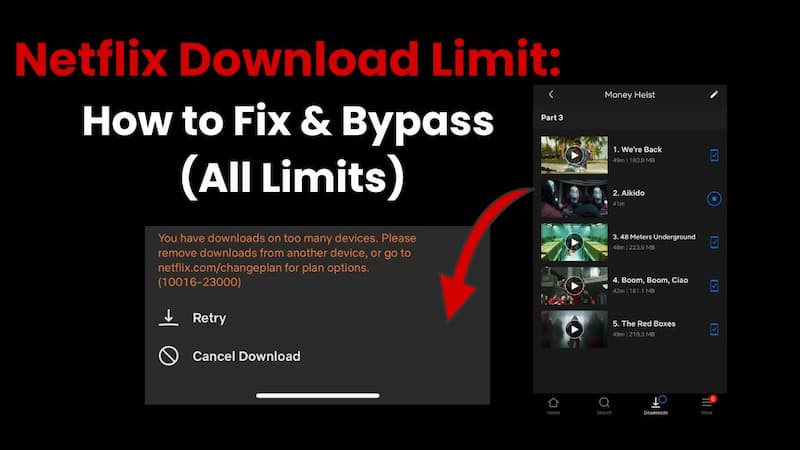
Netflix download limits in 2026 are more complicated than ever. With changing subscription plans, device restrictions, and licensing rules, many users run into errors like “Download Max Reached” or “Yearly Download Limit” when trying to save titles for Netflix offline viewing.
So, does Netflix have a download limit? Yes. Can you fix it? Usually. Can you bypass it? Absolutely.
In this guide, I'll break down every major Netflix download limit in 2026, explain what common error messages mean, and show you the most effective ways to avoid download limits on Netflix and keep better control over your offline viewing experience.

For a complete overview of Netflix downloads, including download methods, storage locations, limits, and fixes, see our Netflix Download Guide.
Part 1. Does Netflix Have a Download Limit?
Yes, Netflix does have download limits, but it is not just one single cap.
Netflix's download restrictions depend on several factors, including your subscription plan, the number of devices using downloads, the title itself, and how long the content stays available offline.
Here is a summary table of the download limits on Netflix and the common error codes you will get when you hit a limit. Have a glance at these rules before we move on to each type of limit in detail.
| Limit Category | Details | Error Codes / Warnings |
|---|---|---|
| Subscription Plan Cap | Ads Plan: 15 downloads per device per month. Standard/Premium: 100 downloads per device. |
"Download Max Reached" |
| Simultaneous Devices | Ads/Standard: 2 devices. Premium: 6 devices. |
10016-23000 / NQL.23000 |
| Time Expiration | Unwatched: 7-30 days. Watched: 48 hours after starting. |
"Expired" |
| Yearly Title Limit | Restricted download count per year for specific titles. | NQL.22007 / 10016-22007 |
| Distributor Limit | Simultaneous download cap for a single studio's content. | 10016-22005 / NQL.22005 |
| OS & Platform | Android: 4.4.2 or later. iOS: 9.0 or later. PC/Mac: No native downloads (Browser only). |
Error 158 / Missing Download Icon |
| Content Availability | Not all titles are downloadable due to licensing, region, or popularity. | Download icon is missing or greyed out. |
Note: Another download limit many users overlook is that Netflix downloads can feel unexpectedly slow even when your internet connection is stable and fast. It’s not something Netflix intentionally limits, but it does happen from time to time due to app behavior, device conditions, or background network activity. Still, it’s a common frustration, and worth being aware of when troubleshooting download performance. If you're experiencing this, check out the guide on how to make Netflix downloads faster.
Part 2. 5 Types of Netflix Download Limits
Netflix download limits fall into five main categories: plan-based limits, device limits, yearly title limits, expiration limits, and content or platform restrictions.
1. Netflix Plan-Based Download Limits
Your Netflix subscription limits how many downloads you can have per month. If you are on an ad-supported plan, your Netflix download limit is not just about storage. It is also about how many downloads your subscription allows each month.
- Standard with Ads: You are limited to 15 downloads per calendar month per device. Once you hit 15, you must wait until the next month to download more. Netflix says the monthly limit for ad-supported plans resets on the first day of the next calendar month, which gives this restriction a more predictable reset point than some others.
- Standard & Premium: You have up to 100 active downloads on a single device at any given time.
Personally, I think the download limit is super easy to get around. There are plenty of Netflix video downloaders that let you download unlimited titles and even export them as MP4 or MKV files. I use VidiFab Netflix Video Downloader, and that limit doesn't bother me anymore.
2. Netflix Download Device Limits
Netflix limits the number of devices that can store downloaded content at the same time. This helps prevent account sharing outside of your household.
- Standard with Ads / Standard Plan: 2 devices
- Premium Plan: 6 devices
3. Netflix Yearly Download Limits
This restriction can be super confusing because it only shows up when you hit the limit. Some big titles can only be downloaded a few times each year.
Here's a quick rundown on Netflix's yearly download limit:
- Shared Account Cap: This limit affects your whole account. If someone in your family downloads and deletes the same movie a bunch of times, it could hit the cap for everyone. Once you reach it, no one can download that title until the reset date.
- Driven by Studio Rights: This rule isn't from Netflix; it comes from the production companies (like Sony or Disney). So, the number of downloads allowed varies by movie and isn't publicly shared.
- The 12-Month Reset: The countdown starts when you download a title for the first time. You'll have to wait a full year from that date for the limit to reset.
- The Final Warning: Netflix usually gives you a heads-up before you reach the limit. You might see a "Download Limit Warning" letting you know you have just one download left for that video before the reset date.
- What Happens at the Limit? Once you hit the cap, the "Download" icon will vanish or show an error.
4. Netflix Download Expiration Limits
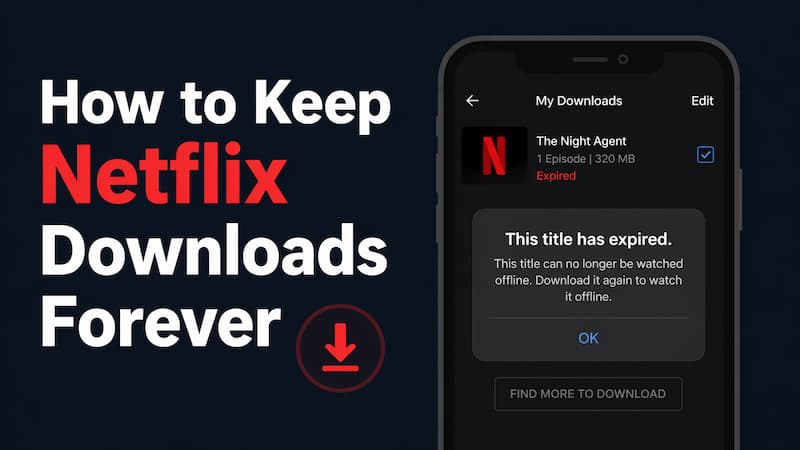
Downloaded videos aren't permanent. They are temporary access copies that still follow licensing windows and availability rules. Similar restrictions also apply to other streaming services, including Amazon Prime Video download expiration limits.
- Unwatched Content: Most downloads last between 7 to 30 days.
- The 48-Hour Timer: Once you press "Play," the clock speeds up. Most titles expire 48 hours after you start watching.
- Renewing Downloads: You can often "Renew" an expired download, but be careful, doing this too many times can trigger the "Yearly Download Limit" mentioned above.
- Titles That Cannot Be Renewed: If a title has been removed from Netflix, it cannot be renewed or downloaded again.

5. Content & Device Compatibility Limits
Not every Netflix show or movie is available for download, and not all devices can do it.
- Content Restrictions: Many licensed titles, including some Netflix Originals, don't have a download option. This happens when Netflix lacks the specific "offline rights" for a certain title or region. If you don't see the download icon, it's likely a licensing block. Note: Even if you have downloaded the title, if you travel to a location where it is not available or if Netflix removes that show or movie, your downloads will disappear.
- Device Restrictions: In a big 2024 update, Netflix removed the download feature from its Windows app. Mac users never had a native app, so you can only stream through a browser on desktops or laptops.
- Outdated Devices: As of March 2026, Netflix stopped supporting older platforms like PlayStation 3 and older Smart TVs. If your device is old, you won't see the download option.
- Where You Can Download: Official downloads are now only available on mobile-first platforms:
- iOS & Android: Phones and tablets.
- Amazon Fire: Tablets only.
- Google Chromebook: Must have the Google Play Store installed.
Part 3. Common Netflix Download Limit Warning & Fixes
When you hit a restriction, Netflix gives you error codes to show what limit you've hit. Here are the common download limit warnings, what they mean, and how to fix them:
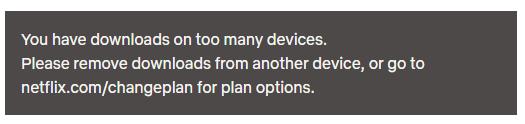
1. Too Many Devices (Error 10016-23000 / NQL.23000)
Netflix too many devices message pops up when you reach the max number of devices: 2 for the standard plan or 6 for the premium plan.
How to Fix It:
Option 1. Remove device: Head to Netflix Manage Download Devices and remove device that has downloads.
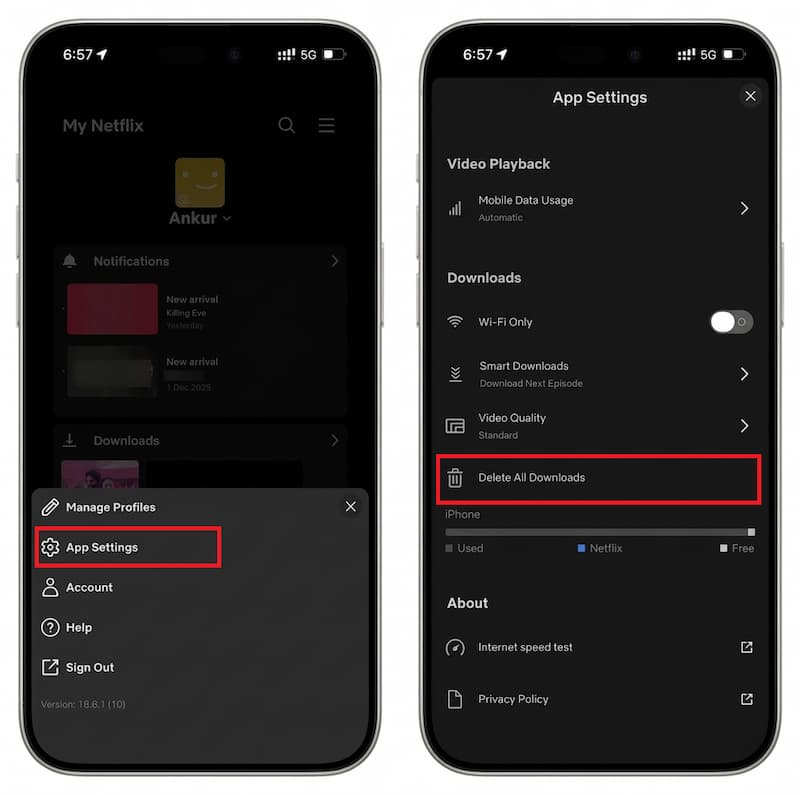
Option 2. Remove downloads:
-
01
Tap My Netflix at the bottom right.
-
02
Tap the Menu at the top right.
-
03
Select App Settings.
-
04
Under Downloads, hit Delete All Downloads.
-
05
Confirm by tapping Delete.
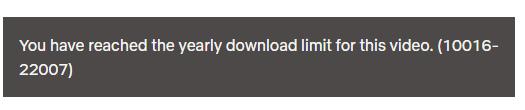
2. Yearly Download Limit (Error 10016-22007 / NQL.22007)
The Netflix yearly download limit error means you've reached the studio-mandated cap on how many times a specific title can be saved offline within a 12-month period.
How to Fix It:
Official Method: There's no way to reset this limit early. You either have to stream the title online or wait a full year from your first download of that title.
Workaround: Usually, Netflix will give you a “last download” warning before hitting the yearly limit. If you want to keep watching offline without waiting, you can use a Netflix downloader like VidiFab Netflix Video Downloader to save the title as MP4 or MKV on your computer. This way, you bypass the yearly download restriction entirely.
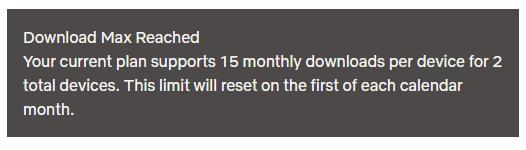
3. Download Max Reached
The Netflix download max reached message usually pops up on the Standard with Ads plan, which has a 15-title monthly download limit.
How to Fix It:
You must either wait for the first day of the next calendar month for the limit to reset or upgrade to an ad-free plan for immediate access.
4. Storage Limit Per Device (Error 10016-22002)
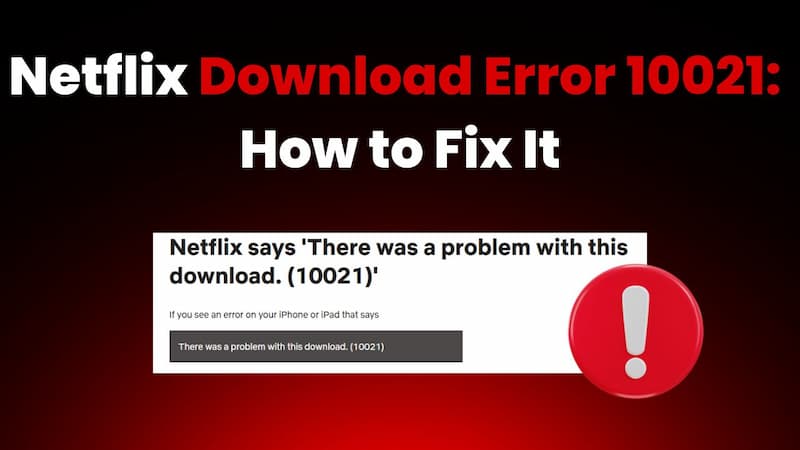
The "There was a problem with this download" error appears when you've reached the maximum of 100 active downloads on a single device.

How to Fix It:
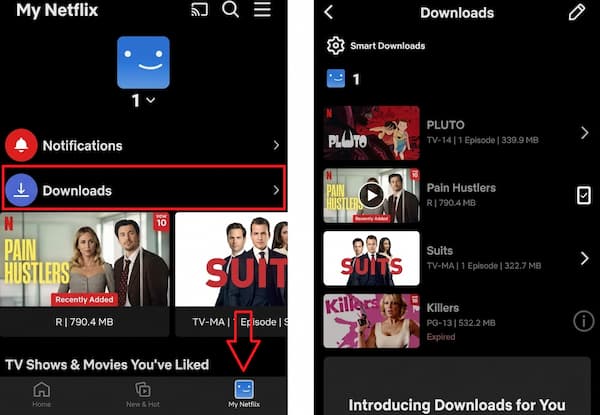
Delete older downloads: Go to App Settings > Downloads > Delete All Downloads to clear everything. For individual titles, go to My Netflix > Downloads, tap the download status icon, and select Delete Download.
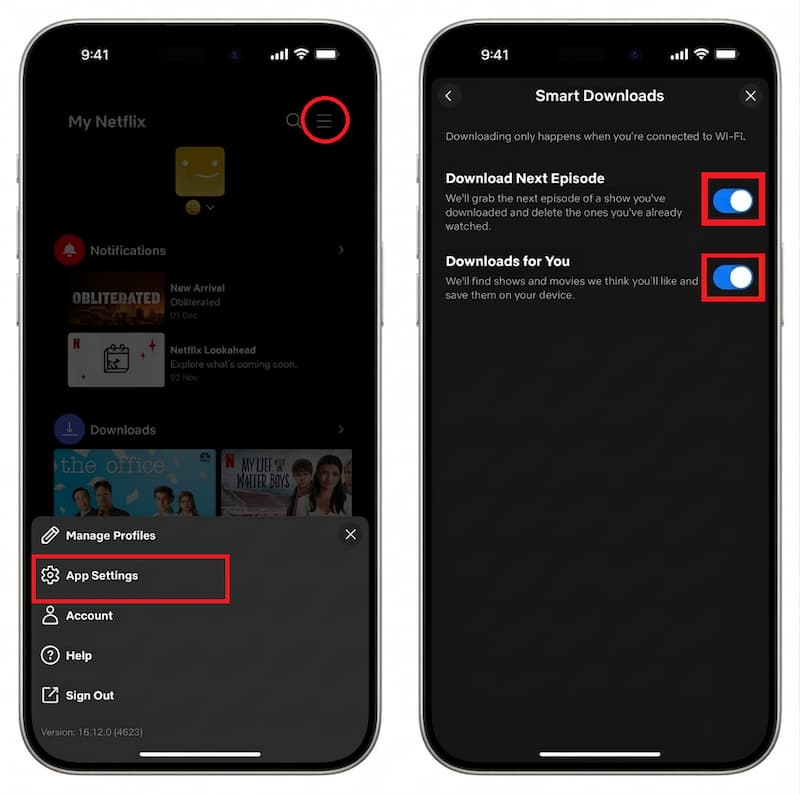
Enable Smart Downloads: This feature automatically deletes watched episodes and downloads the next ones, so you never run into the limit again.
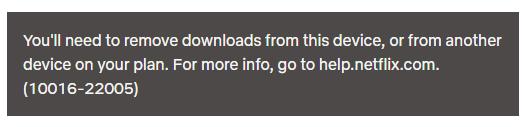
5. Distributor or Bundle Limit (Error 10016-22005 / NQL.22005)
This Netflix 10016-22005 error occurs when you've reached the simultaneous download limit for a specific studio or distributor's content bundle.
How to Fix It:
Delete downloads: Go to App Settings > Downloads and remove some or all downloads.
Target the distributor's content: Often, downloads from the same studio appear in the “More Like This” section. Deleting some of these titles can free up distributor-specific licenses, allowing you to download new titles from that bundle.
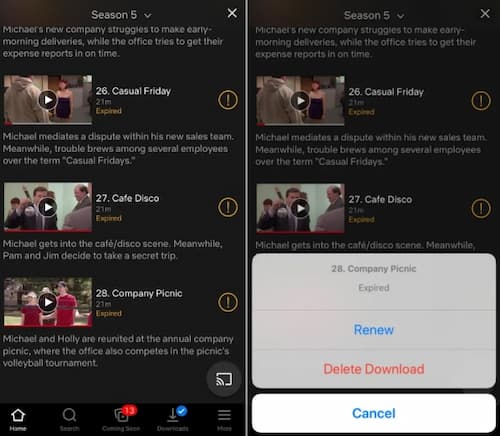
6. Expired Title
You'll see an orange exclamation point with the word "Expired." The viewing window, usually 7-30 days for content you haven't watched or 48 hours after you hit play, has ended.
How to Fix It:
Tap the expired title and select "Renew Download" if the title is still available on Netflix and you haven't hit the yearly limit.
Part 4. How to Bypass Netflix Download Limits
In Part 3, we went through each download error and explained what it means and what you can do. In most cases, the fixes are straightforward: delete downloads or devices, wait for the next billing cycle, or upgrade to a Premium plan. If you're comfortable with these solutions, you can manage your downloads accordingly.
However, for device-specific limitations, such as offline viewing on PC or Mac, there's no official way around them. In these cases, a more fundamental solution is needed: convert Netflix videos into a universal format like MP4 and save them locally on your device, so you're no longer bound by the Netflix app or its download restrictions.
To do this, you need a reliable Netflix video downloader. I recommend VidiFab Netflix Video Downloader. Here's why:
- It supports up to 1080p quality and preserves Dolby Atmos audio.
- It lets you choose subtitle and audio languages.
- It allows unlimited downloads and batch downloads.
- It makes the Netflix downloads playable anytime, on any device.
- It's safe and secure, so you can download and watch Netflix content offline on your computer without worry.
VidiFab Netflix Video Downloader
Download Netflix videos as MP4/MKV in 1080p with Dolby Atmos for offline viewing on your iPhone, Android, desktop, and more devices.

With this approach, you are no longer limited by Netflix download restrictions. It works independently of the app, giving you complete control over your offline viewing.
How to Download Unlimited Netflix Videos via VidiFab Software
Next, I'll show you how to use VidiFab on Windows to download Netflix videos. You can download movies, TV shows, documentaries, and Netflix Originals, basically anything available on the platform. The workflow is also applicable on Mac, so the steps below can serve as a guide for both systems.
Step 1. Launch VidiFab and Set Up Output Format
Download and install VidiFab Netflix Video Downloader. Open the app, click the menu icon (top-right), and select Preferences. Set Download Video Format to MP4 or MKV. Choose your preferred video quality and audio settings. Click OK to save your settings. Next, on the main interface, select Netflix from the list of supported services and log in using the secure built-in browser. This ensures VidiFab can access the same library available in your region.

Step 2. Find the Netflix Content You Want
Browse the Netflix library or paste the URL of a specific movie or TV show into VidiFab's search bar. Once the video detail page opens, VidiFab will automatically analyze the stream. Click the Download button in the bottom-right corner to proceed.

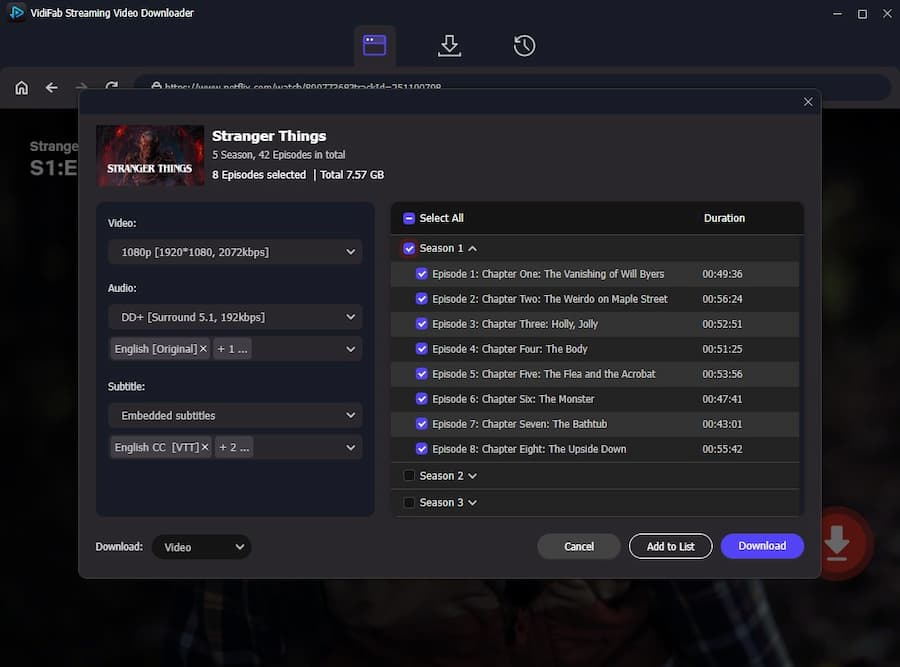
Step 3. Customize Your Netflix Download
In the download settings, choose 1080p for the best video quality. Select your preferred audio language and subtitle type, either embedded or as an SRT file. On the right side, you can select all episodes for an entire season or just a single title to download.
Step 4. Download and Save Netflix Videos
Click Download to start the process. Unlike the official Netflix app, VidiFab saves the file as a standard MP4 or MKV directly to your computer. Once the download is complete, go to the History tab and click the folder icon to locate your files. You can now move these real video files to Mac, Android, or Smart TV devices for offline viewing, completely independent of the Netflix app and its download limits.

Part 5. FAQs about Netflix Download Limits
Do Netflix limit the download quality options?
What happens to my downloads if I cancel my subscription?
How much storage does a download use?
Standard Definition (SD): For a 30-minute show, you can expect the file size to be between 250 MB and 400 MB.
High Definition (HD/1080p): Approximately 1.5 GB to 3 GB per hour.
Does downloading use more data than streaming?
Final Verdict
Netflix download limits can be frustrating, but most of them are manageable. You can delete old downloads, manage your devices, wait for the next billing cycle, or upgrade your plan to work around these restrictions.
For device-specific or platform limitations, VidiFab Netflix Video Downloader offers a reliable solution. By downloading Netflix videos to standard formats like MP4 or MKV, you not only gain access on more devices but also break free from Netflix's built-in download limits, giving you full control over your offline library.
 Free Download
 Secure Download
 Free Download
Secure Download
Free Download
Secure Download


I'm a video tech specialist with over 10 years of experience in digital media and streaming. I focus on making complex workflows simple and practical. Through my guides, you'll learn how to convert media, keep high-quality playback across devices, and manage your streaming video library with ease.
 Leave Your Comment