How to Use VidiFab Streaming Video Downloader for Windows and Mac
VidiFab Streaming Video Downloader lets you download movies, shows, originals, series, and documentaries from Netflix, Prime Video, Disney+, HBO Max, Hulu, and Apple TV+ to MP4 or MKV, so you can watch them offline, ad-free, on your devices.

VidiFab Streaming Video Downloader is an all-in-one video downloader that allows you to download videos from popular streaming platforms. It supports services like Netflix, Prime Video, Disney+, HBO Max, Hulu, and Apple TV+. Using VidiFab, you can download them locally to your Windows or Mac computer and save it to MP4 or MKV formats. You get to customize the quality up to 720p or 1080p, save multilingual substitles and audio tracks. This is the ideal tool if you want to watch your favorite movies or shows offline, ad-free, and seamless on any device you want. Let's now see how it works.
Part 1. Getting Started: Install and Register VidiFab
Before you download video usign VidiFab, plese follow the steps below to install the VidiFab Streaming Video Downloader and unlock the full features.
Step 1. Download and Install VidiFab Streaming Video Downloader
Click the Free Download button below to download VidiFab Streaming Video Downloader, or visit the official VidiFab product page to get the installer.
 Free Download
 Secure Download
 Free Download
Secure Download
Free Download
Secure Download
VidiFab is checked by VirusTotal for security, so you can download and install the software with confidence.
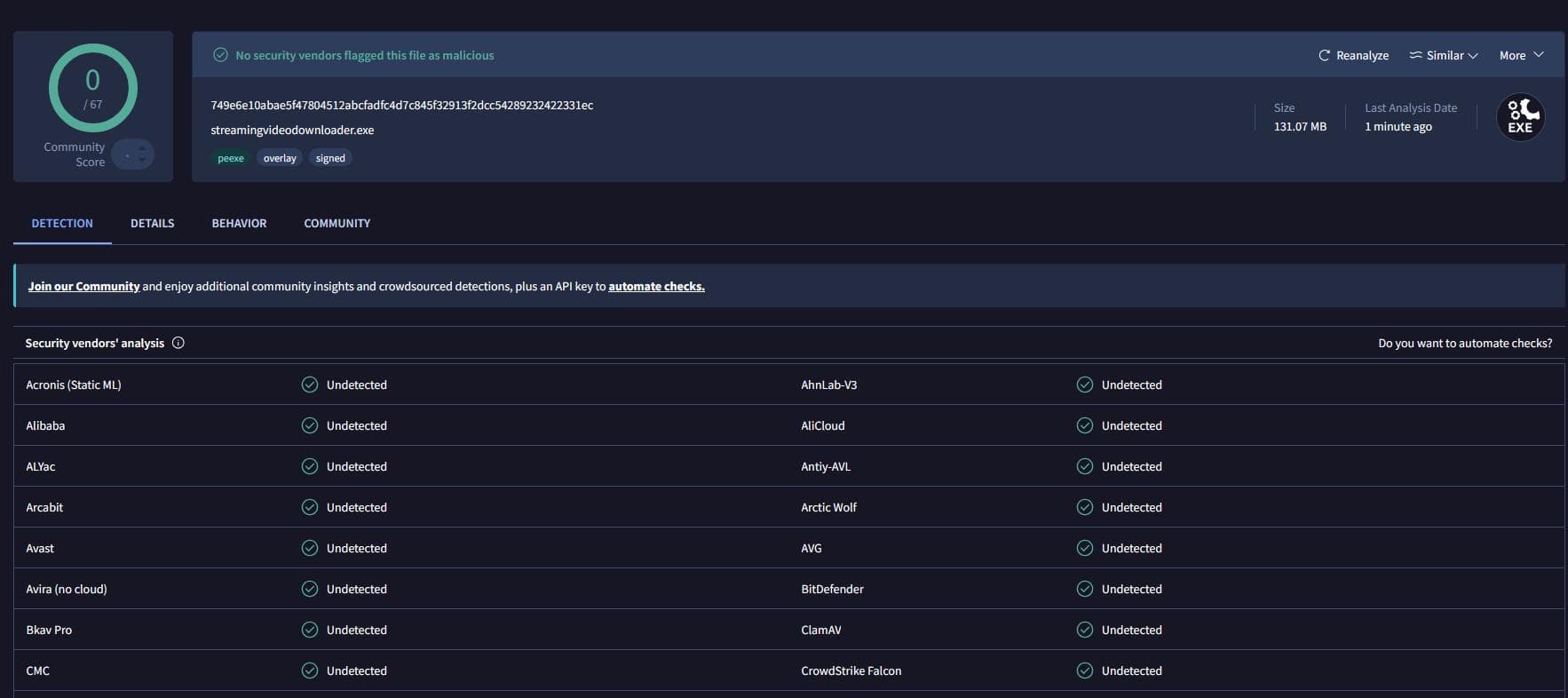
Once the download is complete, open the installation file and follow the on-screen instructions to finish the installation.
Step 2. Register VidiFab Streaming Video Downloader
VidiFab offers a free trial that lets you download the first 3 minutes of each video. To unlock all features and download videos without the trial limitation, purchase a license from the VidiFab store.
To get a lower price, use the discount code VF25OFF to save 25% on your purchase. Simply copy the code and enter it at checkout to receive the discount.
After your purchase, you will receive a confirmation email containing your license key. To active your license, open VidiFab Streaming Video Downloader. Click the Profile icon in the upper-right corner. Enter the email address and license key you received after your purchase. Click Register.
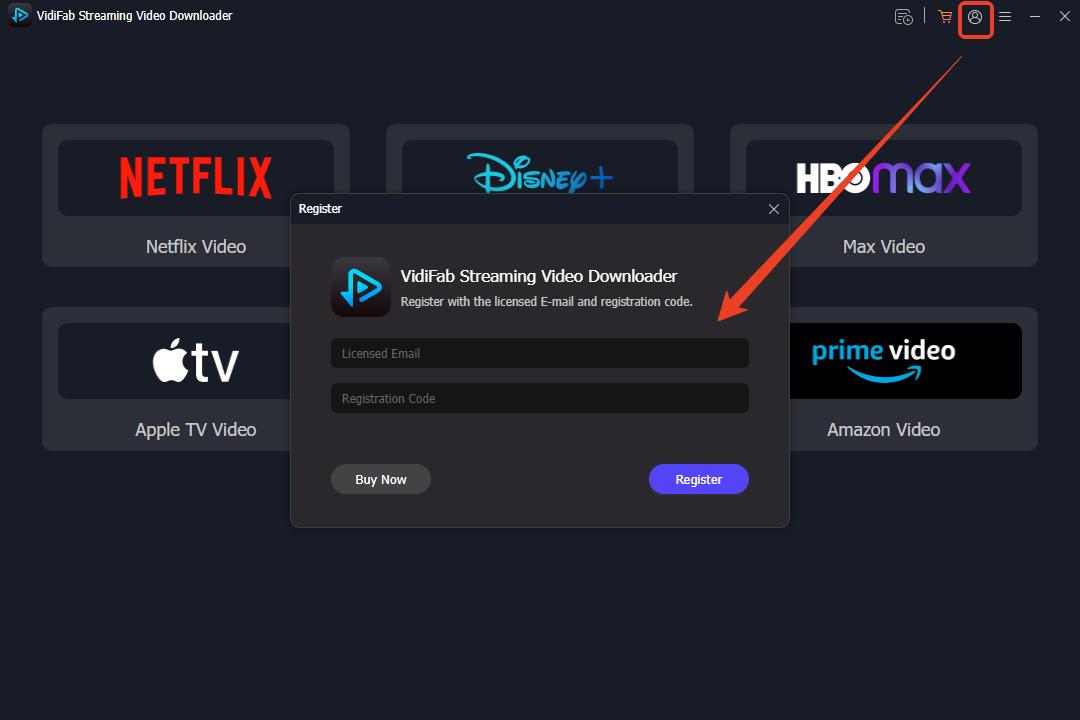
Note: Both the email and license key are case-sensitive, so double-check everything before confirming.
Once your license is activated, you can access the full features of VidiFab and start downloading videos.
Part 2. How to Download Streaming Videos with VidiFab
VidiFab makes it easy to save movies and shows in just a few clicks. Follow these simple steps to start building your offline video library.
Step 1. Set the Output Format and Output Folder
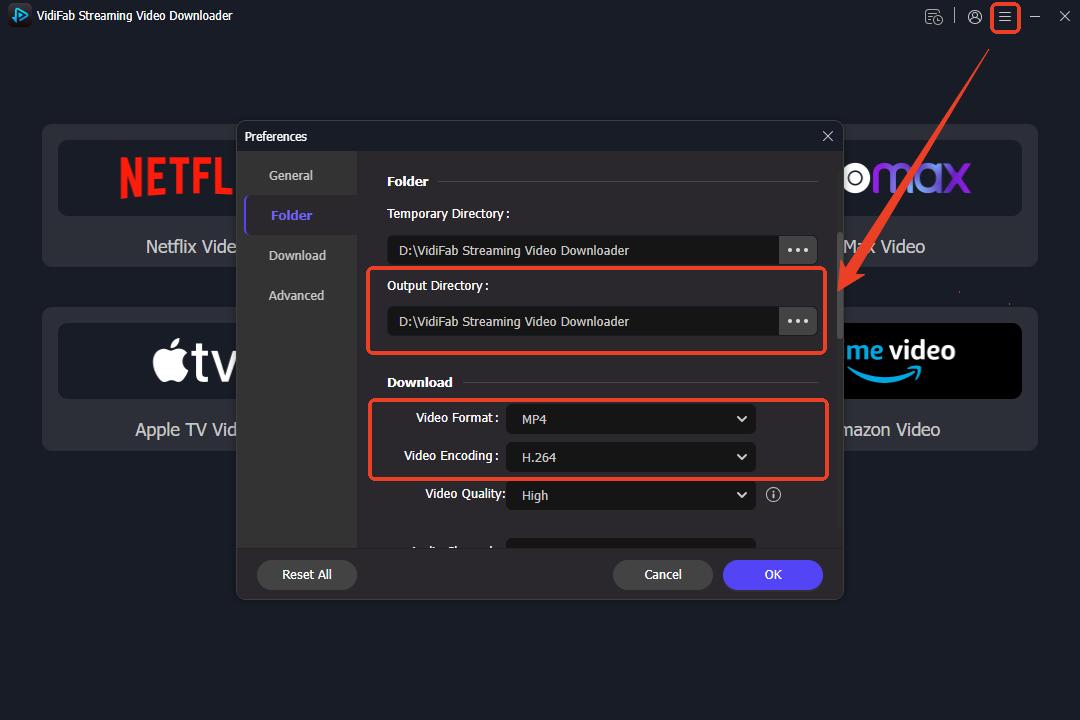
Open VidiFab Streaming Video Downloader and click the three-line menu in the upper-right corner. Select Preferences to open the settings window. Under the Folder section, choose the destination folder where you want VidiFab to save your downloaded videos. Next, select your preferred output format, either MP4 or MKV. If needed, you can also choose a video codec between H.264 and AV1. After configuring the settings, click OK to save your changes.
Step 2. Choose a Streaming Service
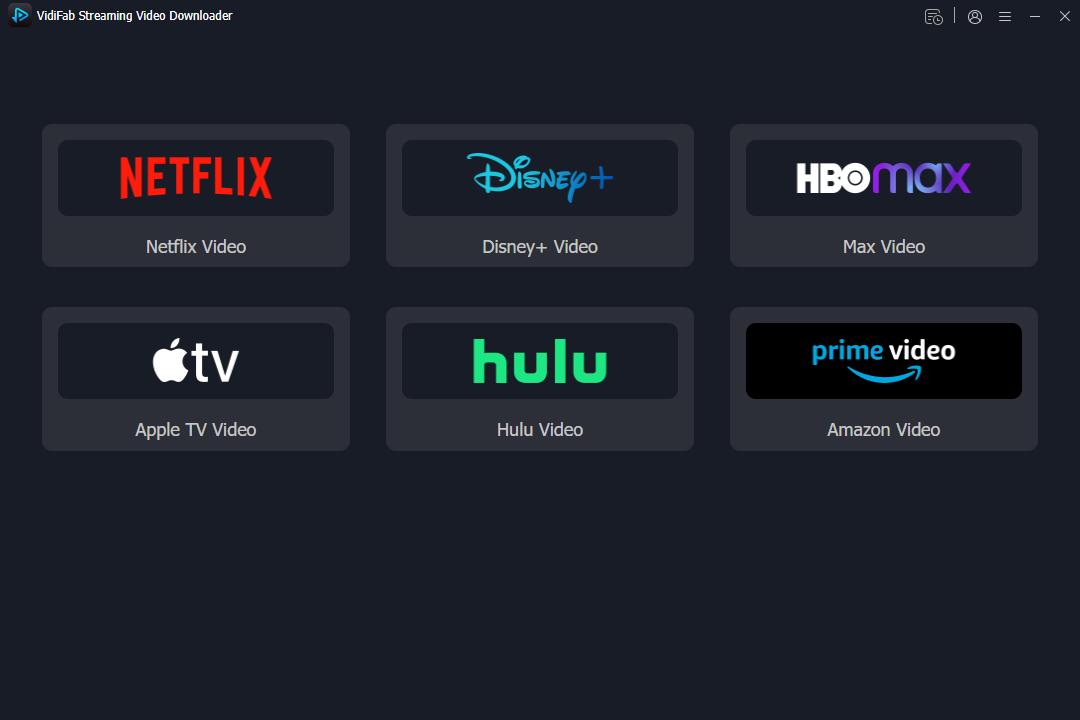
On the main screen, you will see the streaming services supported by VidiFab. Select the platform you want to use, such as Netflix, Prime Video, Disney+, Hulu, Max, or Apple TV. VidiFab will open the selected service in its built-in web player, so there is no need to switch to another browser or application.
Step 3. Sign In to Your Streaming Account
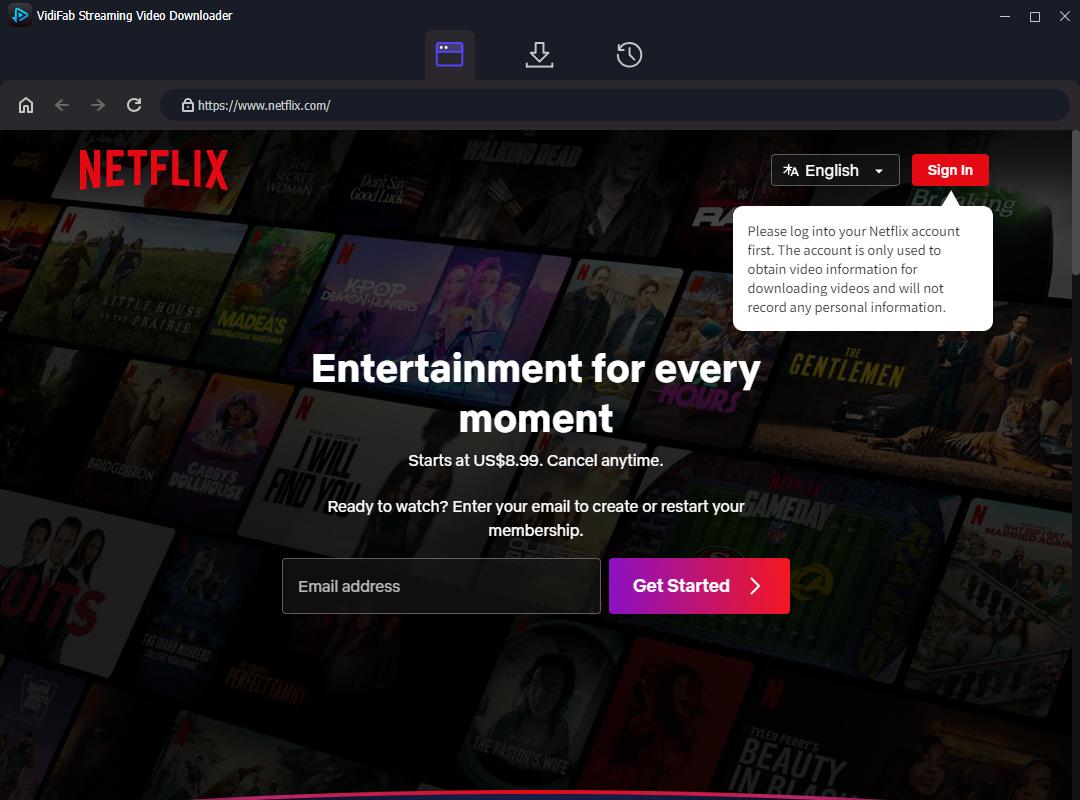
Next, log in with your streaming account. This step is completely safe, and your personal information is always protected. This simply allows VidiFab to access the video library in your region for you.
Step 4. Find the Video You Want to Download
You can browse or search for the video you want to download just like you normally do. You can also copy a video link and paste it into the address bar at the top of the built-in player. Once you are on the video's detail page, look for the Download button in the bottom-right corner and click it.

No matter which subscription tier you have, including ad-supported plans, VidiFab removes all ads during the download process. As long as a movie or show is part of your streaming library or has been purchased or rented through your account, you can save it to your device completely ad-free.
| Streaming Platform | Downloadable Content | Required Subscription | Ads Removed? | No Expiration? | Works Offline? | Cross-Device Playback? |
|---|---|---|---|---|---|---|
| Netflix | Any movie, TV show, documentary, or anime available within the Netflix catalog. | Standard with Ads, Standard, or Premium plan. | ✔️ | ✔️ | ✔️ | ✔️ |
| Amazon Prime Video | Movies, TV shows, Amazon Originals, free ad-supported content (Freevee), and purchased/rented titles. | Prime membership, Freevee access, or active digital purchases/rentals. | ✔️ | ✔️ | ✔️ | ✔️ |
| Disney+ | Movies, series, shorts, and originals from Disney, Pixar, Marvel, Star Wars, and National Geographic. | Disney+ (With Ads) or Disney+ Premium plan. | ✔️ | ✔️ | ✔️ | ✔️ |
| Hulu | Movies, shows, Hulu Originals, and network catch-up content available in the Hulu library. | Hulu (With Ads) or Hulu (No Ads) plan. | ✔️ | ✔️ | ✔️ | ✔️ |
| Max | HBO series, Max Originals, Warner Bros. movies, DC content, and Discovery content. | Basic with Ads, Standard, or Premium plan. | ✔️ | ✔️ | ✔️ | ✔️ |
| Apple TV | Apple TV+ originals, plus movies and TV shows purchased or rented via iTunes/Apple TV app. | Active Apple TV+ subscription or valid digital purchases/rentals. | ✔️ | ✔️ | ✔️ | ✔️ |
Note:
- Active Status Required: You must have an active membership to the respective service, or you must have already purchased or rented the specific title to access it through VidiFab's player.
- Live TV Is Excluded: Live broadcasts, scheduled linear channels, and live sports events, such as those on Hulu + Live TV or live add-ons, cannot be downloaded.
Step 5. Customize Download Settings
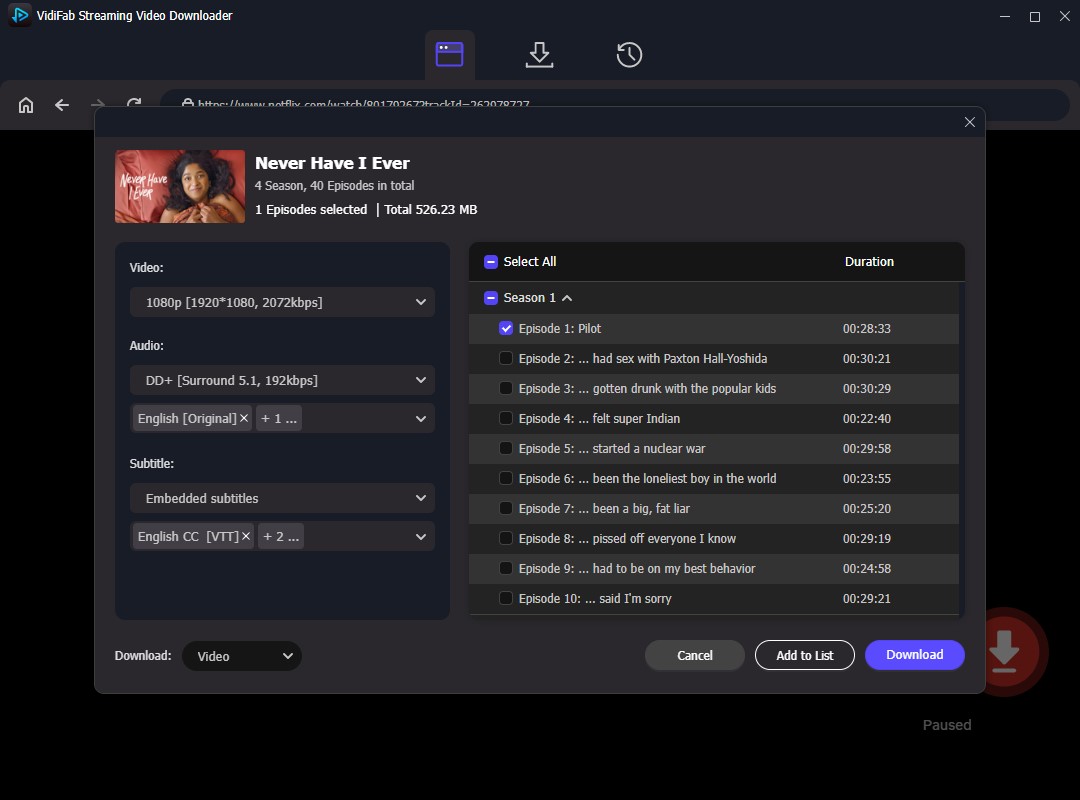
Once you hit the download icon, a settings window will pop up. You can select the video quality, audio, subtitles, and which episodes you want to download. Here are your options:
- Video Quality: 1080p, 720p, 540p, 480p, and more
- Audio Quality: Dolby Digital Plus (5.1 Surround), AAC (Stereo)
- Audio Language: Multiple languages
- Subtitle Format: Embedded Subtitles, External SRT Subtitles, Original File
- Subtitle Language: Multiple languages
- Batch Download: Check the Select All box to download all episodes in one go
- Download Content: Video, Audio (Free), Subtitles (Free)
Once setup, click Download to start downloading. If you don't want to download right away, you can click Add to List, and download them when you are ready.
Step 6. Start the Download
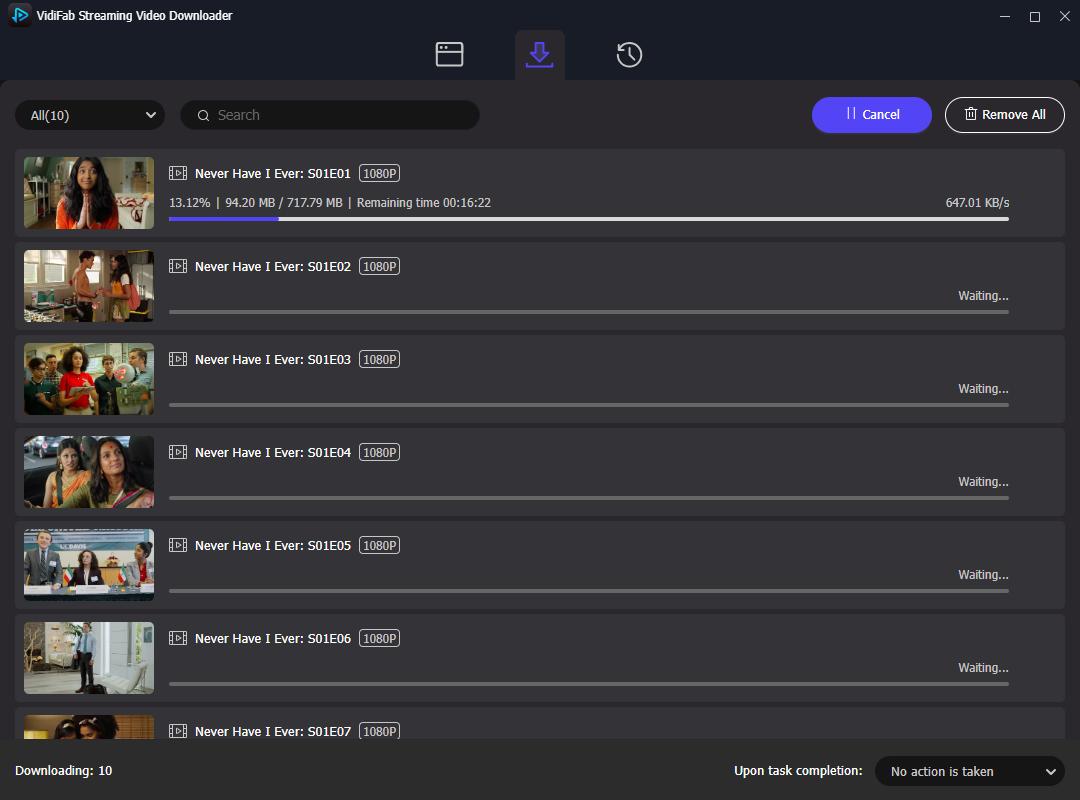
Once you click the download button, VidiFab will begin saving the video to your computer at high speed. You can see the progress on the screen as it works.
Step 7. Watch Videos Offline
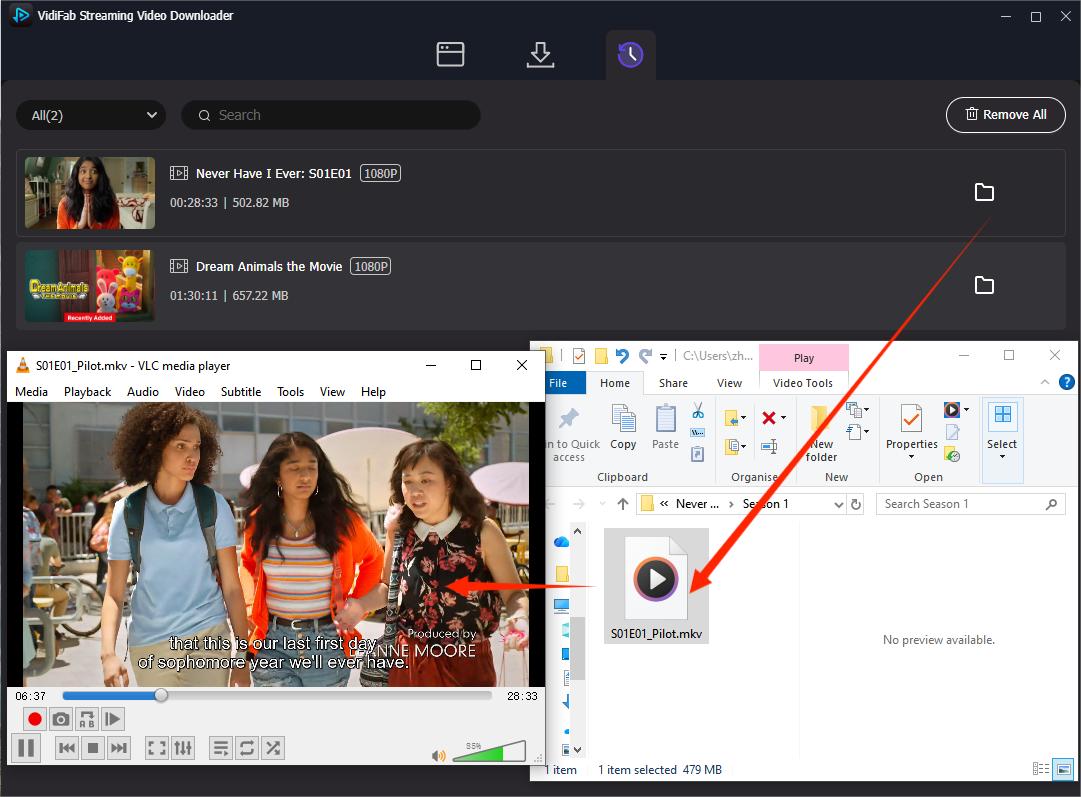
When the download is finished, click the History tab (the clock icon) at the top of the program. You will see all your finished videos there. Click the folder icon to open the exact folder on your computer where the file is stored. You can now watch your video using any media player without any ads or internet. You can also move these files to other devices to watch them anywhere.
If you run into problems while using VidiFab, such as login issues, failed video analysis, download errors, or slow download progress, see our VidiFab Troubleshooting Guide for step-by-step solutions.
Part 3. Video Guide of Using VidiFab Streaming Video Downloader
If you'd prefer to watch a video tutorial on how to use VidiFab Streaming Video Downloader to download MP4 or MKV files from streaming platforms, here's a concise tutorial video for your reference.
Video Guide: How to Download Streaming Videos with VidiFab
Part 4. FAQs
What file formats does VidiFab use for downloaded videos?
Can I transfer my downloaded files to my iPad, phone, or smart TV?
What is the maximum resolution VidiFab supports for downloads?
Will ads be completely removed if I am on a 'Basic with Ads' streaming plan?
Can I download movies that I have rented or purchased on Amazon or Apple TV?
Can I save subtitles as separate files, or are they burned into the video?
Can I download a movie with multiple audio languages and subtitle tracks simultaneously?
Does VidiFab support batch downloading entire TV show seasons?
What should I do if a download fails midway or shows an error?
Please try the following solutions:
- Make sure you don't have the official streaming app open or the same account logged in on a different browser.
- Try pausing and then resuming the download task in VidiFab.
- Close VidiFab Streaming Video Downloader using your computer's Task Manager and restart it.
- If you're still having issues, reach out to our customer support team for help.
Can I still watch downloaded videos if I cancel my streaming subscription later?
Is it legal to download streaming videos using VidiFab?