How to Watch and Download Netflix on a Chromebook
 By Miles Kent
If you want to watch Netflix on a Chromebook, the best method depends on what you need most. In most cases, the Chrome browser is the better choice for the highest streaming quality, while the Netflix Android app is the only official way to download titles for offline viewing on ChromeOS. However, the download quality is typically lower than the best browser streaming quality. If your Chromebook is old, school-managed, or missing Google Play support, you can still use a dedicated downloader to get your favorite Netflix titles available offline.
In this guide, I am going to cover these three ways to watch and download Netflix videos on your Chromebook step by step.
Part 1. Can You Watch Netflix on a Chromebook?
Yes. Netflix works on Chromebook in two main ways: through the Chrome browser at netflix.com, or through the Netflix Android app installed via the Google Play Store. Both methods let you log in with your existing account and stream content immediately.
However, they are very different experiences under the hood, especially when it comes to video quality and offline access.
Here is a quick comparison so you can decide which one fits your needs before we get into the steps.
| Feature | Google Chrome Browser | Netflix Android App |
|---|---|---|
| Maximum Resolution | Up to 1080p or 4K Ultra HD | 720p* |
| Offline Downloads | Not available | Yes |
| Audio Options | Stereo & 5.1 Surround | Stereo Only |
| System Requirement | ChromeOS 76 or higher | Enabled Google Play Store |
| Best for | Highest picture quality | Watching offline |
*Note: Chromebook caps downloads at 720p. This is because Chromebooks are not Netflix-certified Android devices for Widevine L1 DRM (the higher security tier required for 1080p downloads on Android). You will not find a way around this within the official app.
From the table above you can see that, there's no way to get Netflix downloads feature on Chrome OS and hoping to get the highest quality. Access to Full HD 1080p and 4K Ultra HD playback., we find a workaround for you in Part 6.
Part 2. How to Download and Install Netflix on Chromebook
If your goal is to watch Netflix offline on your Chromebook, start by checking whether your Chromebook has Google Play support.
Step 1. Open the Launcher (the circle icon in the bottom-left corner of your screen).
Step 2. Search for the Google Play Store.
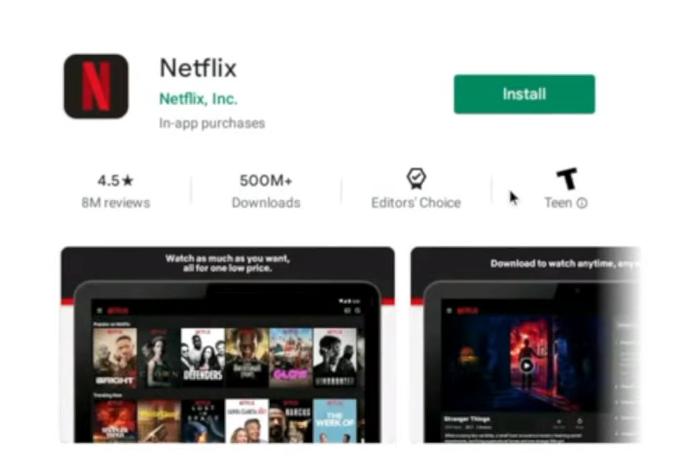
Step 3. If the Play Store opens, search for Netflix.
Step 4. Install the app published by Netflix, Inc.
Step 5. Open the app and sign in.
Step 6. To access Netflix easily, right-click on the Netflix icon in the bottom shelf and choose Pin.
If you do not see the Play Store at all:
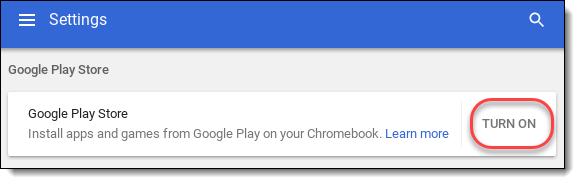
Step 1. Open Settings.
Step 2. Go to Apps.
Step 3. Look for the Google Play Store.
Step 4. If the option is available, turn it on and complete the setup.
Step 5. Then return to the Play Store and install Netflix.
Does Every Chromebook Support the Netflix Android App?
Part 3. How to Download Movies from Netflix on Chromebook for Offline Viewing
Once you have the Android app running, you can use the Netflix app to download movies and shows for offline viewing. Follow these steps below:
Step 1. Open the Netflix Android app on your Chromebook.
Step 2. Browse for the movie or TV show you want to save.
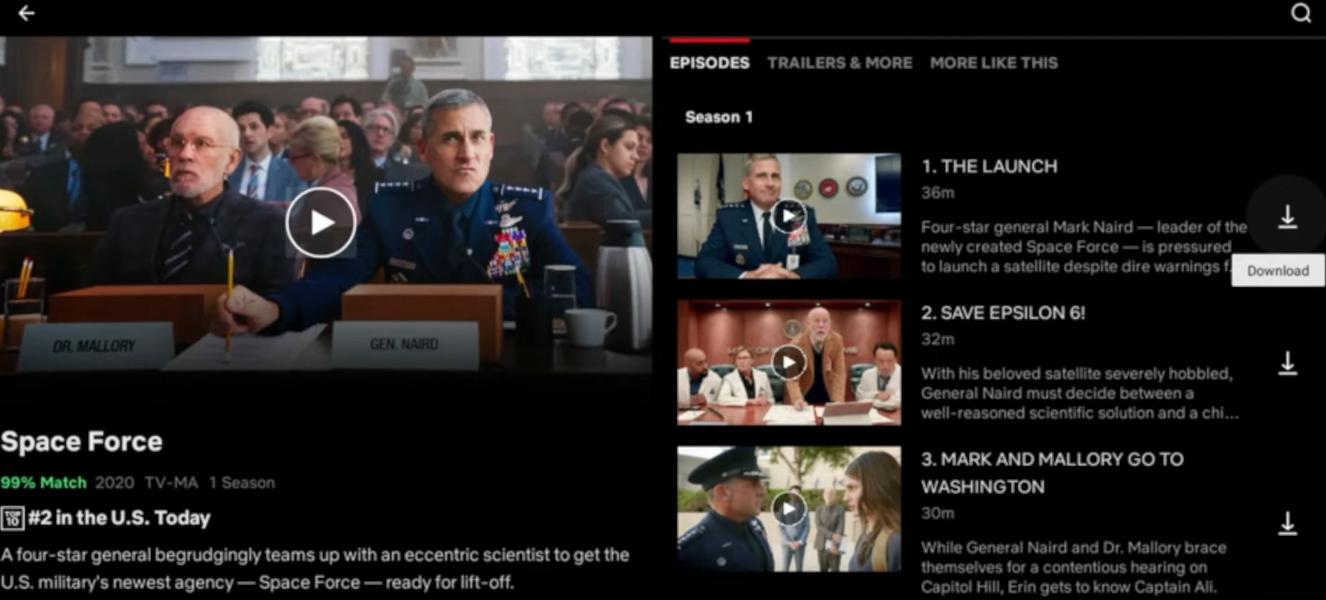
Step 3. Look for the Download icon (a downward-facing arrow). For TV shows, this arrow appears next to each individual episode.
Step 4. Click the arrow to begin the process. A blue progress circle will appear.
Step 5. Once downloaded, titles are available in the Downloads section even without an internet connection.
Do all Netflix titles support downloads?
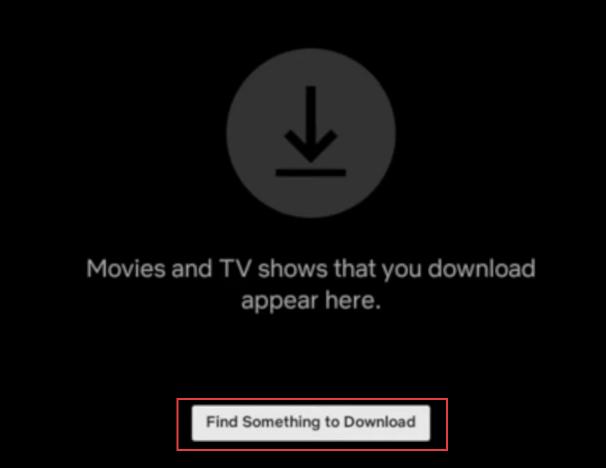
To only see the downloadable titles on Chromebook, go to the Downloads section at the bottom of the app. You will see a button that says Find Something to Download. Click on it. You will only see titles that support offline download.
Where are Netflix offline downloads stored on a Chromebook?

Pros:
- Free to use, built into your existing Netflix subscription
- Simple and official
- Works completely offline once downloaded
Cons:
- Maximum 720p quality
- Downloads expire after 7 days, or within 48 hours once you start watching
- Downloads are DRM-locked to the Netflix app
- Not all titles are available for download
- Chromebook storage is often limited
Part 4. How to Stream Netflix in 1080p and 4K Ultra HD
According to Netflix's official support page, streaming via the Chrome browser on a Chromebook supports up to Ultra HD (4K). However, there are conditions that need to be met.
- A premium Chromebook Plus laptop model.
- ChromeOS version 76 or newer with the latest system updates installed.
- An internal display or an external monitor capable of pushing a 4K resolution at 60Hz.
- An external connection that is fully HDCP 2.2 compliant if you use an external monitor.
- The Netflix Premium subscription plan.
- An internet connection speed of at least 15 Megabits per second.
How to Stream Netflix in 4K via Chrome:
Step 1. Open your native Google Chrome Browser.
Step 2. Go to netflix.com and log into your profile.
Step 3. Hover over your profile icon in the top right corner and click Account.
Step 4. Scroll down to Profile & Parental Controls, select your profile, and find Playback Settings.
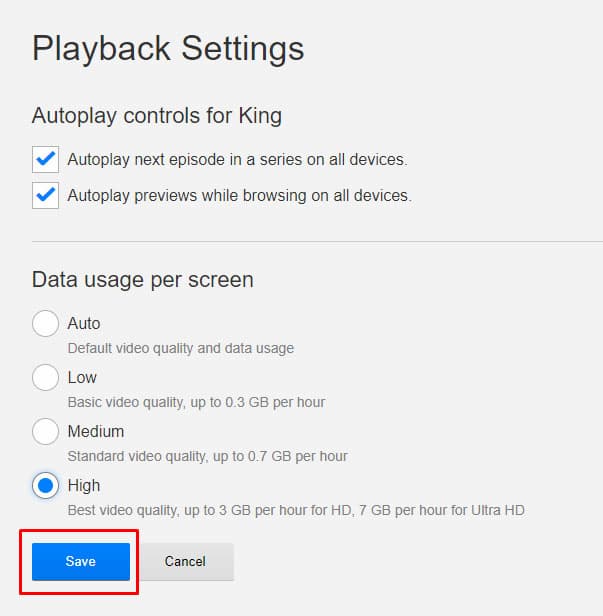
Step 5. Change your data usage per screen setting from Auto to High, then click Save.
Pros:
- Access to Full HD 1080p and 4K Ultra HD playback
- No app installation needed
- Works on all Chromebooks, including older models
- Much better audio decoding capabilities for surround sound systems
Cons:
- Requires a stable internet connection at all times
- No offline downloads available in the browser
Part 5. Troubleshooting: Netflix Not Working on Chromebook
Issue 1. Netflix App Does Not Appear in the Play Store
If you search for Netflix in the Play Store and it does not appear, follow these official steps to fix it:
- Update your Chromebook: Go to Settings, click on About ChromeOS, and hit Check for updates. Install any updates, restart your Chromebook, and search the Play Store again.
- Change your Play Store Parental Controls: Open the Play Store, tap your Profile Icon, then go to Settings > Family > Parental controls. If they're on, turn them off temporarily with your account PIN. This can help show apps like Netflix.
Still can't find Netflix? If your Chromebook is managed by a school or organization, the admin might have blocked certain apps. That's why Netflix isn't appearing.
Issue 2. Netflix App Opens, Then Crashes
Usually this points to cached app data, an outdated app build, or limited available memory.
- Start by force-stopping the app. Go to ChromeOS settings > Apps > Google Play Store > Manage Google Play Preferences > Android Settings > Apps > Netflix > Force Stop. Then reopen it.
- If it still crashes, clear the app's cache. Go to Settings > Apps > Google Play Store > Manage Android Preferences > Apps > Netflix > Storage & cache > Clear cache. This won't delete your downloads or account, just temporary files.
- If that doesn't work, uninstall Netflix from the Play Store and reinstall it. A fresh install can fix persistent crashes.
Issue 3. Netflix Loads in Chrome, But Video Will Not Play
If Netflix loads but doesn't play, or you get a black screen or error code, here's what to do:
First, check your internet connection. Open a new tab and try loading a YouTube video. If that doesn't work, your Wi-Fi is the problem, not Netflix.
Next, clear Chrome's cache and cookies. Go to Chrome settings, search for "Delete browsing data," set the range to "All time," check both Cookies and Cached images, and click Delete data. Then reload netflix.com and try again.
Lastly, disable browser extensions. Ad blockers and VPNs often mess with Netflix's playback. Try opening Netflix in an Incognito window (Ctrl + Shift + N). If it works there, an extension is likely the issue.
Part 6. A Local Setup: Pairing Netflix with MP4/MKV Playback
Imagine you are flying with a Chromebook Plus device and want to finish a show during the trip.
If the airport and plane Wi-Fi are unreliable, the browser method is not enough. The official answer is to install the Netflix Android app before leaving, download the episodes you need, and verify they open offline. That is the simplest and safest setup.
If the titles you want are not downloadable, or you expect the app limits to be a problem because of storage or expiration windows, that is when a local-file workaround may be worth considering.
This is where a dedicated third-party tool like VidiFab Netflix Video Downloader changes the game.
VidiFab Netflix Video Downloader
Download Netflix videos as MP4/MKV in 1080p with Dolby Atmos for offline viewing on your iPhone, Android, desktop, and more devices.

VidiFab is a software tool that lets you download any Netflix movie or TV show as a standalone MP4 or MKV file in full 1080p High Definition. Besides Netflix, VidiFab also supports downloading from Disney+, Prime Video, HBO Max, Hulu, and Apple TV+. After you download Netflix videos to your laptop, you can save the video to an external drive for more flexible management and playback.
How to Download Netflix Videos for Your Chromebook Using VidiFab
Step 1. Set Your Video Preferences and Log In
Download and launch the VidiFab application on your Windows or Mac computer. Open the main menu, head into Preferences, and set your default download format to either MP4 or MKV. After saving your settings, click the Netflix icon from the main dashboard and log into your account using the secure, built-in browser window.

Step 2. Find Your Favorite Movie or Show
Use the built-in browser to scroll through your profile homepage or type the exact title you want to save into the search bar. Click on the movie or television series to open its main description page. A Download button will pop up in the corner of your interface, click it to analyze the video.

Step 3. Customize Your Chromebook Playback Settings
An options window will appear on your screen. Here, you can select your preferred video resolution up to 1080p, select your audio tracks, and choose your subtitle language and style. Once everything looks right, click the Download button.

Step 4. Locate Your Completed Files
VidiFab will pull the video data down at high speed. Once the progress bar fills up, navigate over to the History tab (the small clock icon) and click the folder icon next to your completed file. This opens up the local directory on your computer where your fresh MP4 or MKV file is saved.

Step 5. Transfer the Video Files to Your Chromebook
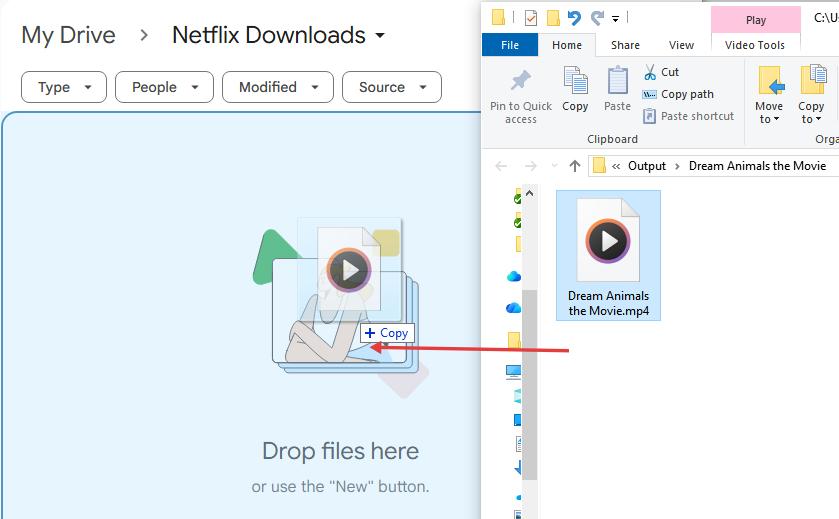
Chromebooks depend a lot on cloud storage and local storage options. You can upload your downloaded MP4 or MKV files to Google Drive and then open the Files app on your Chromebook to watch them offline. Alternatively, you can copy the video files from your computer to a USB flash drive and plug it into your Chromebook for playback.
- Note on responsible use: VidiFab is designed for personal use during an active Netflix subscription. The downloaded files are for your own offline viewing and should not be shared or distributed. Always download content you have a right to access under your subscription.
Pros:
- No expiration dates for your downloads.
- Downloads are movable to external storage
- No Netflix app installation
- Netflix videos are saved in 1080p MP4 or MKV format
- Works with your ChromeOS media player for flawless local playback
Cons:
- Requires a paid license for full length download (free trial available)
- Vidifab works on Windows or Mac only.
- You need to transfer the video to your Chromebook
Part 7. FAQs About Netflix on Chromebook
What is the best Chromebook for watching Netflix?
Do Netflix downloads sync across devices?
How many downloads can you store on a Chromebook?
Can I watch Netflix on a school Chromebook when it is blocked?
Final Thoughts
Chromebook's Netflix situation is genuinely better than Windows and Mac. The browser gives you the best streaming quality available on ChromeOS at up to 4K. The Android app gives you real offline downloads, something no other laptop type can do officially right now. And for travel situations where you need more flexibility, local MP4 and MKV playback fills the gap that official Netflix downloads simply cannot.
 Free Download
 Secure Download
 Free Download
Secure Download
Free Download
Secure Download


I'm a video tech specialist with over 10 years of experience in digital media and streaming. I focus on making complex workflows simple and practical. Through my guides, you'll learn how to convert media, keep high-quality playback across devices, and manage your streaming video library with ease.
 Leave Your Comment