Netflix Downloads Disappeared? Why It Happens and How to Fix It
 By Miles Kent
"Before leaving the US, I made sure to download a good bit of content to watch on the different plane flights. Imagine my suprise when not even two days into my trip, all of my downloaded content was gone." — By Peg_Leg_Vet
If your Netflix downloads disappeared, you're not alone. This issue affects many travelers and offline viewers. In most cases, the downloads weren't deleted randomly. Netflix may have removed them because of regional licensing restrictions, periodic check-ins, app updates, or download verification requirements. This guide explains why Netflix downloads disappear and what you can do to get back your downloads, and prevent it from happening again.
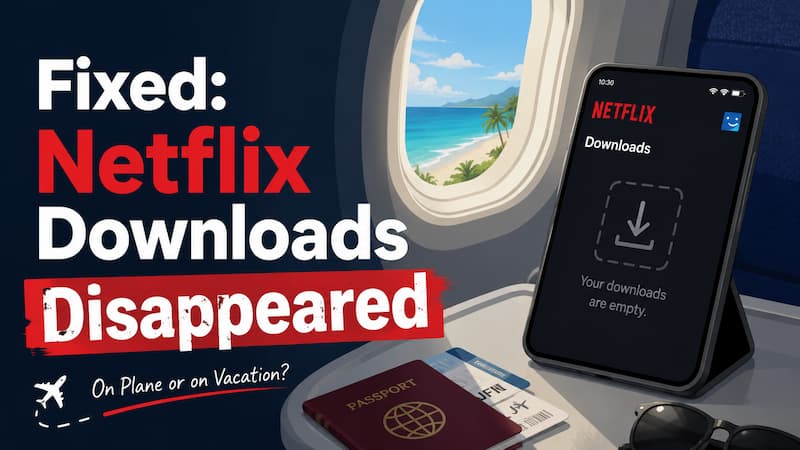

Missing Netflix downloads are often related to expiration, licensing changes, or app issues. For a complete overview of Netflix download rules and limitations, check out our Netflix Download Guide.
Part 1. Why Did Your Netflix Downloads Disappear Before/During Your Trip?
1. Netflix Needed to Verify Your Account: The app performs background check-ins to verify your active subscription and location. If you travel to another country where that specific movie or show is not licensed for broadcast, Netflix's background check will instantly remove the download from your device.
2. You Switched Netflix Profiles: Downloads are tied to the specific profile that downloaded them, so switching profiles will make those videos disappear. Furthermore, if you switch to a profile with strict viewing restrictions, your downloaded titles will be hidden if they exceed that profile's allowed maturity rating.
- Open Netflix > tap My Netflix > select your Profile Name > tap Manage Profiles > select Edit > go to Viewing Restrictions > enter your password > adjust the Maturity Rating level.
3. The Netflix App Was Updated: If your device automatically updates the Netflix app or clears its background system data, your local download database will be completely wiped out.
- For iOS (iPhone/iPad): Go to Settings > Apps > App Store > toggle off App Updates.
- For Android: Open the Google Play Store > tap your profile icon > Settings > Network preferences > tap Auto-update apps > select Don't auto-update apps.
4. Your Downloads Expired: Many downloaded titles expire within 7 days, or just 48 hours after you first press play. For more information, check the Full Guide on How Long Netflix Downloads Last.
5. The Title Left Netflix: If a movie or show's licensing agreement ends and the title leaves Netflix's catalog during your trip, it will instantly delete itself from your device the moment you connect to a network.
Fortunately, Netflix usually displays a "Last Day to Watch" warning on the title's detail page about 30 days before it leaves, so always double-check the description before hitting download.

6. Your SD Card Stopped Working: If your MicroSD card becomes unmounted, corrupted, or loses its storage permissions, Netflix will no longer see the downloaded files. Android users can double-check their active storage path by going to Netflix > App Settings > Download Location.
Part 2. Immediate Fixes: How to Get Back Your Missing Netflix Downloads
If you want to recover the vanished downloads right now, try the quick troubleshooting steps below. You need an active internet connection—like airport Wi-Fi, inflight Wi-Fi, cellular data, or hotel internet—to complete these steps.
Fix 1. Renew Expired Downloads
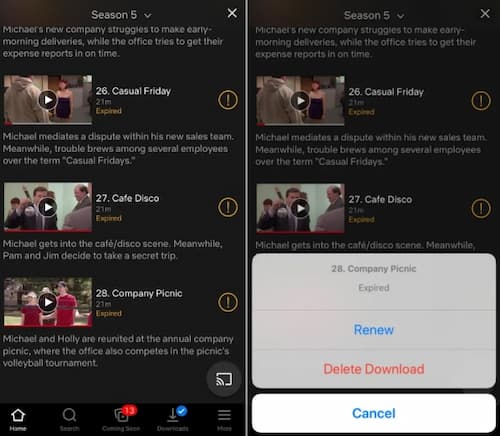
When to use it: Use this if the video is still on your list but displays a yellow exclamation mark or an "Expired" alert.
Step 1. Tap the Downloads icon in the Netflix app.
Step 2. Tap the yellow alert icon next to the expired title.
Step 3. Select Renew Download from the pop-up menu.
Fix 2. Sign In and Refresh Your Netflix Account
When to use it: Use this if your downloads disappeared after you connect it to internet. Signning it back in may require Netflix to reload your downloads once again.
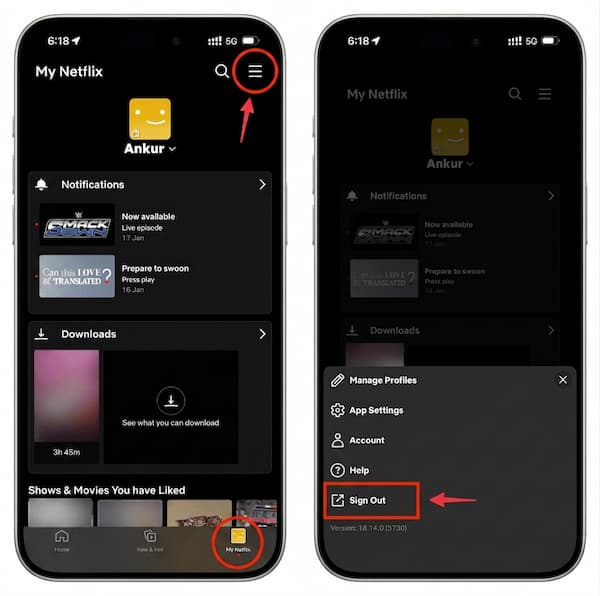
Step 1. Go to My Netflix and tap the menu icon (three lines or profile icon).
Step 2. Scroll down, select Sign Out, and confirm.
Step 3. Log back into your account using your network connection to force a full account state sync.
Fix 3. Re-download the Missing Title
When to use it: Try this when the downloads disappear, but you still see the download button after connecting to the internet, and you have time left to download on this device.
Step 1. Connect to a stable Wi-Fi network (avoid slow inflight Wi-Fi, as airlines often block heavy video downloads).
Step 2. Search for the vanished movie or show.
Step 3. Tap the Download icon to grab a completely fresh copy.
Fix 4. Download the Title on Another Device
When to use it: Try this if you can’t download titles on your device but haven’t hit your monthly Netflix download limit.
With the Standard with Ads plan, you can still download 15 more times on a different phone or tablet. For ad-free plans, the Standard plan lets you download 100 more times on another device, while the Premium plan allows you to use 5 more devices.
Fix 5. Reconnect Your SD Card (Android)
When to use it: Use this if you are using an Android device with expandable storage and the Netflix app suddenly shows an empty download library.
Step 1. Close the Netflix app completely.
Step 2. Safely eject and physically re-insert your MicroSD card.
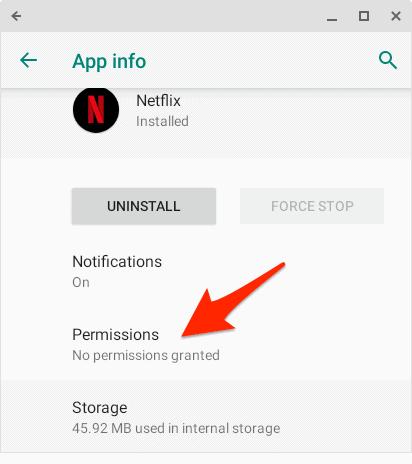
Step 3. Go to your phone's Settings > Apps > Netflix > Permissions to ensure storage access is enabled.
Step 4. Restart your phone and reopen Netflix.
Part 3. How to Prevent Official Netflix Downloads from Disappearing Again
Follow these proactive tips right before your next trip to ensure seamless, interruption-free offline playback no matter where you fly.
Tip 1. Check Your Downloads Before Traveling
On the day of your departure, while you still have reliable home or cell internet, open the Netflix app to ensure you are fully logged in and your download list loads correctly.
- If you plan to watch the Netflix videos offline within the next 48 hours, you can even press play on each file for a few minutes to guarantee the offline player initializes smoothly. However, if your flight is more than 48 hours away, do not press play, as doing so triggers Netflix’s strict 48-hour viewing countdown.
Tip 2. Force Airplane Mode and Lock Out Airport Wi-Fi
Turn on Airplane Mode before you enter the airport terminal and keep your Wi-Fi and Location Services entirely disabled. If your device auto-connects to a buggy airport network or logs a new geographical location, Netflix will silently check licenses in the background and potentially wipe out your downloads.
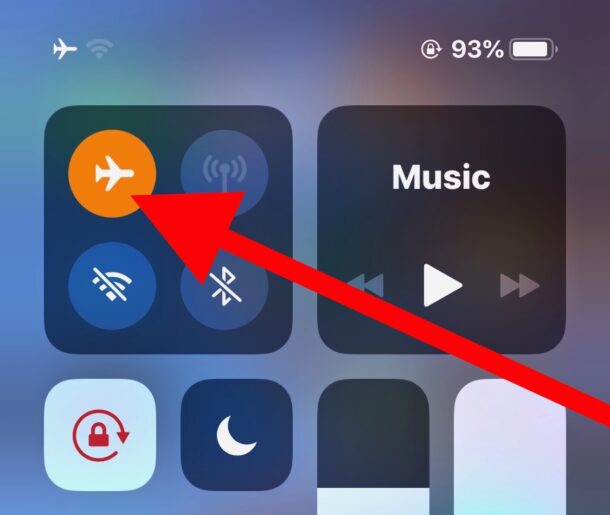
Tip 3. Download Content 1–2 Days Before Departure
Do not download your vacation movies weeks in advance, as the DRM timer will likely run out before you board your flight. Line up your downloads exactly 24 to 48 hours before you leave.
Tip 4. Turn Off Smart Downloads
Go to Netflix App Settings > Smart Downloads and toggle off "Download Next Episode" and "Downloads for You." If left on, this feature automatically deletes an episode the moment you finish watching it, which can accidentally erase files you intended to save or rewatch later in your trip.
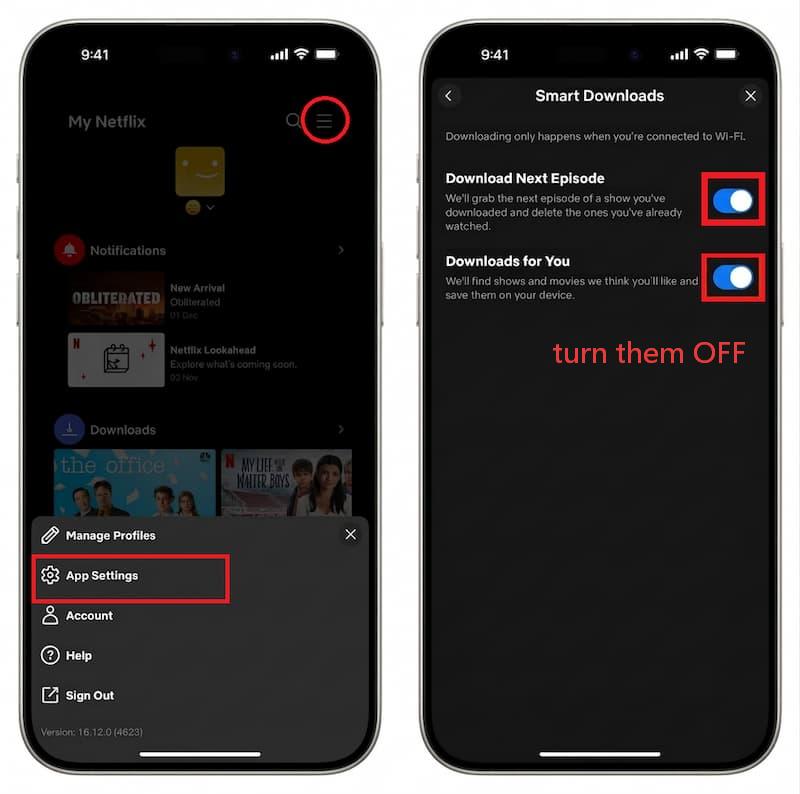
Tip 5. Don't Reinstall the Netflix App During a Trip
If the app is lagging, do not delete or reinstall it while traveling. Reinstalling or clearing the app data completely purges the local secure storage folder where official offline files are kept, instantly erasing 100% of your downloaded videos.
Tip 6. Save Netflix Videos as MP4 or MKV Files
The ultimate way to prevent your Netflix downloads from vanishing is to bypass the official Netflix app restrictions entirely. This is especially true if you prefer watching movies on a larger screen, like a laptop or tablet, while traveling.
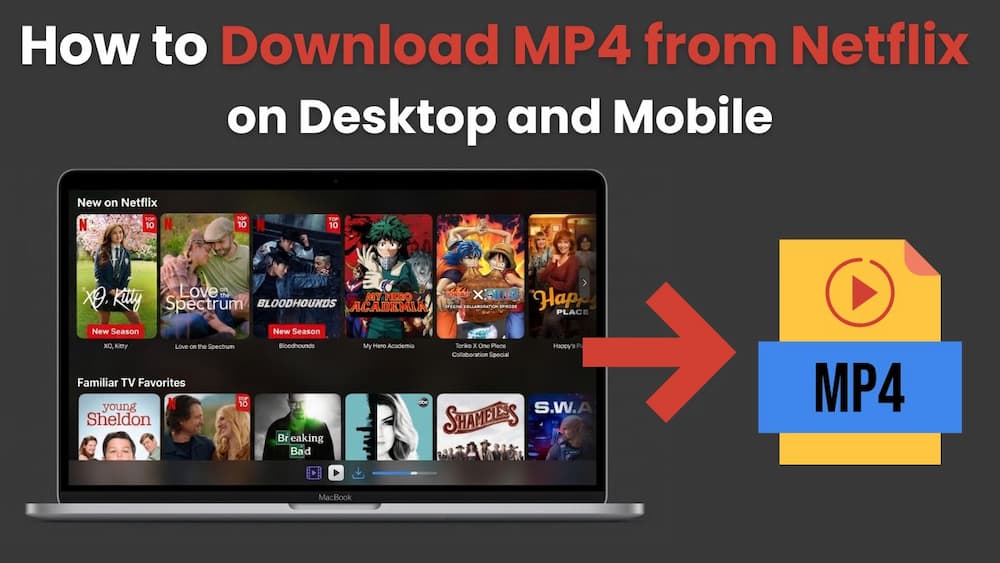
By using a professional desktop video downloadser like VidiFab Netflix Video Downloader, you can download any Netflix movie or TV show into standard, DRM-free MP4 or MKV files in 1080p. Because these are saved directly to your computer's local storage, they function like ordinary video files.
With VidiFab, there are no 48-hour expiration clocks, no region-locking geo-blocks, and no accidental sync deletions. You can confidently transfer the files to any device and play them back perfectly using a standard media player (like VLC) without ever needing an internet connection or worrying about app glitches.
VidiFab Netflix Video Downloader
Download Netflix videos as MP4/MKV in 1080p with Dolby Atmos for offline viewing on your Smart TV, game console, phone, desktop, and more devices.

How to Use VidiFab to Secure Your Netflix Downloads
Step 1. Choose Your Preferred Video Format and Download Location
Launch VidiFab Netflix Video Downloader on your Windows or Mac computer. Click the menu icon in the top-right corner, head to Preferences, and set your default output format to MP4 or MKV. You can also select a dedicated download folder on your local hard drive or an external drive. Click OK to save.

From the main screen, click the Netflix logo to open VidiFab's secure, built-in web player. Log into your Netflix account as you normally would. (Note: This login is entirely secure and only used to access your active subscription library in your current region before you depart. Your personal account data is never stored or visible to the tool.)
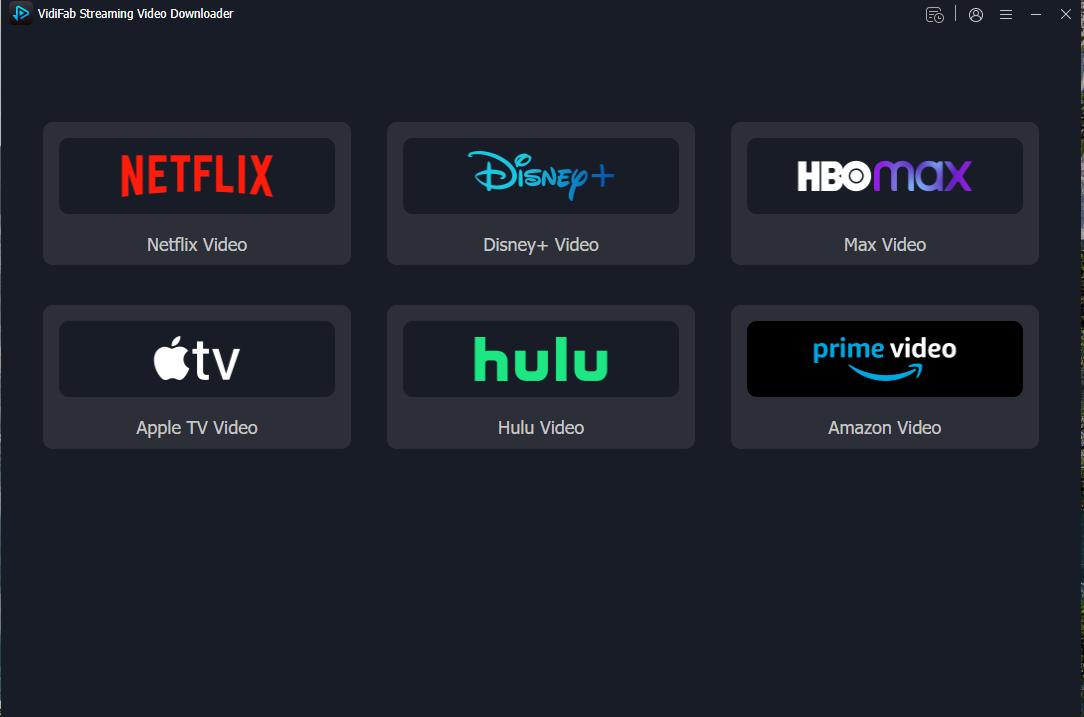
Step 2. Find the Titles You Want to Download
Navigate to the movie or TV show you want to pack for your trip, or paste its URL directly into the address bar. VidiFab will instantly analyze the stream and display a Download button in the bottom-right corner.

Step 3. Configure the Download Settings
Click the Download button to open the settings window. Here, you can select up to 1080p, choose the languages for the audio and subtitles, and set the subtitles formats. If you are downloading a full series, check the Select All box to grab entire seasons simultaneously with one click. Once configured, click Download.

Step 4. Start Download
Now, VidiFab will download the selected titles. Once the download wraps up, go to the History section (clock icon) and click the folder icon next to your completed video. This opens the exact local folder on your computer.

Because these are standard DRM-free video files, they will never disappear, expire, or lock you out when you cross international borders. From here, you can watch them directly on your laptop or easily transfer, AirDrop, or copy the files to your iPhone, iPad, Android tablet, or a backup USB drive for ultimate offline viewing during your trip.
Part 4. FAQs
Can I watch downloaded Netflix movies if my subscription ends during my trip?
Why do some Netflix downloads disappear much faster than others?
Does changing my phone’s time zone delete my Netflix downloads?
Final Thoughts
Missing Netflix downloads can totally mess up a long flight or vacation. While switching on Airplane Mode, turning off app updates, and keeping an eye on expiration dates can help, the official app’s strict DRM and geo-restrictions mean your offline videos aren't completely safe from sudden deletions.
For total peace of mind, check out VidiFab Netflix Video Downloader. It lets you save your favorite shows as permanent, DRM-free MP4 or MKV files, so you can ditch those expiration clocks and annoying sync issues. Grab the free trial of VidiFab today and enjoy seamless offline playback on your next trip!
 Free Download
 Secure Download
 Free Download
Secure Download
Free Download
Secure Download


I'm a video tech specialist with over 10 years of experience in digital media and streaming. I focus on making complex workflows simple and practical. Through my guides, you'll learn how to convert media, keep high-quality playback across devices, and manage your streaming video library with ease.
 Leave Your Comment