How to Download and Convert Netflix to MKV
 By Miles Kent
Can you convert Netflix to MKV? Yes, but not directly.
Netflix uses its own encrypted .NFV format, which means you can't just download and convert them to MKV like regular videos. You'll need some workarounds to make it happen.
In this guide, I'll show you three easy ways to convert or record Netflix videos into MKV format. You'll also find out how to play MKV files with tools like VLC media player and troubleshoot common playback issues.
- These methods are for personal use only. For the best experience, stick to the official Netflix app or website. But if you need offline access in certain situations, these options can help.
Part 1. What Is MKV?
MKV, or Matroska Video, is a multimedia container format that can store video, audio, subtitles, chapters, and metadata in one file. MKV does not define how the video is compressed. Instead, it acts as the container that holds the media streams together.
A single MKV file can include:
- multiple audio tracks
- multiple subtitle tracks
- chapter markers
- rich metadata
- high-quality video streams
This makes MKV useful for users who want more control over playback, language options, and local file management.
MKV vs MP4: What's the Difference?
MP4 is usually better for simple playback on phones, browsers, and TVs. MKV is usually better for users who want multiple audio tracks, better subtitle handling, and easier media-library management.
To put it more clearly, these two formats serve different needs, as shown below:
| Feature | MKV (Matroska) | MP4 |
|---|---|---|
| Audio Tracks | ✅ Supports multiple audio tracks in one file | ❌ Usually limited to one audio track |
| Subtitles | ✅ Supports multiple subtitles with advanced styling | ❌ Simple text formats like SRT ot VTT |
| Audio Quality | ✅ Supports high-quality audio (e.g., Dolby Atmos and EAC3 5.1) | ❌ Limited to lossy codecs like AAC |
| Compatibility | Best on PC apps like VLC media player, Plex, or Kodi | Works on most devices |
| File Size | Larger files due to more features and higher quality | Smaller files, easier to store and share |
| Playback Stability | More resilient. It plays even if partially corrupted | Less tolerant. It can fail if the file is damaged |

Part 2. Why Choose MKV for Netflix Content?
Now, you know what MKV is and why it beats MP4. But what makes it worth converting your Netflix videos to MKV? Here are some cool benefits:
- Better Subtitle & Audio Support: MKV is the ideal format if you need to preserve multiple tracks and cinema-grade audio quality in a single container.
- Permanent Storage: Choose MKV to overcome Netflix's official download expirations and device limitations for long-term library management.
- Advanced Playback: MKV works best with dedicated media players like VLC, Kodi, or Plex for a more professional viewing experience.
- Easier Library Management: You can rename, sort, and manage files more efficiently without worrying about missing tracks or external subtitle files.
Part 3. Methods to Get Netflix Videos into MKV Format
Before the detailed steps, check out these 3 methods that convert Netflix to MKV files:
Netflix to MKV at a Glance
| Method | Best For | Pros | Cons |
|---|---|---|---|
| Direct Netflix to MKV Download | Most users | Easiest workflow with subtitle and audio options | Requires a paid subscription after a free trial |
| OBS Studio Recording | Users who want a free manual method | Can record directly to MKV | Real-time capture and lower effective quality |
| FFmpeg Remuxing | Users who already have an MP4 file | Fast and lossless with -c copy | Only works if you already have a usable source file |
Method 1: Using a Netflix to MKV Downloader
The simplest way to get Netflix videos into MKV is by using a dedicated downloader. These tools let you save Netflix content in standard video formats that you can play outside the Netflix app.
If you're looking for a reliable option, a tool like VidFab Netflix MKV Downloader is worth considering. Based on my experience with Netflix's ad-supported plan, it downloads videos in 1080p quality with Dolby Atmos, all without ads. Plus, you can grab multiple subtitle languages and save them as separate SRT files or embed them directly into the MKV. It even keeps multi-channel audio, like 5.1 surround sound.
For TV series, you can add an entire season to download at once, which saves a ton of time, and the download speed is pretty fast. After downloading, I can open the MKV Netflix videos in VLC media player and easily switch between different audio tracks and subtitles.
VidiFab Netflix MKV Downloader
Download Netflix videos as MP4/MKV in 1080p with Dolby Atmos for offline viewing on your iPhone, Android, desktop, and more devices.

How to Download MKV from Netflix Using VidiFab Downloader:
Next, I'll show you how I use VidFab Netflix MKV Downloader to get those MKV Netflix videos on a Windows PC. The software also works on macOS, so the workflow is pretty much the same.
Step 1. Launch the Downloader and Set MKV as Output Format
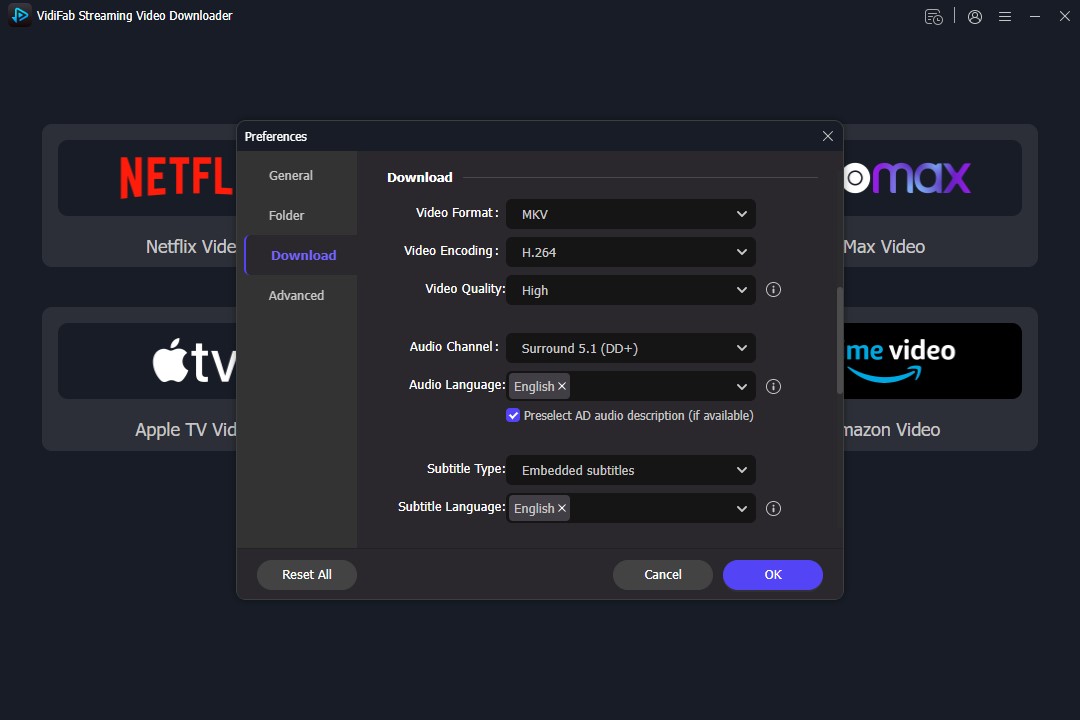
First, install and open the VidiFab Netflix to MKV downloader. Click on the menu in the upper right corner and go to Preferences. In the Download section, choose MKV as your format. You can also tweak the video quality, encoding options, and output settings if you want. Once you're done, hit OK. Then, on the main screen, select the Netflix icon from the list of streaming services. A secure browser window will pop up, where you can log into your Netflix account and access your profile and library.
Step 2. Find What You Want on Netflix
Browse the Netflix library inside the tool or paste the URL of a specific movie or TV show into the search bar. When you open the content page, look for the red download button in the bottom right corner and click it.

Step 3. Pick Your Video Quality, Audio Tracks, and Subtitles
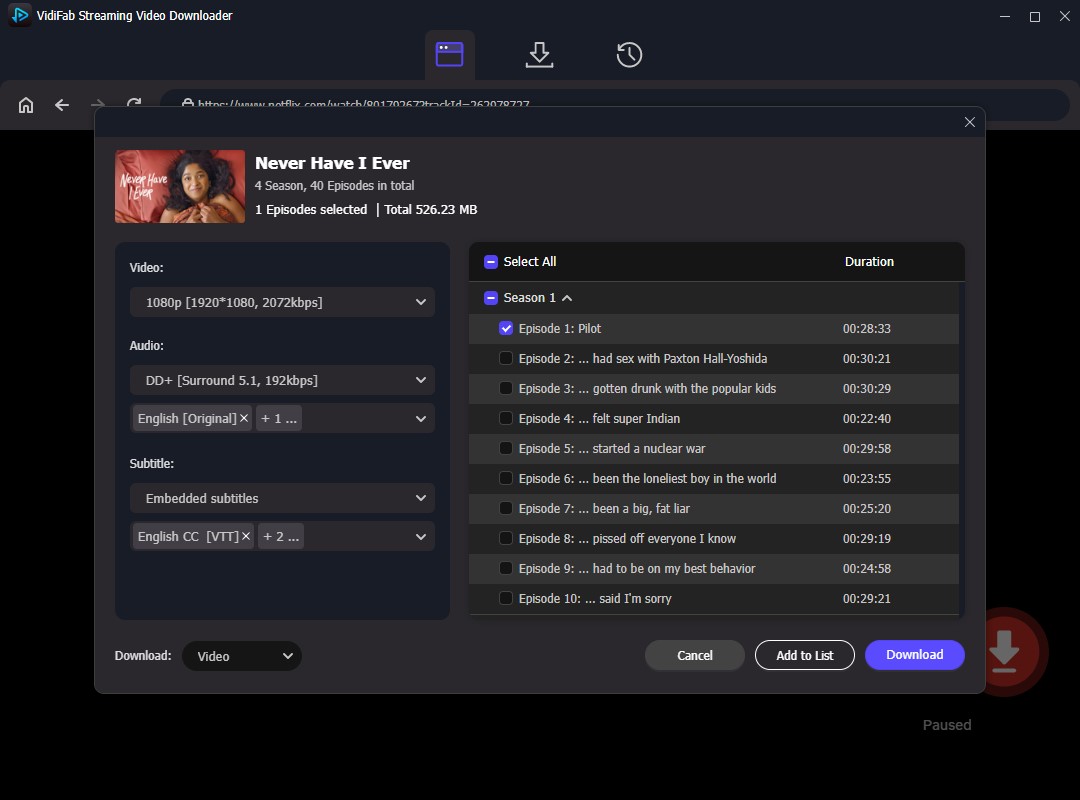
A pop-up window will appear where you can choose your video quality, like 1080p. Select your audio quality, preferred audio track language, and subtitle types and languages. You can also opt to select all episodes with one click. Then, hit Download to start converting and downloading your Netflix shows or movies in MKV format.
Step 4. Play Your MKV Files
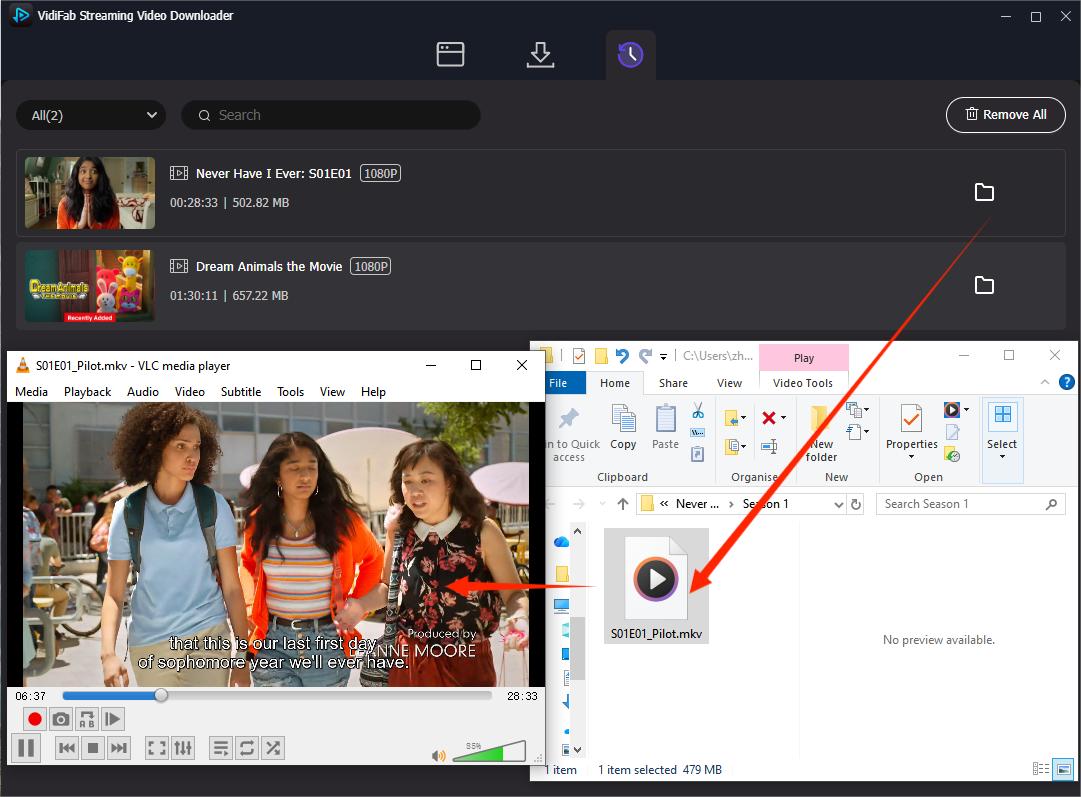
The VidiFab Netflix MKV Downloader will download your Netflix videos at 7x speed. Once it's done, go to the History section (the clock icon in the tab) and click the folder icon next to the title. This will open the output folder. You can play the downloaded MKV file using a compatible MKV media player like VLC. From there, you can easily switch between audio tracks and subtitles while you watch, making it simple to enjoy content in different languages or formats.
Method 2: Screen Recording Netflix to MKV
Another method you can try is recording Netflix playback and saving the result as an MKV file. A commonly used tool for this is OBS Studio .
Can you record Netflix as MKV with OBS Studio?
Yes, you can. OBS Studio is a free screen recorder that works on Windows, macOS, and Linux. It allows you to capture what's playing on your screen and export the recording in MKV format. However, there's an important step: you'll need to disable hardware acceleration in your browser first.
If hardware acceleration is enabled, Netflix may trigger a black screen due to its protection mechanisms. Turning it off helps avoid this issue, but keep in mind that this workaround may limit playback quality, often to standard definition (around 480p–540p).
How to Disable Hardware Acceleration
- Google Chrome: Go to Settings → System and turn off “Use graphics acceleration when available,” then restart the browser.
- Microsoft Edge: Go to Settings → System and Performance and disable “Use hardware acceleration when available,” then restart.
- Mozilla Firefox: Go to Settings → General → Performance, uncheck “Use recommended performance settings,” then disable “Use hardware acceleration when available.”
How to Record Netflix to MKV Using OBS:
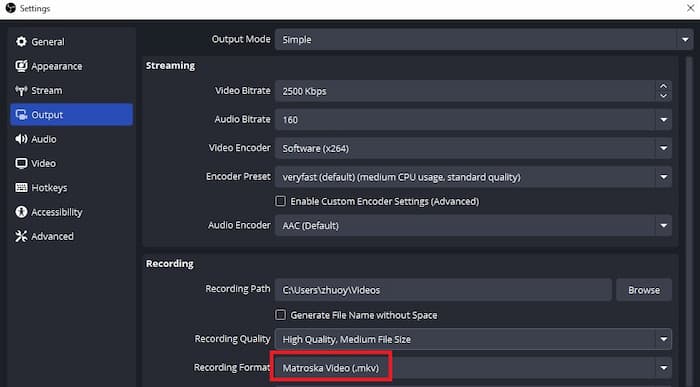
Step 1. Open OBS and go to File > Settings > Output. In the Recording section, find Recording Format and select .mkv from the dropdown menu.
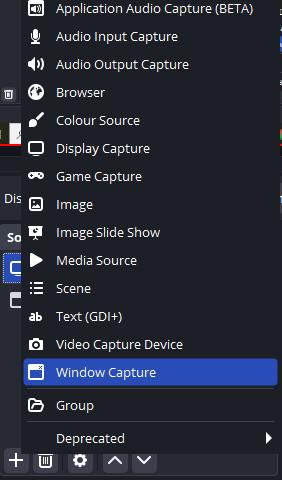
Step 2. In the Sources panel, click the "+" icon and select Window Capture.
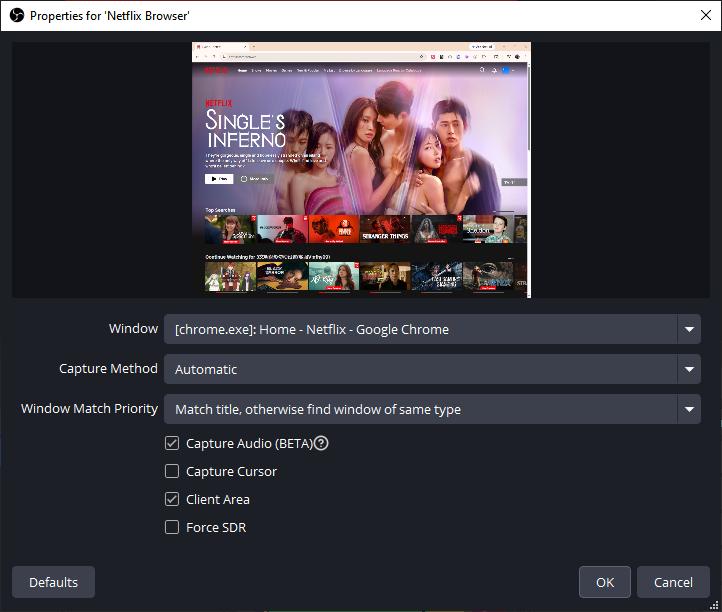
Step 3. Select your browser window where Netflix is playing.
Step 4. Ensure "Capture Audio" is checked so you record the sound, but uncheck "Capture Cursor" to keep the mouse pointer out of your movie.
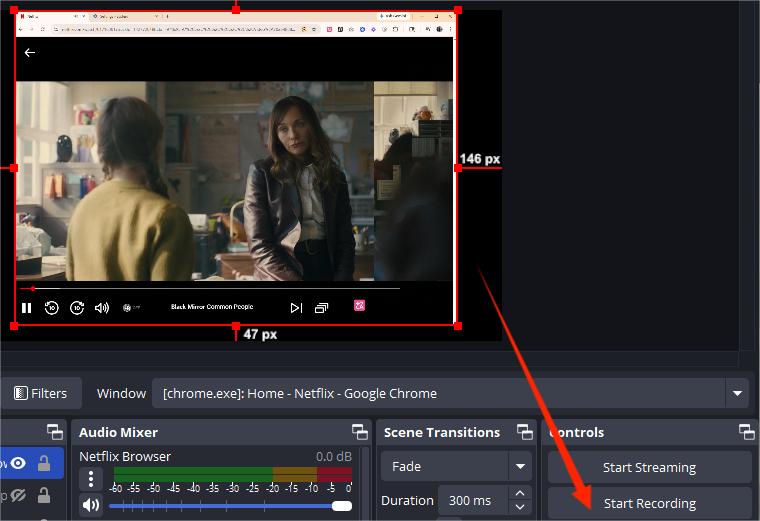
Step 5. Get your Netflix video ready in the browser. In OBS, click Start Recording, then set the Netflix video to full-screen and press play.
Step 6. Once the video ends, return to OBS and click Stop Recording. To find your file, simply click File > Show Recordings in the top-left corner of OBS.
- Time Consuming: Recording is done in real time, so a 2-hour video will take 2 hours to capture.
- Quality Caps: Due to DRM protections (Widevine L3), you typically won't get access to high-end quality like 1080p, 4K, HDR, or Dolby Atmos.
Method 3: Remux MP4 Netflix Video into MKV
If you already have a Netflix video saved in MP4 format, you may not need to fully convert it again. In many cases, you can simply remux the file into MKV using FFmpeg.
What is Remuxing?
Remuxing means changing the file container without re-encoding the video or audio streams inside it. In other words, the video quality, audio quality, and original data stay the same. Only the outer file format changes.
For Netflix content, this is far superior to traditional conversion because it is a lossless "stream copy." It maintains 100% of the original bit-perfect quality and takes only a few seconds to complete.
When Should You Use This Method?
- If you've downloaded a massive Netflix MP4 but want to switch to MKV for better management of multi-language tracks in Plex or Kodi.
- If an older Smart TV refuses to play the HEVC (H.265) encoding used by many Netflix downloaders, you can use FFmpeg to change the container.
- If remuxing doesn't solve the playback issue, you can use FFmpeg to re-encode the video into a more compatible H.264 format with this command:
ffmpeg -i input.mp4 -c:v libx264 -c:a aac output.mkv
How to Use FFmpeg to Convert Netflix MP4 to MKV:
Step 1. Install FFmpeg
For Windows users: Download a compiled build from a site like Gyan.dev. After extracting the folder, you must add the bin folder path to your system's "Environmental Variables (PATH)" so your computer recognizes the "ffmpeg" command.
For Mac users: The easiest way is to install FFmpeg with Homebrew using the command: brew install ffmpeg
Step 2. Open Terminal or Command Prompt
Open your terminal or command-line window in the folder where your Netflix MP4 file is stored.
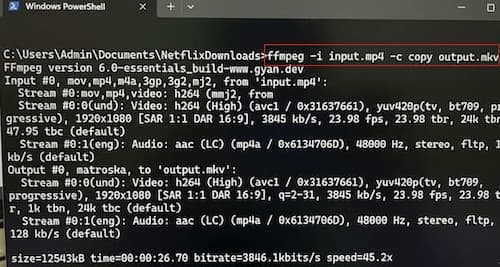
Step 3. Run the Basic Remux Command
Use this command to remux the MP4 file into MKV without re-encoding:
-i input.mp4specifies the original Netflix MP4 file-c copytells FFmpeg to copy the streams directly without re-encodingoutput.mkvis the name of the new MKV file
Step 4. Keep All Audio Tracks and Subtitles
Netflix videos often include multiple languages or subtitle tracks. To preserve everything, use this command:
-map 0 tells FFmpeg to include all video, audio, and subtitle streams from the original file.
Part 4. Why Your Netflix MKV File Is Not Playing
A Netflix MKV file usually fails to play for one of three reasons: unsupported codecs, incomplete processing, or limited media player support. If you see a black screen, no sound, or lag, start by checking the codec, the player, and whether the file was created correctly.
1. Unsupported Video Codec
Many Netflix downloaders or converters produce files encoded in HEVC (H.265) or AV1. Older TVs, laptops, and default media players may only support H.264 well.
Fix: Convert the video to H.264 using tools like FFmpeg.
2. Incomplete Processing or DRM-related Issues
Netflix uses strong encryption (DRM). If the tool you used isn't fully updated, parts of that protection may still remain in the file. That can cause playback issues even if the file looks like a normal MKV.
Fix: If you're using tools like VidiFab Netflix Video Downloader, click the upper right menu icon in the software, and click "Check for Updates." Updated tools are usually able to produce MKV files that play normally without extra fixes.
3. Your Media Player May Not Support Everything Inside the File
Not all default media players handle MKV files well. For instance, Windows Media Player or QuickTime might struggle with advanced audio tracks or certain subtitle formats, causing missing audio, broken subtitles, or playback errors.
Fix: Try VLC Media Player, PotPlayer, Kodi, or Plex instead of a default system player.
Part 5. Best Media Players for MKV Playback
If you need a reliable Netflix MKV player, these are some of the most popular options.
| Player | Platform | Best Use Case | Codec Support | Subtitle & Audio | Ease of Use |
|---|---|---|---|---|---|
| Elmedia Player | macOS | Smooth 4K playback on Mac | Optimized for Apple Silicon, supports HEVC | Advanced subtitle styles, AirPlay/Chromecast | Very easy, clean UI |
| PotPlayer | Windows | Advanced control on Windows | Strong hardware acceleration, supports 4K/8K | Full multi-audio & advanced subtitles | Complex settings |
| VLC Media Player | Windows, macOS, Linux | Simple all-purpose player | Wide built-in codec support | Multi-audio, basic subtitle control | Moderate, simple but basic UI |
| mpv | Windows, macOS, Linux | Lightweight, high-performance playback | High-quality rendering with low resource use | Script-based subtitle control | Hard for beginners |
| Infuse 7 | iOS, tvOS | Apple ecosystem media viewing | Supports 4K HDR | Auto subtitles, metadata support | Very easy, polished UI |
| MX Player | Android | Mobile offline playback | Strong hardware decoding | Gesture subtitle control, subtitle search | Very easy, mobile-friendly |
| Plex / Kodi | Windows, macOS, Linux, mobile, TV | Media library & streaming | Supports server-side transcoding | Rich subtitles, metadata, library view | Moderate setup, but user-friendly once running |
Which Player Is the Best?
If you're looking for smooth playback, wide codec support, and a hassle-free setup, VLC Media Player is your go-to option. It works on nearly every device, easily manages MKV files and popular video codecs without needing extra plugins. It is simple enough for beginners while still powerful enough to fix many playback issues.
Part 6. Netflix to MKV FAQs
Will I lose video quality when converting Netflix to MKV?
Direct Downloaders: Tools like VidiFab download the stream directly, so you get high quality without any re-encoding. You'll see exactly what's on your screen.
Screen Recording: This method often lowers quality. When you record your screen, you add extra compression and might miss out on cool features like Dolby Vision or Atmos audio.
FFmpeg Remuxing: If you're just converting a Netflix MP4 to an MKV with the -c copy command, you won't lose any quality.
Is it legal to convert Netflix videos to MKV?
Can I convert Netflix to MKV on my iPhone or Android?
Why is my MKV file playing with no sound?
Final Verdict
If your goal is to convert Netflix to MKV, the right method depends on what matters most to you. The VidiFab Netflix MKV Downloader is usually the easiest option for most users. OBS Studio is useful for manual screen recording, but it is slower and more limited. FFmpeg is the best choice when you already have an MP4 file and want a fast, lossless remux to MKV.
 Free Download
 Secure Download
 Free Download
Secure Download
Free Download
Secure Download


I'm a video tech specialist with over 10 years of experience in digital media and streaming. I focus on making complex workflows simple and practical. Through my guides, you'll learn how to convert media, keep high-quality playback across devices, and manage your streaming video library with ease.
 Leave Your Comment