Where Are Netflix Downloads Stored? (And How to Move Files Anywhere)
 By Miles Kent
If you are trying to find where Netflix downloads are stored, the short answer is that the files are usually managed inside the Netflix app, not exposed as normal videos in your file manager. On Android, some devices let you store future downloads on an SD card. On iPhone, iPad, and Chromebook, downloads are also handled inside the app. On Windows 10 and Windows 11, the current Netflix app no longer supports downloads, so there is no supported download folder to look for.
That means the real question is not just "where is the file," but "which device are you using, and what does Netflix actually allow on that device?" Once you know that, it becomes much easier to find your downloads, change storage when that option exists, or understand why the download feature is missing.

If you want to learn more about download locations, device support, limits, and playback rules, see our Netflix Download Guide.
Part 1. Where Are Netflix Downloads Stored on Android?
Unlike photos or videos you save yourself, Netflix downloads aren't stored as regular video files on Android.
Netflix keeps downloaded movies and shows inside a protected app folder and encrypts everything to prevent copying or sharing. Even if you find the storage location, you won't see playable MP4 files. Instead, you'll find encrypted files with extensions like .nfv, .idx, .manifest, and .of that only the Netflix app can read.
That means:
- You can't open Netflix downloads with VLC or other video players.
- You can't transfer them to another device and expect them to play.
- Once your subscription expires or the download license ends, those files become unusable.
Even so, knowing where Netflix stores downloads can be useful when you're trying to free up storage space or remove leftover files that Netflix no longer shows inside the app.
Where Can You Find Netflix Downloads on Android?
Netflix downloads are typically stored in the following location:
Because this folder is hidden and protected by Android, you'll usually need a file manager app such as Files by Google, Solid Explorer, or ZArchiver to access it.
How to Access the Hidden Netflix Folder on Android
To uncover your local Netflix downloads, follow these simple steps:
Step 1. Open your preferred File Manager App.
Step 2. Go to the app's Settings.
Step 3. Turn on the option to "Show hidden files."
Step 4. Go back to your main storage and follow this path: Android > data > com.netflix.mediaclient > files > Download > .of.
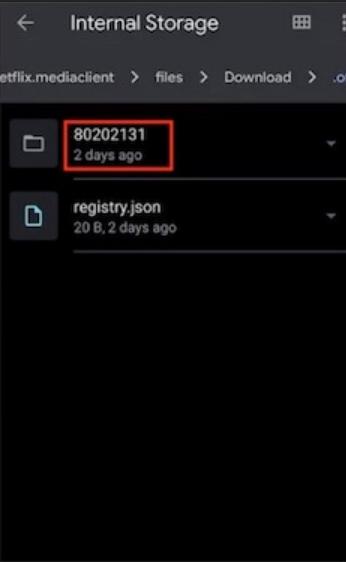
- Inside the .of directory: You'll usually see several folders with random numbers, such as 81034452. Each folder contains multiple encrypted files that the Netflix app combines and decrypts them during playback.
- Video data files (.nfv): The encrypted video streams core file.
- Audio tracks & Index files (.idx): Multi-language audio packages and timeline data indexes alongside other Netflix-specific metadata.
Can You Delete These Netflix Files to Free Up Space?
Can You Copy Netflix Downloads to an SD Card?
How to Change Netflix Download Location to an SD Card
Step 1. Open Netflix and tap My Netflix in the bottom-right corner.
Step 2. Tap the menu icon and select App Settings.
Step 3. Scroll to Downloads.
Step 4. Tap Download Location.
Step 5. Select SD Card and approve any permission requests.
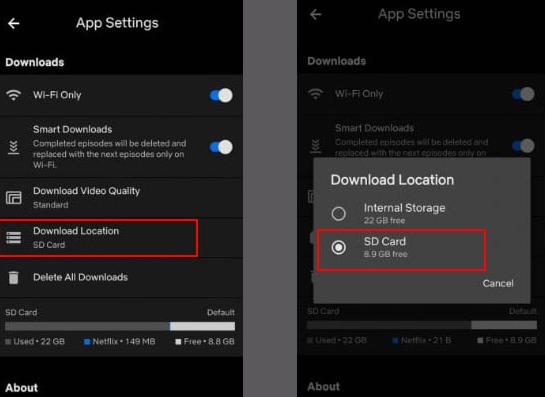
Important: This setting only affects future downloads. Existing downloads stored in internal storage will not be moved automatically.
What to Do When "SD Card" Option is Grayed Out or Reverts?
Some Android users find that selecting SD Card does nothing, or Netflix automatically switches back to Internal Storage.
This is usually caused by Android's increasingly strict storage permission system, especially on Android 13 and newer devices.
Step 1. Enable Developer Options
-
01
Open Settings.
-
02
Go to About Phone (or About Device).
-
03
Find Build Number.
-
04
Tap it 7 times until Developer Mode is enabled.
Step 2. Turn On USB Debugging
-
01
Return to Settings.
-
02
Open Developer Options.
-
03
Enable USB Debugging.
Step 3. Install ADB on Your Computer
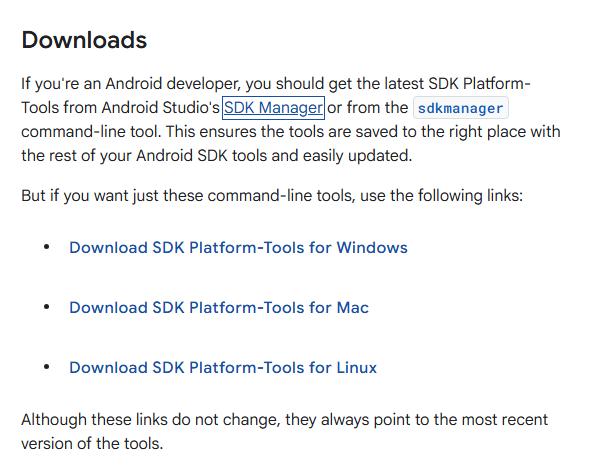
Download Google's ADB Platform Tools package and extract it to your computer.
Step 4. Connect Your Android Device
Connect your phone or tablet via USB. Open a Command Prompt, Terminal, or PowerShell window inside the extracted Platform Tools folder.
Step 5. Grant Storage Permission to Netflix
Run the following command:adb shell pm grant com.netflix.mediaclient android.permission.WRITE_EXTERNAL_STORAGE
This command uses Android's package manager to manually grant Netflix external storage access, which can resolve permission-related issues preventing SD card downloads.
Step 6. Verify the Fix
-
01
Disconnect your device.
-
02
Completely close Netflix.
-
03
Reopen the app.
-
04
Return to App Settings > Download Location.
If the permission issue was the cause, you should now be able to select and keep SD Card as the download location.
Part 2. Where Are Netflix Downloads Stored on Windows PC?
If you downloaded Netflix from the Microsoft Store (the UWP app, version 6.99.5.0) and haven't updated it or cleared your app data, your old offline downloads are likely still sitting on your PC.
But if you've already updated to the latest Netflix Windows client, those files are gone. The new version is essentially a web-based experience with no download feature at all.

How to Find Netflix Downloads Stored on Windows 11 & 10 (Legacy App Only)
If you still have the old Netflix app installed, your downloaded files are hidden but accessible. Here's how to get to them:
Step 1. Press Win + R on your keyboard to open the Run dialog.
Step 2. Copy and paste the path below into the box. Replace YourUsername with your actual Windows account name:
Step 3. Click OK.
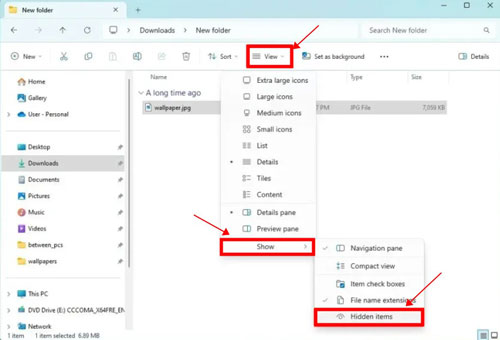
Step 4. In File Explorer, click View in the top menu.
Step 5. Check the box for Hidden items so the files become visible. You should now see your downloaded Netflix content in that folder.
How to Change Netflix Download Location on PC
Step 1. Open Windows Settings.
Step 2. Go to Apps.
Step 3. Click Installed apps and find Netflix in the list.
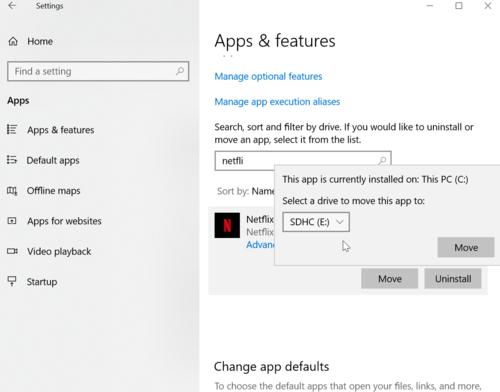
Step 4. Click on Netflix to expand its options, then look for the Move button.
Step 5. Choose your preferred drive (e.g., D: or E:) from the dropdown, then click Move.
Step 6. Windows will automatically transfer both the Netflix app and all your downloaded videos to the new location.
Quick tip: This only works with the legacy Microsoft Store version of Netflix. If you're on the new web-based client, the download and storage options described above won't apply.
Part 3. Where Are Netflix Downloads Stored on iPad & iPhone?
You can't access Netflix offline video files on an iOS device. Apple's App Sandbox system locks every app's data away from everything else on your device, including Apple's own Files app and any third-party file browsers.
How to View Your Netflix Downloaded Content on iPhone/iPad
You won't find the files, but you can browse everything you've downloaded right inside the app:
Step 1. Open the Netflix app and sign in.
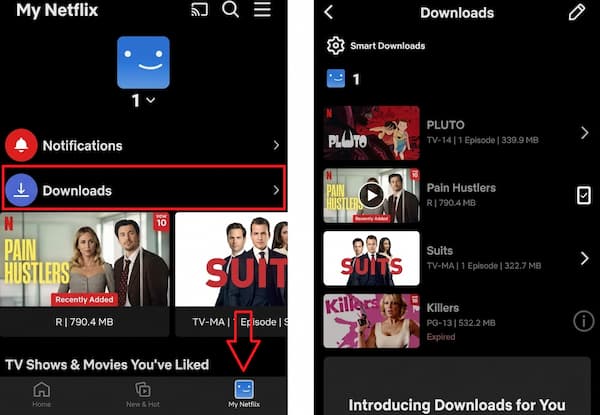
Step 2. Tap My Netflix in the bottom-right corner.
Step 3. Tap Downloads. All your saved movies and shows will be listed there.
How to Check How Much Storage Netflix Downloads Is Using
Step 1. Go to Settings → General → iPhone/iPad Storage.
Step 2. Scroll down and tap Netflix.
Step 3. You'll see two numbers:
App Size: The Netflix app itself. It usually takes up a few hundred MB.
Documents & Data: This is your downloaded videos.
If you're running low on storage, deleting downloads from within the Netflix app (not uninstalling Netflix itself) is the quickest way to free up space under "Documents & Data."
Part 4. Where Are Netflix Downloads Stored on Chromebook?
The Netflix app on Chromebook is actually the Android version of Netflix, which means the downloads technically live at the same path as on an Android phone:
But you can't get to them. ChromeOS's built-in Files app is heavily restricted. It only shows you the surface-level Downloads folder and Google Drive. No matter how deep you dig in the file manager, the system will never expose the hidden, encrypted com.netflix.mediaclient directory inside the Android subsystem. It's completely off-limits.
Can You Change the Netflix Download Location on Chromebook?
Yes. On some Chromebooks, Netflix allows you to change the download location and save offline titles to supported external storage, such as a MicroSD card.
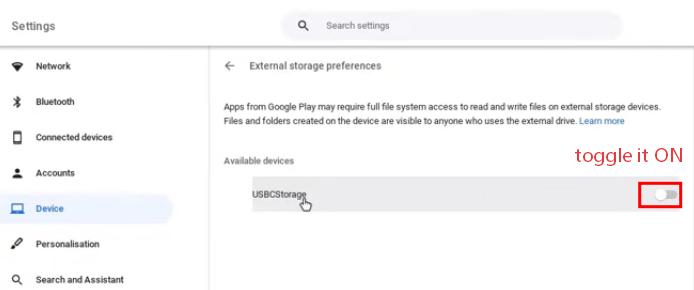
However, the option may not appear by default. If Netflix only shows Internal Storage, your Chromebook may need to enable external storage access first. Plese do the following steps first before you change the download location:
-
01
Open the Chromebook Settings menu.
-
02
Go to Device and open Storage Management.
-
03
Click External Storage Preferences.
-
04
Locate your connected USB drive or SD card. Toggle the adjacent switch to ON.
Part 5. Can You Copy Netflix Downloads to Another Device?
No. Even if you find those hidden folders on Android or Windows, copying them to a USB drive or another device won't work. The files are made to stop that.
Netflix uses .nfv (Netflix Video File) to encrypt its content with DRM. Only Netflix recognizes this file. Even if you manage to find them, these files are:
- Linked to your specific account and device
- Locked by DRM that needs Netflix's decoder to play
- Watermarked with your subscription info and regional rights
So, even if you copy the whole folder perfectly, another device will just see a bunch of unreadable encrypted data.
Part 6. How to Transfer Netflix Downloads to Any Device or Flash Drive
VidiFab Netflix Video Downloader is a desktop program for Windows and Mac that lets you download Netflix videos directly through its built-in browser. You can save content in high-quality 1080p as MP4 or MKV files.
Within VidiFab, you can choose where the downloaded videos are stored. Once a download is complete, the MP4 or MKV file will appear on your desktop or in the folder you specified. From there, you can easily transfer it to cloud storage, an external USB drive, flash drive, or any other portable hard drive.
VidiFab Netflix Video Downloader
Download Netflix videos as MP4/MKV in 1080p with Dolby Atmos for offline viewing on your iPhone, Android, desktop, and more devices.

How to Download Netflix Videos as Regular MP4 Files with VidiFab
Step 1. Set Up VidiFab and Choose Your Output Format
Install and open VidiFab Netflix Video Downloader on your PC or Mac. Click the menu icon in the top right and go to Preferences. Set your output format to MP4 or MKV. You can also choose a local folder to store the downloads from VidiFab software. Once configured, save and close.

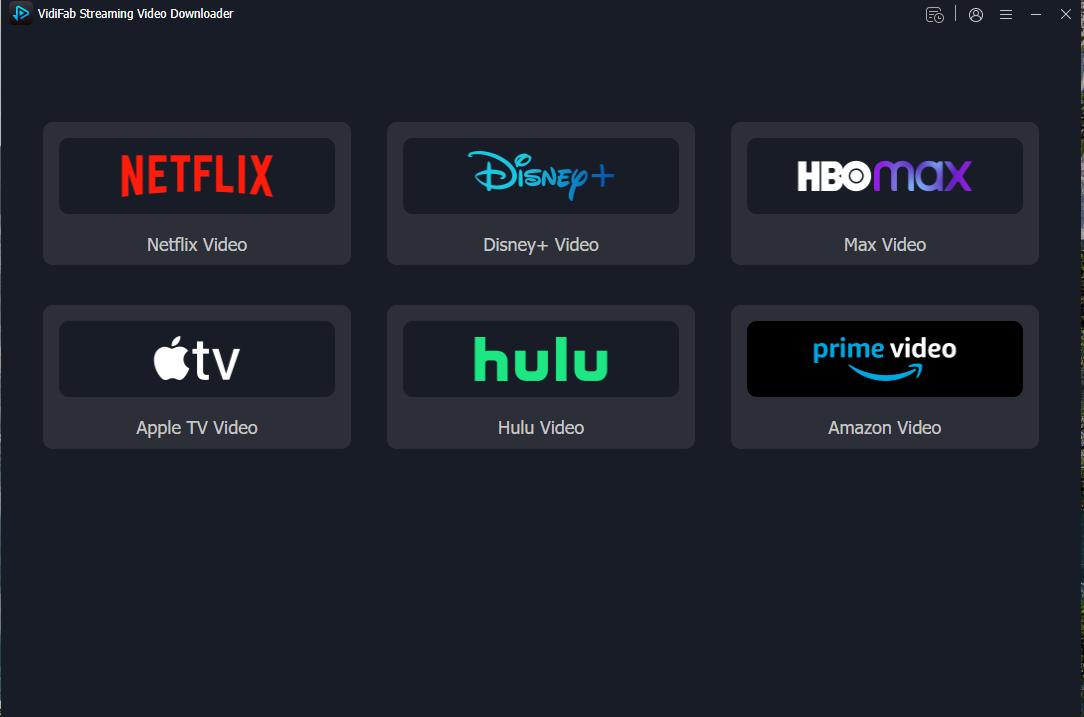
Then, select the Netflix icon on the main screen and log in to your account using the built-in browser. This lets the tool access the video library available in your area.
Step 2. Find the Title You Want
Search for the movie or show you want directly in the browser or copy the URL from your regular browser and paste it into VidiFab's search bar. Open the title's detail page and VidiFab will automatically detect the stream and show a Download button in the bottom-right corner.

Step 3. Pick Your Quality, Audio, and Subtitles
An options panel will appear before downloading. Here you can choose 1080p for full HD. Pick standard AAC stereo or 5.1 surround if your system supports it. Choose the language for subtitles and then decide whether to embed them into the video or save them as SRT file.

Step 4. Download and Save Your File
Hit Download. VidiFab typically runs significantly faster than Netflix's in-app download. As for a 2-hour movie, it takes roughly 15–17 minutes. Once it's done, go to the History tab and click the folder icon to find your saved file. From there you can play it in any local video player like VLC, transfer it to your phone or tablet via AirDrop or USB cable, or upload it to Google Drive or Dropbox.

Part 7. FAQs
Do Netflix downloads work after my subscription ends?
Why do my Netflix downloads disappear after updating the app or system?
Can I recover deleted Netflix offline files?
Is it legal to use third-party software like VidiFab to extract Netflix videos?
Conclusion
Netflix's download system is built to keep your content locked down, encrypted, device-bound, and impossible to transfer. Whether you're on Android, Windows, iPhone, or Chromebook, the files are there but never truly yours to move or keep.
If you just want offline viewing within the app, the built-in download feature works perfectly fine. But if you need a portable file you can keep, transfer, or watch anywhere without the Netflix app, a downloader tool like VidiFab is currently the only realistic path to get there.
 Free Download
 Secure Download
 Free Download
Secure Download
Free Download
Secure Download



I'm a video tech specialist with over 10 years of experience in digital media and streaming. I focus on making complex workflows simple and practical. Through my guides, you'll learn how to convert media, keep high-quality playback across devices, and manage your streaming video library with ease.
 Leave Your Comment