How to Download Netflix Movies on MacBook
 By Miles Kent
Wondering how to download Netflix movies on your MacBook? Here's the deal: Netflix doesn't have an official app for Mac that lets you download movies for offline viewing. According to Netflix Help Center, Mac users are stuck streaming through a browser. So yeah, no built-in download button on your MacBook.
But that doesn't mean you're out of options. If you need to download Netflix movies to your laptop to watch offline, there are a few workarounds that actually work. No matter if you have an Apple Silicon Mac like the M1, M2, M3, or M4, or an older Intel model, you can easily find a downloading method that suits you.
- Can you download Netflix movies on Mac? Not with an official Netflix Mac app. For a broader look at Netflix download methods, visit our Netflix Download Guide.
- How to download Netflix movies on MacBook? You need an alternative workflow, such as a downloader tool, an emulator, or screen recording.
- Best method for quality and convenience: A dedicated tool like VidiFab Netflix Video Downloader.
- Best method for official app experience: An Android emulator running the Netflix Android app.
- Best free manual method: Screen recording, though it is slower and lower quality.
Part 1. Can You Download Netflix Movies on MacBook?
No, not officially through Netflix on macOS.
Netflix doesn't allow you to download movies on your Mac since there isn't a Netflix app for macOS. You can only download Netflix content on iPhones, iPads, Android devices, Amazon Fire tablets, and Google Chromebooks. So, if you're using a MacBook, you can't download videos from Netflix.
If you're curious what you can and can't actually do with Netflix on a MacBook, here's a quick breakdown:
What Netflix does support on Mac:
- Watching through a supported web browser
- Signing in and streaming from Netflix.com
- UHD playback on compatible Mac hardware and Safari, if your plan and setup qualify
What Netflix doesn't support on Mac:
- A dedicated Netflix app for macOS with offline downloads
- A built-in "Download" button in the Mac browser experience
- Native local storage of Netflix movies for offline playback on macOS

Part 2. How to Download Netflix Movies on MacBook
Since there's no native macOS app for Netflix, you'll have to rely on a few workaround methods if you want to download movies. We tested three different approaches, and they all worked.
Method 1: Using a Professional Netflix Video Downloader
VidiFab Netflix Video Downloader is a desktop tool that lets you save Netflix videos as MP4 or MKV files for offline viewing. It works on macOS 10.13 or later, and it's also available for Windows.
Why Choose VidiFab Netflix Video Downloader?
- No Expiration Dates: Your downloaded movies never expire, even if they leave Netflix.
- Unlimited Downloads: No matter which Netflix plan you have, download as many titles as you want. There are no Netflix download limits.
- 1080p Full HD Quality: Enjoy Full HD (1080p) and Dolby Vision if the title offers it.
- Universal Compatibility: Download Netflix videos in MP4 or MKV formats to watch them on QuickTime, VLC, or to stream Netflix on an Apple TV if the app is unavailable.
- Flexible Subtitles: Choose to add subtitles directly into the video or keep them as separate SRT files.
- Bonus: Besides Netflix, VidiFab also lets you download from Amazon Prime Video, HBO Max, Hulu, Disney+, and Apple TV+.
VidiFab Netflix Video Downloader
Download Netflix videos as MP4/MKV in 1080p with Dolby Atmos for offline viewing on your MacBook.

How to Download Netflix Movies to Your MacBook Using VidiFab
Step 1. Launch VidiFab and Set Preferences
First, install and open the VidiFab Netflix Downloader on your Mac. Click the Menu icon in the top right and pick Preferences. In the pop-up, set the Download Video Format to MP4 or MKV. You can also select your preferred video encoding, like H.264 or AV1, and quality settings. Hit OK to save, then click the Netflix icon on the home screen and log in using the secure built-in browser to access your streaming library.

Step 2. Search for Movies
Use the internal browser to browse Netflix or paste the movie's direct URL into the search bar. Once you're on the movie's detail page, click the download button that appears in the bottom right corner.

Step 3. Customize Quality, Audio, and Subtitles
In the pop-up, choose 1080p for the best picture quality. You can also select your favorite audio tracks, including 5.1 surround sound. If you want subtitles, pick the Embedded option and choose your languages.

Step 4. Save Netflix Movies as Permanent MP4/MKV Files
Click the Download button to start the fast download. Once it's done, find your file in the History tab. Click the folder icon on the right to locate your converted files on your MacBook.

Step 5. Play Your Downloaded Netflix Movies on MacBook
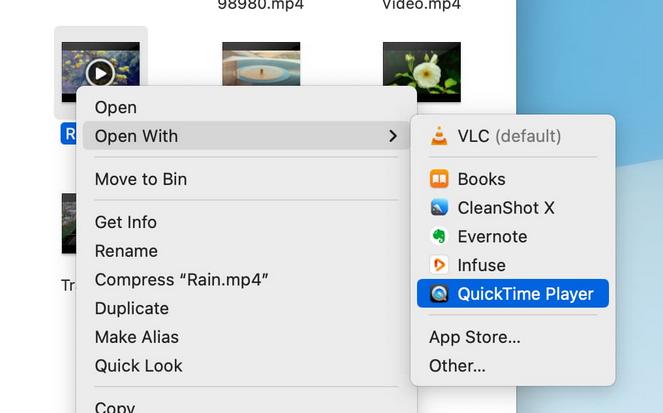
To watch your movies, just go to your destination folder. If it's a standard MP4, right-click the file and select "Open With" > QuickTime Player. For a better experience with custom subtitles or enhanced audio, or if you've got an MKV file, go with VLC Media Player for Mac. Now you can enjoy your Netflix library anywhere, even without Wi-Fi!
Pros:
- Downloaded movies never expire.
- Watch Netflix movies offline in 1080p without any buffering.
- MP4 and MKV formats work well on macOS.
- Keep full metadata and subtitles for movies.
- Get fast 7x batch downloading.
Cons:
- It's a paid software with a free trial.
- Downloaded movies take up space on your disk.
Method 2: Use an Android Emulator
An Android emulator creates a virtual Android environment on your MacBook. Inside that environment, you can install the mobile version of the Netflix app on your MacBook Pro or Air.
This method is mostly for users who want something closer to the official Netflix app experience, even though it runs inside a virtual Android system rather than natively on macOS.
Android Emulator Compatibility for macOS
| Emulator Name | Supported macOS Versions | Apple Silicon (M1/M2/M3) | Intel Core (i5/i7/i9) |
|---|---|---|---|
| BlueStacks | macOS Monterey, Ventura, Sonoma | Native Support | Limited |
| NoxPlayer | macOS Big Sur to Sonoma | Yes (via Rosetta 2) | Yes |
| MuMu Player Pro | macOS Ventura, Sonoma, Sequoia | Fully Optimized | Limited |
| Genymotion | macOS Monterey to Sequoia | Yes | Yes |
| Android Studio | All Modern macOS | Native Support | Yes |
- If you're using a newer MacBook Air or MacBook Pro with an M1/M2/M3/M4 chip, BlueStacks or MuMu Player Pro are good options to run an Android environment smoothly.
- If you have an Intel MacBook, enable Virtualization Technology (VT-x) in your system settings to prevent lagging while running the Netflix app.
In the following, we'll use BlueStacks as an example to show you how to download a movie from Netflix on a MacBook step by step.
How to Download Download Movies on Netflix on MacBook via BlueStacks
Step 1. Install BlueStacks for Mac
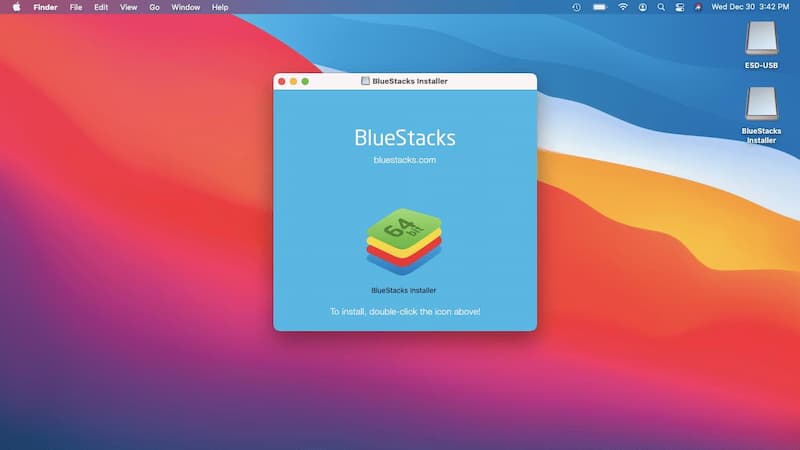
Go to the official BlueStacks website and download the installer. For Apple Silicon (M1/M2/M3/M4), get the version from the website. For Intel or older models, choose any v4 release. After downloading, follow the on-screen prompts to drag the application into your Applications folder and grant the necessary security permissions in your System Settings.
Step 2. Sign in to Google Play Store
When BlueStacks opens, access the Google Play Store and sign in with your Google account. This is necessary to use the official Netflix app.
Step 3. Install the Netflix App
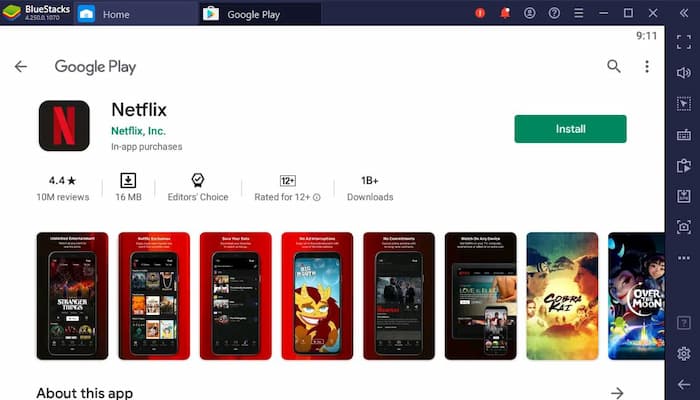
Search for "Netflix" in the Play Store and click Install. Once installed, open the app in BlueStacks and log in to your Netflix account.
Step 4. Download Content for Offline Viewing
Browse for movies you want to download. Look for the Download icon which shows as a downward arrow next to the title. Click it to start saving the file to the emulator's virtual storage.
Step 5. Watch Offline on Your Mac
To view your downloaded content, first open BlueStacks. Launch Netflix and head to the "My Downloads" section. Click play and enjoy your movie in the emulator window.
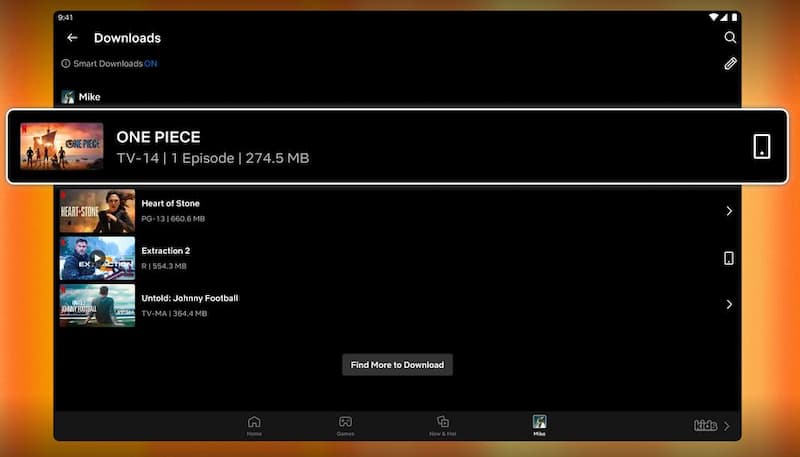
- If the latest Netflix version doesn't show the download button, try installing an older Netflix APK like version 9.x within the BlueStacks environment to bypass newer DRM detection.
Pros:
- You can access the Netflix Android app.
- It's free to use.
- Your "Continue Watching" progress syncs across devices.
Cons:
- It uses a lot of RAM and CPU power.
- Playback caps at 720p.
- Setting up an emulator can be tricky.
- The touch interface of the Android app feels clunky.
- Older Intel MacBooks often lag.
- Downloads have expiration dates.
Method 3: Record Netflix Movies on MacBook
If you want to screen record on Netflix without installing software, use the built-in screen recording feature. However, HDCP (High-bandwidth Digital Content Protection) can cause a "black screen," letting you hear audio but not see video.
How to Fix the "Black Screen" Issue When Recording
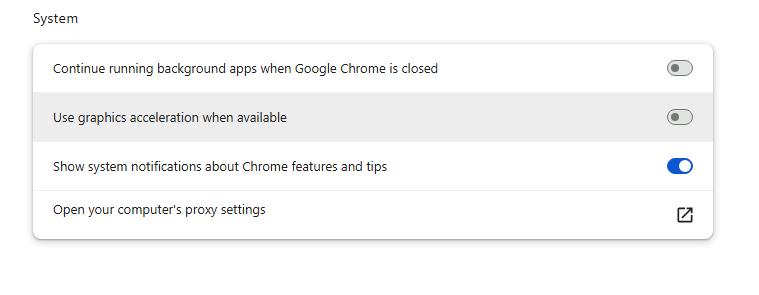
To resolve this, disable Hardware Acceleration in your browser. This allows your MacBook to render the video properly for screen capture. Here's how:
-
01
Open Google Chrome (or Firefox).
-
02
Go to Settings > System.
-
03
Turn off "Use graphics acceleration when available" (or "hardware acceleration").
-
04
Relaunch the browser to apply changes.
How to Screen Record Netflix Movies on a MacBook
-
01
Open Netflix in your updated browser and find the movie or show.
-
02
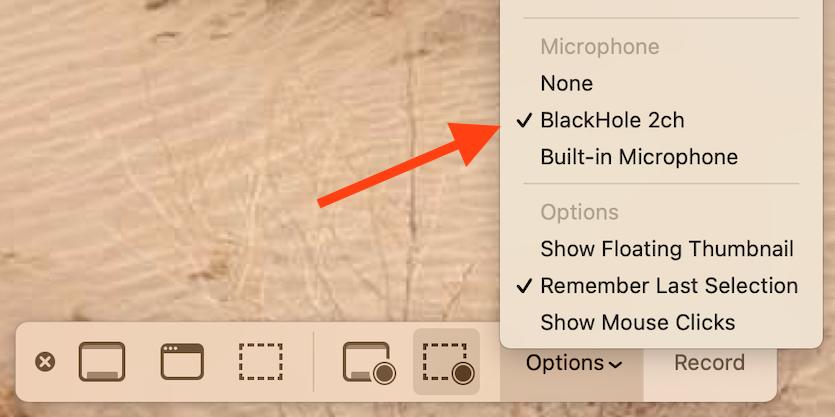
Press Shift + Command + 5 to open the Screenshot toolbar.
-
03
Choose "Record Entire Screen" or "Record Selected Portion" to focus on the Netflix player.
-
04
In "Options," select BlackHole 2ch to capture internal audio; otherwise, it'll record through your MacBook's microphone only.
-
05
Hit Record, then play your Netflix video.
-
06
When the movie ends, stop the recording. By default, recordings save in .mov format on your Desktop. If you don't see them there, open the Screenshot toolbar, click Options, and check the Save to section.
-
07
You can watch your Netflix recordings offline using QuickTime Player.

Pros:
- Free.
- No software installation needed.
Cons:
- Time-consuming.
- Recordings may lag or drop frames.
- You can't use your MacBook for anything else during recording.
- Video quality might be low.
Part 3. Legal and Safety Tips for Downloading Netflix Videos
If you choose to download movies from Netflix to your MacBook using the methods mentioned, ensure you understand the legal and safety aspects to keep your account and MacBook secure.
1. Personal Use Only
Most third-party tools and recording methods are intended for personal use only. Distributing, sharing, or uploading downloaded Netflix content to public platforms violates copyright laws and Netflix's Terms of Use. Always download content just for your own offline viewing.
2. Protect Your Account
When using a Netflix downloader or Android emulator, software should come from reputable sources only. Reliable tools like VidiFab Netflix Video Downloader use secure, built-in browsers to handle logins and help protect account credentials. "Cracked" or unofficial free versions should be avoided, as they may contain malware or hidden scripts that could trigger account security issues.
3. Respect DRM Policies
Digital Rights Management (DRM) protects content creators and manages how media is used. While workarounds are useful for offline viewing during travel or in low-connectivity areas, Netflix updates its security regularly. Stay updated on these changes to keep your method safe and effective.
Part 4. FAQs About Downloading Netflix Movies on MacBook
Why is there no official Netflix app for macOS?
Can I transfer downloaded Netflix movies to USB?
Do downloads expire on Netflix?
What format are Netflix downloads saved in?
Does AirPlay work from iPhone to MacBook for offline movies?
Final Thoughts
The absence of a native macOS app and the recent removal of the Netflix Windows app download feature have made things tricky, but the workarounds still work well.
For the best experience, go for VidiFab Netflix Video Downloader. It gets around browser limits and gives you permanent 1080p MP4 files that won't expire. Android emulators feel like the official app and are free, but they usually max out at 720p and can drain your battery. Screen recording is an option too, though it takes time for just a few clips. Now, pick your method to download Netflix movies on your Mac, and turn your MacBook into a portable cinema for offline viewing!
 Free Download
 Secure Download
 Free Download
Secure Download
Free Download
Secure Download



I'm a video tech specialist with over 10 years of experience in digital media and streaming. I focus on making complex workflows simple and practical. Through my guides, you'll learn how to convert media, keep high-quality playback across devices, and manage your streaming video library with ease.
 Leave Your Comment