How to Screen Record on Netflix Without Black Screen (2026)
 By Miles Kent
If you are trying to screen record on Netflix and the result is a black screen, you are not necessarily doing anything wrong. Many streaming services protect films and shows during playback, so a phone or computer's normal screen-recording feature may capture the interface but not the video itself. That behavior can vary by title, device, app, browser, and playback setup.
This guide explains what the black screen means and the practical options available when your real goal is offline viewing or sharing a permitted clip.

Important: Netflix content is provided for personal, non-commercial viewing. Recording, copying, or redistributing a title may violate Netflix's terms or copyright rules that apply where you live. Check the applicable rights and permissions before recording or sharing any video.
Part 1. Why Does Netflix Show a Black Screen While Screen Recording?
Netflix protects its streams with DRM (Digital Rights Management):
- Google Widevine — used by Chrome, Edge, Firefox, and Android.
- Apple FairPlay — used by Safari, iOS, and iPadOS.
- Microsoft PlayReady — used by the Netflix Windows app and Edge in some configurations.
That protection is the reason a recording can come out black while the sound is perfect. If you want the full picture, including what DRM does and does not block, see our explainer on how DRM protection actually works on streaming video.
Part 2. Before You Record: Turn Off Hardware Acceleration
To screen record Netflix on a PC or Mac, you must first turn off Hardware Acceleration in your browser.
Netflix uses DRM (Digital Rights Management) that communicates with your computer's graphics card to block video capture, resulting in a black screen. Disabling this feature forces the browser to render the video through software, effectively lifting the recording block.
- Google Chrome: Click the three dots (⋮) → Settings → System → Toggle off "Use graphics acceleration when available" → Relaunch.
- Microsoft Edge: Click the three dots (...) → Settings → System and performance → System → oggle off "Use graphics acceleration when available" → Restart.
- Mozilla Firefox: Click the three lines (≡) → Settings → scroll down to Performance → Uncheck "Use recommended performance settings" → Restart.
Part 3. How to Screen Record Netflix on PC (Windows 10/11)
To record Netflix on Windows 10/11, you need to disable hardware acceleration in your browser and enable screen recording via the "Game Bar" or OBS to achieve high-quality, smooth video.
If your goal is to save Netflix videos for offline viewing rather than record them in real time, you may also want to check our guide on how to download Netflix movies on PC. Downloading can be faster and preserves the original video quality without requiring screen capture.
Now, let's take a look at how they work and their respective pros and cons.
Method 1: Recording Netflix via Windows Game Bar
The Windows Xbox Game Bar is a pre-installed, lightweight tool perfect for grabbing quick clips without extra software. It's designed for gameplay, but it treats your browser window just like a game engine, so it also records the video playing from your web browser.
Step 1. Open Netflix in your browser (Chrome, Edge, or Firefox) after disabling hardware acceleration.
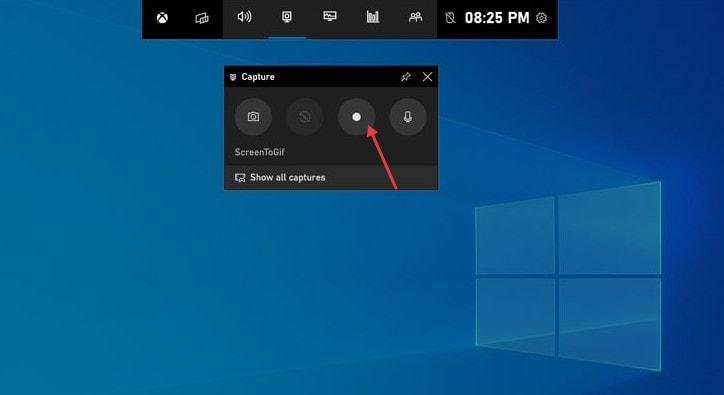
Step 2. Press Win + G to launch the Windows Game Bar overlay.
Step 3. In the Capture widget, click the Start Recording button or press Win + Alt + R to begin.
Step 4. Play the Netflix show or movie you want to record.
Step 5. When done, press Win + Alt + R again to stop recording. Your MP4 file will be waiting in your Videos/Captures folder.
Pros:
- Zero installation
- Extremely lightweight on CPU
- Captures system audio by default
- Supports keyboard shortcuts
Cons:
- Cannot record the desktop or multiple windows
- Limited settings for bitrate and file format
Method 2: Using OBS Studio for Advanced Window Capture
OBS Studio is a free, open-source recording software that gives you full control over resolution, frame rate, and audio capture. Perfect if you want to save Netflix in 1080p or higher quality.
Step 1. Download and install OBS Studio from the official website.
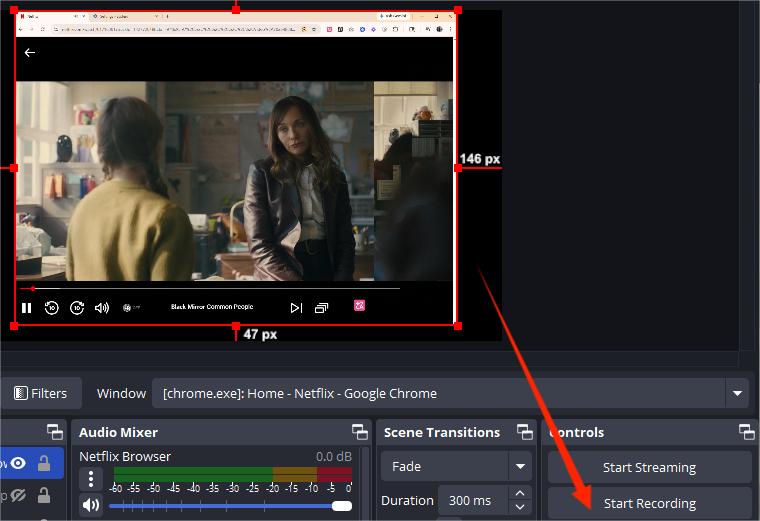
Step 2. Open OBS Studio and click + under the Sources panel → select Window Capture.
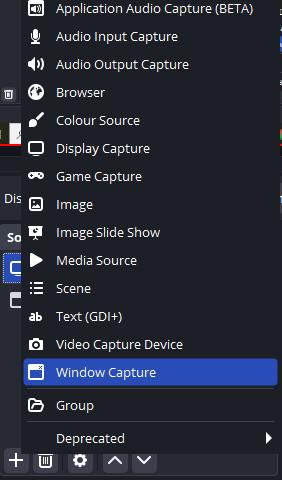
Step 3. Choose your browser window running Netflix. Ensure "Capture Cursor" is on or off based on preference.
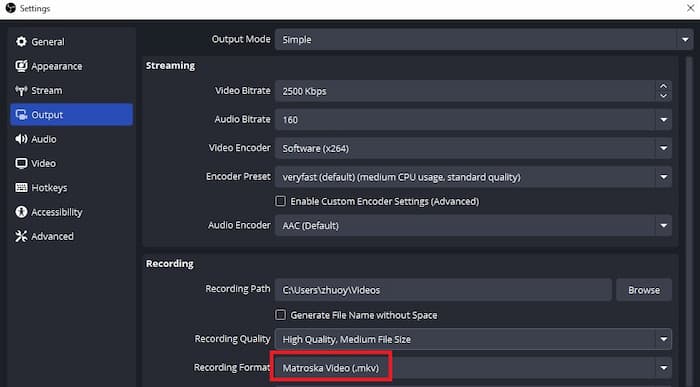
Step 4. In Settings → Output, set recording format to MP4 or MKV and adjust quality to High or Indistinguishable Quality.
Step 5. Start recording by clicking Start Recording and then play your Netflix content.
Step 6. When finished, click Stop Recording. Your file will be saved in the location specified under Settings → Output.
Pros:
- 1080p recording
- 60 FPS support
- Can capture both video and system audio reliably
Cons:
- Steeper learning curve
- Higher CPU/GPU usage
- Requires setup of sources and output settings before recording

Part 4. How to Screen Record Netflix on Mac
Recording Netflix on a Mac is trickier than on Windows because macOS doesn't allow screen recorders to capture system audio by default. Using the QuickTime Player is not enough; you'll need to pair it with a audio driver like BlackHole or Soundflower.
Note: Do not use Safari to watch Netflix for recording purposes, as it blocks audio capture; it is best to use Chrome or Firefox instead.
Step 1. Set Up Audio Routing (BlackHole or Soundflower)
To capture Netflix audio, you need a virtual sound card. Here's how to set it up:
-
01
Download the free BlackHole 2ch installer.
-
02
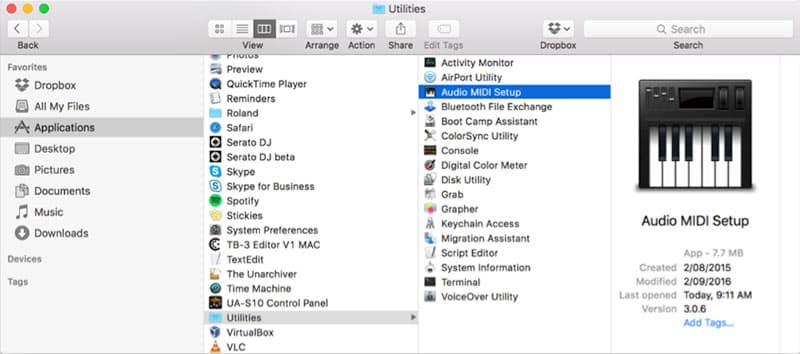
Go to Applications > Utilities. Open Audio MIDI Setup.
-
03
Click the + icon and select Create Multi-Output Device.
-
04
Check both BlackHole 2ch and your Built-in Output (headphones or speakers).
-
05
In System Preferences > Sound > Output, select the Multi-Output Device as the output.
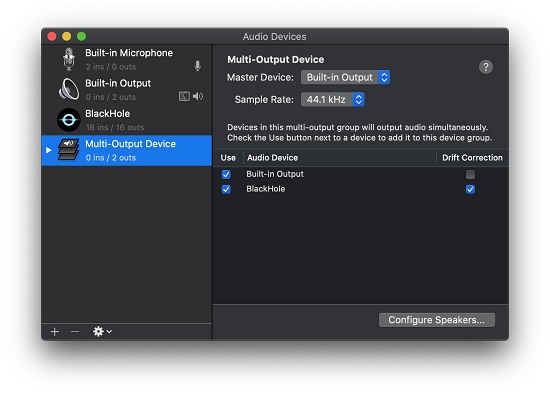
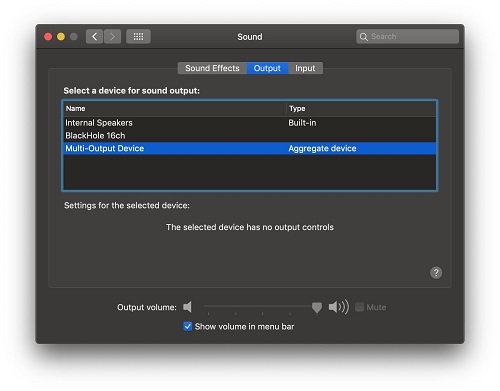
This ensures Netflix sound goes to QuickTime Player for recording while you still hear it through your speakers.
Step 2. Capture Netflix with QuickTime Player
Once you've set up the audio, just go to your browser and start recording the Netflix videos you want.
-
01
Open Netflix in Chrome or Firefox. Remember to disable hardware acceleration.
-
02
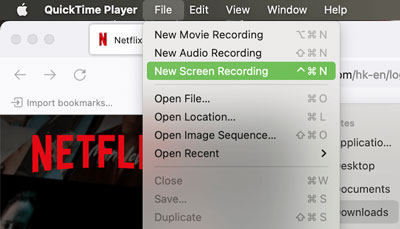
Launch QuickTime Player. Go to File > New Screen Recording.
-
03
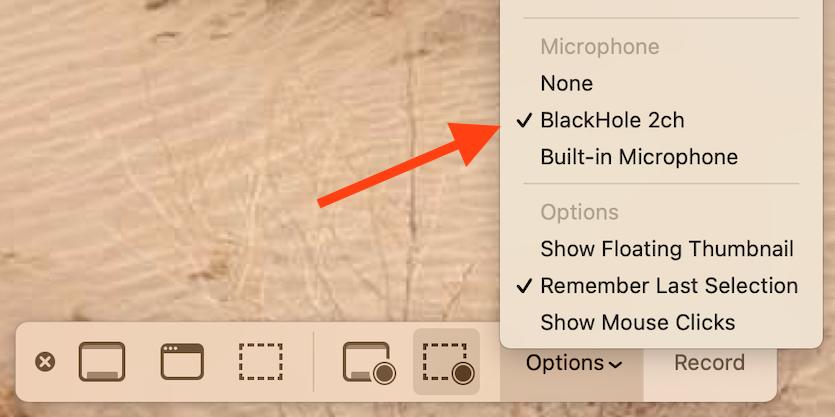
In the recording toolbar, click Options. Under Microphone, select BlackHole 2ch.
-
04
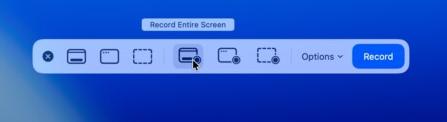
Select the portion of the screen (or the full window) where Netflix is playing.
-
05
Press Record, play your video, and hit Command + Control + Esc to stop when finished.
-
06
When finished. Save the file as MP4 or MOV.
Pros:
- High-quality MOV output, no watermarks
- Free built-in tools (mostly)
Cons:
- Complex initial setup
- Requires switching audio outputs back and forth
- No "pause" button in QuickTime
- Recording long episodes consumes storage fast
Do I need to hear audio during recording?
Why can I see the video but hear absolutely nothing during playback?
Can I record Netflix in 4K resolution on a MacBook Pro?
Part 5. How to Screen Record Netflix on iPhone and Android
On iPhone and Android, Netflix uses strict OS-level DRM that blocks internal capture. The built-in iPhone screen recording button usually shows a black screen for Netflix, and downloading APKs on Android is risky. The safest way is Netflix's official Moments feature, which lets you capture short 1–2 minute clips you can share directly to social media or friends.
How to Use Netflix Moments on iPhone or Android
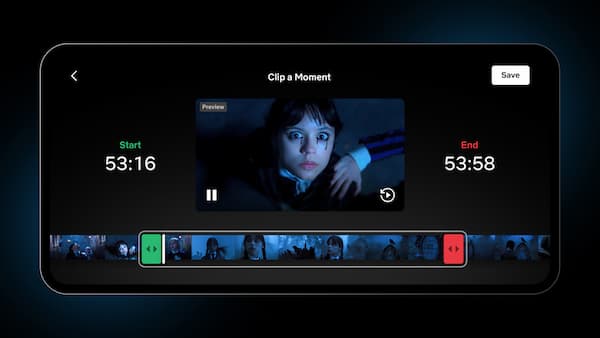
Netflix Moments allows you to bookmark and export clips within the Netflix app. It's the perfect tool for Instagram Stories or sending a "you have to see this" scene to a friend. When they click your link, it takes them directly to that exact timestamp in their own Netflix app.
-
01
Open the Netflix app and play the show or movie you want to clip.
-
02
Tap the Clip button while the video is playing.
-
03
Drag the start and end sliders to capture the exact segment. Tap Save.
-
04
Click on the social media icon to share it on that app with the Netflix link. You can post straight to Instagram, WhatsApp, or Snapchat, or just copy the link.
Video Guide: Netflix Has a Hidden Clip Feature You Should Use
Important: a Moment is a smart bookmark, not a video file. Whoever you share it with needs the Netflix app and an active subscription to watch it, and they can't save it to their camera roll.
Pros:
- Legal
- Crystal clear quality
- Built-in sharing features
- Zero risk of "black screen"
Cons:
- Limited to 2-minute snippets
- Requires the recipient to have a Netflix account and a subscription to view the video
If you want to save Netflix content for offline viewing instead of recording your screen, you can check this guide on how to download Netflix titles on iPhone for available options.
Can I record a full Netflix movie this way?
Is there a real screen record Netflix app on the App Store or Google Play?
Part 6. The Best Alternative: Download Instead of Record
Instead of sitting through hours of real-time playback, try VidiFab Netflix Video Downloader, an advanced tool compatible with both Windows and Mac, lets you batch-download full movies and TV series with original multilingual audio tracks and crisp subtitles in minutes. You'll store all Netflix downloads on your laptop as playable MP4 or MKV files.
VidiFab Netflix Video Downloader
Download Netflix videos as MP4/MKV in 1080p with Dolby Atmos for offline viewing on your iPhone, Android, desktop, and more devices.

Why Downloading Netflix Is Better Than Screen Recording
| Feature | Screen Record Netflix | Download with Vidifab |
|---|---|---|
| Time | Real-time only | Fast, can batch download multiple titles |
| Formats | MP4 / MKV via recorder encoding overhead | Clean MP4 / MKV container files |
| Quality | Max 720p on most browsers; prone to dropped frames | Full 1080p available |
| Sound | Basic Stereo 2.0 (Whatever your PC outputs) | Original 5.1 Surround Sound / Atmos audio tracks |
| Batch Download | No | Yes, full seasons supported |
| Black Screen Risk | High | None |
| Best For | Short clips, highlights | Offline viewing, study, archiving |
Bonus: Along with Netflix, VidiFab lets you download content from 5 other streaming platforms: Disney+, Prime Video, HBO Max, Apple TV+, and Hulu.
How to Download Videos from Netflix with Vidifab Video Downloader
Step 1. Launch and Access Netflix
Install Vidifab Netflix Video Downloader on your PC or Mac. Open the program, click the menu icon on the uppere right corner. Select Preferences. In Download section, choose MP4 or MKV as the output format. Back to the main interface, select Netflix from the supported services list, and log in with your account using the secure built-in browser. This ensures you can access your region-specific Netflix library safely.

Step 2. Locate Your Video
Browse the Netflix library as you normally would, or simply copy and paste the URL of the specific movie or TV show into the search bar. Once you open the video's detail page, VidiFab will automatically analyze the metadata and the encrypted stream and show you a download button in the bottom right. Click on it.

Step 3. Customize Your Netflix Download
A settings window will appear once the analysis is complete. To ensure the best viewing experience, select 1080p. Choose your preferred language and audio quality. Select "Embedded Subtitles" so you can toggle subtitles on or off on your Mac, phone, or TV.

Step 4. Download and Save for Offline Viewing
Click Download to start the high-speed rip. Once finished, go to the History tab to find your permanent MP4 file. You can now move this file to your iPhone, Android, or Plex server for offline viewing, no Netflix app or internet connection required.

Pros:
- High-quality HD download with full audio
- No black screen or recording glitches
- Supports batch downloading
- Saves multi-language audio and subtitles
- Up to 7x faster than real-time recording
Cons:
- Requires a desktop computer (Windows or Mac)
- Paid software (though a free trial is available)
Netflix's Terms of Service state that unauthorized recording of copyrighted content can be legally tricky. The methods mentioned are only for personal learning, fair-use video editing, or offline storage. Avoid sharing, distributing, or selling your recorded files.
Conclusion
The key to screen recording Netflix is avoiding black screens. On a computer, turn off hardware acceleration in your browser; on a phone, the safest option is Netflix's Moments feature for sharing short clips. But if your goal is to save full videos, a dedicated downloader like Vidifab Netflix Video Downloader is far more efficient. It preserves 1080p quality, system audio, and subtitles, even supporting batch downloads. Whether for travel, study, or personal archiving, downloading ensures a smoother, higher-quality Netflix experience without the headaches of screen recording.
 Free Download
 Secure Download
 Free Download
Secure Download
Free Download
Secure Download


I'm a video tech specialist with over 10 years of experience in digital media and streaming. I focus on making complex workflows simple and practical. Through my guides, you'll learn how to convert media, keep high-quality playback across devices, and manage your streaming video library with ease.
 Leave Your Comment