How to Watch Netflix on FireStick: Installation, Setup & Offline Viewing
 By Miles Kent
Does a FireStick Have Netflix? Yes. Fire TV Stick, Fire TV Cube, or even an older FireStick can get Netflix and let you stream your favorite shows or movies in minutes. But to do this, you should first install the Netflix app and safely manage your account profiles. This is where this guide comes in.
I'll show you how to install Netflix, sign in, log out, and keep everything updated. I will also share a clever trick to bypass Wi-Fi issues and watch your favorite shows completely offline. Let's get right into it!
Part 1. Can You Watch Netflix on a FireStick?
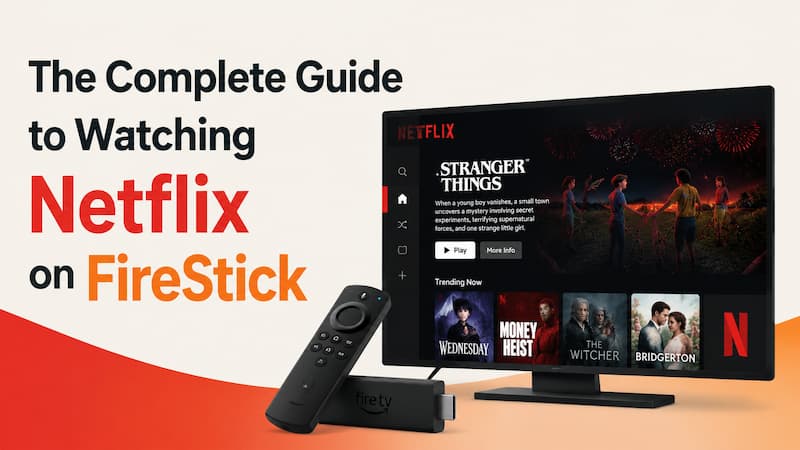
Yes, you can watch Netflix on most FireStick devices. Amazon's Fire TV Stick, Fire TV Stick 4K, and Fire TV Cube all support Netflix
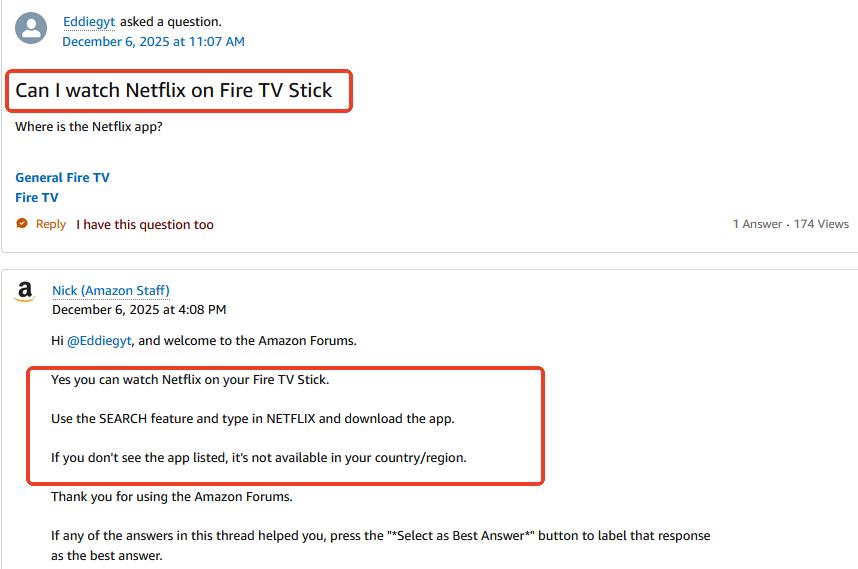
According to the Netflix and FireStick compatibility discussion on the Amazon Forum, the Amazon staff confirmed that you can use the SEARCH feature to find the Netflix app and use it to stream Netflix directly on your TV. But if you tried and don't see the Netflix app in the list, it might not be available in your country or region.
Which FireStick Models Support Netflix?
You can download and run the app smoothly on these models:
- Fire TV Stick HD (The current standard model)
- Fire TV Stick 4K
- Fire TV Stick 4K Max
- Fire TV Stick Lite
- Fire TV Cube (All generations)
- Smart TVs with Fire OS built-in

Which FireStick Models Don't Support Netflix?
Netflix officially discontinued its software compatibility for older Amazon streaming hardware due to security updates and advanced video codec requirements. The following legacy devices can no longer run the application:
- Amazon Fire TV (First generation, 2014)
- Amazon Fire TV Stick (First generation, 2014)
- Amazon Fire TV Stick with Alexa Voice Remote (2016)
If you attempt to open the app on these specific legacy models, you will encounter error messages like Code R40, stating that the platform is no longer available on the hardware. You can check the Netflix guide for non-smart TVs for a solution.
- If you own an unsupported legacy device, do not throw it away just yet. You can use VidiFab Netflix Video Downloader on your computer to save your favorite movies as MP4 or MKV files. Then, simply transfer those videos to a USB drive or share them over your local network to play them on your older FireStick without using the official app.
What Features Can You Use on Netflix with FireStick?
When you stream Netflix on a compatible Fire TV device, you get a premium viewing experience with advanced features:
- Ultra HD 4K Streaming: Available on the Fire TV Stick 4K Max and Fire TV Cube, assuming you subscribe to the Premium membership tier.
- Advanced Visuals: Full support for high-dynamic-range formats including Dolby Vision, HDR10, and HDR10+ for vibrant colors.
- Immersive Sound: Immersive audio capabilities including Dolby Atmos and 5.1 surround sound audio pass-through.
- Profile Customization: Seamless profile switching, integrated parental controls, and full subtitle customization directly from your remote.
- Hands-Free Voice Control: You can use the Alexa Voice controls to use Netflix if you have an Amazon Voice Remote or other Alexa-enabled device, such as an Amazon Echo. Learn more about using Netflix on Echo Show and how Alexa voice commands can improve your streaming experience.
Part 2. How to Get Netflix on FireStick
Getting Netflix on your Fire Stick is simple and takes less than five minutes. You just need to download the free app from the Amazon Appstore and log into your account. Here's how to do it step by step.
How to Add Netflix to FireStick
Amazon updated the Fire OS home screen to focus heavily on search and discovery. Follow these steps to install the Netflix app:
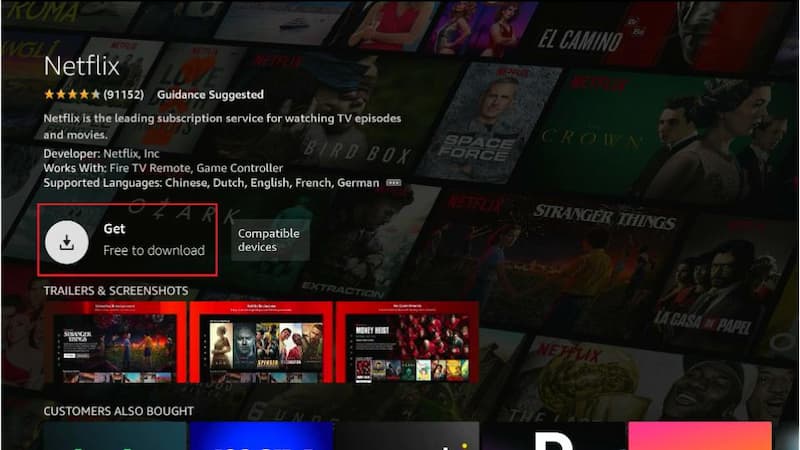
Step 1. On the home screen, move your cursor to the upper left and select the Find icon (the magnifying glass).
Step 2. Use the on-screen keyboard to type "Netflix," or press and hold the Voice/Alexa button on your remote and say "Netflix."
Step 3. Click the button labeled Get. The app will download and install automatically.
Step 4. Once finished, the button will change to Open. Click it to launch Netflix.
- You may get an error saying they cannot download the app. This happens if your Amazon account does not have a 1-Click payment method or a valid billing address set up. Even though Netflix is free to download, Amazon requires a valid address on file. To fix this, log into Amazon on your phone, go to Your Account > Your Payments > Settings > 1-Click settings, and add a default address.
How to Get Netflix if the App is Missing in the Amazon Appstore
If you search for Netflix and it does not appear in the results at all, it usually means your Amazon account is registered to a country or region that does not support the Netflix app.
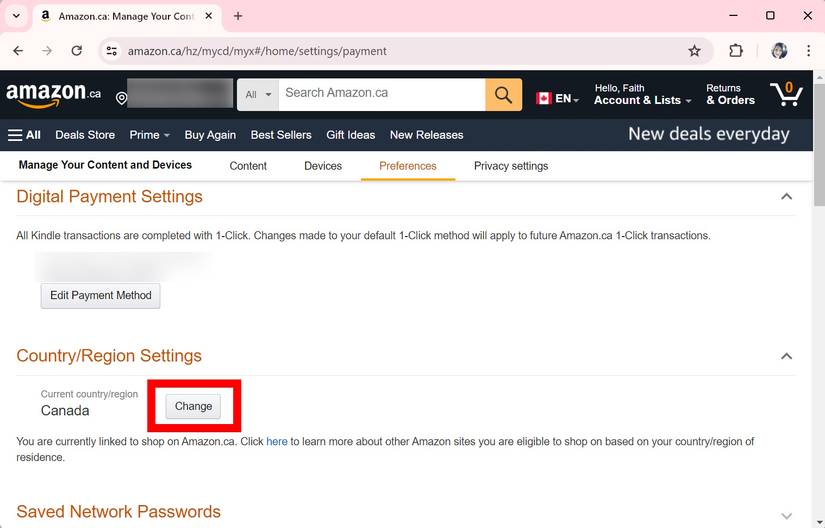
Using a VPN will not fix this issue. You need to change the Amazon Appstore Region in your account settings to get the Netflix app available. Here's how:
Step 1. Log into Amazon's website on your phone or computer.
Step 2. Navigate to Manage Your Content and Devices.
Step 3. Click the Preferences tab.
Step 4. Update your Country/Region Settings to a supported area (like the United States).
Step 5. Once updated, restart your Fire Stick, and Netflix will appear in the search results.
How to Update Netflix on FireStick for Latest Features
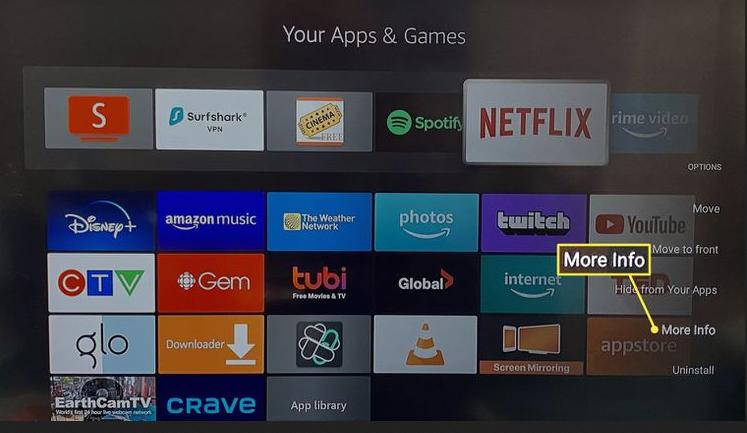
FireStick usually updates apps automatically, but you can force a manual update if the app is acting up:
Step 1. Navigate to the Netflix icon on your home screen or apps list.
Step 2. Press the Options button (three horizontal lines) on your FireStick remote.
Step 3. Look at the menu on the right side of the screen. If an update is available, you will see Update.
Step 4. Click Update, and the device will install the latest version.
Step 5. If you only see "More Info," your Netflix app is already fully updated.
Part 3. How to Set Up Netflix Account on FireStick
After you install the Netflix app, the next step is to log in to your account. The steps below cover both new users who want to create an account and users who already have one.
I'll also show you how to log out of your Netflix account on Fire TV Stick, whether directly or remotely, to keep your account and all your controls safe.
How to Sign Up for Netflix on FireStick (New Users)
If you're new to Netflix, here's how to create an account on your FireStick:
Step 1. Open the Netflix app on your FireStick.
Step 2. Select the Sign Up Now or Get Started button on the welcome screen.
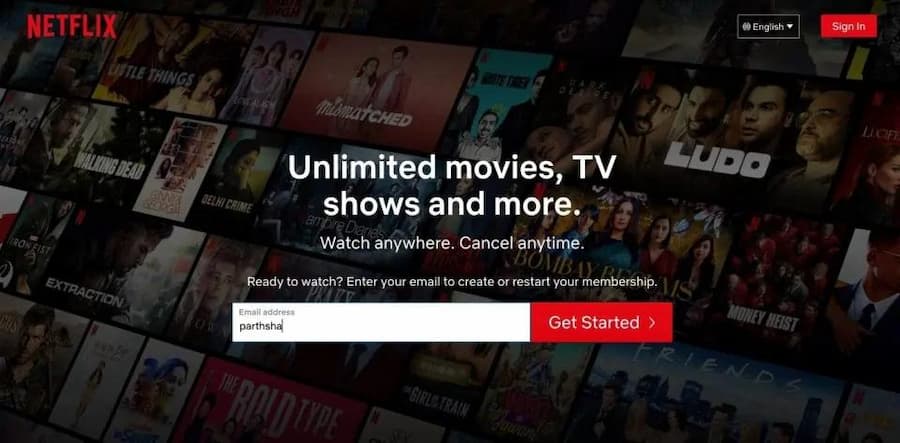
Step 3. Enter your email address using the on-screen keyboard.
Step 4. Create a password.
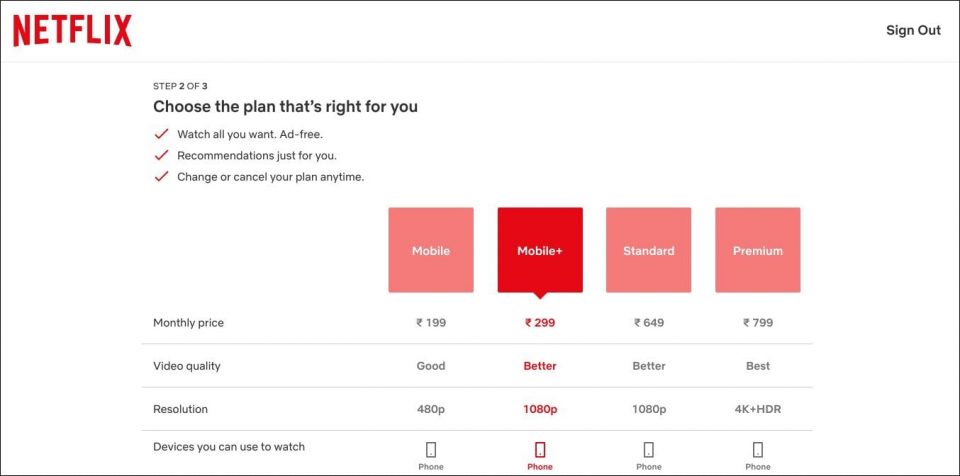
Step 5. Netflix will send a confirmation link to your email. Open that link on your smartphone or computer to choose your monthly subscription plan and enter your payment details.
Step 6. Return to your TV screen to complete the setup.
How to Sign In to Your Existing Netflix Account
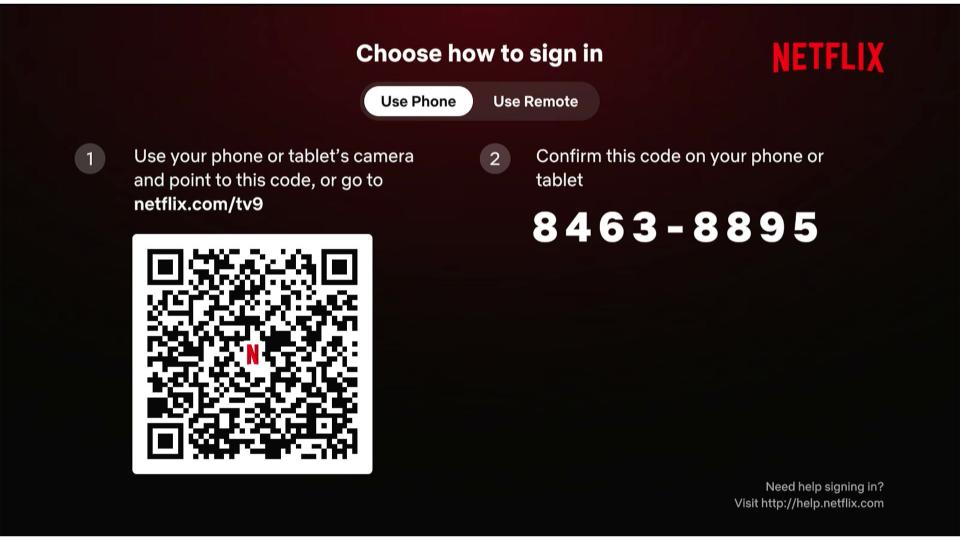
If you already have a Netflix account, open the Netflix app on your Fire Stick. And click on Sign in.
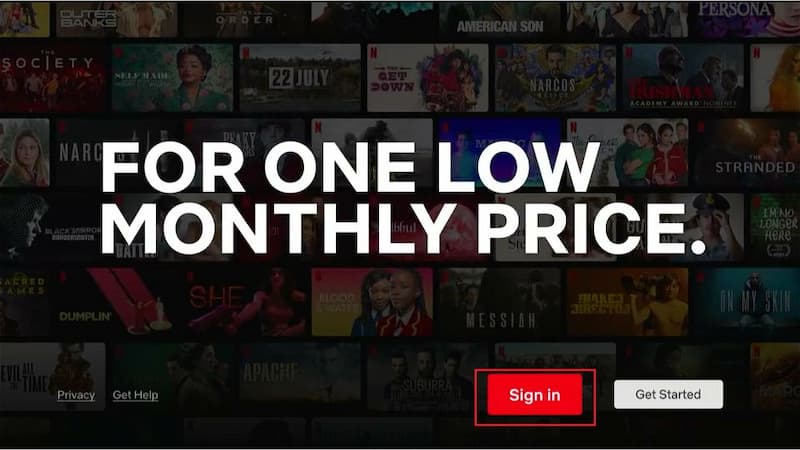
Choose one of the two methods to log in. I recommend using the Using Phone method as it is easiest and quickest.
- Using Phone: A QR code and an 8-digit text code will appear on your TV. Scan the QR code with your phone camera, log in to your account on your phone, and enter the 8-digit code.
- Using Remote: Carefully type your account email and password using the on-screen grid. (Tip: You can download the free Amazon Fire TV App on your smartphone. It turns your mobile screen into a keyboard, allowing you to copy and paste your Netflix password instantly.)
How to Log Out of Netflix on FireStick
Knowing how to log out is essential. Especially when you've signed into your account on an Amazon FireStick at an Airbnb holiday rental, or at a friend's place, you should know how to log out of your account on different devices in case you forget to do it.
Method 1: Log Out Directly From the TV
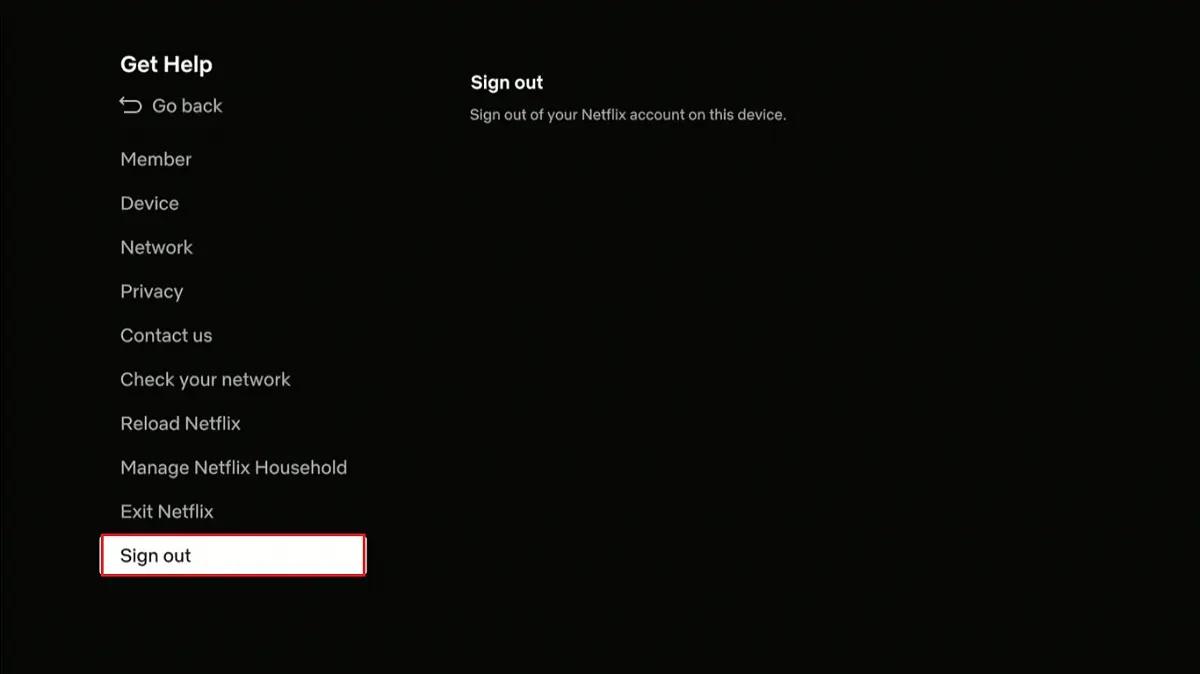
Step 1. Open Netflix and open the left-hand navigation menu by pressing Left on your remote.
Step 2. Scroll down and select Get Help (or click the Settings icon).
Step 3. Scroll to the very bottom of the help menu and select Sign Out.
Step 4. Confirm your choice by selecting Yes.
Method 2: Remote Log Out (Using a Phone or Computer)
If you no longer have access to the physical FireStick, you can kick the device off your account from anywhere:
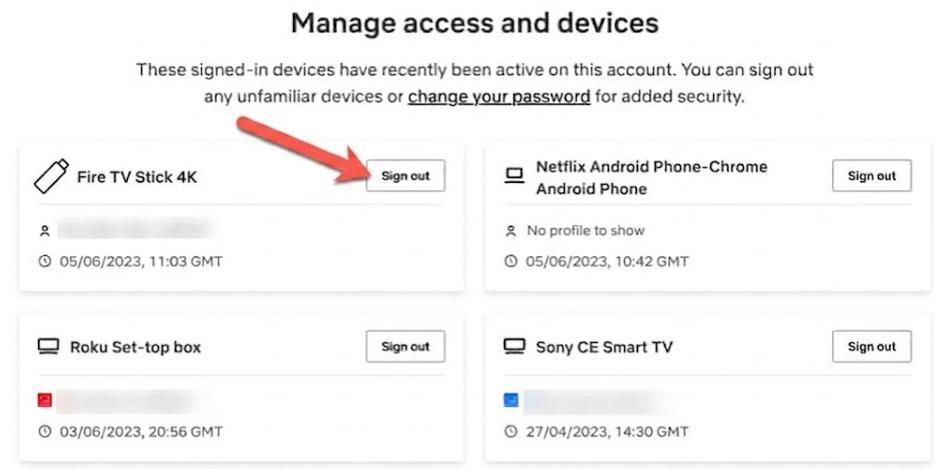
Step 1. Open a web browser, go to Netflix.com, and sign in.
Step 2. Hover over your profile icon in the top right corner and click Account.
Step 3. Scroll down to the Security & Privacy section and select Manage access and devices.
Step 4. Find your Amazon Fire TV Stick from the list of active devices and click the Sign Out button next to it.
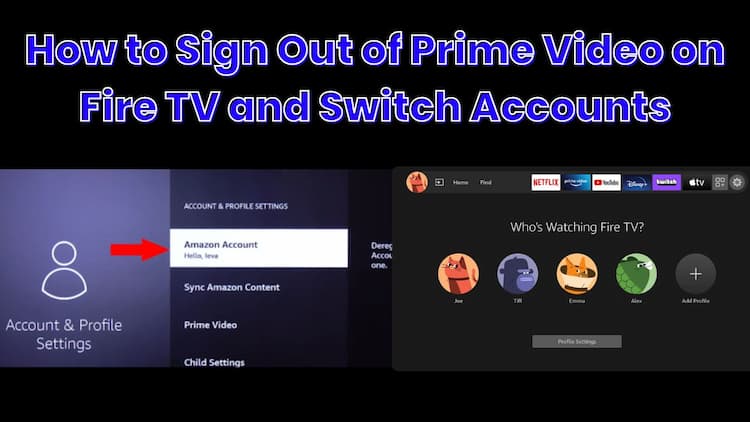
If you use other streaming services on the same Fire TV device, you may need to manage their accounts separately. For Prime Video, here's how to sign out of Prime Video on Fire TV.
Part 4. How to Watch Netflix on FireStick
Once your account is active, you can browse custom categories, search for specific titles, and manage your view history. Using the Fire TV Stick feels a lot like using the Netflix app on your phone. Feel free to dive into the app on your own, or follow the steps below for guidance.
- Select Your Profile: Tap your profile icon to open your personalized dashboard. You'll see all your recommendations and pick up where you left off.
- Browse Content Categories: Use the Up or Down buttons on your remote to scroll through rows like "Trending Now" or "Because You Watched." Press Right or Left to check out all the titles in a row.
- Search for Specific Titles: Open the sidebar menu by pressing Left, then scroll up to the Search icon. Type in a movie, show, actor, or genre you're looking for. You can also hold the Alexa voice button on your remote and just say it aloud.
- Manage Your Viewing History: To continue a series, look for the Continue Watching row on your home screen. If you want to remove a title from this list, log into Netflix on a web browser, go to Account > Profiles > Viewing Activity, and click the hide icon.

If you experience playback issues with Netflix on your FireStick, refer to the troubleshooting guide for Netflix on FireStick.
Can You Watch Netflix in 4K on Fire Stick?
- A 4K-capable Amazon player, such as the Amazon Fire TV Stick 4K or the Amazon Fire TV Stick 4K Plus.
- Your Fire Stick must be plugged into an Ultra HD TV that supports a 60 Hz refresh rate and has an HDMI port compatible with HDCP 2.2 or later.
- You need an active Netflix Premium plan.
- A steady internet download speed of at least 25 Mbps.
Does Netflix Work with Alexa Voice Remote?
- "Alexa, open Netflix."
- "Alexa, show me comedy movies on Netflix."
- "Alexa, find Stranger Things on Netflix."
- "Alexa, next episode."
- "Alexa, rewind 30 seconds."
Part 5. How to Watch Netflix on FireStick Offline
Netflix does not offer offline downloads on Fire TV Stick. If you want to watch Netflix content without an internet connection, a desktop Netflix downloader can save videos for offline viewing.
VidiFab Netflix Video Downloader is a desktop application that lets you download videos from various streaming platforms, including Netflix. With this tool, you can download full movies and TV episodes from Netflix in up to 1080p resolution with 5.1 surround sound and multilingual subtitles. Simply transfer the files to your Fire TV using the Send Files to TV app to enjoy your favorite Netflix videos completely offline on any television screen!
VidiFab Netflix Video Downloader
Download Netflix videos as MP4/MKV in 1080p with Dolby Atmos for offline viewing on your iPhone, Android, desktop, and more devices.

- Standard Video Formats: Saves your videos as MP4 or MKV files, which play perfectly on any FireStick media player app.
- 1080p Quality & Great Sound: Keeps the sharp 1080p picture quality and supports 5.1 surround sound so your movie nights still feel like a theater experience.
- Skips the Ads: If you are on the Netflix "Standard with ads" plan, this tool downloads the video cleanly without any annoying interruptions.
- Unlimited Downloads: You can download as many titles as you want. VidiFab has a batch download mode, so you can download them all in one go and save your time.
- Saves Subtitles: Lets you keep the original audio tracks and subtitles in multiple languages so you can toggle them on your TV screen.
How to Download Netflix Videos and Play Them on Fire Stick Without Wi-Fi
Step 1. Launch VidiFab and Set the Output Format
Install VidiFab Netflix Video Downloader on your Windows or Mac computer. Open the app and go to Preferences. Set the Download Video Format to MP4 or MKV. Choose your preferred video quality and audio settings, then click OK. Next, select the Netflix icon from the supported services and log in with your account using the built-in browser. This ensures you can access the same library available in your region.

Step 2. Find the Netflix Movies or Shows You Want
You can browse Netflix directly in VidiFab or paste the URL of the movie or TV show you want to download into the search bar. Once you open the video's detail page, the app will analyze the stream automatically. Click the Download button to proceed.

Step 3. Choose Video Quality, Audio, and Subtitles
In the download settings, select 1080p or your preferred quality for the best viewing experience. Choose the audio language you want and set subtitles to embedded if you want them to appear in the video. This ensures your downloads are ready to watch exactly how you like.

Step 4. Download and Save Netflix Videos
Click Download. VidiFab will download Netflix videos to your laptop according to your settings. Once finished, go to the History tab and click the folder icon to locate your files. You can now move these MP4s to a USB drive or a media server for playback.

Step 5. Watch Your Netflix Downloads on FireStick
-
01
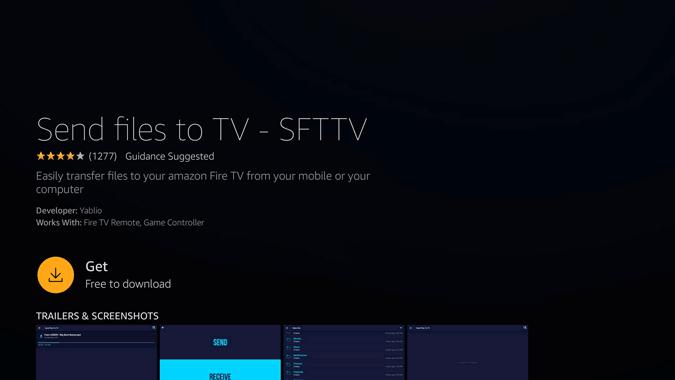
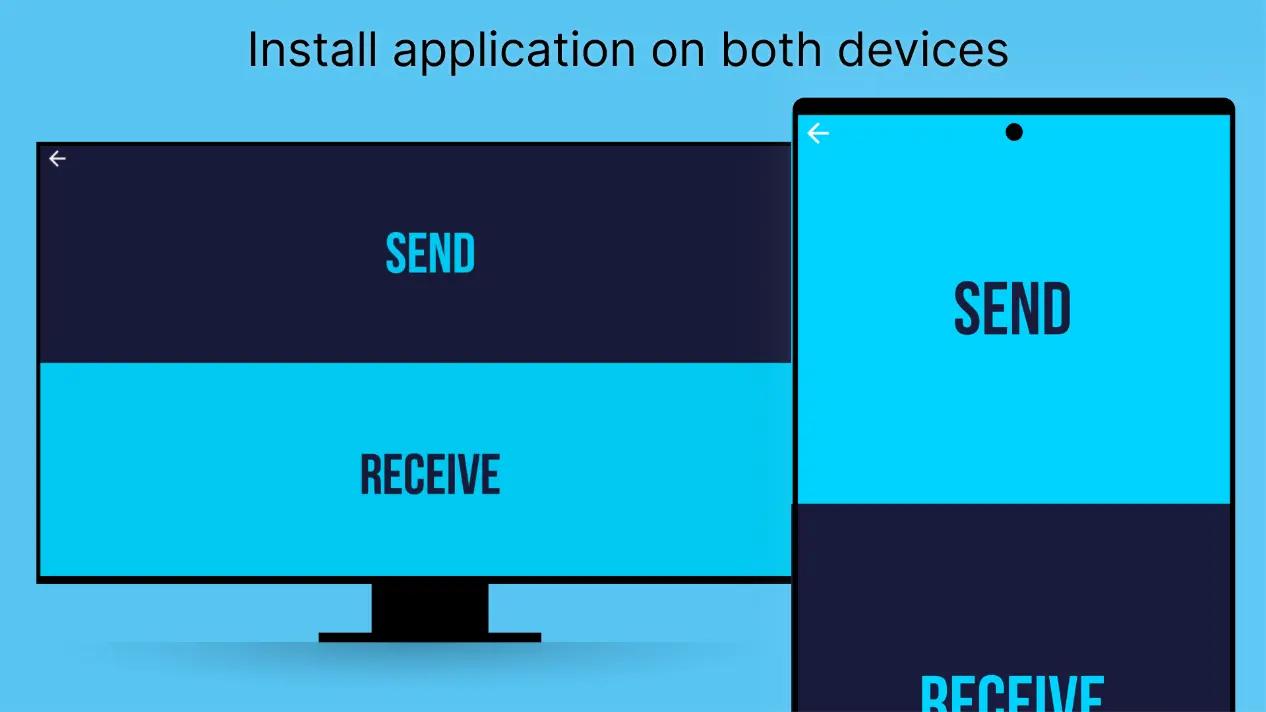
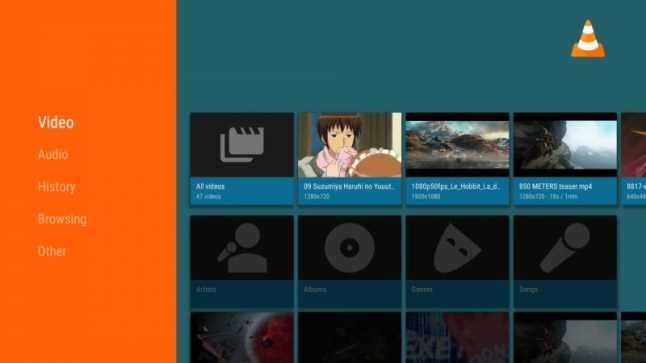
On your FireStick, download Send Files to TV and VLC Media Player from the Amazon Appstore. Install the same Send Files to TV app on your computer or smartphone.
-
02
Make sure both devices are on the same Wi-Fi.
-
03
Open Send Files to TV on both devices, select Send on your computer, and choose the Netflix MP4 you downloaded. On your FireStick, select Receive.
-
04
Once the file transfers, open VLC Media Player on your FireStick, go to the local download folder, and click the movie or episode to start watching offline.
Conclusion
Watching Netflix on your FireStick is actually pretty simple once you know the steps, from installing the app and signing in to browsing shows and managing your account. Even though the official Netflix app doesn't let you watch offline, tools like VidiFab Netflix Video Downloader make it easy to save your favorite movies and episodes for anytime playback.
Now it's your turn. Set up the Netflix app on your Fire Stick and start streaming. If you have any issues during process, drop a comment below, and I'll do my best to help you out. Happy streaming!
 Free Download
 Secure Download
 Free Download
Secure Download
Free Download
Secure Download


I'm a video tech specialist with over 10 years of experience in digital media and streaming. I focus on making complex workflows simple and practical. Through my guides, you'll learn how to convert media, keep high-quality playback across devices, and manage your streaming video library with ease.
 Leave Your Comment