How to Download Netflix Movies to External Hard Drive on PC, Mac, Android & More
 By Miles Kent
Netflix does not let you directly download movies or shows to a USB drive, or an external hard drive, or removable hard drive as normal video files.
- Windows Users: The official Netflix Windows app has completely removed the "Download" button. Even if you have a legacy version installed, you cannot move the app to an external drive hoping your downloads will follow.
- Mobile/Chromebook Users: You can save titles to a MicroSD card to free up internal space, but those files are encrypted and will not play if plugged into a TV or a different device. See Part 3 for a tutorial.
- The Workaround: If you need Netflix videos stored on an external drive as playable files, the practical workaround is to use a dedicated tool such as VidiFab Netflix Video Downloader to save titles as MP4/MKV, then copy them to your external hard drive for personal offline viewing where allowed.
Planning a long trip and need something to watch offline? You may want to save Netflix movies to an external hard drive because your phone or laptop has limited storage. This is also useful when a favorite show is leaving Netflix soon. However, Netflix does not provide a direct way to move downloads to a hard drive. This guide explains what works and what does not.
Part 1. Why Moving Netflix Downloads to a Hard Drive Does Not Work
Even if you know where Netflix stores the downloads, you cannot copy or move them to a hard drive for playing Netflix outside the app. This is because Netflix downloads are not regular video files. They are encrypted offline files that only work inside the Netflix app.
Why Netflix Downloads Cannot Be Moved to an External Drive
| Actions | Does It Work? | Why |
|---|---|---|
| Copy Netflix downloads to an external hard drive | No | Files are encrypted and linked to the Netflix app |
| Rename Netflix download files to MP4 | No | They are not standard video files |
| Play Netflix downloads with VLC | No | VLC cannot read Netflix encrypted files |
| Move downloads to a USB drive or smart TV | No | Downloads only work inside the original Netflix app |
| Install Netflix app on an external SSD | No | Changing storage location does not remove restrictions |
It is impossible to download, copy, or move Netflix movies directly to an external hard drive. Netflix downloads are linked to your account, device, app, and content rights. They are designed for temporary offline viewing, not permanent storage. To understand download restrictions, storage options, and alternative solutions, see our Netflix Download Guide.
Part 2. How to Save Netflix Movies on an External Hard Drive on PC & Mac
The best way to save movies on a hard drive from Netflix is to create playable files first. That means MP4 or MKV files. These formats can be stored on an external HDD, SSD, USB drive, or memory card.
This is different from official Netflix downloads. Official downloads stay inside the Netflix app. MP4 and MKV files are normal video files.
VidiFab Netflix Video Downloader is useful for this case. It lets you save Netflix movies and shows on PC or Mac as MP4 or MKV files. After that, you can move the files to an external drive.
VidiFab Netflix Video Downloader
Download Netflix videos as MP4/MKV in 1080p with Dolby Atmos for offline viewing on your iPhone, Android, desktop, and more devices.

- Direct Path Mapping: Allows you to preset your default storage destination directly to an external hard drive letter or USB path.
- High-Definition Output: Downloads movies and TV series in crisp 1080p resolution.
- Audio and Subtitle Retention: Preserves original multi-language audio tracks, 5.1 Dolby surround sound, and standalone SRT subtitle formats.
- Permanent Ownership: Bypasses the 30-day or 48-hour viewing deadlines enforced by the official application.
How to Put Netflix Movies on an External Hard Drive with VidiFab
Step 1. Set the Output Folder to Your External Hard Drive
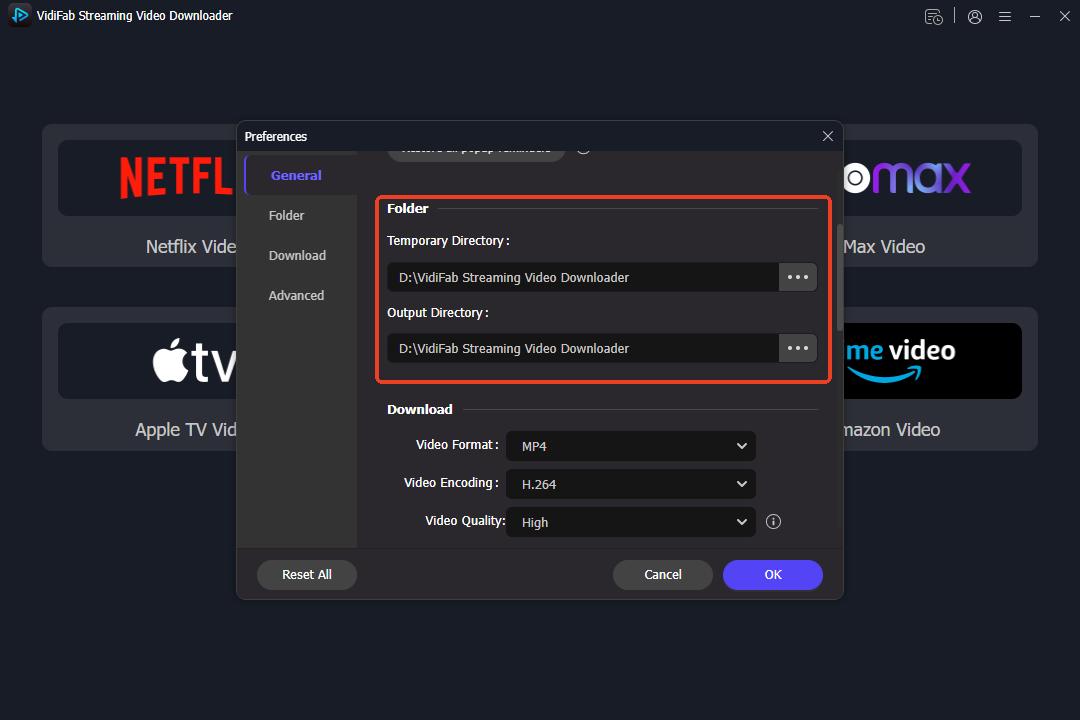
Open VidiFab Netflix Video Downloader and go to Preferences from the menu. In the Download section, choose your preferred video format, such as MP4 or MKV. Then, set the output folder to your external hard drive. Make sure the drive is connected before downloading. All downloaded Netflix videos will be saved directly to this location.
Step 2. Find the Netflix Movie or Show You Want to Save
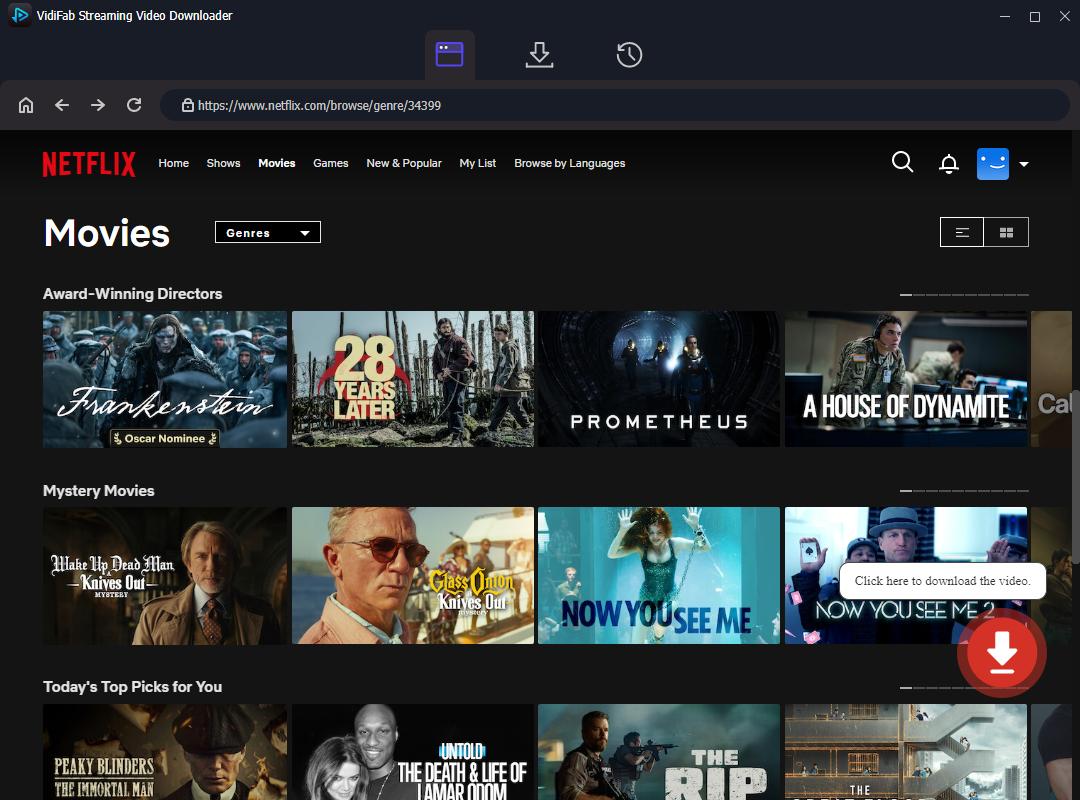
Select Netflix from the streaming services list and sign in to your account. You can search for a movie or TV show inside VidiFab or paste the Netflix video URL into the search bar. Open the title page and click the download button.
Step 3. Choose Download Settings
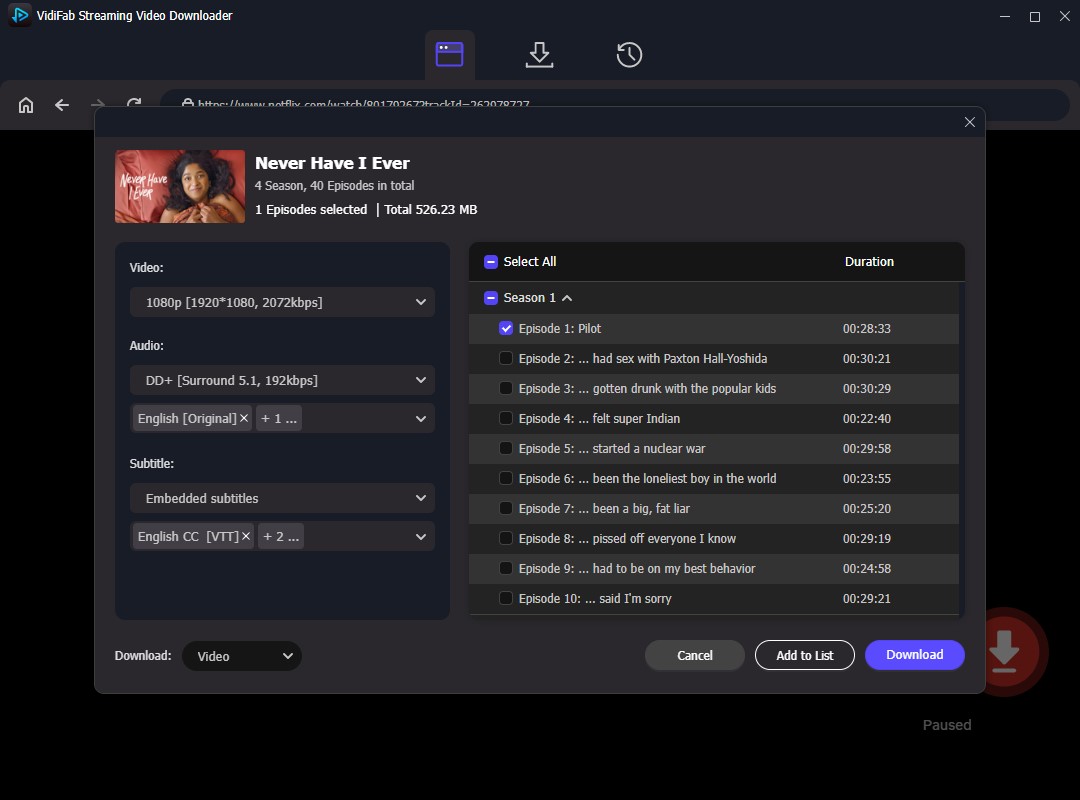
A detailed configuration pop-up window will appear on your screen. Here, select your target video resolution up to 1080p. Check the boxes for your preferred audio track languages, select 5.1 Dolby Surround Sound if your playback equipment supports it, and choose your subtitle formatting (such as external SRT files). Click Download to initiate the extraction process.
Step 4. Find Netflix Videos on Your External Hard Drive
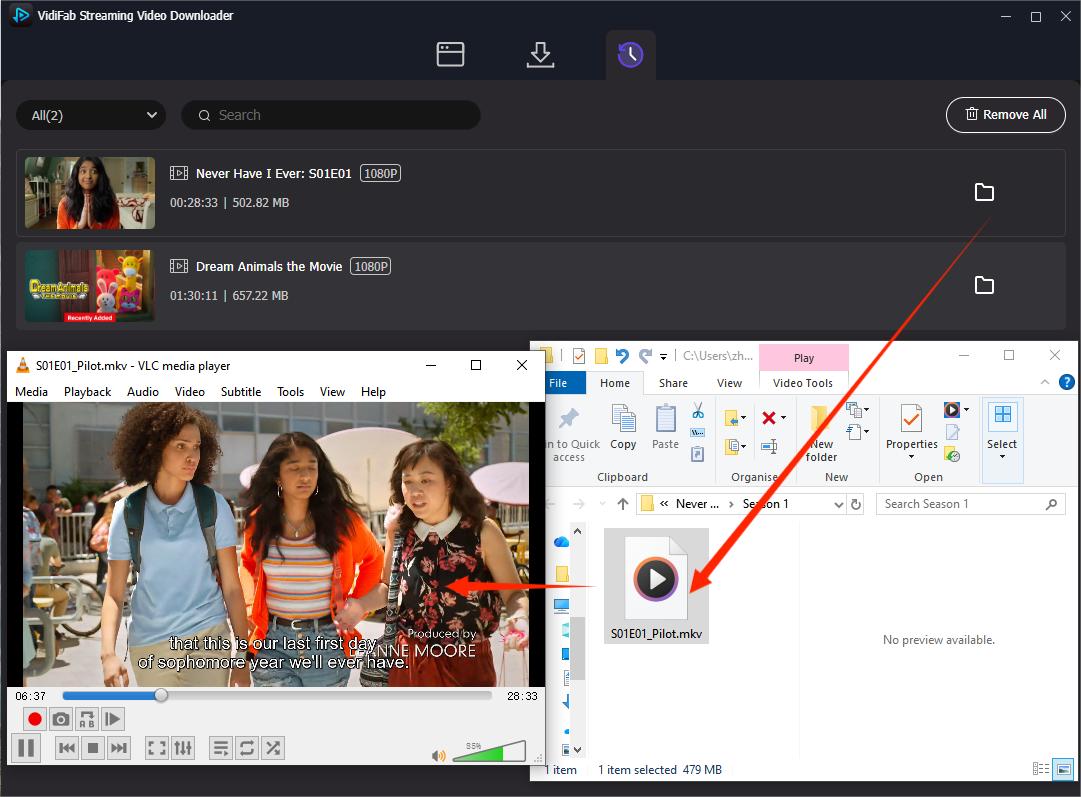
After the download finishes, open the History section in VidiFab. Click the folder icon next to the downloaded title to view the saved location. You can see the downloaded Netflix video files are stored on your external hard drive. You can double-click them to play them with the default media player. You can also move them to another folder for management. Now, you can keep those Netflix downloads for as long as you want on your hard drive.
Part 3. How to Save Netflix Downloads to SD Card on Android, Fire OS & Chromebook
If you are using an Android phone or tablet, Amazon Fire tablet devices, or a Chromebook laptop that runs the Android subsystem, Netflix lets you save downloads to an SD card or external storage. This can free up space if your device has limited internal storage.
However, these downloads are still protected by Netflix. They only work inside the Netflix app on the same device. You cannot move the SD card to another device and play the videos directly.
Hardware Check: What Kind of External Storage Can You Use?
Before changing your settings, make sure you are using the correct storage hardware for your specific device:
- For Android Phones & Fire Tablets: You must use a physical MicroSD card inserted into the device's designated storage tray. These mobile systems will not recognize standard external USB hard drives or desktop flash drives for official Netflix app downloads.
- For Chromebooks: ChromeOS is more flexible. You can use either a MicroSD card (slid into the laptop's card reader slot) or a portable USB flash drive / external SSD plugged directly into an open USB port.
How to Change Netflix Download Location to SD Card
Once your mobile device or laptop recognizes the inserted hardware, the in-app setup is identical across all three platforms:
-
01
Open the Netflix app.
-
02
Tap More or your profile icon and go to App Settings.
-
03
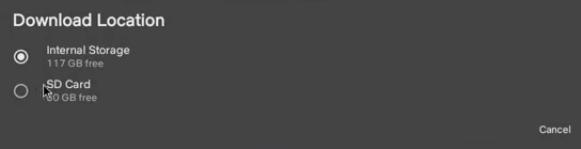
Find Download Location or Storage Location.
-
04
Switch the selection from Internal Storage to SD Card. (Note: Even if you plugged a USB drive into a Chromebook, the app will still label it as "SD Card".)
-
05
Future downloads will be saved to your SD card by default.
For Chromebook: Enable External Storage If It Does Not Appear
By default, the Netflix app on ChromeOS may completely hide any external storage options. To reveal them, you must manually give the app system permission to view your plugged-in hardware:
-
01
Connect your USB flash drive or insert your MicroSD card into the Chromebook.
-
02
Open your Chromebook Settings menu.
-
03
Navigate to Device, then click on Storage Management.
-
04
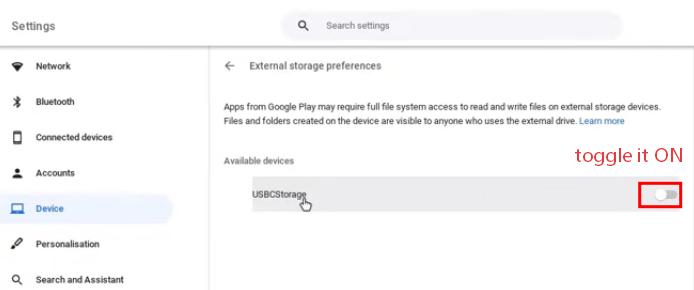
Click into External Storage Preferences.
-
05
Locate your connected USB drive or SD card in the list and toggle the adjacent switch to ON.
-
06
Then go to the Netflix app again, and you will see the option to change download location to SD Card.

Note: For more details on using Netflix on a Chromebook, see this guide on how to watch Netflix on Chromebook.
SD Card Downloads vs Saving Netflix Videos to an External Hard Drive
| Feature | Official Netflix App (SD Card) | VidiFab Downloader (External Drive) |
|---|---|---|
| File Format | Encrypted App Cache (.nfv fragments) | Universal MP4 or MKV |
| Play on Smart TVs? | ❌ No. The TV cannot read or decrypt the app files. | ✅ Yes. Plug-and-play via any TV USB port. |
| Play on Car Screens? | ❌ No. Vehicle media systems will report file corruption. | ✅ Yes. Fully compatible with car infotainment decks. |
| Device Portability | ❌ No. Locked to the exact device that downloaded it. | ✅ Yes. Move files freely to any PC, Mac, or tablet. |
| Keep videos after Netflix removes a title | ❌ No | ✅ Depends on your saved file and usage rights |
| Platform Availability | Only works on Android, Fire OS, and Chromebooks | Works on all Windows PCs and Macbooks |
Part 4. Tips for Storing a Large Netflix Collection on an External Hard Drive
Once you start saving Netflix movies to an external hard drive, storage becomes much less of a problem. A little organization can also make your collection easier to browse later.
Tip 1. Choose a Drive That Works Everywhere
If you use both Windows and Mac computers, format your drive as exFAT. It is the easiest option because both systems can read and write files without compatibility issues.
Tip 2. How Much Space Do You Need?
A typical downloaded Netflix video does not take up a huge amount of space. Here is a rough estimate:
- Movie (90-120 min): Takes up 1.5-3 GB
- TV Episode (45-60 min): Takes up around 1 GB
- 10-Episode Season: You will need 10-15 GB
Tip 3. Watch Your Library on More Devices
You can copy your downloaded Netflix videos to a USB drive, connect them to a smart TV, or add them to a media server like Plex Media Server. I have written a guide on how to put Netflix videos into Plex to create a personal Netflix library for streaming. This works better with your external hard drive.
Part 5. FAQs about Netflix to External Hard Drive
Is It Legal to Save Netflix Movies to an External Hard Drive?
Yes. Under copyright "Fair Use" regulations in many regions, making a single local copy of media you already have legal access to for personal, offline viewing is generally permitted. However, you must never sell, upload, or share your downloaded MP4/MKV files online, as distributing copyrighted material is illegal.
Can I Store Netflix Movies on a NAS Drive?
Yes, you can use VidiFab to download MP4 or MKV files from Netflix and then store them on a NAS (Network Attached Storage) device. Once stored there, you can stream your personal Netflix collection to any device on your local home network using media servers like Plex or DLNA.
What Is the Best External Hard Drive Size for Netflix Movies?
A 1TB or 2TB external drive is the sweet spot. A standard 1080p movie downloaded via VidiFab averages about 2 GB, while a full TV season takes up roughly 12 GB.
Can I Copy My Netflix Movie Collection to Another Hard Drive?
Yes, as long as you download the movies or shows from Netflix using a downloader like VidiFab. After that, you can copy, paste, backup, or transfer your downloaded video files between different external hard drives, flash sticks, or computer operating systems just like any normal home photo or document file.
Part 6. Conclusion
Netflix does not allow movies or shows to be downloaded directly to an external hard drive as playable files. While some devices support SD card storage, those downloads remain locked to the Netflix app.
If you want to save Netflix videos on an external HDD, SSD, USB drive, or media server for easier offline access, you need a tool like VidiFab Netflix Video Downloader that stores videos in common formats such as MP4 or MKV. This gives you more flexibility to organize, transfer, and watch your library across devices.
 Free Download
 Secure Download
 Free Download
Secure Download
Free Download
Secure Download
I write about streaming services, video playback, and digital media management. My articles cover practical ways to convert video files, troubleshoot playback issues, and manage digital content across devices. I aim to make technical topics easier to understand and help readers find practical solutions to common challenges.
 Leave Your Comment