How to Download Netflix Movies to USB and Play on TV or Car
 By Miles Kent
If you've ever wanted to load up a Netflix movie onto a flash drive and pop it into your smart TV or car stereo for a road trip, you're not alone. I've spent a lot of time digging into this exact problem, and the answer involves a mix of understanding how Netflix protects its content, how your TV or car head unit actually reads media files, and which tools actually work in practice. Let me walk you through everything step by step.

Moving Netflix downloads to a USB drive is not as simple as copying a regular video file. Our Netflix Download Guide explains where downloads are stored, why they are protected, and what options are available.
Part 1. Can You Download Netflix Movies to a USB Stick?
Yes, but you need some workarounds. Netflix does not allow direct downloads to a USB stick. The Netflix app supports offline downloads on mobile devices and Chromebooks, but the files are stored in a protected format that cannot be moved.
However, I tested a downloader called VidiFab Netflix Video Downloader in Part 2. It claims to download movies and shows from Netflix in MP4 or MKV format. I successfully transferred the video files to a USB flash drive and played them on multiple screens. If you want to learn more, skip to that part.
Can You Watch Netflix Through a USB Port on a TV or Car?
However, these USB ports can't run streaming apps. So, if you're thinking about using Netflix by installing the app on a USB stick, that won't work. A smart TV's USB port is just for media input, not for running apps. The TV's operating system is stored in its internal memory, and adding third-party apps requires integration with the TV's firmware. A USB stick alone can't launch Netflix or any other app.
Why Copying Official Netflix Download Files to a USB Fails?
If you try to find those cached files on your device and copy them to a USB drive, you won't get anything playable. The files are deliberately scrambled and fragmented. Even if you find them, moving them to another device breaks the license connection, making playback impossible.
Can You Stream Netflix Downloads from Phone to TV with USB Cable?
Netflix checks for HDCP (High-bandwidth Digital Content Protection) compliance on the display. If your cable, adapter, or TV doesn't meet HDCP 2.2 standards, Netflix will show an error and won't play HD content.
Even if you meet the HDCP requirements, you still rely on your phone's battery, an active streaming subscription, and a stable Wi-Fi or cellular connection. Screen mirroring can also add latency and compression issues. For a true movie experience, using clean, locally stored files on a Netflix USB drive is far better. It plays instantly without buffering or connection problems.

Part 2. How to Download Netflix Movies as MP4 to USB
To legally bypass encryption for personal use, use a dedicated desktop tool that can capture video streams and save them as clean, DRM-free files. After testing various options, I found that VidiFab Netflix Video Downloader is a reliable choice.
VidiFab Netflix Video Downloader
Download Netflix videos as MP4/MKV in 1080p with Dolby Atmos for offline viewing on your iPhone, Android, desktop, and more devices.

It serves as an authorized internal browser, securely logging into your account, decrypting the stream with hardware acceleration, and exporting the content into widely compatible video formats like MP4 or MKV in 1080p.
VidiFab not only converts Netflix videos to MP4 or MKV but also keeps the original 5.1 Dolby Surround Sound audio and multi-language subtitles, either embedded or as SRT files.
Plus, the downloaded files don't have the restrictions of Netflix downloads. You can store them on your USB or external drive for as long as you want.
Step-by-Step Guide to Downloading Netflix Movies to USB
VidiFab Netflix Video Downloader lets you download any video from Netflix that you can stream. Here's how to use this tool to download Netflix movies to your laptop, whether you're on Windows or Mac.
Step 1. Launch and Set Output Preferences
Start by installing the VidiFab Netflix Video Downloader on your computer. Click the menu icon in the top right corner and select Preferences. In the pop-up window, choose H.264 MP4 or MKV as your Download Video Format. Click OK to save your choices.
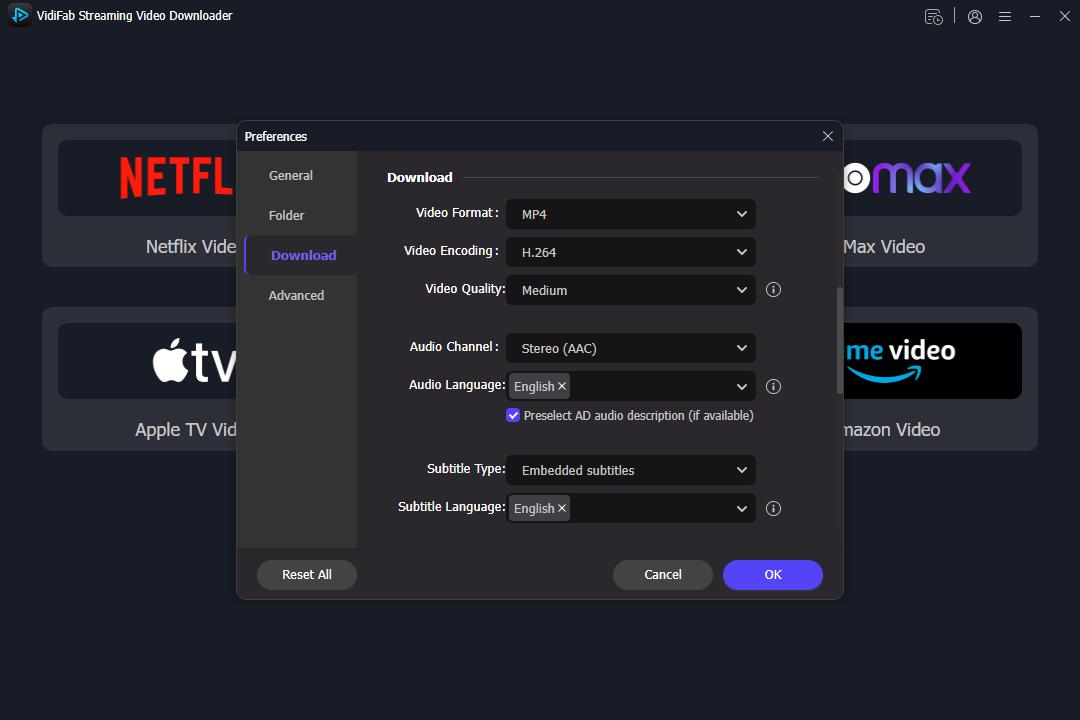
Then, select the Netflix icon on the main screen and log in to your account using the built-in browser. This lets the tool access the video library available in your area.
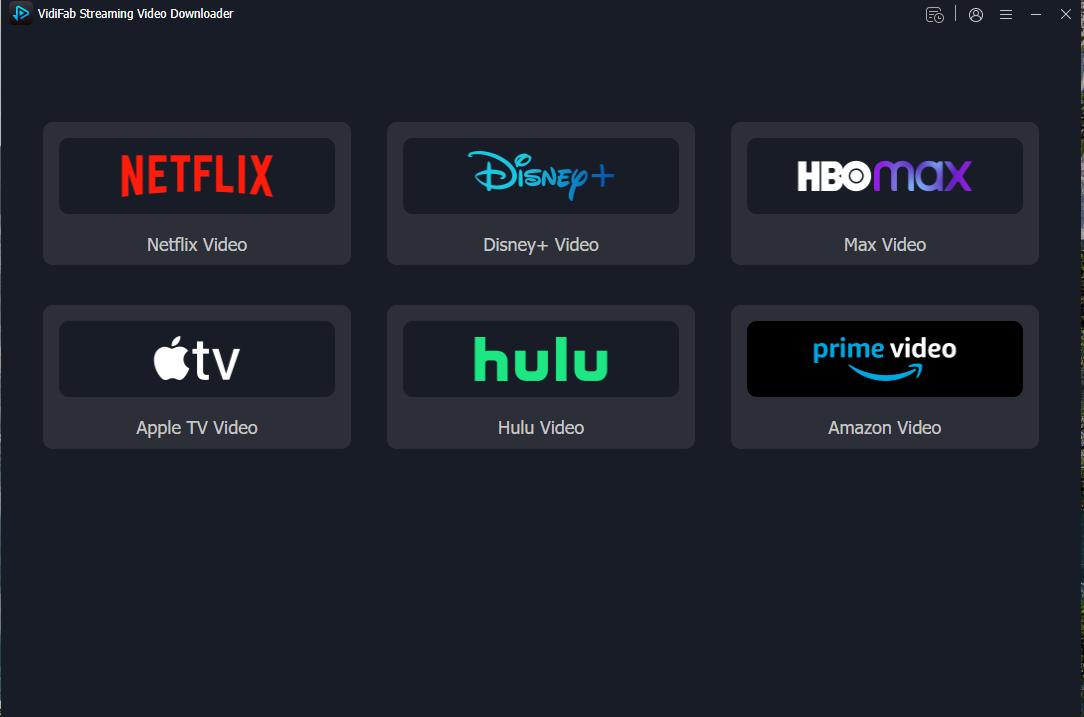
Step 2. Search for Content to Download
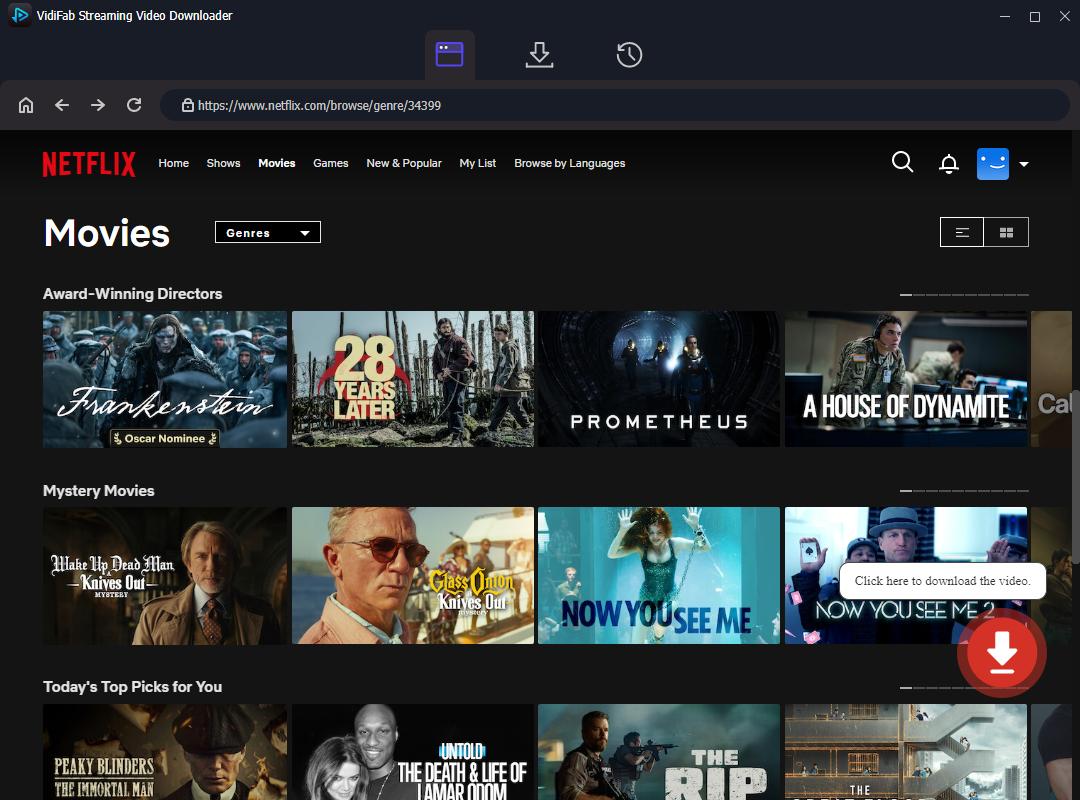
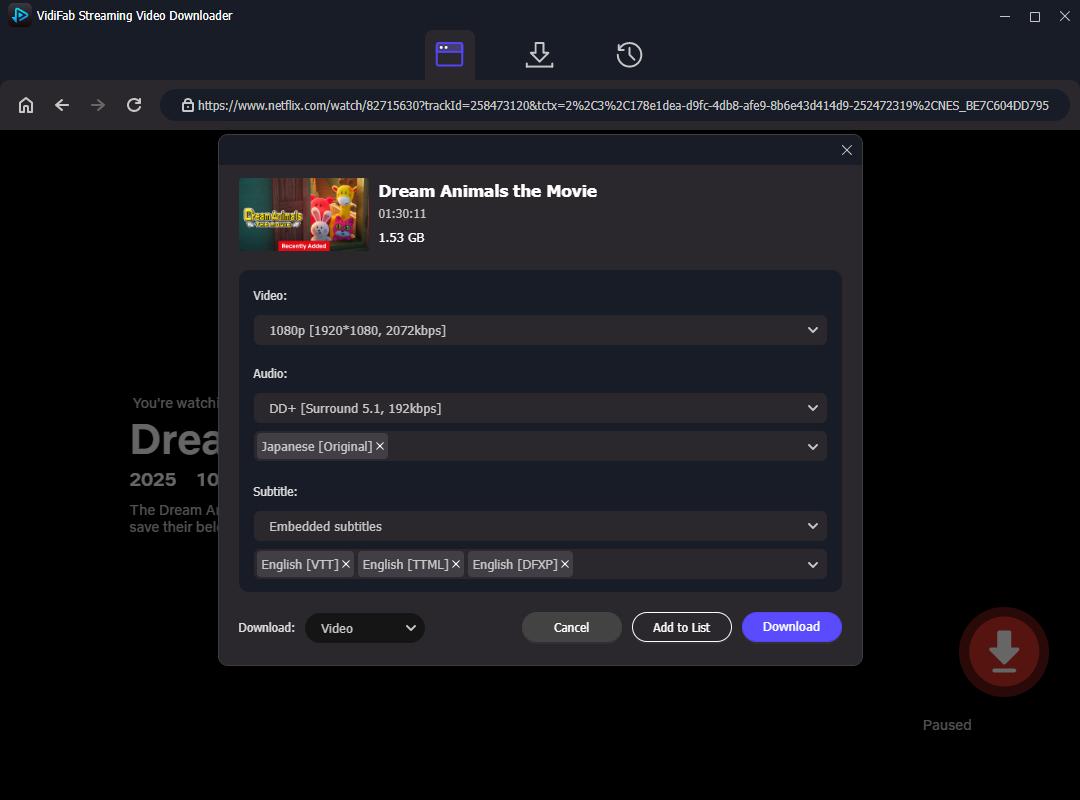
Explore the Netflix catalog or paste the URL of the movie or TV show you want to download into the search bar. Once you open the video's detail page, VidiFab will analyze the stream automatically. Click the red Download button in the bottom right corner to open the customization options.
Step 3. Customize 1080p Resolution and TV/Car Subtitle Settings
In the customization window, select 1080p for high-definition quality. Check the audio and subtitle sections carefully. For compatibility, choose standard AAC stereo audio. Set subtitles to embedded format in your preferred language. Hardcoding subtitles ensures they display correctly on TVs or car media players without extra software.
Step 4. Save Netflix as Universal Media Files
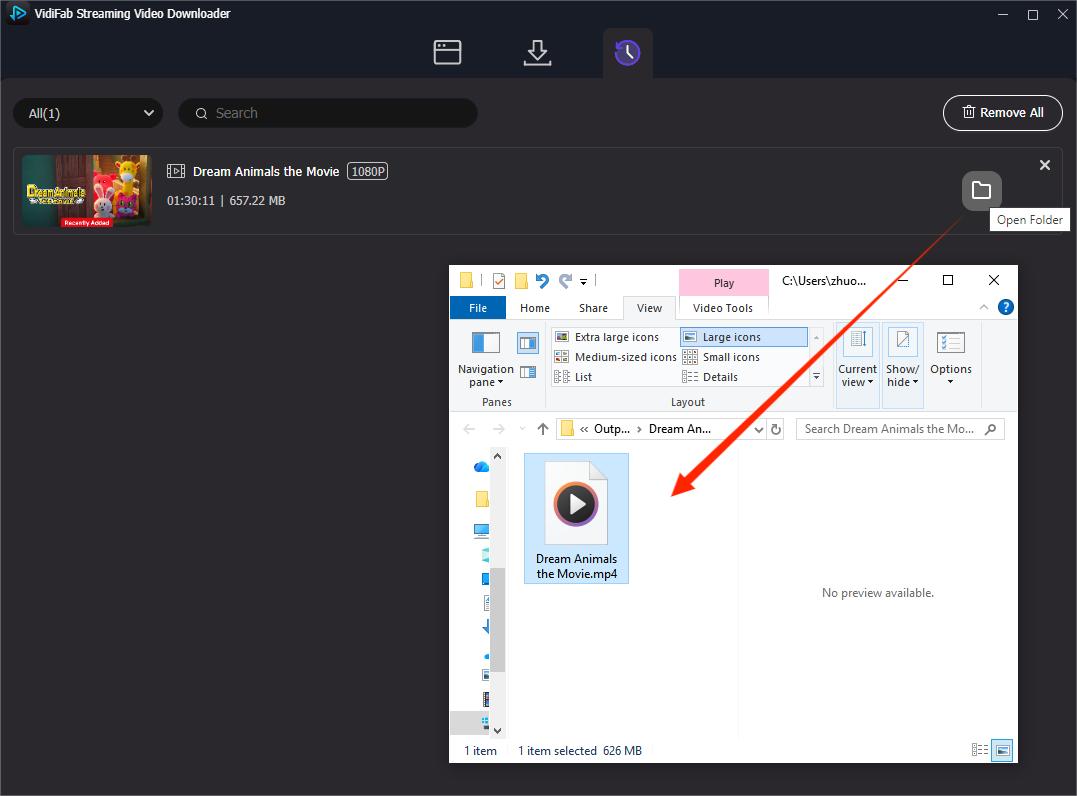
Click Download to start the extraction process. VidiFab saves a clean, DRM-free video file to your computer. Once done, go to the History tab and click the folder icon to find your completed files. Now, you can save Netflix videos to an external hard drive, USB drive, or other storage devices for easier offline access.
Step 5. Format Your USB Drive and Transfer the Files
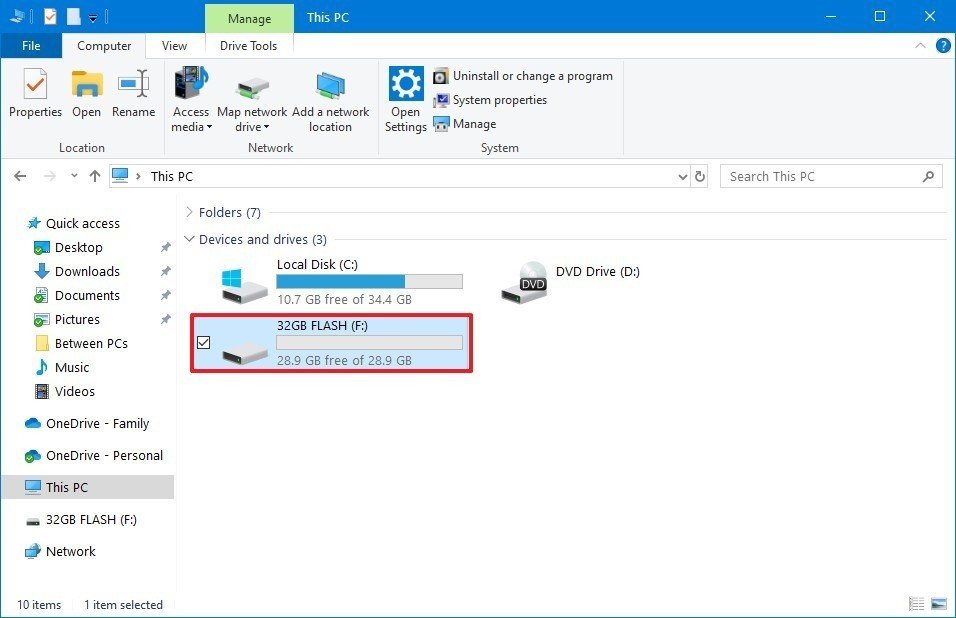
Before transferring your videos, check your USB drive's format, as TVs and car systems have specific requirements. Here are three formatting options:
| File System | Best Match | Pros | Cons |
|---|---|---|---|
| FAT32 | Almost all cars and older TVs | Works on almost every device | Maximum file size is strictly 4 GB (large 1080p movies will fail) |
| exFAT | Sony TVs, Android TVs, and modern cars | No file size limits; perfect for high-quality HD movies | Older or cheap budget TVs might not recognize it |
| NTFS | Samsung and LG Smart TVs | Handles huge movie files effortlessly | Mac computers can only read it (cannot copy files to it without extra software) |
Once your drive is formatted to the correct filesystem, simply plug the USB stick into your computer, copy the downloaded MP4 files from your history folder, and paste them directly onto your flash drive. Your portable movie library is now ready for any screen.
Part 3. How to Play Netflix via USB on Your Smart TV
After copying your MP4 files to the drive, you can get them on your TV screen in under two minutes. This method also works for non-smart TVs for Netflix playback, as long as your TV can play video files from a USB drive.
Step 1. Insert the Flash Drive into the Correct TV Port
Find the USB port on your TV, usually on the side or back. Insert the drive securely. Most TVs will automatically open a media player or show a prompt on the screen shortly after.
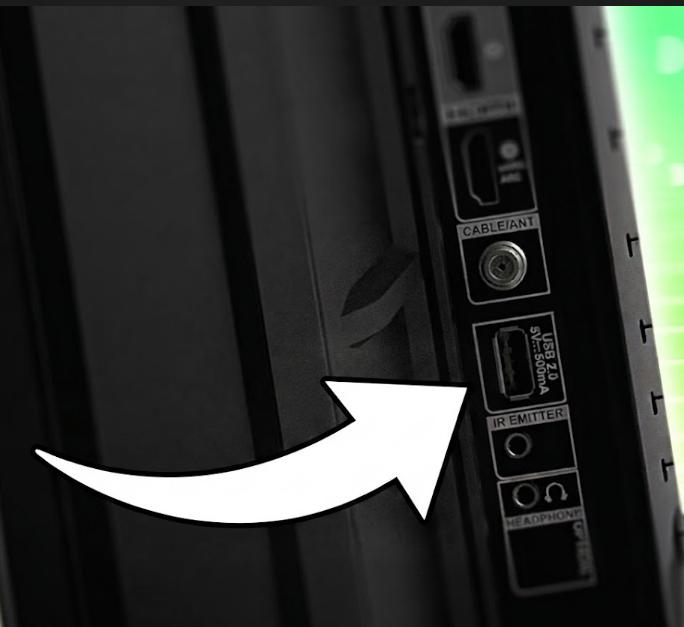
- If your TV has multiple USB ports, check for ones labeled USB 3.0 or 5V 1A for better performance.
Step 2. Switch the TV Input Source
Grab your remote and press the Source, Input, or Home button. This will open the connectivity menu. Scroll past HDMI or cable options and select your USB drive icon.
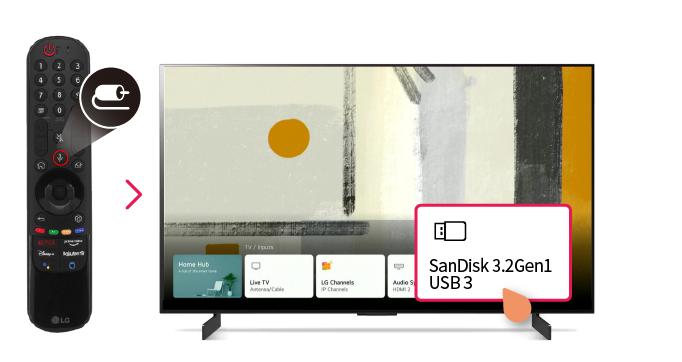
- On newer Samsung, LG, or Sony Bravia models, the TV will automatically recognize the USB drive and show a pop-up asking if you want to browse the media. Just select Yes or Browse to access your files.
Step 3. Launch the Native Media Player App
If your TV doesn't open the drive automatically, go to the main app dashboard and launch the built-in media player:
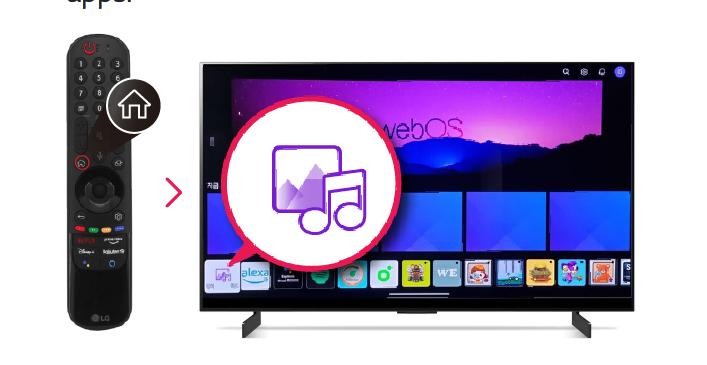
- Samsung TVs: Open the Media app or select Source and click on your specific USB drive name.
- LG TVs (webOS): Press the Home button on the remote and select the Media Player app.
- Sony & Android TVs: Open the native Media Player or download the free VLC for Android TV app from the Google Play Store for maximum format support. You can also learn more about how to play Netflix videos in VLC for a smoother offline playback experience.
Step 4. Locate and Play Your Decrypted Netflix Movie
Use the arrow keys on your remote to navigate the folders on your flash drive. Locate the folder with your VidiFab downloads. Highlight your desired MP4 or MKV movie file, press OK or Enter, and enjoy full-screen playback instantly.
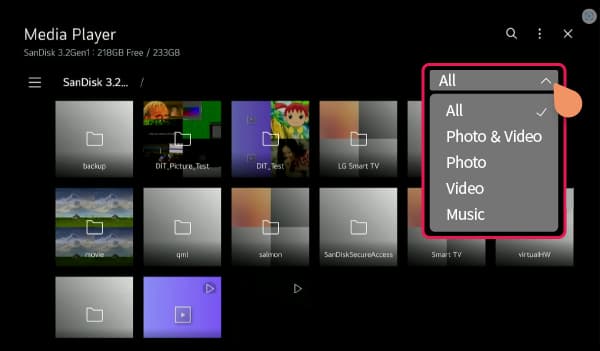
This is an example of using the USB method to play Netflix on a Samsung TV. You can refer to this guide, as the USB process and playback are quite similar on most other smart TVs.
Part 4. How to Play Netflix via USB in Your Car Infotainment System
I don't recommend watching Netflix while driving, but if it's for your passengers, you can do it safely. Here's how to set it up right:
Step 1. Find the Right USB Port in Your Car
This often confuses people. Most modern cars have at least two USB ports, but they serve different purposes. One port typically charges devices, while the other connects to the infotainment system. Plugging your drive into the charging port won't work. Look for the port without the power icon. Check your owner's manual for clear labels.
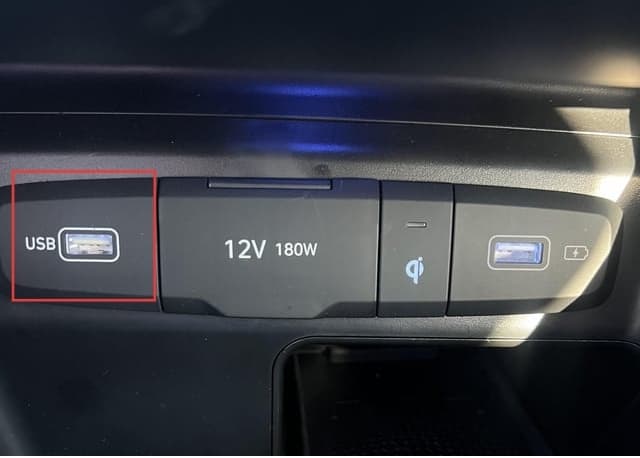
Step 2. Insert the Drive and Allow the Head Unit to Index the Files
After you plug in the drive, the infotainment system will recognize it and start indexing the media files. This process may take a few seconds to a minute, depending on the number of files and the head unit's processing speed. Don't eject the drive while it's indexing.
Step 3. Open the Folder and Launch Your Video
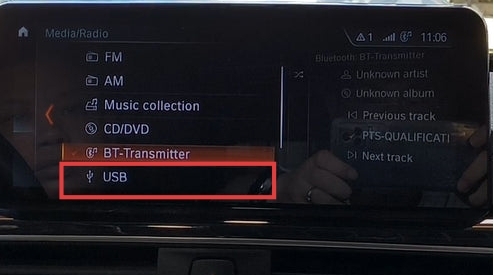
Press the Media or Source button on the head unit and select "USB" from the source list. Navigate to the Video section, and your movie files will appear. Select a title and press play. Standard controls like pause, skip, volume can operate through the head unit's interface or steering wheel controls as normal.
- You can try other ways to watch Netflix in your car besides using a USB stick. I put together a guide on how to watch Netflix on CarPlay, so check it out for some easy workarounds if the USB method feels a bit tricky.
Part 5. FAQs
What size USB flash drive do I need to store Netflix movies?
Can I move official Netflix app downloads from phone storage to a USB drive?
Why won't my car infotainment system recognize my USB drive?
Can I use my Android phone's MicroSD card to watch movies on my TV?
You can refer to this How to Download Amazon Prime Video to an SD Card guide to know how the streaming videos and SD card storage work.
Final Thoughts
Getting Netflix onto a USB stick isn't something the official app will ever support, but with VidiFab Netflix Video Downloader, the workaround is genuinely straightforward. Download your titles as standard MP4 files, format your drive, and you have permanent, portable movies ready for any smart TV or car head unit without expiration dates, buffering, or data costs. Whether you're setting up a living room movie night or a long road trip, that little flash drive ends up being one of the most practical things in your bag.
 Free Download
 Secure Download
 Free Download
Secure Download
Free Download
Secure Download


I'm a video tech specialist with over 10 years of experience in digital media and streaming. I focus on making complex workflows simple and practical. Through my guides, you'll learn how to convert media, keep high-quality playback across devices, and manage your streaming video library with ease.
 Leave Your Comment