How to Fix Netflix Error Code TVQ-PB-101 on Different Devices
 By Miles Kent
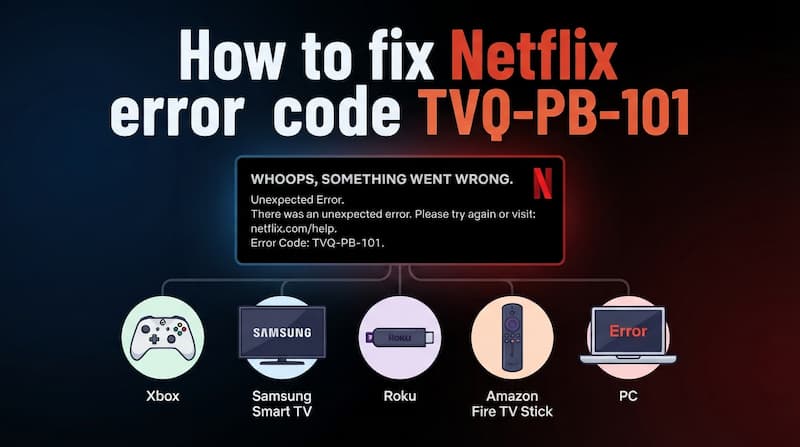
Netflix error code TVQ-PB-101 usually appears when Netflix cannot load a title due to connection problems, outdated app data, or device issues. You may see messages like "We're having trouble playing this title right now" or "This title is not available to watch instantly." The good news is that this error is almost always fixable on your end. In this guide, I will show you exactly how to fix TVQ-PB-101 on popular devices, including Samsung TV, LG TV, Roku, Fire Stick, Xbox, and PC. Let's dive in.
Part 1. What Does TVQ-PB-101 Mean on Netflix?
Netflix error code TVQ-PB-101 means that Netflix is having trouble playing the selected title on your device. This error usually appears when Netflix cannot load video content properly due to network problems, outdated app data, device software issues, or temporary playback glitches.
While this specific code affects media hubs and television applications, desktop users streaming via web browsers who experience a similar loading lockout will encounter Netflix error code UI3012 instead.
What Do Different TVQ-PB-101 Error Codes Mean?
Some Netflix devices show extra numbers or letters after TVQ-PB-101. These sub-codes can help you figure out what is really going wrong:
| Error Variant | Typical Devices | What It Usually Means |
|---|---|---|
| TVQ-PB-101 (E100) or (2.10.0) | Older smart TVs, legacy Android boxes | Your device may be too old to run modern Netflix streaming. If your TV is from before 2015, the hardware likely cannot handle current encryption protocols. |
| TVQ-PB-101 (5.2.5) | Smart TVs, streaming sticks | Audio or display settings are clashing with Netflix. External speakers, Bluetooth headphones, or HDR features often cause this sub-code. |
| TVQ-PB-101 (8.1) or (5.6.1) | Xbox One, Xbox Series X/S | Xbox-specific network cache overflow. It is not a problem with your account. The console's internal cache has built up junk data that blocks the stream. |
| TVQ-PB-101 (5.2.101) or (5.2.undefined) | Samsung Smart TVs, LG TVs | The TV's built-in smart system (like Smart Hub or webOS) gets stuck processing network requests. The TV says it is connected, but it cannot pull the video data. |

Warning: Is your TV too old? If you are using a Samsung, LG, or Sony TV bought between 2012 and 2015, or an old game console, frequent TVQ-PB-101 errors may be a sign that Netflix is phasing out support for your hardware. These older devices often have less than 128MB of memory or lack support for modern security protocols like TLS 1.3, which Netflix now requires. No amount of troubleshooting will fix a hardware limitation. The easiest solution is to connect an inexpensive streaming stick, like an Amazon Fire Stick or Roku, to your old TV's HDMI port to watch Netflix on a non-Smart TV.
Part 2. Quick Fixes for Netflix TVQ-PB-101 Error
Before you dive into device-specific fixes, try these general steps first. The core idea is simple: clear damaged temporary data, refresh expired login tokens, and remove network handshake barriers. These five quick fixes solve most TVQ-PB-101 cases in under 10 minutes.
Fix 1. Perform a Hard Power Cycle
Unplug your device's power cable and wait at least 60 seconds. While the device is unplugged, press and hold the physical power button for 15 to 30 seconds. This drains leftover power from the internal capacitors and forces the motherboard to reset to a clean state. When you plug it back in, the system reloads the firmware and rebuilds the app environment from scratch.
Fix 2. Reload Netflix from the Error Screen
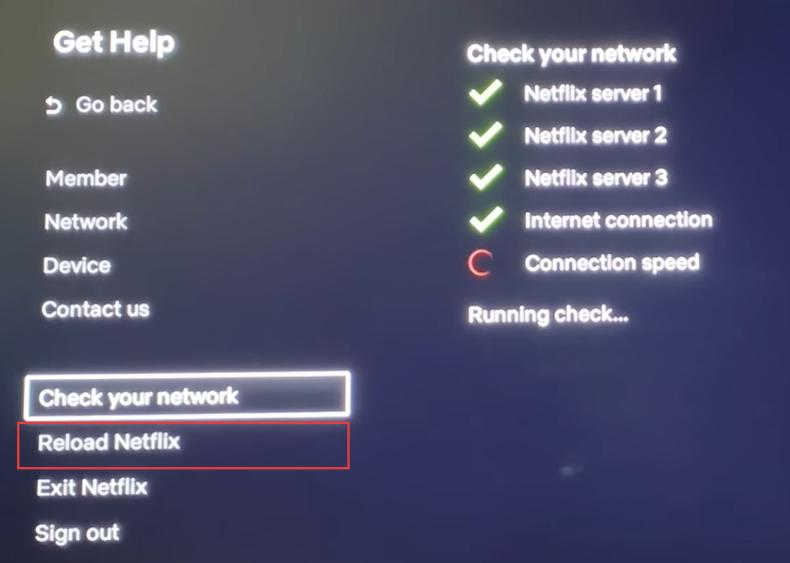
If your screen is not completely frozen, use Netflix's built-in reload feature. Go to Settings > Get Help > Reload Netflix to refresh the app. If you cannot access the settings menu and are stuck on the error page, select the More Details button first. It will take you to the settings menu, where you can reload Netflix.
Fix 3. Sign Out and Sign Back In
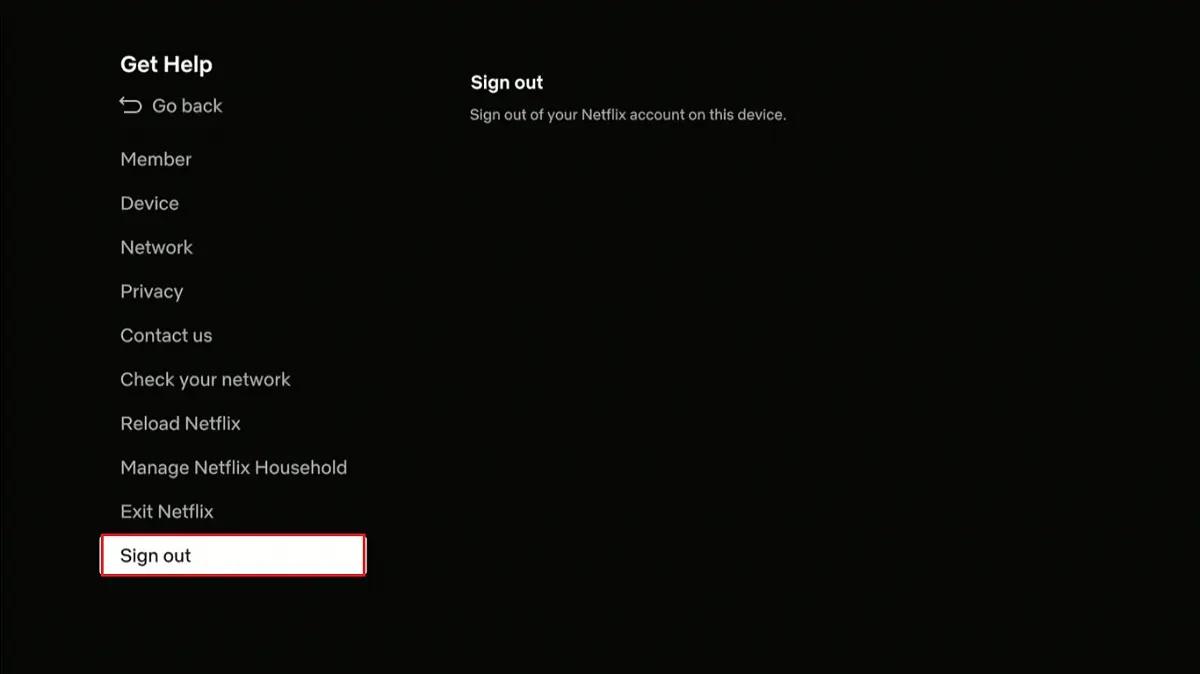
Signing out forces the server to issue a fresh authentication token. Go to the app settings, scroll down and choose Get Help, and select Sign Out or Reset, then log back in with your credentials.
Fix 4. Reset Your Local Network
Unplug your router and modem for at least 30 seconds. This clears old DNS caches and routing table entries. If possible, switch to a wired Ethernet connection. Wi-Fi signal drops and packet loss can trigger sub-codes like (5.2.101). For an extra boost, change your DNS to 8.8.8.8 (Google) or 1.1.1.1 (Cloudflare) in your device's network settings. Note that clearing these routing tables is also highly effective if your home IP gets stuck in security blocklists, which frequently triggers Disney Plus Error Code 93 on smart TVs sharing the same home network.
Fix 5. Adjust Audio and Display Output Settings
If you see sub-code (5.2.5), your audio or HDR settings may be conflicting with Netflix. While a video is playing (or stuck), press the down arrow on your remote to bring up the playback controls. Under Audio & Subtitles, switch the audio source from 5.1 surround or Dolby Atmos to standard Stereo. If changing audio formats causes dialogue latency, check our complete guide on how to fix Netflix audio and video out of sync on any device. You can also try turning off advanced HDR features in your device's system settings.
Part 3. Device-Specific Solutions for TVQ-PB-101 Error
If the general fixes did not work, the next step is to follow the specific steps for your device. Each platform has its own quirks, and the fix that works for a Samsung TV may not do anything for an Xbox.
3.1 How to Fix TVQ-PB-101 on Xbox (One, Series X/S)
If you see sub-codes like (8.1) or (5.6.1) on your Xbox, the issue is almost always tied to the console's network stack or cached Blu-ray playback data. Here is how to clear it:
-
Fix 1.
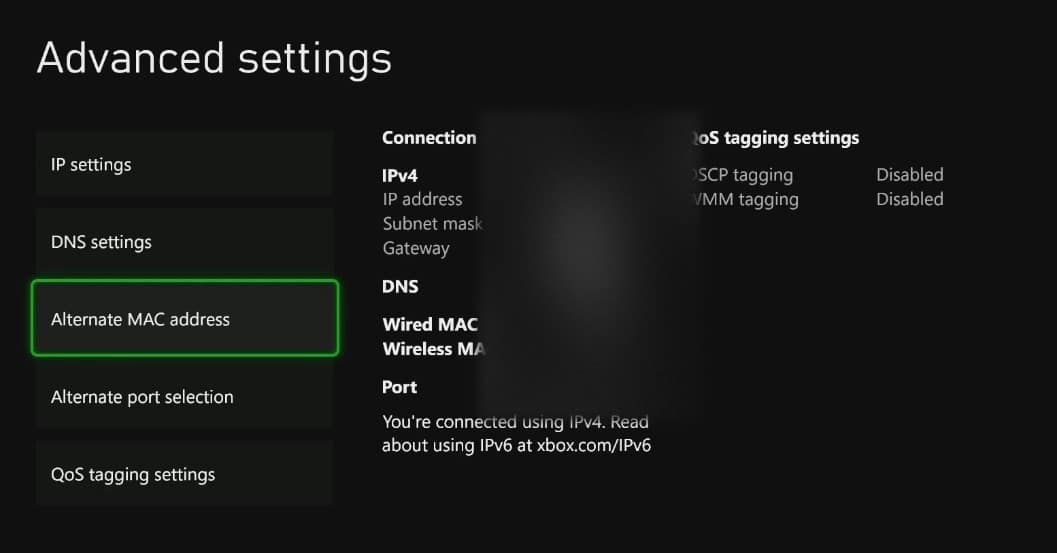
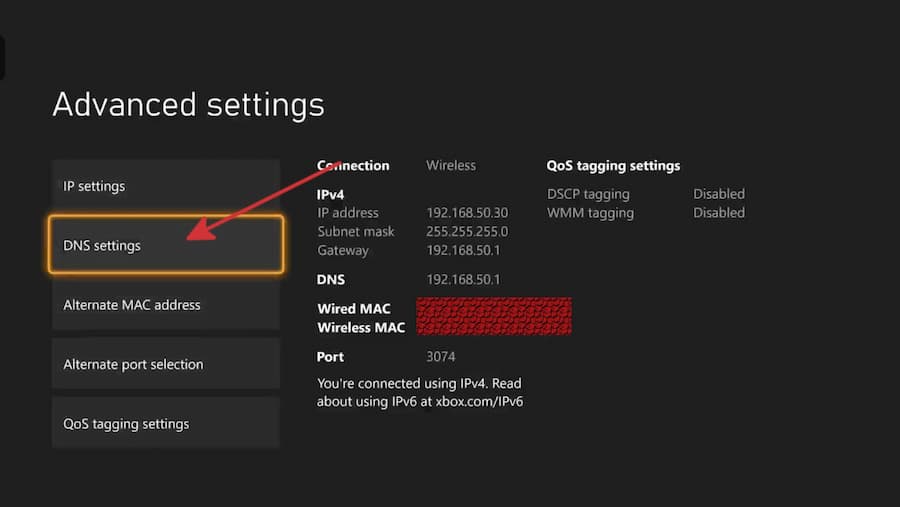
Clear the alternate MAC address. Press the Xbox button on your controller to open the guide. Go to Settings > General > Network settings. Select Advanced settings, then Alternate MAC address. Choose Clear and let your console restart. This refreshes the network interface completely.
-
Fix 2.
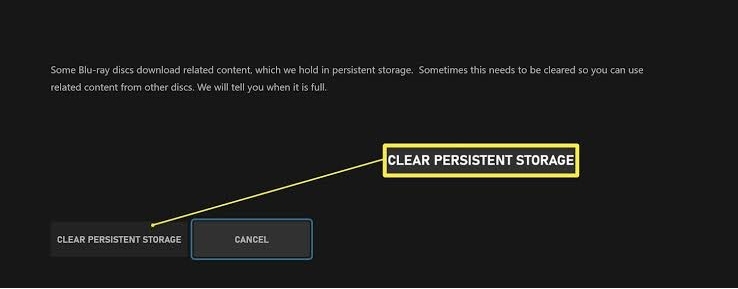
Clear persistent storage. Go to Settings > Devices & connections. Select Blu-ray > Persistent Storage. Choose Clear persistent storage to remove any corrupted streaming metadata that may be stuck in the console's cache.
-
Fix 3.
Set a manual DNS. In the Advanced settings menu, go to DNS settings and select Manual. Enter 8.8.8.8 for the primary DNS and 8.8.4.4 for the secondary DNS. Google's DNS servers are often more reliable for streaming than your ISP's default.
3.2 How to Fix TVQ-PB-101 on Samsung Smart TV
On Samsung TVs, sub-codes like (5.2.101) and (2.8.6020) are common. The Smart Hub memory management on Samsung TVs tends to get stuck, which is what triggers these errors.
-
Fix 1.
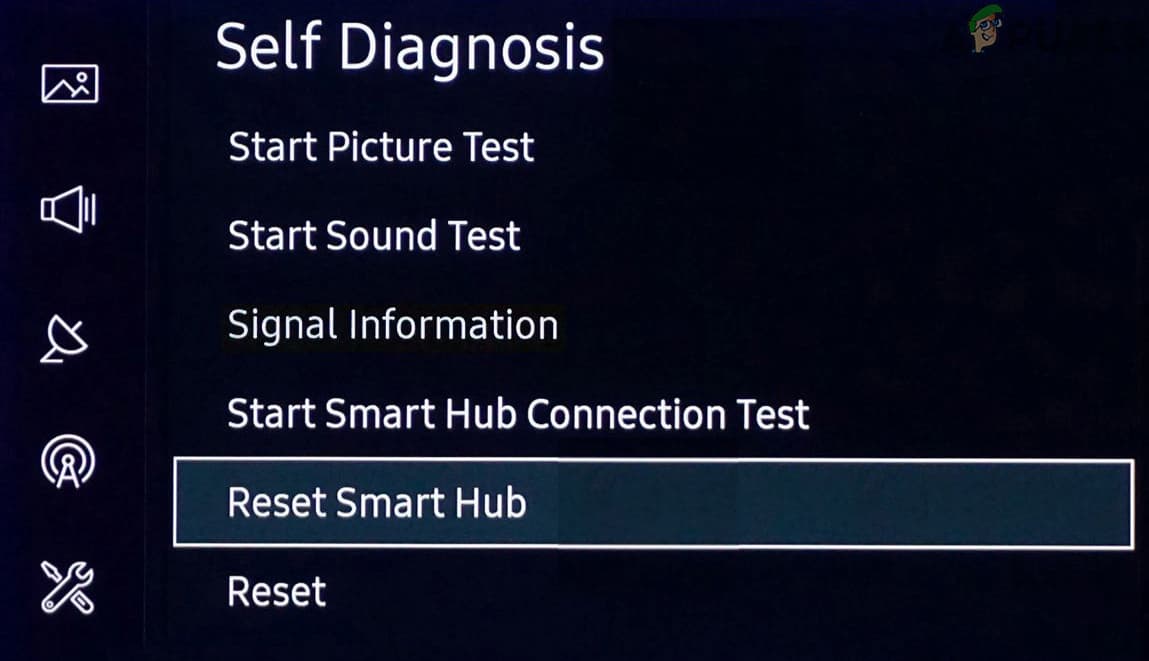
Reset Samsung Smart Hub. Go to Settings > Support. Select Self Diagnosis or Device Care. Choose Reset Smart Hub and confirm. Keep in mind this will sign you out of all installed apps, so you will need to log back into each one afterward.
-
Fix 2.
Force update your TV firmware and apps.
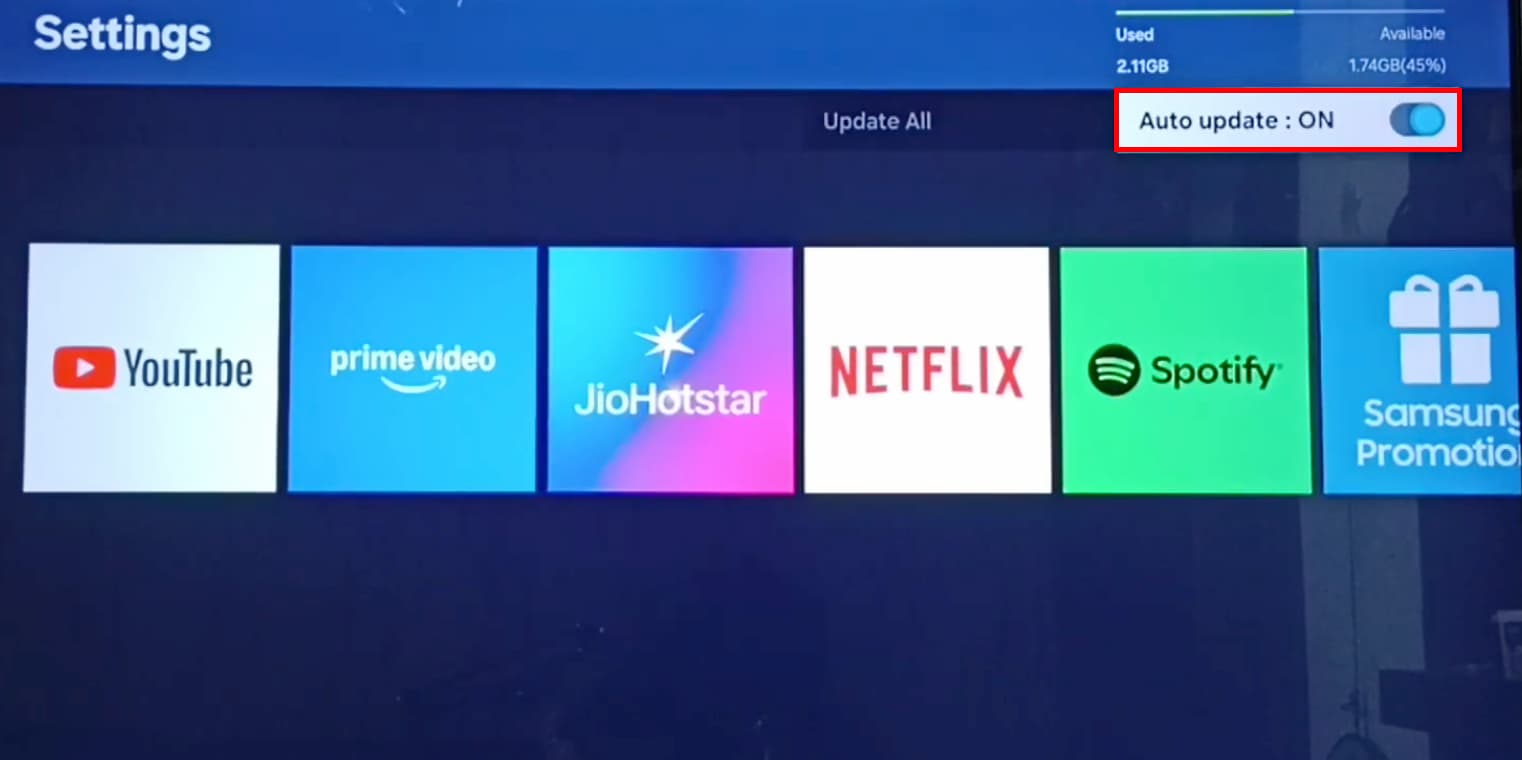
- For apps: go to the Apps menu, select the gear icon, and turn on Auto Update. Or find the Netflix icon and manually select Update.
- For system firmware: go to Settings > Support > Software Update > Update Now. An outdated system can cause Netflix on Samsung TV to break in unexpected ways.

3.3 How to Fix Netflix TVQ-PB-101 on Roku & Amazon Fire Stick
Streaming sticks like Roku and Fire Stick rely on compact storage, and cache buildup easily causes data conflicts. Sub-codes like (5.2.undefined) and (5.2.101) are the ones to watch for.
-
Fix 1.
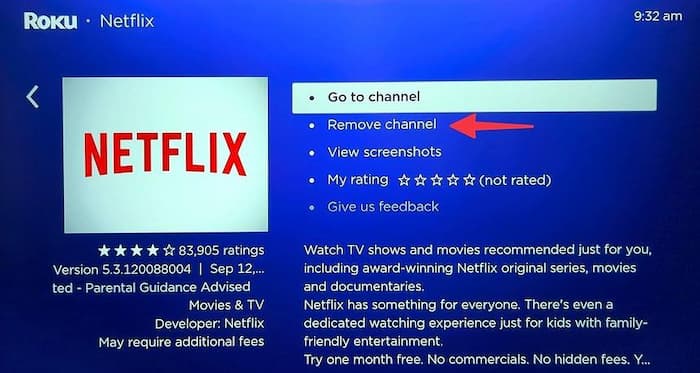
Roku: Use the delete-restart-reinstall sequence. From the home screen, highlight the Netflix channel and press the star (*) button on your remote. Select Remove channel. Then you must restart your Roku: go to Settings > System > System restart > Restart. After the restart, go to Streaming Channels and reinstall Netflix. If you skip the restart, leftover corrupted data will keep the error alive.
-
Fix 2.
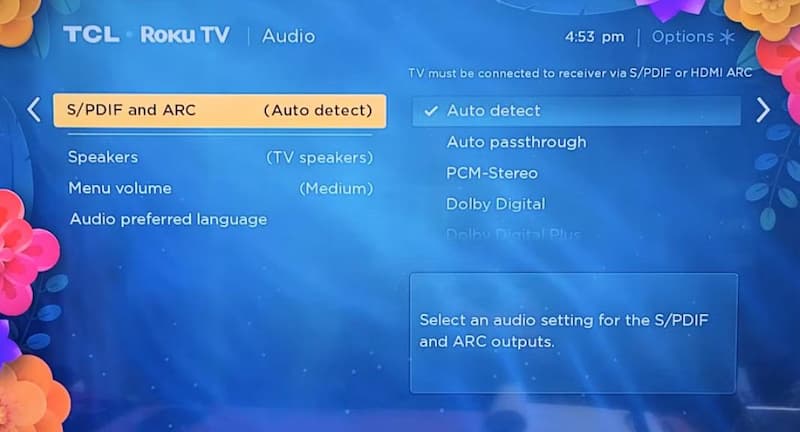
Calibrate audio output. Go to Settings > Audio. Change Audio Mode or S/PDIF and ARC from "Auto" to Stereo or PCM-Stereo. This fixes the audio sync issues that trigger the (5.2) sub-code crashes. If you also deal with broader Roku playback issues, check our guide on Netflix keeps crashing on Roku.
-
Fix 3.
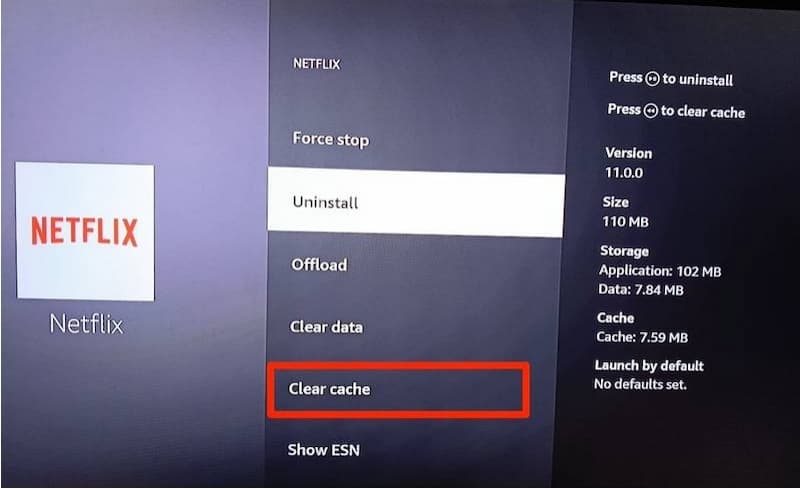
Fire Stick: Clear app data. Go to Settings > Applications > Manage Installed Applications > Netflix. Select Clear Cache first, then Clear Data. This wipes all stored Netflix data on the stick and forces a fresh start. If the problem keeps coming back, you might also want to read our guide on Netflix not working on Firestick for more fixes.
-
Fix 4.
Use the HDMI extender. Connect your streaming stick to the TV using the HDMI extension cable that came in the box. This moves the stick away from the TV's electromagnetic interference, which helps it pass HDCP copyright checks more reliably.
3.4 How to Fix TVQ-PB-101 on LG OLED & Smart TVs
When using Netflix on LG TV, errors like TVQ-PB-101 can appear due to network connection issues. LG's webOS may sometimes cause local network handshakes to freeze, leading to sub-codes like (5.2.5), (5.2.12), and (5.6.1).
-
Fix 1.
Manually set your DNS. Go to Settings > Network > Network Status > IP Settings. Set DNS Server to Manual and enter 8.8.8.8 or 1.1.1.1. This often fixes the handshake issue immediately.
-
Fix 2.
Use the mobile hotspot trick. Turn on your phone's mobile data hotspot. On your LG TV, disconnect from your home Wi-Fi and connect to the phone hotspot instead. Open Netflix and play the video that was giving you trouble. Once it plays for about 10 seconds, switch the TV back to your home network. The video channel is now initialized and will keep working.
-
Fix 3.
Reinitialize the network connection.
- For wired connections: go to Settings > Network > Wired Connection (Ethernet) > Edit, then click Auto Setup twice in a row.
- For Wi-Fi: select your network name, click the X to remove (forget) the connection, then reconnect by entering your password again.
3.5 How to Fix TVQ-PB-101 Netflix Error on PC & Laptops
On a computer, the TVQ-PB-101 error is usually caused by browser-level issues or system security settings getting in the way. Here is what works:
-
Fix 1.
Disable browser hardware acceleration.
- Chrome: Go to Settings > System and turn off "Use graphics acceleration when available."
- Edge: Go to Settings > System and performance and turn off the same option.
- Firefox: Go to Settings > Performance, uncheck "Use recommended performance settings," then turn off "Use hardware acceleration when available."
- Restart your browser after making the change.
-
Fix 2.
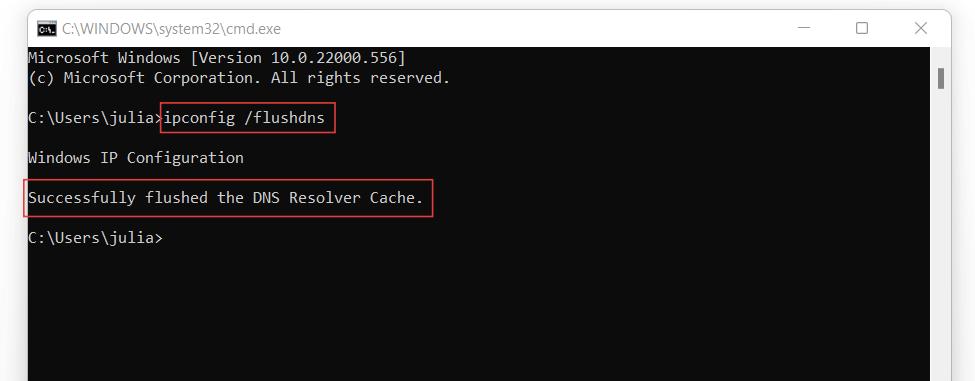
Flush your DNS cache. On Windows, type cmd in the search bar, right-click Command Prompt, and select Run as administrator. Type
ipconfig /flushdnsand press Enter. You should see a message confirming the DNS cache has been flushed. This clears any stale network routes that might be blocking the stream. -
Fix 3.
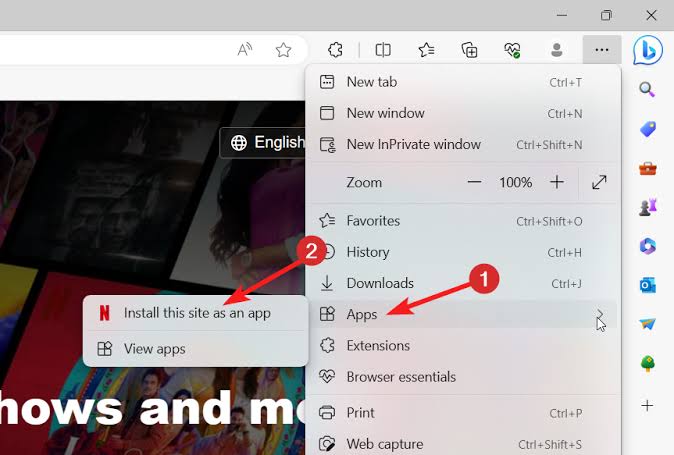
Install Netflix as a PWA. Open Netflix in Chrome. Look at the right side of the address bar for a small icon that looks like a screen with a downward arrow. Click it to install Netflix as a Progressive Web App (PWA). This runs Netflix in its own window, separate from Chrome's browser cache. It is a cleaner, more reliable way to stream.

Note: Another very common playback issue that interrupts streaming on computers is Netflix Error Code E109. If you are running into a black screen or an "unsupported browser" message instead, check out our step-by-step guide to fix Netflix Error Code E109 on browsers and PCs to get back to your show.
Part 4. What to Do If Netflix TVQ-PB-101 Won't Go Away
If you have tried the troubleshooting methods above but Netflix Error Code TVQ-PB-101 keeps coming back, you may want to consider another way to watch your favorite titles. Instead of relying on the Netflix app and your internet connection every time, you can download videos in advance for offline viewing.
A tool like VidiFab Netflix Video Downloader can help you save Netflix videos locally and enjoy smoother playback without dealing with repeated streaming interruptions.
VidiFab Netflix Video Downloader
Download Netflix videos as MP4/MKV in 1080p with Dolby Atmos for offline viewing on your iPhone, Android, desktop, and more devices.

Why Use VidiFab to Avoid Netflix Playback Issues Like TVQ-PB-101?
- No more error codes, ever. Local files do not need to go through Netflix's DRM authorization pipeline. No handshake, no TVQ-PB-101, no sub-codes. The file just plays.
- Full HD 1080p with 5.1 surround sound. You do not have to downgrade your audio to stereo just to avoid errors. VidiFab keeps the original Dolby Digital 5.1 audio, multilingual subtitles, and crisp 1080p picture quality intact.
- Play Netflix movies and shows on old devices. That 2014 Samsung TV Netflix no longer supports? Plug in a USB drive loaded with VidiFab's MP4 files and it plays 1080p movies without a hitch. No need to buy a new TV.
- Watch without internet interruptions. You do not need to worry about unstable Wi-Fi, network delays, or playback interruptions while watching. Simply download your favorite titles beforehand and you can watch Netflix offline on your devices.
How to Download Netflix Videos with VidiFab for Error-Free Viewing
Step 1. Open VidiFab and Sign In to Netflix
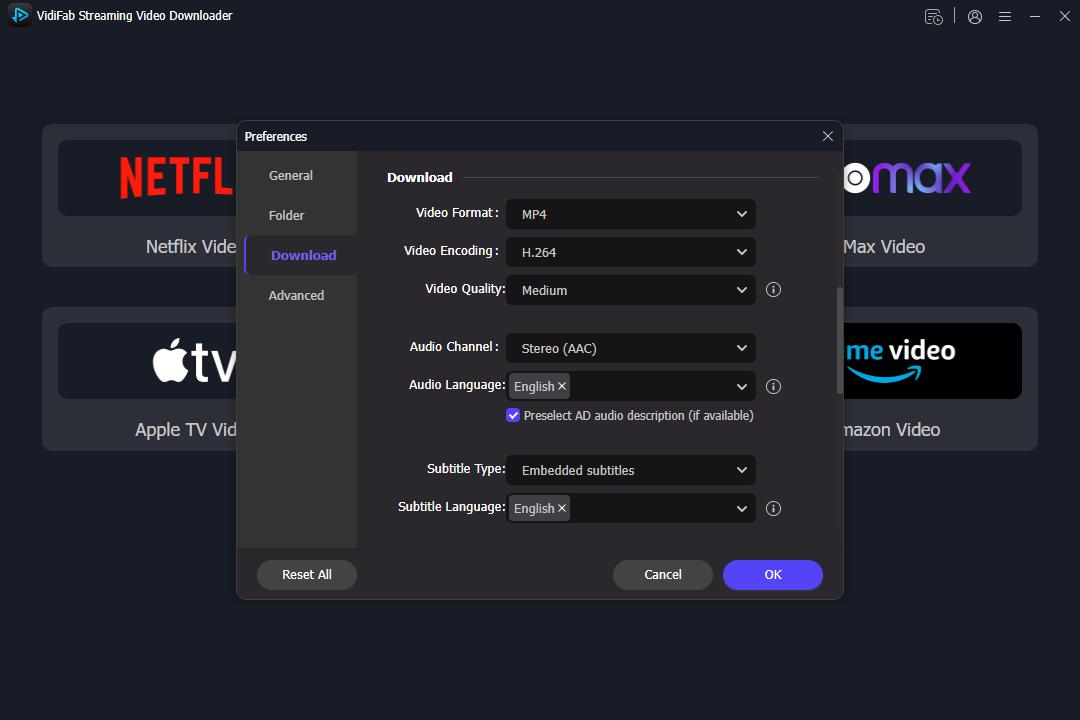
Install and launch VidiFab Netflix Video Downloader on your PC or Mac. Before searching for content, click the Menu icon (top right corner) and navigate to Preferences. Under the Download settings, set your default output format to either MP4 or MKV, then click OK to save.
Step 2. Search for the Netflix Movie or Show You Want to Watch
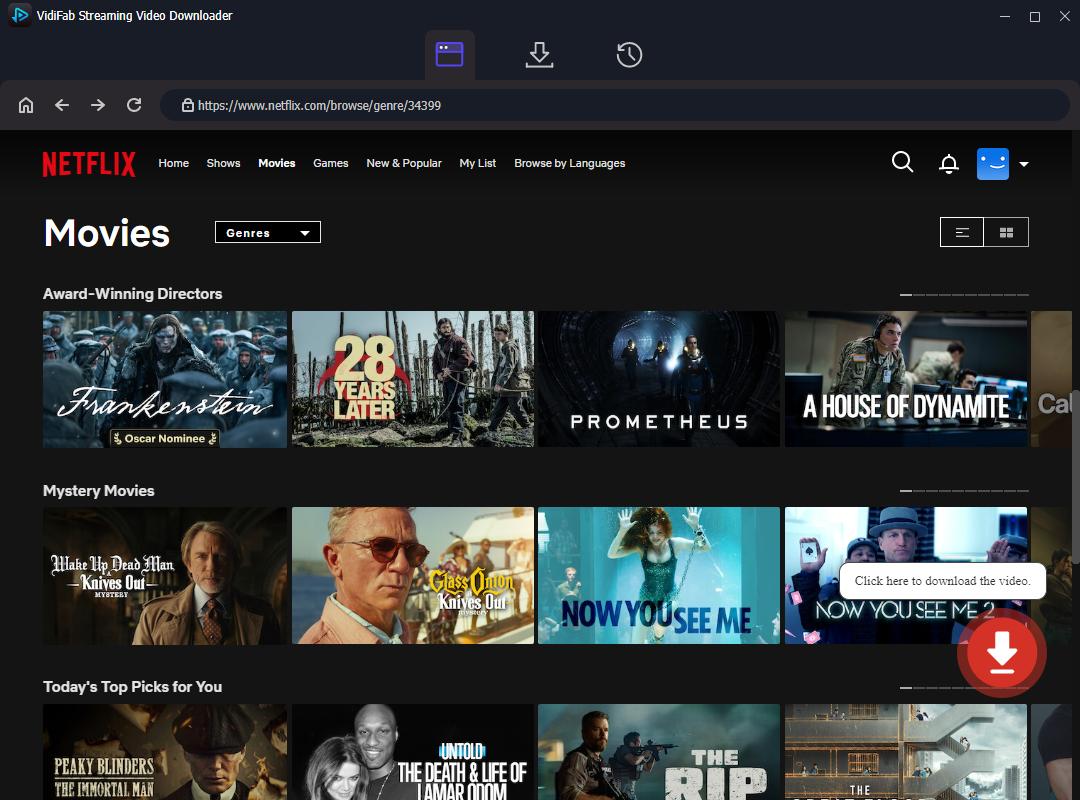
Use the built-in browser to find the movie or TV show that you want to download. You can search for a title directly in VidiFab or paste the Netflix video URL into the search bar. VidiFab will analyze the video and display a Download button in the bottom right corner.
Step 3. Optimize Your Local Output & Audio Settings
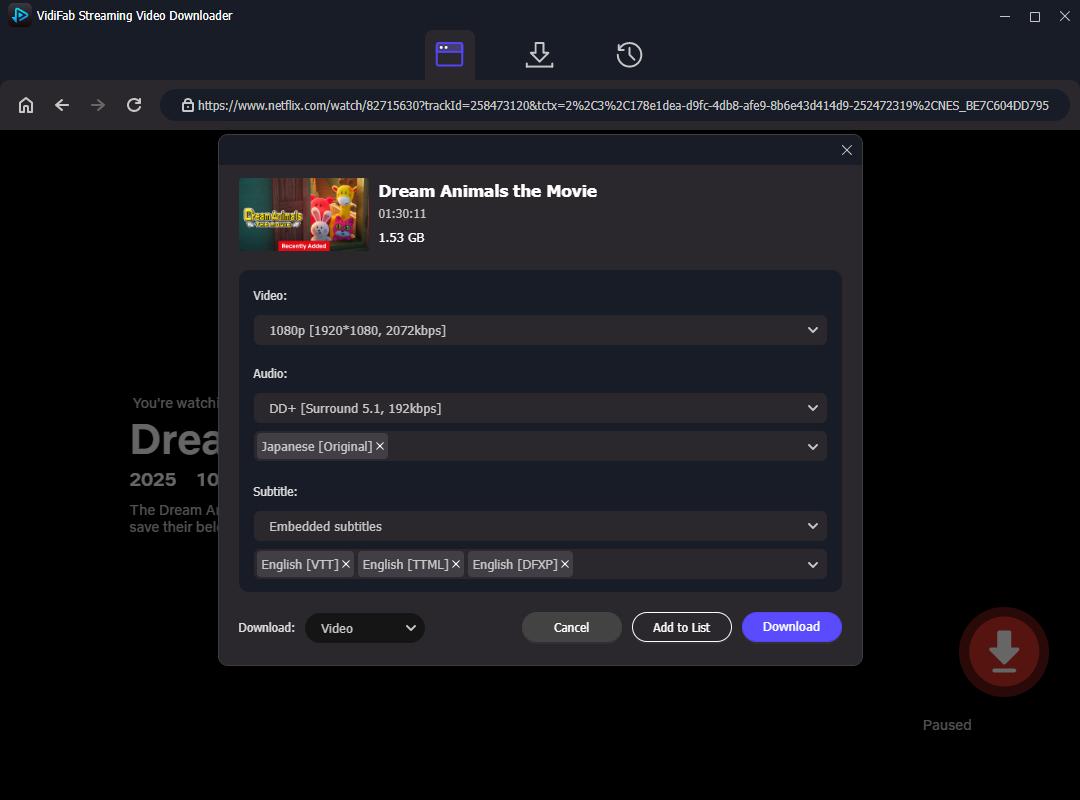
An advanced download settings window will slide into view. To fix the underlying audio decoding conflicts that cause the TVQ-PB-101 5.2 variant, you can keep the cinematic Surround 5.1 audio or standard AAC Stereo. Set the video quality to 1080p. Additionally, you can choose the language for the audio tracks and subtitles.
Step 4. Download and Transfer for Seamless Offline Playback
Click the Download button to start saving the video. After the download finishes, open the History tab and click the folder icon to find your saved files.
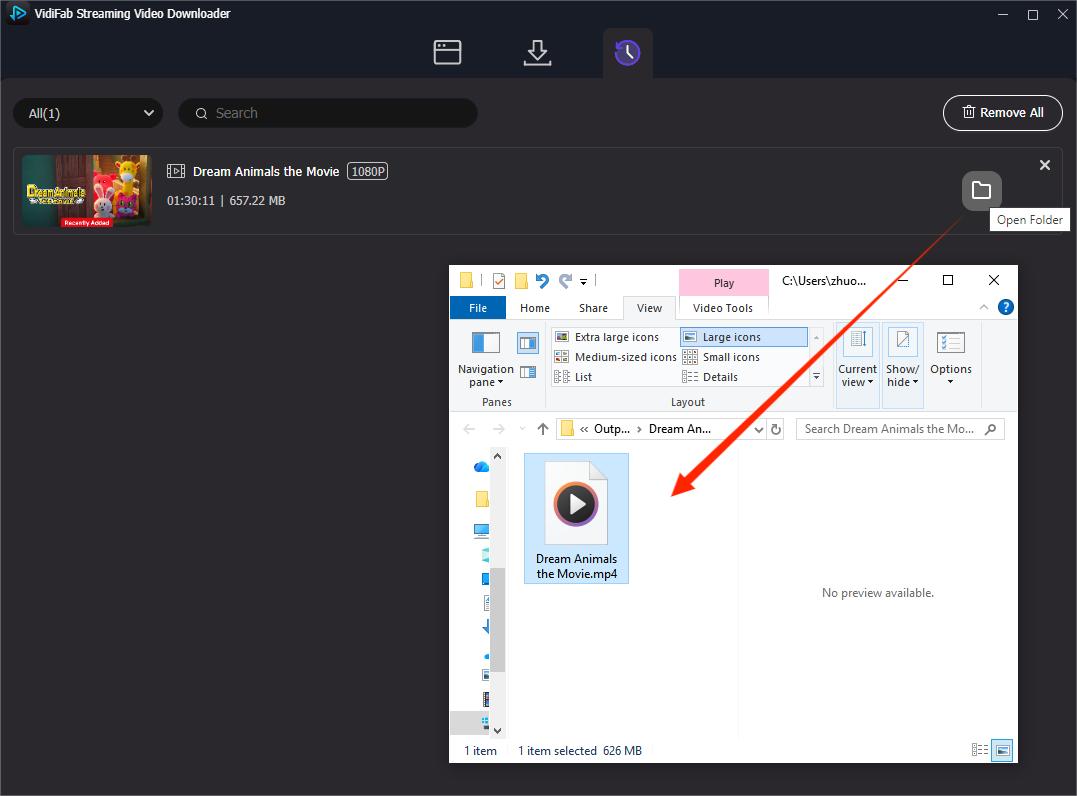
Now, you can play the file instantly on your computer using VLC Media Player, or transfer the files via a USB flash drive or local media server (like Plex) directly to your Samsung Smart TV, LG OLED, Xbox console, Roku, or Amazon Fire Stick for a perfectly smooth, lifetime viewing experience. For a detailed walkthrough on the USB method, check out our guide on how to download Netflix movies to USB.

Note: Downloading Netflix videos should always comply with Netflix's Terms of Use and applicable laws. VidiFab is intended for personal video management and offline viewing where permitted.
Part 5. FAQ: Quick Answers for Netflix TVQ-PB-101
Is Netflix error code TVQ-PB-101 caused by my account?
Usually, no. Netflix error code TVQ-PB-101 is more often related to your device, network connection, Netflix app data, or software issues. If your account works normally on another device, the problem is not your Netflix account.
Why does Netflix show TVQ-PB-101 for only one movie or show?
This is usually a local cache issue or a server-side glitch affecting a specific title. A particular video file's DRM handshake or audio format (like Dolby Atmos) can crash your device's playback memory, while standard stereo titles play without any problem. Try playing a different title. If it works, clear your cache and try the original title again.
Does TVQ-PB-101 mean Netflix is down?
No. If Netflix servers were actually down, you would see error codes like NW-2-5 or UI-800-3 instead. TVQ-PB-101 means your device can reach Netflix's servers, but it cannot initialize the specific video stream you selected. The connection is there. The handshake just fails.
Can a VPN cause Netflix error code TVQ-PB-101?
Yes. When a VPN switches server nodes or drops a connection mid-stream, it breaks the continuous media pipeline Netflix needs. This sudden routing change triggers a security playback error. If you use a VPN, try disconnecting it, then reload Netflix.
Why does Netflix TVQ-PB-101 keep coming back after I fix it?
Many smart TVs, especially LG and Samsung models, put background apps into a low-power sleep mode instead of fully closing them. The same corrupted cache keeps reloading until you perform a hard power cycle. Unplug the TV for at least 60 seconds to force a complete shutdown. If the error keeps returning on a specific title, you may also want to check our guide on fixing Netflix "this title is not available" errors.
Does Netflix TVQ-PB-101 affect downloaded videos?
No. Downloaded offline videos stored as standard files (like MP4) completely bypass the Netflix app's streaming pipeline. They play through your device's media player instead. If your Netflix app keeps breaking, transferring files downloaded with a tool like VidiFab to your device gives you 100% error-free playback. See our guide on converting Netflix to MP4 for more details.
When should I contact Netflix support for TVQ-PB-101?
Contact Netflix support when you have tried all system updates, network resets, and cache clears, and the error still appears across multiple titles on a supported device. If the error only affects one specific title and you have already cleared your cache and tried a different device, tell support so they can refresh that particular video file on their servers.
Final Thoughts
Resolving the Netflix error code TVQ-PB-101 requires clearing corrupted device data, adjusting conflicting audio formats, or updating local network setups. While hard reboots and device-specific resets offer temporary relief, the most reliable long-term solution is skipping online streaming issues entirely. By utilizing VidiFab Netflix Video Downloader, you can save your favorite movies and shows directly as high-quality local files, ensuring a permanent fix and an uninterrupted, offline viewing experience on any screen.
 Free Download
 Secure Download
 Free Download
Secure Download
Free Download
Secure Download
I write about streaming services, video playback, and digital media management. My articles cover practical ways to convert video files, troubleshoot playback issues, and manage digital content across devices. I aim to make technical topics easier to understand and help readers find practical solutions to common challenges.
 Leave Your Comment