How to Fix Netflix Crashing on Roku TV
 By Miles Kent
A lot of people are dealing with Netflix crashing on Roku. You might find your screen going black, and suddenly your Roku sends you back to the Home Screen. Or, the app could freeze right when you try to fast-forward or pause a movie.
Many users on Onn TV, TCL, and Roku Premiere players report that Netflix is the only streaming app that causes these system crashes. It feels like the Roku OS and the Netflix software just can’t get along. Whether you are switching Netflix profiles or trying to rewind a scene, a constant app crash ruins the fun.
If your Roku player keeps kicking you out of the app, you are not alone. This guide will look at why your smart TV is acting up and show you how to fix these playback errors for good.
Part 1. Why Does Netflix Keep Crashing on My Roku?
Netflix crashes on your Roku TV due to a corrupted app cache, RAM limitations, or firmware conflicts. This often happens when you switch profiles, pause for too long, or fast-forward. These actions can overload the system memory, leading the Roku OS to close the Netflix channel and send you back to the home screen to avoid freezing up.
Now, let’s dive into these causes:
Cause 1. Corrupted App Data (Cache)
The Netflix official guide says that if the app crashes or sends you back to the Home Screen or live TV, it usually means your device's data needs a refresh.
So, keep in mind that data could be the culprit. Every time you watch a show, Netflix saves temporary data. If this cache gets corrupted, the app might not load and could boot you back to the home screen right away.
Cause 2. Low Hardware Memory (RAM)
If you use an Onn Roku TV or an older streaming stick, the hardware performance is a bit lower. These budget TVs have less RAM (memory). Netflix is a "heavy" app. When you do browse on Netflix too quick, or keep fast-forwarding on the video playing, the TV runs out of memory. The Roku OS then forces the app to close to keep the TV running.
Cause 3. Software Version Bugs
Sometimes, your Roku OS gets an update, but the Netflix app version stays old. When the TV system and the app don't speak the same language, you see playback errors. A small bug in a new update can also cause the app to freeze and exit.
Cause 4. Weak Network Connection
If your Wi-Fi is lagging, the app might have a tough time connecting to Netflix’s servers, resulting in the error code NW-2-5 on Netflix. If the connection drops while you’re fast-forwarding or rewinding a show, the app could crash and send you back to the Home Screen, leaving it unsure of what to do next.
Part 2. How to Fix Netflix Crashing on Roku TV
If you want to stop the Netflix app from crashing, you need to refresh the stored data on your Roku OS. We will start with the easiest "soft resets" and move toward deeper system fixes to stop the loading errors and freezing for good.
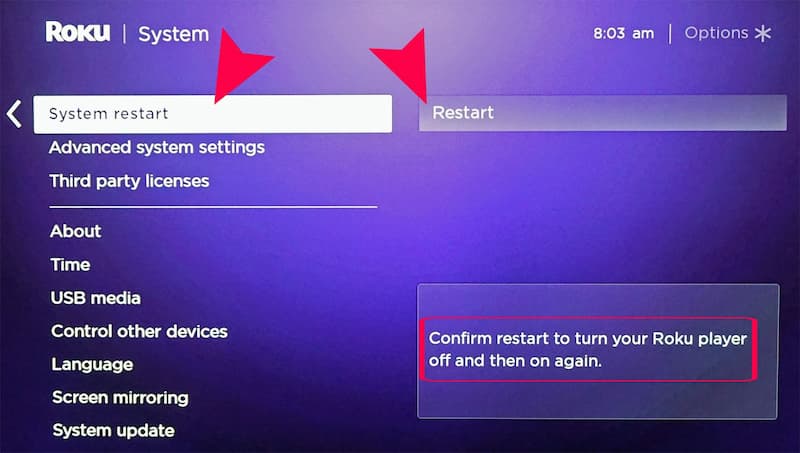
Fix 1. Restart Your Roku TV
A real restart clears the short-term memory and stops any background tasks that are causing the Netflix channel to fail. This is better than just turning the TV off and on with the remote. Here are two ways to do it:
- Option 1: To restart from the Memu, head to the Home Screen. Tap on Settings > System > Power > System Restart. Hit Restart to confirm.
- Option 2: For a hard reset, if your Roku TV freezes, just unplug the power cord from the wall. Wait at least 60 seconds, then plug it back in and turn on the TV.
Fix 2. Clear Roku Cache via the Secret Menu
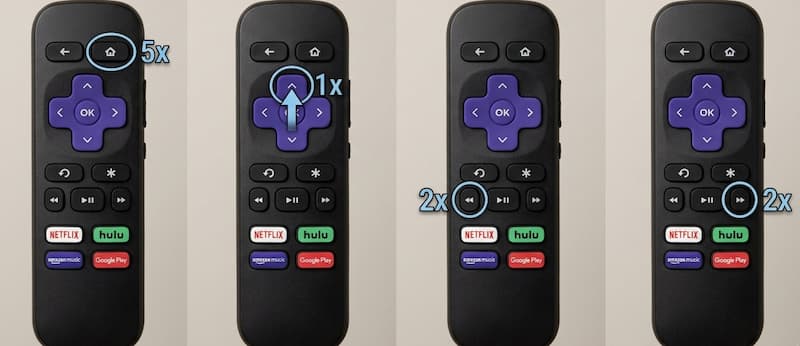
If a regular restart does not work, you can use a "secret" remote code to force the Roku OS to clear its system cache. This is very helpful for Onn Roku TVs that feel slow or keep freezing.
-
01
Go to the Roku Home Screen. Make sure the home menu item is selected.
-
02
Press the Home button 5 times (5x).
-
03
Press the Up Arrow 1 time (1x).
-
04
Press the Rewind button 2 times (2x).
-
05
Press the Fast Forward button 2 times (2x).
Fix 3. Clear Netflix App Cache and Data
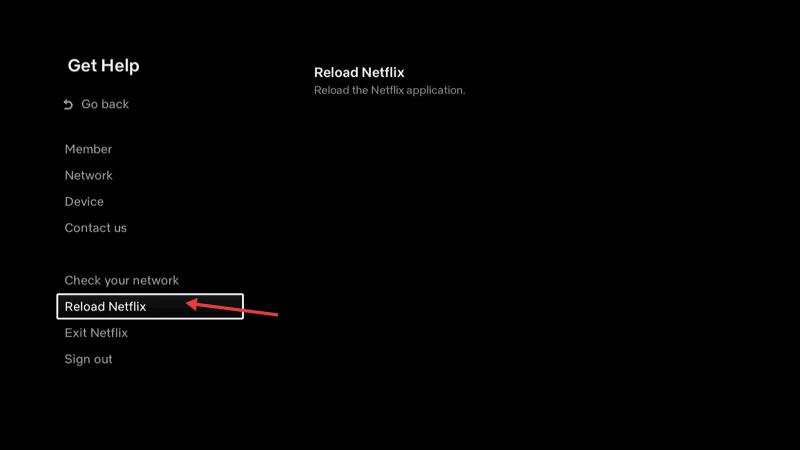
If only the Netflix channel is crashing, the problem is likely in the app's own stored data. While Roku doesn't have a "clear cache" button for single apps, you can use the Netflix menu to reset it.
-
01
Open the Netflix app.
-
02
On the Netflix Home Screen, press Left on your remote to open the menu.
-
03
Scroll down and choose Get Help.
-
04
Select Reload Netflix. This refreshes the app and clears temporary bugs.
Fix 4. Exit and Relaunch the Netflix App
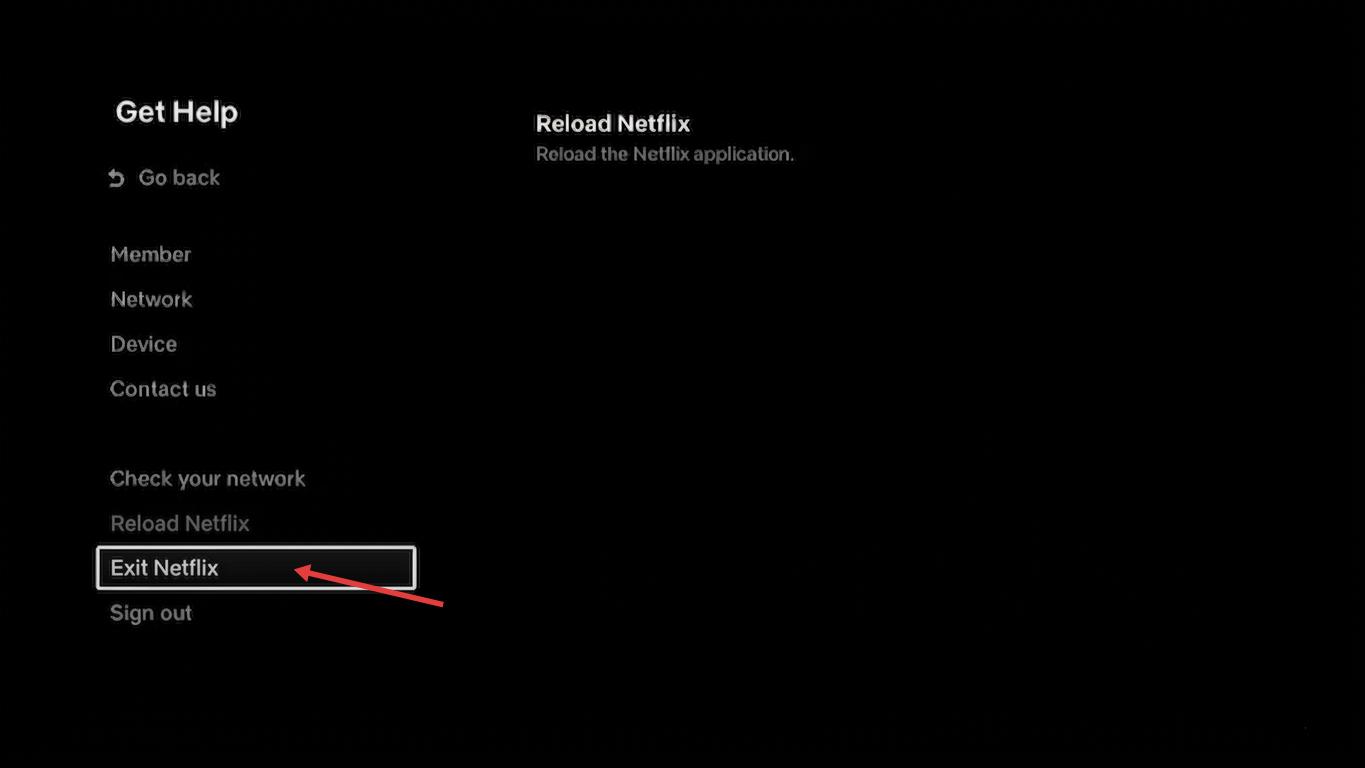
Just hitting the "Home" button might leave the app "suspended" in the background with that same error. To completely close the Netflix app and relaunch it, do this:
-
01
While you're in the Netflix app, press Left to bring up the menu.
-
02
Scroll down to the bottom and choose Exit Netflix.
-
03
Give it a few seconds for the Roku home screen to refresh.
-
04
After a moment, open the Netflix channel again from your Roku Home Screen. This will give the app a fresh start.
Fix 5. Update Roku OS and Netflix Channel
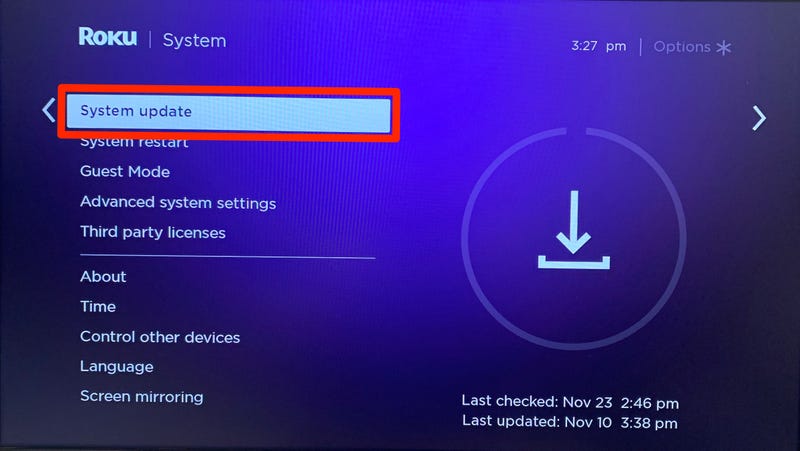
A software version mismatch can lead to playback issues. Make sure to check for both system updates and app updates.
- To update Roku OS, head to Settings > System > System update > Check now. Your TV will download and install any new Roku OS versions.
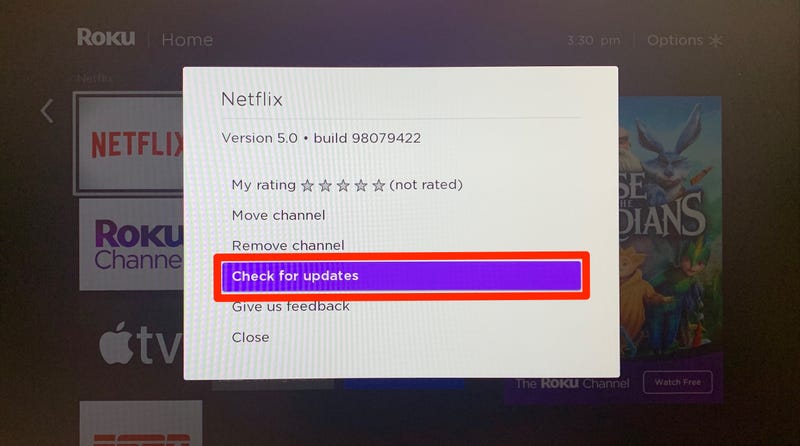
- To update Netflix, highlight the Netflix icon on the Home Screen. Press the Star (*) button on your remote, then select Check for updates. If a new version is available, it will install automatically.
Fix 6. Remove and Reinstall Netflix
If the app crash still happens, the files might be deeply corrupted. You need to delete the Netflix app and add it back. Important: You must restart your TV between these steps for this to work.
-
01
Highlight Netflix on your Home Screen, press the Star (*), and choose Remove channel.
-
02
Head to your Roku's Settings > System > Power > System restart, or just unplug the TV for a minute.
-
03
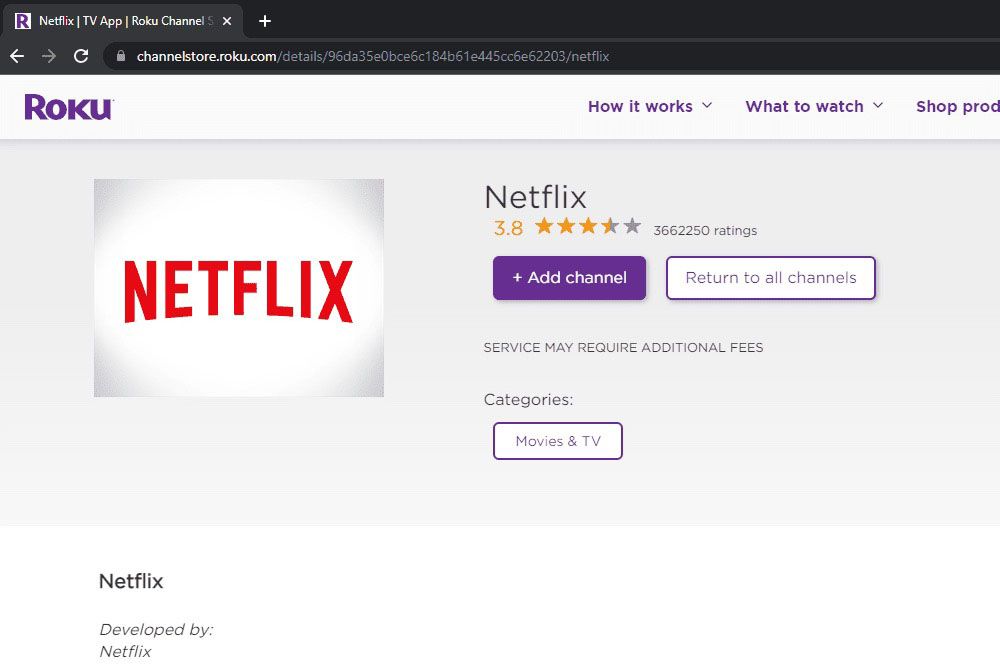
Go to the Streaming Store (or Search), find Netflix, and select Add channel. You’ll need to log back into your account.
Fix 7. Check and Troubleshoot Your Wi-Fi Connection
Sometimes, Netflix crashes when your internet speed suddenly drops. If your Roku TV can’t connect to the Netflix server to load the video, it might just kick you back to the home screen.
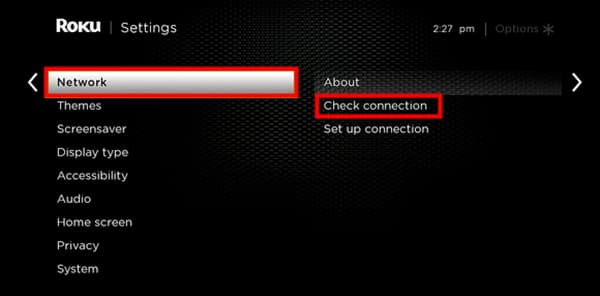
- Check Connection: Go to Settings > Network > Check connection. Your Roku device will test if the internet is fast enough for streaming.
- Restart Your Router: Unplug your Wi-Fi router for about 30 seconds, then plug it back in. This will refresh your home’s bandwidth.
- Use 5GHz: If you have a dual-band router, connect your Roku device to the 5GHz network. It’s faster and has less interference for streaming in high definition.
Fix 8. Sign Out of Netflix on Other Devices
If you're signed in on too many devices, Netflix might block your access. With the Standard plan, you can use 2 devices at once, and with the Premium plan, it's 4 devices. If your family or friends are using all the slots, the Netflix channel on your Roku might crash or fail to load the video player. Here’s how to clear out those extra devices:
-
01
Check how many people are using your account right now.
-
02
If you aren't sure, go to the Netflix app menu, select Get Help, and choose Sign out.
-
03
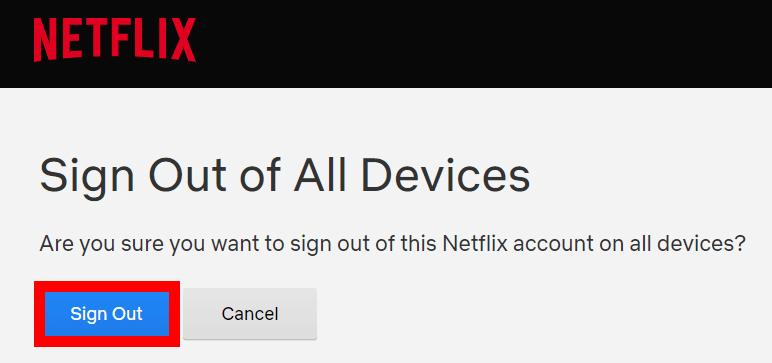
On a computer, go to your Account Settings and select "Sign out of all devices."
-
04
Log back into your Roku player. This ensures your TV has a fresh connection to the Netflix servers without any account errors.
Fix 9. Factory Reset Your Roku (Last Resort)
If you have tried everything and Netflix keeps crashing, there might be a deep bug in the Roku OS firmware. A factory reset clears everything and makes your TV act like it is brand new.
-
01
Press the Home button and go to Settings.
-
02
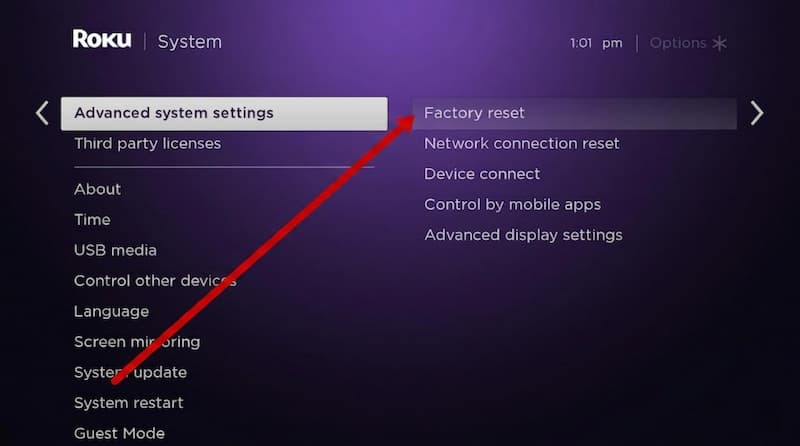
Select System > Advanced system settings.
-
03
Select Factory reset.
-
04
Follow the on-screen instructions and enter the code provided.
Warning: This will delete all your apps and you will have to sign in to everything again.
Part 3. How to Avoid Netflix Crashes on Roku TV
If you have tried all the steps above and your Netflix channel still crashes, the problem might not be your fault. Streaming apps on smart TVs can be pretty heavy. They need a solid internet connection and plenty of RAM to function smoothly. On budget devices like Onn Roku TVs, the hardware often struggles to keep up, which can lead to freezing or that frustrating jump back to the Home Screen.
The only way to have a smooth experience is to remove the "streaming" part of the equation. By using a local playback method, you can watch your shows without ever opening the buggy Netflix Roku app.
The Solution: Local Playback via VidiFab Netflix Video Downloader
VidiFab Netflix Video Downloader is a desktop software that downloads movies and shows from Netflix to MP4 or MKV formats. After it downloads, you can transfer the Netflix videos to a USB, and play it using the Roku Media Player on your TV to watch.
Why choose VidiFab? It offers 1080p HD quality for downloads. You can download videos with Dolby Atmos and choose from multiple subtitles and audio tracks. If you want to download an entire season, VidiFab allows you to batch download at speeds up to 7 times faster. Regardless of your Netflix plan, all videos are ad-free and you enjoy unlimited downloads.
VidiFab Netflix Video Downloader
Download Netflix videos as MP4/MKV in 1080p with Dolby Atmos for offline viewing on your iPhone, Android, desktop, and more devices.

How to Use VidiFab to Watch Netflix on Roku Without Crashes
Step 1. Launch VidiFab and Set Up Your Format
Download and install VidiFab. Open the app and click the Menu icon to select Preferences. Set your Download Video Format to MP4 or MKV. These formats are "crash-proof" because they use the simple Roku Media Player instead of the heavy Netflix app. Click OK, then select Netflix from the main screen and log in to your account.

Step 2. Find the Netflix Videos for Download
You can browse the library or paste the video link into the search bar. Once you open the video page, VidiFab will analyze the data. When the Download button appears, click it to see your options.

Step 3. Choose Your Quality, Subtitles, and Audio Tracks
A settings window will pop up. Choose 1080p Full HD for a clear picture. You can also select your preferred audio and subtitles. Because these are saved directly into the file, you will never deal with the subtitle glitches or audio sync issues that often happen when the Roku Netflix app freezes.

Step 4. Download and Save to Your Computer
Click Download to start. VidiFab saves the video directly to your computer. Once finished, find the file in the History tab. Since the video is now a local file, it will play with zero buffering and no chance of crashing on your Roku TV.

Step 5. Transfer to USB and Play on Roku TV
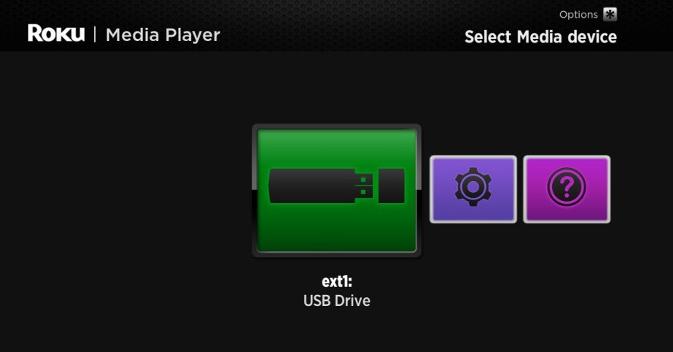
Copy your downloaded MP4 files onto a USB flash drive. Plug the drive into the USB port on the back or side of your Roku TV or Roku Ultra. Open the Roku Media Player app (download it for free from the Roku Store if you don't have it). Select your USB drive, pick your movie, and enjoy a perfectly smooth performance with no crashes.
Part 4. FAQs about Netflix Crashing on Roku
Will clearing the Roku cache delete my Netflix profiles?
How do I stop Netflix from freezing when I pause a show?
My Roku keeps restarting the entire TV, not just the Netflix app. Why?
Will using a Video Downloader affect my Netflix account?
Final Thoughts
Fixing Netflix crashing on Roku is usually about clearing out old stored data or updating your Roku OS. If the app keeps freezing, the hardware memory might be the issue. Troubleshooting steps like using the 'Secret Menu' to clear the cache can help, but they are usually temporary.
For a guaranteed fix, using VidiFab Netflix Video Downloader is the smartest choice. By downloading your shows to a USB drive, you bypass the buggy app and enjoy smooth offline viewing without any playback errors. Do not let a slow app ruin your movie night. Take control of your library today.
 Free Download
 Secure Download
 Free Download
Secure Download
Free Download
Secure Download


I'm a video tech specialist with over 10 years of experience in digital media and streaming. I focus on making complex workflows simple and practical. Through my guides, you'll learn how to convert media, keep high-quality playback across devices, and manage your streaming video library with ease.
 Leave Your Comment