How to Fix Netflix Not Working on Samsung TV
 By Miles Kent
According to community reports on Reddit, many Samsung TV users experience Netflix issues such as freezing, black screens, playback crashes, and the "no longer supported" error on older models. Netflix's official troubleshooting guidance recommends restarting the device, checking the internet connection, and updating the Netflix app or TV software to fix common playback problems.
However, if Netflix is still not working on your Samsung smart TV, this guide provides step-by-step fixes for app freezing, not opening, playback crashes, and dimming or black screen issues. Plus, I am offering you two ultimate solutions when all fixes won't work.

Part 1. Why is Netflix Not Working on Samsung TV?
Before troubleshooting Netflix on your Samsung TV, the first thing to check is whether your TV model still supports Netflix. If you have an older Samsung TV made before 2015, Netflix may no longer be available on your device. In this case, you may see messages like "Netflix is no longer available on this device" or encounter errors such as UI-800-3.
If your Samsung TV is no longer supported, you do not necessarily need to replace the entire TV. You can add a compatible streaming device, such as an Amazon Fire TV Stick or PlayStation 4 and newer models, to continue watching Netflix. You can also use VidiFab Streaming Video Downloader to download Netflix videos and play them directly on your TV without relying on the built-in Netflix app.
If your Samsung TV supports Netflix but the app is still not working, the issue is usually related to:
- Corrupted Session Cache: Volatile RAM accumulates bad background data over time, forcing the app to freeze up or refuse to open.
- Firmware Mismatches: Running a newly updated Netflix app on an unpatched Samsung Tizen OS creates API communication conflicts, causing the app to crash a few seconds after playback starts.
- Network Protocol Dropping: Intermittent Wi-Fi signals or corrupted DNS configurations drop the handshake with Netflix streaming servers, leaving you stuck on a black screen.
- Display Profile Conflicts: Samsung's built-in eco sensors misinterpret incoming High Dynamic Range (HDR) metadata, causing the television backlight to dim excessively during playback.
Part 2. Quick Steps to Resolve Most Samsung TV Netflix Issues
Before trying problem-specific fixes, start with these basic steps. They can solve most Netflix issues caused by temporary app errors, connection problems, or outdated software.
Fix 1. Perform a 60-Second Hard Power Cycle
Method A (With Remote): While the TV is powered on, press and hold the Power button on your Samsung remote. Continue holding it down through the black screen until the Samsung logo appears and the TV boots back up completely.
Method B (Direct Power): Unplug your TV from the wall and press the physical Power button on the TV chassis for 15 seconds to drain residual energy. Wait 60 seconds, plug the cord back in, and power on the TV.
Fix 2. Check Your Internet Connection
Press the Home button on your Samsung remote. Go to Settings > General > Network > Network Status. Check whether your TV is connected to the internet. Restart your router if the connection is unstable. Open Netflix again after the connection is restored.
Fix 3. Sign Out and Sign Back Into Netflix
Stay in the Netflix app or the error screen. Go to the left-side menu, select Get Help, choose Sign Out, and then sign in again with your Netflix account or another account to test.
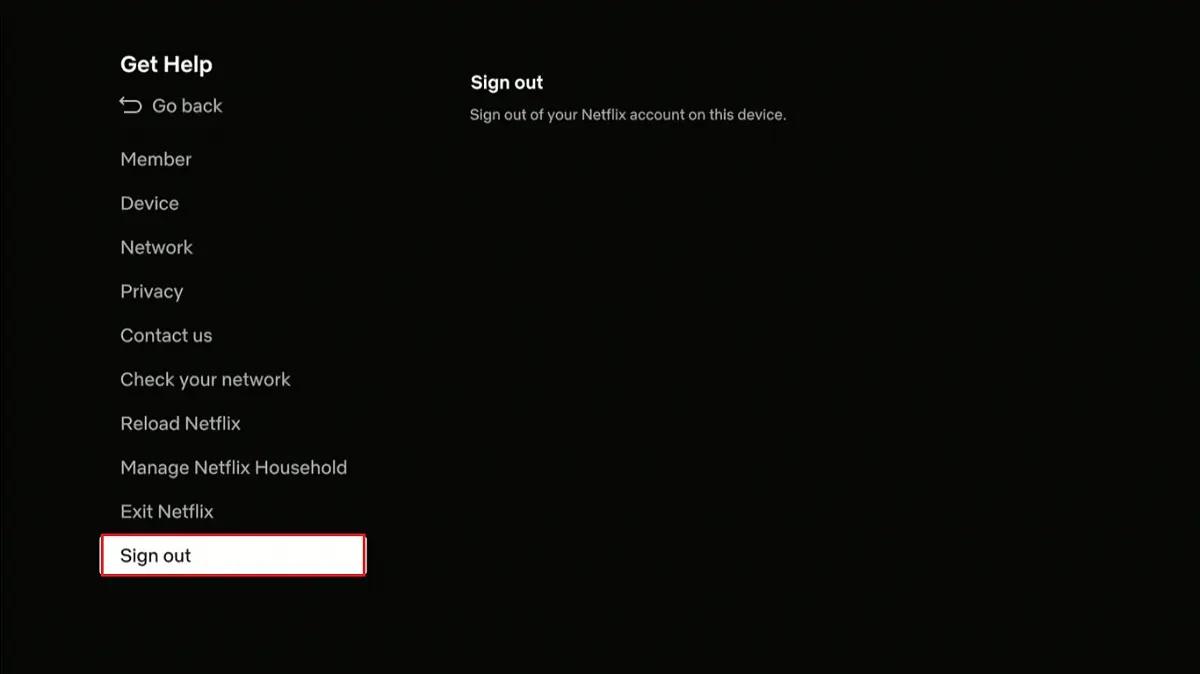

Tip: If your Netflix interface is frozen, you can use the Konami Code (Up, Up, Down, Down, Left, Right, Left, Right, Up, Up, Up, Up) on the Netflix home screen to sign out or reset.
Fix 4. Force Quit the Netflix App
If Netflix becomes unresponsive or freezes on a specific profile screen, you can press and hold the Return/Back button on your remote for 3 to 5 seconds until the TV suddenly drops back to the Samsung Smart Hub home screen. This kills the active PID (Process Identifier) without losing your login credentials. You can then relaunch Netflix to test if it works.
Fix 5. Reinstall the Netflix App
Go to the Apps menu, long-press the Netflix icon, and select Reinstall to fix corrupted app files. After that, install the Netflix app again.
Part 3. Fix Netflix Not Opening on Samsung TV
If your Wi-Fi is working but the Netflix app still refuses to open, either crashing back to the home screen or getting stuck on a loading wheel, the issue is likely a deeper software glitch. Follow these four direct steps to clean up your TV's system files and get the app to launch.
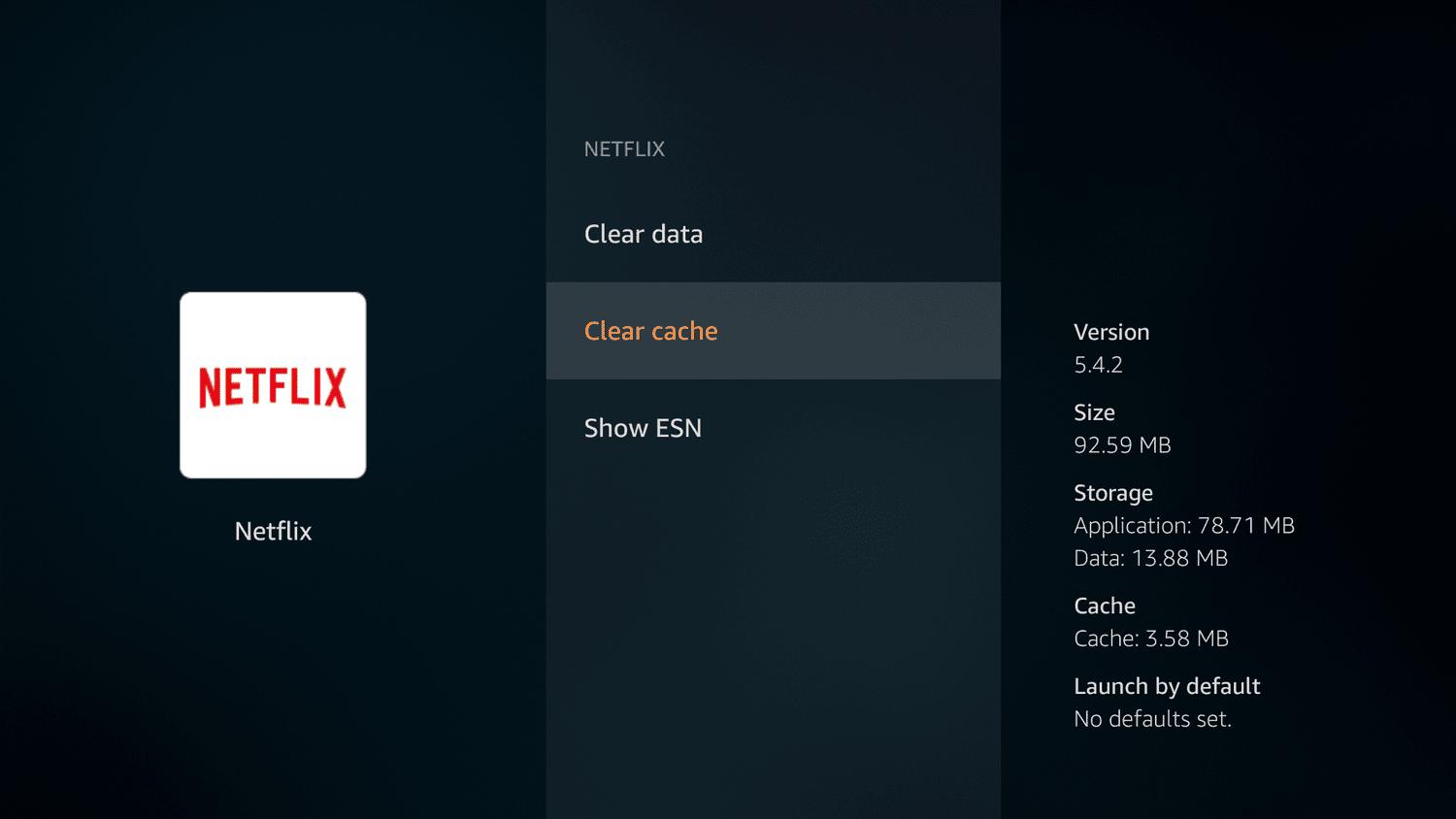
Fix 1. Clear Netflix App Cache on Samsung TV
Cached app data helps Netflix load faster, but outdated data can sometimes cause the app to freeze or fail to open. Clearing the cache can refresh the app without affecting your Netflix account.
-
01
Press the Home button on your remote and select Settings (the gear icon).
-
02
Go to Support > Device Care.
-
03
Wait for the quick scan to finish, then select Manage Storage at the bottom.
-
04
Find Netflix, select it, and click View Details.
-
05
Select Clear Cache. (If the app still won't open after this, come back and choose Clear Data, which completely resets the app).
Fix 2. Reset Samsung Smart Hub
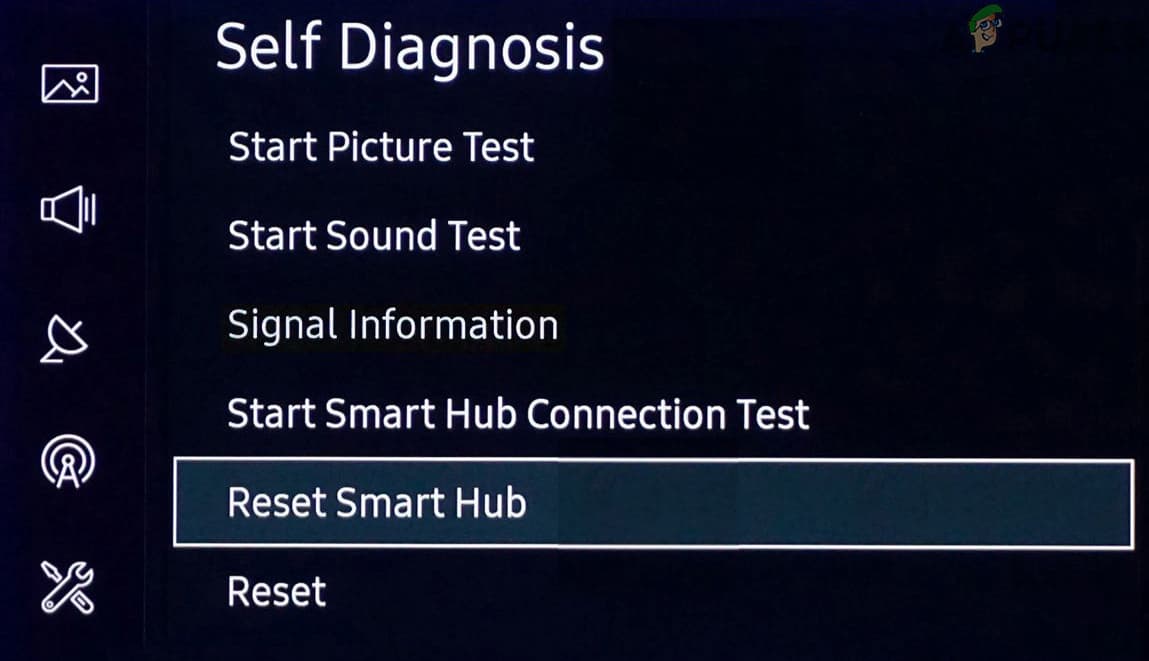
Samsung Smart Hub manages the apps installed on your TV. If Smart Hub has a problem, Netflix may fail to open, disappear from the app menu, or keep loading.
-
01
Open your TV's Settings menu.
-
02
Go to Support > Device Care > Self Diagnosis.
-
03
Scroll down and select Reset Smart Hub.
-
04
Enter your TV security PIN. If you never changed it, the default code is 0000.
-
05
Once the system restarts, go back to your apps, redownload Netflix, and log back in.

Note: Resetting Smart Hub removes installed apps, signs out of all streaming and service accounts, and removes your Samsung Account association.
Fix 3. Manually Update Samsung Tizen OS Firmware
An outdated Samsung Tizen OS can cause compatibility problems with newer Netflix app versions. Updating your TV software can fix issues where Netflix will not open or crashes during startup.
The Quick Way: Go to Settings > Support > Software Update and click Update Now. Let the TV download any available updates.
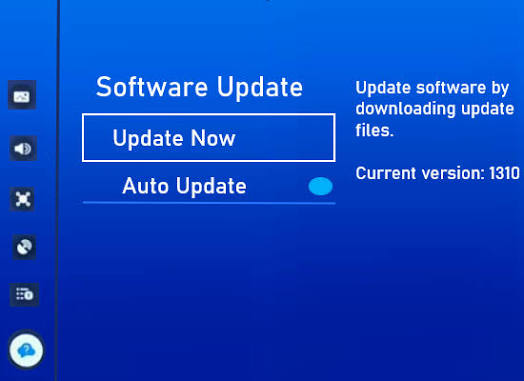
The USB Way: If your TV cannot find the update online, go to the official Samsung Support website on a computer, type in your TV model, and download the latest software file. Unzip the file and save it directly onto a USB flash drive. Plug the USB into the back of your TV, go to Settings > Support > Software Update, and click Update Now to install it.
Fix 4. Free Up Storage Space on Your Samsung TV
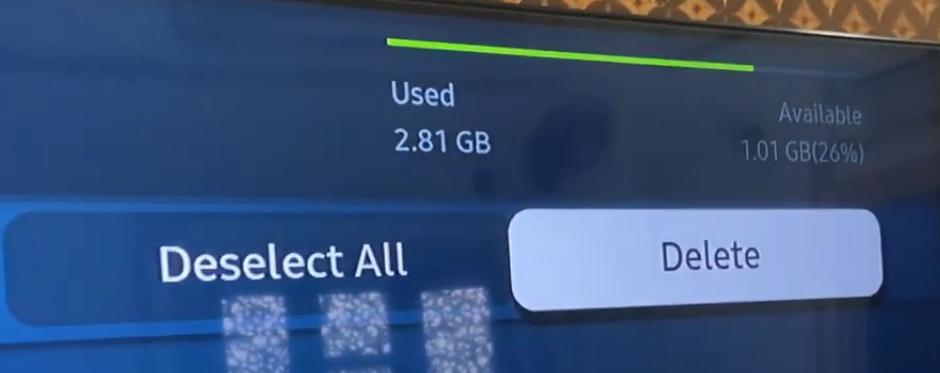
Samsung TVs have very limited built-in storage space. If you have downloaded too many other streaming apps or games, Netflix won't have enough room to run its essential background tasks, causing it to close immediately.
-
01
Go to Settings > Support > Device Care > Manage Storage.
-
02
Look at the storage bar at the top of the screen to see how much space is left.
-
03
Look through the list for any old apps or channels you no longer watch.
-
04
Select those unused apps and click Delete or Uninstall.
-
05
Try to free up at least a little bit of room so Netflix can load data smoothly.
Part 4. Fix Netflix Freezing on Samsung TV
If Netflix freezes on the profile selection screen, gets stuck while browsing menus, or keeps loading during playback, your TV may have Netflix buffering issues. This can be caused by unstable streaming data or failed profile connections. Follow these four steps to unfreeze the app and fix Netflix buffering problems.
Fix 1. Reset Your Samsung TV Network Settings
If Netflix and other streaming apps are also freezing, the problem may come from your Samsung TV's network settings rather than the Netflix app itself. To reset your Samsung TV network settings:
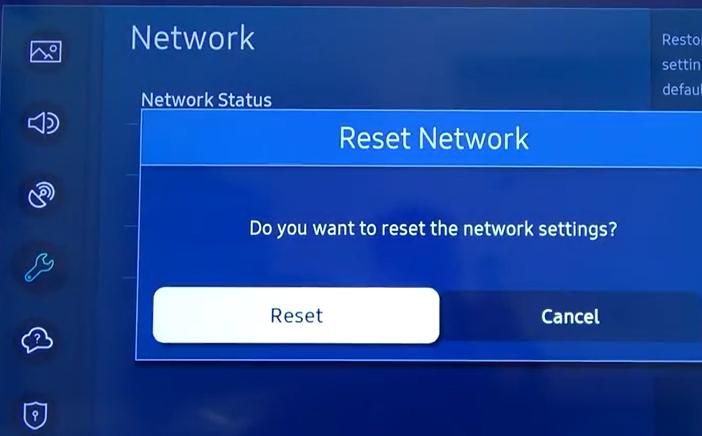
Go to Settings > General (or Connection) > Network > Reset Network and confirm. Once the reset is finished, click Network Settings to re-select your home Wi-Fi network and type in your password again.
Fix 2. Reduce Netflix Video Quality Settings
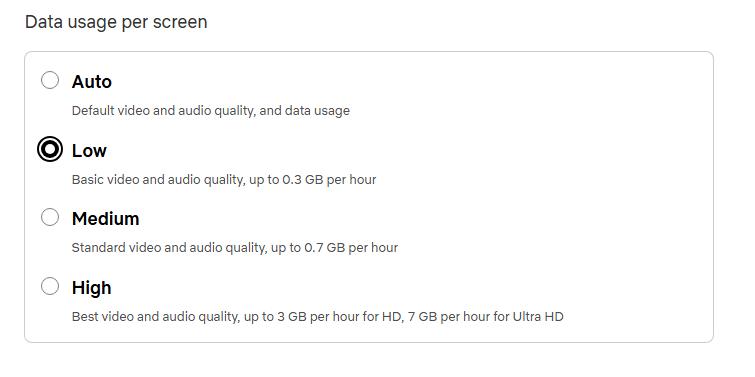
If Netflix freezes mainly during playback, your internet connection may struggle to handle higher video quality. Lowering Netflix's streaming quality can reduce buffering and make playback more stable.
-
01
Open Netflix in a web browser on your computer or phone. Sign in to your Netflix account.
-
02
Go to Account. Select your profile.
-
03
Open Playback Settings.
-
04
Choose a lower data usage option, such as Medium or Low.
-
05
Save the changes and restart Netflix on your Samsung TV.
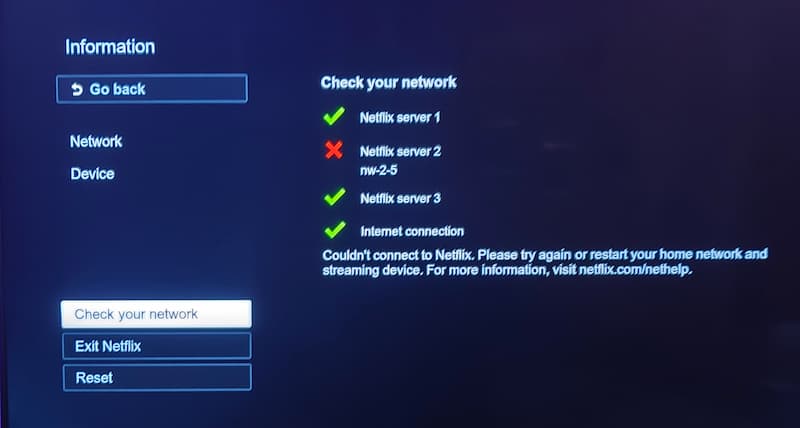
Fix 3. Run the Built-In Netflix Self-Diagnostic Connection Test
Netflix includes a built-in connection test that can help check whether your TV can properly connect to Netflix servers. This is useful when Netflix gets stuck loading or keeps buffering. To run the test:
-
01
Open the Netflix app on your Samsung TV.
-
02
Go to the left-side menu. Select Get Help. Choose Check Your Network.
-
03
Wait for Netflix to test your connection.
-
04
Follow the suggested steps if a connection problem is detected.
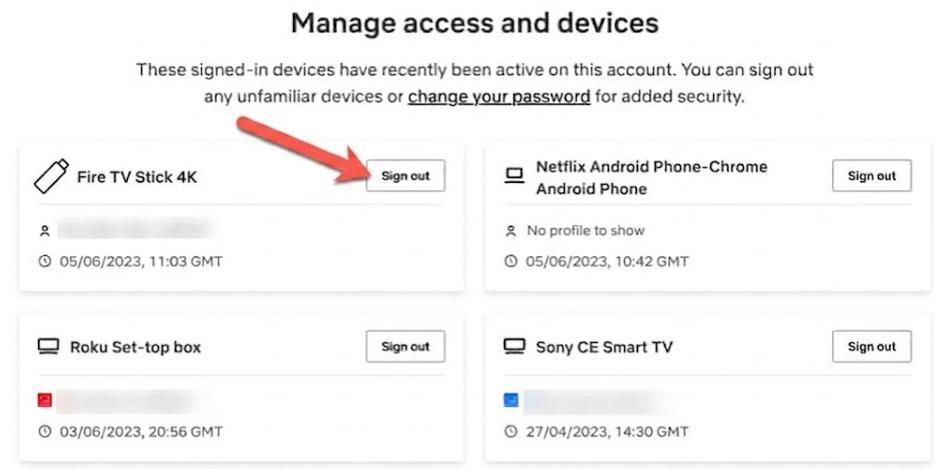
Fix 4. Remove Unused Devices From Your Netflix Account
When Netflix gets completely stuck on the profile selection screen, it often means the app is failing to validate your active device streams against your account limits. Clearing out old, stale device tokens from your account dashboard unjams frozen profile screens.
-
01
Open Netflix on a browser and sign in to your account.
-
02
Go to Account. Select Manage Access & Devices
-
03
Review the devices connected to your account.
-
04
Sign out devices you no longer use.
-
05
Open Netflix again on your Samsung TV.
Part 5. Fix Netflix Crashing After a Few Minutes of Playback
It can be incredibly frustrating when Netflix lets you open the app, pick a show, and watch normally for a few minutes, only to suddenly drop frames, lag, and crash back to the TV home screen. This issue usually happens when a setting on your TV creates a conflict while the video is playing, or when the TV's system loses track of the video stream's data path.
Follow these five targeted solutions to stop mid-playback crashes and keep your movies running smoothly.
Fix 1. Test Netflix With Another User Profile
Testing another profile can help you determine whether your account data is causing Netflix to crash during playback. To test another profile:
-
01
Open the Netflix app on your Samsung TV. Return to the profile selection screen.
-
02
Select a different profile.
-
03
Play the same movie or show.
-
04
Check whether Netflix still crashes after a few minutes.
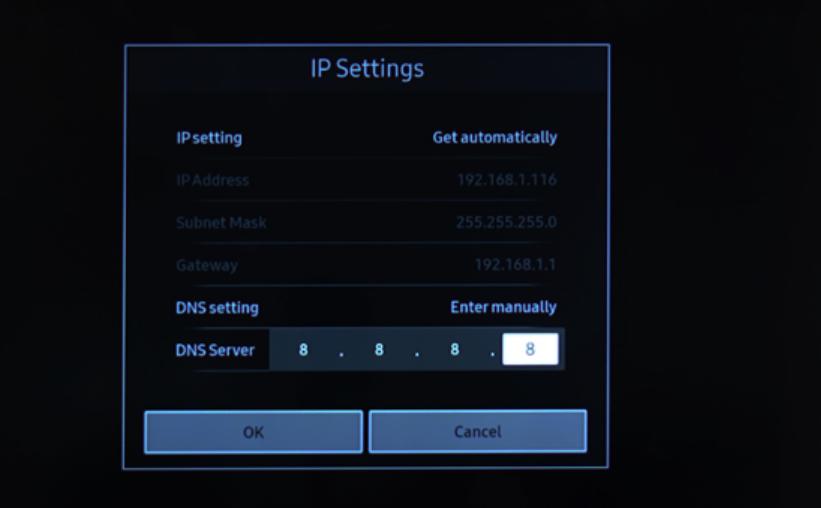
Fix 2. Change Samsung TV DNS Settings
When a video stream crashes a few minutes into playback, it often means your internet provider's default DNS server failed to maintain a stable connection with Netflix's video delivery servers. Using a stable global DNS server prevents these mid-stream timeouts.
-
01
Go to Settings > General > Network.
-
02
Select Network Status, let the quick check run, and then click IP Settings.
-
03
Scroll down to DNS Setting and change it from Get Automatically to Enter Manually.
-
04
Select DNS Server, type in 8.8.8.8, and click OK. Try running Netflix again to see if the playback stabilizes.
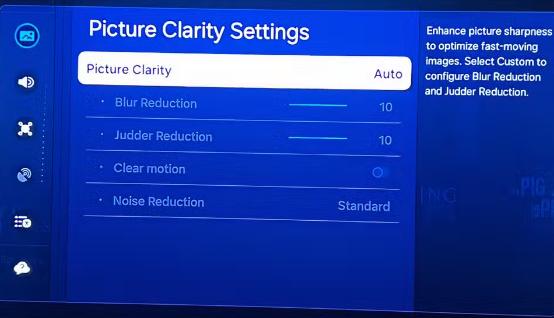
Fix 3. Disable Samsung TV Motion Settings
Samsung's built-in motion smoothing features (like Auto Motion Plus or Picture Clarity) try to artificially add frames to make video playback look smoother. However, processing heavy Netflix 4K or HDR video streams while simultaneously running intense motion smoothing algorithms can overload the TV's processor, causing the app to crash entirely.
-
01
Go to Settings > Picture > Expert Settings (or Clarity Settings).
-
02
Find Picture Clarity Settings or Auto Motion Plus.
-
03
Turn the feature Off.
-
04
Restart Netflix and test playback again.
Fix 4. Turn Off Anynet+ (HDMI-CEC) Temporarily
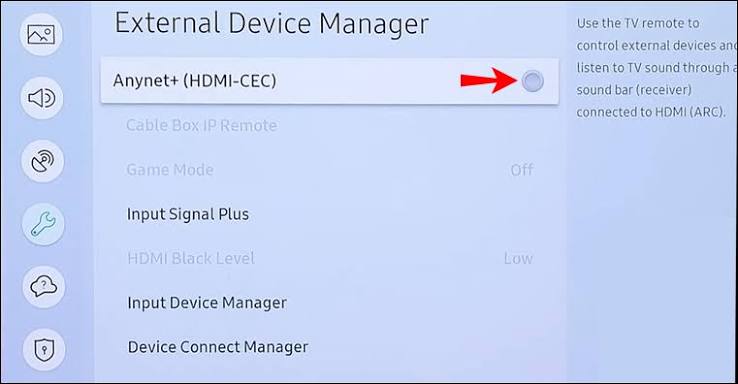
If you have a soundbar, gaming console, or streaming stick plugged into your TV's HDMI ports, Samsung's "Anynet+" feature allows them to share remote control commands. Unfortunately, background signals from these external devices can interrupt the TV's system during video playback, tricking the Netflix app into closing itself.
-
01
Go to Settings > General > External Device Manager > Anynet+ (HDMI-CEC).
-
02
Turn it Off.
-
03
Restart Netflix and check if the crashing issue continues.
Fix 5. Perform a Samsung TV Factory Reset
If Netflix still crashes after trying all other solutions, a factory reset can remove deeper software problems and restore your Samsung TV to its original settings. Before resetting, make sure you remember your Wi-Fi password and app login details.
-
01
Go to Settings > General > Reset. (On some models, this is located under Settings > Support > Self Diagnosis > Reset).
-
02
Enter your TV security PIN (the factory master default is 0000 if you never changed it).
-
03
Select Yes to confirm the factory reset. Your TV will turn off and turn back on as if it were brand new out of the box. Set up your Wi-Fi, install Netflix fresh, and log back into your account.
Part 6. Fix Netflix Dimming and Black Screen on Samsung TV
Netflix dimming and black screen issues on Samsung TV usually happen because of display settings, HDR playback, or connection problems with external devices. I have tried these fixes, and most of these issues can be solved.
Fix 1. Adjust Samsung TV Picture Mode Settings
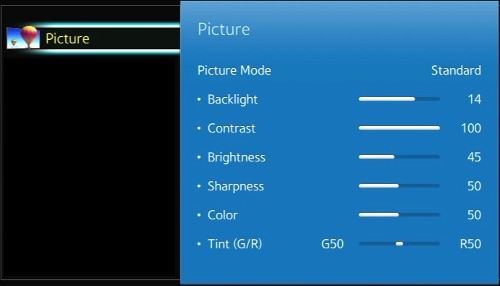
Samsung TV picture settings can affect how Netflix content looks. If the screen becomes too dark or the brightness changes during playback, switching to a different picture mode may help.
-
01
Go to Settings > Picture > Picture Mode.
-
02
Switch from Movie Mode or Filmmaker Mode to another option, such as Standard.
-
03
You can also manually adjust settings such as Brightness, Contrast, and Shadow Detail under Expert Settings if needed.
-
04
Open Netflix and check whether the brightness issue is fixed.
Fix 2. Downgrade Your Netflix Plan
If Netflix content appears unusually dark, your subscription plan may affect whether HDR content is available. Lower-tier Netflix plans to Standard plans may not include HDR playback, which can sometimes avoid HDR-related brightness issues on certain Samsung TVs.
Fix 3. Perform a Cold HDMI Power Cycle
If you are getting a completely black screen on Netflix with audio, your TV is failing a hardware security check called HDCP (High-bandwidth Digital Content Protection). This copy-protection protocol can easily glitch and lock out your video display. A cold hardware reset clears out this digital block.
-
01
Turn off your Samsung TV and the connected streaming device.
-
02
Unplug both devices from the power outlet.
-
03
Disconnect the HDMI cable from the TV. Wait for about 60 seconds. Reconnect the HDMI cable. Plug both devices back in.
-
04
Turn on your TV and open Netflix again.
Part 7. What If Netflix Still Does Not Work on Samsung TV?
If you have tried all the fixes above but Netflix is still not working on Samsung TV, the problem may be related to device compatibility. As discussed earlier, older Samsung TVs (especially those made before 2015) can no longer handle the latest Netflix app.
Instead of replacing an otherwise perfectly functional television screen, you can use these three highly effective workarounds to get your favorite shows back.
Option 1. Plug in an External Streaming Media Device
By plugging a cheap, dedicated streaming device into one of your TV's open HDMI ports, you offload all the processing power to a modern gadget that is guaranteed to support the latest Netflix updates.
- Budget Options: Devices like the Amazon Fire TV Stick or Roku Express plug directly into the back of your TV, cost very little, and take less than five minutes to set up.
- Gaming Hardware: If you already have an active console hooked up to your living room entertainment center, you can easily use it as your main streaming hub.
Option 2. Use VidiFab Streaming Video Downloader for Offline Playback
If you don't want to buy a streaming device or a brand new TV, you can use VidiFab Streaming Video Downloader to get any Netflix videos playing on your Samsung TV without issues. This method works for almost any type of Samsung TV. VidiFab allows you to download Netflix videos to your computer in MP4 or MKV format. After downloading, you can transfer the videos to a USB drive to play them on your Samsung TV.
VidiFab Streaming Video Downloader
Download videos from streaming platforms like Netflix as MP4/MKV in 1080p with Dolby Atmos for offline viewing on your iPhone, Android, desktop, and other devices.

How to Watch Netflix on Samsung TV Without the Netflix App
Step 1. Set MP4 or MKV as the Output Format
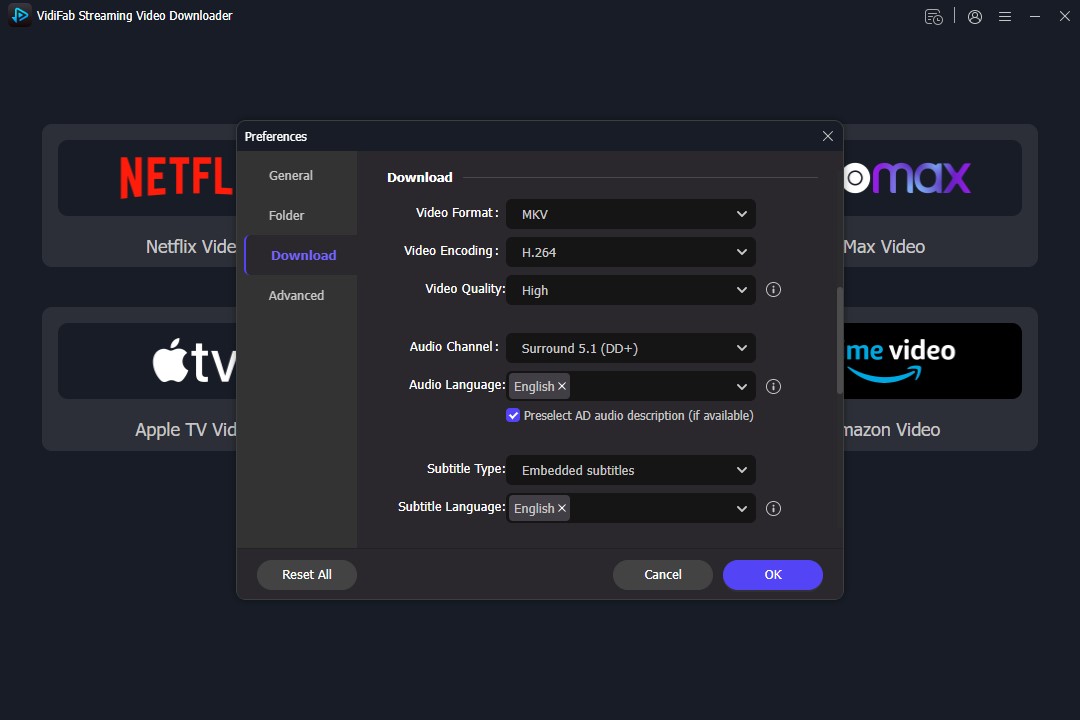
Install and open VidiFab Streaming Video Downloader. Click the menu icon in the top-right corner and open Preferences. In the download settings, choose MP4 or MKV as the output format. You can also select the video quality (up to 1080p), H.264 codec, and download folder.
After saving the settings, select Netflix from the supported streaming platforms and sign in to your Netflix account through the built-in browser.
Step 2. Find the Netflix Movie or Show You Want to Watch
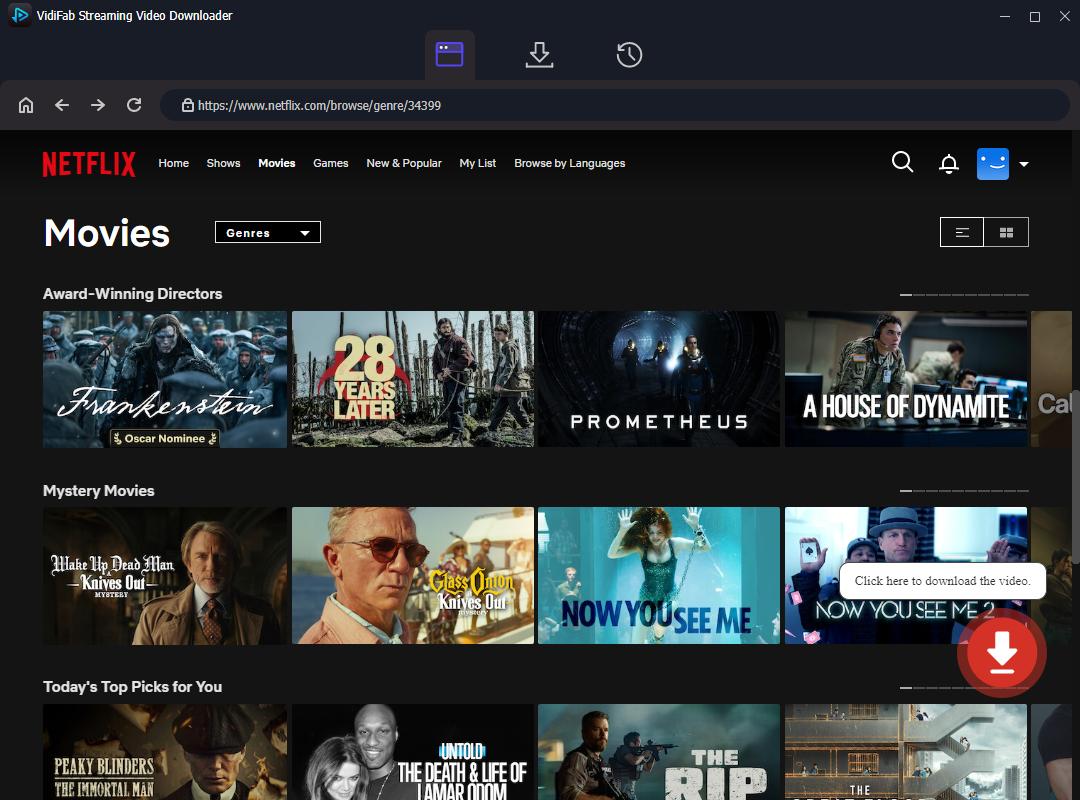
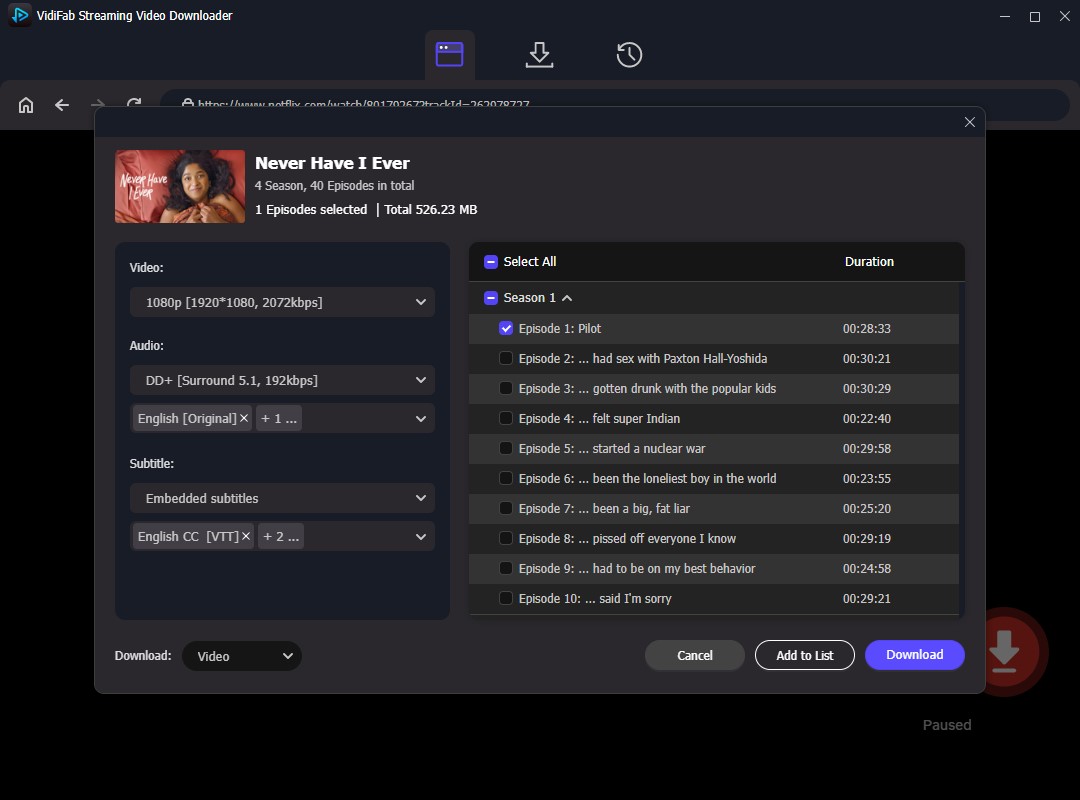
Use the built-in Netflix browser in VidiFab to search for the movie or TV show you want to save. You can browse Netflix normally or paste the video link into the search bar. Once VidiFab detects the video, click the Download button to open the download settings.
Step 3. Choose Video Quality, Audio, and Subtitle Options
Before downloading, customize the playback settings based on how you plan to watch the video on your Samsung TV. You can select:
- Resolution: Up to 1080p
- Audio tracks: Available languages
- Audio quality: 5.1 surround sound or Dolby Atmos (if available)
- Subtitles: Selectable subtitle languages; Embedded or SRT file.
After adjusting the settings, click Download to start saving the video.
Step 4. Transfer the Video to a USB Drive
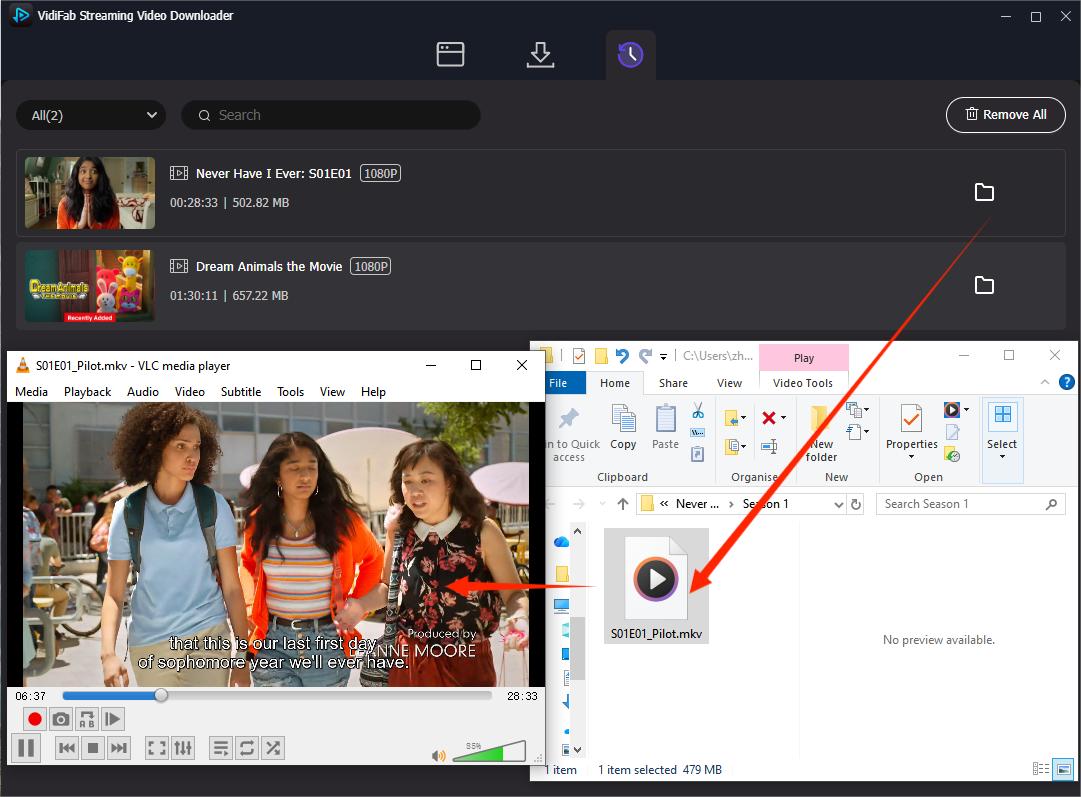
After the download finishes, open the History tab and click the folder icon to locate the saved video file. You can then copy the MP4/MKV file to a USB drive.
Step 5. Play the Downloaded Netflix Video on Samsung TV
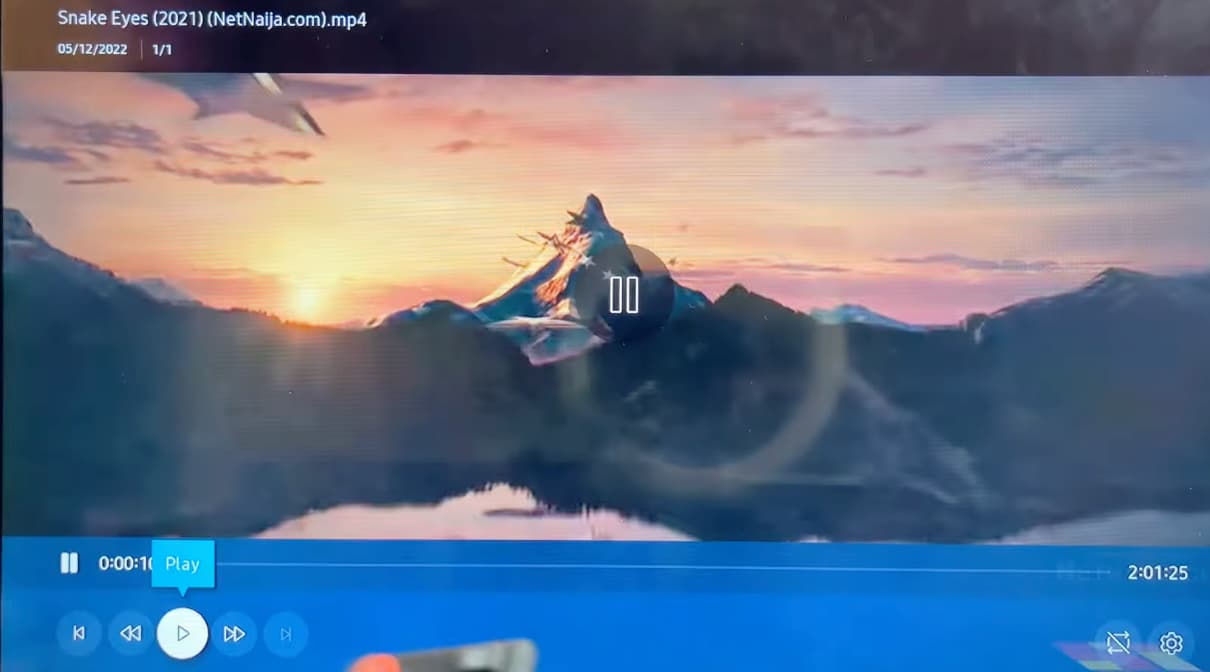
Connect your USB drive or playback device to your Samsung TV. Grab your TV remote, press the Source or Home button, select your USB Drive, and click on the video file to instantly enjoy smooth, crash-free playback.
Option 3. Contact Samsung Support
If your Samsung TV is a brand-new model and you feel the problem is a deep hardware defect, it is time to contact the professionals.
- Gather your television's exact Model Number and Serial Number (usually found on a white sticker on the back of the TV chassis or under Settings > Support > About This TV).
- Reach out to Samsung Support through their official website chat, or call their toll-free hotline to request a remote diagnostic session.
- If your TV is still covered under its manufacturer's warranty, ask the support agent to set up an in-home technician visit to test or replace the internal mainboard.
Part 8. Netflix Not Working on Samsung TV FAQs
How Do I Know If My Samsung TV Supports Netflix?
Go to Settings > Support > About This TV. Check the Model Code. Search your model on Samsung's support website or check whether the Netflix app is available in the Apps section. Normally, if your TV is manufactured in 2015 or before, the Netflix app won't be able to run on this TV.
Why Is Netflix Not Showing Up on My Samsung TV?
The app will not show up if your Smart Hub region is set incorrectly or if your TV's software is completely outdated. To fix this, update your TV firmware via your system settings, search for "Netflix" inside the built-in Samsung App Store, and download it back onto your home screen bar.
Can I Install an Older Netflix Version on Samsung TV?
No. Samsung Smart TVs do not allow users to manually install older Netflix app versions.
What does Netflix error code NW-2-5 mean on a Samsung Smart TV?
Error code NW-2-5 indicates a total network connectivity drop between your television and the Netflix servers. It means your TV is connected to your local Wi-Fi router, but the router itself is failing to send data back and forth to Netflix. You can refer to this Netflix Error Code NW-2-5 Troubleshooting Guide.
Part 9. Final Takeaways
Fixing Netflix on your Samsung TV usually comes down to simple maintenance. Start with a 60-second power cycle or clear the app cache to resolve most sudden freezes and black screens. If your older TV model has officially lost system compatibility, do not throw it away. Offload the processing by switching to an external Fire Stick, or use VidiFab to download your favorite videos onto a USB drive for flawless, offline playback.
 Free Download
 Secure Download
 Free Download
Secure Download
Free Download
Secure Download
I write about streaming services, video playback, and digital media management. My articles cover practical ways to convert video files, troubleshoot playback issues, and manage digital content across devices. I aim to make technical topics easier to understand and help readers find practical solutions to common challenges.
 Leave Your Comment