How to Get Netflix on a Non Smart TV
 By Miles Kent
Guys, I need to stream Netflix and YouTube on a non-smart TV. What options do I have on a limited budget? I need some recommendations from people who are using such devices.
This is a common question for people who still use older TVs but want access to modern streaming services. A non-smart TV is a regular TV without built-in internet access or streaming apps. So, can you get Netflix on a non-smart TV? Yes.
This guide will show you five ways to get Netflix on a non-smart TV, including ways to stream Netflix without downloading the app. In Part 3, I'll also present the best affordable methods that fit different scenarios.
- Have some budget? A streaming stick or box is the easiest solution.
- Want a cheaper option? Use a laptop with HDMI or save videos with VidiFab Streaming Video Downloader for offline playback without TV internet.
- Casting warning: Netflix blocked phone casting on newer devices; older Chromecasts require ad-free plans.
Part 1. What You Need Before Watching Netflix on a Non Smart TV
To watch Netflix on a non-smart TV, your TV needs an HDMI or USB port. Over 95% of regular TVs built after 2005 have these slots. You also need a Netflix subscription and a playback tool. This tool can be an internet streaming device or a simple USB drive loaded with offline video files.
Here's what you need:
- TV Ports: A rectangular HDMI input or a standard USB port on your TV panel. If your old TV lacks HDMI, you can use an HDMI-to-VGA or HDMI-to-RCA adapter to plug in streaming devices.
- Media Tool: A streaming device like a Roku stick, or a standard USB flash drive.
- Netflix Subscription: An active subscription to access and watch your favorite shows.
- Internet (Optional): Needed for streaming sticks, but not needed at all if you use a USB drive.
Part 2. How to Get Netflix on a Non-Smart TV: 5 Ways
You can get Netflix on a non-smart TV by using a streaming device, a computer with an HDMI connection, a game console, or an offline playback method. Even if your TV cannot install Netflix apps, you can still enjoy Netflix content with the right setup.
Method 1. Connect a Streaming Stick or Box to Your TV
Using a streaming stick or streaming TV box is the easiest way to add Netflix to a non-smart TV. These devices connect to your TV through an HDMI port and use your Wi-Fi connection to access streaming apps like Netflix. They work as an external smart system, allowing your regular TV to stream movies and shows without built-in smart features.
- Amazon Fire TV Stick: Around $35. A budget-friendly choice with Netflix support and a simple remote.
- Roku Express / Roku Streaming Stick 4K: Around $40–$50. Easy to use and supports many streaming services.
- Google Chromecast with Google TV (HD/4K): Around $100. A more powerful option with better performance and storage.
- Android TV Box: Usually around $30–$200. Many models support Netflix and other Android apps.
- Apple TV 4K: Around $130–$350. A premium choice for users who want to watch Netflix in 4K on Apple TV.
Steps to Watch Netflix Using a Streaming Device
-
01
Insert your chosen streaming stick directly into an open HDMI port on the back or side of your TV.
-
02
Attach the included power cable to the stick. Plug the other end into a wall outlet. If your device supports USB power, you can also connect it to a USB port on your TV, but a wall outlet is usually more reliable and helps prevent unexpected shutdowns.
-
03
Turn on your TV and use your original TV remote to switch the input or source to the matching HDMI channel (for example, HDMI 1).
-
04
Use the new streaming stick's remote to follow the prompts. Connect to your home Wi-Fi network and let the device download updates.
-
05
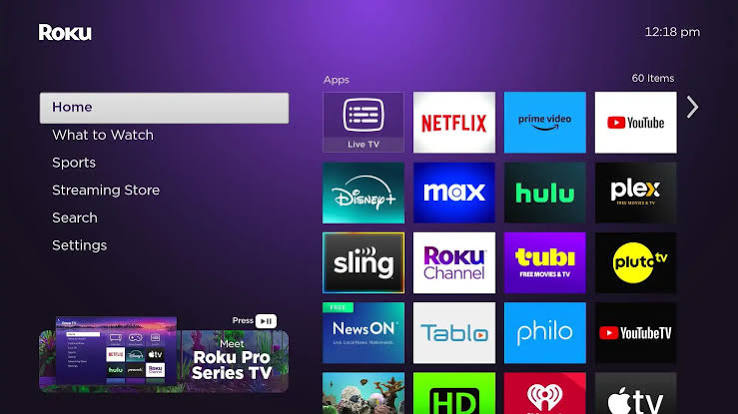
Open the pre-installed Netflix application, enter your account login details, and start watching.
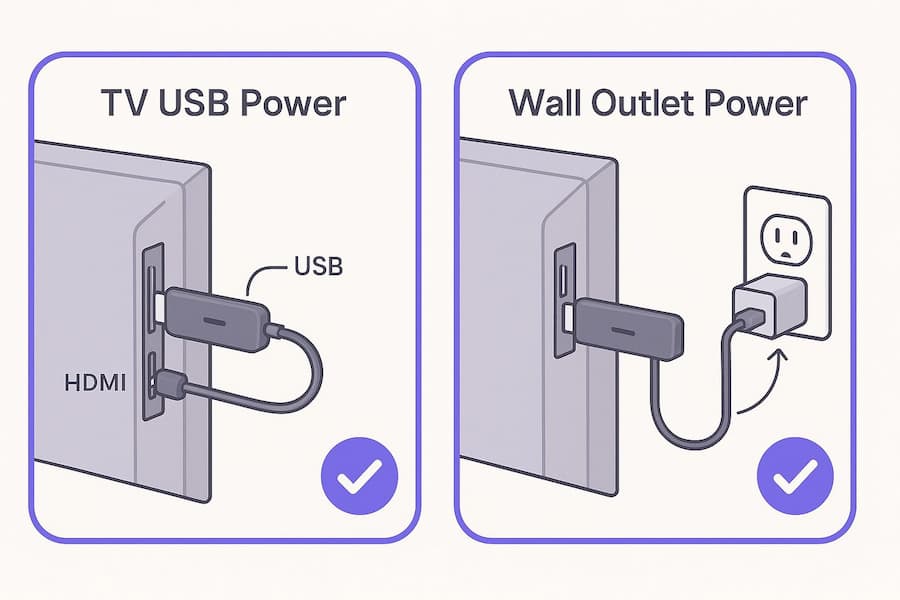

Insider Pro-Tip: If your wall-mounted TV has HDMI ports facing the wall, a stiff streaming stick might not fit. Do not force it. Instead, buy a $5 flexible HDMI extension cable. This short cord lets the streaming stick hang safely below the TV, which also improves its Wi-Fi signal reception.
Pros:
- Supports Netflix and many other streaming services
- More affordable than buying a new smart TV
- Quick setup that usually takes only a few minutes
- No need to drain your smartphone or laptop battery
- Runs the official Netflix app with ad-supported and premium 4K plan support
Cons:
- Requires a stable internet connection
- Most devices require an HDMI port on your TV
- May not work in regions with strict network firewalls or internet restrictions
Method 2. Cast Netflix with an Older Generation Chromecast
According to the Netflix Help Center, if you have an older Google Chromecast (Generation 1, 2, 3, or Ultra) that does not come with a physical remote control, you can use your smartphone as the main control center.
However, Netflix casting support has become more limited. To cast Netflix from your phone to an older Chromecast, you need an ad-free Standard or Premium plan. Users with an ad-supported plan may not be able to use this feature.
Steps to Cast Netflix from Phone to a Non-Smart TV
To begin, buy a Google Chromecast generation 3 or earlier for about $30. Then follow these steps:
-
01
Plug the older Chromecast puck directly into your television's open HDMI slot.
-
02
Connect the USB power cable to a wall outlet adapter so the device stays fully powered.
-
03
Make sure your phone and Chromecast are connected to the same Wi-Fi network.
-
04
Open the Netflix app on your phone and sign in.
-
05
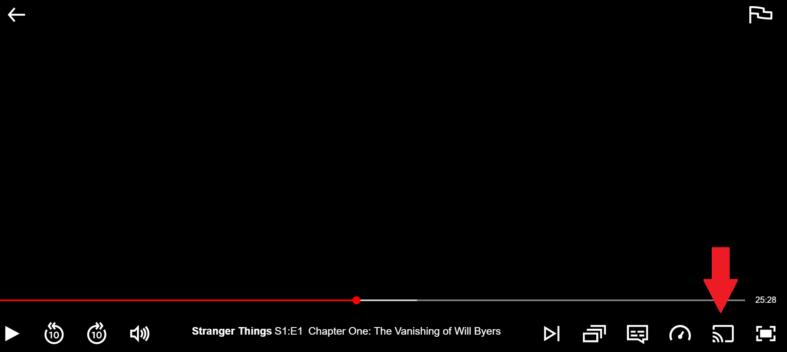
Tap the rectangular Cast icon in the top right corner, and select your device.
-
06
Choose a movie or show, then start watching on your TV.
The Real-World Bug: Why It Fails on Modern iPhones
I tested an iPhone 16 with iOS 26.1 using an ad-free Standard Netflix plan. However, casting failed and showed error code E100, which links to the TVQ-PB-101 error family. The message below the code said, "Please use the Netflix app on your TV." This means Netflix could not run correctly on the connected device. So, even with a supported plan, older Chromecast models might still have compatibility issues.
Pros:
- No need to replace your old TV with a new smart TV
- Easy control through your smartphone
- Works with many older TVs that have an HDMI port
- A convenient choice if you already own a Chromecast device
Cons:
- Not available for Netflix ad-supported plans
- Using your phone as a controller may drain battery faster
- The cast icon may be missing in newer Netflix app versions
- Older Chromecast models may not support Netflix live sports streaming
Method 3. Connect Your Laptop via HDMI Cable
Connecting a laptop to your TV with an HDMI cable is one of the cheapest ways to watch Netflix on a non-smart TV. If you already own a laptop, you only need an HDMI cable, which usually costs around $5 to $15. Your laptop runs Netflix, while your TV works as a larger display.
Steps to Watch Netflix on TV Using Laptop HDMI
-
01
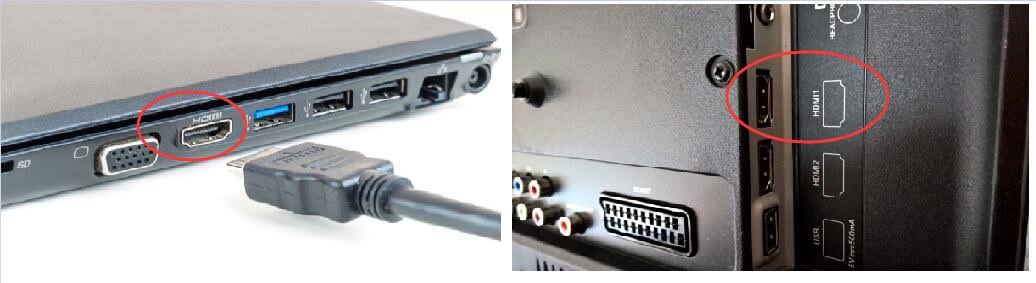
Plug one end of the HDMI cable into your laptop's video output port. Use an adapter if your laptop only has Type-C ports.
-
02
Connect the other end of the cable to an available HDMI input port on your non-smart TV.
-
03
Turn on your TV and use the remote to change the input source to the port you used (for example, HDMI 2). Your laptop screen should now appear on the TV.
-
04
Adjust your screen settings:
- Windows: Press Windows
Key + P. Choose "Duplicate" to mirror your screen, or "Extend" to use the TV as a second display. - Mac: Open System Settings, click on Displays, and select to mirror your built-in display. Then go to System Settings, Sound, Output and choose your connected TV for audio.
-
05
Open a web browser on your laptop, go to the official Netflix website, sign in, and click play.
Pros:
- No app glitches or compatibility issues
- Works with most Netflix subscription plans and TVs with an HDMI port
- No extra streaming device is required
- Allows you to use your laptop for other streaming websites
Cons:
- Requires a laptop or computer nearby
- An HDMI cable limits your setup distance
- Laptop battery may drain during long viewing sessions
- Some older laptops or TVs may have connection issues
- Browser playback is limited to 720p resolution
Method 4. Play Netflix on Your TV via a USB (Offline Option)
If you do not want to buy streaming devices, or you get locked out by Netflix's new phone-casting bans, VidiFab offers you another option.
This method lets you save Netflix videos on your computer. You can then transfer them to a USB drive and play them on a compatible TV without needing the internet. If your TV cannot play videos directly from a USB, connect your computer to the TV using an HDMI cable. You can then watch Netflix offline in 1080p on your TV screen without interruptions from the app or the internet.
VidiFab Streaming Video Downloader supports multiple streaming platforms, including Netflix, Amazon Prime Video, Disney+, Apple TV+, Hulu, HBO Max, and more. This means you can prepare videos from different services without switching between multiple streaming devices or upgrading your old TV.
VidiFab Streaming Video Downloader
Download Netflix videos as MP4/MKV in 1080p with Dolby Atmos for offline viewing on your iPhone, Android, desktop, and more devices.

VidiFab is not free, but it offers a trial that allows you to download the first 3 minutes of each video. You can see if this offline playback method works for you before selecting a monthly, yearly, or lifetime plan, starting at $59.95.
Steps to Watch Netflix Videos on TV Using a USB Drive
Step 1. Install VidiFab and Set the Output Format
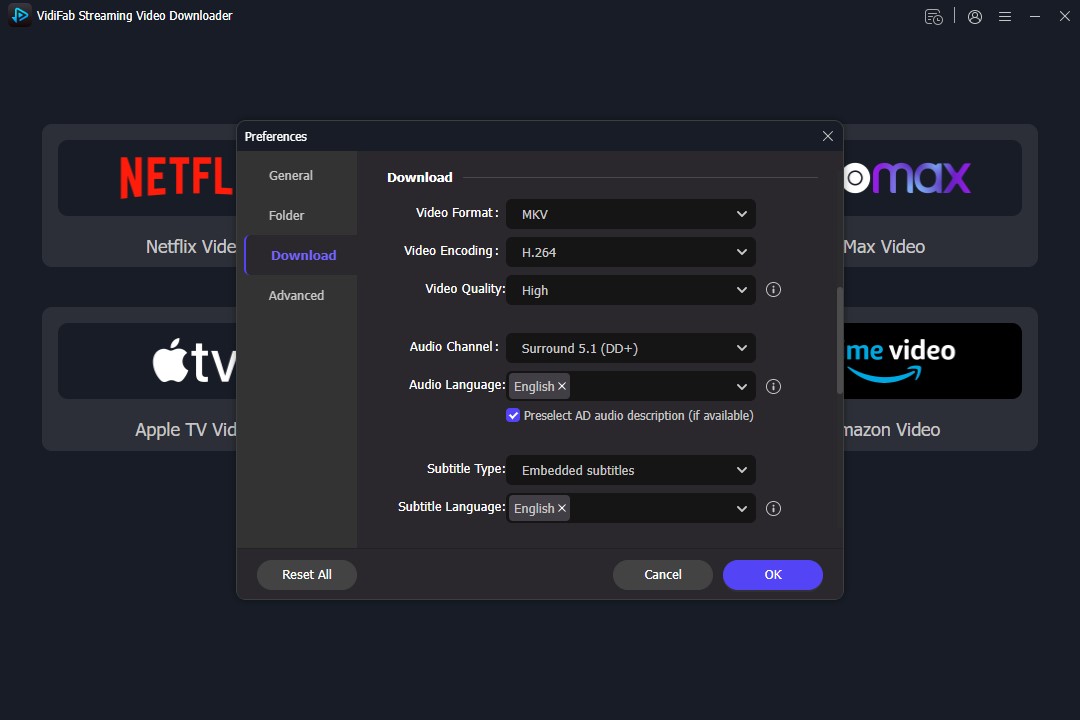
Open VidiFab Streaming Video Downloader on your computer. Go to settings and select MP4 with H.264 for the output format. This format is compatible with TVs and USB playback. Click the Netflix icon and log in to your account using the built-in browser.
Step 2. Search for Your Favorite Video
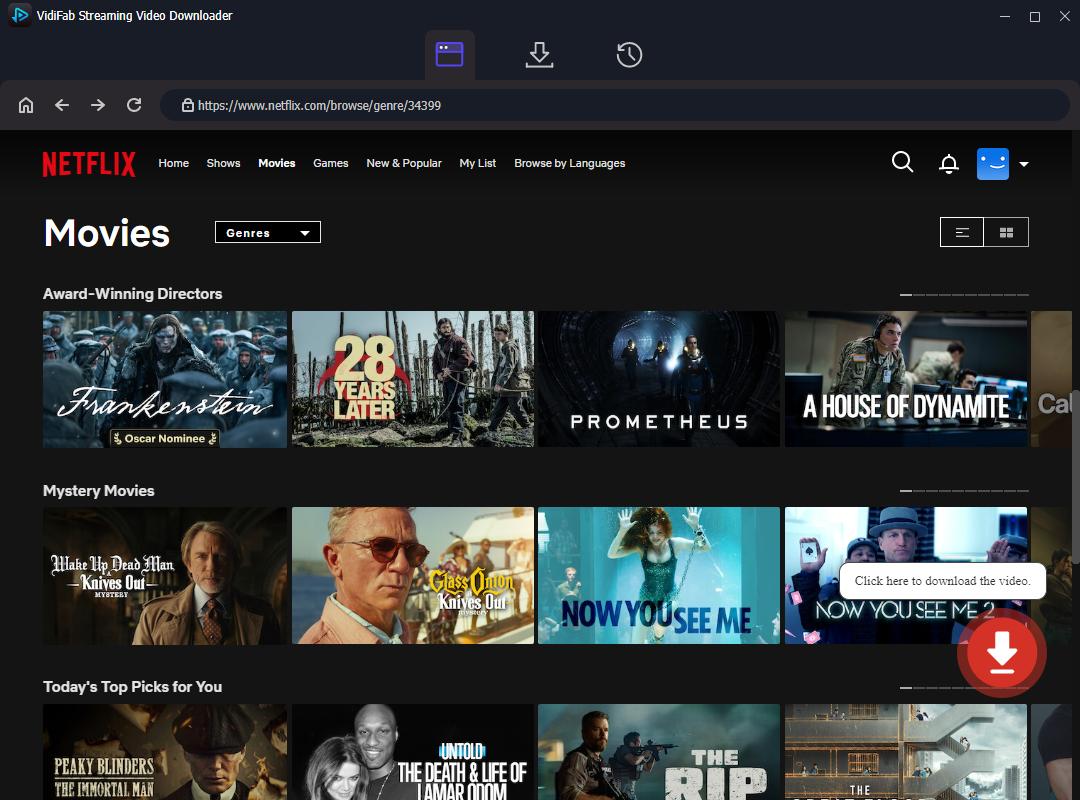
Use the built-in browser to browse the Netflix library. Open the video's detail page. VidiFab will analyze the stream and show a Download button in the bottom-right corner. Click it to choose your quality options.
Step 3. Customize 1080p Resolution and TV Subtitles
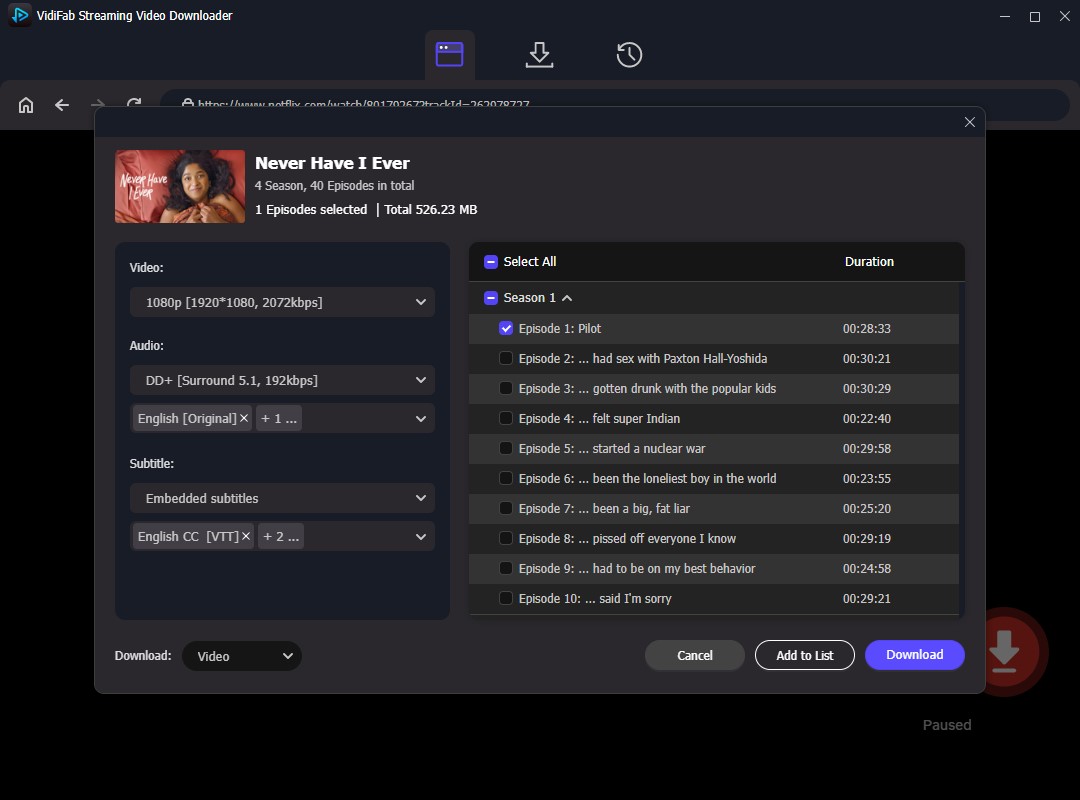
In the pop-up window, select 1080p resolution for high-quality visuals. Choose standard AAC Stereo audio for clear sound on your TV. Set subtitles to Embedded format in your preferred language for proper display.
Step 4. Download and Export the Netflix Video Files
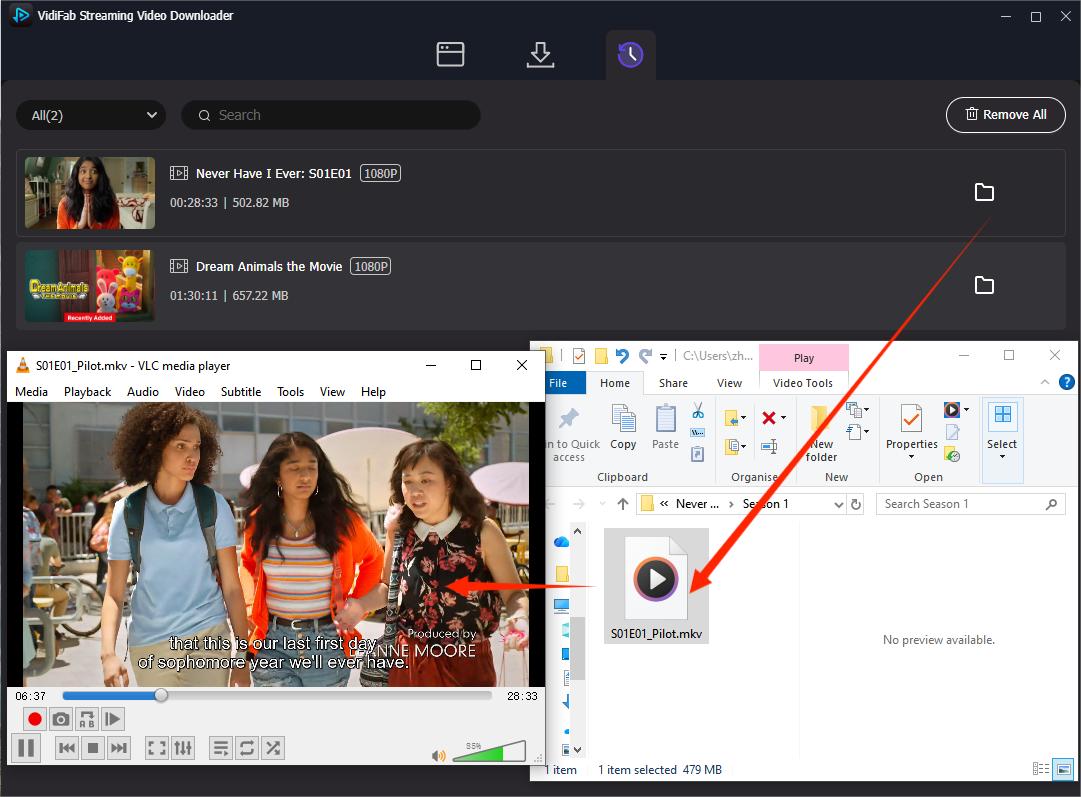
Click the Download button. VidiFab will save the video file to your computer. Once done, go to the History tab and click the folder icon next to your video to find the MP4 file. Now you can transfer the downloaded Netflix videos to a USB flash drive.
Step 5. Transfer the Video to a USB Drive and Play It on Your TV
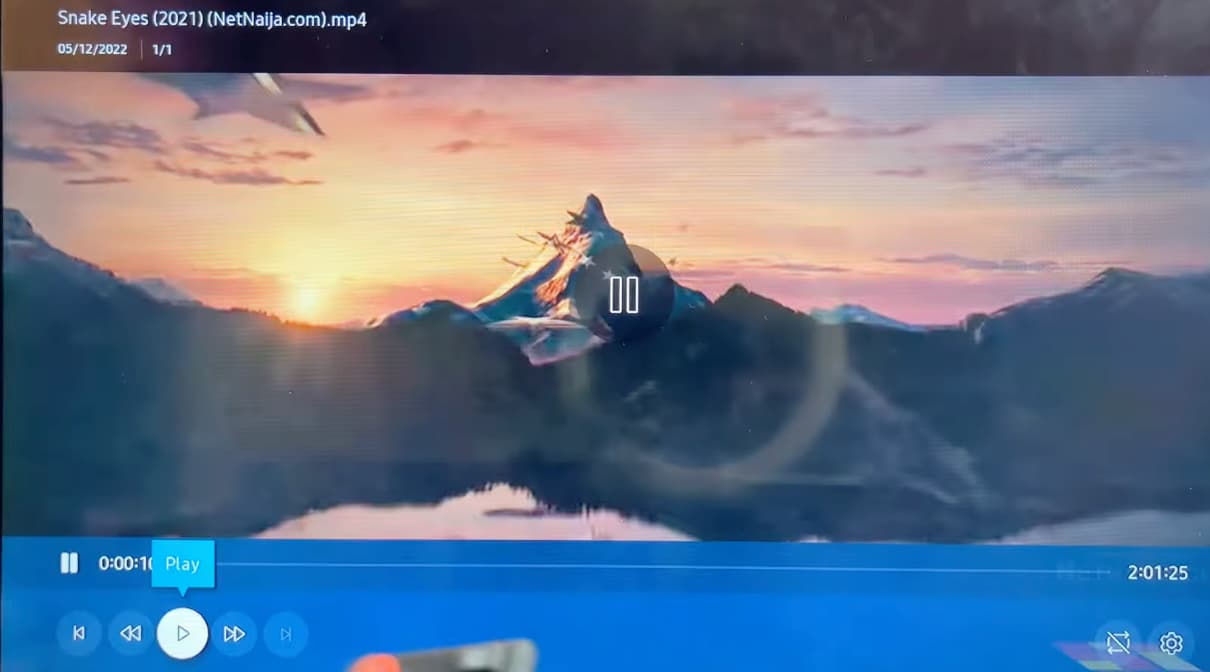
Insert your USB flash drive into your computer. Drag and drop the downloaded 1080p MP4 files onto the flash drive. Safely eject the USB drive, then plug it into the USB port on your non-smart TV. Open the TV's media player, select the video file, and start watching. If your TV does not have a media player, use an HDMI cable to connect your laptop to the TV for display.

Pros:
- Provides ad-free playback for all Netflix plans
- Supports 1080p Full HD downloads
- Avoids Netflix buffering and playback issues on TV
- Allows offline viewing without relying on casting or streaming devices
- Works with most TVs that have a USB port
Cons:
- Requires a computer and USB drive
- Video playback depends on your TV's built-in media player
Method 5. Hook Up a Video Game Console
A video game console can turn a regular TV into a Netflix streaming device without buying a separate streaming stick. If you already own a PlayStation or Xbox, you can use it to access Netflix through the console's app store. This method requires an HDMI connection and an internet connection, but it is a convenient option for gamers.
- PlayStation 5: Around $599. Supports Netflix streaming in 4K UHD and HDR for a high-quality viewing experience.
- PlayStation 4: Approximately $300 when available new. The PS4 Pro supports Netflix streaming in 4K UHD, while the standard PS4 is limited to 1080p.
- Xbox Series X/S: Around $399–$599. Supports Netflix and other popular streaming apps with smooth playback.
- Xbox One: An older console option that still supports Netflix streaming.
Steps to Watch Netflix on a Non-Smart TV Using a Game Console
-
01
Link your gaming console to an available HDMI input port on your non-smart TV using a standard high-speed HDMI cable.
-
02
Turn on both your television and the gaming console. Switch your TV's input source to the correct HDMI channel using your original TV remote.
-
03
Navigate to the App Store:
- PlayStation: Go to the home screen, select the Media tab, and enter the PlayStation Store.
- Xbox: Scroll to the Microsoft Store from the main dashboard and open the Apps section.
-
04
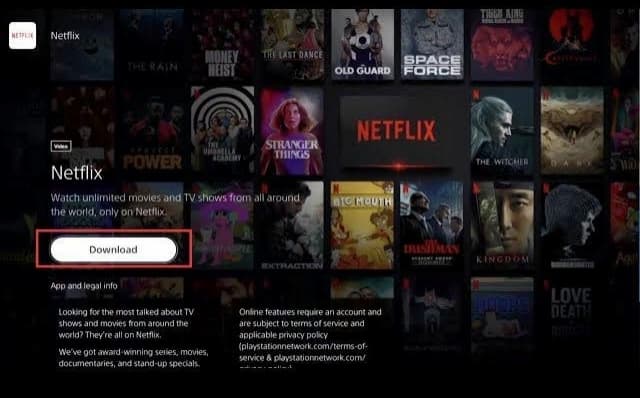
Search for "Netflix," click download, and wait a few moments for the console to install the application.
-
05
Open the app, sign in with your account details, and use your gaming controller's thumbsticks and buttons to navigate the media library.
Pros:
- Free if you already own a game console
- Supports high-definition and 4K Netflix streaming
- Provides a stable HDMI connection
- Supports other entertainment apps besides Netflix
Cons:
- Requires a gaming console, which can be expensive if you do not already own one
- Requires a stable internet connection
- Typing movie titles with a game controller can be inconvenient
- Older consoles may have limited streaming features
Part 3. Which Is the Cheapest Way to Get Netflix on a Non Smart TV?
The cheapest way to get Netflix on a non-smart TV depends on the devices you already own. If you have a laptop, an HDMI cable is usually the most cost-effective option. For a simple long-term solution, an affordable streaming stick offers the best balance between price and convenience. For users who want to watch Netflix without internet access on their TV, VidiFab provides an offline playback solution.
The breakdown below outlines the estimated costs of each method, so you can choose the most economical setup for your living room.
Cost Comparison: Ways to Get Netflix on an Old TV
| Playback Method | Upfront Hardware Cost | Ongoing Monthly Cost | Hidden Costs / Requirements | Best For |
|---|---|---|---|---|
| Method 1: Budget Streaming Stick | $30 to $120 | Standard Netflix Subscription | Requires a strong home Wi-Fi signal. | Users who want a traditional TV remote experience |
| Method 2: Legacy Chromecast | $10 to $30 | Must be Ad-Free Plan | Phone battery drain; fails on cheaper ad plans. | Users who want to reuse old hardware on premium plans. |
| Method 3: Laptop HDMI Link | $0 (If laptop is owned) | Standard Netflix Subscription | Limited by a physical cable; browser resolution caps. | Quick, zero-cost setups using a computer you already have. |
| Method 4: VidiFab Offline USB | $59.95 | Does not need Netflix subscription once the video is downloaded | Requires a laptop to download files first. | Dead zones, weak Wi-Fi, or saving money on ad plans. |
| Method 5: Gaming Console | $300 to $600 | Standard Netflix Subscription | High electricity usage; requires an HDMI cable. | Gamers who already own a PlayStation or Xbox. |
Pro Tip: Which Option Makes the Most Sense for You?
- Strict budget: Choose Method 3 (Laptop + HDMI) if you already own a computer and want to spend almost nothing.
- Weak Wi-Fi or offline viewing: Choose Method 4 (VidiFab Offline Playback) to prepare videos in advance and watch without internet interruptions.
- Easy plug-and-play setup: Choose Method 1 (Streaming Stick) if you want a simple Netflix experience with a remote control.
- Already own extra devices: Choose Method 2 (Chromecast) or Method 5 (Gaming Console) to reuse your existing hardware.
Part 4. FAQs about Netflix on a Non Smart TV
Can DirecTV let you watch Netflix on a non-smart TV?
Only if you have their newest hardware. Older standard satellite boxes do not support streaming apps. You must use the newer DirecTV Gemini or DirecTV Stream.
Can I watch Netflix on a non-smart TV using my phone without Wi-Fi?
Yes, you can play your phone's offline downloads on the TV, but this method is quite clumsy. You must buy a physical USB-C to HDMI adapter to cable your phone directly to the TV. Additionally, Netflix completely blocks this wired playback if you are subscribed to their cheaper ad-supported plan. You must have an ad-free account tier for the download to actually show up on the screen.
Why does my TV screen go black with only audio when streaming Netflix?
The Netflix black screen with audio issue on TV is usually due to a DRM (Digital Rights Management) copyright block. Netflix intentionally cuts the video feed if it detects that you are using an unauthorized wireless mirroring app, a cheap uncertified adapter cable, or a browser that lacks proper security handshakes.
Part 5. Conclusion
You do not need an expensive smart TV to enjoy Netflix. Whether you use an affordable streaming stick, connect a laptop via HDMI, or use VidiFab to play 1080p videos offline via USB, multiple budget-friendly solutions exist. Pick the method that matches your home Wi-Fi setup and start streaming on your regular TV today.
 Free Download
 Secure Download
 Free Download
Secure Download
Free Download
Secure Download
I write about streaming services, video playback, and digital media management. My articles cover practical ways to convert video files, troubleshoot playback issues, and manage digital content across devices. I aim to make technical topics easier to understand and help readers find practical solutions to common challenges.
 Leave Your Comment