How to Fix Netflix Audio Out of Sync (Sound Delay on Any Device)
 By Miles Kent
Is Netflix audio out of sync with the video? You may notice that dialogue doesn't match the characters' lip movements or that sound plays a few seconds too early or late. This issue can result from temporary playback glitches, audio output settings, or connected devices like soundbars and Bluetooth headphones. Fortunately, you can try several fixes to get the audio and video synchronized. This guide walks you through practical solutions for TVs, streaming devices, and computers.
Part 1. Quick Check: Is It Netflix, Your Device, or One Title?
Netflix mentions on its audio sync issue help page that this problem usually indicates an issue with your device or the title you're watching. To narrow down the cause, take a minute to complete these three diagnostic tests listed in the table.
| Diagnostic Test | What to Do | What the Result Means | Specific Next Action |
|---|---|---|---|
| 1. Test Different Titles | Play 2–3 other movies or shows on Netflix. |
Only 1 title lags: Corrupted stream on Netflix's server. All titles lag: Device, network, or audio setup issue. |
Report it via Account > Viewing Activity on Netflix, or skip to Part 4. Proceed to Test 2. |
| 2. Test Other Apps & Audio Outputs | Play YouTube/Disney+, and test with/without Soundbar or Bluetooth. |
Lags on ALL apps / Soundbar: TV audio processing or HDMI ARC / Bluetooth latency. Lags ONLY on Netflix: Netflix app cache or 5.1 audio mismatch. |
Change TV audio format to PCM / Pass-Through, or adjust Audio Delay (Lip Sync) settings. Go to Part 2 to adjust in-app settings. |
| 3. Test Across Devices | Open Netflix on your phone or PC on the same Wi-Fi. |
Lags on ALL devices: Home network congestion or regional outage. Lags on ONE device only: Local app cache or device system bug. |
Check Netflix Status or reboot router. Go to Part 2 for quick fixes, or Part 3 for your specific device. |
Part 2. 7 Ways to Fix Netflix Audio and Video Out of Sync
If Netflix audio doesn't match the video, try the following fixes in order. Start with quick playback checks, then move on to your network, audio settings, and connected devices. Test Netflix after each change to see whether the problem is resolved.
Fix 1. Pause, Rewind, or Re-open the Title
Pause the video for 5 to 10 seconds, then press play. Alternatively, rewind 10 seconds, or exit the video back to the Netflix browse screen and play it again to force a quick stream resync.
Fix 2. Fully Restart the Netflix App and Reboot Your Device
Close Netflix completely, then reopen the app and play the video again. If that doesn't work, restart your TV, streaming device, computer, or phone.
On a TV or streaming device, make sure you perform a full restart rather than simply putting the device into sleep mode. If necessary, unplug it from power for about one minute before reconnecting it.
Fix 3. Check Internet Speed and Restart Your Routere
Open Fast.com on your phone or computer to test your internet speed. Check if the internet speed meets Netflix's recommended speeds:
- SD: At least 3 Mbps.
- 1080p Full HD: At least 5 Mbps.
- 4K Ultra HD: At least 15 Mbps.
If your connection is slower than recommended or frequently fluctuates, unplug your modem and router for 30 seconds, reconnect them, and wait for the connection to return.
Fix 4. Adjust Your TV or Sound System's Audio Settings
If your audio system receives a 5.1 surround sound signal it cannot process correctly, it causes noticeable audio lag.
- While playing a video in Netflix, press the Down arrow on your remote to bring up the playback menu.
- Select Audio & Subtitles.
- Under Audio, change the track from English [Original] (5.1) or Dolby Atmos to standard English [Original] (Stereo).
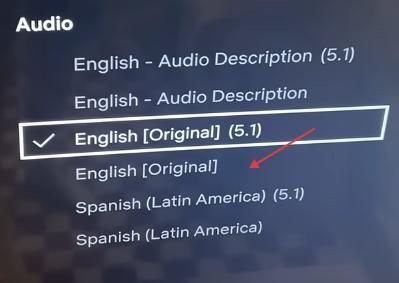
Menu names and available audio options vary by device. Use the following steps as a general guide.
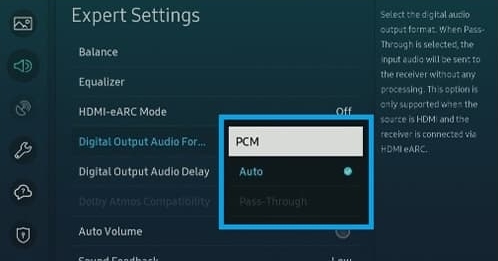
- Go to your TV's Settings > Sound / Audio Output > Digital Audio Format.
- Change the output setting from Auto or Bitstream to PCM or Pass-Through.
- Locate Audio Delay or Lip Sync / Audio Sync in your TV sound menu and set the value to
0ms(or adjust the slider until the sound matches the lips).
Fix 5. Lower Netflix Playback Settings (Medium or Low)
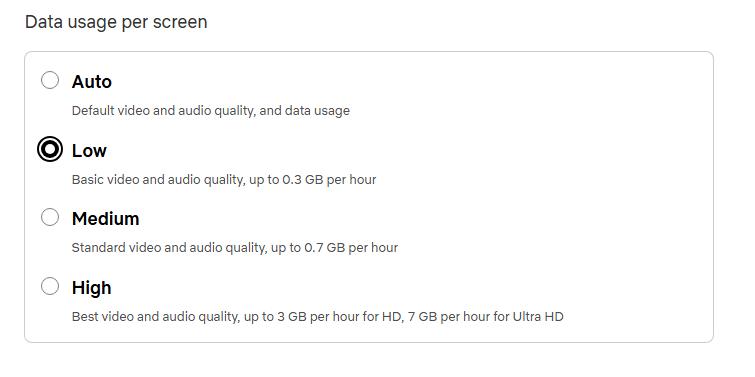
Lowering your playback quality reduces bandwidth pressure on your network and CPU processing load on your device, stopping video frame drops.
-
01
Open a web browser on your phone or PC and log in to your Netflix account.
-
02
Click your profile avatar and select Account.
-
03
Scroll down and select the profile you want to change.
-
04
Scroll down to Playback Settings and click it.
-
05
Change the data usage from Auto or High to Medium or Low.
-
06
Click Save and restart the Netflix app on your device.
Fix 6. Check Your Bluetooth and HDMI Connections
- Bluetooth: Disconnect, forget, and re-pair your headphones or speaker.
- HDMI Cables: Reseat both ends or try a different port/cable. Ensure your soundbar is connected to the TV's HDMI ARC / eARC port.
- Enable ARC/eARC & CEC: Turn on HDMI-CEC (Anynet+ on Samsung, SIMPLINK on LG, Bravia Sync on Sony). Set HDMI-eARC Mode to Auto (Samsung) or select HDMI ARC as output (LG).
- Adjust Lip Sync: In your soundbar app or settings, tweak Lip Sync or Audio Delay in small steps until dialogue matches lip movements.)
Fix 7. Update or Reinstall the Netflix App and Device System
Go to your device's settings and install any system update. Then open the app store, find Netflix, and update it.
If it still drifts, uninstall Netflix, restart the device, and reinstall it. Sign in again afterward.
Part 3. How to Fix Netflix Audio Delay on Different Devices
If the basic fixes didn't work, the problem is probably in your device's own settings. Apple TV, Fire TV, Roku, smart TVs, and computers each handle audio differently, so the fix that works on one may do nothing on another. Find your device below and try the steps in order.
3.1 Fix Netflix Audio Sync in Your Browser
If the problem is only in a browser, try these in order:
- Disable Hardware Acceleration: In your browser settings (e.g., Chrome/Edge Settings > System), toggle off "Use graphics acceleration when available" and relaunch. This prevents GPU decoding desync.
- Turn Off Heavy Extensions: Temporarily disable ad blockers, VPN extensions, or video speed controllers that interfere with Netflix's HTML5 player.
- Clear Web Cache or Switch Browsers: Clear cached images and files (
Ctrl + Shift + DeleteorCmd + Shift + Delete). If lag persists, swap to Microsoft Edge (Windows) or Safari (Mac), or use the native Windows Netflix App.
3.2 Fix Netflix Audio Sync on Your Phone
On iPhone, iPad, and Android, turn off Bluetooth and test with the built-in speaker. If the sync problem disappears, the earbuds or headphones are the cause, so re-pair them or update their firmware. If it still happens, force-close Netflix, update it in the App Store or Google Play, and reinstall it if needed. Restarting the phone also clears many temporary audio glitches.
3.3 Fix Netflix Audio Lag on Apple TV
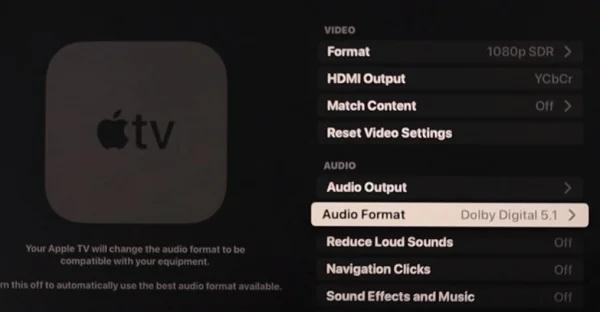
If Netflix dialogue doesn't match the picture on your Apple TV, try changing the audio format first. If that doesn't help, test the frame-rate setting.
-
01
Go to Settings > Video and Audio > Audio > Audio Format and select Change Format.
-
02
Turn Change Format off, or switch from Dolby Digital 5.1 to Stereo.
-
03
If it's still out of sync, go to Settings > Video and Audio > Match Content, turn off Match Frame Rate, and test again.
-
04
Connected to a soundbar? Try plugging the soundbar straight into the Apple TV with an optical cable. If the delay disappears, the soundbar's audio processing is the cause.
If you have tried all the steps above and the audio still won't resync, a tvOS software bug may be the culprit. You can try installing a beta update for a quick fix.
-
01
Enroll your Apple ID at beta.apple.com.
-
02
On your Apple TV, go to Settings > System > Software Updates.
-
03
Toggle on Get Beta Updates and download the latest tvOS build.
3.4 Fix Netflix Audio Lag on Streaming Sticks (Firestick & Roku)
Streaming sticks plugged directly into HDMI ports can suffer from HDMI handshake issues or local decoder lag.
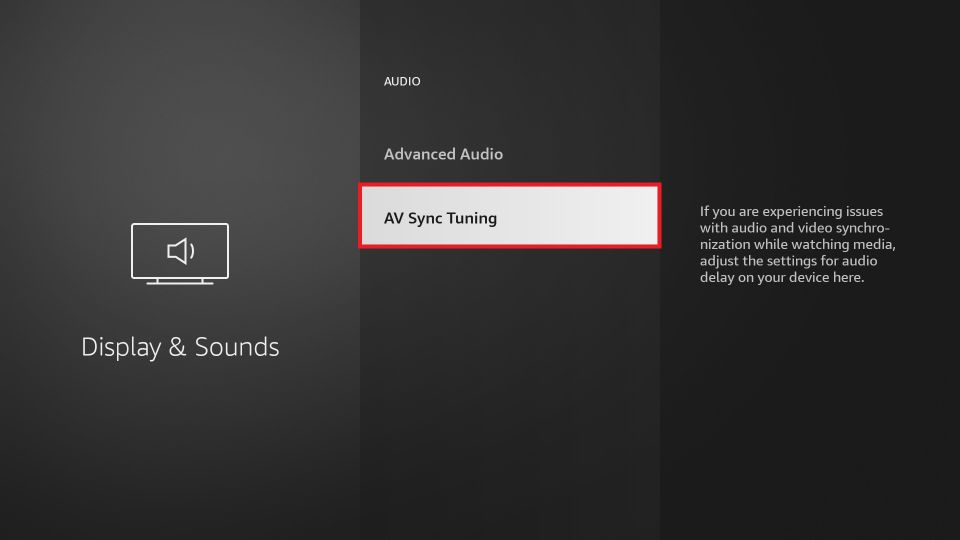
On Amazon Firestick:
-
01
Go to Settings > Display & Sounds > Audio > A/V Sync Tuning.
-
02
Watch the bouncing ball animation and listening tone.
-
03
Use your Fire TV remote to adjust the slider until the sound cue aligns perfectly with the visual flash, then tap Apply.
-
04
If still delayed, go to Settings > Display & Sounds > Audio > Surround Sound and change the setting from Best Available or Always Dolby Digital Plus to PCM.
On Roku Streaming Stick / Ultra:
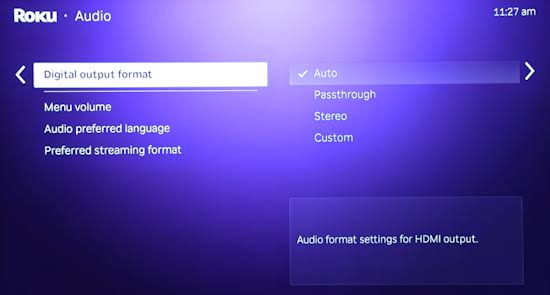
- Change Audio Output to Stereo: Go to Settings > Audio > Digital Output Format (or Audio Mode), change it from Auto to Custom, and set Dolby to PCM-Stereo.
- Turn Off Roku Volume Modes: While streaming a show on Netflix, press the Star (*) button on your remote. Navigate to Sound Settings > Volume Mode and turn it Off. Menu options vary by model, so if you don't see one, skip this step.
3.5 Fix Netflix Audio Sync Issues on Smart TVs (Samsung, LG, Sony)
-
01
Use a streaming device instead of the built-in app. If only the TV's own Netflix app is out of sync, plug in a Fire Stick, Roku, or Apple TV and watch through that.
-
02
Choose the original audio track. While a title is playing, open Audio & Subtitles and pick the track marked [Original]. Dubbed tracks are more likely to drift.
-
03
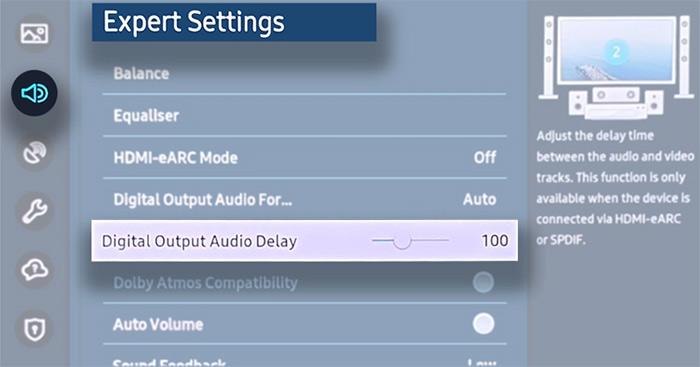
Adjust audio delay in small steps.
- Samsung: Go to Settings > All Settings > Sound > Expert Settings > Digital Output Audio Delay. Change the value by 20 to 50 ms at a time and check a dialogue scene after each change.
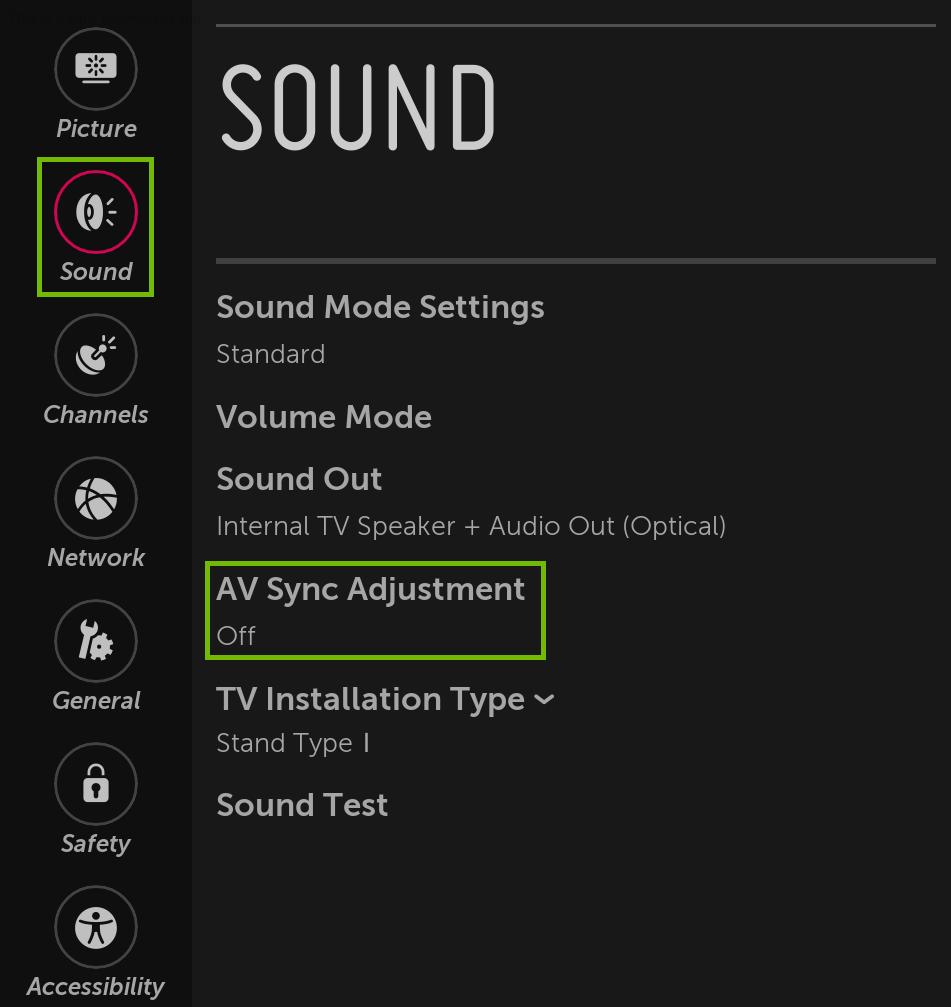
- LG: Go to Settings > Sound > Sound Out > AV Sync Adjustment. Use the same small steps.
- Sony: Go to Settings > Display & Sound > Audio Output > Set A/V Sync to Auto or On.
-
04
Don't compensate twice. If you use a soundbar, set the TV's audio delay to 0 and adjust only on the soundbar. When both devices add delay, the lag can get worse.
-
05
Update the TV firmware. Go to your TV's Support or About menu and check for a software update, then try Netflix again.
3.6 Fix Netflix Audio Delay on PC / Mac
On Windows PC:
-
01
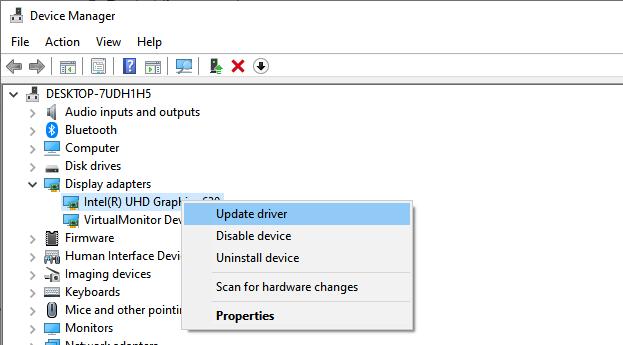
Update your graphics driver. Open Device Manager. Expand Display adapters to identify your graphics hardware and right click on it to update the driver. If Windows can't find a newer driver, visit the official website of your graphics card manufacturer, such as Intel, NVIDIA, or AMD, to check for a compatible update. Download and install the driver according to the manufacturer's instructions. Test Netflix again after updating.
-
02
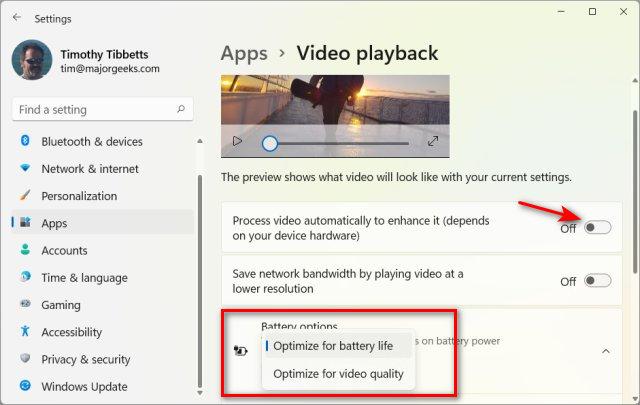
Optimize for video quality. Go to Settings > Apps > Video playback and turn on Optimize for video quality. On a laptop, plug in the charger and set the power mode to Best performance.
-
03
Turn off audio enhancements. In Settings > System > Sound, open your output device and switch off Audio enhancements and Spatial sound.
Mac
-
01
Click the Apple menu > Shut Down, wait a few seconds, and turn the Mac back on. A full shutdown clears more than sleep or restart.
-
02
Quit other apps and close extra browser tabs, then disconnect any Bluetooth device and test with the built-in speakers.
Part 4. Ultimate Workaround: Download Netflix Videos to Avoid Audio Sync Issues
If Netflix audio keeps going out of sync while other streaming apps work fine, watching titles via a local media player may solve the issue. To do this, you'll need a dedicated downloader to save the videos from Netflix directly to your laptop or other devices.
VidiFab Streaming Video Downloader is a reliable desktop tool that allows you to save movies and TV shows from Netflix (and 7 other popular platforms) as local MP4 or MKV files. You browse Netflix in its built-in browser, pick a title, and download it with the audio track and subtitles you want. Once it's saved, you can play it in any media player.
 Free Download
 Secure Download
 Free Download
Secure Download
Free Download
Secure Download
- Synced Audio & Video: Downloads the audio tracks fully synchronized with video frames, and allows you to extract and save audio separately as standalone audio files (e.g., MP3).
- Original Audio Quality: Retain Dolby Digital 5.1 surround sound or standard stereo audio tracks without compression desync.
- Multi-Language Audio & Subtitles: Pick and lock your preferred audio languages and hardcode or export separate SRT subtitle files.
- Universal MP4/MKV Output: Plays smoothly on VLC, QuickTime, or Plex, or via USB flash drive on any Smart TV.
How to Download Netflix Videos With VidiFab
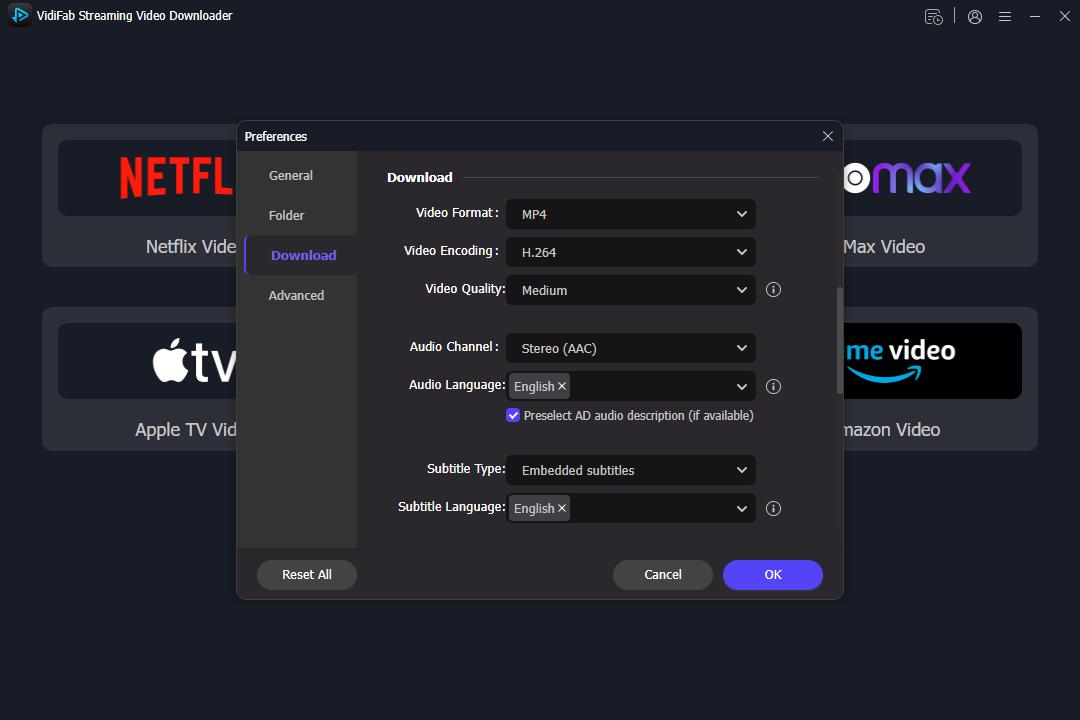
Step 1. Open VidiFab Streaming Video Downloader and click the menu icon in the top-right corner. Select Preferences, choose MP4 or MKV as the output format, and pick a folder for your downloads. Go back to the main screen, click the Netflix icon, and sign in to your account in the built-in browser.
Step 2. Browse Netflix in the built-in browser and open the movie or show you want, or paste its URL into the address bar. VidiFab detects the video on its own. When the Download button appears, click it.
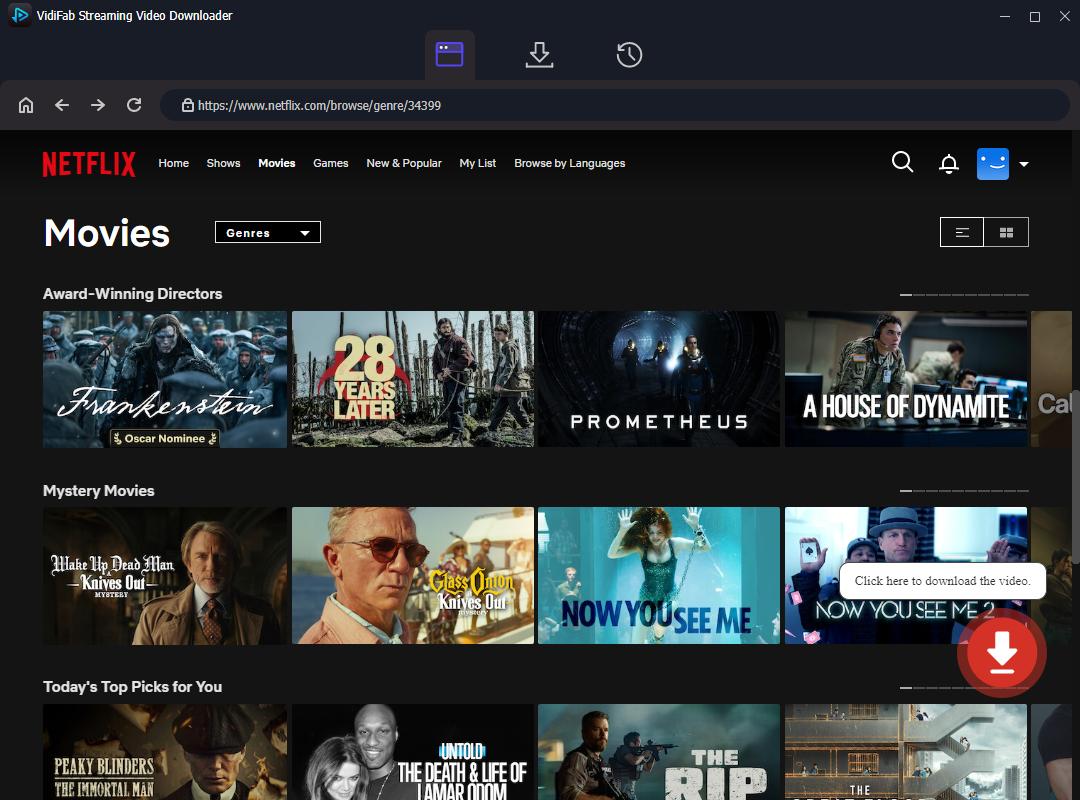
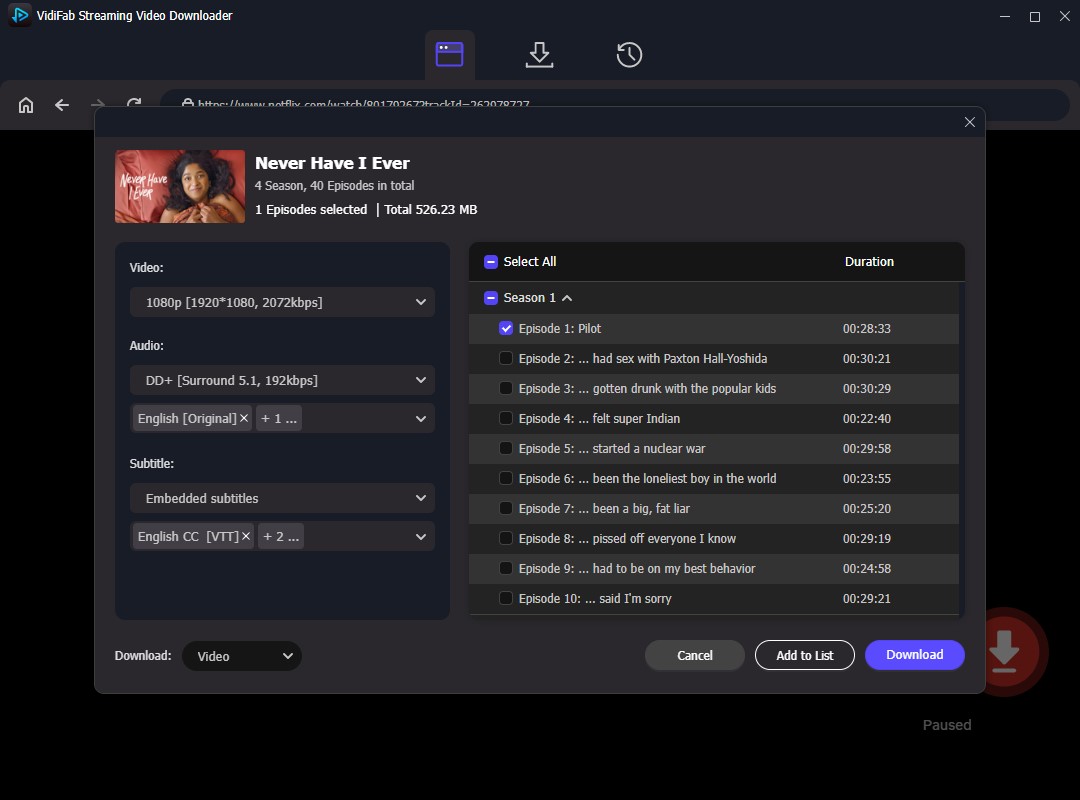
Step 3. Before you download, set these options:
- Resolution: up to 1080p.
- Audio Track: Pick your target language track (e.g., English [Original] 5.1 or Stereo).
- Subtitles: Choose to embed subtitles directly into the video file or save them as independent SRT files.
- Batch Download: For TV series, check Select All to queue an entire season simultaneously.
Step 4. Click Download to start the process. You can monitor progress under the Downloading tab. Once completed, head to the History section and click the Folder icon next to your video to locate the saved MP4 file.
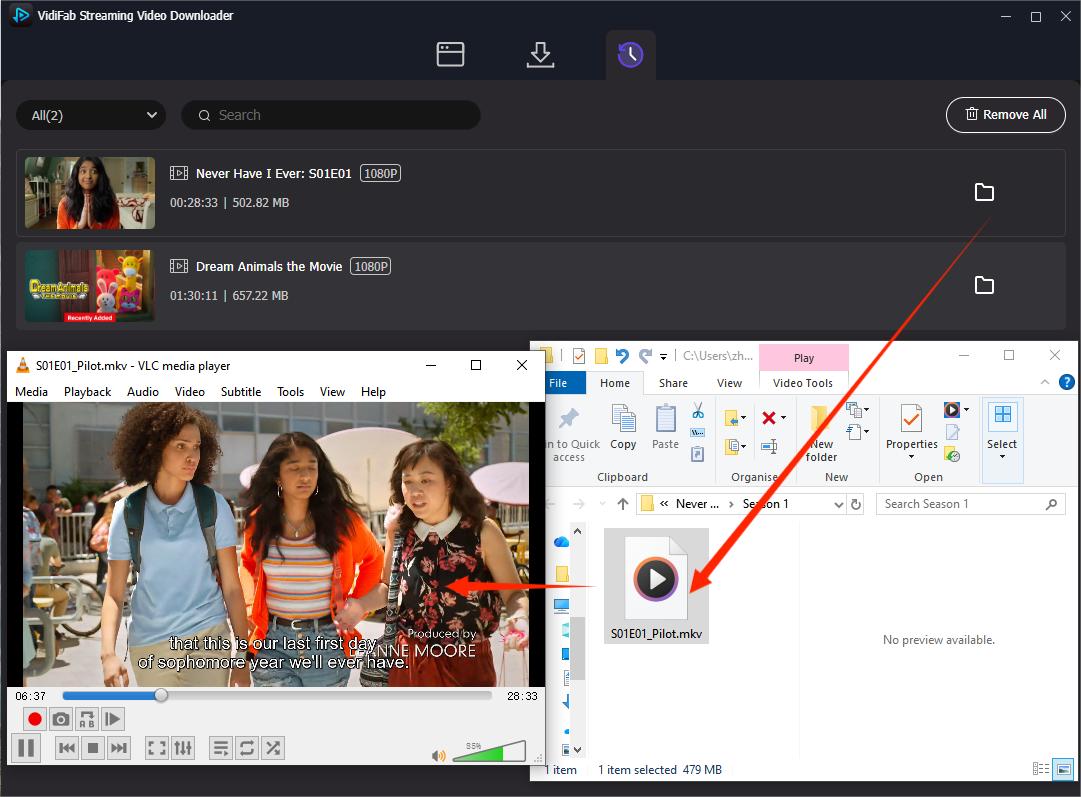
Now, simply double-click the video to play it seamlessly on VLC Media Player, or transfer it to a USB flash drive to plug directly into your Smart TV; guaranteeing 100% synchronized audio and video every time!
Part 5. FAQs About Netflix Audio Out of Sync
Why does Netflix audio go out of sync after ads?
Why is Netflix audio out of sync when casting to a TV?
Why is Netflix audio out of sync on my TV but fine on YouTube or other apps?
Why is Netflix audio out of sync only on certain shows?
Does changing Netflix playback speed cause audio out-of-sync issues?
Conclusion
Netflix audio out of sync is usually fixable in minutes. Start with a pause and restart, then check your audio format, Bluetooth, and HDMI settings. If nothing works, download the video with VidiFab for smooth offline playback. And if you have no sound at all, see our guide on fixing Netflix no sound on TV.
Free Download
Secure Download
Free Download
Secure Download

I write about streaming services, video playback, and digital media management. My articles cover practical ways to convert video files, troubleshoot playback issues, and manage digital content across devices. I aim to make technical topics easier to understand and help readers find practical solutions to common challenges.
 Leave Your Comment