Netflix in Plex: How to Put Netflix Videos on Your Plex Media Server
 By Miles Kent
Netflix does not offer an official way to add Netflix to Plex or watch Netflix directly through a Plex Media Server. Plex supports personal media libraries but does not integrate with streaming services like Netflix. Instead, you can create a Netflix-like Plex experience by legally downloading Netflix videos to MP4 or MKV and adding them to your Plex library. This guide explains how to watch Netflix on Plex, how to put Netflix videos on Plex, and how to stream your collection across devices.
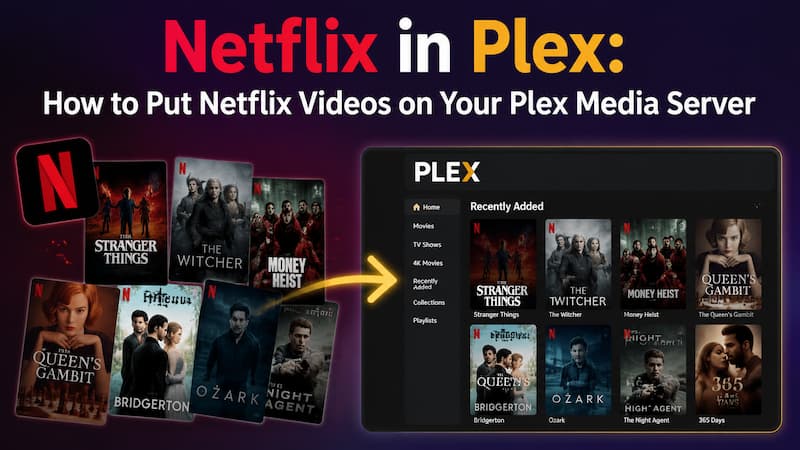
Use VidiFab Netflix Video Downloader to save Netflix movies and shows to your computer as local MP4 or MKV files, then add them to your Plex Media Server for offline playback. It supports 1080p quality, Dolby Atmos audio, multilingual subtitles, and multiple audio tracks, giving you more flexibility to organize and stream your Netflix library.
 Free Download
 Secure Download
 Free Download
Secure Download
Free Download
Secure Download
Part 1. Can You Watch Netflix on Plex?
No, you cannot do it directly. Plex does not support adding Netflix videos to your Plex library or playing Netflix content within the Plex interface.
However, Plex does offer a way to browse Netflix content through its Plex Discover feature, introduced in 2022. By going to Settings > Streaming Services and selecting Netflix, you can search for Netflix originals and other available titles directly from the Plex interface and add them to your Universal Watchlist.
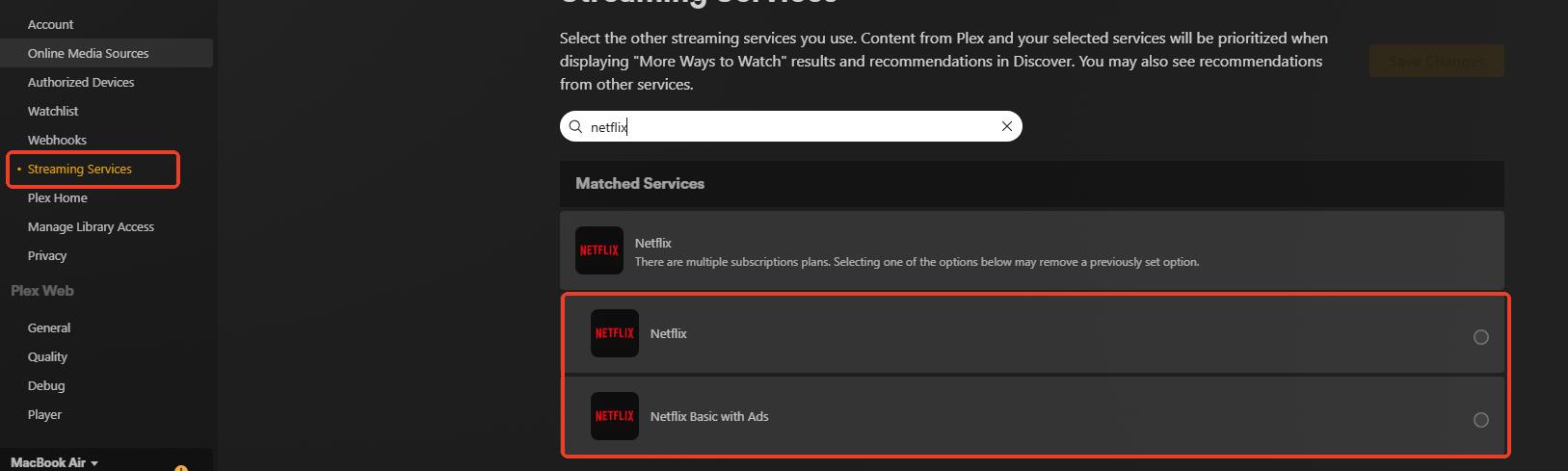

Keep in mind that Plex only acts as a content discovery hub. When you click Play, Plex will redirect you to the official Netflix app or website on your device to start streaming. It does not play Netflix videos inside Plex itself.
What Plex Supports for Netflix
- Search for Netflix titles directly inside the Plex interface
- Clicking a Netflix title redirects you to the official Netflix app or website
- Mix Netflix shows with your local media and other streaming sources in one Universal Watchlist
- When you click on an actor, Plex shows all their work across your local library and Netflix at once
What Plex Does NOT Support for Netflix
- You cannot decode or stream Netflix videos inside the Plex player
- You cannot cache Netflix videos locally through the Plex client for offline viewing
- If Netflix removes a show from its catalog, it disappears from your Plex Watchlist too
- You cannot turn Netflix's online library into part of your private Plex Media Server
So, can you watch Netflix on Plex? The answer is: only through Plex Discover, and only as a search-and-redirect tool. If you want a real Netflix-in-Plex experience where everything plays inside one app, you need to go a different route. That is exactly what Part 2 covers.
Part 2. The Ultimate Workaround: Download and Add Netflix Videos to Plex
Plex does not let you add Netflix to Plex directly. But if your goal is to build a personal media library that feels like Netflix, the smartest solution is to download Netflix videos as unencrypted local files and import them into your Plex server. I have been using this setup for months, and it works beautifully.
For the downloading part, I use VidiFab Netflix Video Downloader. It is built for media enthusiasts. VidiFab supports not just Netflix but also Prime Video, Disney+, Apple TV, HBO Max, Hulu, and other major platforms. It saves videos directly as MP4 or MKV files, which Plex reads perfectly. You get up to 1080p resolution, and you can keep multi-language audio tracks and subtitles.
After downloading, you can import the videos into your Plex library or save the Netflix files to your external hard drive, if you have one.
VidiFab Netflix Video Downloader
Download Netflix videos as MP4/MKV in 1080p with Dolby Atmos for offline viewing on your iPhone, Android, desktop, and more devices.

What You Get with VidiFab + Plex
| Feature / Goal | With VidiFab + Plex | Without VidiFab (Standard Plex Setup) |
|---|---|---|
| Can you play Netflix inside the Plex app? | ✔️ Yes | ❌ No (Redirects to Netflix app) |
| Can you watch Netflix shows completely offline? | ✔️ Yes | ❌ No (Requires stable internet) |
| Do you own the videos permanently? | ✔️ Yes | ❌ No (Disappears if subscription expires) |
| Are videos safe from Netflix content removal? | ✔️ Yes | ❌ No (Disappears if Netflix drops the show) |
| Can you bypass Netflix device/screen limits? | ✔️ Yes | ❌ No (Tied to your Netflix plan tier) |
| Can you keep multi-language audio & subtitles? | ✔️ Yes | ❌ No (Locked to standard stream settings) |
| Is playback 100% ad-free? | ✔️ Yes | ❌ No (Tied to your Netflix plan settings) |
If you want to create a more flexible Netflix in Plex experience, the next step is to prepare your Netflix videos in a Plex-compatible format and add them to your media server. I will walk you through how to download Netflix videos to your computer locally, organize your files, and add them to Plex step by step.
Step 1: Download Netflix Videos in MP4/MKV via VidiFab
Step 1. Set Up VidiFab Streaming Video Downloader
Download and install VidiFab Streaming Video Downloader on your Windows or Mac computer. For macOS, click the upper left product name, go to Settings, and choose MP4 as the output format since it works perfectly with Plex. Go back to the home interface, click on Netflix to open the built-in web player, and log into your Netflix account.
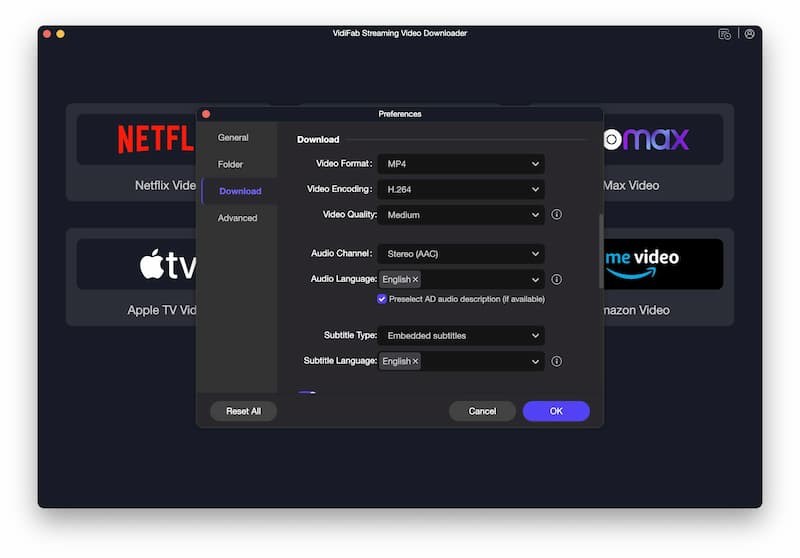
Step 2. Find the Netflix Movie or Show You Want to Download
Browse Netflix content directly inside VidiFab's built-in browser just like you normally do, or search for a Netflix movie or TV show (such as Young Sheldon) in the search bar. Open the video page and let VidiFab automatically analyze the video information. When the analysis is done, a Download button appears in the bottom right corner.
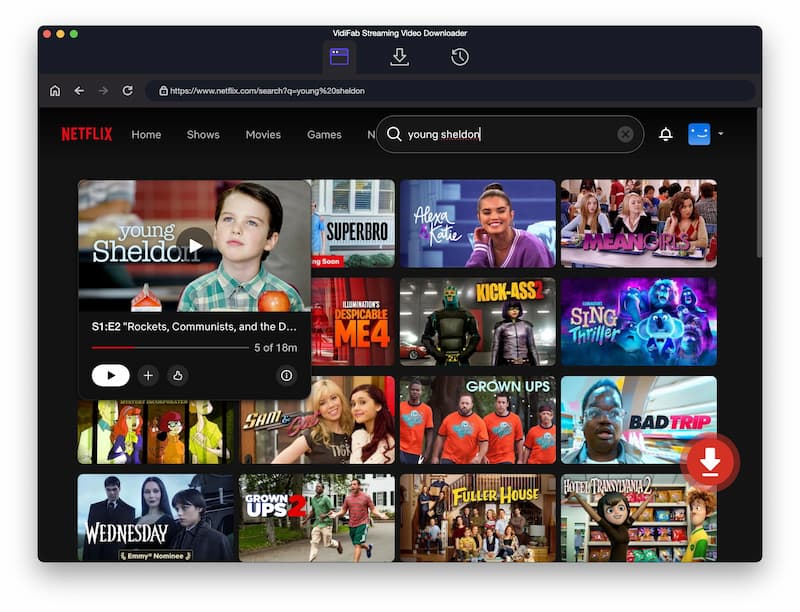
Step 3. Customize Netflix Download Settings
Once the analysis is complete, a settings window pops up. Select up to 1080p resolution for crisp quality. Here, you can also choose your preferred multi-language audio tracks and decide whether to save subtitles as SRT files or embed them directly into the video. If you are downloading a TV series, you can check multiple episodes to grab an entire season at once.
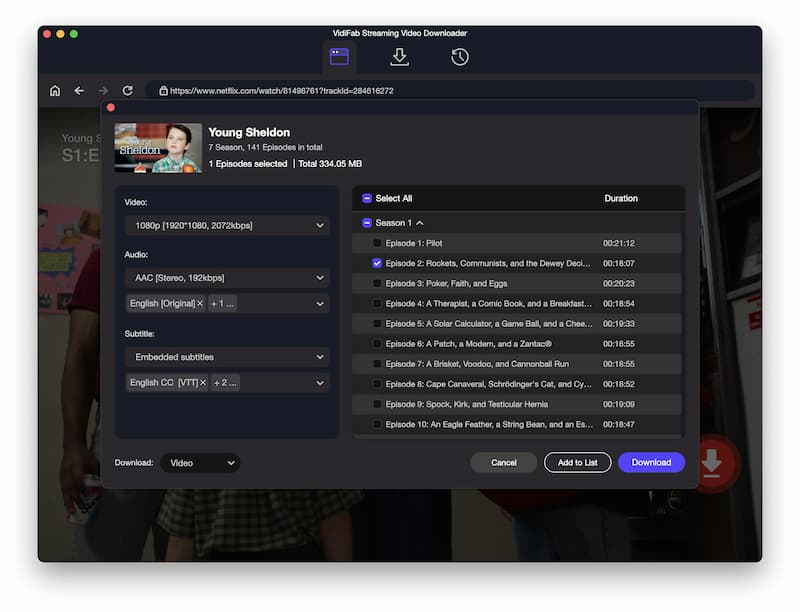
Step 4. Start Downloading Netflix Videos
Click the Download button to start saving the Netflix video files to your computer. After the download finishes, open the History tab in VidiFab and click the folder icon to locate your downloaded MP4 or MKV files. These files are now ready for the next steps: organizing and adding them to Plex Media Server.
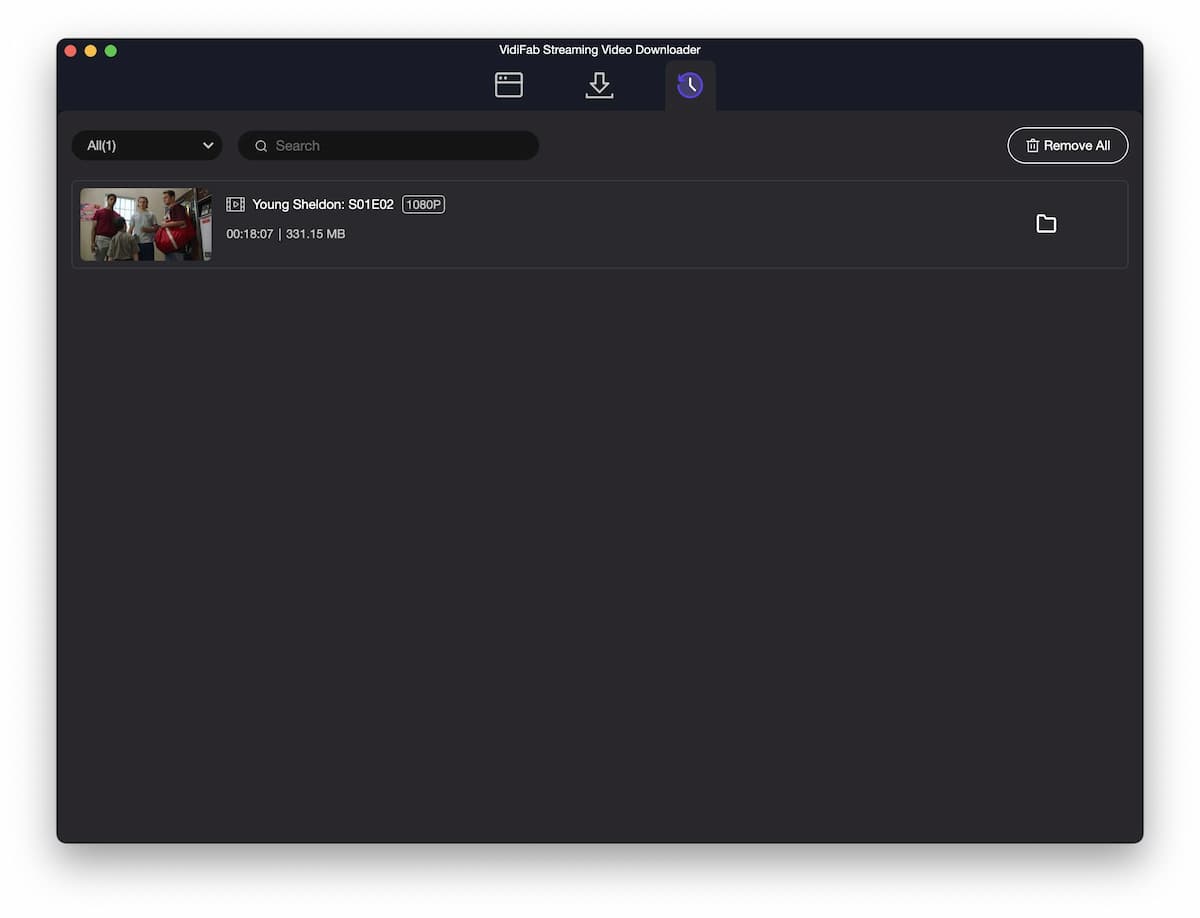
Step 2: Format and Organize Your Downloaded Netflix Files
To make sure Plex recognizes your downloaded content and matches it with beautiful Netflix-style poster walls, you need to follow Plex's naming rules. I learned this the hard way after Plex refused to match half my library. Here is the format that works every time:
- For Movies: Rename the file to
Movie Name (Release Year).mp4. For example:Inception (2010).mp4. The year in parentheses is what helps Plex pull the right poster and metadata. - For TV Shows: Create a two-tier folder structure. Name the main folder after the show with its premiere year, such as
Young Sheldon (2017). Then create a subfolder for the season (likeSeason 01), and name each file using the standard SxxExx format, likeYoung Sheldon - S01E02.mp4.
Note: Plex is picky about file names. Avoid special characters like accents or symbols. Keep the names simple and clean. If Plex still cannot match a title, you can manually fix the match by clicking the three-dot menu on the poster and selecting "Fix Match."
Step 3: Add Downloaded Movies/TV Shows to Your Plex Media Server
Once your Netflix videos are organized, you can add them to your Plex Media Server library. Here is how to set everything up:
-
01
Go to the official Plex Media Server download page. Download the free Plex Media Server installer and install it on your computer (Windows or Mac) or NAS where your VidiFab downloads are stored.
-
02
Run the server software and sign in with your free Plex account. Keep this server running in the background. Your computer needs to stay on whenever you want to stream your media.
-
03
Open your web browser and go to app.plex.tv to open your server's backend. This is your control panel for managing libraries, users, and playback settings.
-
04
Click More in the left sidebar to expand the full menu. Hover your cursor over your local server's name, and click the Add Library (+) button that appears next to it.
-
05
Select TV Shows (or Movies, depending on what you downloaded) as the library type. Choose your language and click Next.
-
06
Click Browse for Media Folder and select the parent root folder where your shows are saved. For example, select the general TV Shows folder, not the specific Young Sheldon folder inside it.
-
07
Click Add Library to confirm. Plex instantly scans the folder, reads your VidiFab downloads, and automatically downloads the official posters, cast lists, and episode synopses.
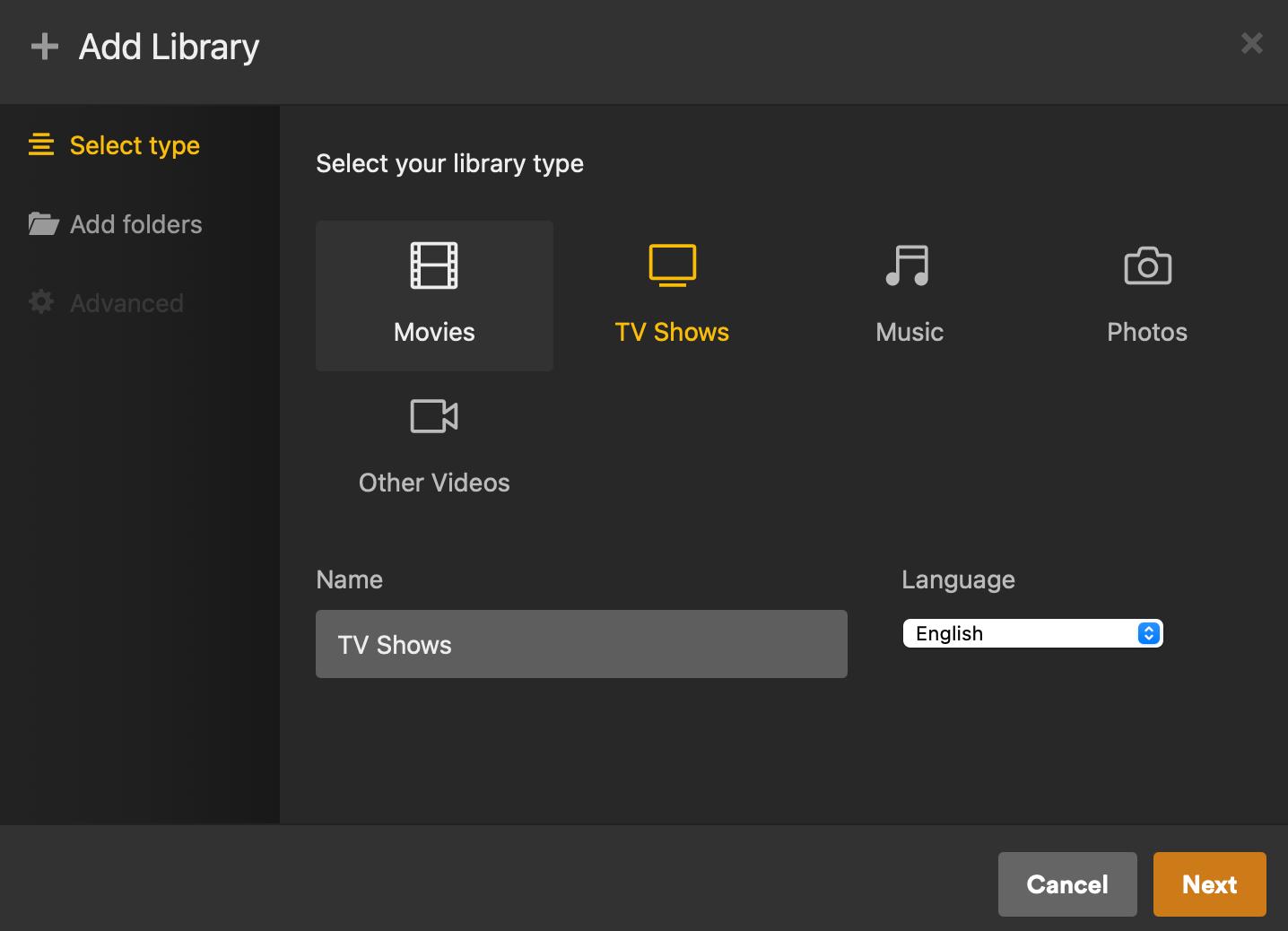
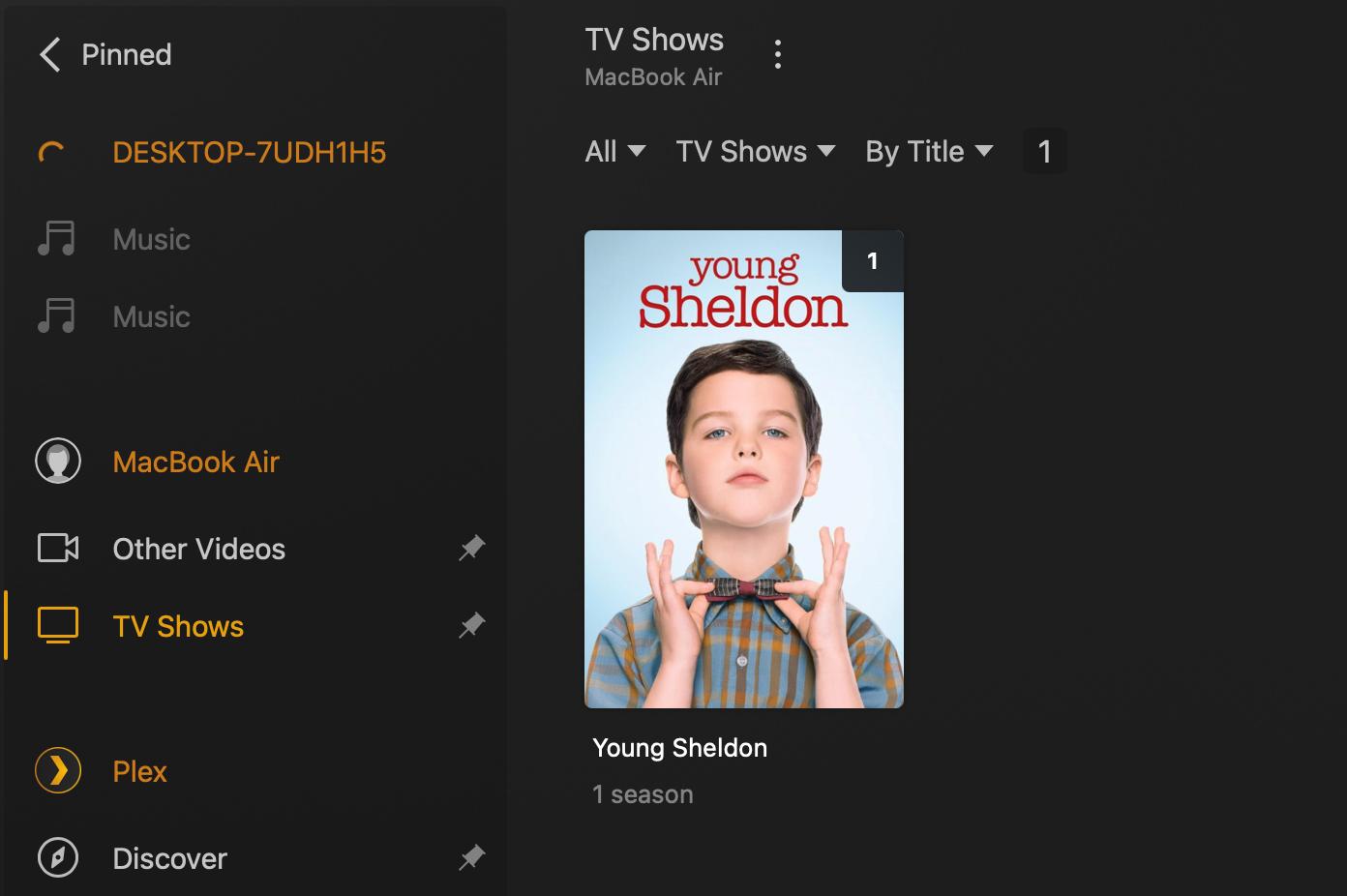

Tip: If you add new VidiFab downloads to the same folder later, Plex automatically detects them on its next scheduled scan. You can also trigger a manual scan by clicking the three-dot menu on your library and selecting "Scan Library Files."
Netflix on Plex: How to Add Netflix Videos to Your Plex Library
Part 3. How to Stream Your Netflix Content on Any Device via Plex
Once your Netflix videos are downloaded and added to your Plex Media Server, you can access your personal library on any device just like you would with Netflix. Plex manages all your movies and TV shows in one place and syncs them across smart TVs, phones, tablets, and computers through the Plex app or web player.
Smart TVs and Streaming Sticks
According to Plex's supported media streaming devices page, Plex works on Samsung, LG, and Sony smart TVs, as well as Apple TV, Amazon Fire TV, Roku, Android TV, and Google TV devices. Install the Plex app on your device, log into the same account tied to your Plex Media Server, and your personal video files appear right there. Just hit Play and watch your Netflix videos on the big screen.
Mobile Devices (iOS and Android)
For anyone who commutes, travels, or just likes to watch in bed, mobile streaming is a must. And the best part: playing videos through Plex does not eat up your phone's storage. Those multi-GB HD movies stay on your server.
Download the Plex app from the App Store or Google Play and log in. Even when you are away from home or traveling, you can remotely access the Netflix videos stored on your home server. If you have a Plex Pass subscription, you can use the Downloads feature to sync VidiFab videos directly to your phone before heading out. That means smooth playback on planes, trains, or anywhere with no signal.
Part 4. Can Plex Watch Together Replace Netflix Watch Party?
Can Plex Watch Together replace a Netflix Watch Party? Yes, it can. Once you have downloaded your Netflix videos via VidiFab and added them to Plex, you can use Plex's built-in Watch Together feature to host a virtual watch party. And here is the best part: your friends do not need a Netflix account. They do not need to pay anything. As long as the video is on your Plex server, they can join with a free Plex account and watch in perfect sync with you.
Note: Plex Watch Together does not replace Netflix Watch Party for streaming live Netflix content. It does not connect to your Netflix account or let users access Netflix videos inside Plex. It only works with movies, TV shows, and other personal media files already added to your Plex Media Server.
Here is how to set up a Plex Watch Together session:
- Your Plex Media Server is running and connected to the internet.
- Your friends have free Plex accounts. They do not need their own Plex Server or any paid subscription. A free account is all it takes to join your watch party.
Step 1. Open Plex and Start a Watch Together Session
-
01
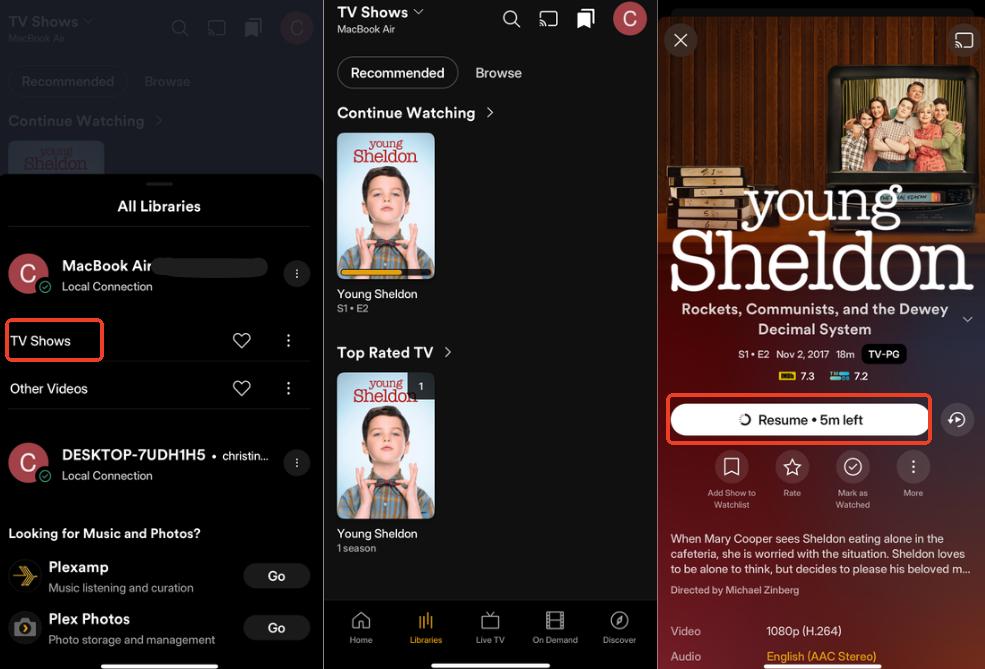
Open the Plex App or Plex Web App and go to your Movies or TV Shows library.
-
02
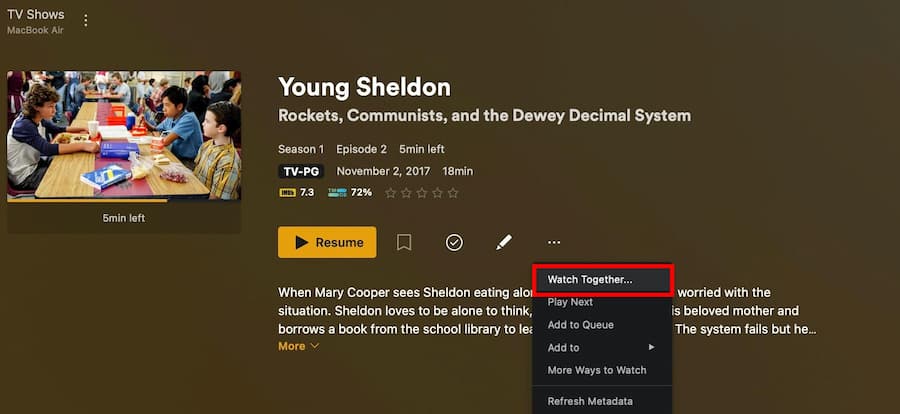
Open the video you want to watch together. On the video details page, click the More (⋯) option and select Watch Together.
-
03
Click Add Friends and choose Invite people to Plex. You can copy the invite link and send it to your friends, or invite them through social media.
-
04
Once your friends receive the invitation, they can join your Plex Watch Together session from their devices.
Step 2. Join the Watch Together Session and Start Watching
-
01
When your friends open the invitation link, they will be redirected to the Plex App on their device. Plex will show a clear Join Watch Together notification card.
-
02
They only need to click Join to enter the shared viewing session.
-
03
After everyone has joined, the host can click Play. The movie will start on everyone's screens at the same time with fully synchronized playback.
-
04
During playback, everyone's progress stays perfectly synced. You can use Discord, WhatsApp, or another voice chat app to talk while watching and enjoy a more interactive watch party experience.
Part 5. FAQs: Netflix and Plex Integration
Does Plex have a Netflix plugin or channel anymore?
No. Plex does not have an official Netflix plugin or channel that allows users to sign in and watch Netflix content inside Plex. Plex can only show Netflix as a possible streaming source in some cases and redirect users to the Netflix app or website for playback.
Can I watch Netflix on Plex without internet?
Yes, but only if you use a tool like VidiFab to download the Netflix videos as local files onto your Plex Media Server first.
Does Plex support Netflix 4K videos?
No, Plex cannot stream native Netflix 4K content directly due to strict DRM limitations. However, it can play your own local, unencrypted 4K video files flawlessly if your hardware supports it.
Can Plex replace streaming services completely?
No, Plex is a media management platform and does not provide its own premium catalog. It requires you to supply your own downloaded content or link external streaming subscriptions to replace them functionally.
Do Netflix videos expire in Plex?
No. Any Netflix videos you download to your local drive via VidiFab and load into Plex will stay in your library forever and never expire. This is different from the live Netflix app, where titles come and go based on changing licensing agreements.
Is Plex better than Netflix?
It depends on what you need. Netflix is better for accessing a large catalog of licensed content without managing files. Plex is better for users who want full control over their personal media library, including organization, customization, and playback across devices. Many people use both: Netflix for discovery and convenience, and Plex for the content they want to keep forever.
Final Thoughts
Ultimately, Plex does not support native Netflix streaming, but you can still create a more flexible Netflix-like experience by adding compatible videos to your Plex library. With VidiFab, you can prepare Netflix videos in MP4/MKV formats, organize them in Plex, and enjoy your collection across multiple devices. This setup gives you greater control over your media library, making it easier to manage, access, and enjoy your favorite content anytime.
Free Download
Secure Download
Free Download
Secure Download

I write about streaming services, video playback, and digital media management. My articles cover practical ways to convert video files, troubleshoot playback issues, and manage digital content across devices. I aim to make technical topics easier to understand and help readers find practical solutions to common challenges.
 Leave Your Comment