Netflix No Sound on TV? How to Fix No Audio & Keep Watching
 By Miles Kent
If Netflix has no sound on your TV, start with the simplest fix: unmute the TV, confirm the sound is routed to the right output, and switch the device's audio format from surround sound to Stereo or PCM. In most cases, the issue is not Netflix itself. It is usually an audio mismatch between the Netflix track, the TV's digital output setting, or the HDMI chain.
In this guide, I'll walk you through exactly how I diagnose and fix Netflix no sound issues, starting with quick universal checks and then moving into device-specific fixes for Roku, Fire Stick, Apple TV, Chromecast, and Samsung TV. Additionally, a workaround that works for most Smart TVs ensures perfect Netflix streaming.

If you also use other streaming platforms, check our guide on Prime Video no sound for similar audio troubleshooting steps.
Part 1. Before You Start: Identify Your "Netflix No Sound" Scenario
Before you start digging through settings menus, take 30 seconds to figure out which version of this problem you're actually dealing with and some quick fixes you can do.
| Symptom | Most likely cause | First thing to try |
|---|---|---|
| The whole TV is silent | TV mute, speaker output, soundbar routing, or HDMI ARC/eARC issue | Check volume, speaker output, and HDMI connections |
| Only Netflix has no sound | Netflix audio track or surround-sound mismatch | Switch audio output to Stereo or PCM |
| Netflix plays a black screen with no sound | HDMI handshake, HDCP, or playback failure before the stream starts | Reboot the device, change HDMI ports, and test another cable |
| Sound works on some apps but not Netflix | App-specific audio format or device compatibility issue | Update Netflix, then change the device's digital output format |
Part 2. The 60-Second Checks That Solve Most Cases
Before you dig into device menus, run through the fast checks first. Each one takes less than a minute, and together they solve probably 80% of cases before you ever need a device-specific fix.
- Check mute and volume: Make sure the TV, soundbar, and streaming device are not muted. Raise volume on the TV itself, not just on the remote or streaming app.
- Confirm the correct speaker output: If you use a soundbar, Bluetooth speaker, or AV receiver, make sure the TV is sending audio to that device and not to the internal speakers.
- Restart Netflix and the TV: Fully exit the app, then restart the TV or unplug it for about 20 seconds before turning it back on.
- Test another HDMI port or cable: Move your streaming device or soundbar's HDMI cable to a different port on the TV and see if the audio comes back.
- Update or reinstall the Netflix app: Go to your device's app store and check for a Netflix update. If it's already up to date, try uninstalling Netflix completely and reinstalling it.
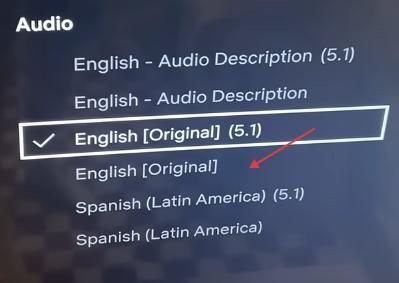
- Switch the audio format from surround to stereo: Inside Netflix, while a video is playing, open the Audio & Subtitles menu and switch the audio track from 5.1 (or "Dolby Digital") to Stereo or Original. Some TVs and sound systems simply can't decode the surround sound format Netflix is sending by default, which results in silence even though the video plays perfectly.
- If that doesn't help, the next step is to change your TV or device's digital audio output setting so it matches what your speakers can actually handle. Here's how to find that setting on the most common smart TVs and streaming devices:
| Device | How to Change Digital Audio Output |
|---|---|
| Samsung TV | Settings → All Settings → Sound → Expert Settings → Digital Output Audio Format → switch between PCM and Auto/Dolby |
| Roku TV | Press Home → Settings → Audio → Digital output format → choose Stereo or Auto |
| Amazon Fire TV Stick | Settings → Display & Sounds → Audio → Surround Sound → change from Best Available to PCM or Dolby Digital |
| Apple TV | Settings → Video and Audio → Audio Format → turn "Change Format" On → select Stereo (PCM) |
| Chromecast with Google TV | Profile icon → Settings → Display & Sounds → Advanced sound settings → set "Select formats" to Manual → toggle Dolby or PCM |

Note: "PCM" is essentially a universal, uncompressed audio format. If you're not sure what your TV or soundbar supports, PCM/Stereo is the safest setting to test first; it's the audio equivalent of "turn it off and on again."
Part 3. Step-by-Step Fixes for Netflix No Sound on TV
If the quick checks in Part 2 didn't fully solve it, here's where to go next based on your specific device.
3.1 Roku Netflix No Sound
Roku TVs and Roku streaming sticks have their own audio output settings that sit underneath whatever you set inside Netflix, so it's worth checking both.
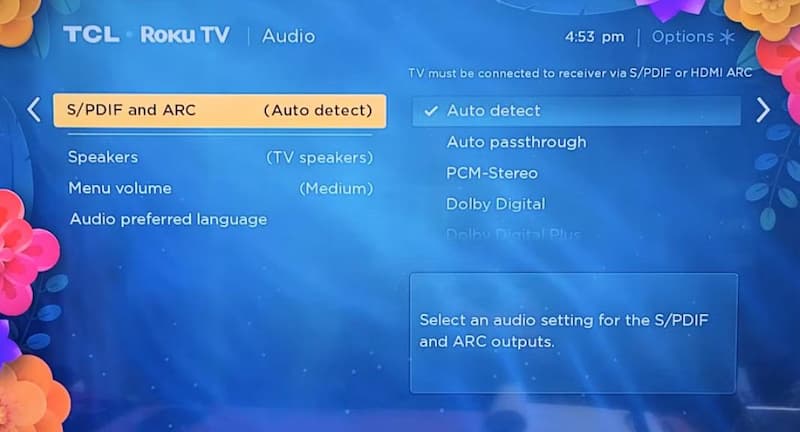
- Go to Settings → Audio → S/PDIF and ARC, and select Auto detect first. If audio still doesn't come through, manually switch it to PCM-Stereo.
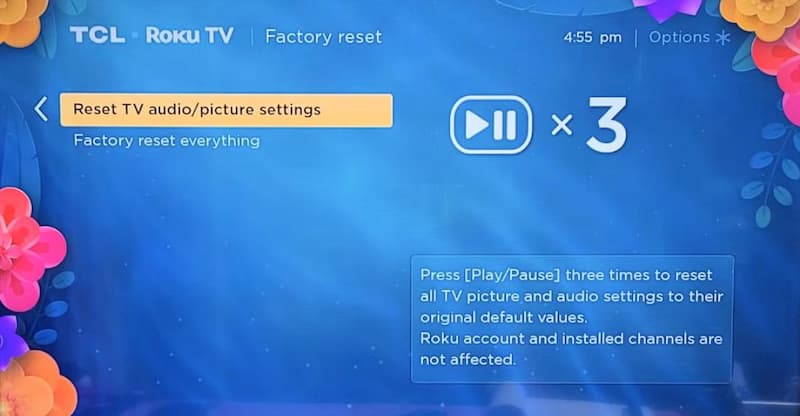
- If that doesn't work, try a factory reset of just the audio/picture settings (not your whole Roku): go to Settings → System → Advanced system settings → Factory reset → Reset TV audio/picture settings, then press the play/pause button on your remote three times to confirm.

3.2 Samsung TV No Sound on Netflix
Samsung TVs have a layered sound system, and in my experience, the "Sound Mode" setting is the one that trips people up most:
- Go to Settings ➔ Sound and set the Sound Mode to Standard.
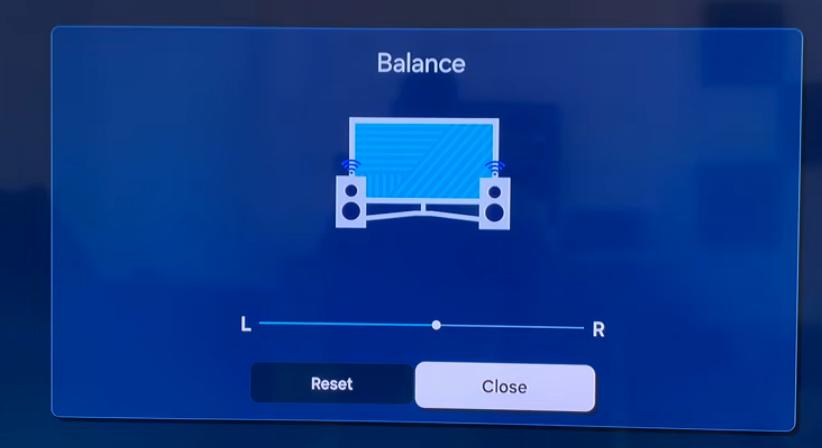
- Go to Settings ➔ Sound ➔ Expert Settings → Balance and select Reset in case the left/right balance has drifted.
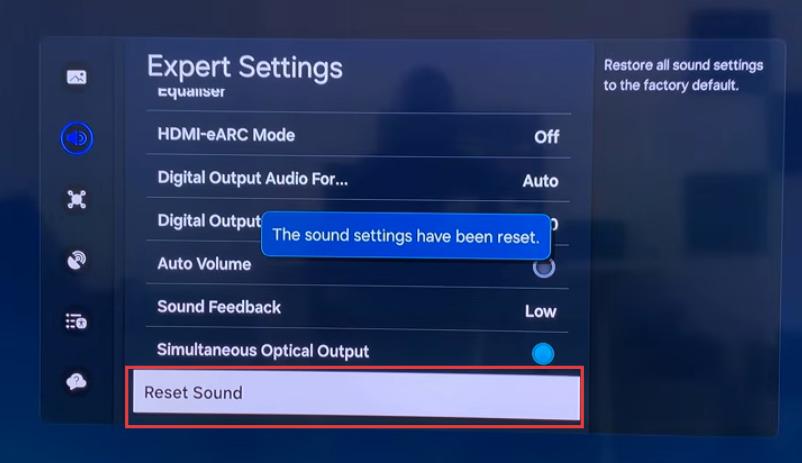
- If sound is still missing, go back into Sound → Expert Settings and select Reset Sound. This restores all audio settings to factory defaults, which clears out any conflicting custom configurations.
3.3 Amazon Fire Stick No Sound on Netflix
For Fire TV Stick and Fire TV Cube, two settings menus solve most "Amazon Fire Stick no sound Netflix" complaints:
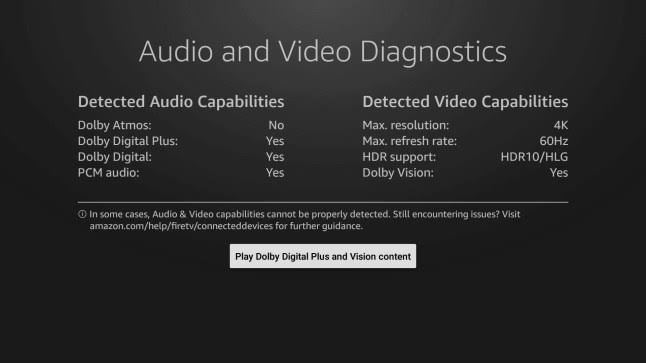
- Run Audio Diagnostics: Go to Settings → Display & Sounds → Audio/Video Diagnostics. This actively tests whether your TV supports the audio format Netflix is currently trying to send.
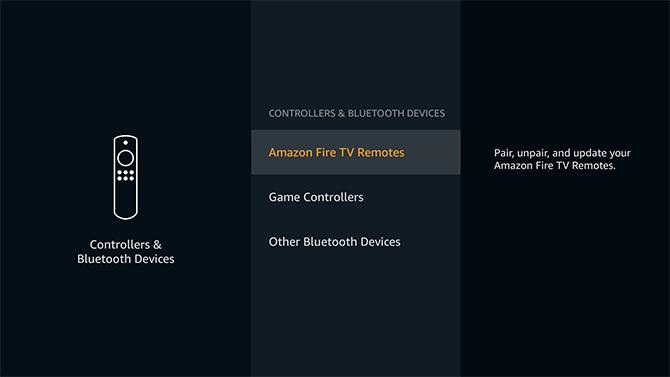
- Disconnect hidden Bluetooth audio devices: Go to Settings → Controllers & Bluetooth Devices → Other Bluetooth Devices. It's surprisingly common for an old pair of headphones or a speaker in another room to silently "steal" the audio output without you realizing it.
3.4 Apple TV Netflix No Sound
For Apple TV Netflix No Sound problems, start by checking your audio output settings. Apple TV gives you a lot of audio routing control, which is useful, but it also creates more points where a setting can go wrong.
- Fix audio output routing: Go to Settings → Video and Audio → Audio Output and confirm the correct speaker is selected. In that same Audio Output menu, enable "Play Television Audio" so Apple TV audio plays through your TV's speakers by default.
- Set Audio Mode to Auto: Go to Settings → Video and Audio → Audio Mode and make sure it's set to Auto.
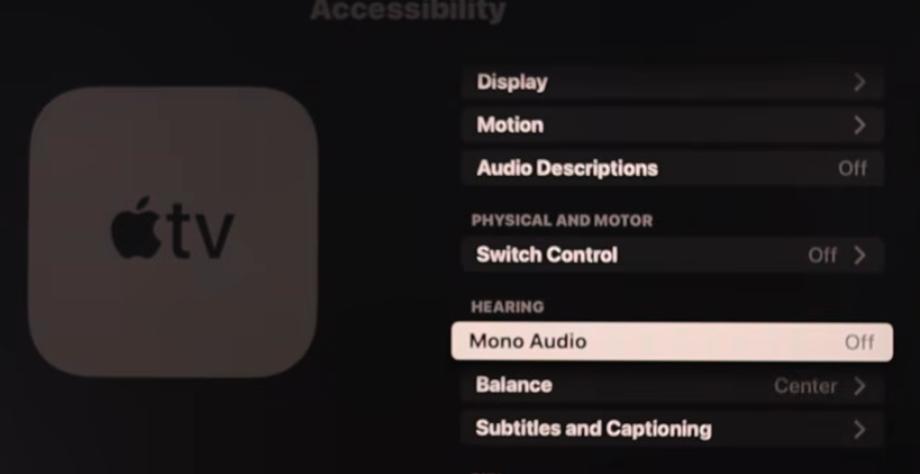
- Check Accessibility settings: Go to Settings → Accessibility → Balance and confirm the audio balance is centered, and that Mono Audio is turned off.
Note: If sound from other devices on the same TV also fails, make sure HDMI-CEC is enabled in your TV's settings.
3.5 Chromecast No Sound on Netflix
"Chromecast no sound Netflix" usually comes down to one thing: the Chromecast is sending a surround sound signal that your TV or speaker can't decode.
- Change surround settings in the Google Home app (For Older/Casting Chromecasts): Open the Google Home app on your phone → tap your Chromecast's tile → Settings (gear icon) → Audio → Surround sound mode → change it to Stereo only.
- Switch audio inside the Netflix cast player: While casting, tap the Audio & Subtitles icon next to the cast button on your phone, and change the audio track from Dolby Digital 5.1 to Stereo or Original Audio.
Part 4. When Netflix No Sound Comes With a Black Screen
If Netflix shows a black screen with no sound, the problem is often related to the HDMI connection. In many cases, the device and TV cannot complete Netflix's HDCP security check correctly.
Fix 1. Check Your HDMI Connection
Try plugging your streaming device into a different HDMI port on your TV. Use an HDMI 2.0 or HDMI 2.1 port that supports HDCP 2.2. These ports are often labeled HDMI 1, ARC, or eARC.
If your streaming device is connected through a soundbar or AV receiver, connect it directly to the TV and test Netflix again. Some older receivers cannot pass the latest HDCP authentication required by Netflix.
Fix 2. Update TV and Device Firmware
Outdated systems cannot handle new encrypted streams, while firmware updates patch known black screen bugs.
- Samsung TV: Settings ➔ Support ➔ Software Update ➔ Update Now.
- Roku TV / Roku Stick: Settings ➔ System ➔ System update ➔ Check now.
- Amazon Fire TV Stick: Settings ➔ My Fire TV ➔ About ➔ Check for Updates.
- Apple TV: Settings ➔ System ➔ Software Updates ➔ Update Software.
- Chromecast with Google TV: Settings ➔ System ➔ About ➔ System update.
Fix 3. Test With a Lower Resolution
If Netflix immediately goes black when playback starts, lower the video resolution from 4K to 1080p.
- Lower Resolution (Fire Stick): Settings ➔ Display & Sounds ➔ Display ➔ Video Resolution ➔ Change from 4K to 1080p.
- Lower Resolution (Roku): Settings ➔ Display type ➔ Change from Auto to 1080p TV.
Or, you can tell the TV to match the frame rate correctly:
- Match Frame Rate (Apple TV): Settings ➔ Video and Audio ➔ Match Content ➔ Turn on Match Dynamic Range and Match Frame Rate.
- Match Frame Rate (Fire Stick): Settings ➔ Display & Sounds ➔ Display ➔ Turn on Match Original Frame Rate.
Got sound but still seeing a black screen? Check out our dedicated guide on How to Fix Netflix Black Screen with Sound on PC, Smart TVs, & Mobile to fix strict DRM or HDMI handshake errors instantly.
Part 5. How to Prevent Netflix No Sound Issues for Good
Once you've fixed the immediate problem, it's worth knowing why Netflix has no sound while you stream on your TV. Plus, how to avoid the Netflix no audio issue to ensure a better viewing experience on your TV or any device.
Why Online Streaming and DRM Cause Audio Loss
- Network Buffering: When internet speeds drop, TVs prioritize video data over audio data, which drops the sound completely.
- DRM Handshake Errors: Netflix uses strict Digital Rights Management (DRM) to check your device identity during playback, which can suddenly freeze audio decoding.
Prevent Sound Issues by Downloading Offline
A simple way to avoid streaming-related sound issues is to download movies and shows before you watch them. Netflix lets you download content in its mobile apps, but for TVs and computers, you'll need a downloader tool to play it smoothly. This is where VidiFab Netflix Video Downloader comes in.
VidiFab Netflix Video Downloader
Download Netflix videos as MP4/MKV in 1080p with Dolby Atmos for offline viewing on your TV, iPhone, Android, desktop, and more devices.

- Bypass Compatibility Issues: VidiFab downloads Netflix videos into universal MP4 or MKV formats, which eliminates audio format conflicts on older TVs or projectors.
- No More Buffering and Audio Drops: The audio and video tracks are perfectly synced inside the downloaded file, so the sound stays stable even without an internet connection.
- Perfect Quality Options: You can choose your preferred download settings up to 1080p video quality, along with Dolby Atmos and 5.1 surround sound.
How to Download Netflix Videos with VidiFab to Avoid Sound Mismatches
Step 1. Configure Your Audio and Video Preferences
Open VidiFab Netflix Video Downloader. Click the menu icon in the top-right, go to Preferences, and set your default output format to MP4 or MKV for maximum TV compatibility. Set your preferred download folder.

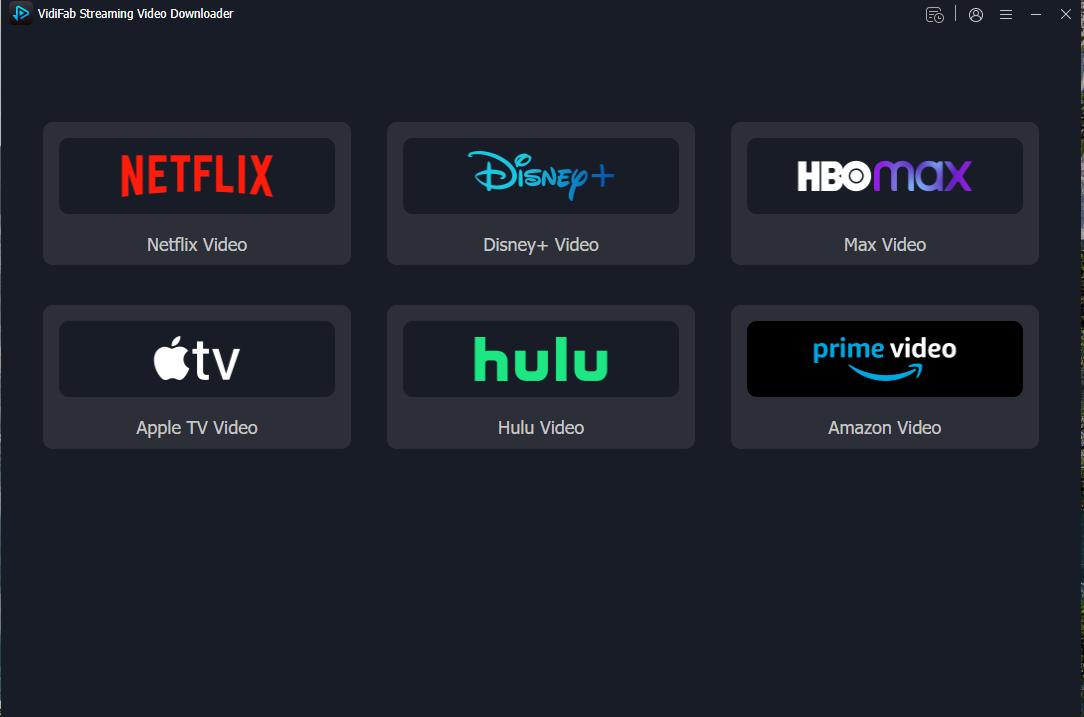
From the main screen, click the Netflix logo to open the built-in web player and log into your account.
Step 2. Select Your Content
Navigate to the movie or series that is giving you audio issues, or paste the title's URL directly into the address bar. Wait for VidiFab to analyze the stream, then click the Download button that appears in the bottom-right corner.

Step 3. Optimize Audio Track Settings
In the settings window, select your resolution up to 1080p. Go to the Audio section and choose the correct audio track, such as Stereo (2.0) for older TVs or 5.1 Surround Sound / Dolby Atmos for compatible home theaters. Choose your preferred subtitle languages and formats. Click Download.

Step 4. Transfer and Play Offline on Your TV
Track the progress in the downloading tab. Once completed, go to the History section (clock icon) and click the folder icon to open the file location on your computer.

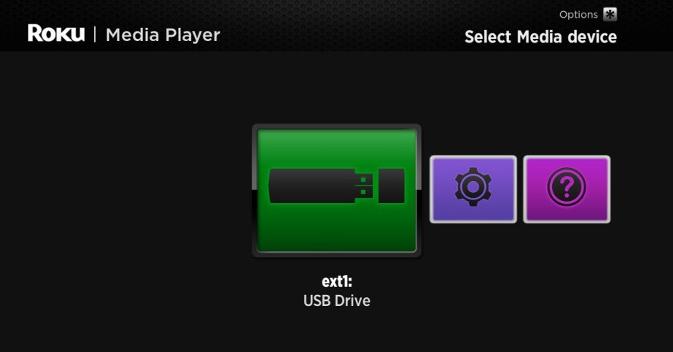
Copy the downloaded MP4 or MKV file onto a USB flash drive or an external hard drive. Plug the USB drive directly into your Samsung TV, Roku TV, Fire Stick, or Android TV box to enjoy smooth playback with perfectly synced, error-free sound.
Final Thoughts
If you are dealing with Netflix no sound on TV, the fastest fix is usually to stop thinking of it as only an app problem and start considering the whole audio path. Check mute, output routing, and surround-sound settings first, then move through the device-specific menus if Netflix is the only silent app. When the silence comes with a black screen, shift to HDMI and resolution troubleshooting before chasing the app itself.
Once the TV and streaming device are configured correctly, Netflix audio problems usually become much easier to prevent. Or, if you want a more reliable workaround, you can consider using VidiFab Netflix Video Downloader to play Netflix offline on your device.
 Free Download
 Secure Download
 Free Download
Secure Download
Free Download
Secure Download


I'm a video tech specialist with over 10 years of experience in digital media and streaming. I focus on making complex workflows simple and practical. Through my guides, you'll learn how to convert media, keep high-quality playback across devices, and manage your streaming video library with ease.
 Leave Your Comment