Netflix Not Working on FireStick? Here's How to Fix It
 By Miles Kent
I have used Netflix on FireStick for years, and most problems usually start the same way. The app gets stuck on the loading screen, videos keep buffering, the sound goes out of sync, or Netflix suddenly throws an error code like UI 800 3 or NW 2 5. Sometimes the picture quality also becomes blurry even with a stable internet connection.
If your Netflix app is not working on FireStick, you are definitely not alone. In this guide, I'll walk through the most common Netflix Fire TV Stick issues and the fixes that actually helped me get streaming back to normal.
Part 1. Netflix FireStick Issues and Their Causes
Over the years, I've seen Fire TV devices have the same common issues. To help you figure out your problem quickly, I put together this quick troubleshooting table matching the exact symptoms to their underlying causes.
| Common Issues | What It Looks Like | Why It Happens | How to Fix |
|---|---|---|---|
| App Not Loading | The app refuses to open, crashes back to the home screen, or gets stuck on the red logo. | Corrupted system memory cache, low device storage, or an outdated software build. | See Part 2: How to Fix General Netflix App Issues |
| Buffering and Lagging | The video constantly pauses, skips frames, or displays a spinning loading wheel. | Weak local Wi-Fi signal, network congestion, or background system tasks draining the processor power. | See Part 2: How to Fix General Netflix App Issues |
| Audio Sync & Sound Drops | Perfect picture quality but a noticeable sound delay where actors' lips do not match the audio. | Mismatched HDMI pass-through audio formats or temporary media player processing delays. | See Part 3: How to Fix Netflix Audio Sync Issues |
| Low Quality Video | The stream plays without pausing, but the picture becomes blurry, pixelated, or stuck in standard definition. | Sudden drops in internet bandwidth or Netflix servers limiting high bitrates due to network strain. | See Part 4: How to Fix Netflix Low Quality Issues |
| Error Codes | Screen displays specific error messages like UI-800-3, NW-2-5, or UI-113. | Account authentication glitches, network communication failures, or server-side outages. | See Part 5: Netflix FireStick Error Codes Explained |
| Login Blocks | The application refuses to sign in or shows a black screen right after you enter credentials. | Active VPN configurations or custom DNS settings that trigger the automated security blocks. | See Part 2: How to Fix General Netflix App Issues |
I know that troubleshooting and fixing take time and need patience. If your goal is to stream Netflix seamlessly to have a carefree movie night, I suggest you use a downloader like VidiFab Netflix Video Downloader to get Netflix movies or shows in standard video files. This avoids ALL app, connection, audio, and video quality issues. So, try it out if you want a 100% working fix to avoid the problem.
Part 2. How to Fix General Netflix App Issues
If your Netflix app keeps not loading, buffering, lagging, or crashing on FireStick, try these fixes below. Or, you can check out this complete Netflix buffering guide for more specific fixes.
Fix 1. Restart Your FireStick
A quick reboot clears the temporary system RAM and shuts down rogue background processes. I just hold down the Select and Play buttons on the remote simultaneously for about five seconds until the device reboots itself. Alternatively, unplug the power cable from the back of the device, wait thirty seconds, and plug it back in.
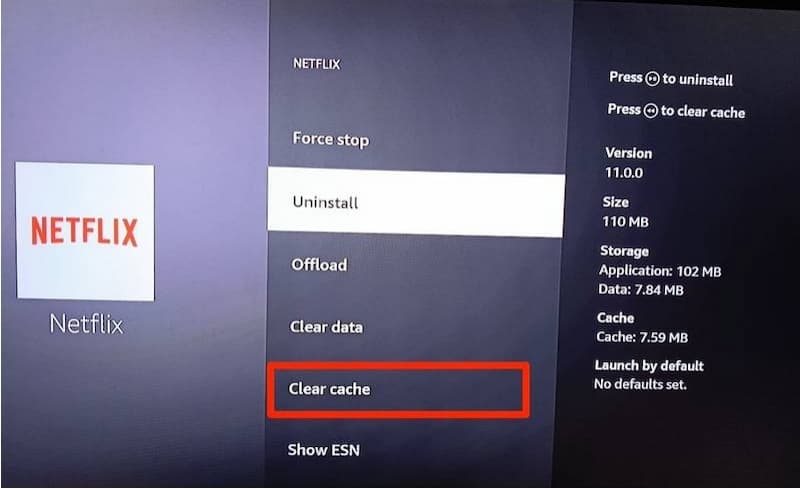
Fix 2. Clear Netflix App Cache Data
When videos start lagging or the app refuses to load, bloated cache files are usually to blame. Here's how you can clear the Netflix app's cache on FireStick:
-
01
Navigate to the Settings menu on your Fire TV home screen.
-
02
Click on Applications and select Manage Installed Applications.
-
03
Scroll down the list and click on Netflix.
-
04
Select Clear Cache first, then test the app. If it still misbehaves, go back and click Clear Data.
Fix 3. Reinstall the Netflix App
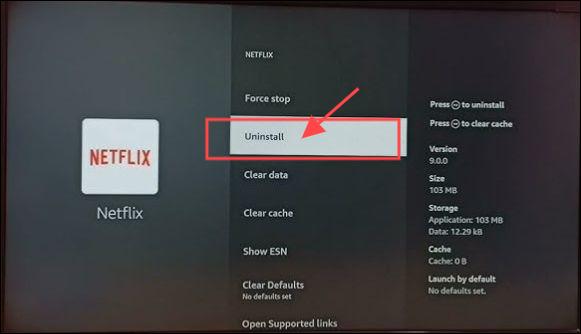
If clearing the cache fails, a fresh installation fixes deeper file corruption issues. This completely wipes the app and downloads the latest stable version from the Amazon Appstore.
-
01
Go back to Settings, select Applications, and click Manage Installed Applications.
-
02
Find Netflix in the list and select Uninstall.
-
03
Follow the prompts to remove the app entirely.
-
04
Return to the home screen, search for Netflix in the Appstore, and select Download to reinstall it.
Fix 4. Update FireStick System Software
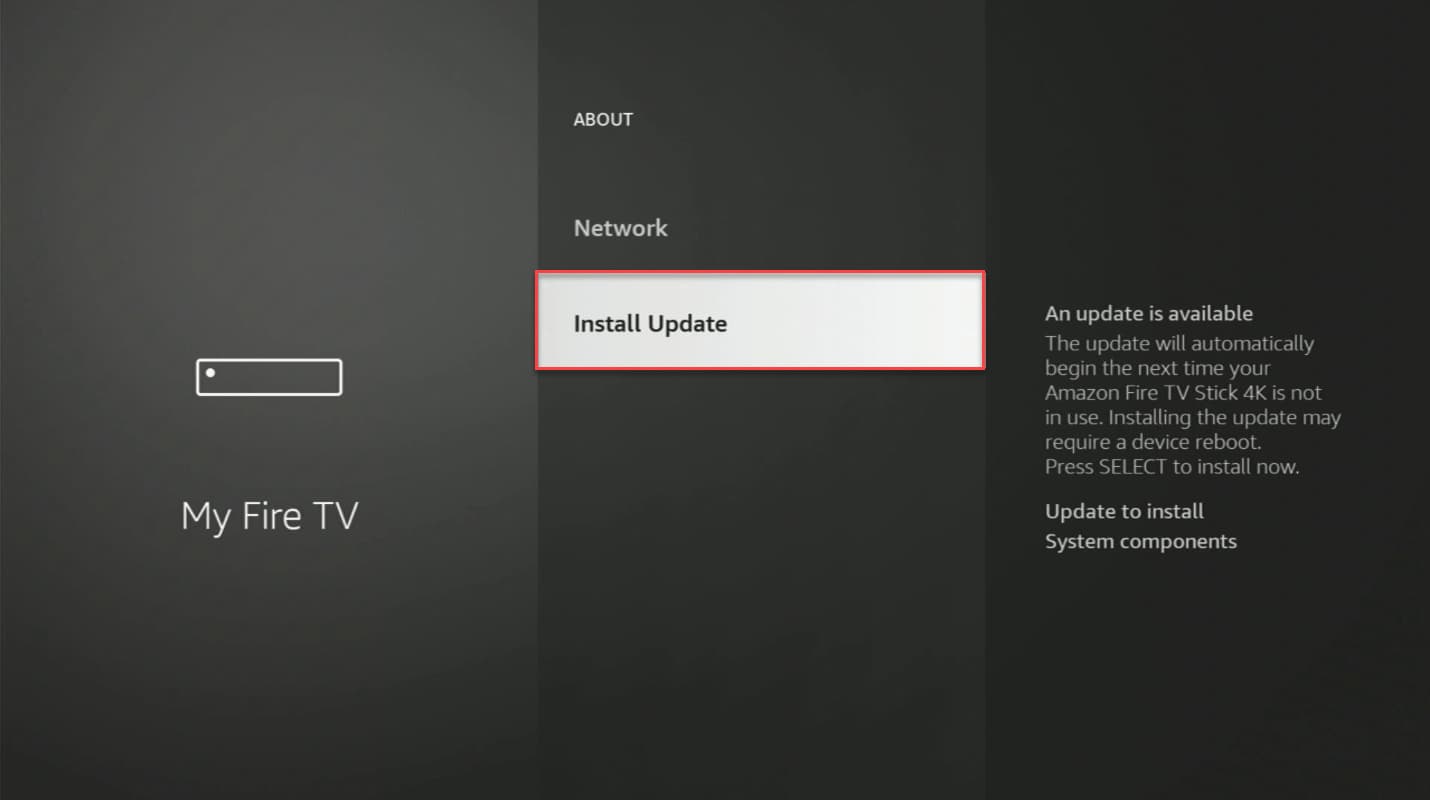
Updating FireStick improves compatibility with the Netflix app and fixes bugs that may cause it to freeze or lag.
-
01
Open the Settings menu.
-
02
Select My Fire TV and then click on About.
-
03
Scroll down and click Install Update if one is already downloaded.
Fix 5. Disable VPN or Proxy Services
If you are using VPN while accessing Netflix, please disconnect the server in the VPN app. And then try reopening Netflix to see if the connection clears up.
Fix 6. Restart Your WiFi Router
If the Netflix app can operate, but the it keeps loading, it might be the slow internet speeds. Turn off your router, wait 30–60 seconds, and turn it back on.
Fix 7. Check if Netflix Servers Are Down
To verify this, pick up your smartphone or laptop, connect to the same home network, and visit the official Netflix Server Status page.
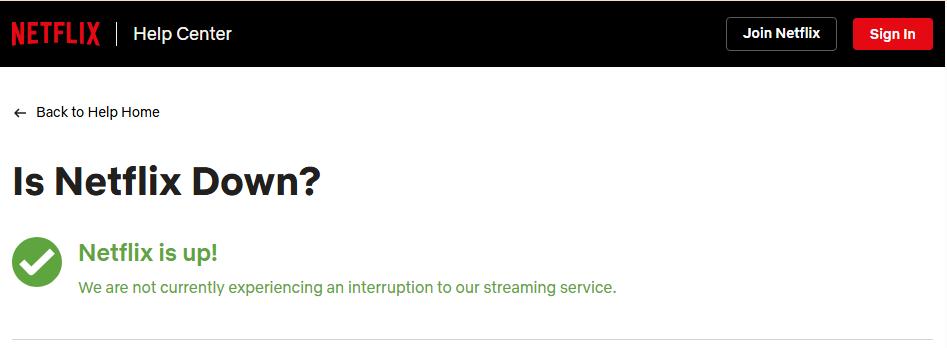
You can also check out community tracking sites like DownDetector. If you see a big jump in user reports, it means there's an issue with the system. In that case, just grab a different drink, pause the media player, and hang tight while their engineering team works on a fix.
Fix 8. Perform a Factory Reset as a Last Resort
If absolutely nothing else works and every app on your device is failing, a factory reset reverts the hardware back to its original out-of-the-box state. To do it, go to Settings > My Fire TV > Reset to Factory Defaults. This deletes all your personal data, downloaded apps, and settings, so use it carefully.
Part 3. How to Fix Netflix Sound Issues and Audio Sync Delay on Firestick
When the picture and sound go out of sync, or if the audio cuts out, it usually has to do with how your streaming stick handles digital sound. Here's how I fix those audio issues and get everything back in sync.
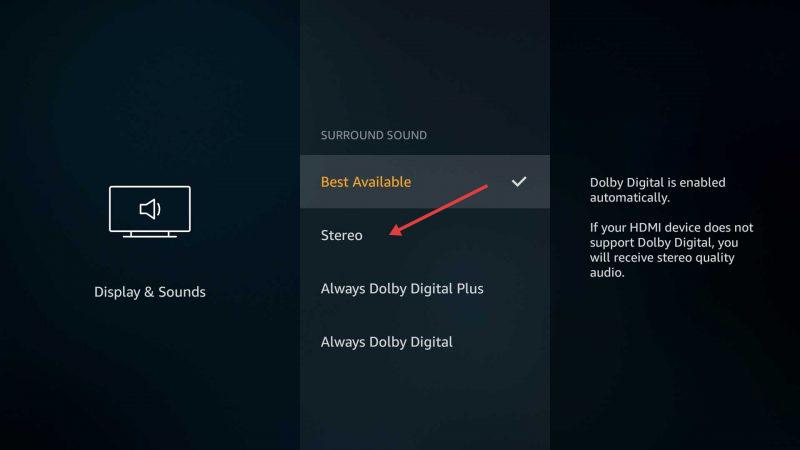
Fix 1. Switch from Dolby Digital Plus to Stereo
Turning off advanced surround sound processing helps your hardware keep up with heavy audio data. If your TV speakers or soundbar struggle with multi-channel Dolby audio, switching to standard stereo can smooth things out.
-
01
Navigate to the Settings menu on your Fire TV home screen.
-
02
Select Display & Sounds and then click on Audio.
-
03
Click on Surround Sound.
-
04
Change the setting from Best Available or Dolby Digital Plus to Stereo.
Fix 2. Toggle "Match Original Frame Rate"
Most movies are filmed at 24 frames per second, but your Firestick usually forces your TV to run at 60 frames per second. This mismatch can cause minor timing errors that push your audio and video out of sync. Turning this feature on forces your Firestick to match the exact speed of the movie you are watching.
-
01
Open the Settings menu and head back to Display & Sounds.
-
02
Select Display from the list.
-
03
Scroll down to Match Original Frame Rate and turn the setting to On.
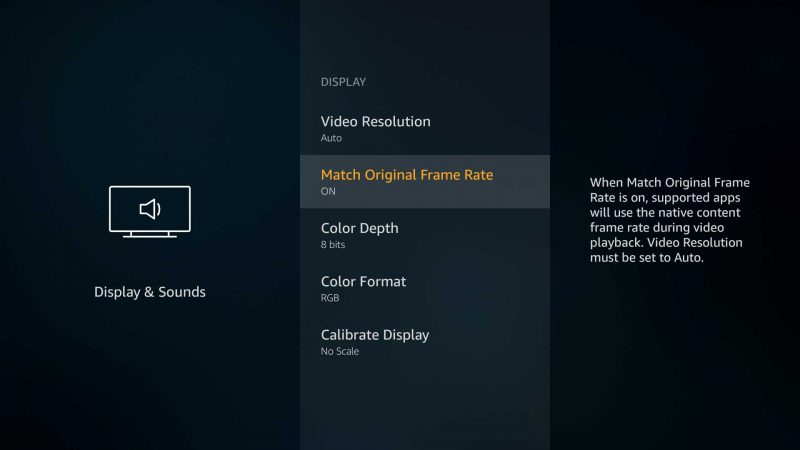
Note: to use this feature efficiently, set the Netflix video resolution to Auto.
Fix 3. Adjust the AV Sync Tuning Feature
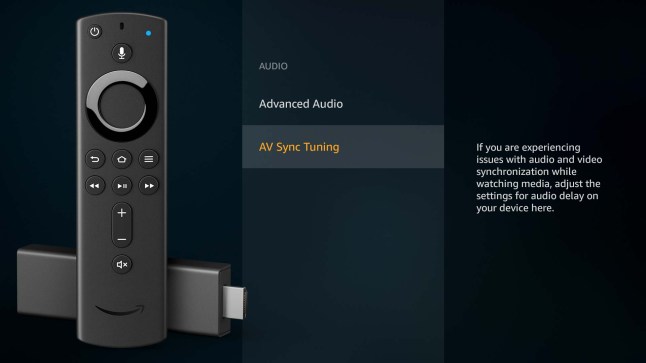
Amazon includes a built-in tool that lets you manually slide the audio track forward or backward until it perfectly matches the picture. This is the best approach if the sound delay stays exactly the same across every single movie you watch.
-
01
Go to Settings and select Display & Sounds.
-
02
Click on Audio and scroll down to select AV Sync Tuning.
-
03
Watch the bouncing ball and listen to the tone. Use the left and right directional buttons on your remote to adjust the slider until the sound click matches the visual flash perfectly.
Fix 4. Change Audio Tracks Inside the Netflix App
If you notice a sound delay or if Netflix has no sound only on one specific movie or series, the default 5.1 surround sound track might be throwing off your speakers. Switching to a standard audio mix can clear up the problem.
-
01
While playing the problematic video, press the down button on your remote to pull up the playback menu.
-
02
Select the Audio & Subtitles icon at the bottom of the screen.
-
03
Look at the selected track. If it says English [Original] (5.1), switch it to the standard English [Original] option instead.
Fix 5. Unplug and Reconnect the HDMI Stick
A physical reset forces all your devices to re-establish a clean connection.
-
01
Unplug the Firestick entirely from the TV HDMI port and disconnect its power cable.
-
02
Unplug your television and soundbar from the wall outlet.
-
03
Leave everything completely disconnected for two full minutes.
-
04
Plug the television and soundbar back in first, then connect your Firestick directly to the primary HDMI port on the TV without using any unpowered third-party splitters.
-
05
Open Netflix on your Fire TV Stick and try playing the title again to check if it's still out of sync.
Part 4. How to Fix Netflix Low Quality on FireStick
In my experience, low video quality on Amazon devices often happens when your data stream dips below the minimum bandwidth or when your display settings get mixed up.
Here's how to get your stream back to sharp high definition.
Fix 1. Change Video Quality Settings in Web Browser
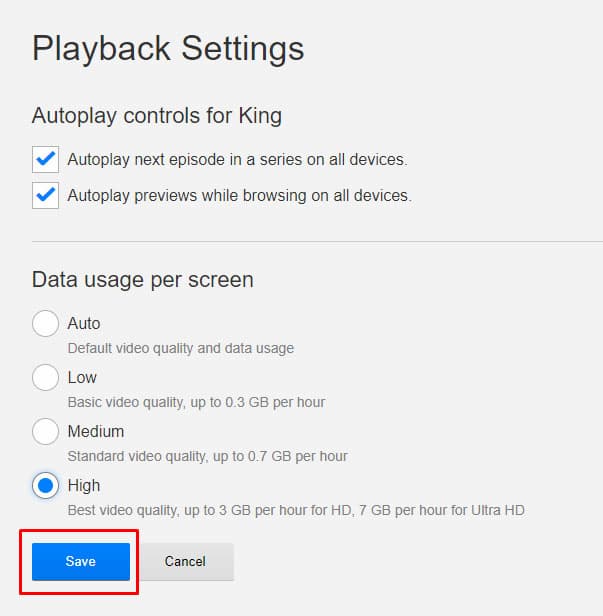
You cannot change the video quality insides the Netflix FireStick app. You need to log into your profile via a computer or mobile browser to force the platform to stream in high definition.
-
01
Grab your phone or computer, open a browser, and log into your Netflix account.
-
02
Navigate to your Account page and scroll down to the Profile & Parental Controls section.
-
03
Click on your specific profile and look for Playback Settings.
-
04
Switch the data usage per screen from Automatic to High.
-
05
Click Save and restart the application on your TV.
Fix 2. Check Internet Bandwidth Using the Built-In Network Tool
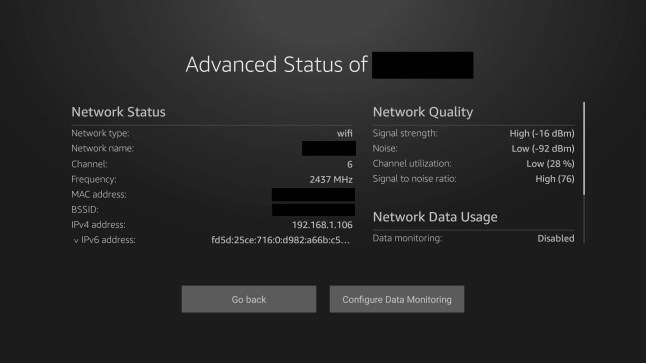
Your system might drop video quality simply because your internet connection is too slow to support high-definition video data. You can use the native Amazon network diagnostic tool to see if the current connection meets the required speeds.
-
01
Head over to the Firestick Settings menu.
-
02
Select Network and highlight your current active Wi-Fi connection.
-
03
Press the Play/Pause button on your Amazon remote control.
-
04
You'll see a Network Test window, just click the Run Speed Test button.
-
05
Now, a network status test screen pops up where you can check the network status and quality details. Remember, Netflix needs at least 3 Mbps for standard HD and 15 Mbps for ultra HD. If your download speed is lower than that, your local network might be the issue.
Fix 3. Manually Lock the FireStick Display Resolution
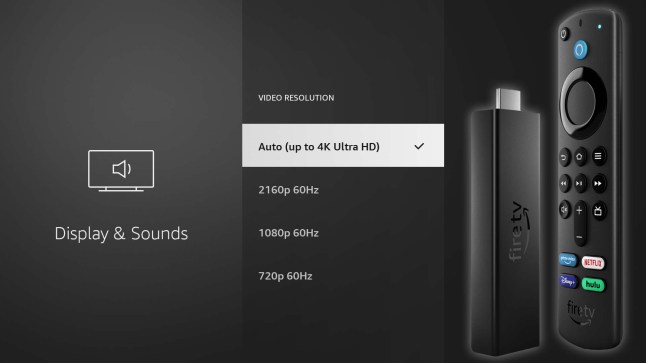
If your FireStick is lagging, it might drop the output resolution. You can easily fix this by matching it to your TV's highest setting.
-
01
Go to Settings and select Display & Sounds.
-
02
Click on Display and open the Video Resolution menu.
-
03
Change the setting from Automatic to your specific resolution, like 1080p 60Hz or 2160p 60Hz if you have a 4K TV.
Fix 4. Use a 5GHz Wi-Fi Band Instead of 2.4GHz
Using the 2.4GHz band can make your Netflix streaming lag because it drops data packets. By switching to a 5GHz network, you'll get a faster, clearer connection for your streaming stick.
-
01
Open your Firestick Settings and select Network.
-
02
Look at the available wireless connections in your home.
-
03
Select your network name that features a 5G or 5GHz label at the end of the title.
-
04
Enter your network password and verify that the signal strength reads as Very Good or Excellent.
Part 5. How to Troubleshoot Netflix Firestick Error Codes
If you're running into Netflix error codes on your Firestick like UI-800-3, tvq-st-121, NW-2-5, 115, or UI-113, don't worry! These codes can be a bit confusing, but each one points to a specific problem that has a known fix. Here's a quick reference to the most common FireStick error codes, what they mean, and how to resolve them.
| Error Code | What It Means | How to Fix It |
|---|---|---|
| UI-800-3 | Corrupted data stored on your streaming device is blocking the application from loading properly. | • Sign out of your profile, restart the media player, and sign back in. • Wipe the application cache through your system settings. |
| tvq-st-121 | A localized network connectivity bug or configuration issue is preventing your device from reaching the host servers. | • Verify your home internet stability by opening a separate streaming application. • Hard reboot your streaming stick and check your local DNS settings. |
| NW-2-5 | An internal communication error between the Netflix app and the audio/video processing system on your FireStick. | • Power cycle your wireless router and modem. • Test your current connection speed or switch to a wired Ethernet adapter if available. |
| 115 | An underlying network restriction or VPN conflict is dropping the secure connection to the authentication services. | • Turn off any active virtual private networks or proxy services. • Check the platform servers using Fast.com to verify your network location matches your region. |
| UI-113 | A general refresh failure indicates that your device login tokens or security certificates need to be rebuilt. | • Log out of your account directly from the error details screen. • Unplug your streaming hardware from power for at least one minute to clear temporary memory. • Try Prime Video on your FireStick. If it also doesn't work, check your device or network connection. |

Part 6. The Ultimate Fix: Download Netflix Videos to Avoid All Firestick Glitches
If you're fed up with feeling like a full-time tech support just to watch a movie, there's an easier way. Instead of constantly patching a glitchy FireStick, you can skip the streaming headaches entirely by keeping local copies of your favorite shows and movies.
That's exactly why I started using VidiFab Netflix Video Downloader.
This tool lets you save high-quality MP4 or MKV files of movies and shows from Netflix right onto your computer. Once you've saved the files, you can forget the hassles of streaming.
VidiFab Netflix Video Downloader
Download Netflix videos as MP4/MKV in 1080p with Dolby Atmos for offline viewing on your iPhone, Android, desktop, and more devices.

Why Shifting to Local Downloads Works
- No More App Crashes: You don't need to log in to Netflix on your Amazon Fire TV, and you don't need Wi-Fi to watch videos. This means you won't run into annoying issues like UI-800-3 or UI-113.
- No Buffering: Because the video file plays directly from your local hardware, an unexpected drop in home Wi-Fi speeds will never lower your video resolution or pause your movie.
- Always High Definition: The tool grabs the raw stream straight from the source, ensuring you enjoy crisp 1080p quality and audio that stays in sync.
Wondering how to download videos from Netflix to your computer and then watch it on your FireStick without issues? Check out the guide below:
How to Download Netflix Videos and Watch on FireStick
Step 1. Set Your Format Preferences and Log In
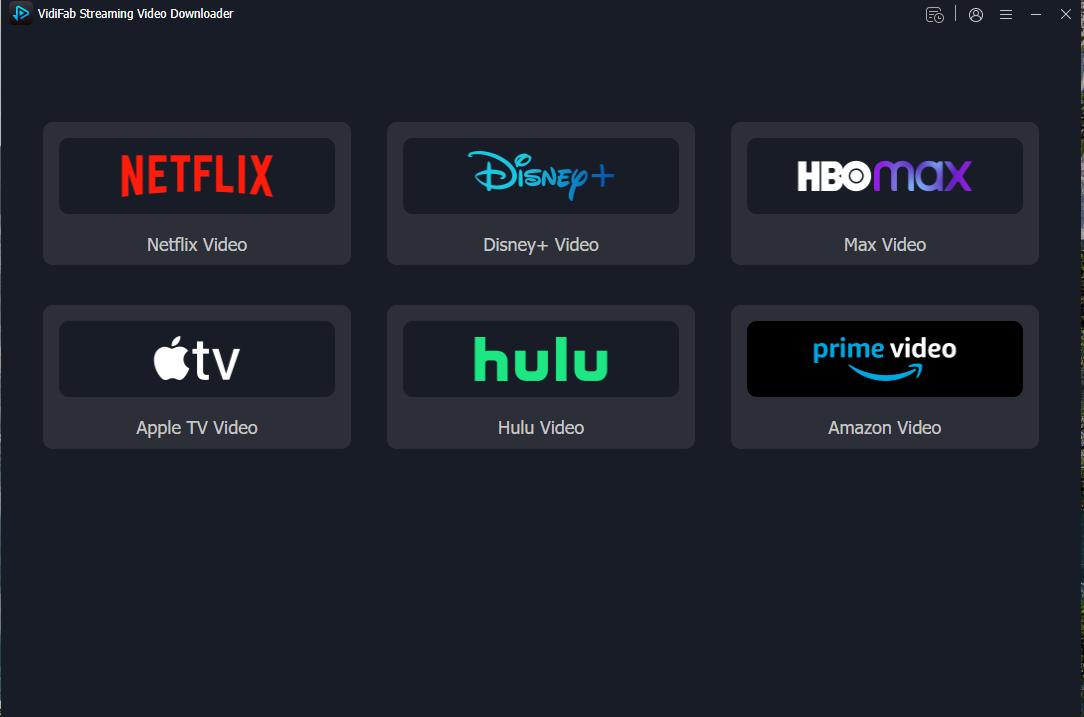
Download and install VidiFab Streaming Video Downloader on your computer. . Open the application, click the menu icon, and navigate to Preferences to set your default Download Format to MP4 or MKV. Next, select the Netflix service from the main interface and log in to your profile using the secure, built-in browser.
Step 2. Find Your Video
Browse through the titles or type the specific movie or television show you want to save into the search bar. Click on the title to open its detail page, and click the blue Download icon that appears in the bottom corner of your interface.

Step 3. Customize Your Download Settings
A settings window will appear. Choose your preferred video quality, audio language, and subtitle style. Once ready, click Download to start. This ensures the downloaded file meets your playback needs on FireStick.

Step 4. Download and Access Files
VidiFab will download your Netflix videos at high speed. When finished, go to the History tab (clock icon) and click the folder icon to open the downloaded files on your PC. Now the videos are ready for offline viewing.

Step 5. Play on FireStick
-
01
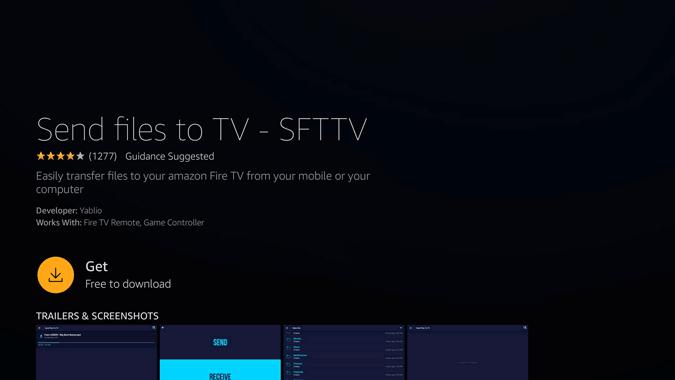
Install Send Files to TV on both your PC and FireStick.
-
02
Open the app on both devices and connect them to the same WiFi network.
-
03
On your PC, select the downloaded Netflix videos and send them to your FireStick.
-
04
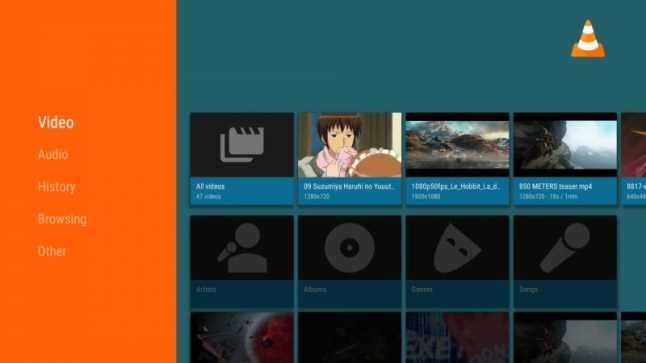
On FireStick, open the app's received files section and play the video with a media player like VLC.
This way, you can enjoy Netflix without buffering, crashes, or error codes, even offline, while keeping the playback smooth and high quality.
Final Thoughts
Dealing with Netflix issues on FireStick can be really annoying, like when it buffers, crashes, or has audio lag. But here's the good news: most of these problems have easy fixes! You can often sort them out by clearing the app cache, updating your FireStick, or checking your network connection.
If you want to skip the hassle of trying each fix, consider downloading Netflix videos for offline viewing. This way, you can avoid streaming glitches and enjoy a smooth, high-quality experience anytime. Just hit the download button below to get the software on your computer. Plus, it has a free trial, so you can test it out and see if it works for you. Happy watching!
 Free Download
 Secure Download
 Free Download
Secure Download
Free Download
Secure Download


I'm a video tech specialist with over 10 years of experience in digital media and streaming. I focus on making complex workflows simple and practical. Through my guides, you'll learn how to convert media, keep high-quality playback across devices, and manage your streaming video library with ease.
 Leave Your Comment