Netflix Keeps Buffering? Here's How to Fix It
 By Miles Kent
Netflix keeps buffering, freezing, or showing a loading circle even when your internet works fine? The problem is usually caused by network instability, app issues, device limitations, or Netflix playback settings. This guide covers the fastest fixes for Netflix buffering on TVs, phones, browsers, and streaming devices.
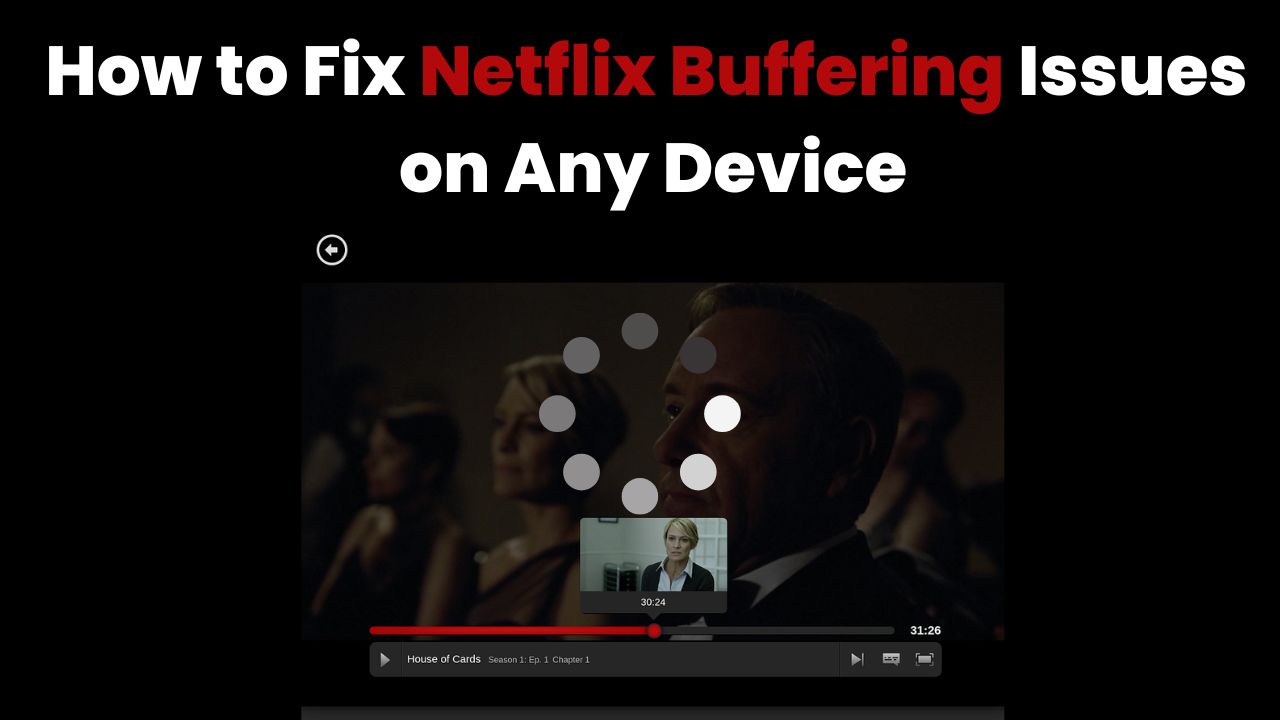
Part 1. Why Does Netflix Keep Buffering?
Netflix buffering happens when video data cannot download fast enough to match playback speed. The video needs a steady flow of data. When that flow breaks or slows down, you will see loading, pauses, or low-quality playback.
If Netflix keeps buffering but your internet appears normal, the problem is usually caused by one of these factors:
1. Not Enough Internet Speed
Your internet may be too slow for the video quality you are trying to watch. Netflix suggests different speeds for different quality levels. But in real homes, you often need more speed because many devices share the same network.
In our test, we compared Netflix's official numbers with real-world use in a home with multiple devices:
Minimum speed needs for smooth playback:
| Quality | Official Minimum | 2026 Real-World Need |
|---|---|---|
| Standard (720p) | 3 Mbps | ~25 Mbps |
| Full HD (1080p) | 5 Mbps | ~50 Mbps |
| Ultra HD (4K) | 15 Mbps | 100+ Mbps |
2. Network Crowding
Even if you pay for fast internet, sharing the connection makes it slow. If someone else in your house is playing online games, downloading big files, or saving photos to the cloud, there is less "room" for your Netflix stream.
3. ISP Throttling and Nighttime Lag
Some Internet Service Providers (ISPs) use "Deep Packet Inspection" to see that you are watching video. They might intentionally slow video traffic during busy hours to save money or manage their network. This is sometimes called ISP throttling. This is why you might notice Netflix buffers at night even if your speed test looks normal during the day.
4. Device Overload
Streaming tools like Smart TVs and Fire Sticks are just small computers. Over time, they run too many hidden tasks in the background. When their RAM (Random Access Memory) is full, they cannot process high-quality video smoothly. Using an old version of the Netflix app or old system software also makes this worse.
5. App Cache and System Data Problems
Netflix stores temporary files (cache) to load faster. If these files get "broken" or corrupted, the app will get stuck on the loading screen. Also, if your device uses a slow or unstable DNS (Domain Name System), it may take longer to find Netflix servers. This delay can also cause buffering.
Part 2. Quick Fixes to Stop Netflix Buffering Immediately
If you want a Netflix buffering fix fast, try these simple steps first. These solutions solve 90% of streaming problems in just a few minutes.
Fix 1. Restart Netflix and Your Device
Restarting clears out "trash" files and gives the Netflix app a fresh start. Here's how to restart your smart TVs, streaming sticks, mobile phones, and computers:
- Smart TVs and Streaming Sticks: Unplug the power cord from the wall. Wait for 60 seconds, then plug it back in.
- Phones: Fully power off your phone (don't just lock the screen). Wait a moment and turn it back on.
- Computers: Shut down your PC or Mac completely, wait 10 seconds, and restart.
Fix 2. Check Whether Netflix Is Down
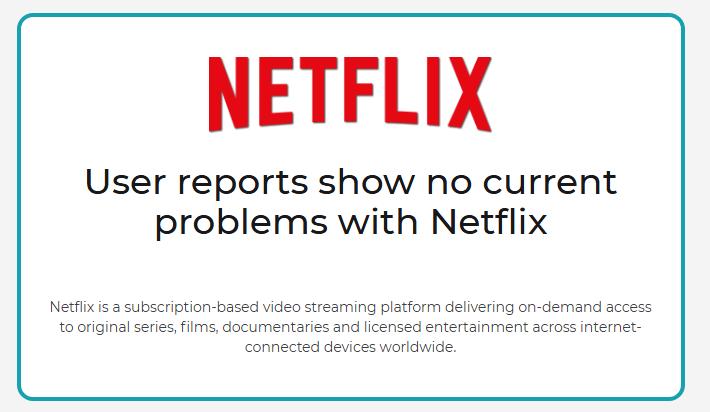
Go to a site like DownDetector or search "Is Netflix down" on Google. If many users report issues, the Netflix servers may be having problems. In this case, you just need to wait.
Fix 3. Test Your Internet Connection
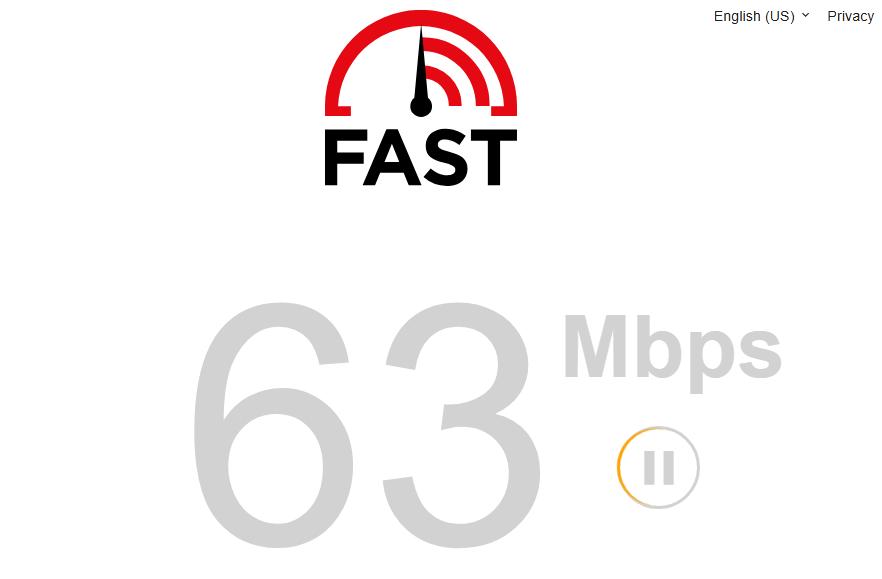
Netflix has its own speed test tool to see if your connection is strong enough. Simply go to Fast.com in a browser. Let it run and check your download speed. As we mentioned in Part 1, try to have at least 25 Mbps for a perfect experience.
Fix 4. Reduce Netflix Video Quality
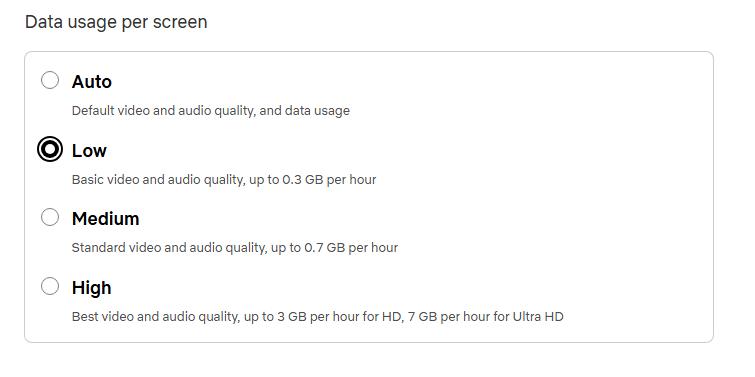
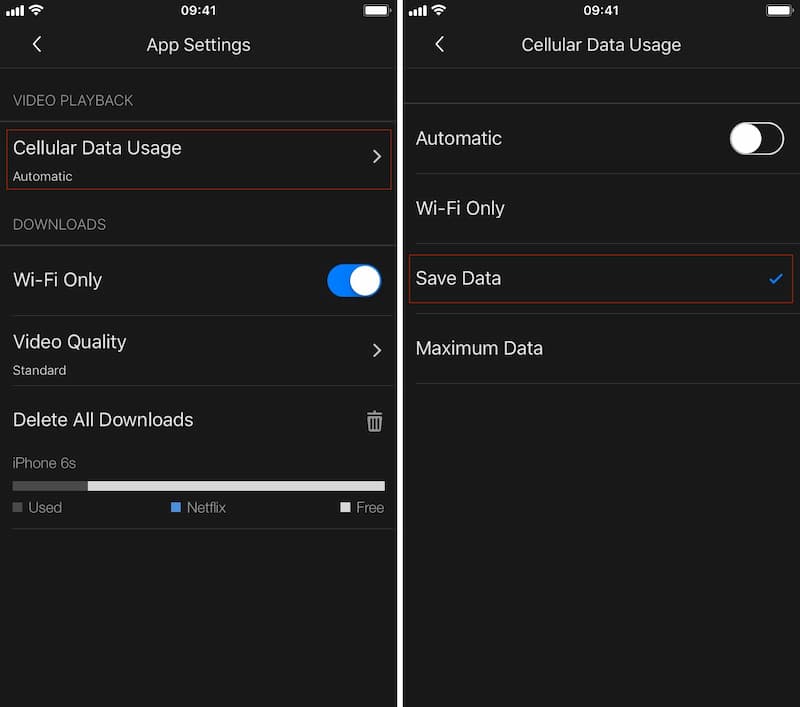
You can easily change this on the Netflix website, and it will apply to all devices under your profile. When you use the mobile app, tweak your Cellular Data Usage. This also allows Netflix to run at a lower resolution. Here's how:
- On the Web: Click your Profile icon > Account > Edit settings > Playback settings. Choose a lower setting.
- On a Smartphone: Tap your Profile icon > App Settings > Cellular Data Usage. Pick Save Data.
Fix 5. Disable VPN or Proxy Temporarily
If you are using a VPN, turn it off. Netflix often blocks or slows down traffic from VPNs, which causes buffering.
Fix 6. Sign Out and Re-login to Netflix
- Smart TVs: Go to the Netflix menu, select Get Help, and click Sign Out.
- Browser: Visit netflix.com/clearcookies then sign in again.
- Mobile: Tap your profile icon, go to settings, and select Sign Out. Wait a few seconds, then sign back in with your email and password.
Fix 7. Update Netflix App Version
-
01
Go to the App Store (iPhone), Google Play Store (Android), or your TV's App Gallery.
-
02
Search for Netflix.
-
03
If you see an "Update" button, click it to install the latest version.
Part 3. Netflix Buffering vs Freezing vs Glitching: What's the Difference?
If the quick fixes above don't solve your Netflix buffering issue, it's time to look deeper into the problem and identify whether you are dealing with buffering, freezing, or glitching. Although these issues may look similar, they usually have different causes and solutions.
| Problem | What Happens | Common Causes |
|---|---|---|
| Netflix Buffering | The video pauses and shows a loading circle while Netflix tries to load more data. | Slow connection, unstable Wi-Fi, network congestion, or high video quality settings. |
| Netflix Freezing | The video stops completely and may not continue playing. Sometimes the audio keeps playing. | App errors, device issues, outdated software, or corrupted cache files. |
| Netflix Glitching | The video may flicker, skip frames, show visual errors, or suddenly change quality. | Browser problems, graphics settings, DRM playback issues, or device performance limits. |
In short, buffering usually points to data delivery problems, freezing is often related to app or device issues, and glitching is commonly connected to playback or display problems.
Part 4. Fix Netflix Buffering on Different Devices
Netflix buffering problems looks different devices. For example, Netflix may keep freezing on a phone, show a loading circle on a Smart TV, or stop playing in a browser even when other websites work normally.
Try the fixes below based on where you watch Netflix.
4.1 Fix Netflix Keeps Buffering on Smart TV
If Netflix keeps buffering or loading on your Smart TV, the problem is often caused by weak Wi-Fi, slow network setup, or app cache issues. Try these Smart TV fixes to improve streaming stability.
Method 1: Switch to a Wired Ethernet Connection
Most Smart TVs have a "Fast Ethernet" port that can handle up to 100 Mbps, which is plenty for Netflix. What you need is an Ethernet cable (Cat5e or Cat6). Here's how to set it up:
-
01
Plug one end of the cable into your router's LAN port.
-
02
Plug the other end into the LAN port on the back of your TV.
-
03
Go to your TV Settings > Network.
-
04
Change connection from Wireless to Wired (Ethernet).
Method 2: Change DNS Settings
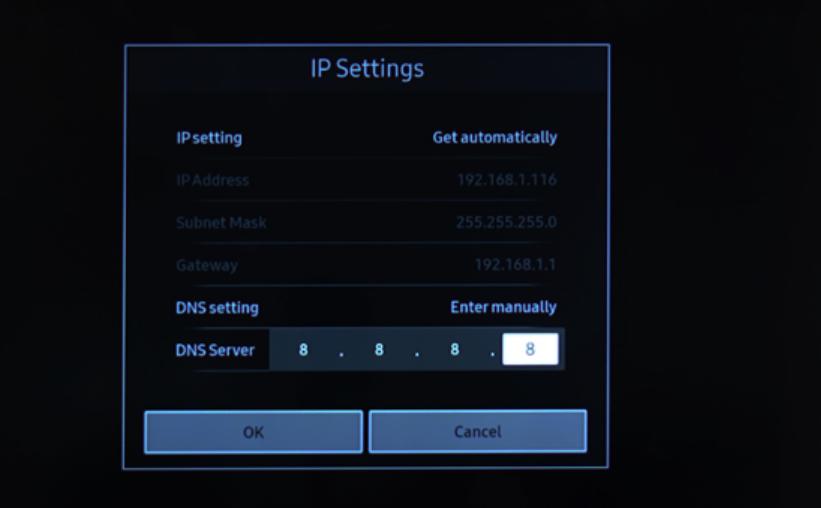
If your internet works fine but Netflix is still slow, changing DNS can help. You can speed this up by using a public DNS like Google (8.8.8.8) or Cloudflare (1.1.1.1).
Example for Samsung Smart TVs (other brands are similar):
-
01
Go to Settings from the main menu.
-
02
Select General > Network > IP Settings.
-
03
Find DNS Setting and choose Enter manually.
-
04
Type in 8.8.8.8 or 1.1.1.1. Open Netflix again to see if it plays without lag.
Method 3: Clear the Netflix App Cache
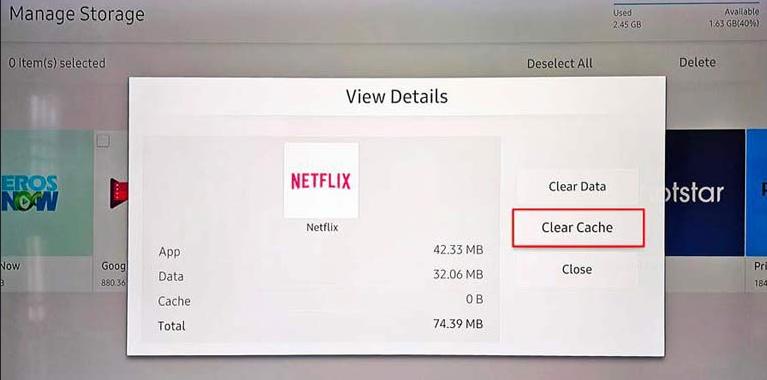
If Netflix is slow but other apps like YouTube or Disney+ work fine, the problem is likely the Netflix cache. Here's a quick guide on how to clear the Netflix cache on Samsung, Sony/Android, and LG TVs:
- Samsung TV: Go to Settings > Support > Device Care > Manage Storage. Select Netflix, click View Details, and choose Clear Cache.
- Sony/Android TV: Go to Settings > Apps > See all apps. Select Netflix and click Clear Cache.
- LG TV: Most LG TVs do not have a "Clear Cache" button. Instead, you should uninstall the Netflix app and then re-install it from the Content Store.
4.2 Fix Netflix Keeps Freezing on Phone or Tablet
If you are using the latest version of the Netflix app and your internet connection is working fine, but Netflix still keeps freezing while playing videos, you can try the following solutions to fix the problem and get smooth playback again.
Method 1: Close Background Apps and Downloads
If your phone is busy with social media or games, Netflix might struggle to play smoothly. For iPhone users, just swipe up from the bottom of the screen and close all the apps. If you're on Android, hit the Square icon or III button at the bottom, then tap "Close All" to stop everything running in the background.
Also, avoid downloading anything on Netflix while you're streaming.
Method 2: Clear Netflix App Cache (Android Only)
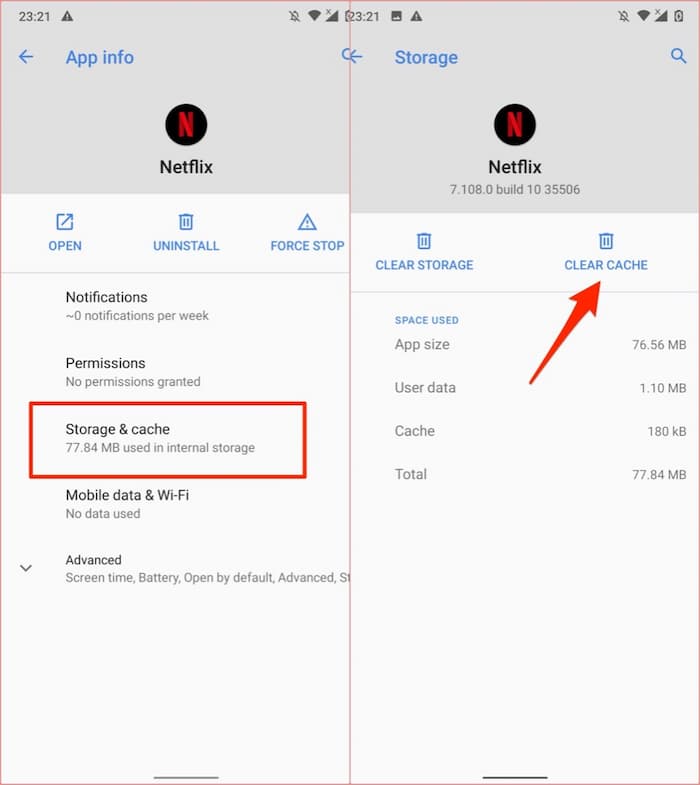
iPhone users need to reinstall the app to clear the cache, but Android users can do it in the settings to fix data errors.
-
01
Open your phone Settings and go to Apps (or Manage Apps).
-
02
Find and tap on Netflix.
-
03
Tap Storage.
-
04
Select Clear Cache. (Note: Do not click "Clear Data" unless you want to sign in again).
Method 3: Toggle Airplane Mode On and Off
This method forces your device to reconnect to Wi-Fi or mobile data and refresh the network signal.
-
01
Swipe down to open the Control Center (iPhone) or Quick Settings (Android).
-
02
Tap the Airplane icon to turn it on.
-
03
Wait for 10 seconds.
-
04
Tap the icon again to turn it off. Your phone will now search for the strongest available signal.
4.3 Fix Netflix Buffering on Fire TV, Roku, and Other Streaming Devices
If Netflix on Apple TV or other streaming devices like Roku and Fire Stick is stuck on a loading screen, the problem is often caused by outdated app data or a poor connection. Use these device-specific steps to stop Netflix buffering and restore smooth playback.
Method 1: Reinstall the Netflix App
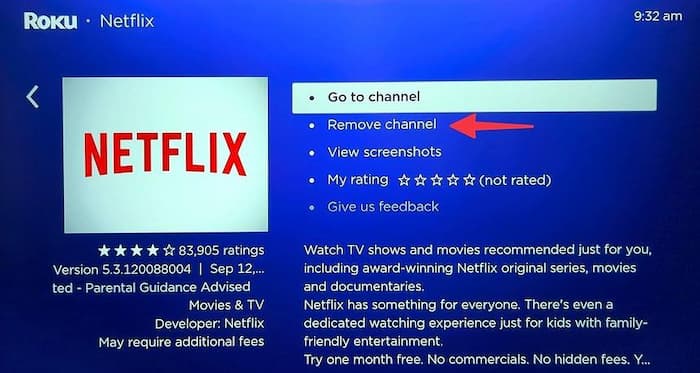
- Roku: Highlight Netflix and press the Star (*) button. Select Remove channel. Then, go to the Streaming Store to add it back.
- Fire Stick: Go to Settings > Applications > Manage Installed Applications. Select Netflix and click Uninstall. Re-download it from the App Store.
- Apple TV: Highlight Netflix and hold the center of your remote until the icon shakes. Press Play/Pause, select Delete, and reinstall it from the App Store.
Method 2: Reset Network Connection to Default
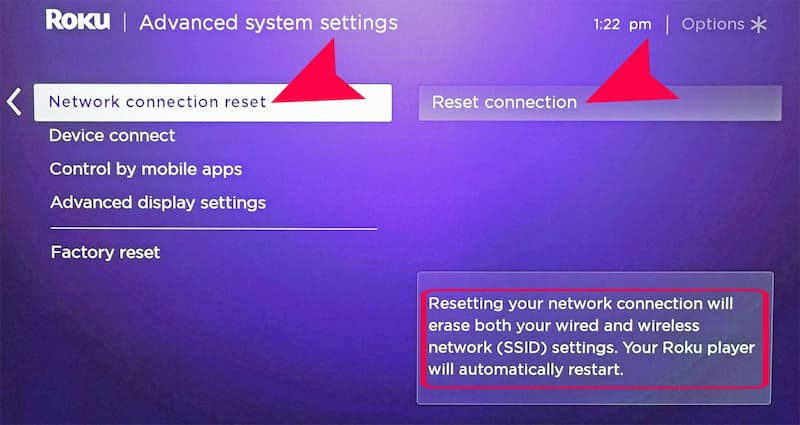
If other apps are also lagging, your device might have a weak link to your Wi-Fi. Note: You will need to type in your Wi-Fi password again after this.
- Roku: Go to Settings > System > Advanced system settings > Network connection reset. Select Reset connection.
- Fire Stick: Go to Settings > Network. Highlight your Wi-Fi and press the Menu button to "Forget this network." Then, reconnect.
- Apple TV: Go to Settings > Network > Wi-Fi. Select your network and click Forget Network. Re-select it to sign in again.
Method 3: Clear Device System Cache (Free Up RAM)
Clearing the cache gives your device more "brain power" to play high-quality video without stuttering.
- Roku (Secret Code): Press Home 5 times, Up 1 time, Rewind 2 times, Fast Forward 2 times. The device will restart and clear the cache.
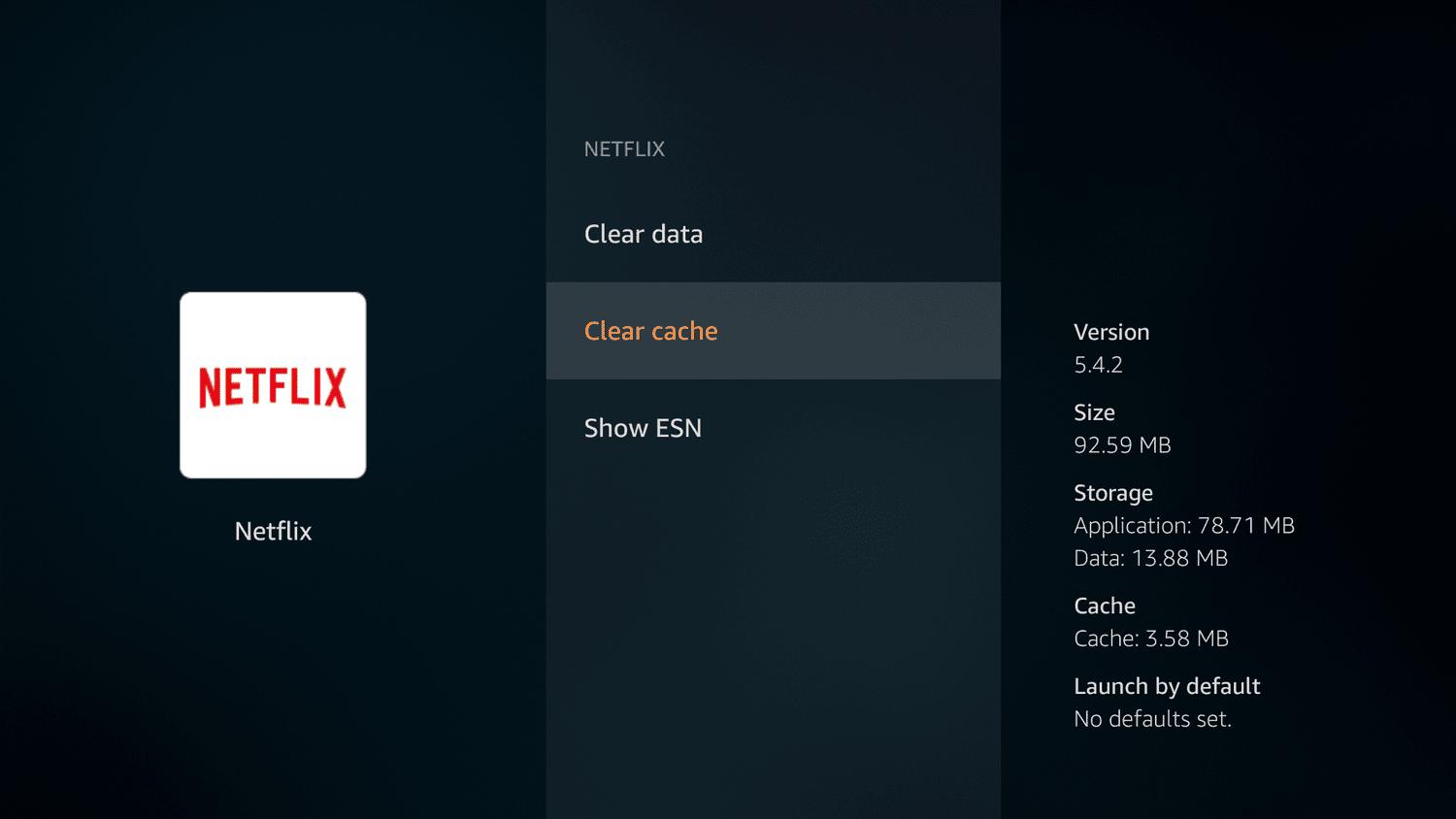
- Fire Stick: Go to Settings > Applications > Manage Installed Applications > Netflix and click Clear Cache.
- Apple TV: Double-click the TV button on the remote and swipe up on the Netflix app to close it, or perform a Restart in System settings.
4.4 Fix Netflix Freezing or Glitching Browsers
If you are watching Netflix on Chrome, Edge, Safari, or Firefox and the video keeps stopping, the problem is usually caused by "heavy" browser data or conflicting plugins. Use these steps to fix Netflix buffering on your computer:
Method 1: Clear Netflix Cookies and Cache
When your browser stores too many temporary files, the Netflix player can slow down or freeze. Clearing this data gives the player a "clean pipe" to stream video.
- The Netflix Only Way: Visit netflix.com/clearcookies. This will clear only Netflix data and sign you out.
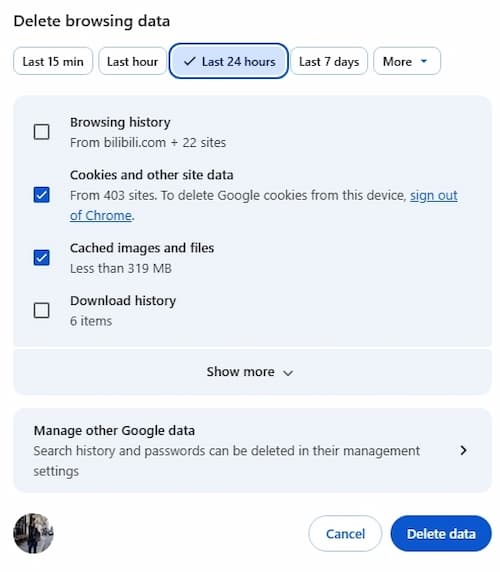
- The Browser Way (Chrome): Click the three dots > Settings > Privacy and security > Delete browsing data. Check "Cookies" and "Cached images," then click Delete data.
Method 2: Disable Browser Extensions
Extensions like ad blockers, VPNs, or privacy tools can block Netflix scripts and cause buffering.
- Chrome/Edge: Click the Puzzle piece icon or go to Settings > Extensions. Switch the toggle OFF for all extensions.
- Safari: Go to Settings > Extensions and uncheck all active boxes.
- Firefox: Click the three lines > Add-ons and themes > Extensions and toggle them to OFF.
Refresh your Netflix tab. If the buffering stops, turn your extensions back on one by one to find the one causing the trouble.
Method 3: Use Incognito (Private) Mode
Incognito mode opens a window without extensions and with a fresh set of cookies. It is the fastest way to check if your browser settings are the problem.
- Windows (Chrome/Edge): Press Ctrl + Shift + N.
- Mac (Safari/Chrome): Press Command + Shift + N.
- Firefox: Press Ctrl + Shift + P.
Log in to Netflix in the new private window. If the video plays perfectly here, you know that a corrupted cookie or a bad extension in your normal window is the reason why Netflix keeps buffering.
4.5 Fix Netflix Keeps Buffering on Gaming Consoles
You can use gaming consoles like PlayStation to stream Netflix natively and smoothly, but "data traffic jams" can still cause Netflix buffering issues.
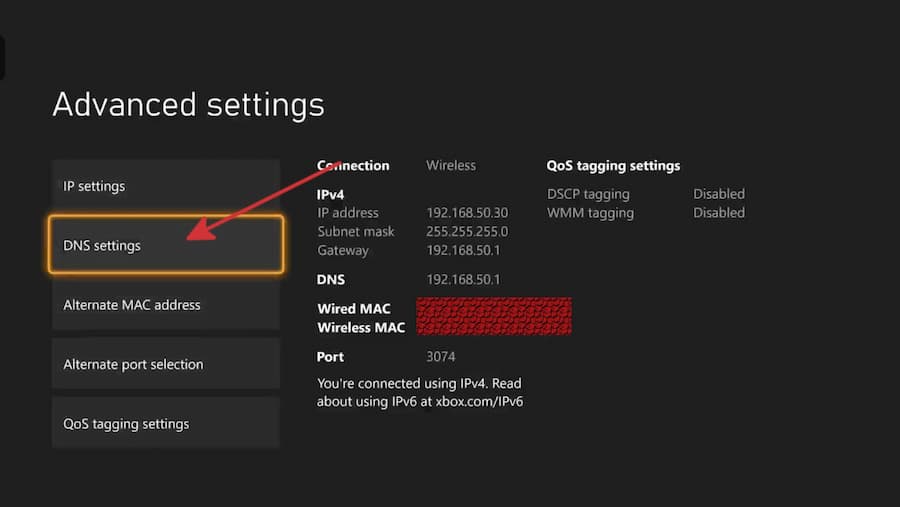
Method 1: Manual DNS Configuration
Manual DNS can reduce loading time and improve connection to Netflix servers.
- Google: 8.8.8.8 (Primary) | 8.8.4.4 (Secondary)
- Cloudflare: 1.1.1.1 (Primary) | 1.0.0.1 (Secondary)
- PS5 Setup: Settings > Network > Settings > Set Up Internet Connection. Press Options on your network > Advanced Settings. Set DNS to Manual.
- Xbox Setup: Settings > General > Network settings > Advanced settings > DNS settings > Manual.
Method 2: Rebuild Database (PlayStation Only)
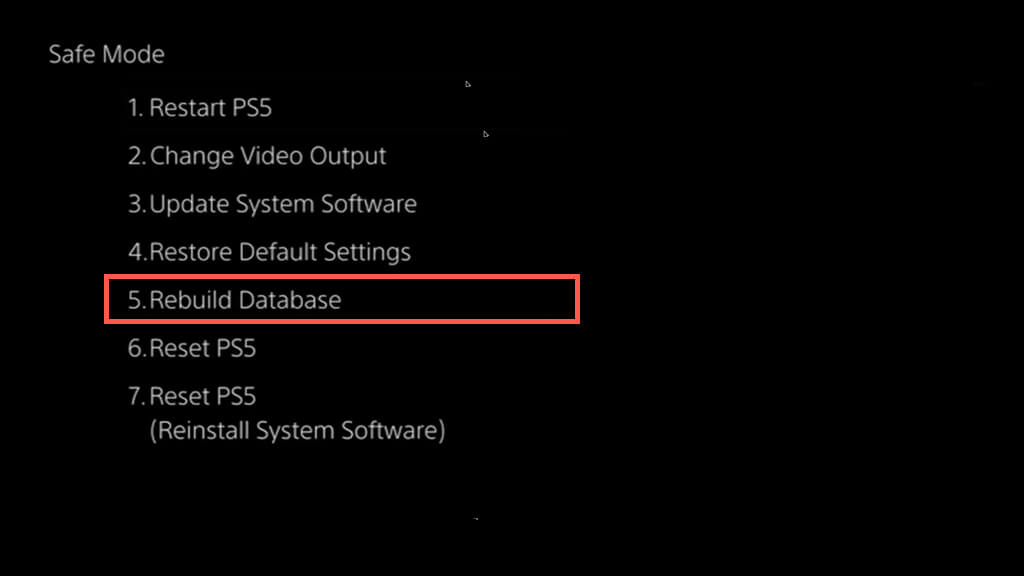
This reorganizes system storage and fixes broken or messy data that can slow Netflix playback. It will not delete your games.
-
01
Turn off your PS5 completely. Hold the Power button until the second beep (7 seconds).
-
02
Connect your controller with a USB cable and press the PS button.
-
03
Choose Option 5: Rebuild Database.
-
04
Wait 5–15 minutes for the console to restart.
Method 3: Clear Alternate MAC Address (Xbox)
If you have ever used your Xbox on a hotel or school network, old settings might be "confusing" your home Wi-Fi. This causes the Netflix buffering problem.
-
01
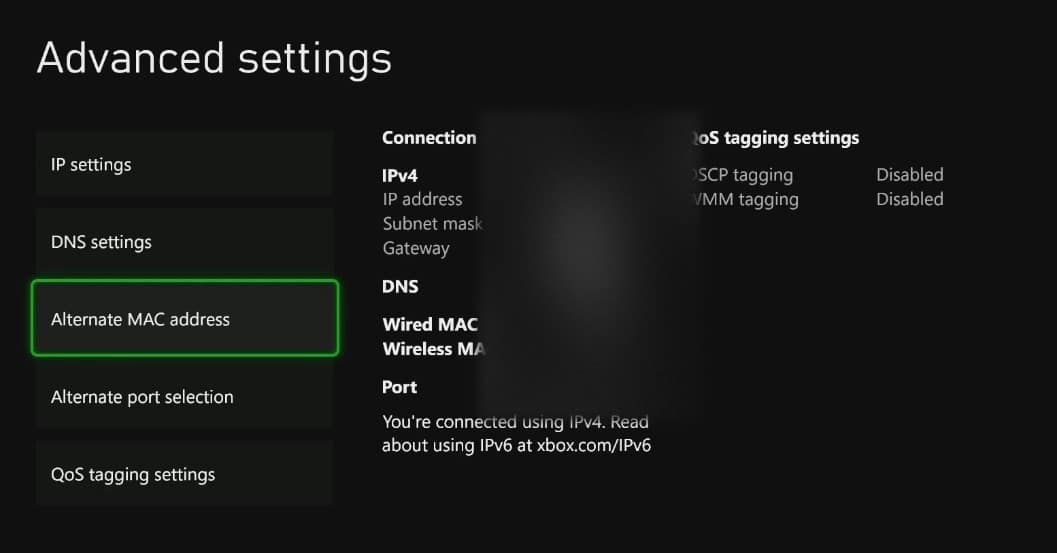
Press the Xbox button and go to Settings > General > Network settings.
-
02
Select Advanced settings > Alternate MAC address.
-
03
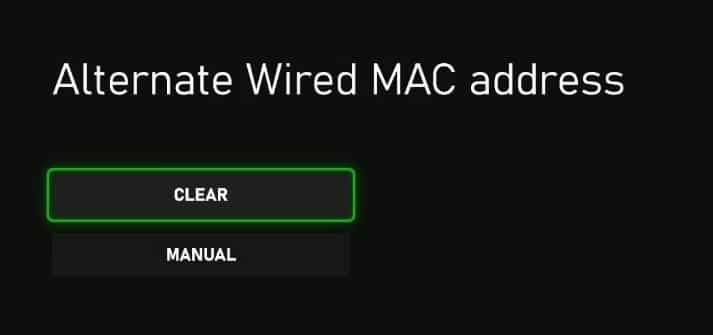
Select Clear and then Restart.
Part 5. Watch Netflix Without Buffering with Offline Viewing
If Netflix buffering continues because your internet connection is unstable, offline viewing can be a practical solution.
Netflix already offers an official download feature inside its app. However, there is a difference between watching Netflix offline through the app and saving videos locally as MP4 or MKV files. Understanding these differences can help you choose a better option for your situation.
Netflix App Offline Downloads vs Local Video Files
| Method | How It Works | Buffering Potential |
|---|---|---|
| Netflix Offline Downloads | Videos are downloaded inside the Netflix app and played through Netflix's own player. | Usually avoids streaming buffering, but playback may still depend on the Netflix app, device performance, and download availability. |
| Local MP4/MKV Files | Videos are saved locally and played with a media player on your device. | Avoids streaming-related buffering because playback does not require a live internet connection. |
The comparison shows that the app might still buffer, which could lead to issues with offline playback. A better option is to save Netflix videos as MP4 files for easier playback. You can use VidiFab Streaming Video Downloader for this.
VidiFab Streaming Video Downloader
Download videos from Netflix as MP4/MKV in 1080p with Dolby Atmos for offline viewing on your iPhone, Android, desktop, and more devices.

How to Use VidiFab to Stop Netflix Buffering
Step 1. Launch VidiFab and Set Up
Install and launch VidiFab Netflix Video Downloader. Open Preferences from the menu and choose your preferred MP4 or MKV format, video quality, and audio settings. Then select Netflix from the main interface and sign in.

Step 2. Find a Netflix Video
Browse Netflix as usual or paste a video link into VidiFab's search bar. Open the title you want to save and click the Download button after VidiFab analyzes the video.

Step 3. Choose Download Settings
Select episodes, video quality, audio tracks, and subtitles based on your needs. For the best offline experience, choose up to 1080p quality with your preferred language options.

Step 4. Download for Buffer-Free Watching
Click Download and VidiFab will save the video as a local MP4 or MKV file. Once completed, you can find it in the History tab and watch it offline on your computer or transfer it to other devices. Since playback happens from a local file, it is not affected by internet speed or streaming interruptions.

Part 6. FAQs About Netflix Buffering Problem
Why does Netflix buffer even though my internet speed is fast?
Why does YouTube play perfectly, but Netflix keeps buffering?
Is a wired Ethernet connection better than Wi-Fi for 4K streaming?
Can using a VPN stop Netflix from buffering?
Does clearing the Netflix cache delete my "My List" or profile settings?
Can I watch my VidiFab downloads on my Smart TV or Gaming Console?
Final Thoughts
Netflix buffering can happen on any device, even when your internet is fine. By following the troubleshooting tips above, you're now better equipped to tackle those annoying lagging issues.
If buffering keeps popping up, the best way to avoid interruptions is to skip real-time streaming. You can try VidiFab Netflix Video Downloader anytime to get your favorite content ready and waiting for you. We hope that from now on, your Netflix experience is free of spinning circles and low-quality lag, just smooth, high-quality entertainment whenever you want it!
 Free Download
 Secure Download
 Free Download
Secure Download
Free Download
Secure Download


I'm a video tech specialist with over 10 years of experience in digital media and streaming. I focus on making complex workflows simple and practical. Through my guides, you'll learn how to convert media, keep high-quality playback across devices, and manage your streaming video library with ease.
 Leave Your Comment