How to Fix Netflix Error Code M7361-1253
 By Miles Kent
If you've ever seen Netflix error code M7361-1253 while trying to watch a movie, you're not alone. This error usually appears when Netflix can't play video in your browser, often due to Chrome issues, corrupted cache, or display conflicts. In this guide, you'll learn what Netflix error code M7361 means, the most common triggers, and exactly how to fix it for each scenario.
At a Glance: The Fastest Fixes for M7361-1253
| Situation | Best first fix |
|---|---|
| M7361-1253 appears the moment you click a title | Update Chrome, clear Netflix cookie |
| It fails in every browser | Check OS updates, graphics drivers, VPNs, and security software |
| It only fails on an external monitor | Turn off hardware acceleration and test on one screen |
| Incognito works but normal mode fails | Disable extensions and clear site data |
Part 1. What Does Netflix Error Code M7361-1253 Mean?
Netflix error code M7361-1253 is a browser or device playback error. It means Netflix is having trouble communicating with your browser to stream protected video content. It is usually due to corrupted cache, an outdated browser, extension conflicts, or hardware-related issues.
The letter at the beginning of the error code actually tells you a lot. If your error doesn't start with "M," you may be dealing with a different root cause entirely.
| Error Code | Prefix | Meaning | Common Cause |
|---|---|---|---|
| M7361-1253 | M | Browser-side playback issue | Chrome needs updating or stored data needs refreshing |
| D7361-1253 | D | Display/DRM issue (Edge) | Dragging Netflix tab between monitors with different GPUs |
| F7361-1253 | F | Network/connection issue | Internet connection problem on a computer |
| S7361-1253 | S | Mac/software compatibility | Software conflict preventing playback on macOS |
So if you're reading this, double-check that your error code starts with M. That confirms the fixes in this guide are the right ones for you.
- An outdated Chrome browser can cause Netflix's DRM system to malfunction.
- Corrupted Netflix cookies or cache can prevent playback from loading properly due to stale session data.
- Browser extensions like ad blockers, privacy tools, or VPNs often create conflicts.
- Hardware acceleration issues can arise, especially with multi-monitor setups.
- Outdated graphics drivers can disrupt video decoding and display.
- Switching displays while playing can lead to external monitor or HDCP conflicts, interrupting DRM verification.
- VPNs or proxies may interfere, as Netflix can flag certain servers, breaking playback authentication.

Quick Diagnostic Tip: If the error appears the moment you click play, start by checking your browser version, cache, or extensions. If it shows up after a few minutes of playback, the problem is more likely hardware acceleration, your GPU/display setup, or a display switch.
Part 2. Fix M7361 When Netflix Won't Play Any Title
If Netflix shows this error as soon as you click anything, the browser itself is usually the place to start. These are the fixes I'd try first, in order.
1. Update Chrome to the Latest Version
Google Chrome can update itself, but only if it's allowed to restart and finish the update cycle. If you haven't closed Chrome in a while, an update may already be waiting.
Step 1. Open Chrome.
Step 2. Click the three-dot menu in the upper-right corner.
Step 3. Select Help > About Google Chrome. Chrome will automatically check for and install updates.
Step 4. Restart the browser.
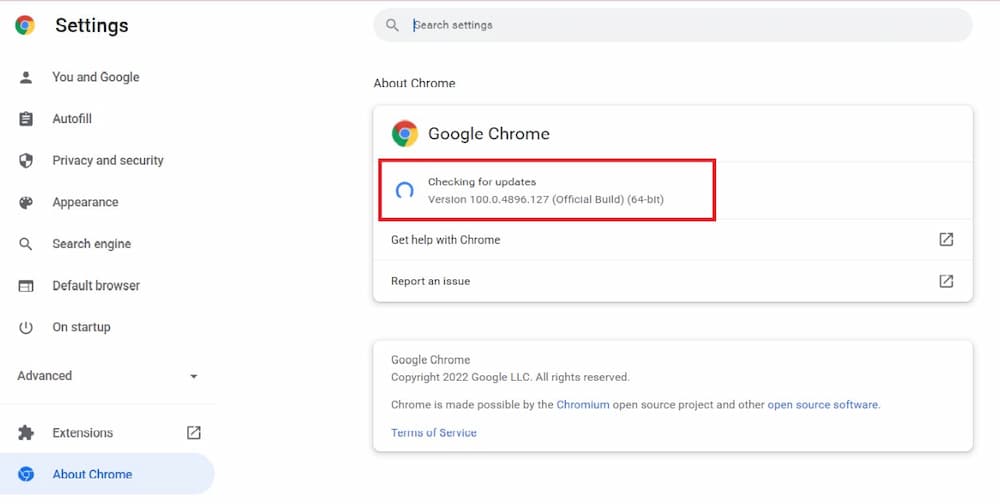
If Chrome is already current, that's useful information too. It means the problem is more likely to be cache, cookies, extensions, or something deeper in the browser profile.
2. Clear Netflix Cookies and Cache
This is one of the most consistently effective fixes. Corrupted cookies or cached Netflix files can prevent the website from loading its playback components correctly.
The fastest method:
Step 1. Visit netflix.com/clearcookies directly in Chrome.
Step 2. Netflix will clear its cookies and sign you out automatically.
Step 3. Sign back into your account and test playback.
If that doesn't fix it, clear your browser's cached data too:
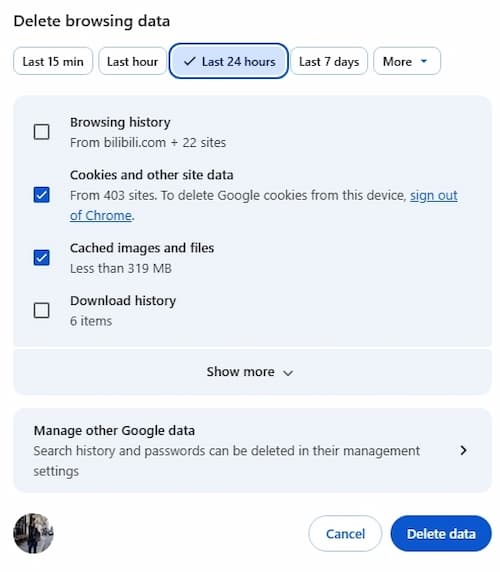
Step 1. Open Chrome Settings.
Step 2. Go to Privacy and Security > Delete Browsing Data.
Step 3. Check Cookies and other site data and Cached images and files.
Step 4. Click Delete Data and relaunch Netflix.
Should I clear all browser data or only Netflix cookies?
Start with the Netflix cookie first. If that doesn't work, clear broader cached data and cookies. I'd avoid wiping everything immediately unless the error keeps coming back, because the Netflix-specific clear is often enough.
3. Sign Out and Sign Back In
Sometimes the error is really just a stale session. Logging out forces Netflix to create a fresh playback session the next time you sign in.
Step 1. Open Netflix.
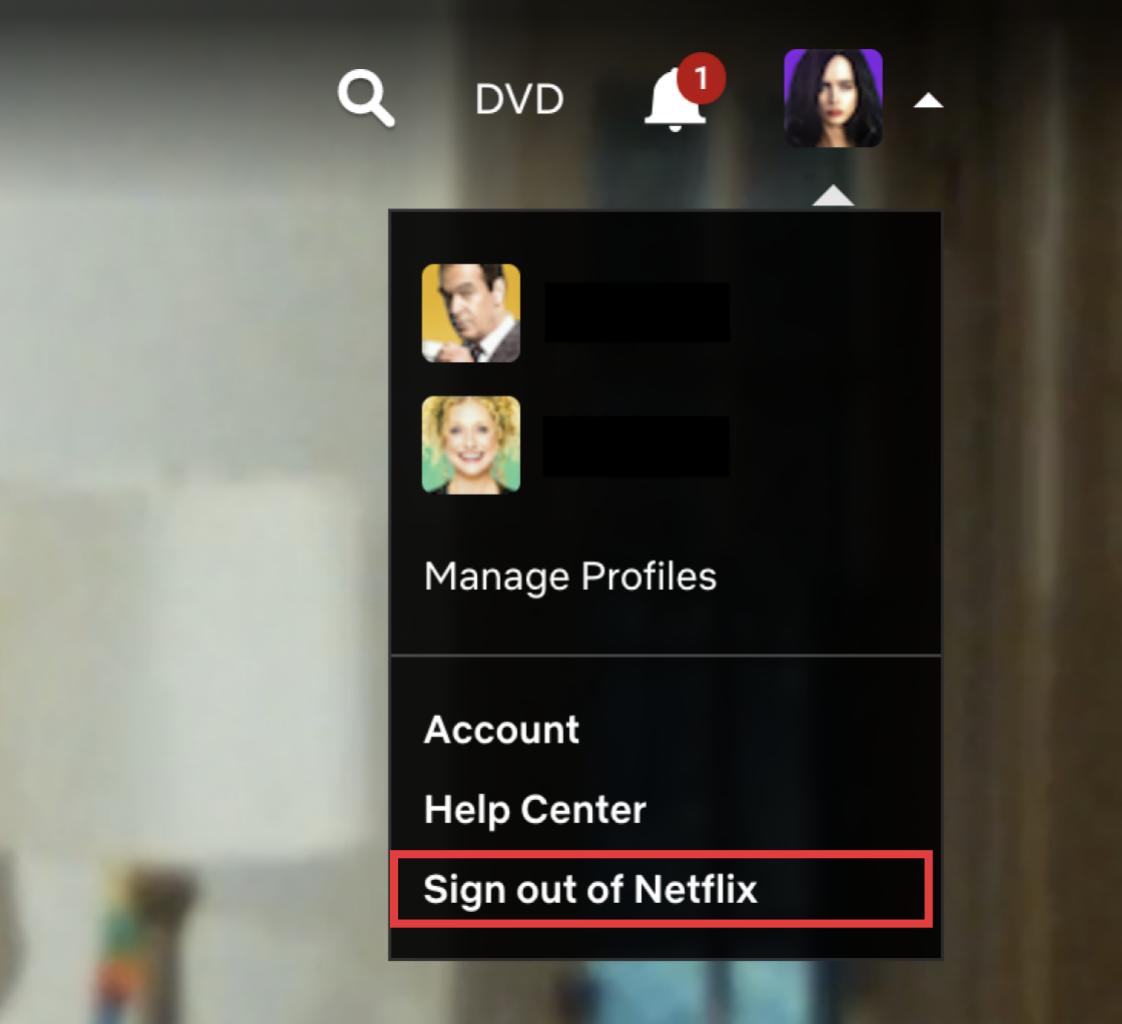
Step 2. Click your profile icon.
Step 3. Select Sign out of Netflix.
Step 4. Close the browser tab.
Step 5. Sign back in and test playback again.
4. Restart the Browser, Not Just the Tab
Closing only the Netflix tab is not the same as restarting Chrome. If the browser has been open for days, background processes can keep the same error alive.
Step 1. Close every Chrome window.
Step 2. Wait about 10 seconds.
Step 3. Open Chrome again.
Step 4. Go back to Netflix and test playback.
I'd especially try this after a browser update, because a restart completes the update and clears old playback processes.
5. Test Netflix in Another Browser
Open Netflix in the supported Microsoft Edge, Firefox, or Safari. If it plays fine there, the issue is isolated to Chrome, and you can focus your troubleshooting there instead of chasing system-level problems. If Netflix fails in every browser, move on to Part 3.
- Chrome 117 or later
- Edge 118 or later
- Firefox 111 or later
- Safari 14 or later
Part 3. Fix M7361 Across Chrome, Edge, and All Browsers
If the error shows up in multiple browsers, you're no longer dealing with a Chrome-specific issue. At this point, look at your operating system, graphics drivers, network configuration, and security software.
1. Check for Windows or macOS Updates
Netflix depends on the operating system to handle protected playback correctly. Missing system updates can create strange compatibility issues, even if everything else looks normal.
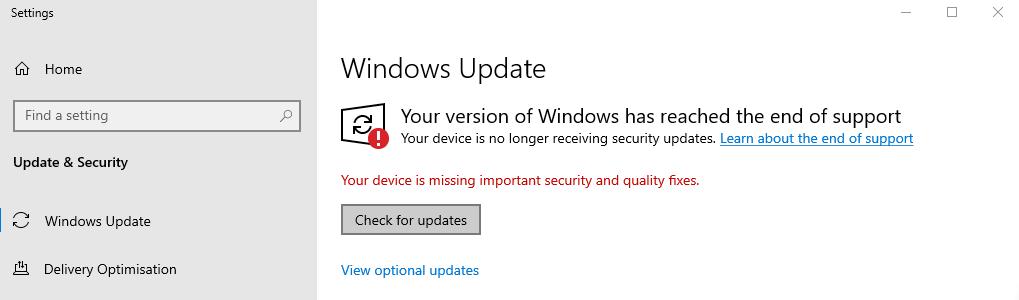
On Windows:
Step 1. Open Settings > Windows Update.
Step 2. Click Check for Updates and install anything available.
Step 3. Restart your computer.
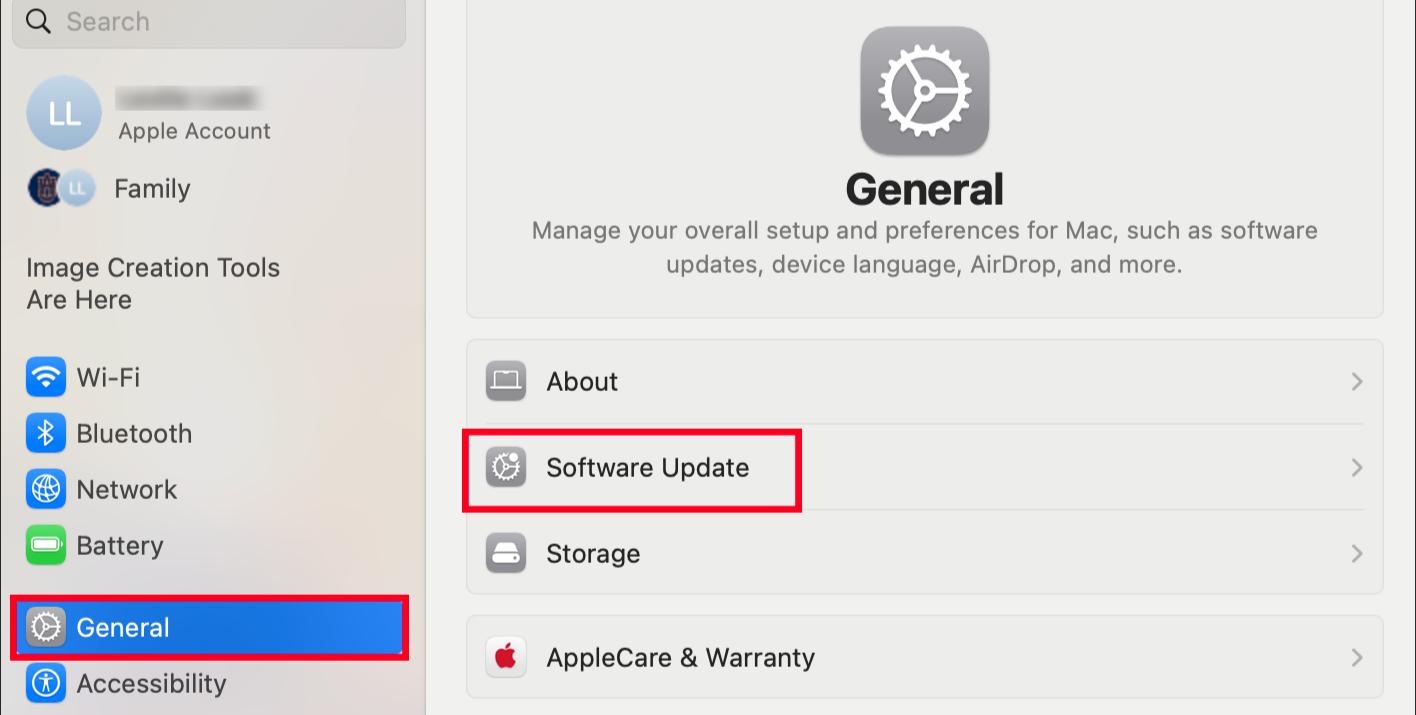
On macOS:
Step 1. Open System Settings > General > Software Update.
Step 2. Install any available updates and restart your Mac.
2. Update Graphics Drivers
Netflix uses your GPU to decode and display video. Outdated or corrupted graphics drivers can interfere with DRM verification, directly causing M7361 errors.
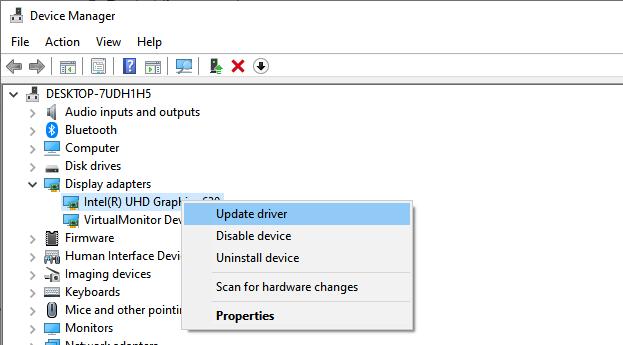
On Windows:
Step 1. Press Windows + X and select Device Manager.
Step 2. Expand Display Adapters.
Step 3. Right-click your graphics card and select Update Driver.
For the most reliable results, download drivers directly from the manufacturer rather than relying on Windows Update alone:
* NVIDIA Drivers Page
* AMD Support Page
* Intel Download Center
Mac users usually get graphics-related updates through macOS updates, so keeping macOS current is the practical move there.
3. Turn Off VPNs, Proxies, and Security Tools
If you use a VPN or a proxy, Netflix may have trouble verifying your location or establishing a clean playback session. The same thing can happen with some antivirus tools, firewalls, or web protection features.
- VPN apps
- Browser VPN extensions
- Proxy settings
- Smart DNS tools
- Web protection features in antivirus software
- Diagnostic Step Only: Never leave your security software or firewall disabled permanently. This is strictly meant to isolate the root cause of the error.
4. Restart the Computer
This sounds basic, but it's still one of the best fixes for streaming issues. A full restart can clear leftover browser processes, display handshakes, and driver states that a browser restart can't touch.
Step 1. Save your work.
Step 2. Choose Restart instead of Shut Down.
Step 3. Let the computer reboot fully, then try Netflix again.
Part 4. Fix Netflix Error Code M7361 with External Monitors
If error code M7361 only appears when you're using an external monitor, projector, or multi-screen setup, the issue is almost certainly related to how your system handles DRM protection across displays.
1. Turn Off Hardware Acceleration
Hardware acceleration lets Chrome use your GPU for smoother video playback, but it can also create conflicts in multi-monitor setups.
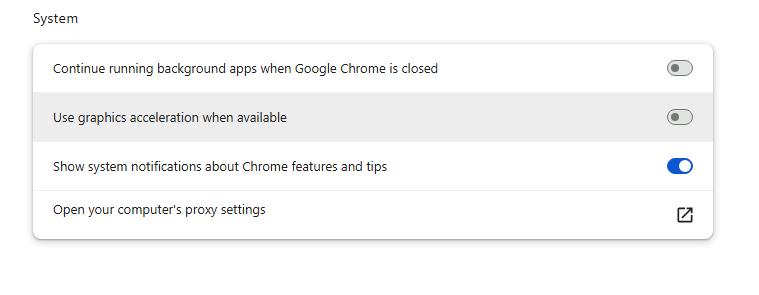
Step 1. Open Chrome.
Step 2. Go to Settings.
Step 3. Click System.
Step 4. Turn off Use graphics acceleration when available.
Step 5. Click Relaunch.
2. Test on One Screen Only
Before you keep troubleshooting, reduce the setup to the simplest possible version.
Step 1. Disconnect external monitors or docks.
Step 2. Use only the built-in display.
Step 3. Restart the browser.
Step 4. Try Netflix again.
If Netflix works on one screen, the issue is probably tied to the display chain rather than the streaming service itself.
3. Don't Switch Displays During Playback
I've seen people trigger playback errors just by moving the browser window between monitors while a title is loading. It doesn't happen every time, but it happens often enough to matter.
- Move the Netflix window between displays during playback
- Connect or disconnect monitors while a title is loading
- Switch resolutions right before pressing play
4. Check Video Decoding Settings
As covered in Part 3, outdated graphics drivers can cause instability when managing multiple displays at different resolutions. Download the latest version from your GPU manufacturer's website, restart your device, then test Netflix again.
Check Video Decoding Settings in Chrome:
Step 1. Open chrome://flags in the address bar.
Step 2. Search for video-related decoding or GPU settings.
Step 3. If any experimental video features are enabled, set them to Disabled or Default.
Step 4. Restart the browser.

If you've recently installed optimization tools or changed advanced graphics settings, consider resetting those as well.
Part 5. Fix Netflix Error Code M7361 When Incognito Mode Works
If Netflix plays fine in an Incognito window but throws M7361 in a normal browser window, the problem is almost certainly inside your browser's regular environment. Incognito mode disables extensions and starts a clean session which is exactly why it tends to work when normal mode doesn't.
The goal here is to figure out what, specifically, is broken in your normal setup.
1. Disable Browser Extensions
Extensions are the #1 cause of M7361 when Incognito mode works fine. Ad blockers, privacy tools, VPN extensions, and video enhancers can all interfere with Netflix's playback system.
Step 1. Go to chrome://extensions.
Step 2. Turn off every extension.
Step 3. Restart Chrome and try Netflix in a normal window.
If that fixes it, turn extensions back on one by one until you find the one causing the conflict. Ad blockers, privacy tools, and VPN extensions are the usual suspects.
2. Create a New Browser Profile
If your main profile is corrupted, no amount of cookie clearing may fully fix it. A new profile gives you a clean environment without old extensions or broken settings.
Step 1. Click your Chrome profile icon.
Step 2. Choose Add or Create new profile.
Step 3. Set it up without signing in.
Step 4. Go to Netflix and sign in.
Step 5. Test playback again.
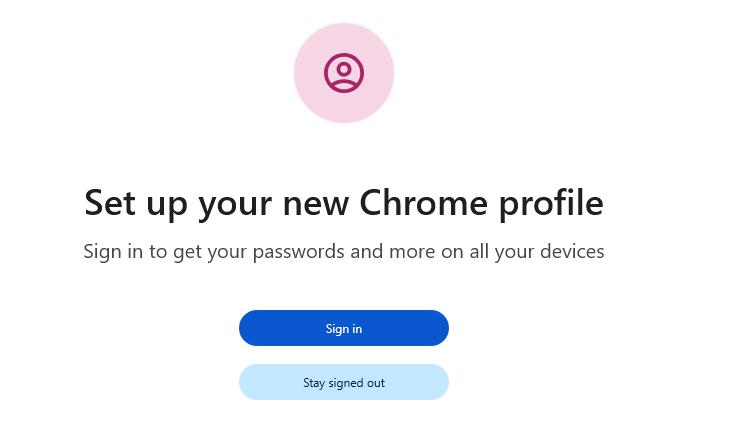
If Netflix works in the new profile, the original one is corrupted. Avoid using it for streaming going forward.
3. Reset Browser Settings
If rebuilding a profile sounds like too much work, resetting Chrome is a faster alternative.
Step 1. Open Chrome Settings.
Step 2. Go to Reset settings.
Step 3. Choose Restore settings to their original defaults.
Step 4. Confirm the reset.
Step 5. Reopen Netflix and test again.
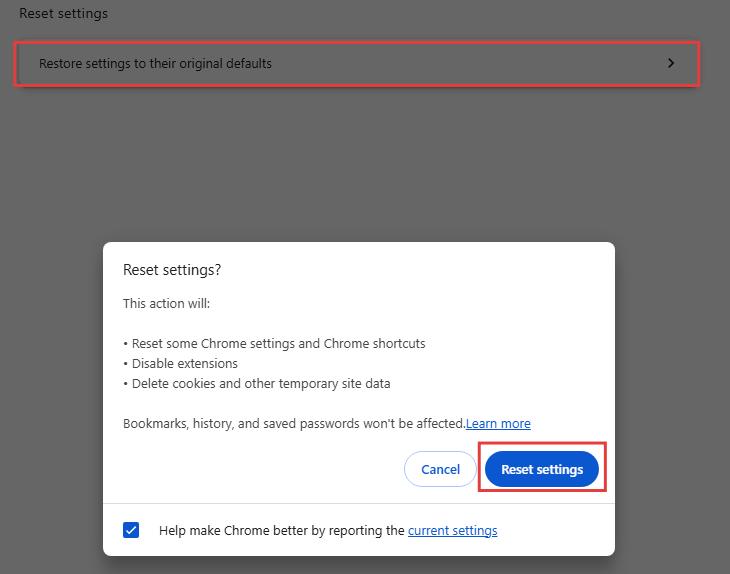

Note: This disables extensions, clears temporary data, and resets startup settings; but it won't delete your bookmarks.
Part 6. How to Keep Netflix Error Code M7361 From Coming Back
Once the error is fixed, the goal is to keep your playback environment stable. Most M7361 problems come back because people keep changing the same setup that was just repaired.
Tip 1. Keep Extensions to a Minimum
If you don't need an extension for Netflix, don't keep it enabled. Every extra add-on adds another chance for playback to break later.
Tip 2. Keep One Primary Browser for Netflix
Pick one browser that works and stick with it for Netflix. Constantly switching browsers, profiles, or playback settings makes it harder to keep the environment stable.
Tip 3. Leave Hardware Acceleration Alone If It Works
If turning hardware acceleration off fixed the issue, don't keep toggling it on and off just to experiment. Stability matters more than optimization here.
Tip 4. Use Offline Viewing When Browser Playback Keeps Failing
If Netflix keeps showing error code M7361-1253 even after trying the fixes above, you can try watching Netflix without using the browser.
For more flexible and stable viewing, VidiFab Streaming Video Downloader offers a workaround. It saves Netflix videos as local MP4 or MKV files on your computer. You only need an active Netflix account and a working internet connection. You don't need to play the target title first; VidiFab can analyze the video and download it at up to 7X speed.
VidiFab Streaming Video Downloader
Download Netflix videos in 1080p with Dolby Atmos and multi-language subtitles and audio, playable on computers, mobile devices, and more.

After the download is complete, you can watch the Netflix video in VLC or another compatible media player. Since this method avoids browser-based Netflix playback, it can help you watch your saved videos without encountering browser playback errors such as M7361-1253.


Note: The downloaded content should only be used for personal viewing, and you should make sure your use complies with Netflix's terms and applicable laws.
Conclusion
If you want the simplest answer to what does error code M7361-1253 mean on Netflix, it's this: your browser playback environment needs attention, usually Chrome or stored device data. I would start with Chrome update, then clear the Netflix cookie, then test extensions, hardware acceleration, and system updates only if needed.
The good news is that this error is usually fixable without reinstalling everything or contacting support. Work through the steps in the order above, and you'll usually find the cause quickly.
 Free Download
 Secure Download
 Free Download
Secure Download
Free Download
Secure Download


I'm a video tech specialist with over 10 years of experience in digital media and streaming. I focus on making complex workflows simple and practical. Through my guides, you'll learn how to convert media, keep high-quality playback across devices, and manage your streaming video library with ease.
 Leave Your Comment