Netflix Error Code 17377 Explained: Causes and Easy Fixes
 By Miles Kent
Are you trying to catch up on your favorite show but getting hit with Netflix error code 17377? This annoying issue usually pops up on Apple TV and iOS devices like your iPhone or iPad, but it can also show up on other devices like PCs or Hisense TVs. Essentially, this error points to a connection problem between the Netflix app and your device, or it means some stored data is acting up.
In this guide, I'll break down what Netflix error code 17377 means and how to fix it fast. Whether you're on an iOS device or a smart TV, you can follow these easy steps to refresh your system and dive back into your movies. Don't worry. You don't need to be a tech expert to solve this 17377 error.

Part 1. What Is Netflix Error Code 17377?
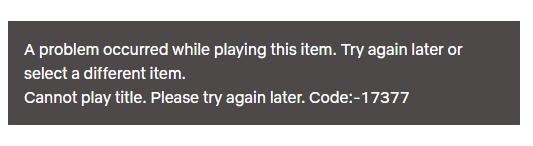
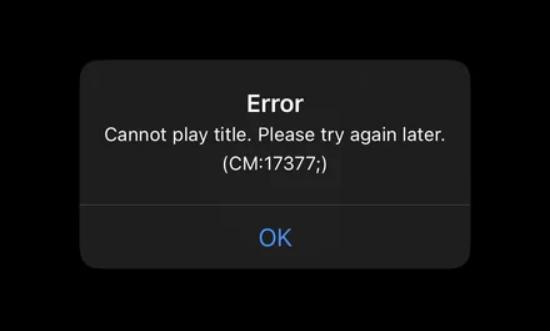
Netflix Error Code 17377, sometimes shown as CM 17377, appears on your screen when Netflix cant play a movie or TV show. You might see a message like "Cannot play this title. Please try again later", or sometimes the screen just goes black. You can still browse Netflix menus, but the moment you hit "Play," the 17377 error stops everything.
Why Does This Error Target Apple TV and iOS?
This error is most common on Apple TV, iPhones, and iPads, and it has to do with how tvOS and iOS handle app data and security.
Unlike other devices, Apple products have strict rules for HDCP (High-bandwidth Digital Content Protection) and data privacy. If the Netflix app's data falls "out of sync" with these system settings, the CM 17377 Netflix Error Code appears to protect the stream. That's why you rarely see this error on Android devices or other smart TVs.
Note: If you are using an Apple device but watching Netflix through a browser like Chrome or Safari, you may encounter Netflix Error Code M7361-1253 under similar network, browser, or playback-related conditions.
Common Causes of Netflix Error Code 17377
There are four main reasons why you see this code when playing Netflix:
- Old Data: The temporary files stored in your Netflix app are old or broken, or too much data is clogging up your device.
- Network Issues: Your Wi-Fi is too slow or dropped for a second. Sometimes, your Wi-Fi might be blocking the "handshake" between your device and the Netflix server. If you are using a VPN, this problem often appears.
- Outdated App or Devices: You are using an old version of Netflix that needs an update. In other cases, your iPhone or Apple TV is running an old version of iOS or tvOS.
- HDMI Connection: For Apple TV users, a loose or old HDMI cable can cause communication errors between the box and your TV, triggering the code.
Part 2. How to Fix Netflix Error Code 17377 on Apple TV
If you are seeing the 17377 error while using Netflix on Apple TV 4K or Apple TV HD, don't worry. I have researched the top solutions from the Apple Support Community and the official Netflix Help Center. I also tested these methods on an Apple TV 4K (3rd Generation) running the latest tvOS to make sure they actually work. Let's go through them one by one.
Fix 1. Close the Netflix App
-
01
Press the TV/Home button on your Apple TV remote twice to open the app switcher.
-
02
Swipe left or right to find the Netflix app.
-
03
Swipe up to close the app completely.
-
04
Reopen Netflix and try playing a title.
Fix 2. Use the "60-Second" Power Cycle (Most Popular)
This is the most successful fix shared by users in the Apple forums. It clears "handshake" issues between your device and the Netflix server.
-
01
Unplug your Apple TV from the power outlet.
-
02
Wait for at least 60 seconds.
-
03
Plug it back in and turn it on.
Fix 3. Update Netflix and tvOS
- To update the Netflix app: Go to the App Store, search for Netflix, and click Update if it is there.
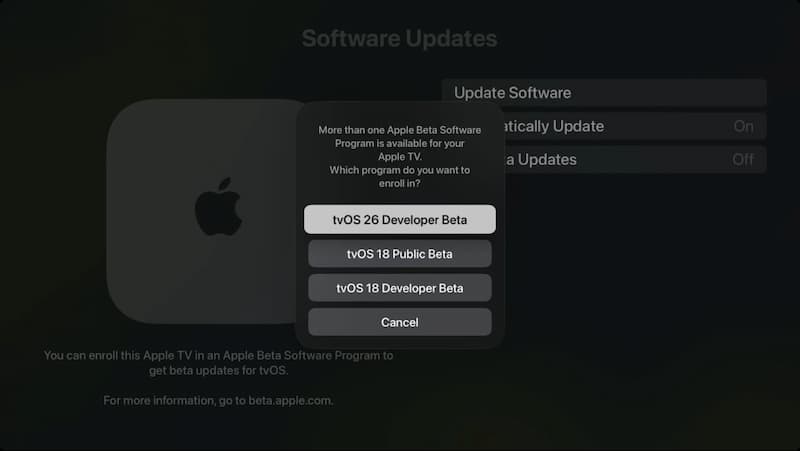
- To update tvOS: Go to Settings > System > Software Updates and select Update Software.
Fix 4. Reinstall the Netflix App
Reinstalling can fix corrupted app data. Many users on Apple Discussions confirmed this works.
-
01
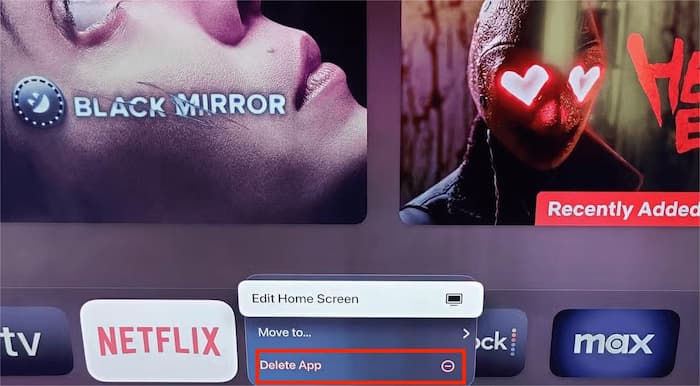
Highlight the Netflix app on the home screen.
-
02
Press and hold the touch surface until the app jiggles.
-
03
Press the Play/Pause button and select Delete.
-
04
Go back to the App Store and download Netflix again.
Fix 5. Sign Out and Sign Back In
This refreshes your account information and fixes authorization glitches.
-
01
Open Netflix and go to the Get Help or Settings menu.
-
02
Select Sign Out.
-
03
Confirm and sign out of your account.
-
04
Wait a moment, then sign back in with your email and password.
Fix 6. Reset Apple TV Network Data
If the Netflix app isn't the only one having playback issues and other apps are acting up too, but your Wi-Fi is fine, it could be a network problem. Here's what you can do:
-
01
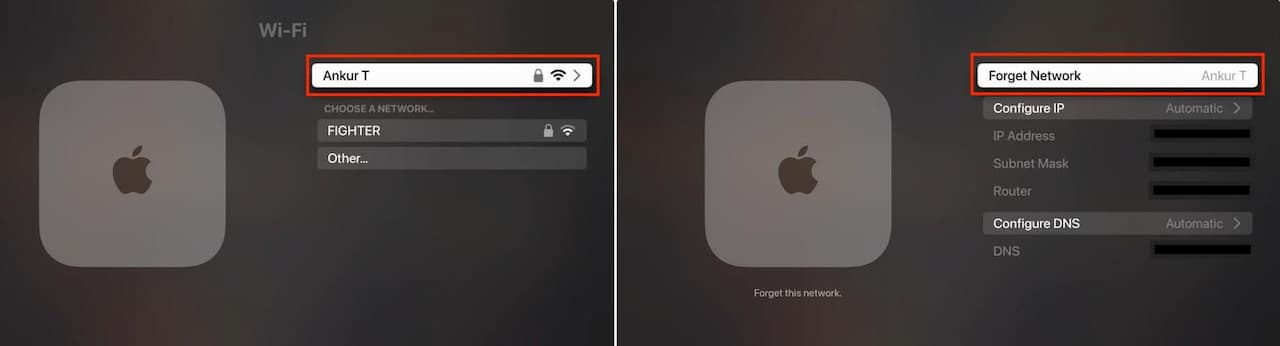
Go to Settings > Network > Wi-Fi.
-
02
Select your current Wi-Fi network from the list.
-
03
Click on Forget Network.
-
04
Confirm your choice when prompted. This removes the saved password and configuration.
-
05
Go back to the Wi-Fi list and select your network again.
-
06
Enter your Wi-Fi password carefully using the remote.
Fix 7. Check HDMI Connections
Sometimes, it's not a software bug but a hardware issue. This often happens because of HDCP, which stops piracy. If your HDMI cable is loose or outdated, Netflix might block the video.
- Unplug and Replug: Disconnect the HDMI cable from both your Apple TV and TV. Plug them back in securely to make sure the connection is tight.
- Try a Different Port: If one HDMI port on your TV acts up, switch to another one (like HDMI 2 instead of HDMI 1).
- Check the Cable Version: To watch 4K content, you need a High Speed HDMI cable (HDMI 2.0 or 2.1). An old cable might not handle the data, leading to the 17377 error.
- Reverse the Cable: A simple tip is to flip the cable around: plug the end that was in the TV into the Apple TV, and the other way around.
Part 3. How to Fix Netflix Error Code 17377 on iOS Devices
On your iPhone or iPad, this error often appears as CM: 17377. It means the data on your iOS device is not syncing properly with the Netflix server, or your internet connection is blocking the stream. Here are the most effective ways to fix the CM 17377 Netflix error code:
Fix 1. Restart Your iOS Device
Just a quick restart can solve a lot of little issues by clearing up your system memory. To do this, press and hold the Volume Up and Side buttons until you see the power-off slider. Once your phone is off, wait about 30 seconds before pressing the Side button again to turn it back on.
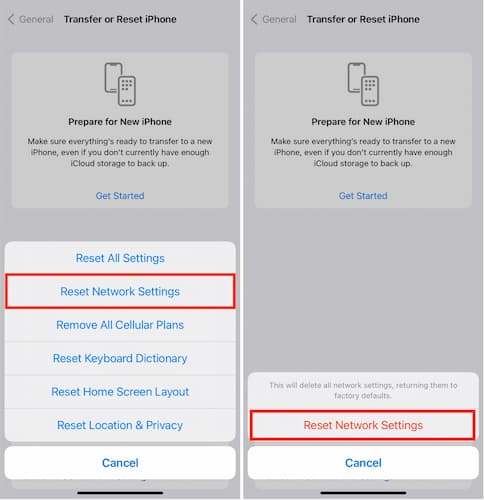
Fix 2. Reset Network Settings
If your Wi-Fi is fine but your iOS device can't connect to the internet on Netflix or other apps, it might be a network settings issue. Here's how to fix it:
-
01
Go to Settings > General.
-
02
Scroll to the bottom and tap Transfer or Reset iPhone.
-
03
Tap Reset and choose Reset Network Settings.
-
04
You will need to enter your Wi-Fi password again after your phone restarts.
Fix 3. Disable VPN
VPNs or proxy connections can interfere with Netflix's regional servers and trigger CM 17377 errors. So, don't use them while you're on the Netflix app. Once you disconnect the VPN, restart Netflix and see if playback works.
Fix 4. Reinstall the Netflix App
iOS doesn't have a "Clear Cache" button for apps, so the best way to delete old, broken data is to reinstall the app. Also, installing the latest Netflix app can help reduce bugs since they likely fixed the 17377 error in the update.
-
01
Long-press the Netflix icon on your home screen.
-
02
Tap Remove App, then tap Delete App.
-
03
Go to the App Store, search for Netflix, and download it again.
Fix 5. Update iOS System
An old iOS version can lead to compatibility problems with Netflix app. So, keep your iOS updated.
-
01
Go to Settings > General.
-
02
Tap Software Update.
-
03
If an update is available, tap Download and Install.
Part 4. Preventing Netflix Error Code 17377 in the Future
While the steps above are great for fixing the problem right now, it is annoying to deal with Netflix error code 17377 over and over again. If you want to stop seeing these technical glitches forever, the best way is to change how you watch Netflix.
The Ultimate Solution: Watch Offline Without Errors
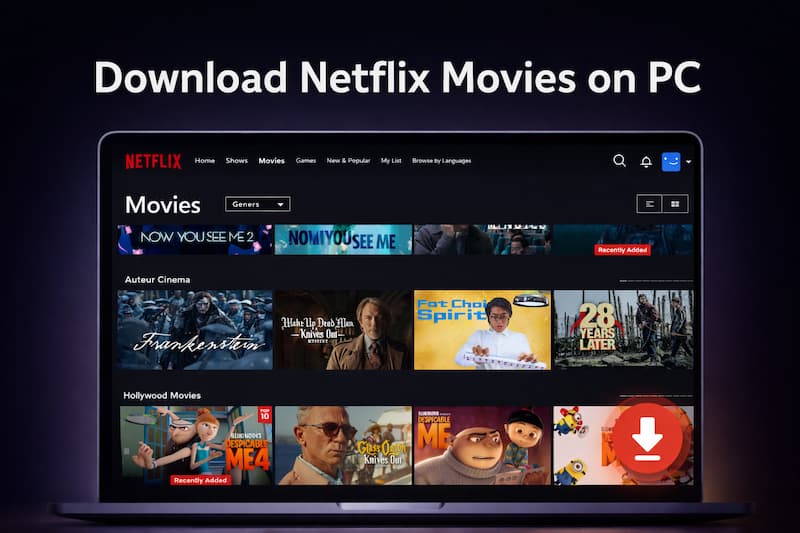
Instead of streaming through an app that might glitch, you can use a professional desktop software like VidiFab Netflix Video Downloader to download your favorite Netflix videos to MP4 or MKV to your Mac or Windows PC in high quality. This changes everything because:
- No More Error Codes: Since the video is saved locally, you don't need a constant connection to the Netflix server. This means error 17377 or CM: 17377 will never interrupt you again.
- No Ads and No Download Limits: Even if you have an ad-supported plan, your downloaded files will be clean and ad-free.
- Total Portability: You can move these downloaded Netflix videos to a USB drive to watch on your smart TV, or transfer them to your phone to watch without any playback issues or interruption.
- Cinematic Quality: VidiFab lets you save Netflix videos in 1080p with Dolby Atmos and original multilingual subtitles/audio tracks for a true theater feel.
- Extreme Efficiency: Equipped with 7x fast batch-download technology, you can have an entire season of a show ready in just minutes.
VidiFab Netflix Video Downloader
Download Netflix videos as MP4/MKV in 1080p with Dolby Atmos for offline viewing on your iPhone, Android, desktop, and more devices.

If you are tired of troubleshooting your Apple TV or iPhone, downloading your content with VidiFab is the smartest way to ensure your movie night is always error-free. Try it today to reclaim your viewing freedom!
How to Download Netflix Content to Avoid Error Code 17377
Step 1. Launch VidiFab and Set Up Your Format
Download and install VidiFab. Open the app and click the Menu icon to select Preferences. Set your Download Video Format to MP4 or MKV. These formats are "error-proof" because they play on almost any device without needing the Netflix app. Click OK, then select Netflix from the main screen and log in to your account.

Step 2. Find the Netflix Videos for Download
You can browse the library or paste the video link into the search bar. Once you open the video page, VidiFab will analyze the data. When the Download button appears, click it to see your options.

Step 3. Choose What and How You Want to Download
A settings window will pop up. Here, you can choose 1080p Full HD quality for a crystal-clear picture. Most importantly, you can select your preferred audio and subtitles. Because these are saved directly into the file, you won't have to deal with subtitle glitches or audio sync issues often found in the Apple TV app. If you are downloading a series, you can select the entire season to download at once using the 7x fast batch feature.

Step 4. Download and Watch Without Errors
Click Download to start the process. VidiFab saves the video directly to your computer's hard drive. Once finished, you can find the file in the History tab. You can now watch it using any media player or transfer it to your Apple TV or iOS device via a USB drive or local sharing. Since the video is now a local file, it will play perfectly with zero buffering, no ads, and absolutely no error codes.

Part 5. FAQs about Netflix Code 17377
Why does error 17377 only affect one specific profile?
Is Netflix Error Code 17377 related to my Netflix account or subscription?
Can Netflix Error Code 17377 happen on devices other than Apple TV and iOS?
Why does Netflix Error 17377 only appear on certain movies or shows?
Should I contact my Internet Service Provider (ISP) if the error persists after all fixes?
Final Thoughts
When you run into Netflix Error Code 17377 (or CM 17377), it usually means your Apple device can't connect to the Netflix server. Most of the time, a quick 60-second power cycle or reinstalling the app will get you back to binge-watching.
But if you're fed up with troubleshooting every time your Wi-Fi acts up or the app updates, consider switching to offline viewing. Using a tool like VidiFab to save your library as local MP4 files cuts out the whole "handshake" process. This isn't just about fixing one error; it's about ensuring your movie night is truly yours, without relying on a stable server connection.
 Free Download
 Secure Download
 Free Download
Secure Download
Free Download
Secure Download




I'm a video tech specialist with over 10 years of experience in digital media and streaming. I focus on making complex workflows simple and practical. Through my guides, you'll learn how to convert media, keep high-quality playback across devices, and manage your streaming video library with ease.
 Leave Your Comment