How to Fix Netflix 'This Title Is Not Available' Error
 By Miles Kent
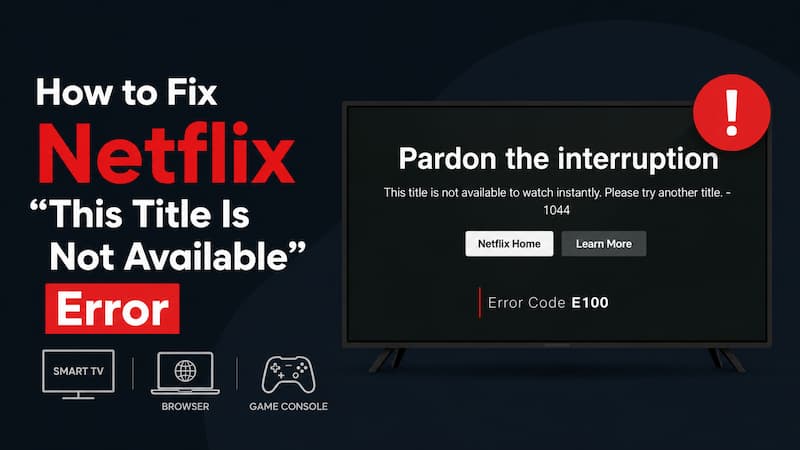
If Netflix says "This title is not available to watch instantly", it usually means there's a playback issue. And it indicates that Netflix struggles to connect your account, device, app, browser, and network, so the video won't play.
Most of the time, you can fix this by refreshing your device, clearing the app data, updating your browser or the Netflix app, or getting rid of any network issues like a VPN or outdated DNS settings. If that doesn't work, check the error code Netflix gives you and match the fix to your specific device.
Part 1. Why Netflix Says 'This Title Is Not Available'
If Netflix says "This title is not available to watch instantly. Please try another title", it means Netflix has difficulties in verifying your right to play the content.
In my experiece, this Netflix playback error is due to this five reasons:
- Corrupted local data or cache: Stale app data that confuses Netflix's authentication.
- DRM (Widevine) certification issues: Your device's content protection module failing its handshake.
- Browser conflicts: Extensions or outdated browsers interfering with Netflix's verification.
- Network or DNS problems: Your connection routing incorrectly away from Netflix's content delivery servers.
- Subscription or region mismatches: Your plan doesn't support that device, or the title has left the Netflix platform in your area.
- Only one title fails: The issue is usually tied to that specific title, regional licensing, or a playback format your device does not support properly.
- All titles fail on one device: This often points to corrupted Netflix app data, browser issues, outdated firmware, or device compatibility problems.
- The same title fails on multiple devices: The problem is more likely related to your account, network connection, VPN usage, or a temporary Netflix-side issue.
Part 2. Netflix Error Codes for 'This Title Is Not Available'
Netflix may give you the same message, but the code may vary. These codes aren't just decoration; they tell you where to start and how to fix it.
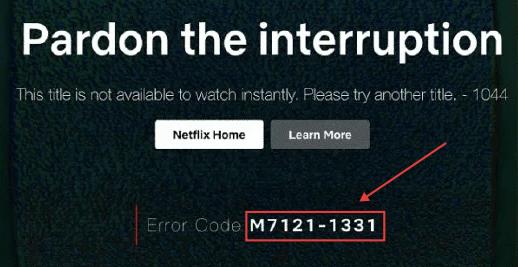
Here's a breakdown of the Netflix error codes I see most often:
| Error Code | Platform | What It Means | Quick Fix |
|---|---|---|---|
| 1044 | Smart TVs, Android, Mobile | Device not on Netflix's approved list, or Widevine DRM certificate has expired | Check if your device is supported by Netflix; try "Reset" in the Netflix menu |
| E100 / tvq-pb-101 | TVs, consoles, set-top boxes | App data is corrupted or DRM token has gone stale | Hard power cycle (unplug for 30–60 seconds); clear app data/cache in system settings |
| F/S7111-1331 | Firefox / Safari | Browser extension conflict, or your subscription plan doesn't include browser playback | Disable all extensions (especially ad blockers); test in a private window |
| M/C7111-1331 | Chrome / Edge | VPN or proxy detected, or browser signing mismatch | Disable VPN; ensure browser is fully updated |
| U7111 | Windows app | Missing media components (common on Windows N/KN editions) | Install the Media Feature Pack from Microsoft |
| 2-0 / 3-0 | Apple TV | Stale cache or outdated app | Unplug the device for 3 minutes; update Netflix via App Store |
| tvq-pb-103 | Various TVs | HDMI handshake error | Switch to another HDMI input and back; re-seat the cable |
Tired of troubleshooting Netflix issues one by one? Check out VidiFab Netflix Video Downloader! It lets you save Netflix titles in MP4 or MKV format, so you can enjoy them offline without any hassle.
 Free Download
 Secure Download
 Free Download
Secure Download
Free Download
Secure Download
Part 3. Quick Fixes for Netflix 'This Title Is Not Available'
Before you try any fix, always check if Netflix is down on its Help Center or go to Downdetector.
If Netflix is running well, you can start doing these universal fixes, which may solve the majority of cases I've seen. Try them in order.
Fix 1. Do a Real Power Cycle (Not Just a Restart)
A normal standby reboot often isn't enough. You need to turn the device off, unplug it for 30 seconds to 3 minutes, then plug it back in. On TVs, sticks, and consoles, this can clear stuck secure playback processes that survive a soft reboot.
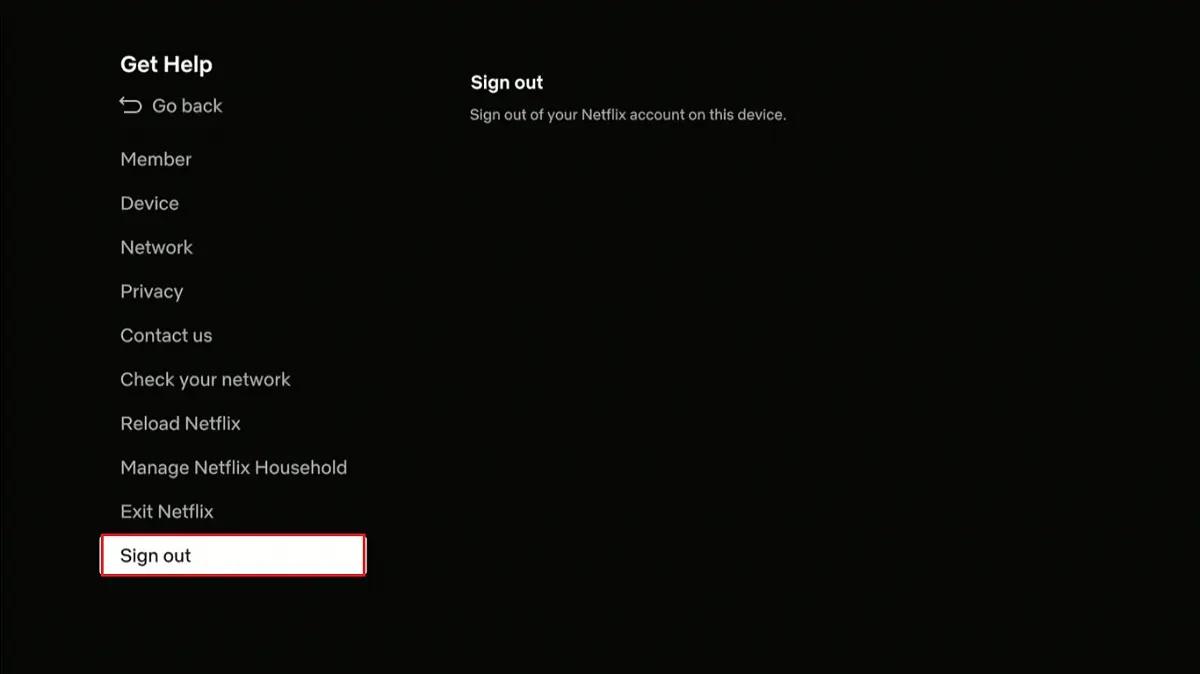
Fix 2. Sign Out and Back In
If your account's authorization token has expired or Netflix is confused about your location, a fresh login forces the server to issue a new session.
Just go to Netflix settings → Sign Out → log back in with your credentials.

- Hidden trick: If your remote or interface is frozen and you can't find the menu, try this button sequence on your remote: Up, Up, Down, Down, Left, Right, Left, Right, Up, Up, Up, Up. This opens a hidden debug menu on most Netflix-enabled TVs.
Fix 3. Restart Your Router and Modem
Shut down the streaming device. Unplug both your modem and router, wait 30 seconds, then plug them back in and let them fully reconnect before launching Netflix.
To verify your connection is actually reaching Netflix's servers, visit fast.com; it tests specifically against Netflix's infrastructure.
Fix 4. Update Netflix and Your Browser
Netflix's browser and device requirements do change over time. If you're on the web, make sure the browser still meets Netflix's current supported versions. If you're in an app, please update the app before doing deeper troubleshooting.
Part 4. Device-Specific Solutions for TV, Phone, Browser, and Consoles
If the quick fixes above didn't work, here's where you can try more fixes targeted to the device you use.
For Smart TVs and Streaming Sticks
TVs are the most likely devices to accumulate the kind of corrupted local data that causes this error.
Here are some fixes that work on different smart TV brands that may help you solve the Netflix 'this title is not available for watching instantly' error.
- Samsung: Go to Settings → Support → Device Care → Self Diagnosis → Reset Smart Hub. This clears system-level variables that cause the E100 error without wiping your whole TV.
- LG: Try toggling Location Services off and on, or resetting your TV's regional profile.
- Sony / Android TV: Update Android System WebView through the Google Play Store. This component handles Netflix's interface rendering and security handshakes.
- Amazon Fire TV / Stick: Settings → Applications → Manage Installed Applications → Netflix → Clear Data + Clear Cache. If that doesn't work, try "Deregister" and log back in.
- Roku TV: Remove the Netflix channel entirely, do a system restart (not just a reboot — go to Settings → System → Power → System Restart), then reinstall Netflix fresh.
- Apple TV (error 3-0): Check for a Netflix update in the App Store first. If it's already current, do a full cold boot: unplug for 3 minutes.
For Browsers (Chrome, Firefox, Edge, Safari)
You may see F7111, S7111, M7111, or C7111 in your browser when Netflix fails to play the title. Most of the time, these errors are caused by extensions or environment conflicts. Here's what you can do to fix it in the web browser, no matter which browser you use:
- Force a fresh load: Don't click a bookmark. Manually type www.netflix.com in the address bar and hit enter. Also try a hard refresh with Ctrl+F5 (Windows) or Cmd+Shift+R (Mac).
- Test in Incognito/Private mode: If Netflix plays fine there, an extension is your culprit. Go back to your normal window and disable extensions one by one.
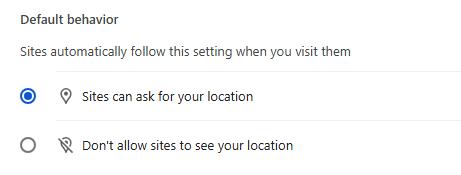
- Enable location permissions: In your browser's security settings, make sure Netflix is allowed to access your location. Without this, Netflix's regional verification can silently fail.
- Windows N or KN edition fix: If you're on a Windows version that ships without media components, you need to install Microsoft's Media Feature Pack separately; otherwise Netflix's video pipeline is literally missing pieces.
- Stick to official browsers: I've seen people run into persistent issues with Thorium, Arc, and Zen browsers. These lack the official Widevine VMP signatures Netflix's servers verify against. Chrome, Edge, Firefox, and Safari are your safest bets.
For Android and iPhone/iPad
If you see the Netflix title not available error on the mobile app, it'd be the app data, background restrictions, and device certification.
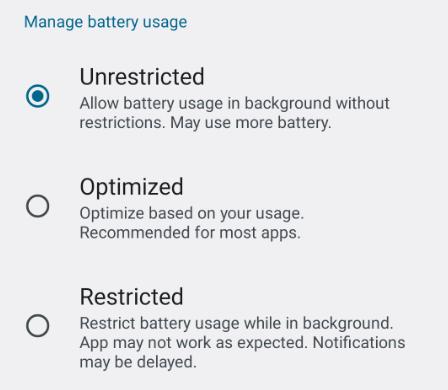
- On Android: Go into battery settings and set Netflix to "Unrestricted" or "Don't optimize." Aggressive battery management can suspend the background encryption process Netflix needs, causing mid-authentication failures.
- On iPhone/iPad: Delete the Netflix app completely and reinstall it. This forces a full re-initialization of all the security tokens, which a simple update won't always do.
For PlayStation and Xbox
Consoles store DRM data in system cache, and when that gets corrupted, Netflix can't initialize properly.
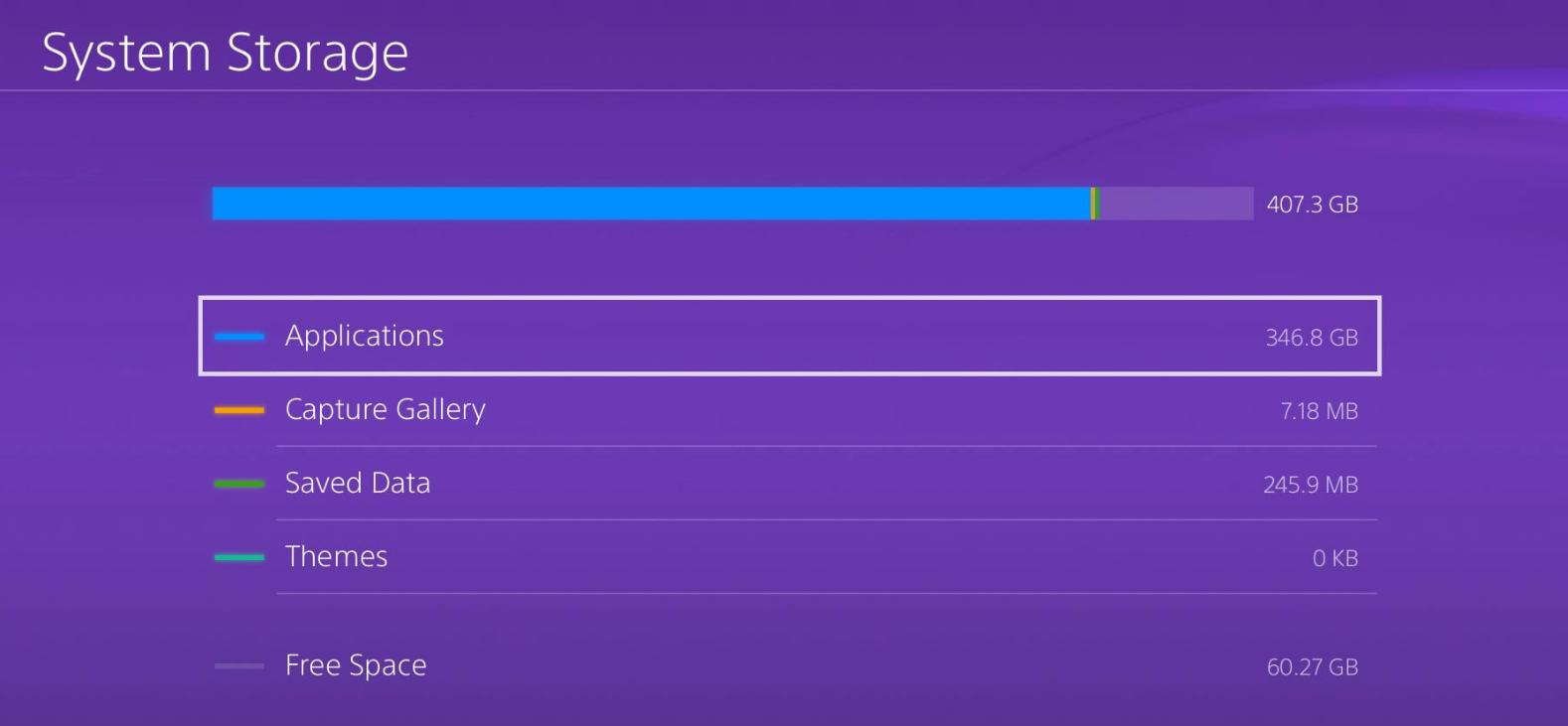
- On PS4/PS5: If simple restarts fail, you can delete Netflix saved data under Storage settings. Alternatively, hold the power button until you hear two beeps to use the console's safe mode tools to rebuild the database.
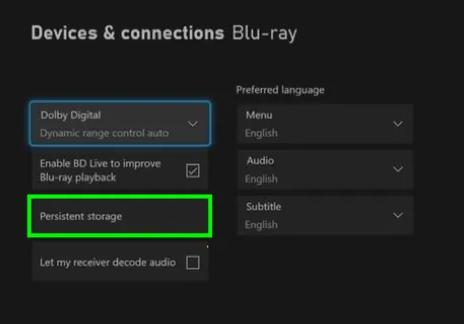
- On Xbox: Go to Settings → Disc & Blu-ray → Persistent Storage → Clear. Then do a full power cycle: hold the power button for 10 seconds until it shuts off completely, unplug for 1 minute, then restart.
Part 5. A Practical Workaround If the Official Fixes Don't Work
If you've worked through everything above and still can't get a specific title to play, there's a practical workaround worth knowing about: downloading the Netflix video to your computer locally using a tool like VidiFab Netflix Video Downloader.
- You can watch without relying on a live Netflix connection every time
- You avoid many app-side playback interruptions once the file is saved locally
- You can use a local media player instead of troubleshooting the Netflix app again
Why choose VidiFab then? This desktop downloader tool lets you save unlimited shows and moveis from Netflix and 5 other streaming platforms like Disney+, Amazon Prime Video, Hulu, and more. You can save it to MP4 or MKV for loacl playback with multi-language embedded subtitles, 1080p quality, and 5.1 surround audio if supported.
VidiFab Netflix Video Downloader
Download Netflix videos as MP4/MKV in 1080p with Dolby Atmos for offline viewing on your iPhone, Android, desktop, and more devices.

Netflix's built-in offline download feature is always worth trying first. But if you're stuck with a device that genuinely can't pass Netflix's certification checks, here's how to use VidiFab as a workaround.
How to Download Netflix Videos with VidiFab (Step-by-Step)
Step 1. Set Up VidiFab and Log In
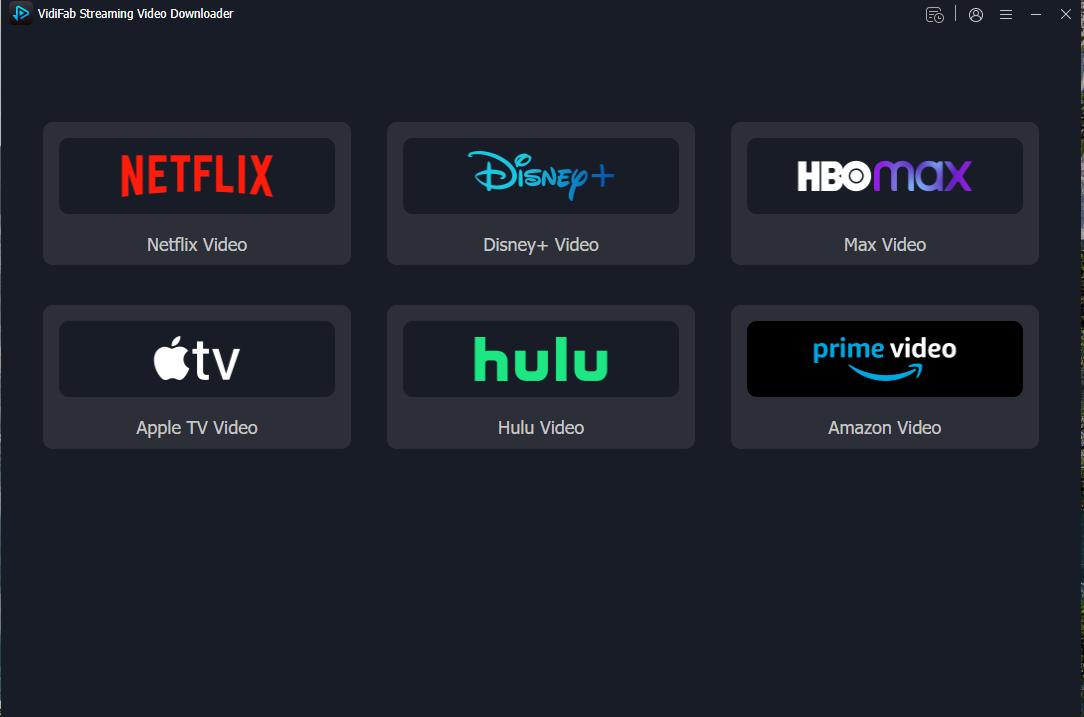
Install and open VidiFab Netflix Video Downloader on your PC or Mac. Click the menu icon in the top right and go to Preferences. Set your output format to MP4 (the most universally compatible option) or MKV if you prefer. Save and close.
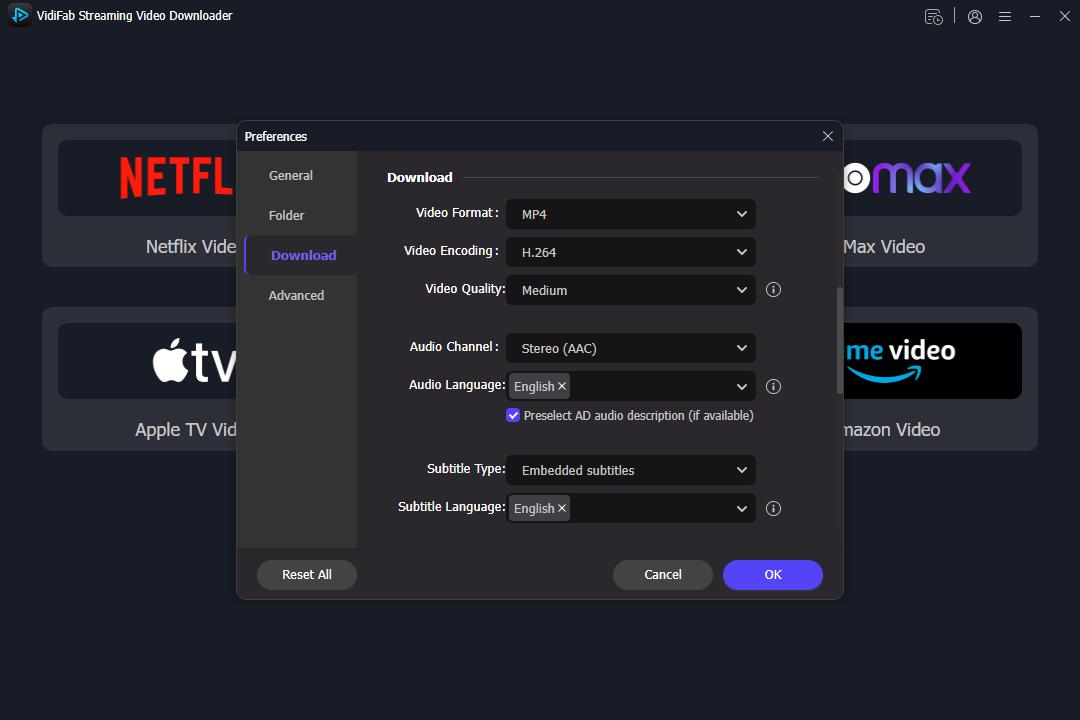
Back on the main screen, select the Netflix icon and log in to your account through the built-in browser.
Step 2. Find the Title That Was Giving You Errors
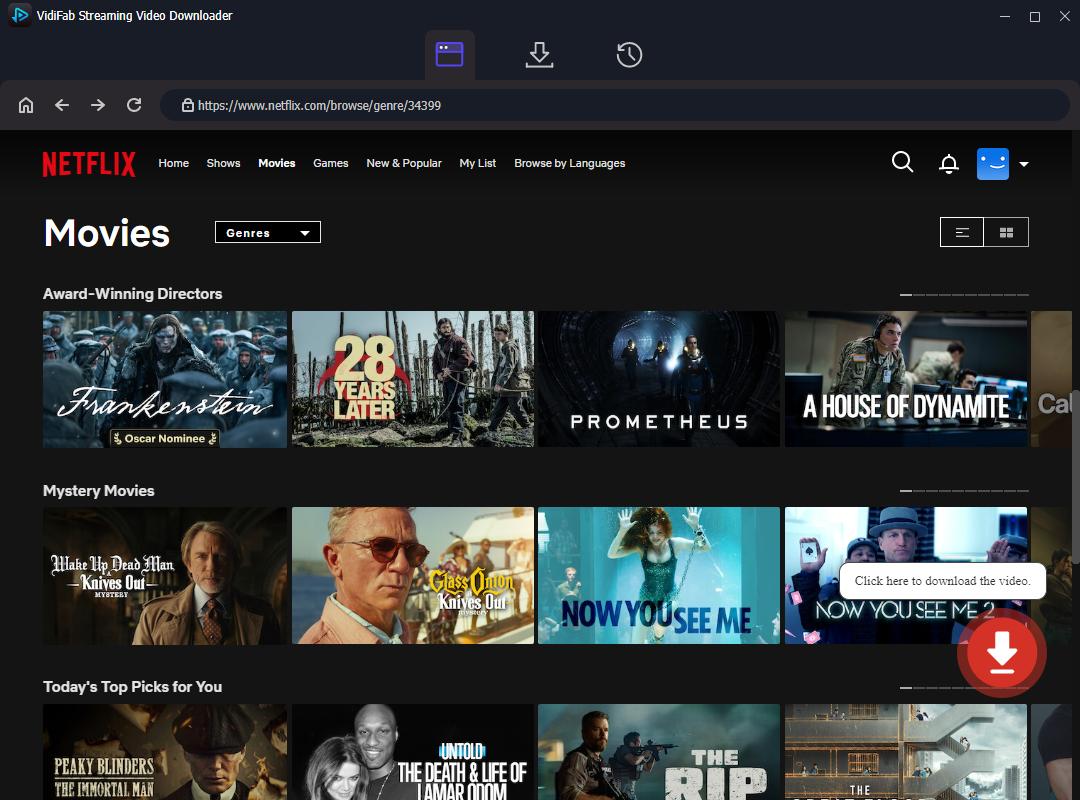
Use VidiFab's built-in browser to search for the movie or show that triggered the "not available" error. You can also copy the video's URL directly from your regular browser and paste it into VidiFab's search bar. Open the title's detail page; VidiFab will automatically analyze the stream and surface the download option.
Step 3. Choose Your Quality and Subtitle Settings
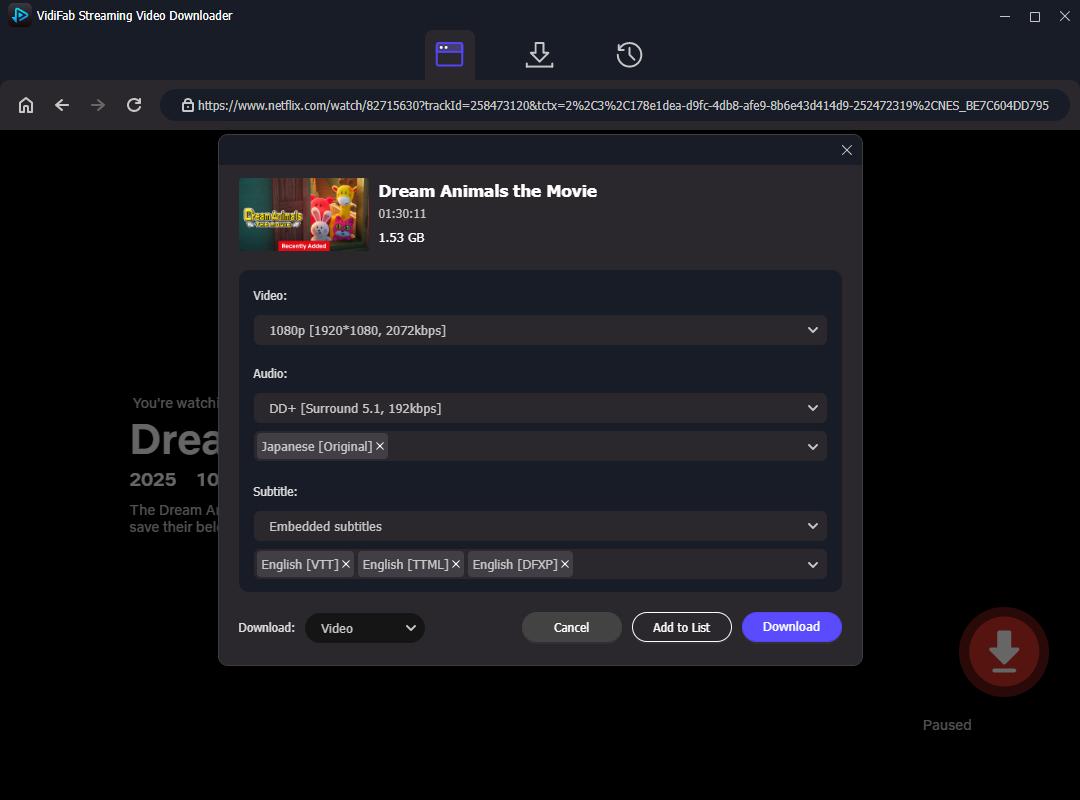
An advanced settings panel will appear. Select your resolution (1080p for HD playback), your preferred audio track (standard AAC stereo works for most setups; 5.1 surround if your setup supports it), and your subtitle language. You can embed subtitles directly into the video file or save them as a separate file.
Step 4. Download and Play Locally
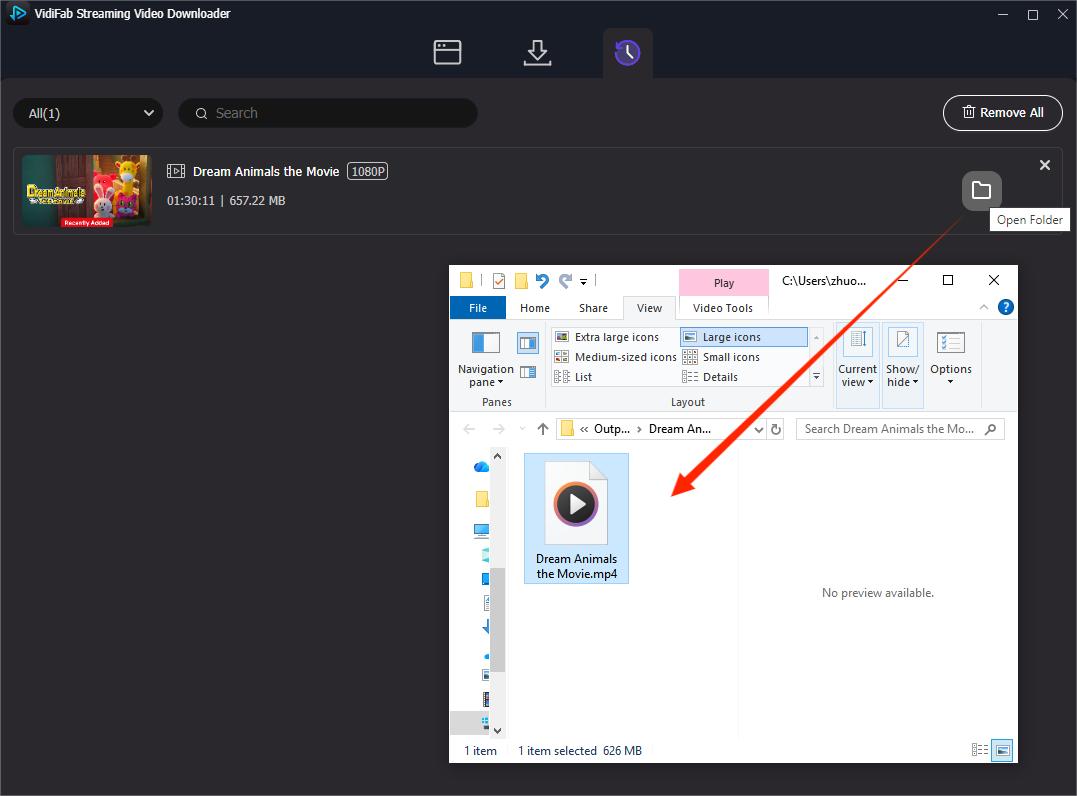
Click Download. Once it finishes, head to the History tab and click the folder icon to locate your saved file.
From here, you can open it in any local video player such as VLC, QuickTime, or Windows Media Player with no browser, no Netflix app, and no error codes. If you want to watch on another device, transfer the downloaded Netflix files via USB or upload it to Google Drive or Dropbox and access it from there.
Final Thoughts
The "This title is not available to watch instantly" error is annoying precisely because it's vague. But most of the time, Netflix will give you a specific error code. Use it to troubleshoot as I cover in Part 2.
If you want the fastest path to fix this Netflix playback problem, start with this order: cold restart, sign out/in, network restart, app or browser update, then device-specific fixes. If none of that works and the title still matters to you, using VidiFab Netflix Video Downloader for offline viewing is a reliable workaround that is worth trying.
Free Download
Secure Download
Free Download
Secure Download


I'm a video tech specialist with over 10 years of experience in digital media and streaming. I focus on making complex workflows simple and practical. Through my guides, you'll learn how to convert media, keep high-quality playback across devices, and manage your streaming video library with ease.
 Leave Your Comment