Netflix Error Code UI3012: Meaning, Causes, and Step-by-Step Fixes
 By Miles Kent
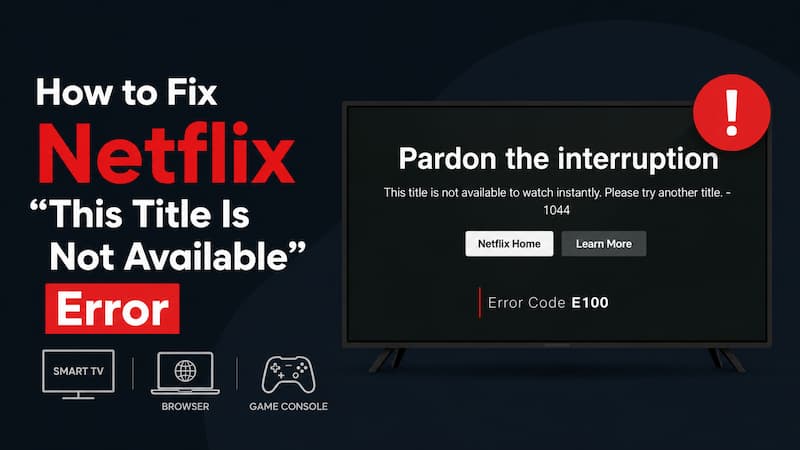
Netflix error code UI3012 usually indicates a network connection issue that prevents your device from connecting to Netflix properly. You may see the message "Whoops, something went wrong... Unexpected Error" when trying to stream. This error is most commonly associated with desktop browsers, but similar connection issues can also affect TVs and streaming devices. In this guide, you'll learn what causes UI3012 and how to fix it on browsers, smart TVs, and streaming devices.
Part 1. What Does Netflix Error Code UI3012 Mean?
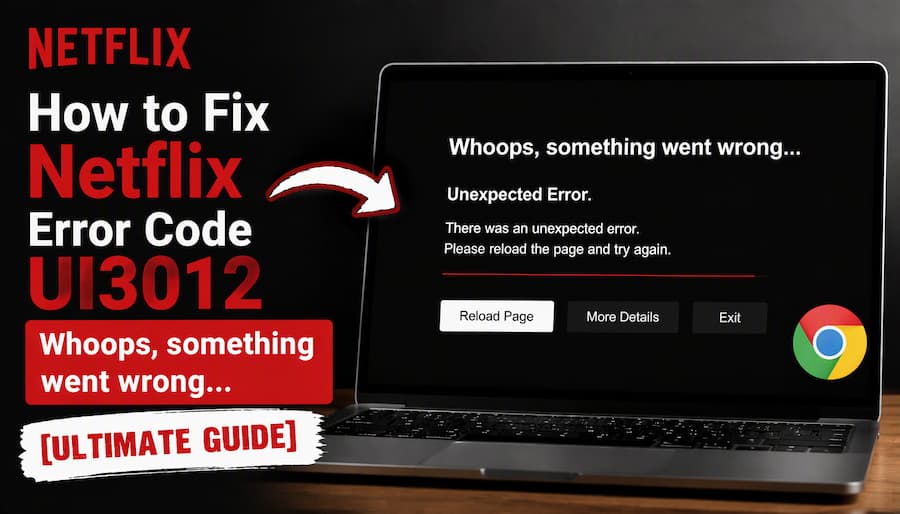
Netflix error code UI3012 means your computer can't reach the Netflix service because of a network connectivity problem. It usually appears with this message:
"Whoops, something went wrong... Unexpected Error There was an unexpected error. Please reload the page and try again."
Error code UI3012 mainly affects desktop web browsers like Google Chrome, Safari, Mozilla Firefox, and Microsoft Edge, but it can also show up on smart TVs and streaming devices like Fire TV, Roku, and Apple TV. Whenever you see this code, it means your device is having trouble connecting to Netflix's servers.
How UI3012 Differs From Other Netflix Connection Error Codes
To effectively troubleshoot your network, it helps to understand how UI3012 behaves compared to other notorious Netflix errors you might have encountered before.
| Error code | What it usually means | What to check first |
|---|---|---|
| UI3012 | Your computer is having trouble connecting to Netflix due to network restrictions, an unstable connection, a VPN or proxy, or a browser extension. | Network connection, VPN or proxy, browser extensions |
| UI3010 | A browser-related or network issue is preventing Netflix from working properly. | Browser cache, cookies, extensions, network connection |
| NW-2-5 | Your device is taking too long to connect to Netflix. | Device network test, router, DNS settings |
| TVQ-PB-101 | A playback problem that may involve stored device data or other device-specific issues. | Reload or restart Netflix, sign out and back in, reinstall the app if needed |
| M7361-1253 | A browser-related playback error that may require updating Chrome or refreshing stored data. | Update Chrome, restart the computer |
Basically, if you see error code UI3012, your internet pipeline to Netflix has broken specifically on your browser web stream. It is not an account issue, and it is not a video rendering bug; it is a pure connectivity roadblock.
Part 2. What Causes Netflix Error Code UI3012?
Netflix error code UI3012 mainly affects your web browser or desktop app, but it usually happens because of issues with your local network connection. The most common reasons are:
- Unstable or slow internet: Weak Wi-Fi, a frozen modem or router, or a mobile hotspot that's too slow for streaming.
- Restricted networks: School, office, hotel, or café Wi-Fi that blocks video streaming services.
- VPN or proxy: A VPN or proxy can interrupt the connection to Netflix.
- Browser extensions: Ad blockers or other add-ons can interfere with Netflix.
- Network settings: Custom DNS, IPv6 compatibility issues, or parental controls and content filters on your router.
- Outdated browser: An old browser version can fail to load Netflix properly.
- Corrupted or stale local data: Old cookies, cached data, or outdated app settings can block the connection to Netflix servers.
- Netflix service issue: Less common, but a Netflix outage can trigger the same error.
Part 3. How to Fix Netflix Error Code UI3012 on Your Desktop Browsers
These fixes work on Chrome, Edge, Firefox, and Safari for both Windows and Mac. Just follow this step-by-step guide to remove the blockage and get back to your show.
Fix 1. Reload the Page and Check If Netflix Is Down
Refresh the page (Ctrl + R on Windows, Cmd + R on Mac) or close the tab and reopen Netflix. If the error persists, check the official Netflix Service Status to ensure Netflix isn't suffering from a global server outage.
Fix 2. Clear Your Browser Cache and Cookies
Old cookies and cached data can block the connection to Netflix.
-
01
Press
Ctrl + Shift + Delete(Windows) orCmd + Shift + Delete(Mac). -
02
Set the time range to All time.
-
03
Check Cookies and other site data and Cached images and files.
-
04
Click Delete data, then restart Chrome.
-
01
Open Safari > Settings > Privacy > Manage Website Data.
-
02
Search for "netflix" and click Remove (or Remove All).
-
03
To empty the cache, enable the Develop menu in Settings > Advanced, then choose Develop > Empty Caches.
Quick option for any browser: go to netflix.com/clearcookies. This clears only your Netflix cookies and signs you out.
Fix 3. Disable Browser Extensions
Extensions are a common cause, especially ad blockers and add-ons that change video quality, such as "New Netflix 1080p" extensions. Open Netflix in a private or incognito window, where extensions are usually off. If the error disappears, turn your extensions off and back on one at a time to find the culprit.
Fix 4. Restart Your Computer
A restart clears temporary glitches. Shut the computer down completely, wait at least 10 seconds, then turn it back on.
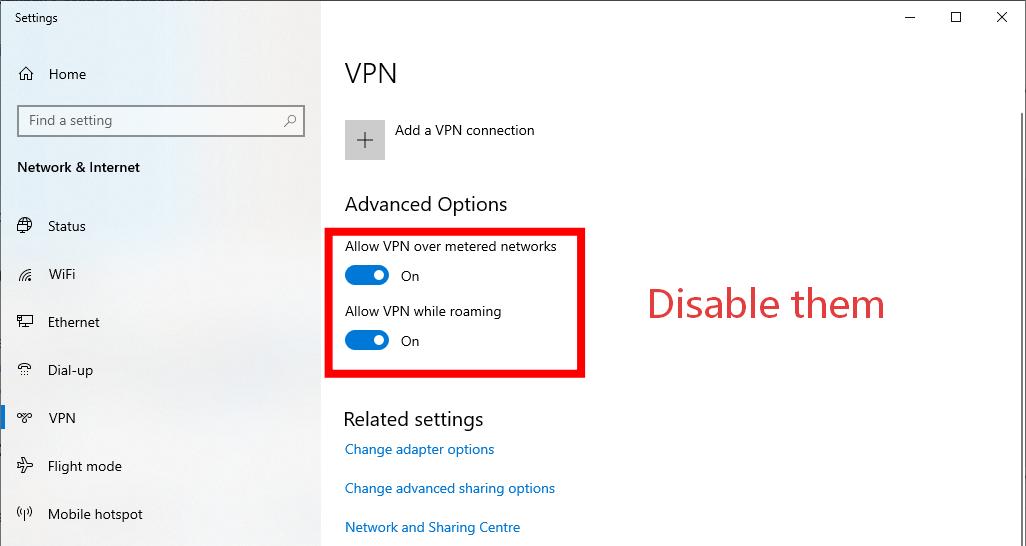
Fix 5. Turn Off Your VPN or Proxy
Netflix keeps an eye on and blocks certain VPN or proxy IP addresses. If your VPN drops or changes servers while you're watching, you'll get a UI3012 error. To fix this, just turn off your VPN software or disable any proxy settings in your system before you try again.
Fix 6. Update Your Browser or Try a Different One
An outdated browser can fail to load Netflix. Update yours using the steps below, or open Netflix in another browser to see if the error follows you.
- Chrome: Click the three-dot menu > Help > About Google Chrome. Chrome checks for updates automatically. Click Relaunch if prompted.
- Edge: Click the three-dot menu > Settings > About Microsoft Edge. Install the update, then restart.
- Firefox: Click the menu button > Help > About Firefox. Firefox downloads updates automatically. Click Restart to update if prompted.
- Safari: Safari updates through macOS. Open System Settings > General > Software Update and install any available update.
Fix 7. Check Your Network Type and Speed
- Public networks (café, hotel, school, office): Ask the network administrator whether video streaming services like Netflix are blocked. If so, switch to another network.
- Private networks: Check out fast.com to test your internet speed with Netflix. Make sure your speed is at least 3-5 Mbps for standard or HD streaming.
- Mobile hotspots, cellular, or satellite connections: These can be too slow for Netflix. Switch to a home broadband connection if you can.
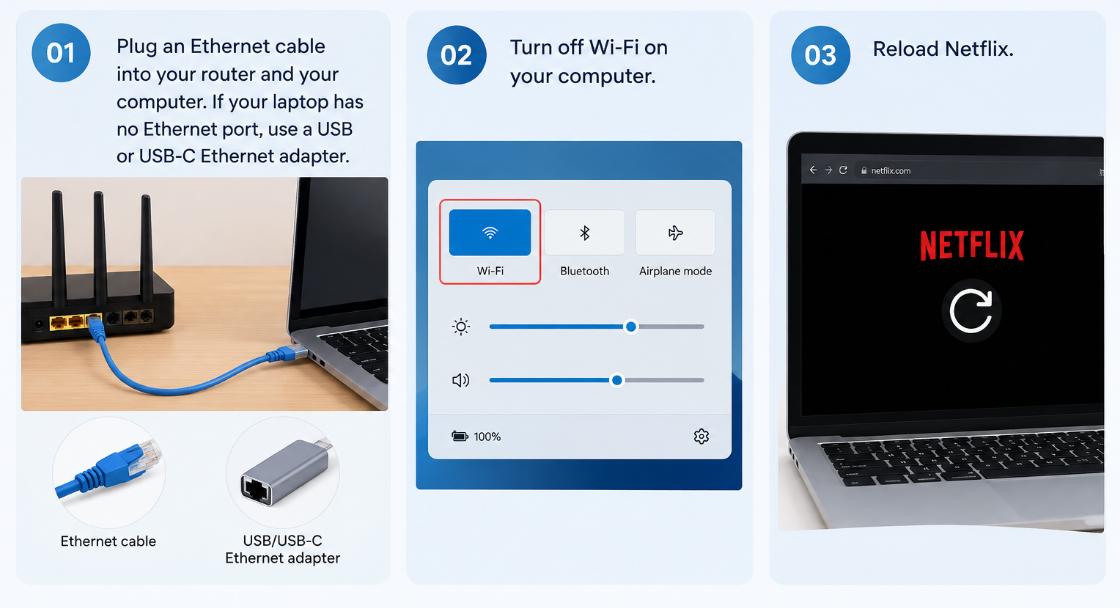
Fix 8. Use a Wired (Ethernet) Connection
-
01
Plug an Ethernet cable into your router and your computer. If your laptop has no Ethernet port, use a USB or USB-C Ethernet adapter.
-
02
Turn off Wi-Fi on your computer.
-
03
Reload Netflix.
Fix 9. Restart Your Modem and Router
-
01
Shut down your computer.
-
02
Unplug your modem and router (if they're separate devices) and wait at least 60 seconds.
-
03
Plug in the modem and wait until its lights return to normal.
-
04
Plug in the router and wait for its lights to settle.
-
05
Turn your computer back on and try Netflix again.
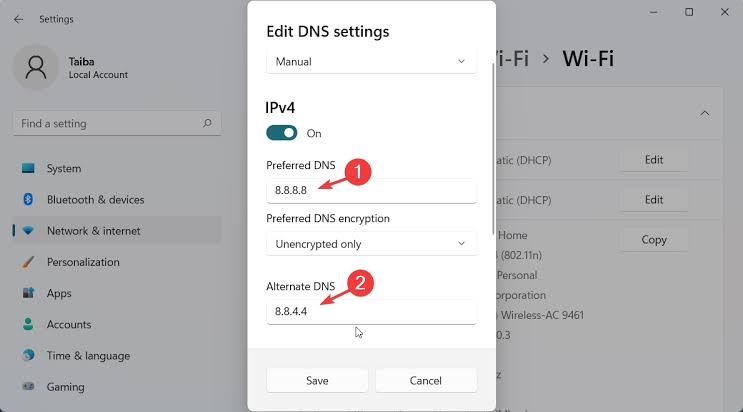
Fix 10. Change Your DNS Settings
If your DNS settings are wrong or your DNS provider is slow, your computer may fail to reach Netflix. Switching to a public DNS often helps.
-
01
Open Settings > Network & internet, then choose Wi-Fi (or Ethernet) and open your connection's properties.
-
02
Next to DNS server assignment, click Edit and choose Manual.
-
03
Turn on IPv4, then enter
8.8.8.8as the preferred DNS and8.8.4.4as the alternate (Google), or1.1.1.1and1.0.0.1(Cloudflare). -
04
Click Save, then restart your browser.
-
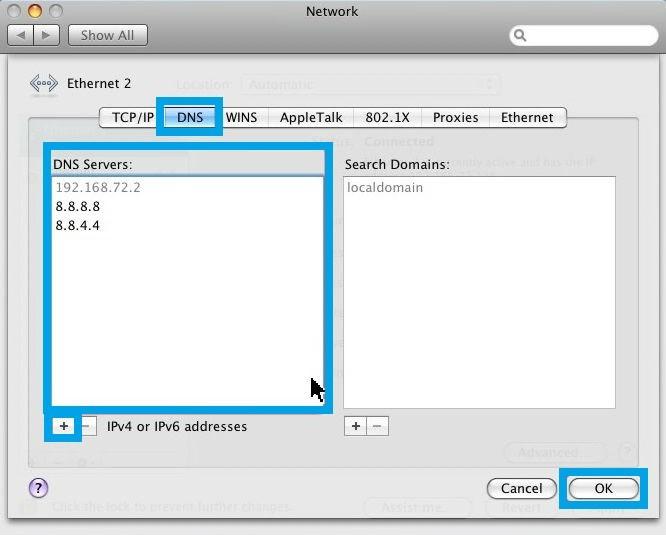
01
Open System Settings > Network, select your connection, and click Details.
-
02
Open the DNS tab and click + to add
8.8.8.8and1.1.1.1. -
03
Click OK, then restart your browser.
Part 4. How to Fix Netflix Error Code UI3012 on TV or Streaming Devices
Netflix documents UI3012 as a computer error, but some users report the same code or a similar loading failure on smart TVs and streaming devices such as Fire TV, Roku, and Apple TV. In most cases the device can't reliably reach Netflix, so the fixes focus on the device, your home network, and the app. Try them in order, and open Netflix after each one.
Tip: If the error screen offers More Details, select it, then choose Check your network. This shows whether the device itself is connected to the internet.
Fix 1. Power-Cycle Your TV or Streaming Device
A full power cycle clears temporary glitches that a standby restart doesn't.
-
01
Turn off your TV or streaming device.
-
02
Unplug it from the power outlet. Don't just put it in standby.
-
03
Wait at least 60 seconds.
-
04
Plug it back in, turn it on, and open Netflix.
Fix 2. Clear the Netflix App Cache and Data
Corrupted app data is a common cause of loading errors. The steps differ by device. Menu names vary by model and software version, so use these as a guide. (Note: Clearing data signs you out of Netflix, so have your login details ready.)
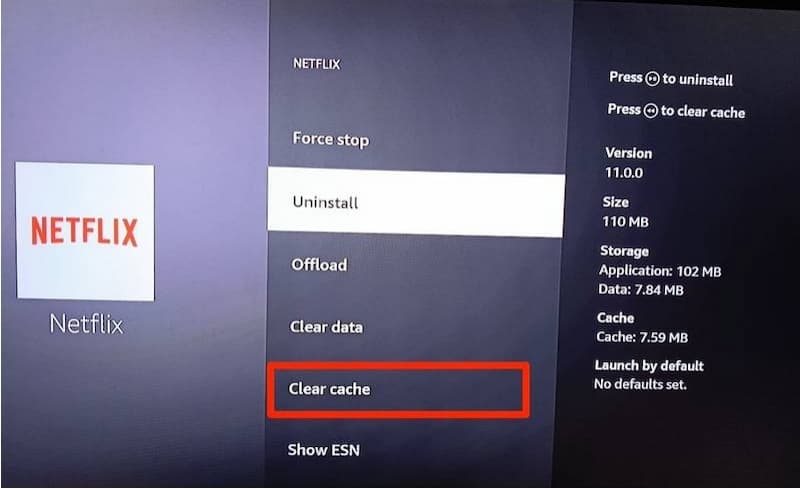
- Fire TV / Fire Stick: Go to Settings > Applications > Manage Installed Applications > Netflix. Select Clear cache, then Clear data.
- Android TV / Google TV: Go to Settings > Apps > Netflix. Select Clear cache, then Clear data.
- Samsung TV: Go to Settings > Support > Device Care > Manage Storage, select Netflix, and clear its data.
- Roku and Apple TV: These don't offer a clear-cache option. Use the next fix instead.
Fix 3. Delete and Reinstall the Netflix App
- Roku: Highlight Netflix on the home screen, press the * button, and select Remove channel. Restart the Roku, then add Netflix again from the Streaming Store.
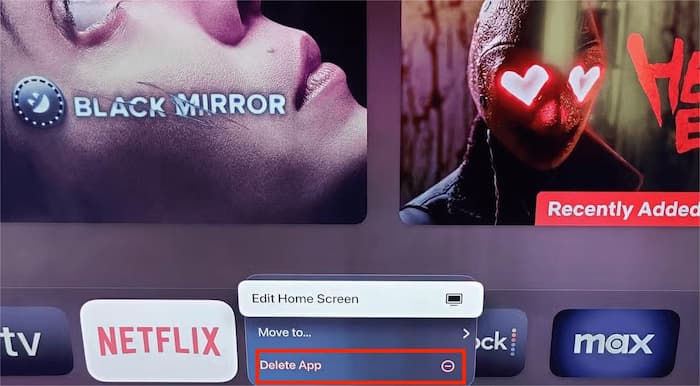
- Apple TV: Highlight the Netflix app, press and hold the touchpad until it jiggles, then select Delete. Reinstall it from the App Store.
- Fire TV: Uninstall Netflix from the Manage Installed Applications menu, then reinstall it from the Appstore.
- LG, Samsung, and other smart TVs: Remove Netflix from your app list, restart the TV, then download it again from the TV's app store.
If your TV has no option to delete Netflix (some built-in apps can't be removed), restart the TV and check for a system update instead.
Fix 4. Try a Wired Ethernet Connection (If Available)
-
01
Connect an Ethernet cable from your router to the TV or streaming device.
-
02
If your device has no Ethernet port, check whether an adapter is available. For Fire TV Stick, Amazon sells an Ethernet adapter.
-
03
Switch the device's network setting to wired if it doesn't change automatically, then open Netflix.
Part 5. A Workaround to Avoid Network Interruptions While Watching Netflix
If your internet connection frequently drops or Netflix keeps giving you the UI3012 code, just fixing your network might not stop future issues. One solution is to download eligible shows ahead of time, so you can watch them offline without needing a steady internet connection in the Netflix app or web player.
VidiFab Streaming Video Downloader saves Netflix movies and shows to your Windows PC or Mac as MP4 or MKV files, at up to 1080p. Once a video is saved, it doesn't need to reach Netflix's servers to play, so network errors can't interrupt it. Because the files are standard MP4 or MKV, you can also move them to a phone, tablet, or other device for offline viewing, for example on a flight or somewhere with poor Wi-Fi.
VidiFab Streaming Video Downloader
Download Netflix videos in MP4 or MKV format without ads, and keep them playable on any device even after your subscription ends.

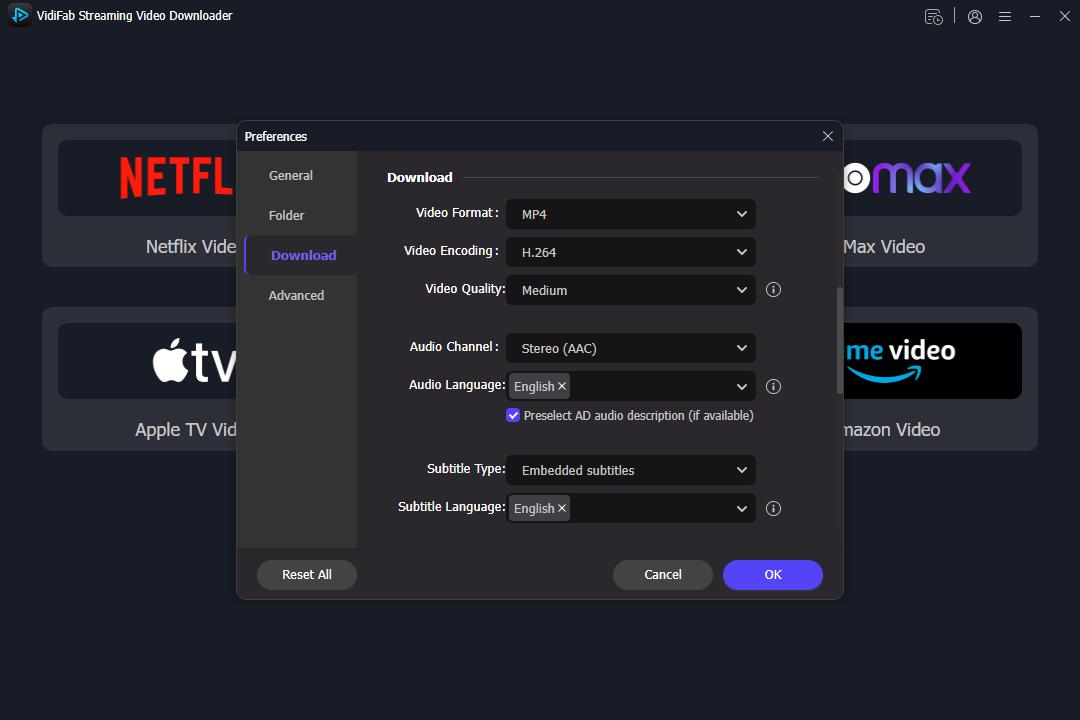
Step 1. Set your format and log in. Install VidiFab and open it. Click the menu icon, go to Preferences, and set the default download format to MP4 or MKV. Then select Netflix on the main screen and log in to your account in the built-in browser.
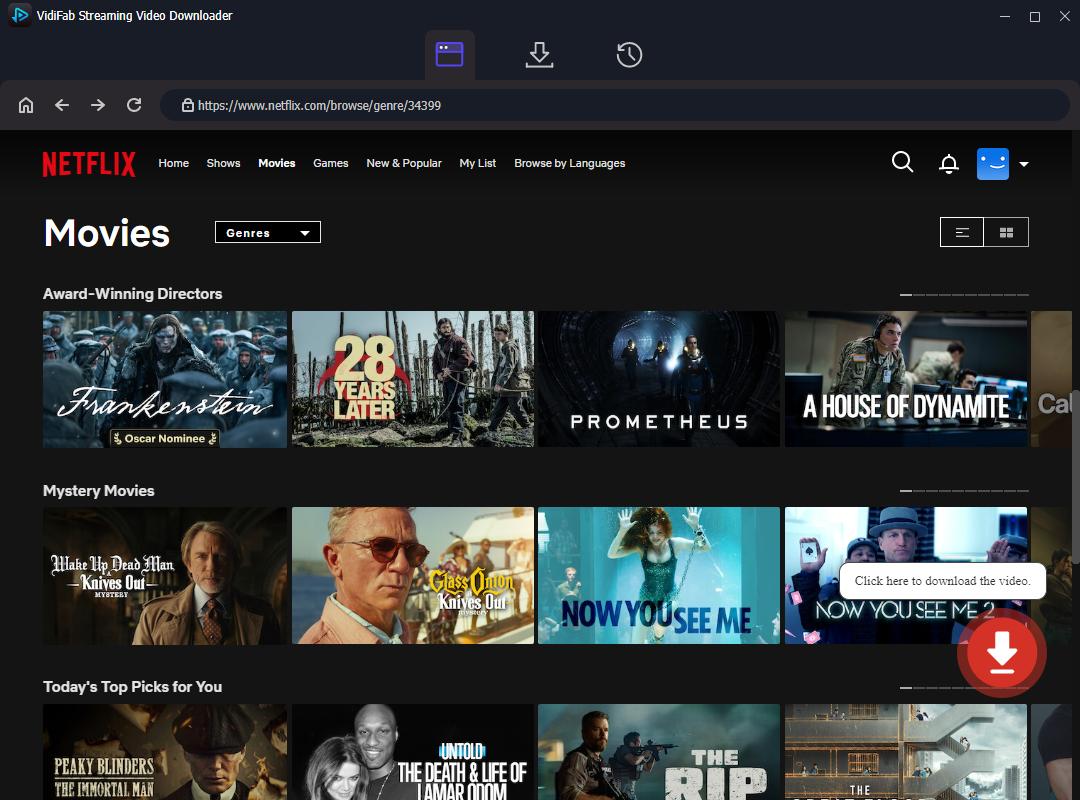
Step 2. Find your video. Search for the movie or show, open its detail page, and click the red Download icon at the bottom corner.
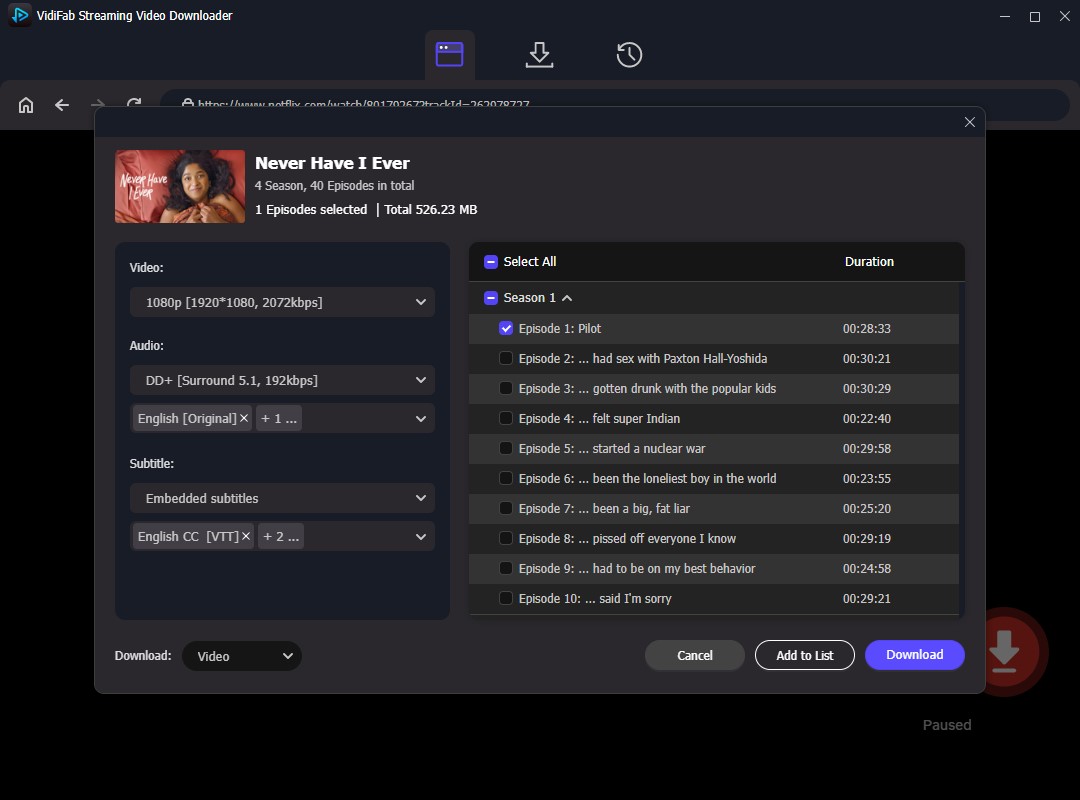
Step 3. Choose your settings. In the window that appears, pick the video quality, audio language, and subtitles, then click Download.
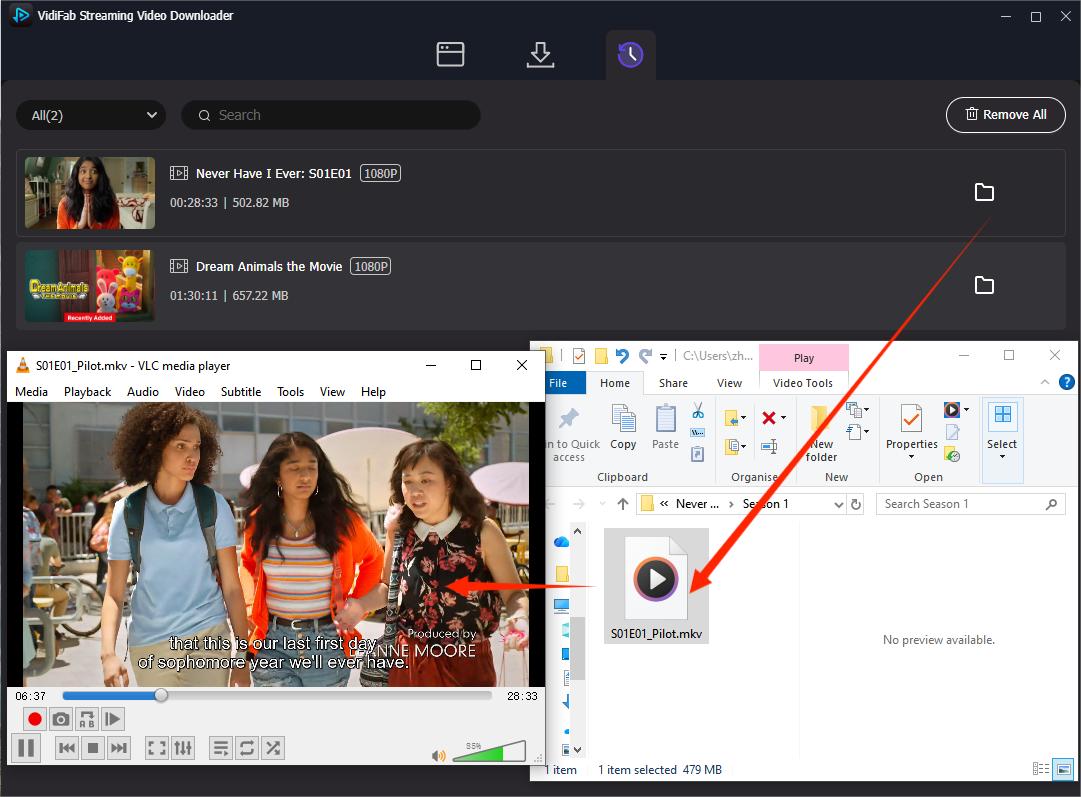
Step 4. Open your files. When the download finishes, go to the History tab (clock icon) and click the folder icon to open the files on your computer. You can watch them offline on your computer or transfer them to a compatible device for playback without a continuous internet connection.
Part 6. FAQs About Netflix Error Code UI3012
Why does UI3012 only happen on one device or one network?
Is Netflix Error Code UI3012 the Same as UI3010?
How can I tell whether my network or my browser is causing UI3012?
Will UI3012 go away on its own?
Should I contact Netflix or my internet provider if UI3012 keeps happening?
Final Thoughts on Netflix Error Code UI3012
Netflix error code UI3012 almost always comes down to your connection or your browser. Start by testing another network and another browser to find the cause, then work through the fixes above: turn off VPNs and extensions, restart your network, and check your DNS. On a TV or streaming device, power-cycle it and reinstall the app. If your internet keeps acting up, consider downloading episodes or movies with the VidiFab downloader so you can watch them offline without any hassle.
 Free Download
 Secure Download
 Free Download
Secure Download
Free Download
Secure Download


I'm a video tech specialist with over 10 years of experience in digital media and streaming. I focus on making complex workflows simple and practical. Through my guides, you'll learn how to convert media, keep high-quality playback across devices, and manage your streaming video library with ease.
 Leave Your Comment