How to Get Netflix on LG TV: Install and Watch Netflix Easily
 By Miles Kent
Netflix app is compatible with LG TVs, but it varies by model. All LG smart TVs made from 2014 onward that use webOS 1.0 or later have the official Netflix app already installed. Older LG TVs with the NetCast system (made before 2014) do not support the app anymore because of new security measures.
If your app is missing or not supported on an older model, this guide will help you. You will find detailed steps on how to get Netflix on an LG TV, troubleshoot missing apps, and explore various ways to stream your favorite Netflix shows on your LG TV.
Part 1. Can You Get Netflix on an LG TV?
Yes, you can get Netflix on most LG Smart TVs. Since 2014, LG has included Netflix in its webOS platform, so it's usually a pre-installed or downloadable app. However, older models that use the NetCast platform (before 2014) do not support the latest Netflix security and DRM standards, which means they cannot use the official app.
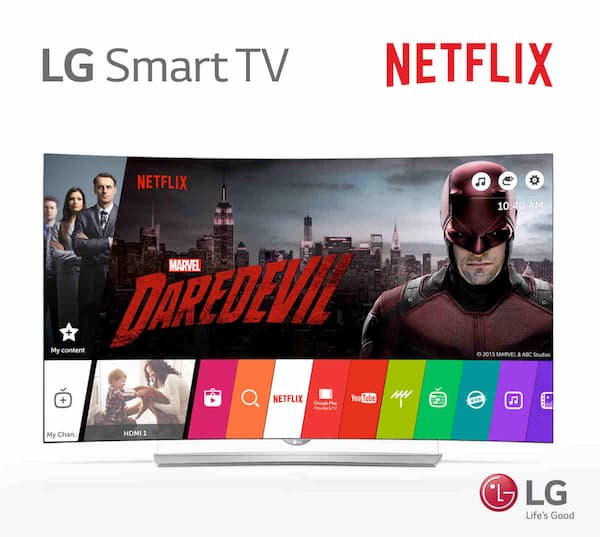
To check if your TV supports the native streaming app, find your hardware category in the technical compatibility matrix below:
| LG TV Type | Can You Use Netflix? | What You Need to Know |
|---|---|---|
| LG Smart TV with webOS | ✅ Yes | Most models support Netflix through the built-in app. You can install it from LG Content Store (or Apps section) or open the pre-installed app. |
| New LG OLED / QNED / UHD TVs | ✅ Yes | These models usually come with Netflix support and a dedicated Netflix button on some remotes. |
| Older LG Smart TVs | ❌ Discontinued | Some older models may no longer support Netflix due to outdated software or hardware limitations. |
| LG NetCast TVs | ❌ Unsupported | Many NetCast models cannot run the latest Netflix app and may require an external streaming device. |
| LG Non-Smart TVs | ❌ No built-in support | You need a streaming device, game console, or another compatible player to watch Netflix on a non-smart TV. |
Part 2. Check Your LG TV Compatibility Before Installing Netflix
To see if your LG TV supports the native Netflix app, you need to check its Operating System or find its Model Number.
Method 1. Check the TV System Settings (Find the OS Version)
The option names may differ by model, but the general steps are similar. For newer webOS models from 2020 and later:
-
01
Press the Settings button.
-
02
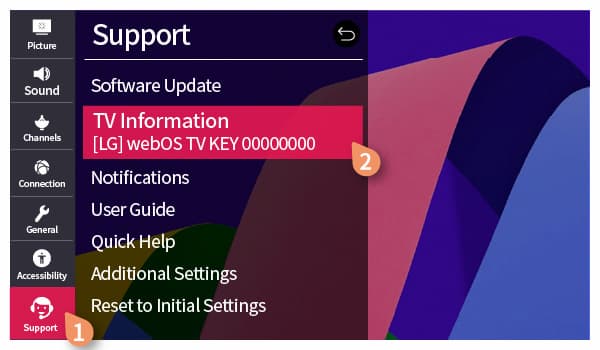
Navigate to All Settings and scroll down to Support.
-
03
Look for the TV Information. If it shows webOS TV, your TV supports Netflix.
If the interface appears as a grid of basic blue/gray icons instead of a modern launch bar, your TV is running NetCast, which no longer supports the Netflix app.
Method 2. Decode Your LG TV Model Number
If your TV is mounted or you lack the remote, find the white sticker on the back to locate the Model Number (e.g., OLED65CXPUA or 55UN7300AUD). The letters after the screen size indicate the manufacturing year and system capability:
- OLED Models: If the model contains letters like B, C, E, G, or M followed by a number or letter (e.g., OLED55C1 or OLED65CX), it runs webOS and supports Netflix.
- LED/LCD Models (webOS): Letters such as SK, UK, UM, UN, UP, UQ, UR, or UT indicate a modern smart TV with webOS that supports Netflix.
- Legacy Models (NetCast): If the model number includes LN, LA, LB, or LY, it is an older model and does not support the Netflix app.
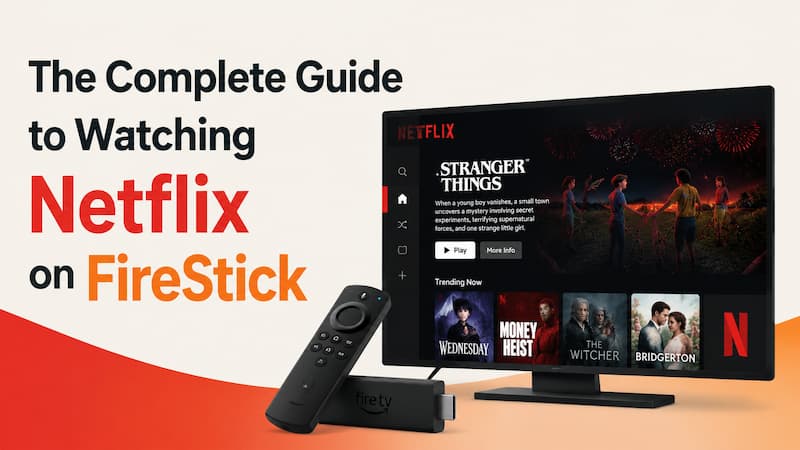
You can use VidiFab Netflix Video Downloader to download Netflix videos to your computer in MP4/MKV format. You can then transfer the videos to a USB flash drive or connect your laptop to your TV with an HDMI cable to play Netflix. Alternatively, consider using a streaming device like FireStick or a game console connected to your TV for access to the Netflix app.
 Free Download
 Secure Download
 Free Download
Secure Download
Free Download
Secure Download
Part 3. How to Install Netflix on LG TV
If your LG TV supports Netflix, you can install the Netflix app from the LG Content Store or Apps, or find the Netflix app on the home screen.
Method 1. Open Netflix from the Home Screen Launcher Bar
-
01
Press the Home button on your LG remote.
-
02
Find the Apps row on the Home screen.
-
03
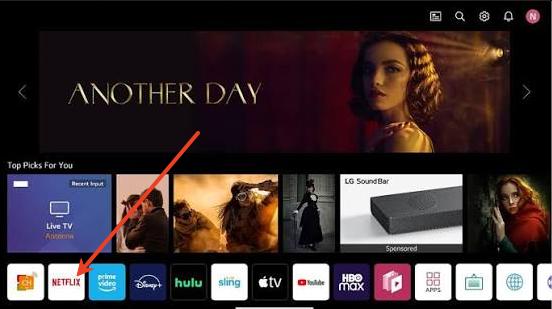
Move left until you see the Netflix app.
-
04
Locate the Netflix icon and click the center wheel/OK button to launch it.
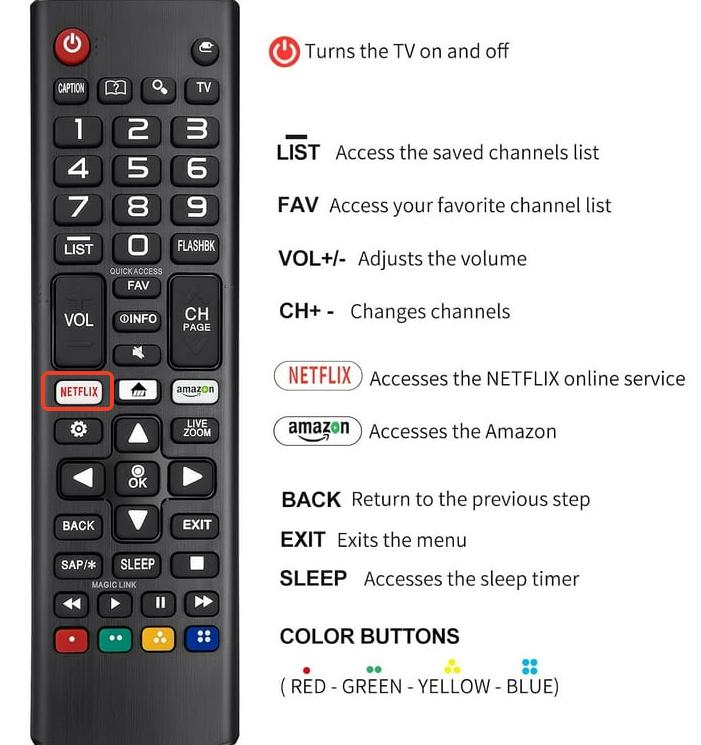
Method 2. Press the Dedicated Remote Button
-
01
Pick up your LG Magic Remote or standard controller.
-
02
Find the physical Netflix hotkey button.
-
03
Press it once. The TV will instantly boot up the Netflix app.
Method 3. Search and Download via the LG Content Store / Apps Section
-
01
Press the Home button on your remote.
-
02
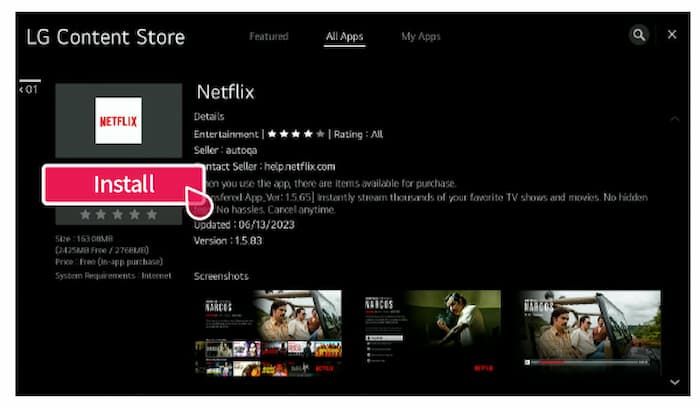
Select LG Content Store (on 2020 webOS 5.0) or the Apps section (on 2022 webOS 22).
-
03
Navigate to the Search icon at the top of the screen.
-
04
Type "Netflix" using the on-screen keyboard.
-
05
Select the official Netflix app from the results and click Install or Download.
Part 4. What to Do If You Can't Find Netflix App on LG TV
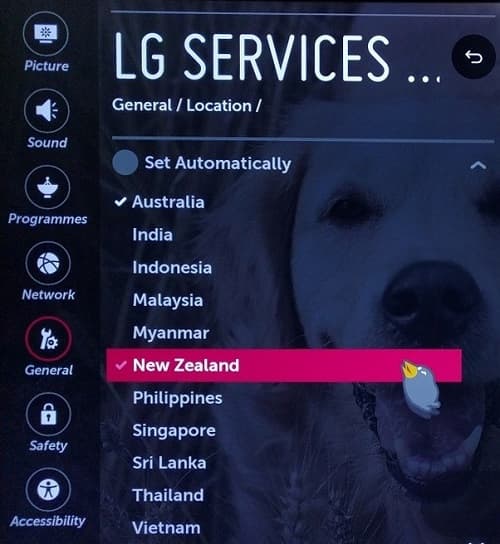
If you can't find the Netflix app in the LG Content Store or Apps menu, you can adjust the location settings to access the app. Follow these steps:
-
01
Press the Settings button on your remote control.
-
02
Select All Settings from the side menu.
-
03
Go to General > System > Location. (Note: On older webOS models, go directly to Settings > General > Location).
-
04
Select LG Service Country.
-
05
Change the country setting to the United States, the United Kingdom, or any other country where Netflix is available.
-
06
Confirm the changes and restart your TV. Open the store again, and you will see the Netflix app ready for download.
Part 5. How to Watch Netflix on New/Old LG TV
After installing Netflix on your LG smart TV, you can watch movies and shows in various ways. If your LG TV doesn't support the Netflix app, you can connect a streaming device or use a USB stick to play Netflix videos.
Method 1. Use the Netflix App (For Supported LG Smart TVs)
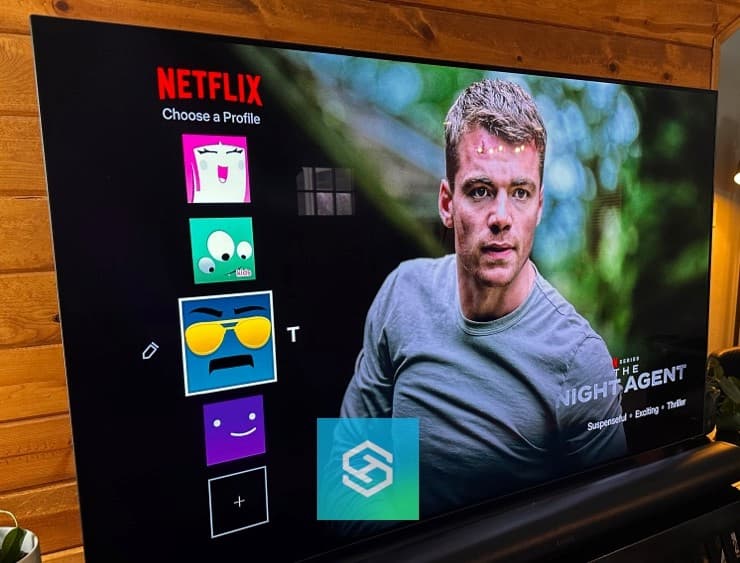
In the Netflix app for LG TV, you can sign in either by scanning the QR code with your phone camera or using your remote to enter the email and password. Once signed in, you can select a Netflix profile, and choose a movie or TV show. Then you can play it on your TV.
Customize Netflix Playback Settings on LG TV
| Feature | What You Can Do |
|---|---|
| Subtitles & closed captions | Turn subtitles on/off and change available language options. |
| Audio options | Switch between available audio languages, including 5.1 surround sound on supported titles. To check for the 5.1 audio option, open any Netflix Original title and check in the audio and subtitles menu. |
| Dolby Atmos | Enjoy immersive audio on supported LG TVs, including many LG OLED models from 2017 or newer. |
| Playback quality | TV adjusts based on your internet connection. |
Method 2. Watch Downloaded Netflix Videos via USB (For Buffer-Free Playback)
If your LG TV cannot run the Netflix app, if the app is not working, or if it frequently buffers, consider using VidiFab Netflix Video Downloader.
VidiFab Netflix Video Downloader allows you to download Netflix videos in MP4 or MKV formats at 1080p quality, including selectable subtitles and 5.1 audio tracks. You can then transfer the downloaded video to a USB stick, insert it into your TV (most TVs have a USB port), and change the source to USB or use the Media Player to play the Netflix video on your LG TV.
VidiFab Netflix Video Downloader
Download Netflix videos as MP4/MKV in 1080p with Dolby Atmos for offline viewing on your LG TV, iPhone, Android, desktop, and more devices.

How to Watch Netflix Videos on LG TV via USB
Step 1. Install VidiFab and Set the Output Format
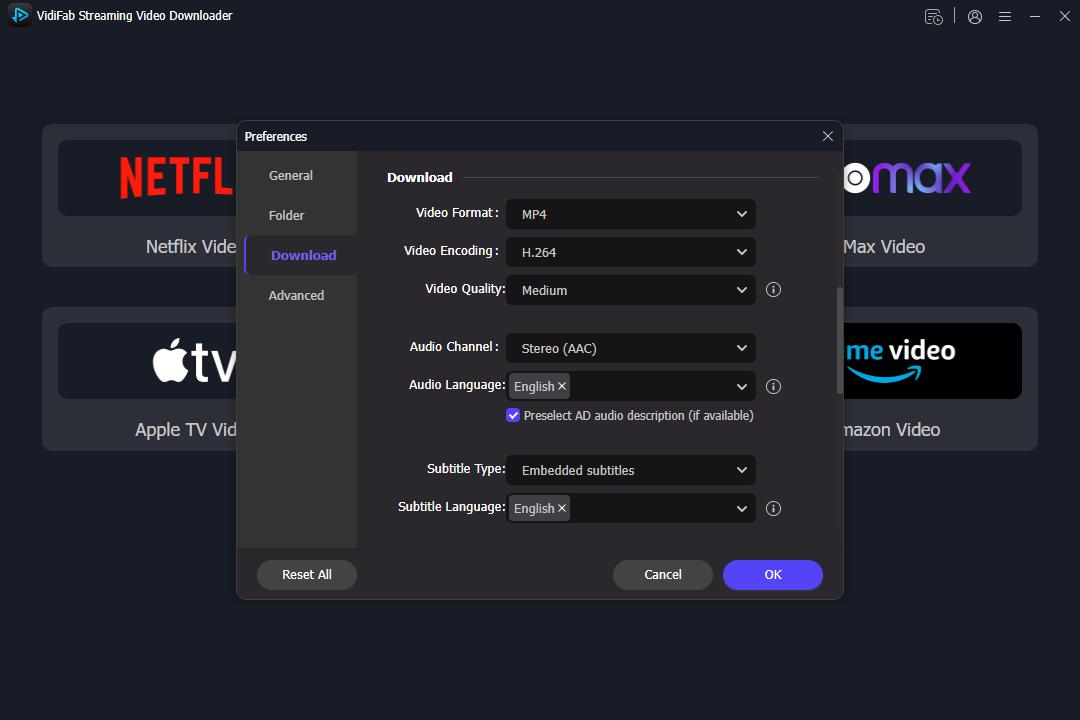
Install and open the VidiFab Netflix Video Downloader on your computer. Click the menu icon, then go to Preferences and select Download. Choose either MP4 or MKV as the output format. Click the Netflix icon on the main interface and log into your account using the secure, built-in browser.
Step 2. Search and Start the Download
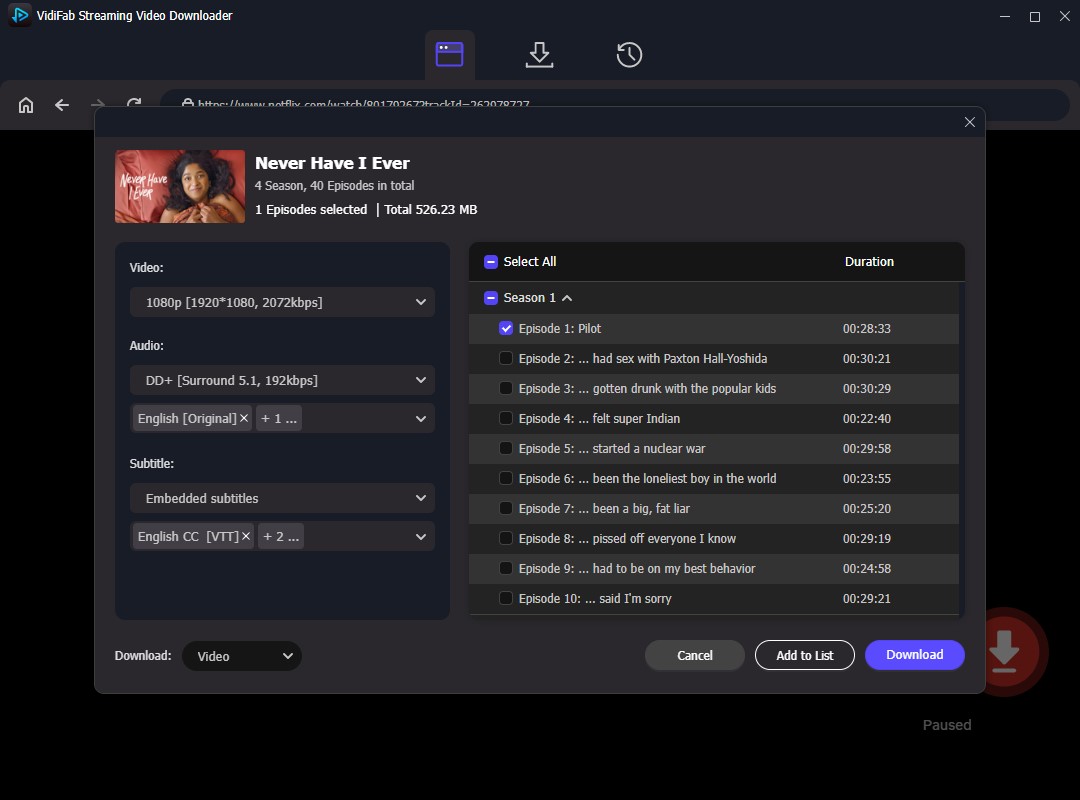
Search for the Netflix title you want to download. Click the red Download button in the bottom right corner. A configuration window will appear. Select 1080p for resolution, choose your preferred audio and subtitle language. Set subtitles to Embedded and select 5.1 audio if available. Click Download to begin downloading.
Step 3. Transfer the Video to a USB Drive
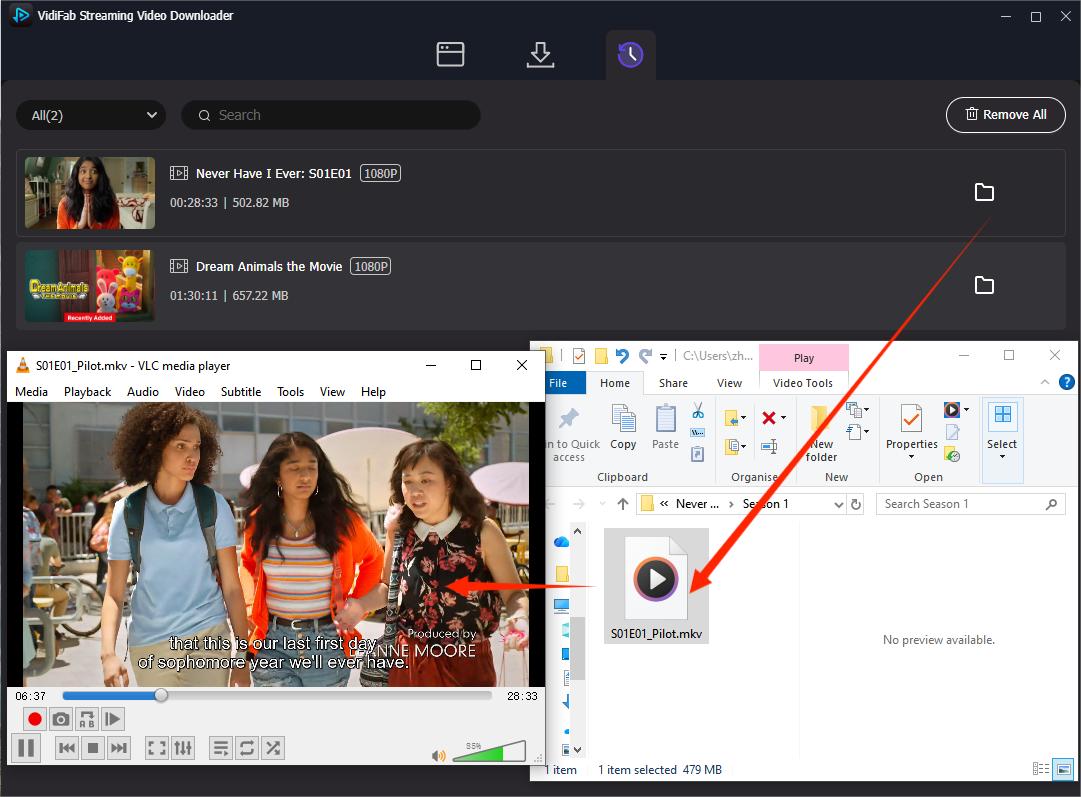
After the download is complete, click the folder icon, and VidiFab will open the folder location. Connect your USB drive to your Windows or Mac computer and transfer the downloaded Netflix videos to the USB drive.
Step 4. Play the Video on Your LG TV
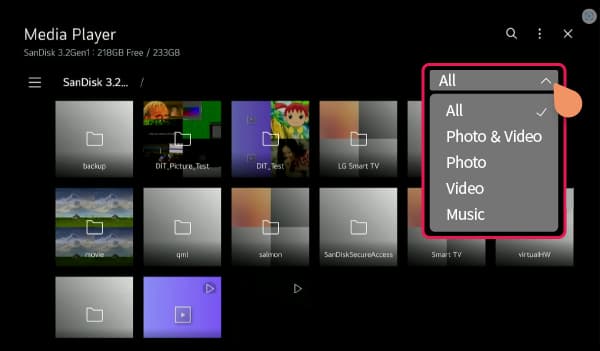
Insert the USB into any available USB port on your LG TV. Open the TV's native Media Player or Photos & Videos app, and select your video for smooth playback. You can also set the Input or Source to USB flash drive to access the video files on your TV.
Method 3. Use Streaming Devices or Consoles (For Unsupported LG TVs)
If your LG TV does not support the Netflix app, you can add Netflix support by connecting an external streaming device or gaming console. These devices run the Netflix app separately, so your TV only needs an available HDMI port.
| Option | Best For | How It Works |
|---|---|---|
| Roku | Simple streaming setup | Connect Roku to your LG TV, install Netflix, and sign in. |
| Amazon Fire TV Stick | Affordable streaming | Plug into HDMI, connect to Wi-Fi, and open Netflix. |
| Apple TV | Apple users | Connect Apple TV and access Netflix from the App Store. |
| Chromecast | Casting from phone | Cast Netflix from your mobile phone to the TV. |
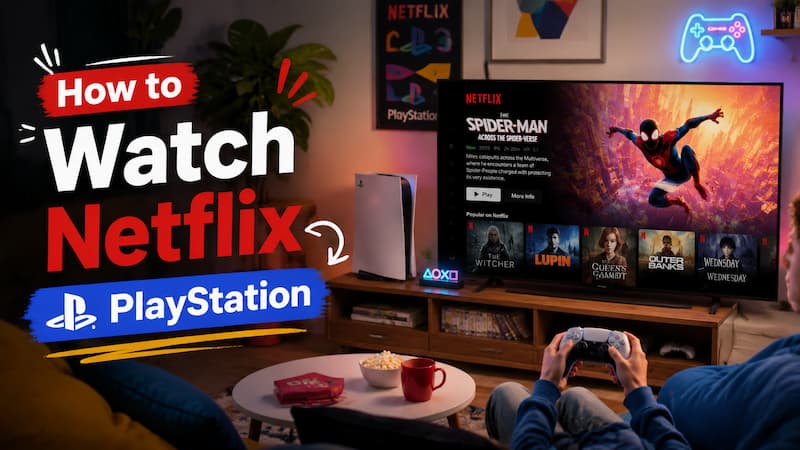
| PlayStation / Xbox | Gamers | Open Netflix directly from the console dashboard. |
To use streaming sticks, boxes, or consoles with your LG TV, follow these steps:
-
01
Connect your streaming device or console to an available HDMI port on the back or side of your LG TV and plug its power cable into a wall outlet.
-
02
Use your original LG TV remote to press the Source or Input button, then select the HDMI port you just connected to.
-
03
Follow the on-screen instructions on your new device to connect it to your home internet.
-
04
Access the built-in app store on the device (like Amazon Appstore, Roku Channel Store, or PlayStation Store), search for "Netflix," install the app, and sign in.
Method 4. Cast Netflix from Phone or Laptop
You may want to watch Netflix from your phone or laptop on an LG TV, but wireless casting has some limitations. Netflix does not support AirPlay for iPhones or iPads, and casting is only possible with devices like Chromecast dongles, Google Nest Hub, and certain Vizio or Compal TVs. Many LG webOS TVs cannot stream Netflix directly through wireless casting.
A more reliable option is to connect your device to the LG TV with an HDMI adapter.
- iPhones (Lightning): Use an Apple Lightning Digital AV Adapter.
- Newer iPhones/Androids/Laptops: Use a USB-C to HDMI adapter that supports video output.
How to Connect Your Device to LG TV for Casting:
-
01
Connect the adapter to your phone or laptop.
-
02
Plug one end of the HDMI cable into the adapter.
-
03
Connect the other end of the HDMI cable to an HDMI port on your LG TV.
-
04
Use your LG remote to switch to the correct HDMI input.
-
05
Open Netflix on your device and start playing. The video will appear on your LG TV screen.
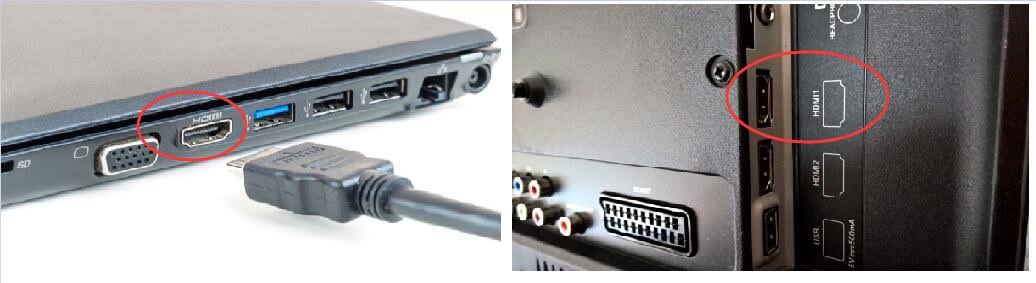

Note: This method depends on your device, adapter, and Netflix compatibility. If the video does not appear, your device may not support HDMI video output, or the adapter may not be compatible with Netflix playback.
Part 6. FAQs About Netflix on LG TV
Can I update Netflix on my LG Smart TV?
Yes. LG webOS TVs usually update apps automatically. To force a manual update, press the Home button, open the LG Content Store (or Apps section), navigate to My Apps, select Netflix, and click Update if a new version is available.
Does Netflix work on LG TV without an internet connection?
No, the native Netflix app requires a continuous internet connection to stream. To watch Netflix on your LG TV without any internet, you must use a tool like VidiFab to download videos onto a USB flash drive beforehand and play them offline via the TV's USB port.
Why is Netflix quality low on my LG TV?
Low quality or blurriness is caused by slow internet speeds or ISP bandwidth throttling during peak hours. Netflix automatically drops your resolution to prevent buffering when connection speeds fall below its streaming thresholds.
Why is Netflix missing after resetting my LG TV?
A factory reset clears cached applications and reverts your system region to default. If Netflix disappears, your TV's LG Services Country setting likely changed. Go to your TV's location settings, change the country to the US or UK, and check the app store again.
Why can't I get 4K Ultra HD or HDR on my LG TV Netflix app?
To access 4K or HDR, you must meet four specific requirements: subscribe to the Netflix Premium plan, ensure your LG TV supports 4K UHD and HDR, maintain an internet speed of at least 15 Mbps, and select a movie or show that has a 4K or HDR label.
What should I do if the Netflix button on my LG remote shows an error?
If pressing the Netflix button on your LG remote shows an error, try these steps:
- Restart your LG TV by unplugging it for about one minute and turning it back on.
- Check your internet connection.
- Update your LG TV software.
- Open Netflix from the Apps menu instead of using the remote button.
Part 7. Conclusion
Getting Netflix on your LG TV depends on your TV model and software. Newer LG TVs with webOS can run Netflix directly. Older models may not support the app. If you cannot use Netflix on your LG TV, you can use VidiFab for USB playback, connect a streaming device, or use an HDMI connection.
Free Download
Secure Download
Free Download
Secure Download


I'm a video tech specialist with over 10 years of experience in digital media and streaming. I focus on making complex workflows simple and practical. Through my guides, you'll learn how to convert media, keep high-quality playback across devices, and manage your streaming video library with ease.
 Leave Your Comment