How to Fix Netflix Error Code E109 (Browsers & Tesla Guide)
 By Miles Kent
If you've been staring at a black screen with a message like "Looks like your browser is no longer supported. Please install the latest version or try another browser," you've run into Netflix Error Code E109. It's annoying, but the good news is that that you don't need to be a software engineer to resolve this.
I've put together this guide to walk you through every scenario: Chrome on PC, Tesla's in-car browser, Safari, Firefox, and Linux. By the end, you'll know exactly what to do.
- Netflix error code E109 usually appears when Netflix thinks the browser or device is outdated or can't complete protected playback.
- On computers, the fastest fixes are usually updating the browser, refreshing DRM/Widevine, and clearing cookies/cache.
- On Tesla, the problem is often tied to vehicle software, connection issues, or ad-plan verification problems.
- If the error keeps coming back, downloading Netflix videos for offline playback can help you avoid browser-related issues entirely.
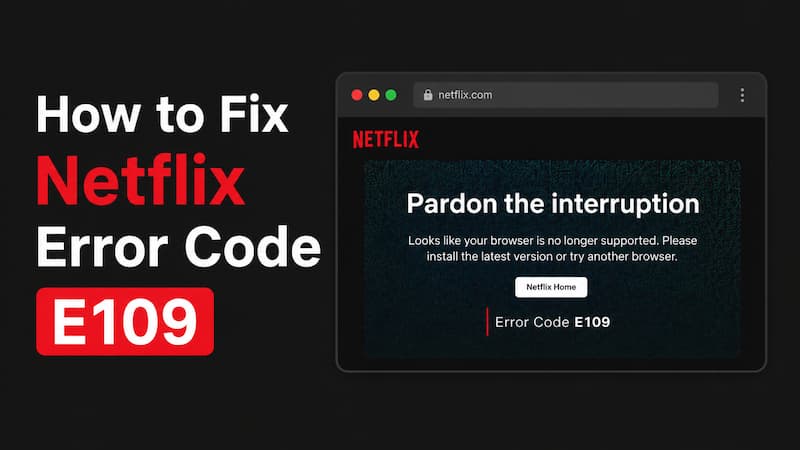
Part 1. What is Netflix Error Code E109 and Why Does It Happen?
E109 is a playback error. Netflix is blocking your device from streaming video. While the error message blames an outdated browser, the real culprit is usually a DRM (Digital Rights Management) handshake failure.
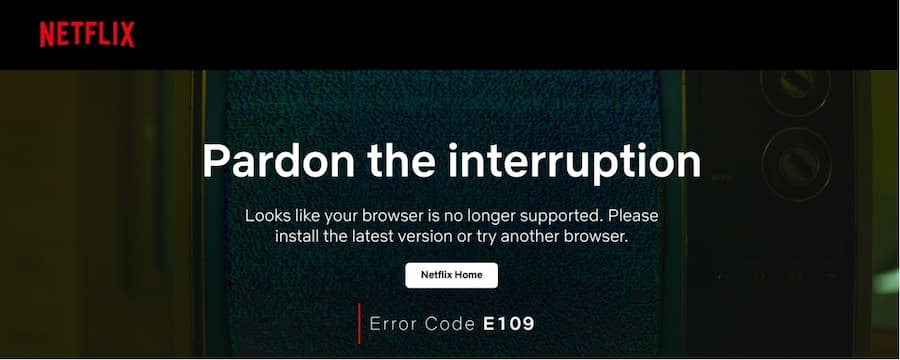
In simple terms, I think of it like this: Netflix tries to check whether your device can securely play protected video, and that check fails. When that happens, Netflix stops the stream before playback begins.
Here are the most common reasons:
1. Outdated browser or operating system
Netflix has minimum browser and system requirements. For example, Netflix currently says Chrome needs to be version 117 or later, Edge 118 or later, and Firefox 111 or later on supported desktop setups (See also: Netflix system requirements).
If your browser or OS is too old, E109 becomes much more likely.
2. Widevine DRM fails
Netflix uses DRM to protect videos from unauthorized copying. In Chrome and Firefox, that usually means Google Widevine is involved. If the DRM component is missing, broken, or stuck, Netflix may refuse to play.
3. Corrupted cache or cookies
Sometimes the browser is technically supported, but old Netflix cookies or cached files confuse the login or playback session. I've seen this cause E109 even on up-to-date browsers.
4. Privacy tools or blocking extensions
Ad blockers, privacy browsers, and anti-tracking tools can interfere with the signals Netflix expects during playback. If an extension blocks part of the player or DRM flow, Netflix may treat the session as unsupported.
5. Tesla-specific software conflicts
On Tesla, E109 can be more frustrating because you're dealing with a car browser, vehicle firmware, and plan compatibility issues at the same time. In some cases, users on ad-supported plans also run into verification-related problems before playback can start.
Part 2. How to Fix Netflix Error Code E109 on Google Chrome & PC
Chrome is where most people hit this error, so let's start here.
Step 1: Update Chrome and Windows
Netflix requires a relatively modern browser. If Chrome hasn't updated in a while, this is your first stop.
-
01
Open Chrome.
-
02
Click the three dots in the top-right corner.
-
03
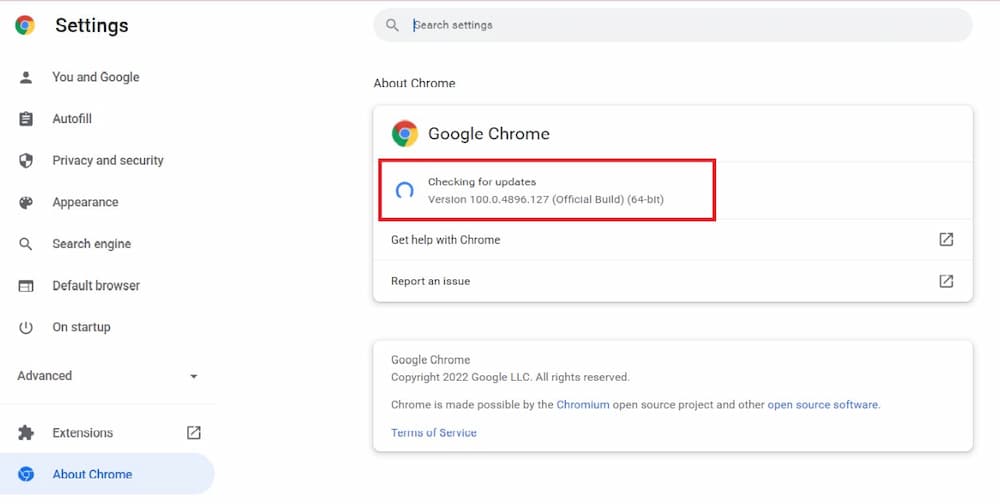
Go to Help > About Google Chrome.
-
04
Let Chrome check for updates.
-
05
Click Relaunch if prompted.
Also check your Windows version. Windows 10 or 11 is required for full HD streaming, while Windows 8 users may only get SD or nothing at all.
Step 2: Refresh the Widevine DRM Component
Widevine is the component inside Chrome that decrypts Netflix video. If it's corrupted, nothing will play.
-
01
Type chrome://components in your address bar and hit Enter.
-
02
Find Widevine Content Decryption Module.
-
03
Click Check for update.
What to look for: The version should be 4.10.2830.0 or higher. If it shows 0.0.0.0, the module is broken, try reinstalling Chrome entirely to restore it.

Step 3: Clear Your Browser Cache and Cookies
Old session data is a surprisingly common culprit.
-
01
Open Chrome Settings.
-
02
Go to Privacy and security.
-
03
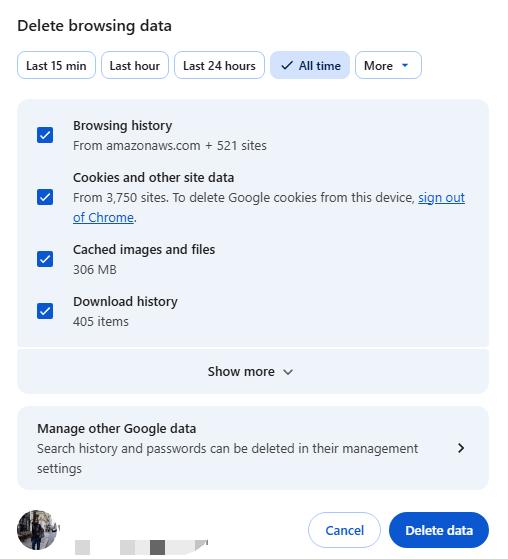
Click Delete browsing data.
-
04
Choose All time.
-
05
Select Cookies and other site data and Cached images and files.
-
06
Click Delete data.
Then I fully close Chrome, reopen it, and sign back into Netflix.
Step 4: Check Your Extensions and Privacy Tools
Privacy tools like uBlock Origin, AdGuard, or Brave Shields sometimes block the cryptographic signals Netflix needs.
Quick test: Open Netflix in an Incognito window (Ctrl+Shift+N). If it works there, an extension is your problem.
Fix: Whitelist netflix.com in your ad blocker, or disable extensions one by one to find the culprit.
Step 5: Advanced Fixes (If Nothing Else Works)
Try these if the basic steps haven't helped:
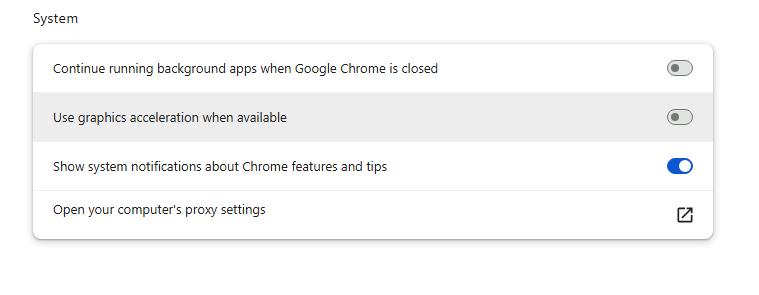
- Enable hardware acceleration: Go to chrome://settings/system and toggle on "Use graphics acceleration when available".
- Hard power cycle: Fully shut down your PC, unplug the power cord for 30 seconds, then restart (this clears cached hardware keys).
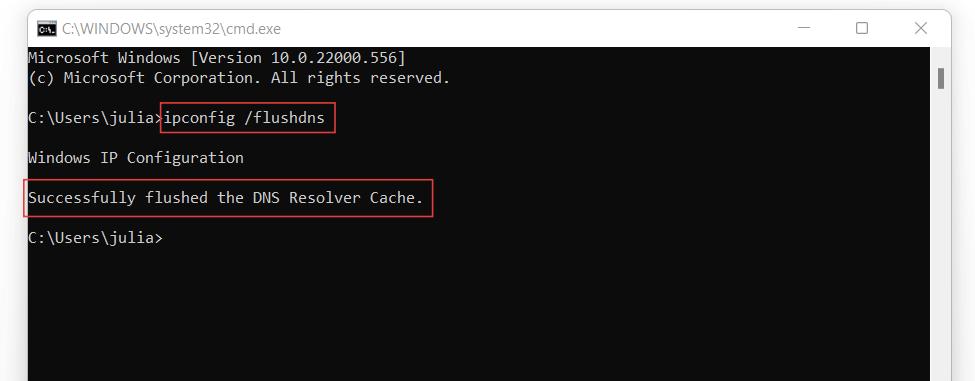
- Flush DNS: Open Command Prompt as Administrator and run ipconfig /flushdns.
- Disable VPN or proxy: Netflix can reject sessions if your IP location doesn't match your account region.
Part 3. How to Fix Netflix Error Code E109 on Tesla
If I get error code E109 Netflix Tesla, I approach it differently than I would on a laptop. The Tesla browser runs a custom Linux-based system with an embedded Chromium browser, so browser-style fixes alone are not always enough.
Step 1. Reboot the Tesla System
First, I do a hard reboot:
-
01
Press and hold down both scroll buttons on the steering wheel.
-
02
Keep holding until the screen turns off and the Tesla logo appears.
-
03
Wait for the system to restart.
Step 2. Check for Tesla Software Updates
If the vehicle has been off Wi-Fi for a while, it may be missing an update that affects browser playback.
What I do:
-
01
Connect the Tesla to a strong Wi-Fi network or hotspot.
-
02
Open the Software section.
-
03
Check whether an update is available.
-
04
Install it before trying Netflix again.
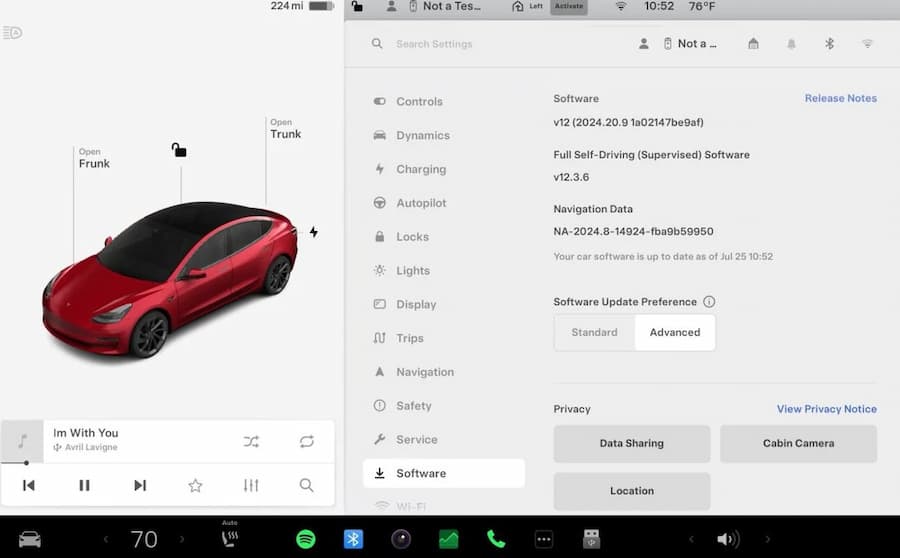
- If the car is stuck on an old firmware version (like v11.1 or a 2023.x.x build) and won't pull updates automatically, a visit to a Tesla Service Center for a manual diagnostic flash may be necessary.
Step 3. Complete Any Account Verification on Another Device
This is a known Tesla-specific bug. If you're on an ad-supported Netflix plan, the app requires you to verify your date of birth and gender but the Tesla browser's dropdown menus don't respond to touch properly, which triggers E109.
Option A — Complete verification on another device:
-
01
On your phone or laptop, go to netflix.com/verifyage.
-
02
Sign in and fill out the demographic fields.
-
03
On your Tesla, tap Terms and Conditions (bottom right of the Netflix screen).
-
04
Find Sign Out (top right), sign out, then sign back in.
Option B — Use the scroll wheel trick:
- Touch and hold the dropdown field (e.g., birth year) on the Tesla screen.
- While holding, use the left steering wheel scroll wheel (left/right) to cycle through the options.
Step 4: Fix Cellular/Geographic Mismatches
Tesla's Premium Connectivity sometimes routes data through international servers. For example, UK vehicles routing through the Netherlands. Netflix sees this as a licensing violation and blocks playback.
Fix: Connect your Tesla to your phone's mobile hotspot instead of using its built-in cellular. This forces traffic through local towers, matching your IP to your physical region.
Step 5: Consider Upgrading Your Plan
Netflix says some supported devices can't fully work with ad-supported playback if the device software cannot support that experience.
If the verification loop is completely stuck, upgrading to an ad-free Netflix plan removes the demographic check entirely and often resolves E109 immediately.
Part 4. Fixing E109 Across Other Platforms (Safari, Firefox, Linux OS)
Not every E109 case happens in Chrome. If you are on Safari, Firefox, or Linux, please use platform-specific fixes.
Fix Netflix E109 Error Code on Safari
Safari updates are tied closely to macOS. Netflix says Mac users need at least macOS 10.15.5 (Catalina) and Safari 14. Older versions like Mojave (10.14) lack the security certificates Netflix requires.
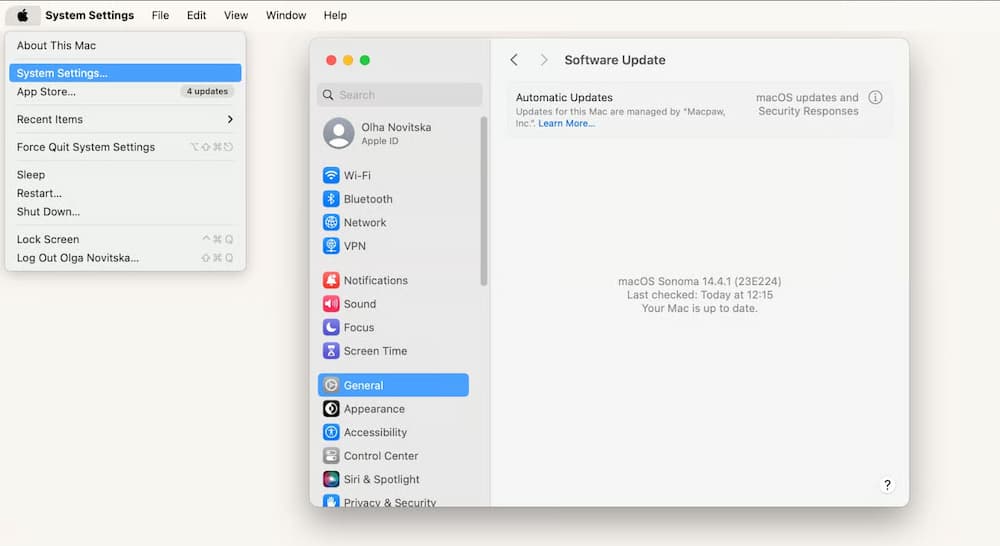
To update the macOS to the latest version, do these:
-
01
Click the Apple Menu in the top-left corner of your screen.
-
02
Select System Settings.
-
03
Click on General in the left sidebar, then click Software Update on the right side.
-
04
Your Mac will automatically check for updates. If an update or upgrade is available, click Update Now or Upgrade Now and follow the on-screen instructions.
- If the Mac is too old to run a newer macOS version, I often try Firefox instead. Sometimes that works better because Firefox handles DRM differently.
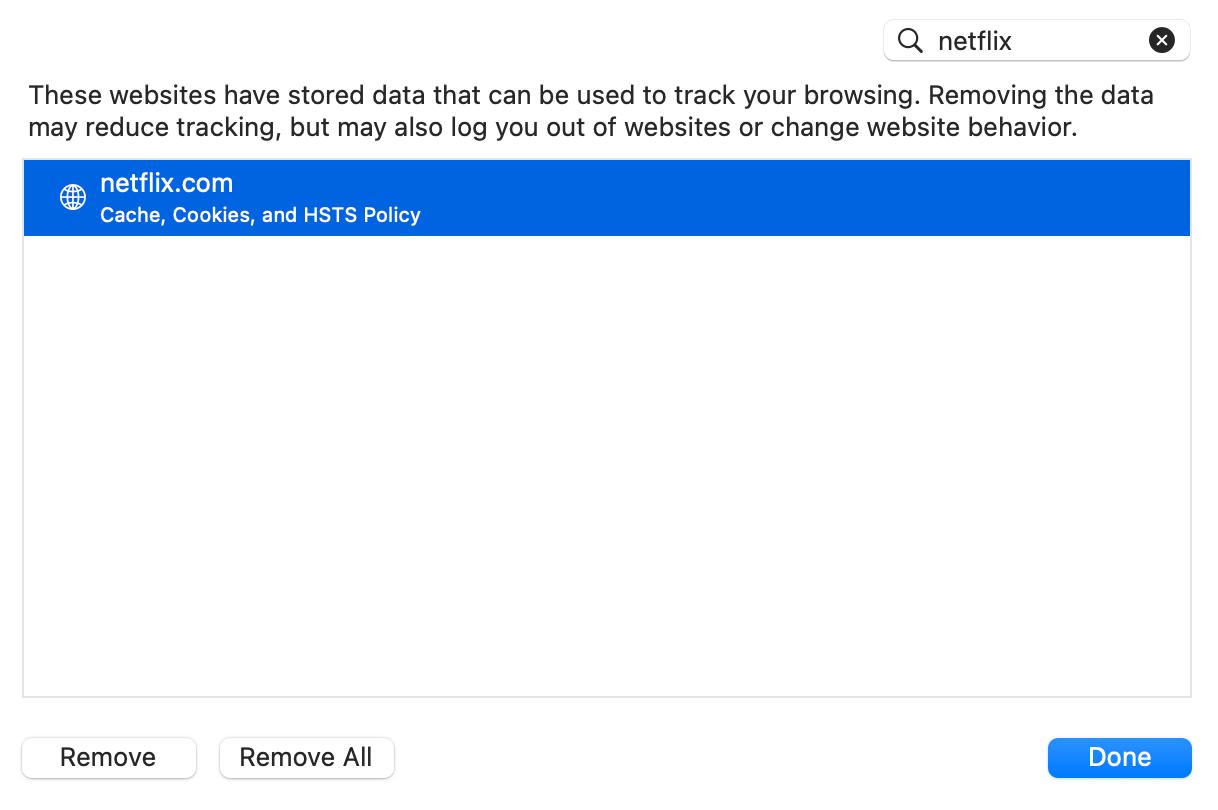
Once your macOS is updated, the Safari will also update automatically. After that, you should clear the website data from Netflix in Safari.
-
01
Go to Settings → Privacy → Manage Website Data.
-
02
Search for "Netflix" and tap Remove All.
Fix Netflix E109 Error Code on Mozilla Firefox
Firefox uses a sandboxed version of Widevine, which occasionally gets out of sync.
Sometimes, you can fix the e109 error on Netflix by resetting the Firefox DRM, here's how:
-
01
Open Settings.
-
02
Search for DRM.
-
03
Uncheck Play DRM-controlled content.
-
04
Restart Firefox.
-
05
Go back and turn it on again.
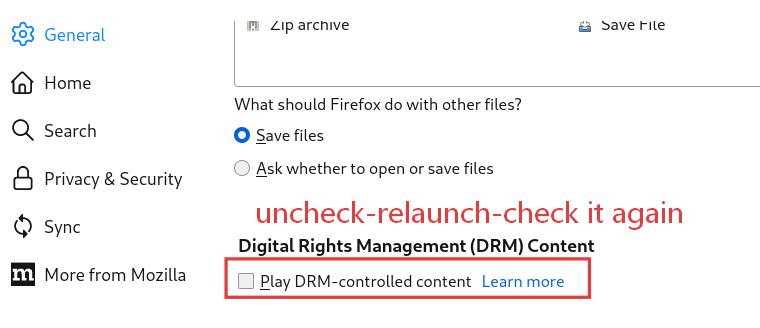
Mozilla says turning DRM back on makes Firefox download or reload the needed DRM components again.
Don't forget to:
- Click the shield icon next to Netflix's URL bar and turn off Enhanced Tracking Protection.
- Type about:addons and confirm both Widevine and OpenH264 are set to "Always Active".
Fix Netflix E109 Error Code on Linux OS
Linux is the trickiest because DRM codecs often aren't included in default installations.
Ubuntu/Debian — Install missing codecs:
Restart your browser after running this.
Arch/Manjaro — Sync Widevine packages:
Update your system and verify that chromium-widevine is current.
Newer kernels (6.11+):
In Chrome/Chromium, go to site settings for Netflix and manually allow "pop-ups and redirects" and "intrusive ads" to resolve rendering engine issues.
Part 5. How to Never See Netflix Error E109 Again
The most foolproof way to stop dealing with E109 forever is to download your Netflix content locally using a tool like VidiFab Netflix Video Downloader.
Here's the logic: E109 is a browser/DRM error between your device and Netflix's servers. If you download the video to your device first (as MP4 or MKV), you bypass the browser entirely with no server connection, no DRM handshake, no error codes.
- You can watch without browser-related E109 issues
- You can move the Netflix file to other devices with USB
- You can store it in the cloud for supported playback setups
- Local playback is often more stable when internet or device compatibility is a mess
VidiFab Netflix Video Downloader
Download Netflix videos as MP4/MKV in 1080p with Dolby Atmos for offline viewing on your iPhone, Android, desktop, and more devices.

How to Use VidiFab to Play Netflix Error-Free
Step 1. Launch VidiFab and Log In to Netflix
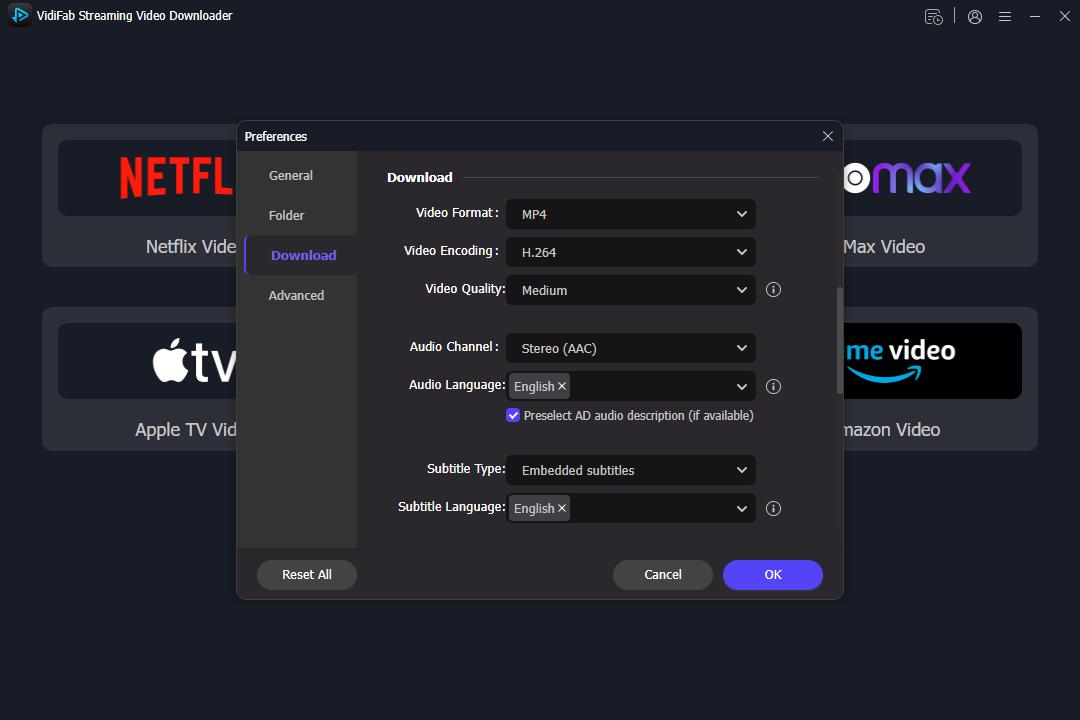
Install and open VidiFab Netflix Video Downloader on your PC or Mac. Click the menu icon (top right) and go to Preferences. Set the output format to MP4 or MKV. Click OK to save.
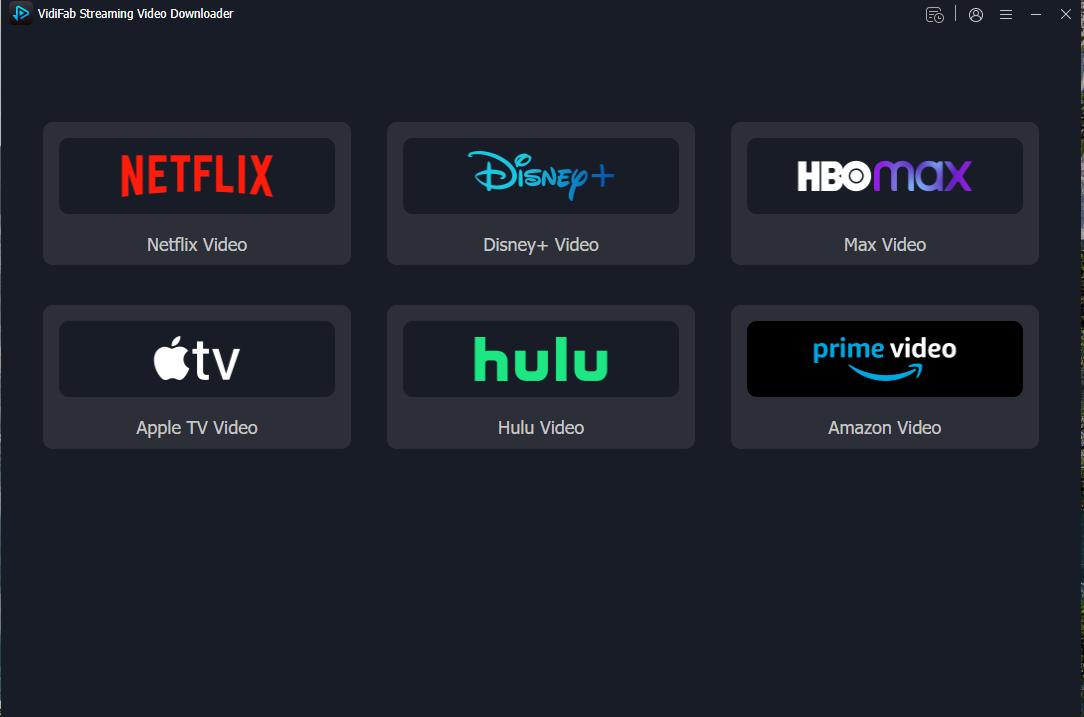
Then select the Netflix icon on the main screen and log in with your account through the built-in browser.
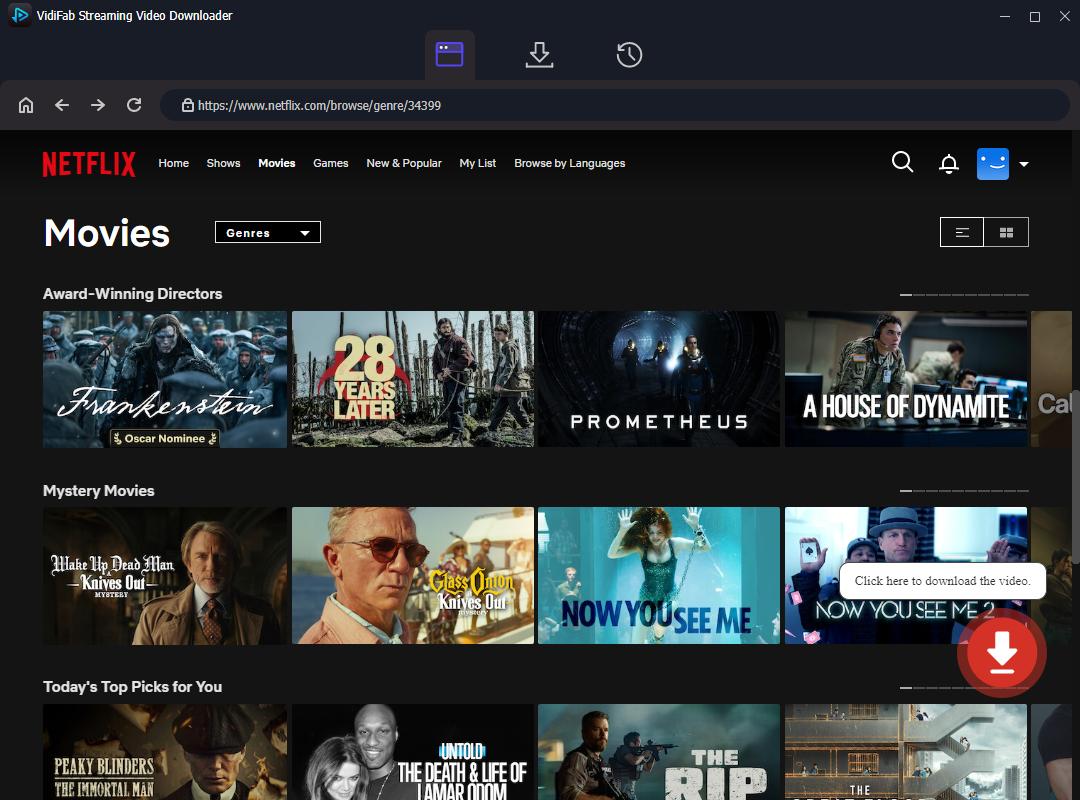
Step 2. Search for the Video That Was Giving You E109
Use the built-in browser to find the movie or show that triggered the error. You can also copy the video's URL from your regular browser and paste it directly into VidiFab's search bar. Open the video's detail page. VidiFab will analyze the stream automatically and give you the download button.
Step 3. Configure Audio and Video Settings
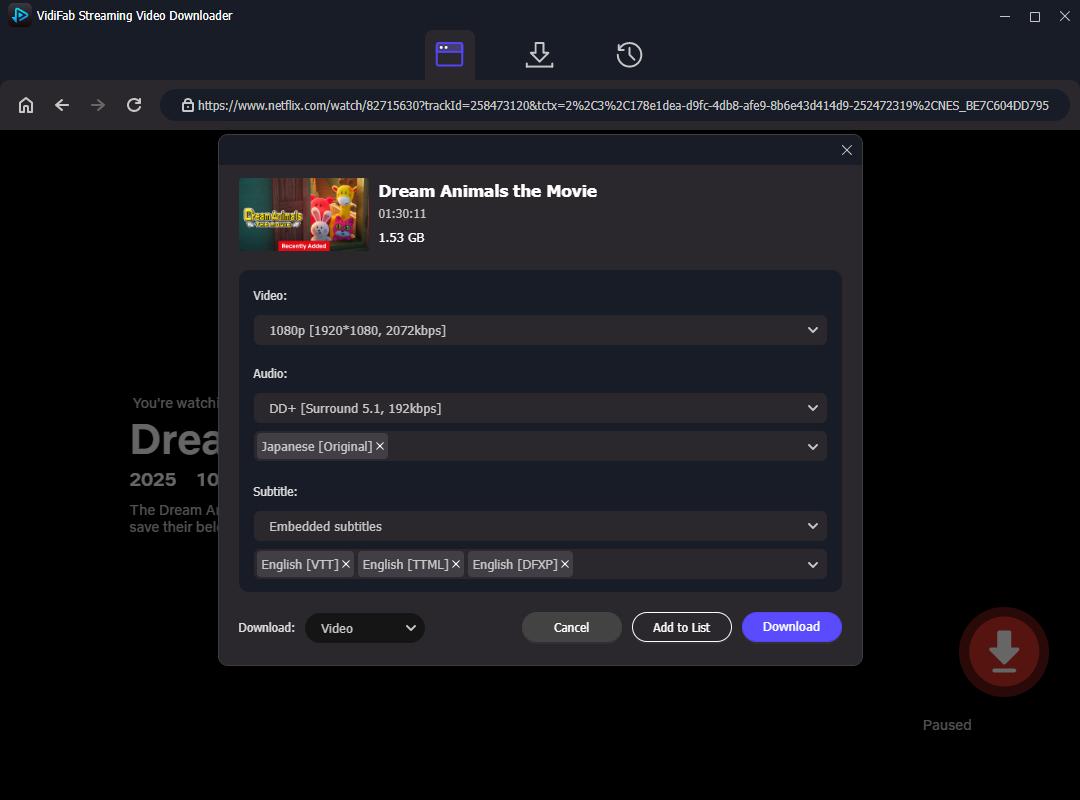
An advanced settings menu will appear. Select 1080p resolution for HD playback. Choose standard AAC stereo audio or Surround 5.1 for stable playback, and select your preferred language for subtitles. You can choose to save the subtitles as separate files or embed them directly into the video.
Step 4. Download and Save as Local Media Files
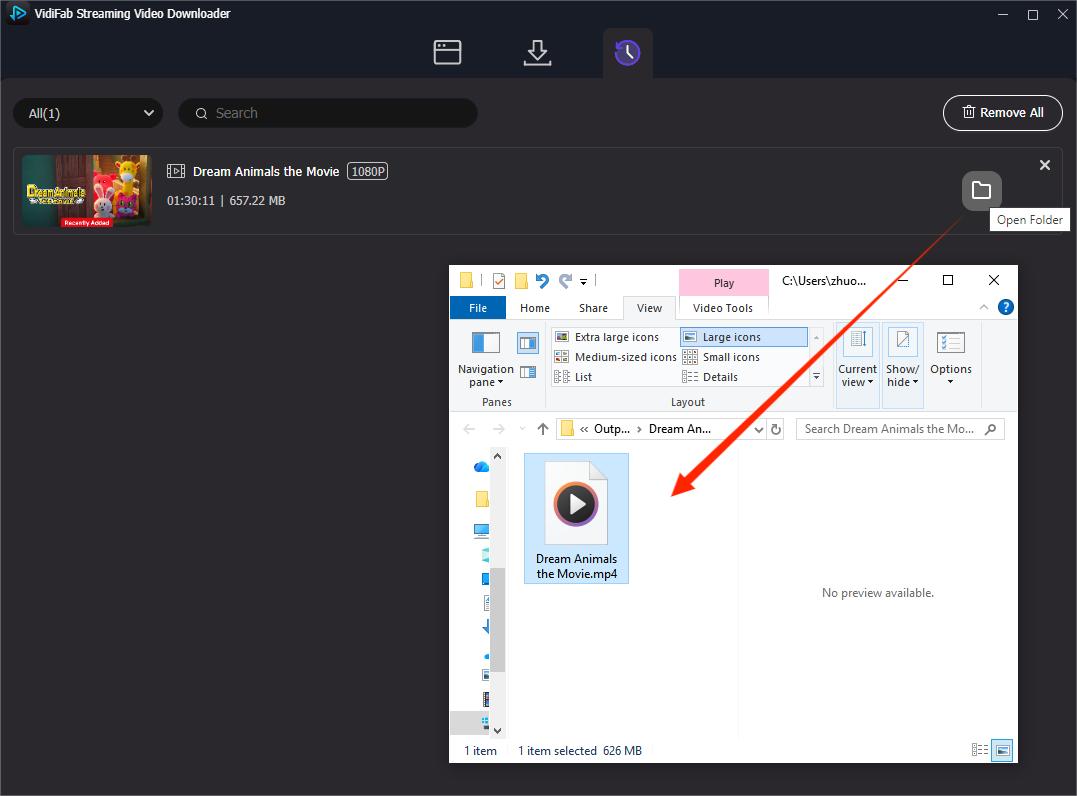
Click Download. Once it's done, head to the History tab and click the folder icon to find your saved MP4/MKVfile.
From here, you can play it directly in any local video player like VLC or QuickTime; no browser, no Netflix app, no error codes. If you want to watch on another device, just transfer the file via USB or upload it to cloud storage (Google Drive, Dropbox, etc.) and access it from there.
Final Thoughts
Netflix Error Code E109 looks annoying, but in most cases it comes down to a few fixable things: an outdated browser, broken DRM, bad cache, or device compatibility issues. You'd start with the basics first, especially updates and cache clearing, then move to DRM and network checks. If you're dealing with Tesla, account verification and software updates matter even more. And if you just want to stop seeing E109 altogether, local playback is the simplest long-term escape hatch.
 Free Download
 Secure Download
 Free Download
Secure Download
Free Download
Secure Download



I'm a video tech specialist with over 10 years of experience in digital media and streaming. I focus on making complex workflows simple and practical. Through my guides, you'll learn how to convert media, keep high-quality playback across devices, and manage your streaming video library with ease.
 Leave Your Comment