How to Fix Netflix Error Code NW-2-5 on Any Device
 By Miles Kent
Most Netflix users have encountered the Netflix error code NW-2-5 at some point. This error indicates a network connection issue when connecting to Netflix servers. The good news is that this problem can usually be resolved in just a few minutes.
In this guide, I'm going to guide you how to fix it on most smart TVs and game consoles, including amsung TV, LG TV, Firestick, Chromecast, Roku, PS5, or Xbox. Let's start fixing and get streaming again.
Part 1. What Is Netflix Code NW-2-5?
When this error pops up, here's what you see on screen:
Netflix has encountered an error. Retrying in [X] seconds.
Code: NW-2-5
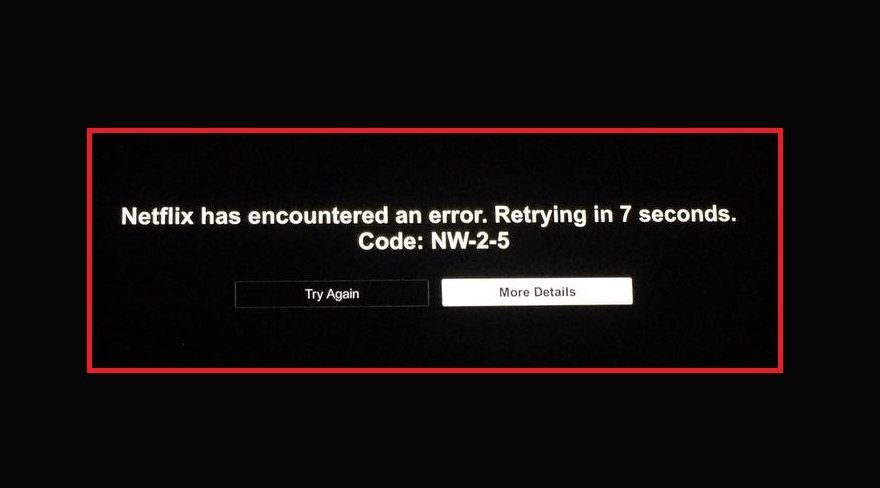
According to Netflix's official support page, NW-2-5 means your device took too long to connect to Netflix. So, it is a network issue, not a Netflix account or app problem.
You might face this error for several reasons:
- Weak or unstable Wi-Fi signal
- Routing or network outage issues with your Internet Service Provider (ISP)
- Your router or ISP's DNS cannot resolve Netflix's server address
- Using public or shared Wi-Fi
- Using a VPN or proxy
- Incorrect time or date on your device
Part 2. Basic Netflix Code NW-2-5 Fixes for Most Devices
Before diving into device-specific steps, let's start here. These fixes come from Netflix's official troubleshooting tips, along with some tricks I've found work well on various devices. Try these in order. Most people solve their issues before finishing the list!
Fix 1. Restart Everything (Seriously, Do This First)
I know it sounds boring, but a proper restart clears out stale connection data and resolves a surprising number of NW-2-5 errors.
- Restart Your Streaming Device: Turn your device completely off. Don't just put it into standby or sleep mode. Unplug the power cable from the wall, wait 15 to 30 seconds, plug it back in, and power it up.
- Restart Your Home Network: Unplug your modem and router from their power sources. Wait a full 30 to 60 seconds. Plug your modem back in first and wait until all its diagnostic lights are solid and stable. Then, plug your router back in and give it 2 minutes to deploy the Wi-Fi signal.
Fix 2. Test with a Mobile Hotspot
This is my favorite diagnostic trick. Connect your streaming device to your phone's mobile data hotspot and try Netflix.
- If Netflix works on hotspot → the problem is 100% your home network or ISP, not your device or the app.
- If Netflix still fails on hotspot → the problem is on the device itself.
Fix 3. Check Your Network Speed
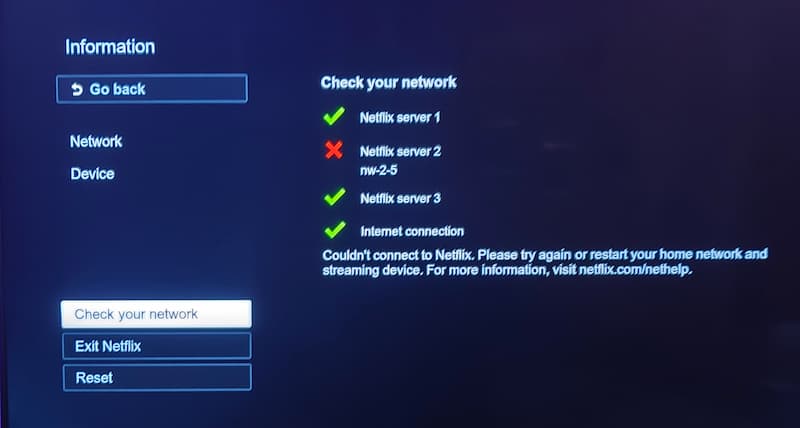
On the Netflix error screen, tap More Details > Check your network. If you see an X on Netflix server 2 nw 2-5, your internet is fine, but you have an authentication or licensing token issue. To solve it, try manually setting your DNS to public servers, which I'll explain in the next fix.
Fix 4. Adjust Your DNS Settings
This one's a bit more technical but very effective, especially if you've manually configured your DNS before or if your ISP has DNS issues.
Option A: Set DNS back to Automatic in your network settings.
Option B: If automatic DNS isn't cutting it, manually switch to a public DNS server:
- Google DNS: Primary
8.8.8.8/ Secondary8.8.4.4 - Cloudflare DNS: Primary
1.1.1.1/ Secondary1.0.0.1
- Samsung TV: Settings > General > Network > Network Status > IP Settings > DNS Settings.
- LG TV: Settings > All Settings > General > Network > Internet Connection > choose [Wi-Fi Connection] or [Wired Connection (Ethernet)] > choose Edit in [Wired Connection] or Advanced Wi-Fi Settings in [Wi-Fi Connection] > Edit the DNS Sever.
- Fire TV / Firestick: Go to Settings > Network, highlight your network, then click Forget this network. Select your WiFi connection again and enter the password, but do not connect yet. Then go to Advanced and enter the IP addresses.
- Google TV / Chromecast: Navigate to Settings > Network & Internet > [Your Network] > IP Settings > Static > next step > when you reach the DNS settings, enter the IP addresses.
- Roku TV: Roku devices do not allow manual DNS configuration within their system menus. You must log into your home router's admin dashboard to change DNS network-wide.
- PlayStation 5 / PS4: Settings > Network > Set Up Internet Connection. Press Options on your network connection, select Advanced, and change DNS Settings to Manual.
- Xbox Series X|S / One: Settings > General > Network Settings > Advanced Settings > DNS Settings > Manual.
Fix 5. Disable VPN or Proxy
If you have a VPN running, even one set up automatically by another app, turn it completely off and try again.
Fix 6. Sync Your System Clock
If your device's date or time is wrong, it can cause SSL/TLS authentication failures that prevent Netflix from connecting. Go into your device's settings and set the date/time to automatic (sync via internet).
Part 3. Device-Specific Fixes for Netflix Error Code NW-2-5
Still stuck after the basics? The fixes below target quirks specific to each platform. Jump straight to your device.
On Samsung TV
1. Perform a Cold Boot
This is different from a normal restart. It fully drains residual power from the system.
- Method A: Hold the power button on your remote for 10–15 seconds until the TV shuts off and restarts showing the Samsung logo.
- Method B: Unplug the TV from the wall and leave it unplugged for at least 3 minutes.
2. Reset Network Settings to Default
Go to Settings > General > Network > Reset Network. This clears all saved connections and restores network configurations back to factory defaults.
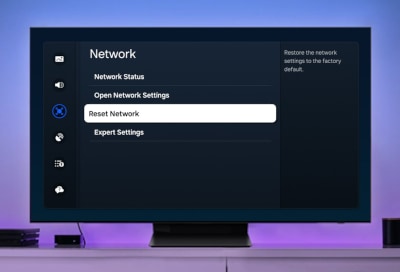
- This isn't a full factory reset for your TV. It only clears your network settings, like your Wi-Fi. You'll need to enter your Wi-Fi password again after the reset.
3. Run Device Care
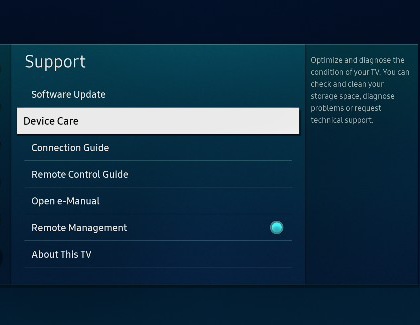
Press the Home button, go to Settings > Support > Device Care > Start Device Care. This built-in diagnostic tool checks for system issues and clears app caches automatically.

On LG TV
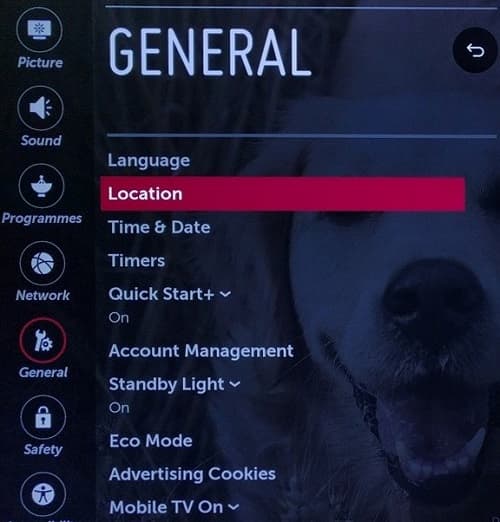
Some users experiencing Netflix connection issues on LG TV have discovered that adjusting the location settings can solve the problem. There are some users in a Reddit thread specifically about NW-2-5 on LG TVs confirmed this worked when all the standard troubleshooting steps failed. It's odd, but it works. Here's how it works:
-
01
Go to Settings > General > Location and select your correct country.
-
02
Delete the Netflix app from your TV.
-
03
Unplug both your TV and router, then wait for 3–5 minutes.
-
04
Turn everything back on.
-
05
Reinstall the Netflix app and check if it works.
On Fire TV / Firestick
1. Run the Built-In Network Diagnostic
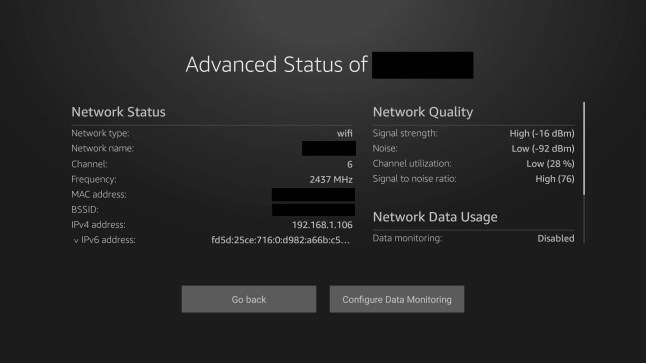
Go to Settings > Network, highlight your Wi-Fi network, then press the Play/Pause button on your remote. This launches a network status tool that can identify and sometimes auto-fix connection issues.
2. Use the HDMI Extender
If your Firestick is plugged directly into the back of your television, it might be heavily shielded by the metal plating of your TV chassis. Use the short HDMI extension cable included in your original box to position the stick away from the back of the display to boost your Wi-Fi signal.
3. Clear Netflix App Data
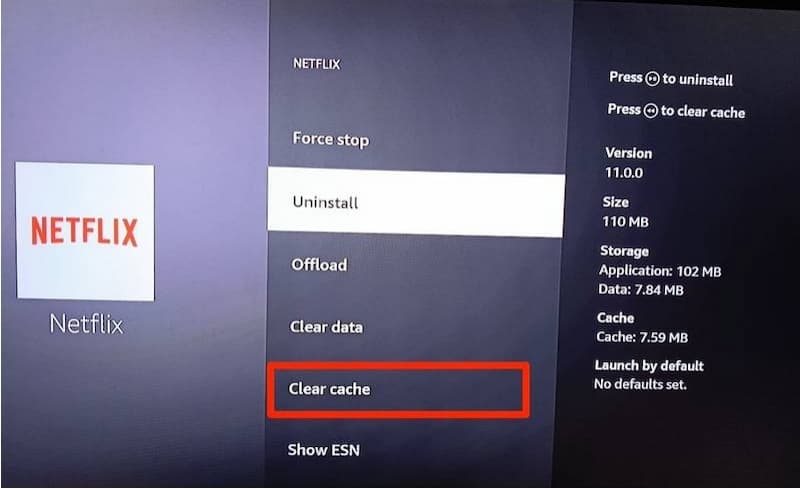
Go to Settings > Applications > Manage Installed Applications > Netflix. Click Clear Cache, then select Clear Data. If the error persists, uninstall and reinstall from the Amazon Appstore.
On Google TV / Chromecast
1. Clear Netflix Cache on Google TV
Go to Settings > Apps > See all apps > Netflix. Select Clear cache and Clear data. Restart your device.
2. Do a Factory Reset on Legacy Chromecast Dongle
Old Chromecast dongles have no on-screen menu, so if a power cycle doesn't fix it:
-
01
With the Chromecast plugged into your TV and powered, hold the physical button on the side of the dongle for about 25 seconds.
-
02
Release when the LED starts blinking orange, then turns solid white.
-
03
The device will factory reset.
-
04
Set it back up using the Google Home app.
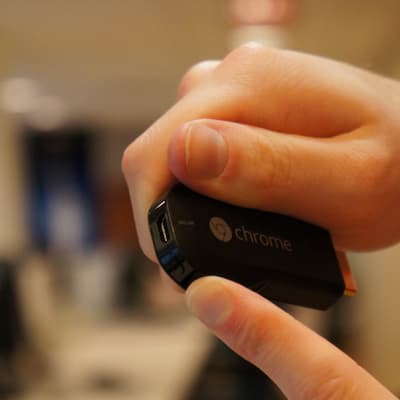
- For DNS changes on legacy Chromecast, you need to update settings at the router level; the dongle itself has no DNS configuration menu.
On Roku TV
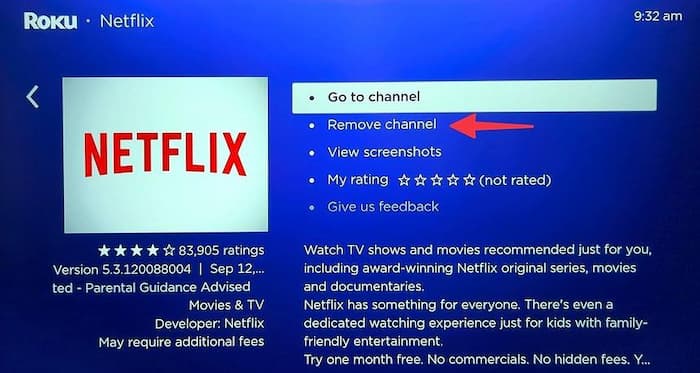
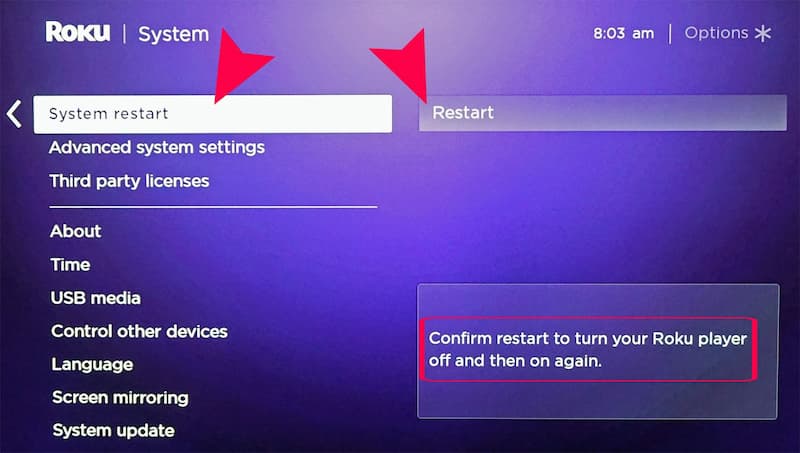
Roku has a specific quirk: simply removing and reinstalling the Netflix channel isn't enough if the issue is a corrupted registry entry. You need to restart in between.
-
01
On the home screen, highlight the Netflix tile.
-
02
Press the * (Star) button on your remote.
-
03
Select Remove Channel and confirm.
-
04
Go to Settings > System > System Restart and restart the Roku.
-
05
After reboot, go to the Channel Store and reinstall Netflix.
On PlayStation 5 / PS4
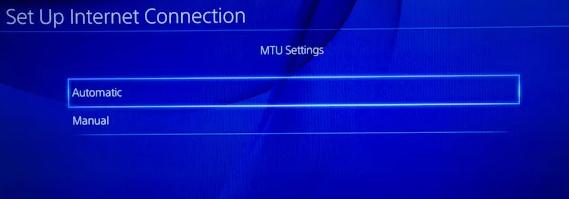
Gaming consoles handle network traffic differently than standard smart TVs. Consoles heavily rely on strict Network Address Translation (NAT) types, which frequently conflict with Netflix's stream-routing servers. So, it is best to configure the DNS and the MTU to bypass these strict local NAT barriers.
1. Set Manual DNS + Correct MTU
-
01
Go to Settings > Network > Set Up Internet Connection.
-
02
Choose your connection type (Wi-Fi or LAN).
-
03
Select Custom.
-
04
Set IP Address Settings to Automatic.
-
05
Set DNS Settings to Manual: Primary DNS: 8.8.8.8, Secondary DNS: 8.8.4.4
-
06
Set MTU Settings to Automatic.
-
07
Set Proxy Server to Don't Use.
-
08
Run a connection test, then try Netflix.
2. Check Your NAT Type
-
01
From the PS5 home screen, navigate to the top right corner and select Settings (the gear icon).
-
02
Scroll down and select Network.
-
03
On the left-hand menu, select Connection Status.
-
04
Select Test Internet Connection.
-
05
Wait about 30 seconds for the console to check your IP address, internet connection speed, and NAT Type.
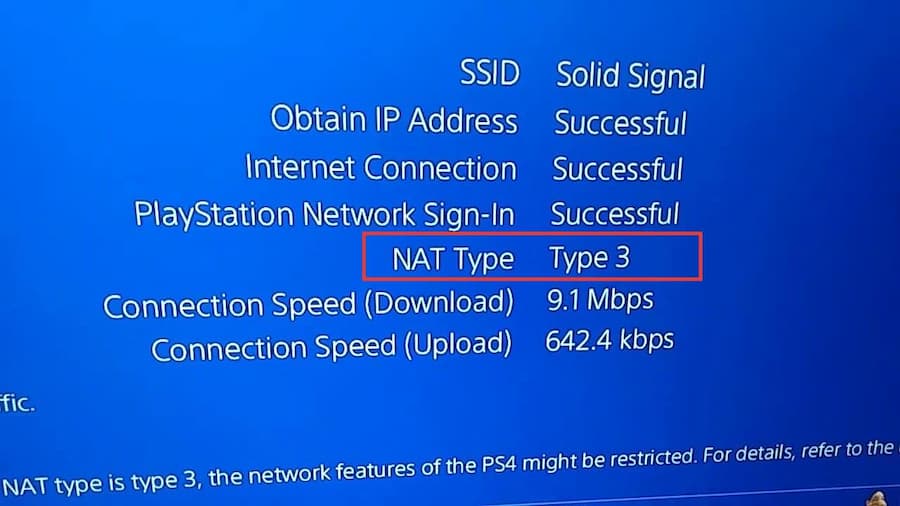
If it displays NAT Type 3 (Strict), your router is blocking essential ports. You will need to log into your router settings to enable UPnP (Universal Plug and Play) or manually forward TCP ports 80 and 443 to your PlayStation's IP address.
On Xbox (Series X|S / One / 360)
1. Refresh DNS Lease on Xbox One / Series X|S
-
01
Press the Xbox button > Profile & System > Settings.
-
02
Go to General > Network Settings > Advanced Settings > DNS Settings.
-
03
If it was already on automatic, toggle it manual and back to automatic.
-
04
Restart the console and test Netflix.
This makes the console ask for a new IP lease and find Netflix's server path again. You can also manually set the DNS and use a public server, which I explained in part 2.
2. Clear System Cache on Xbox 360
-
01
Go to Settings > System Settings > Storage.
-
02
Highlight your storage device (hard drive or memory unit).
-
03
Press the Y button on your controller.
-
04
Select Clear System Cache and confirm.
-
05
Restart the console.
Part 4. How to Avoid Netflix Code NW-2-5 in the Future
NW-2-5 always comes down to the connection between your device and Netflix's servers. If you want to remove that dependency entirely, especially for content you watch regularly, VidiFab Netflix Video Downloader is worth checking out.
VidiFab allows you to download Netflix content directly to your computer as MP4 or MKV files. You can then transfer these downloaded Netflix videos to a USB stick or upload them to cloud storage. This way, you can access them from any device and watch offline. Since your network no longer needs to communicate with Netflix servers, the NW-2-5 error code will not appear again.
VidiFab Netflix Video Downloader
Download Netflix videos as MP4/MKV in 1080p with Dolby Atmos for offline viewing on your Smart TV, game console, phone, desktop, and more devices.

Why choose VidiFab? This desktop downloader preserves 1080p quality from Netflix, keeps 5.1 Dolby Atmos audio, and retains multi-lingual subtitles as embedded tracks or SRT files. It downloads really quickly. I downloaded a 2-hour movie in just a few minutes.
- VidiFab also supports Prime Video, Disney+, HBO Max, Hulu, and Apple TV+. If you spend a lot of time watching streaming video on TV, I think this tool is a must-have to avoid dealing with Netflix error codes in the future.
How to Download Netflix Videos to Watch Offline Error-Free
Step 1. Launch VidiFab, Set Output Format, and Log in to Netflix
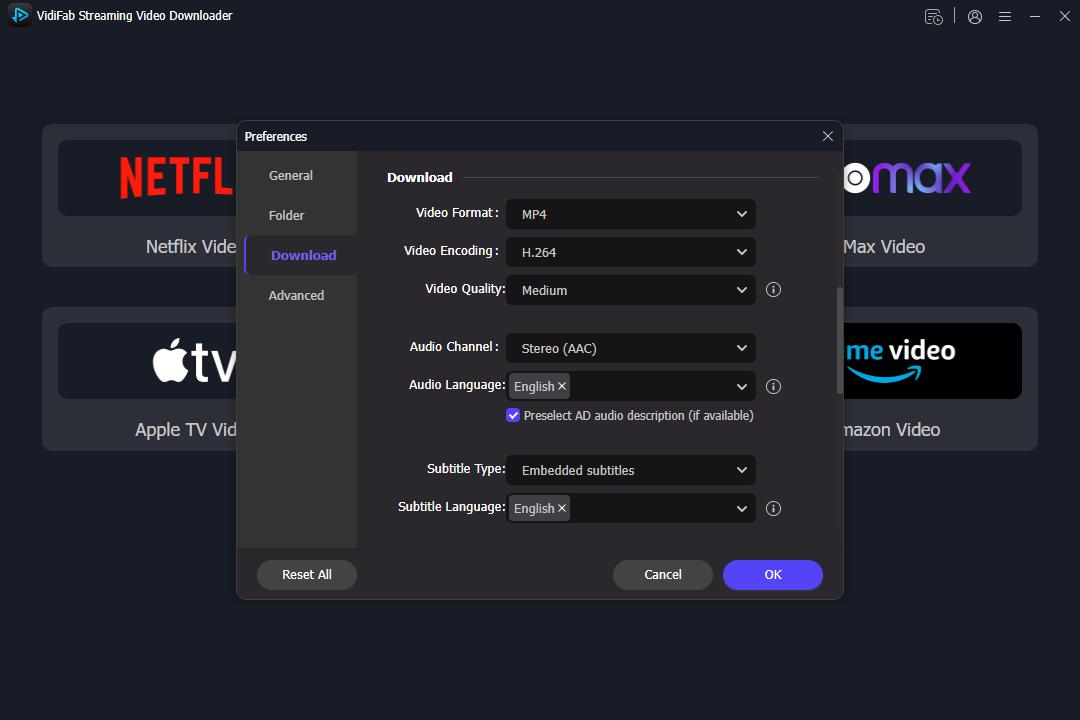
Install and launch the VidiFab Netflix Video Downloader on your PC or Mac. Click the menu icon in the top right corner and select Preferences. In the pop-up window, choose H.264 MP4 as your Download Video Format, as MP4 is universally supported by almost all Smart TV media players. Click OK to save your choices.
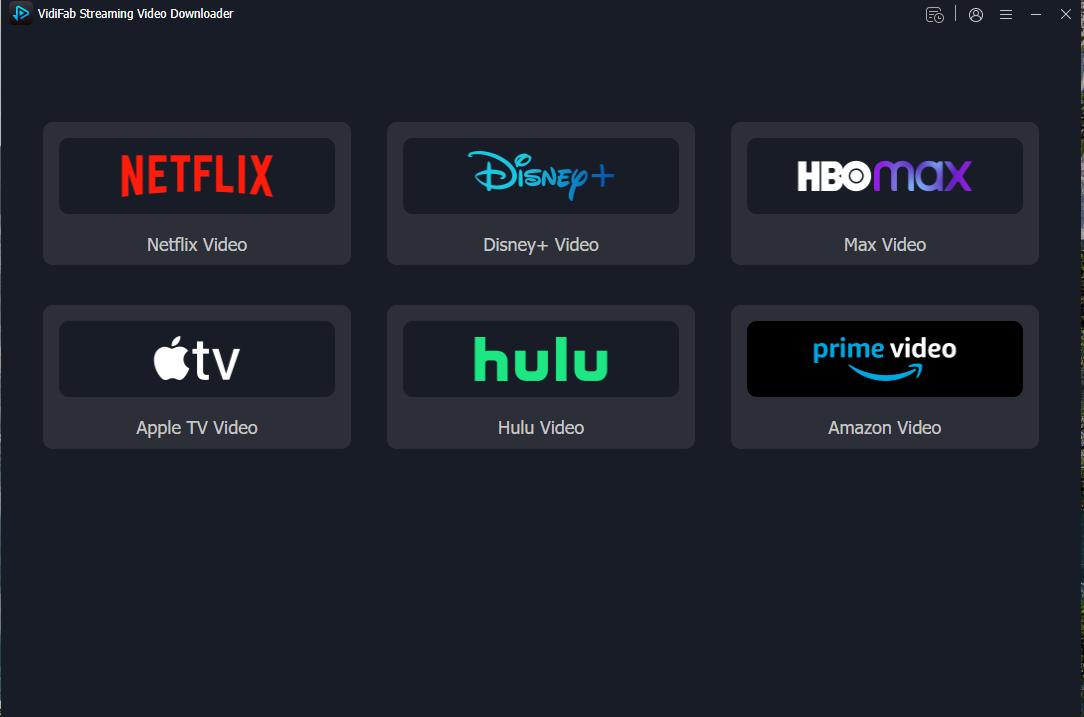
Then, select the Netflix icon on the main screen and log in to your account using the built-in browser so the tool can access your streaming library.
Step 2. Search for Your Favorite Movies or Shows
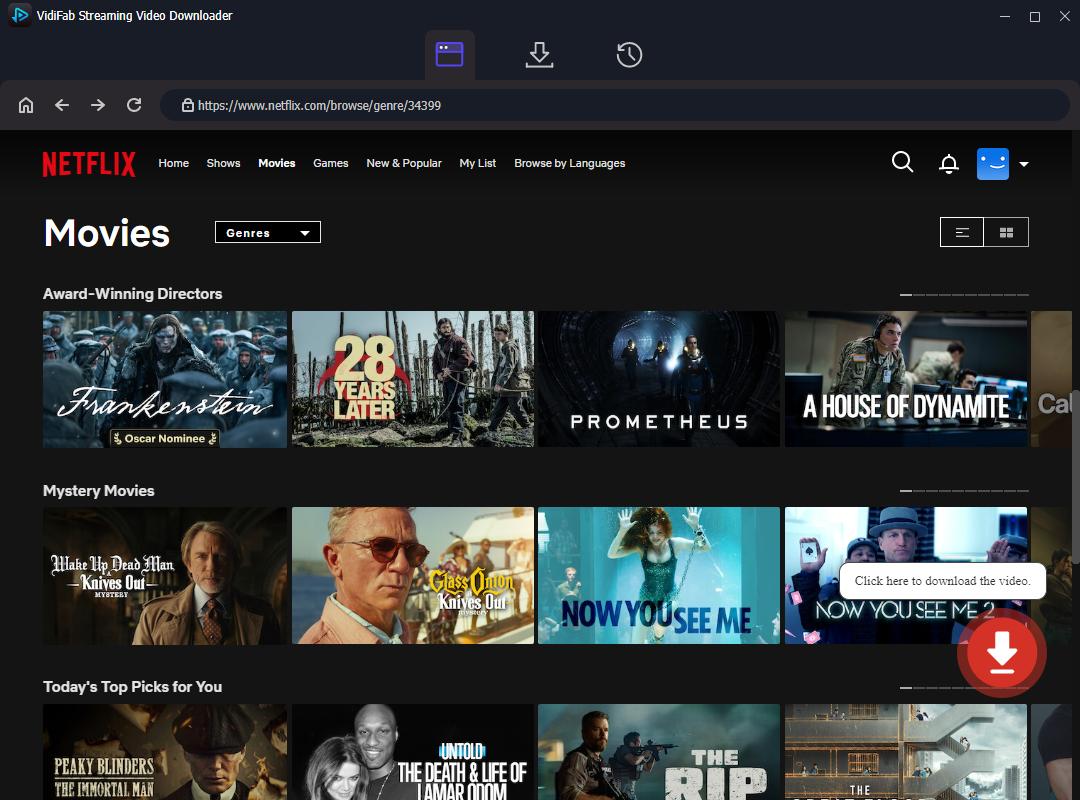
Use the built-in browser to search for the specific movie or TV show episode that was giving you the NW-2-5 error code. Alternatively, you can copy the video URL from a regular browser and paste it directly into VidiFab's search bar. Open the video's detail page, and the software will automatically analyze the stream. Click the red Download button in the bottom right corner.
Step 3. Optimize Settings for HD TV Playback
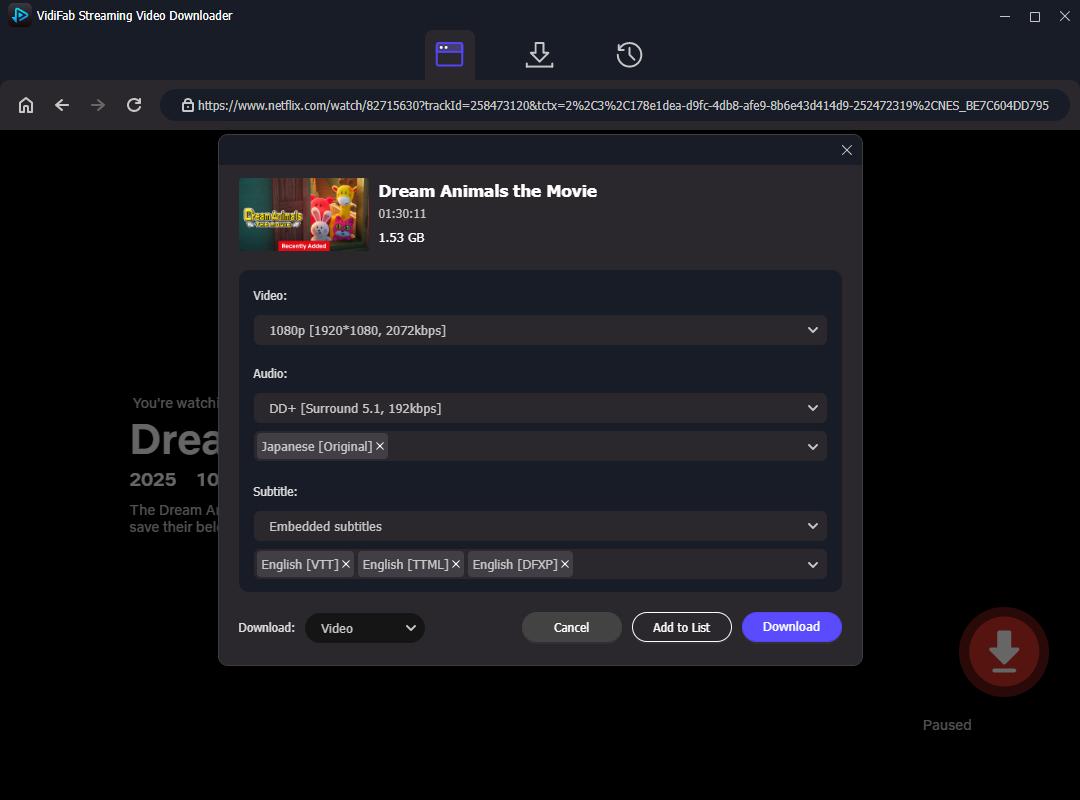
In the settings window, select 1080p resolution to guarantee high-definition picture quality on large Smart TV screens. For maximum television compatibility, choose standard AAC stereo audio. Set subtitles to the Embedded format in your preferred language.
Step 4. Save Netflix as Universal Media Files
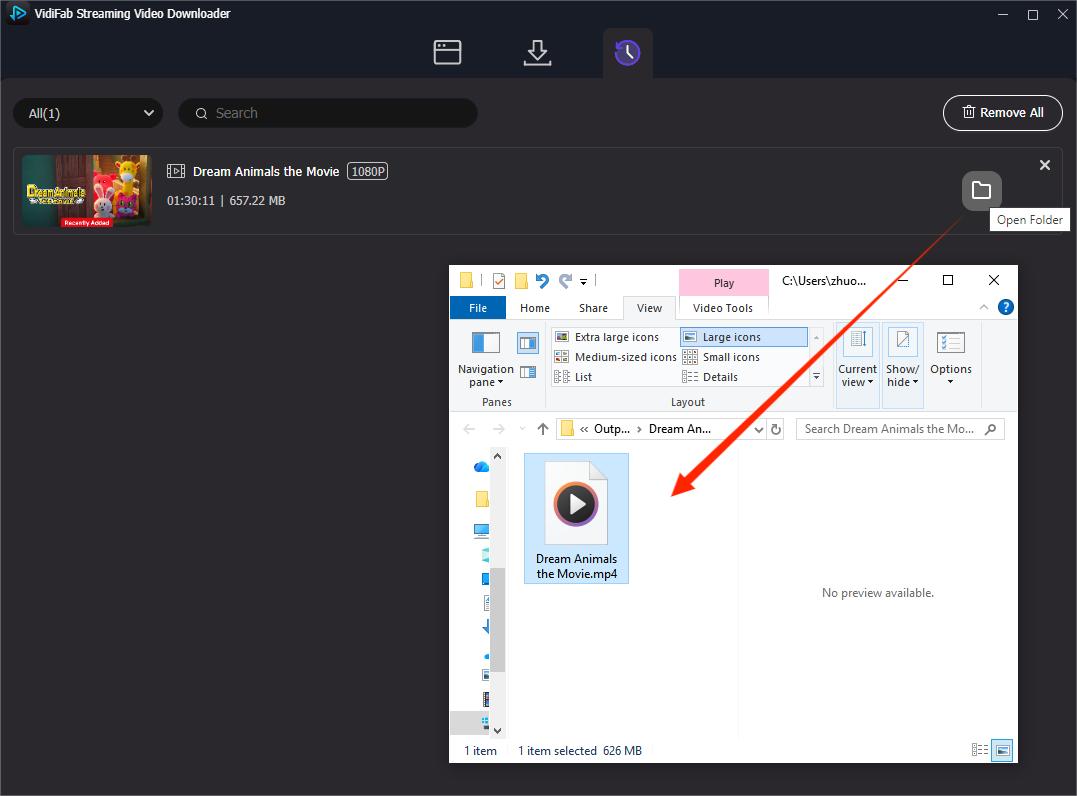
Click Download to start the extraction process. VidiFab will save a clean, DRM-free video file to your computer. Once the process is done, go to the History tab and click the folder icon to locate your completed MP4 files.
Step 5. Transfer to USB and Play on Your TV or Console
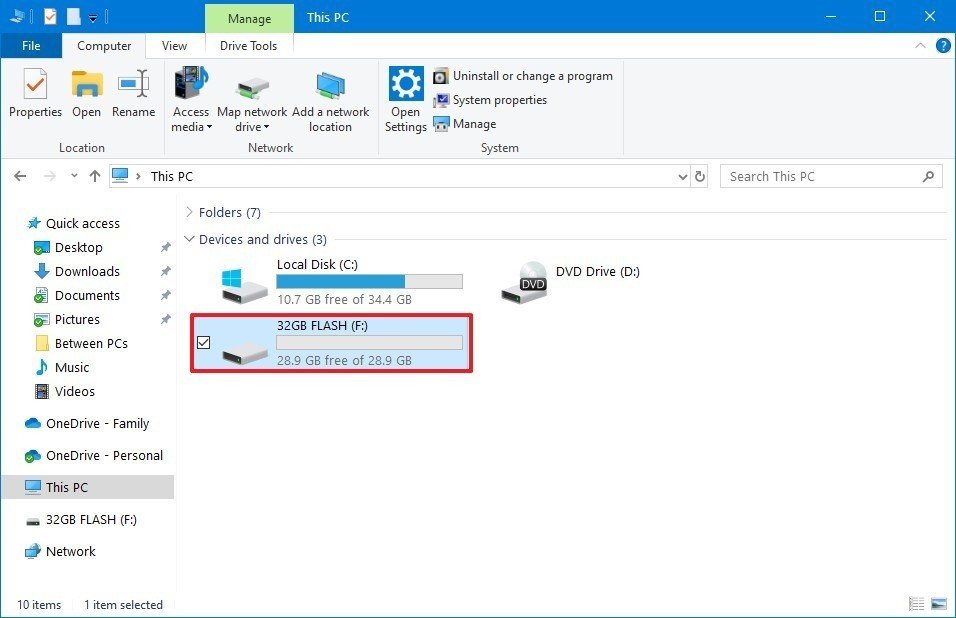
Insert a USB flash drive into your computer and copy the downloaded Netflix MP4 files onto it. Safely eject the drive, then plug it into an available USB port on the back or side of your Smart TV or game console. Open the native Media Player or Sources app, select your USB drive, and play the video. This completely bypasses the Netflix app and eliminates the network-based NW-2-5 error.
Final Thoughts
Netflix error NW-2-5 is almost always fixable; it's your network talking, not some deep system failure. Start with the basics: restart everything, test with a hotspot, and check your DNS. If those don't work, the device-specific fixes in Part 3 cover the quirks that standard guides miss. And if you're tired of fighting your connection every time you want to watch something, downloading content locally with VidiFab is the permanent workaround. Hope one of these gets you back to streaming fast.
 Free Download
 Secure Download
 Free Download
Secure Download
Free Download
Secure Download


I'm a video tech specialist with over 10 years of experience in digital media and streaming. I focus on making complex workflows simple and practical. Through my guides, you'll learn how to convert media, keep high-quality playback across devices, and manage your streaming video library with ease.
 Leave Your Comment