Disney Plus Error Code 93? Here's How to Fix It and Keep Watching
 By Miles Kent
"We recently moved from TN, to PA, got a new router (netgear) and now are getting the errors 93 and 83 on any device on our WIFI when trying to access Disney plus, but with no other web service." — r/Comcast_Xfinity
Error 93 means Disney+ flagged suspicious activity and blocked access, often tied to your IP address, a VPN, or your account. Here's how to find the cause and fix it.
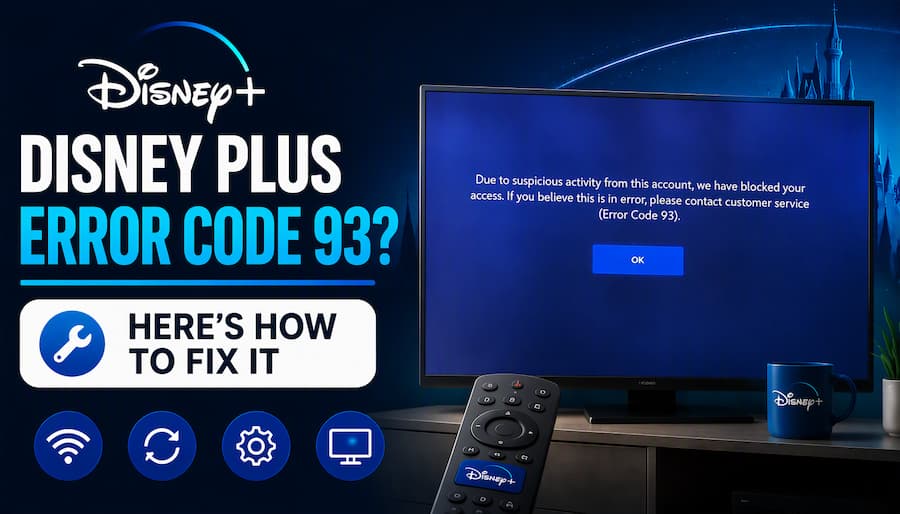
Part 1. What Does Disney Plus Error Code 93 Mean?
Disney+ error code 93 is a security block, not a playback glitch. Your app is fine; Disney's system has paused access because something about your account or connection looked unusual.
According to the official Disney+ Error Code 93 help page , the message reads:
"We detected suspicious activity on this account and temporarily blocked account access. If you're using a VPN, please disable it and try streaming again."
Two details matter here. The block is described as temporary, so it can clear once the trigger is removed. And although the message mentions your account, the trigger may actually sit at the network (IP) or device level, which is why the same account can work on one device and fail on another.
Diagnose First: Is It Your IP, Device, or Account?
To figure out what's causing the 93 error code on your device, I recommend running some diagnostics. Run these tests one at a time, and stop streaming on other devices while you do, so you don't add to the "multiple locations" signal.
| Test | What you see | Likely layer | Jump to |
|---|---|---|---|
| Connect the same device to your phone's hotspot | Disney+ works | IP / home network | Network & IP Fixes |
| Phone app on mobile data vs. TV on home Wi-Fi | Phone works, TV doesn't | IP / home network | Network & IP Fixes |
| Try a different device on the same Wi-Fi | Other device works | The original device | Device Fixes |
| Try several devices on different networks | Error 93 everywhere | Your account | Account Fixes |
Important: These patterns help narrow down the possibilities, but they do not prove the exact cause.
Part 2. How to Fix Disney Plus Error Code 93 (Step by Step by Cause)
After completing the diagnostic test in Part 1, you should have a better idea whether the issue is related to your network, device, or Disney+ account. Use the targeted fixes below to troubleshoot the likely cause and restore access.
2.1 Network & IP Fixes
Use this section if Disney+ worked on a hotspot or mobile data but not on your home Wi-Fi.
Fix 1. Turn Off VPNs and Hidden Proxies
-
01
Turn off any VPN app on the device you're using, and on your phone or computer if they share the same Wi-Fi.
-
02
Check your router's admin page for a VPN client or "secure tunnel" feature and switch it off.
-
03
Look for tools that can mask your IP without feeling like a VPN: a VPN bundled with antivirus software, Apple's iCloud Private Relay, Cloudflare WARP, or a proxy set on your network. Disney doesn't list these specifically, but any of them can make your traffic look like it comes from somewhere else.
-
04
Fully close and reopen the Disney+ app, then try again.
Fix 2. Test With a Mobile Hotspot
Turn on the mobile hotspot feature on your smartphone. Disconnect your streaming device (Smart TV, PC, or console) from your home Wi-Fi and hook it up to your mobile hotspot.
If it plays, the block is tied to your home IP address, so continue with the steps below. If error 93 still appears, skip ahead to the Device Fixes and Account Fixes.
Fix 3. Restart Your Router
Walk over to your modem/router, pull the physical power cable out of the wall, and wait a full 60 seconds. Plug it back in and wait for the status lights to turn solid green.
Fix 4. Adjust Router IPv6 Settings
Log in to your router's admin dashboard (usually by entering 192.168.1.1 or 192.168.0.1 in a web browser). Navigate to the Advanced Network or WAN settings and look for IPv6. Disable it, save your changes, and allow the router to apply the new settings.
A Reddit user, xXKarmaKilsXx, shared this workaround in r/Metronnet, reporting that it fixed their Disney+ error. However, this is a user-reported fix, not an officially confirmed solution. If it causes connectivity issues, re-enable IPv6 in the router settings or consult your router's manual to restore the original configuration.
Fix 5. Check If Your ISP Uses Shared IP
Some internet providers put many customers behind one public IP address, called carrier-grade NAT (CGNAT). Disney hasn't confirmed this triggers error 93, but it's worth ruling out if hotspot tests keep pointing at your home connection.
-
01
Log in to your router's admin page (often
192.168.0.1or192.168.1.1). -
02
Find the WAN IP or Internet IP on the status page.
-
03
Visit a "what is my IP " site, or run curl ipconfig.io, and note the public IP the internet sees.
-
04
Compare the two. If they differ, or if the router's WAN IP falls between 100.64.0.0 and 100.127.255.255, you're very likely behind CGNAT.
If you are, contact your ISP and ask for a public IP or a static IP. Some providers charge for this.
2.2 Device & App Fixes
Use this section if Disney+ works on another device on the same network but not on your original one.
Fix 1. Clear the Disney+ App Data
- Android / Android TV: Settings > Apps > Disney+ > Storage > Clear cache, then Clear data.
- Fire TV: Settings > Applications > Manage Installed Applications > Disney+ > Clear cache, then Clear data. (Menu names vary slightly between Fire OS versions.)
- Roku and Apple TV: these don't offer a separate "clear data" button, so skip to reinstalling below.
Fix 2. Update and Reinstall the Disney+ App
Check the official app store (like Google Play, Apple App Store, or Roku Channel Store) to see if there's an update available for Disney+. If there is, update the app. If not, delete the app from your device and reinstall it from the store. Then, open the Disney+ app again and see if the code 93 still shows up.
Fix 3. Reboot Your Device
Power the device off completely, not just standby. Unplug it for about 30 seconds if it's a streaming stick or box. Plug it back in and open Disney+.
2.3 Account & Password Fixes
Use this section if error 93 appears on every device and every network.
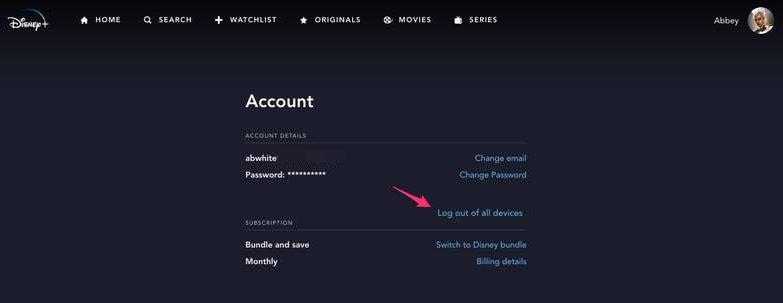
Fix 1. Log Out of All Devices
-
01
On a computer or phone browser, go to disneyplus.com and sign in.
-
02
Open your profile, then select Account.
-
03
Select the option to Log Out Of All Devices.
-
04
Wait. It can take up to about four hours for all your other devices to be officially signed out by Disney's servers.
-
05
Sign back in on one device only and test to see if the issue is resolved.
Fix 2. Change Your Password
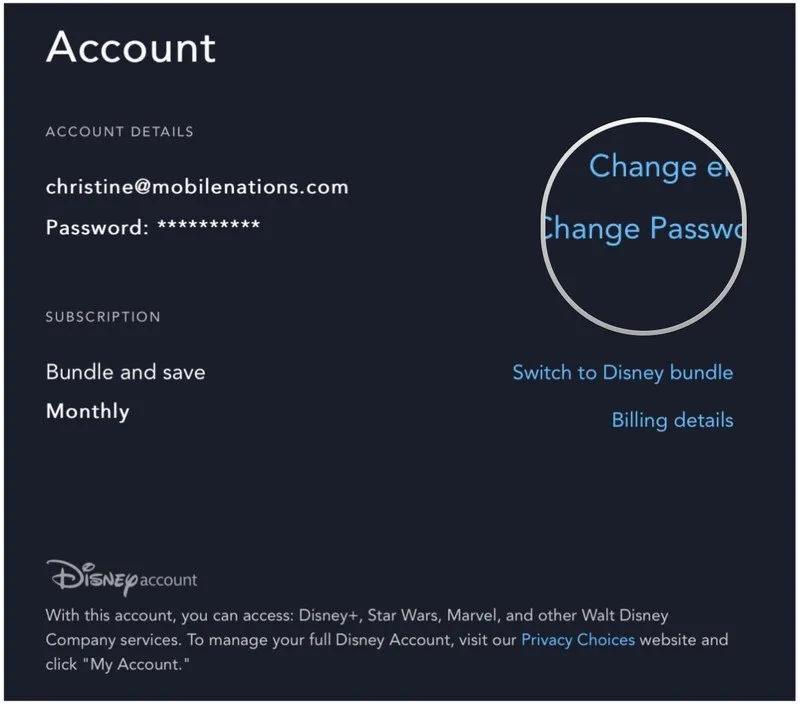
Changing your password helps if someone else may have your login, or if you suspect old streaming sessions are still active. Disney also sends login alert emails with an approximate location, so check your inbox for sign-ins you don't recognize.
-
01
In your Account settings portal, choose the option to change your password.
-
02
Use a brand new, unique password that you haven't deployed on any other sites.
-
03
Sign in again on only one primary device and give it some time to register before trying to connect others.
Part 3. Still Not Working? Contact Disney Plus Support
If error 93 is still there after the fixes above, contact Disney+. You pay for your subscription, and support comes with it, so use it.
- Your name and the email address on your Disney+ account. You'll be asked for both. Never share your password.
- A screenshot or photo of the error 93 message, and when it happened.
- Your device model, such as the TV or streaming device you were using.
- What you've already tried and what happened, such as turning off your VPN, testing on a phone hotspot, and logging out of all devices.
- Any recent network change, such as a move, a new router, or a new internet provider.
- How you pay for Disney+, if it's through a partner such as a bundle, carrier, or app store.
Where to contact Disney+? Go to the Disney+ Help Center and choose one of these:
- Chat: Select the Disney+ Virtual Assistant at the bottom right of the page, then choose Start chat.
- Phone (US): Call 888-905-7888, and have your name and account email ready. You may hear a recorded menu before you reach an agent.
Note: Only use contact details listed on the official Help Center. Some third-party pages show "Disney+ support" numbers that aren't Disney's.
Part 4. How to Avoid Disney+ Error 93 Again
Disney doesn't say exactly what triggers error 93, but these habits lower the odds of seeing it again.
Tip 1. Avoid VPNs and Proxies on Any Device Connected to Disney+
Keep VPN off on every device that uses Disney+, and check your router too, since a VPN set up there covers every device on your network. If you travel and use a VPN, turn it off before you open Disney+.
Tip 2. Review Your Logged-In Devices and Login Alert Emails
Every few months, use Log Out Of All Devices in your account settings, then sign back in only on the devices you actually use. Never share your password. Also watch for Disney+ login alert emails, which show an approximate location. If you see a sign-in you don't recognize, change your password right away.
Tip 3. Backup Disney+ Videos with a Downloader
If you want to keep watching eligible titles when Disney+ is temporarily inaccessible, you can also consider backing them up for local playback with VidiFab Streaming Video Downloader.
Unlike Disney+'s offline downloads that might need you to verify your account or subscription from time to time, VidiFab lets you save Disney+ videos as local files in MP4 or MKV format. This way, you don't have to open Disney+ to watch them again. This is an alternative viewing option, not a fix for Error Code 93. You must still have valid access to the titles when downloading them, and downloading must comply with applicable laws and service terms.
 Free Download
 Secure Download
 Free Download
Secure Download
Free Download
Secure Download
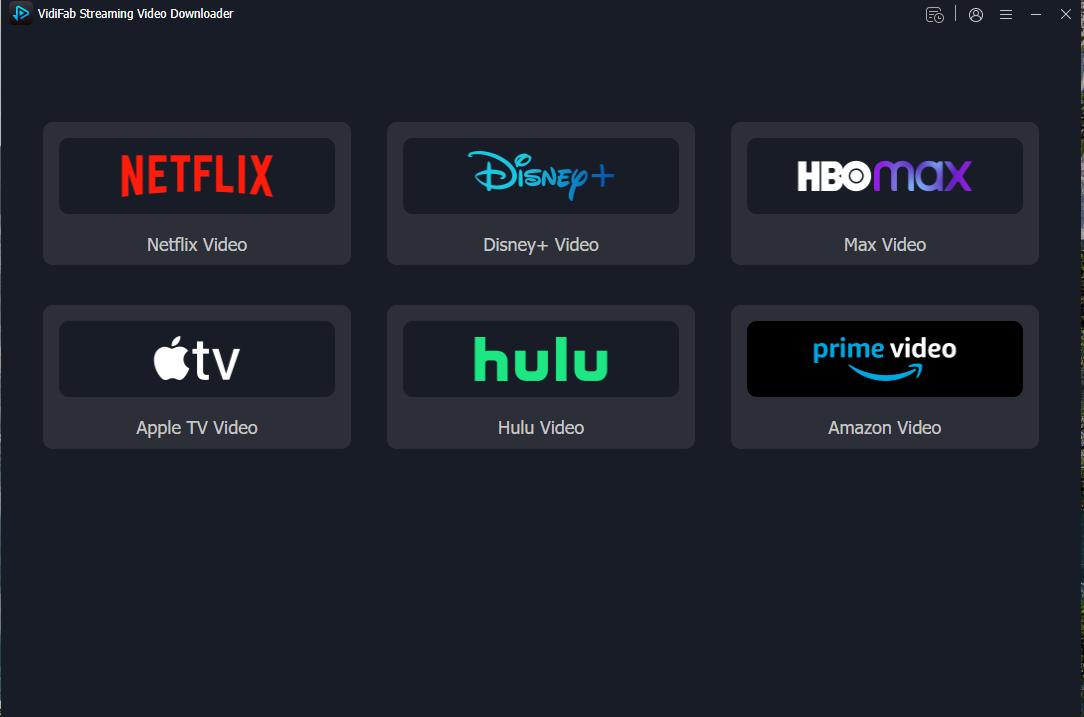
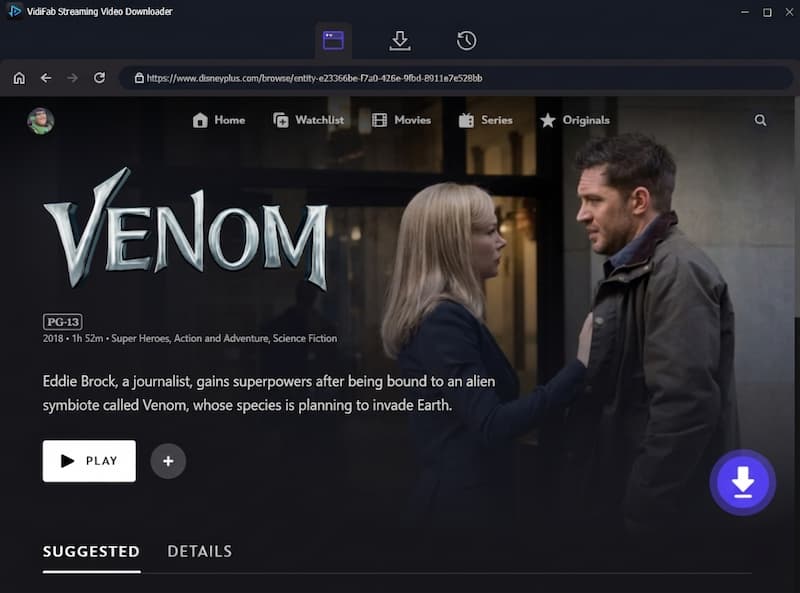
Step 1. Download and install VidiFab on your Windows PC or Mac, then launch the program. Click on the menu icon and select Preferences. Choose MP4 or MKV as your output format and pick a folder for your downloads. On the main screen, select the Disney+ module. A built-in browser will open, allowing you to log in with your Disney+ account.
Step 2. Search for the title, open its detail page, and click the download icon in the bottom right corner.
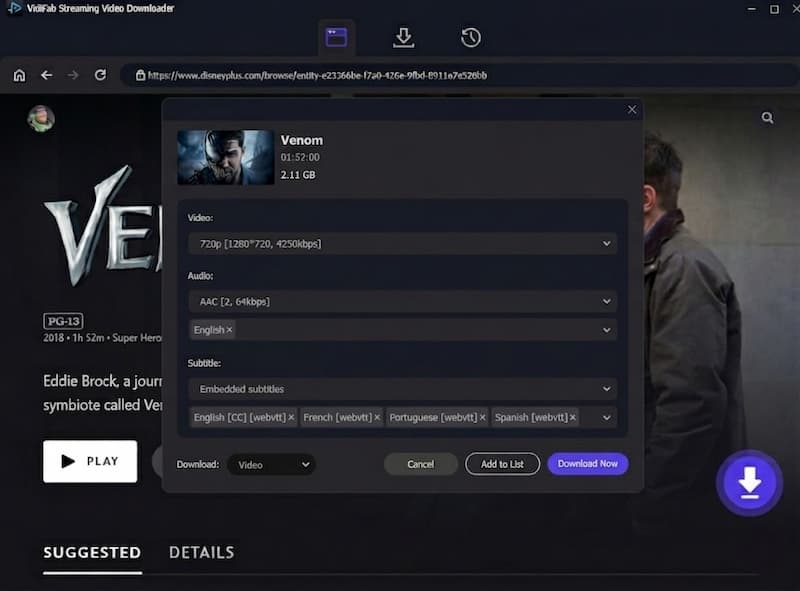
Step 3. Pick the video quality, audio track and language, and subtitle format and language. Click Download. When it finishes, open History and click the folder icon to find the file. You can now watch downloaded Disney+ videos offline, without ads, in any media player, and enjoy uninterrupted playback.
Part 5. FAQs About Disney Plus Error Code 93
Is Disney Plus Error Code 93 a Server Problem?
Does a VPN Cause Disney Plus Error Code 93?
Why do I only get error 93 on my TV?
How long does Disney Plus error 93 last?
Can I watch Disney Plus offline to avoid this error?
Get Back to Watching Disney+
Disney Plus Error Code 93 usually points to suspicious account activity, VPN use, or logins from different locations. Start by disabling your VPN, testing your network, and checking your account activity. If the error persists, contact Disney+ Support for help. Once you're back in, consider saving eligible titles for offline viewing with VidiFab. Happy streaming!
Free Download
Secure Download
Free Download
Secure Download



I'm a video tech specialist with over 10 years of experience in digital media and streaming. I focus on making complex workflows simple and practical. Through my guides, you'll learn how to convert media, keep high-quality playback across devices, and manage your streaming video library with ease.
 Leave Your Comment