How to Get Netflix on Samsung TV and Watch Offline
 By Miles Kent
Netflix is easy to use on many Samsung smart TVs, but the steps can differ depending on the model and the version of the app that is installed. On many Samsung TVs that operate on Tizen, Netflix is usually found directly on the home screen or in the Apps menu, which lets you start streaming after just a few taps. If you have an older Samsung TV that was made before 2015, there is a workaround provided in Part 5.
To assist you in using Netflix on Samsung smart TVs, there will be clear steps on how to unlock 4K playback, how to sign out of your Netflix account, how to update the Netflix app, and how to watch Netflix on nearly all Samsung TVs effectively by the end of this article. If you encounter any issues, you can also check out this Netflix on Samsung TV Not Working guide.
Part 1. How to Get Netflix on a Samsung Smart TV
On most Samsung Smart TVs running Tizen OS, Netflix comes pre-installed. If you see the Netflix tile on your home screen, you can skip this section entirely; just open it and jump to Part 2.
If the app isn't there, here's how to find and install it:
-
01
Press the Home button on your remote to open the main screen.
-
02
Navigate to Apps.
-
03
Press the left directional button on your remote to bring up the Search bar.
-
04
Type Netflix and hit search.
-
05
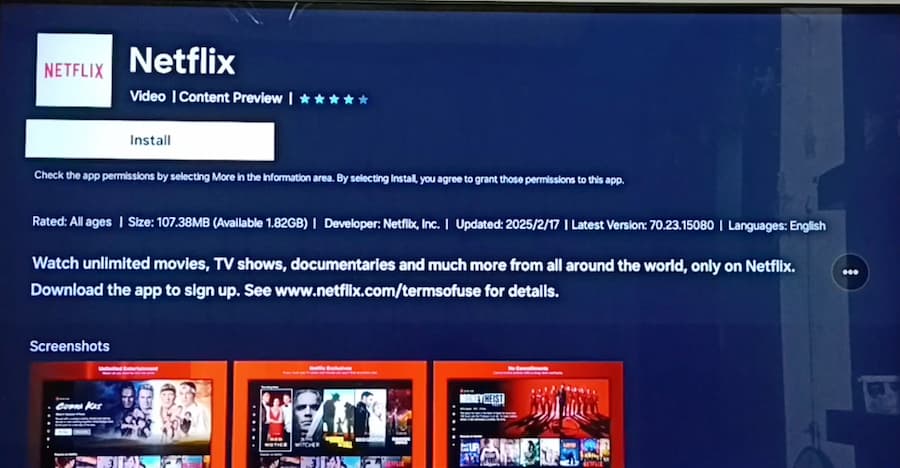
Select the Netflix app from the results. If it isn't installed yet, you'll see an Install button; click it.
-
06
Once installed, select Add to Home (next to the Install button) so you can find it quickly from your home screen next time.
-
07
After installation, open Netflix directly from the home screen or tap Open on the installation page.

Note for Older TVs: If your Samsung Smart TV is over 10 years old, like the F8000, ES8000, or early Curved UHD models, it probably stopped getting system updates a while ago. You may not be able to install Netflix on those devices. However, Part 5 offers a workaround to watch Netflix on any non-Smart Samsung TV without using the app.
Part 2. How to Sign In and Watch Netflix on Samsung TV
Once the app is open, signing in takes under a minute.
How to Sign In to Netflix on Samsung TV
-
01
Open the Netflix app. Click the Sign In button in the lower-right corner.
-
02
You have two login options:
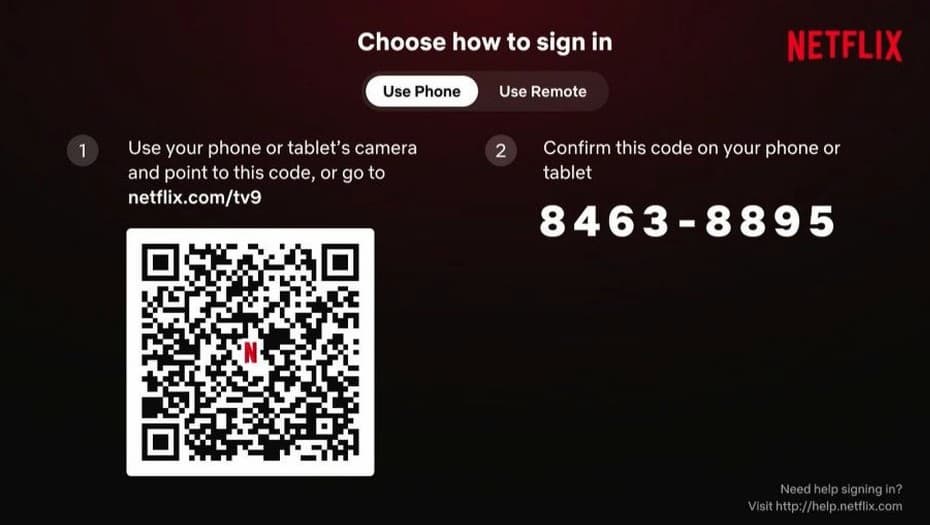
- Scan the QR Code: Use your phone or tablet camera to scan the QR code on the screen, or visit netflix.com/tv2 and enter the code shown. Netflix will log you in automatically.
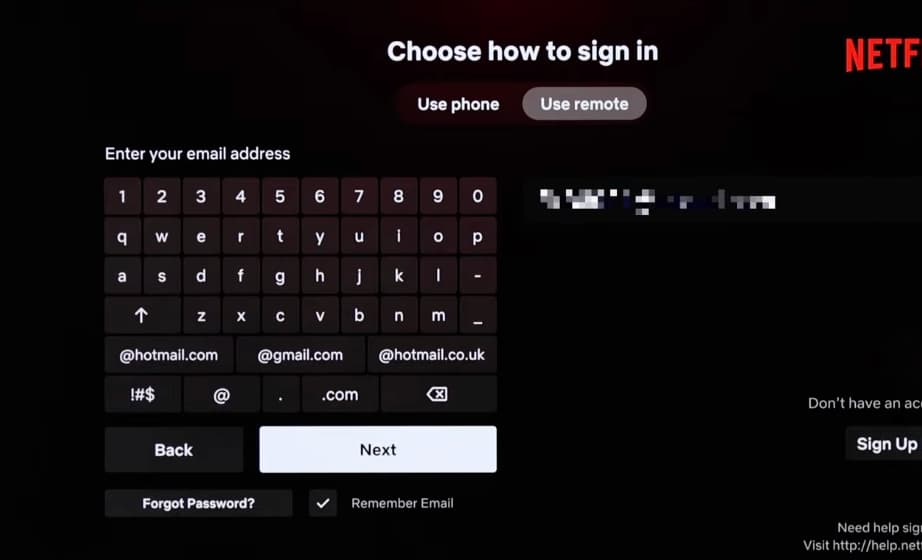
- Remote Sign-In: Use your TV remote to enter your email and password, just like on a computer.
-
03
After signing in, select your profile and you're ready to browse, search, and play.
How to Watch 4K Netflix on Samsung TV
If you want the sharpest possible picture, four things need to line up at the same time:
- Netflix Premium plan: 4K Ultra HD is only available on the Premium tier.
- A 4K or 8K Samsung TV: Models like the 77" Class QN95H Neo QLED or S95H OLED support it. You can check if your specific TV qualifies at samsung.com/us/tvs/4k-tvs.
- 4K content: Not everything on Netflix is available in 4K. Look for the "4K Ultra HD" badge on a title's detail page before playing.
- Fast enough internet: Netflix recommends at least 15 Mbps for 4K streaming. Test your speed at fast.com (Netflix's own speed test tool).
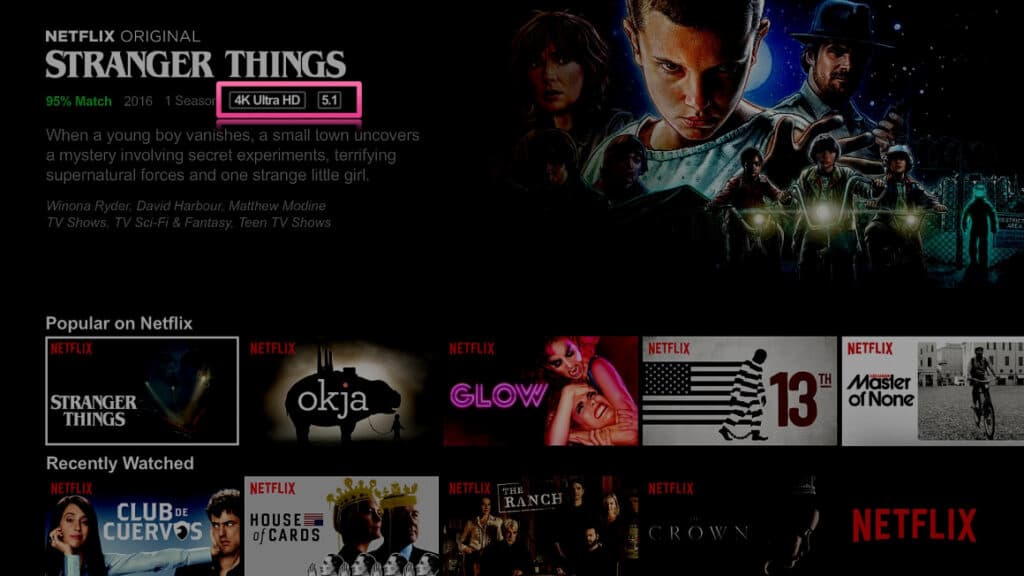

When all four conditions are met, Netflix automatically plays at the highest available quality. There's nothing to manually switch on.
Part 3. How to Sign Out of Netflix on Samsung TV
Here's how to log out of your Netflix account on a Samsung smart TV, plus a backup method if the regular way doesn't work.
The Standard Sign-Out Method
-
01
Open the Netflix app.
-
02
Navigate to the left-side menu.
-
03
Scroll all the way down until you see Get Help in the lower-right corner of the screen.
-
04
Press OK on your remote.
-
05
Scroll down in the Help menu to find Sign Out and select it.
-
06
Confirm you want to sign out when prompted. You'll be returned to the login screen.
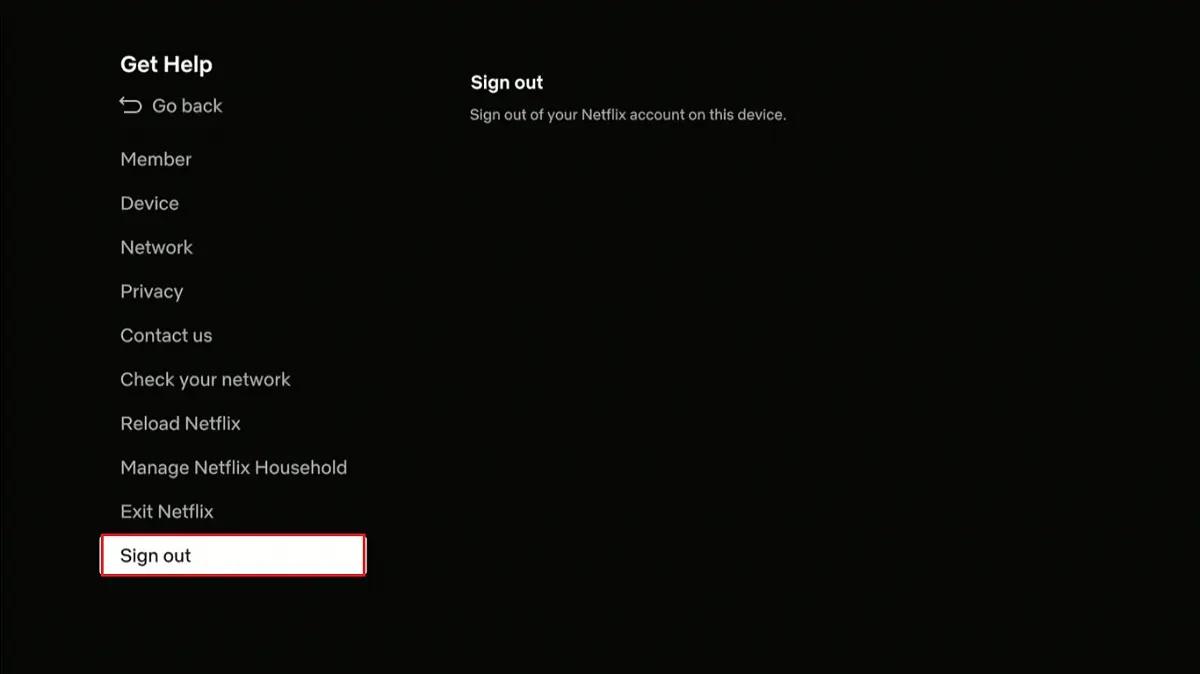
Can't Find "Get Help"? Use the Hidden Menu
On some Samsung TV models, the Get Help option doesn't appear in the usual place. In that case, there's a remote button sequence that bypasses the menu entirely:
Press these buttons in order on your remote: Up → Up → Down → Down → Left → Right → Left → Right → Up → Up → Up → Up
This opens the Netflix Help page directly. Scroll down to Sign Out, confirm, and you're done.
Bonus Tip: How to Remove Your Email Address from the Login Page
After signing out, if you don't want Netflix to remember your email address as the default login, here's how to clear it:
-
01
Tap Sign In.
-
02
Choose Use Remote to Sign In.
-
03
Click Previous.
-
04
Deselect Remember Email. Your email won't auto-fill next time.
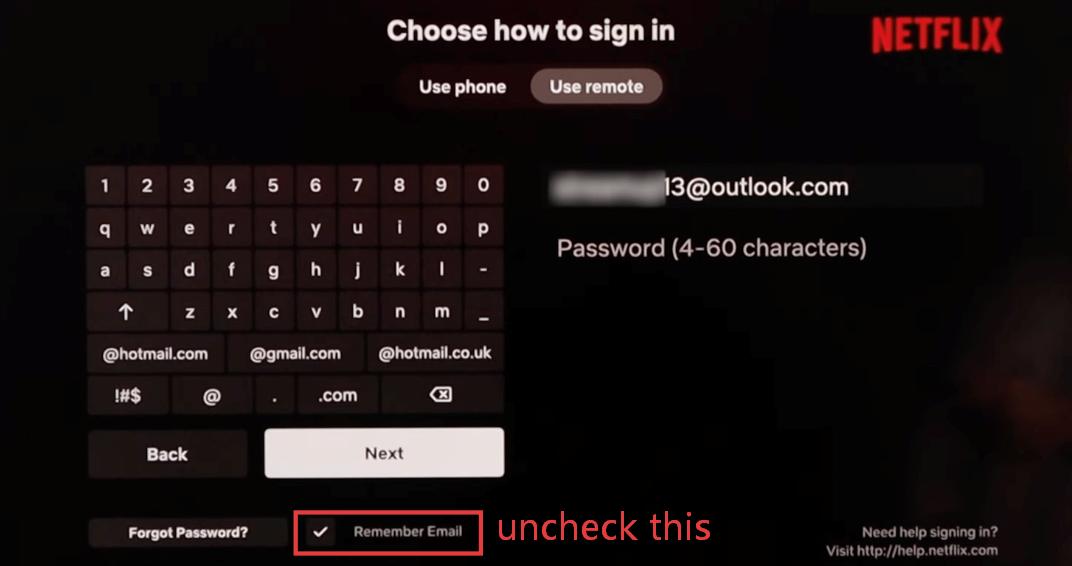
Note: Wiping your credentials from smart hubs is a critical security habit, especially if you need to sign out of Netflix on a hotel TV to protect your account from future guests while traveling.
Part 4. How to Update Netflix on Samsung TV
Keeping Netflix updated ensures you get the latest features, bug fixes, and compatibility improvements. There are two ways to handle this.
Method 1. Enable Auto-Updates (Recommended)
-
01
Press Home to go to the main screen.
-
02
Open Apps.
-
03
Click the Settings icon in the top-right corner.
-
04
Find Auto Update and toggle it on.
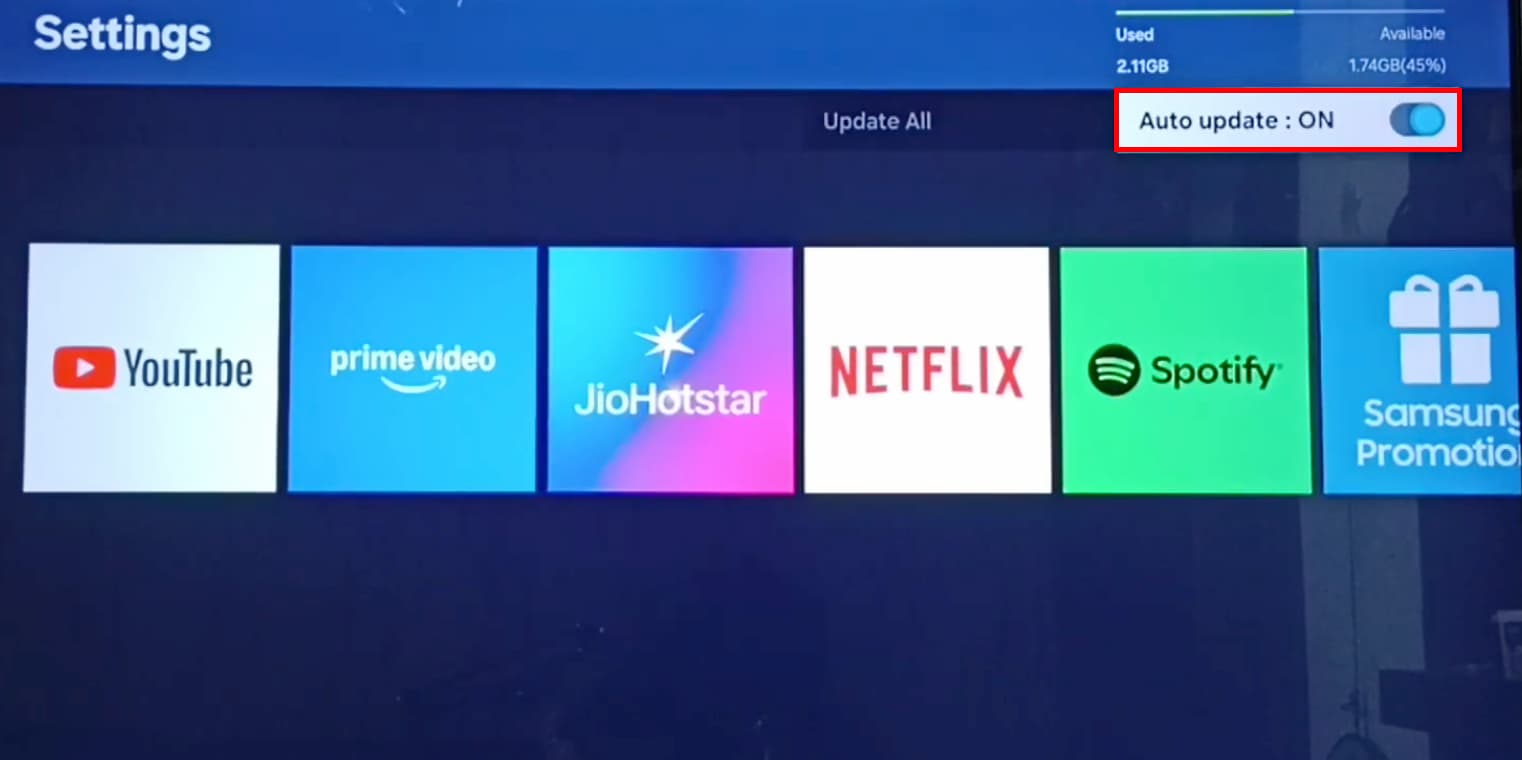
Once enabled, Netflix (and your other apps) will update automatically in the background whenever a new version is available. You won't have to think about it.
Method 2. Manually Update Netflix
If auto-update is off, or you suspect you're running an outdated version:
-
01
Press Home and open Apps.
-
02
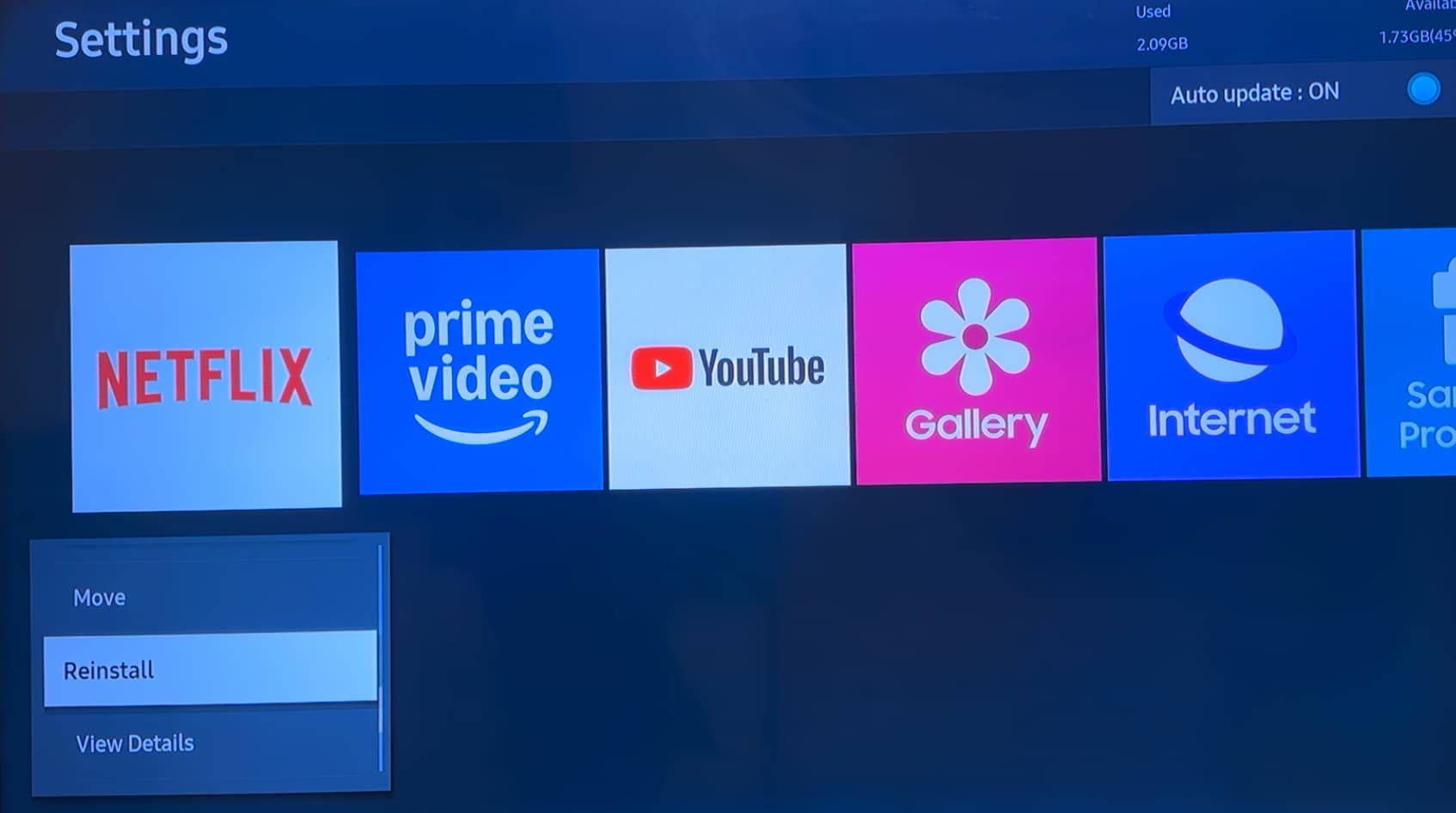
Find the Netflix app. Choose Reinstall from the drop-down menu.
-
03
Search for Netflix again and install it. This will download the latest version of the Netflix app to your Samsung smart TV.
Part 5. Can You Download Netflix Movies on Samsung TV?
No, not through the Netflix app on Samsung TV. Netflix offline downloads are built for supported mobile devices and tablets, not for the TV app. That means you can stream normally, but you cannot save titles inside the TV app for offline playback.
That said, there's a workaround that actually works really well.
Alternative: Download Netflix Videos and Watch Them on Samsung TV via USB
- Your Samsung TV can't run the Netflix app (older models)
- Your home internet is too slow and buffering is ruining your experience
- You're staying at a hotel and don't want to sign into your Netflix account on a stranger's TV
- You simply want a collection of your favorite shows stored locally

The method uses a desktop tool called VidiFab Netflix Video Downloader (Windows/Mac) to download Netflix content to your computer, transfer it to a USB drive, and play it directly on your Samsung TV using the TV's built-in media player.
Why VidiFab? It downloads Netflix videos in MP4 or MKV format at up to 1080p, with Dolby Atmos audio and 5.1 surround sound, both of which play beautifully on most Samsung Smart TVs. You can also choose your preferred audio language and subtitle language before downloading, and embed subtitles directly into the file. In my experience, VidiFab downloads at up to 7x real-time speed, so a 2-hour movie typically takes around 15-17 minutes to finish. The output quality makes it more than worth the short wait.
VidiFab Netflix Video Downloader
Download videos from Netflix as MP4/MKV in 1080p with Dolby Atmos for offline viewing on your TV, iPhone, Android, desktop, and more devices.

Step-by-Step: How to Download Netflix Videos and Watch on Samsung TV
Step 1. Set Up VidiFab
Download and install VidiFab on your Windows or Mac computer. Open the menu icon in the top right → go to Preferences → set your preferred output format (MP4 works best for Samsung TVs), choose your video quality and encoding, then click OK.

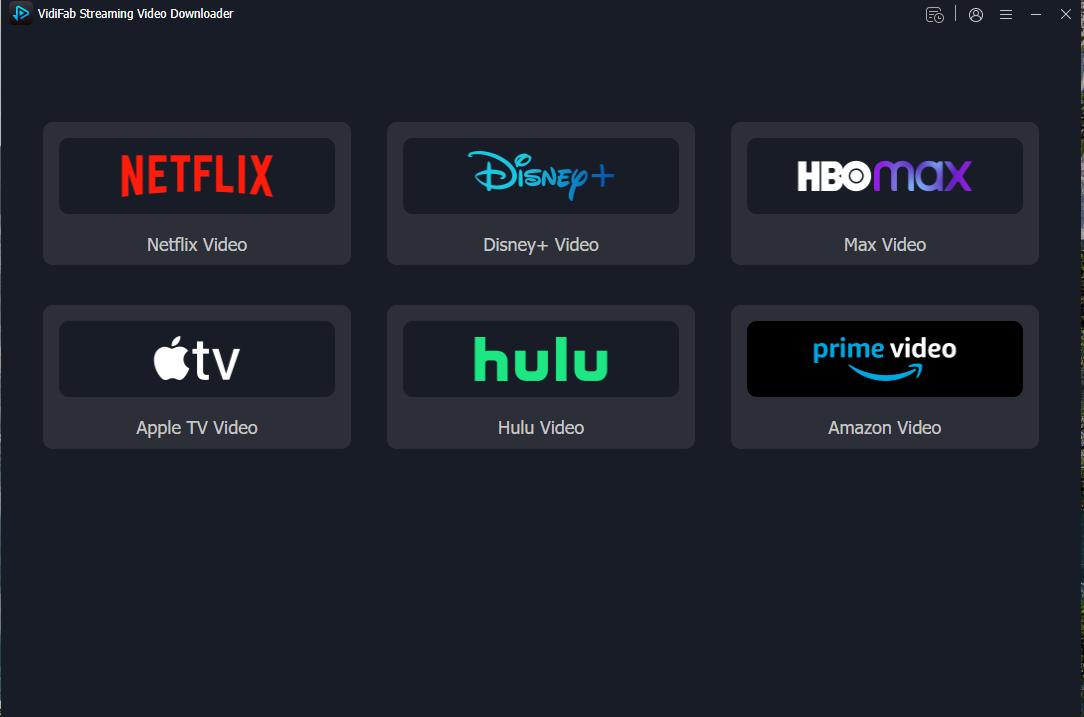
Back on the main interface, select Netflix from the streaming service list and log into your Netflix account through the built-in browser.
Step 2. Find the Netflix Video You Want to Play on Samsung TV
Browse the Netflix library inside VidiFab, or copy and paste a movie or show URL directly into the search bar. Open the video's detail page — VidiFab will automatically analyze the stream. Click the Download button in the lower-right corner when you're ready.

Step 3. Choose Your Quality Settings
In the pop-up settings window, set resolution to 1080p for the best picture on Samsung TVs. Select your preferred audio language and quality. Choose a subtitle language and set them to embed so they're baked into the video file. If you're downloading a TV series, check Select All to queue an entire season and download everything in one batch.

Step 4. Download and Locate Your Files
Click Download to start. VidiFab saves the finished files directly to your computer. Once complete, go to the History tab and click the folder icon to open the download folder. Copy the files to a USB flash drive.

Step 5. Play on Your Samsung TV via USB
-
01
Insert the USB drive into your Samsung TV's USB port.
-
02
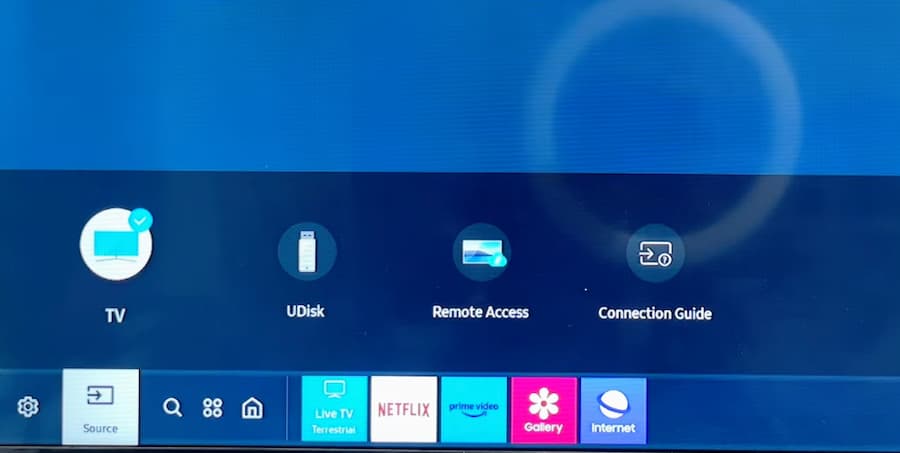
Press Source (or Input) on your remote and switch the input source to USB or UDisk.
-
03
Look for a Browse option which usually accessible from the top-right corner of the screen.
-
04
In the filter options (typically the lower-right area), select Video to show only video files.
-
05
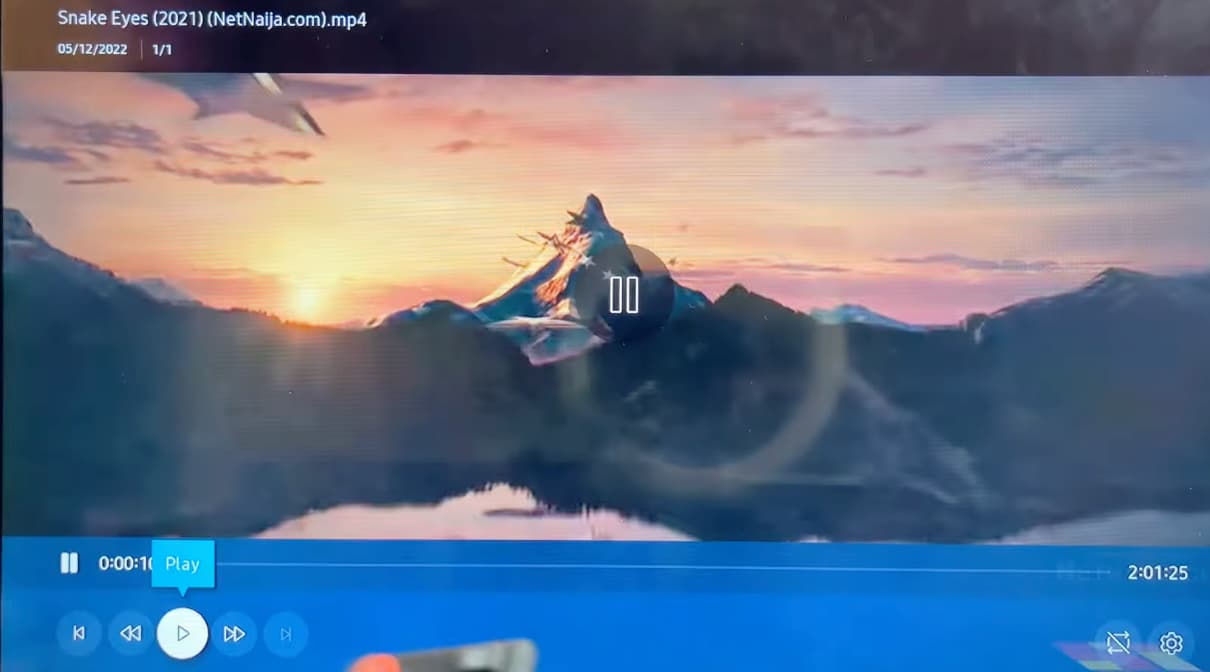
Navigate to your downloaded Netflix file and press OK to start playing.
Final Thoughts
Getting Netflix running on a Samsung TV is genuinely easy for it's usually pre-installed and ready to go. The trickier bits are the details: making sure 4K actually kicks in, knowing how to properly sign out (especially that remote button sequence for the hidden menu), and understanding why the app might be missing on older models.
For anyone who wants offline viewing or is dealing with an older TV that's been dropped from app support, the USB download method is the most reliable solution I've found. It takes a bit of setup the first time, but once it's working, the picture quality and convenience are hard to beat.
If you have any issues, drop your question in the comments, and I'll be happy to help.
 Free Download
 Secure Download
 Free Download
Secure Download
Free Download
Secure Download


I'm a video tech specialist with over 10 years of experience in digital media and streaming. I focus on making complex workflows simple and practical. Through my guides, you'll learn how to convert media, keep high-quality playback across devices, and manage your streaming video library with ease.
 Leave Your Comment