How to Download Movies from Apple TV as MP4
 By Miles Kent
I recently purchased movies and when I saved them, they downloaded in the ".movpkg" format instead of a MP4 as I am used to downloading. I have a large library of movies and have saved them on an external drive to save space on my computer and to be able to watch them offline. The ".movpkg" format does not work with my prior use of my purchased movies. — Radlytpa1
Want to download Apple TV movies as MP4 files for offline viewing? Apple TV supports offline downloads, but it stores them as .movpkg instead of standard MP4 files. This can make it difficult to move, store, or play your movies outside the Apple TV app. This guide shows you how to download Apple TV shows and movies as MP4 so you can play them on any device offline.
Part 1. Can You Download Movies on Apple TV as MP4?
Officially, no, you cannot download movies on Apple TV as MP4.
The Apple TV app allows you to download videos on iOS, Mac, or Windows. However, due to FairPlay DRM encryption, Apple forces these downloads into a locked .movpkg folder rather than a standard MP4 file.
What is a .movpkg File?
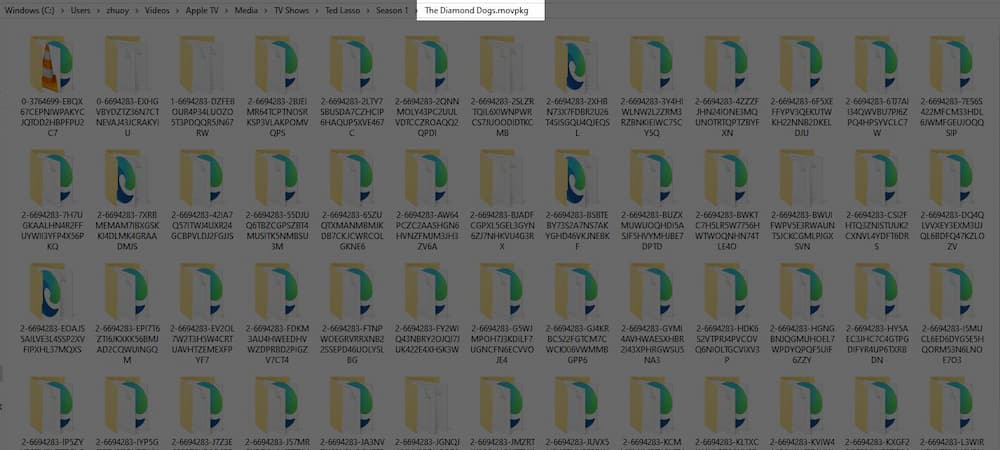
A .movpkg is not a real video file. It is a secure, encrypted folder used by Apple. Instead of containing one neat video, it packs hundreds of separate, encrypted data chunks. It splits your movie into isolated files for different video qualities, multiple audio languages, and subtitles.
.movpkg vs. .mp4: Quick Comparison
| Feature | .movpkg | .mp4 |
|---|---|---|
| File Type | Encrypted folder/package | Single video container file |
| DRM Protection | Strictly locked by FairPlay DRM | No DRM restriction |
| Device Compatibility | Apple devices & official TV app only | Any device (Android, PC, TV, Plex) |
| Storage Flexibility | Cannot be moved to external drives | Easy to backup, copy, and share |
Part 2. Why Does Apple TV Download .movpkg Instead of .mp4?
Apple uses .movpkg for two main reasons: anti-piracy protection and adaptive streaming.
The FairPlay DRM inside the package stops users from sharing purchased or subscribed movies outside the Apple ecosystem. Furthermore, the split-file structure allows the Apple TV app to instantly adjust audio tracks or video quality depending on your internet connection or hardware specs.

In the past, users could uncheck "Download HDR" and "Download Multichannel Audio" in settings to force a standard .m4v or .mp4 download. This old trick is completely dead on modern macOS and M-series chips.
Part 3. How to Download Movies from Apple TV as MP4
Since Apple blocks official MP4 exports, you must use reliable third-party workarounds to free your videos. Below is the most effective, working method to get the job done.
Method 1: Use a Professional Apple TV Downloader (Fast & Lossless)
Instead of converting Apple TV downloads to MP4, you can directly download videos from the Apple TV app in MP4 format.
To do this, you need to use a reliable Apple TV downloader. I recommend VidiFab Apple TV Downloader, which has worked well for me in getting MP4 files from Apple TV. With VidiFab, you can download TV shows and movies included in your Apple TV+ subscription, as well as any videos you've purchased or rented, in MP4 or MKV formats.
This is what I got from the VidiFab Apple TV Downloader.
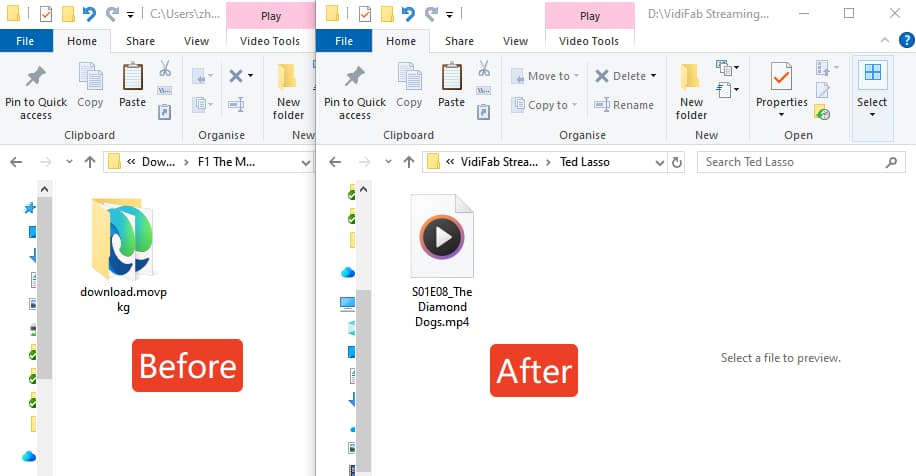
Before downloading, you can choose the video quality, and select your audio tracks and subtitles. Once the download is complete, you can transfer the files to an external hard drive, USB drive, or local media servers like Plex for flexible playback and storage space.
VidiFab Streaming Video Downloader
Download videos from various streaming platforms, including the Apple TV app, in MP4 or MKV formats.

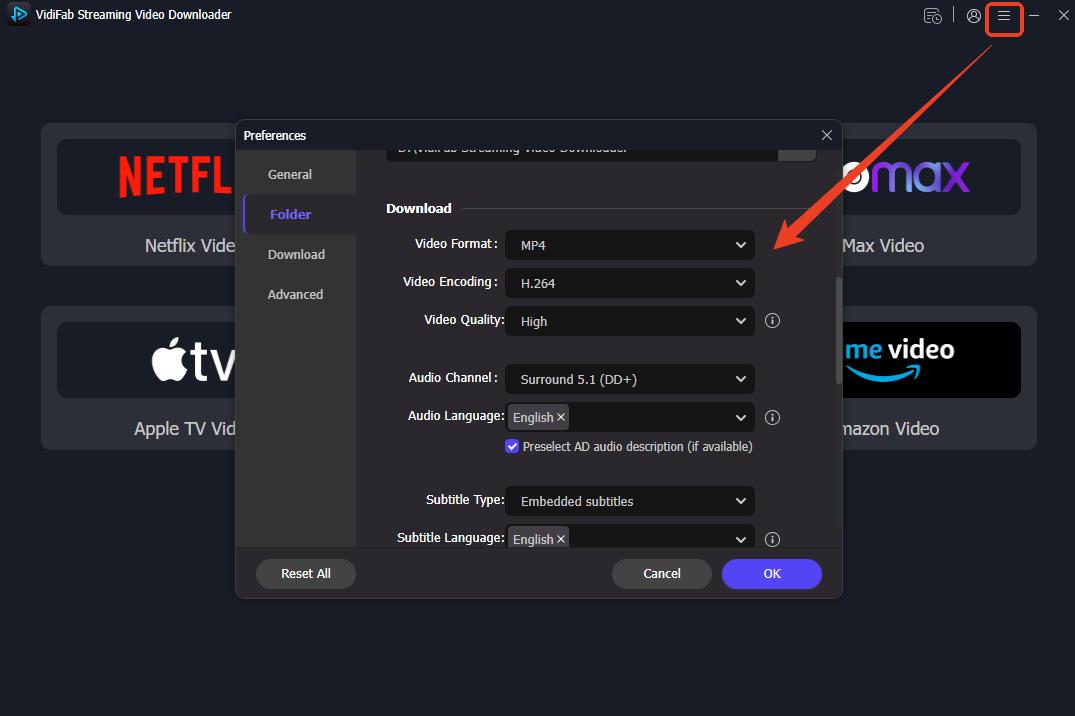
Step 1. Open VidiFab on your computer and navigate to the Preferences menu. Set your preferred output format to MP4 (or MKV) and select a destination folder on your local drive or external hard drive to save the downloaded videos.
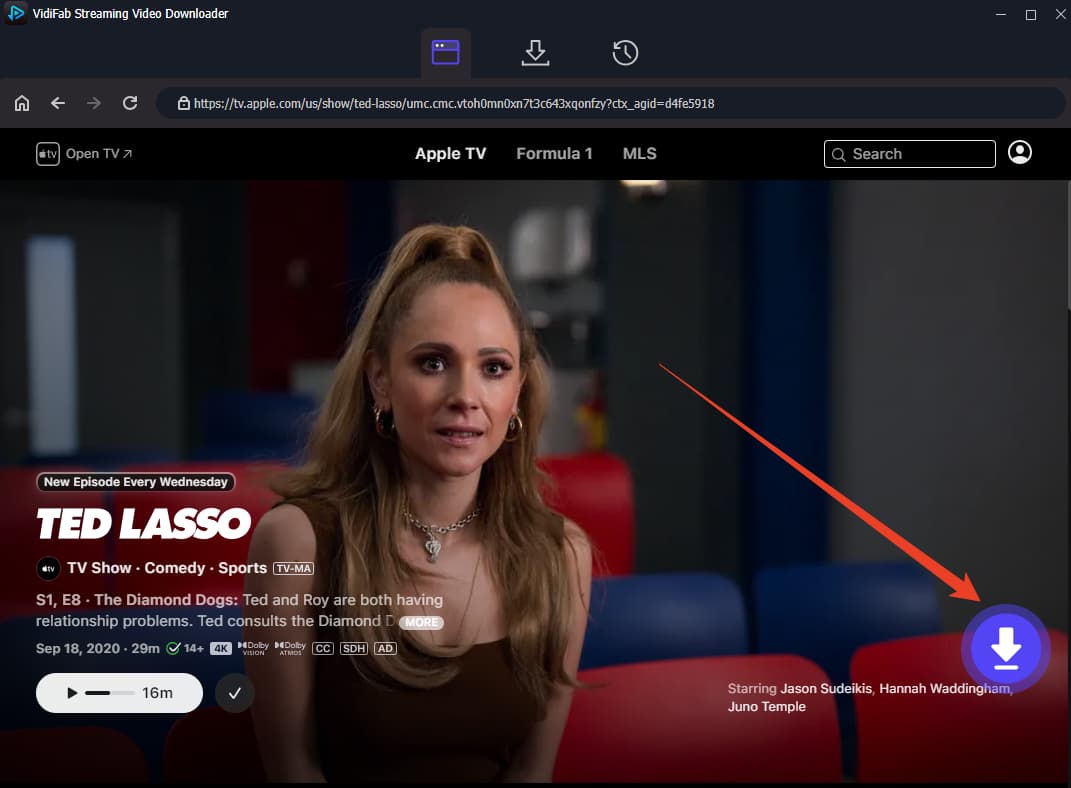
Step 2. Select the Apple TV icon from the supported streaming platforms. Use VidiFab's built-in web browser to sign in with your Apple ID so the software can access your active subscriptions or purchased/rented movies. Find the movie or TV show you want to download. Click the download button that appears on the screen.
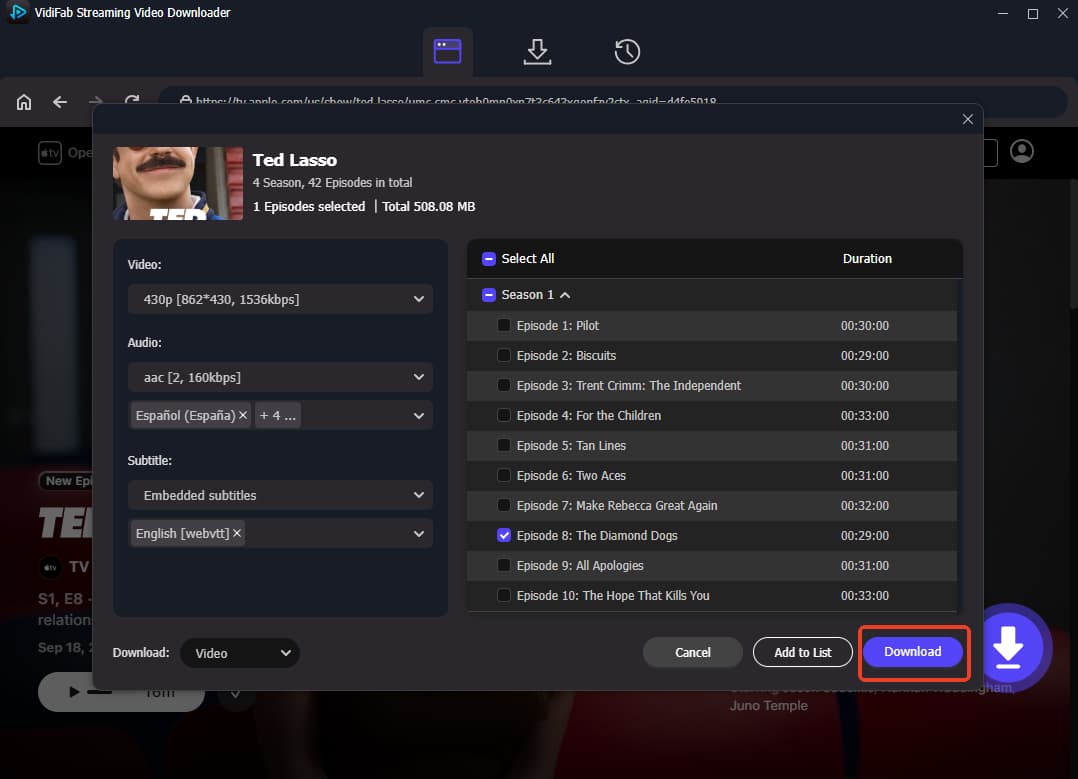
Step 3. A settings window will pop up, allowing you to customize the video quality, preferred audio tracks, and subtitle languages. For TV shows, you can check the "Select All" box for convenient batch downloading. Click the Download button to begin the process.
Step 4. VidiFab will safely decode and save the Apple TV movies into your chosen output folder. Once finished, you will have DRM-free MP4 or MKV files ready to be transferred to any external drive or played offline on any media player.
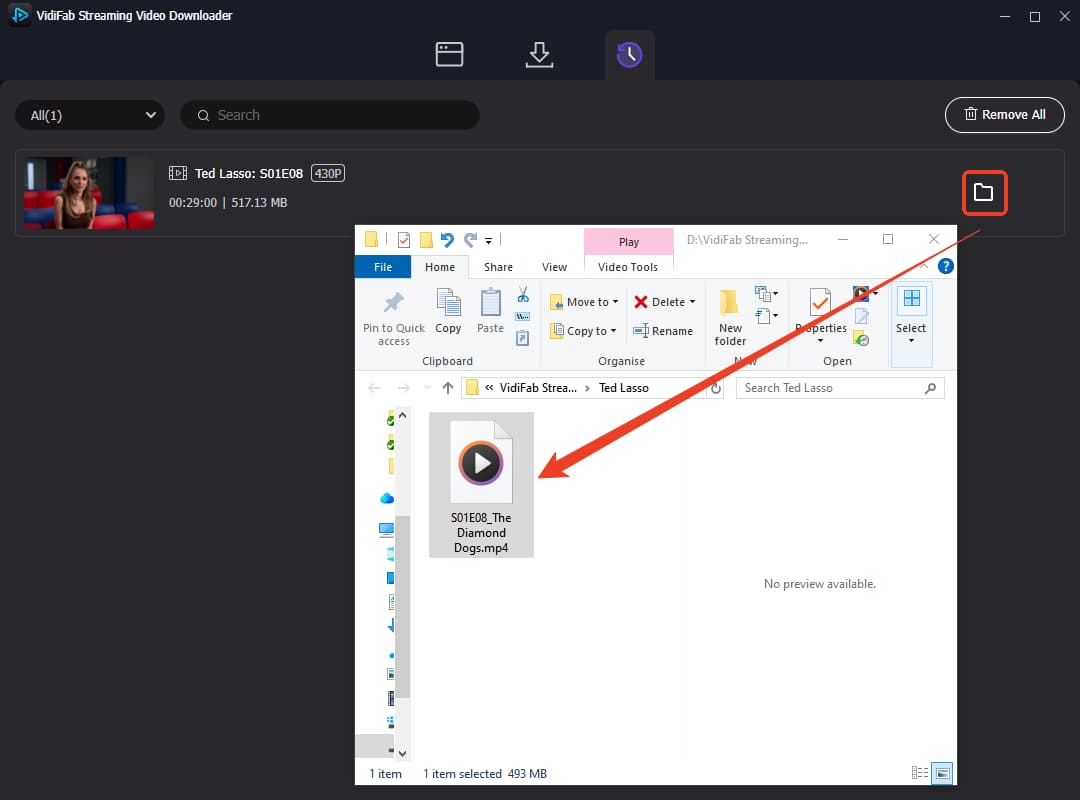
- I tested VidiFab by downloading a 30-minute TV episode. The download finished in just 5 minutes, which is impressively fast.
- However, be aware of the resolution: for Apple TV+ subscription content, the highest available quality tops out at 864x430 (around 486p at 23.97 FPS). Thanks to Apple's high-bitrate source encoding, it looks surprisingly clean and acceptable on standard laptop or phone screens. Right now, true 1080p is only available for MLS sports and titles you've purchased or rented.
Method 2. Use OBS Studio to Record Apple TV Movies (Free Backup Solution)
If you prefer a free option and do not mind a manual process, you can use a high-quality screen recorder like OBS Studio (Open Broadcaster Software). OBS is a powerful, free, open-source software available for both Mac and Windows.
Step 1. Download OBS Studio from its official website and install it on your Mac or Windows PC.
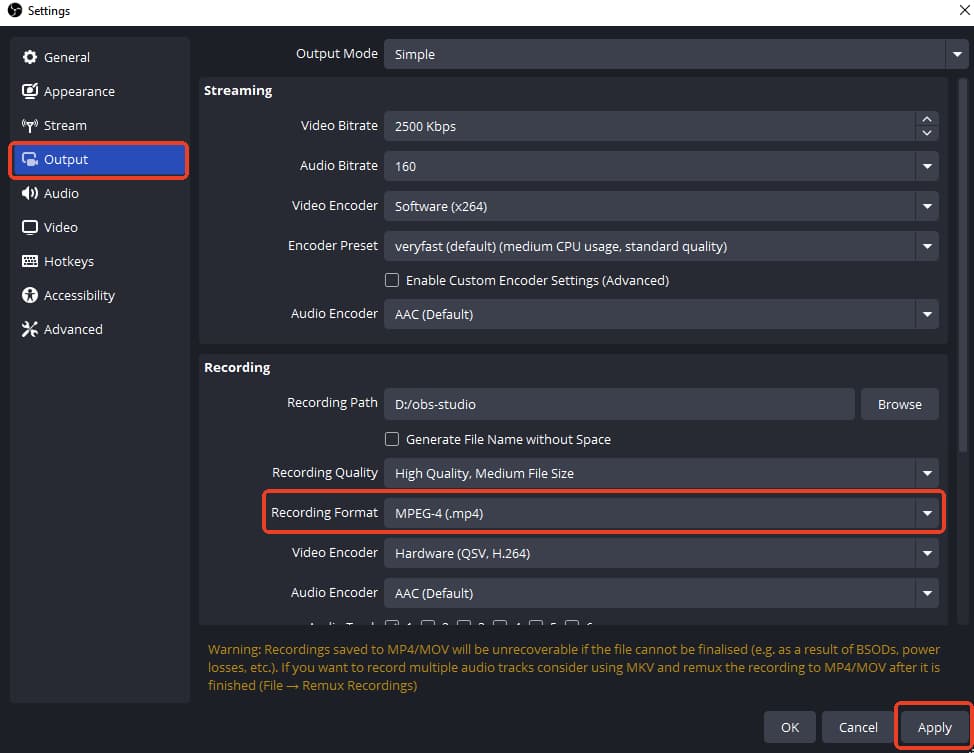
Step 2. Open the OBS program, go to Settings > Output, and set your Recording Format to MP4. Under the Video tab, ensure your base and output resolutions match your screen (e.g., 1920x1080).
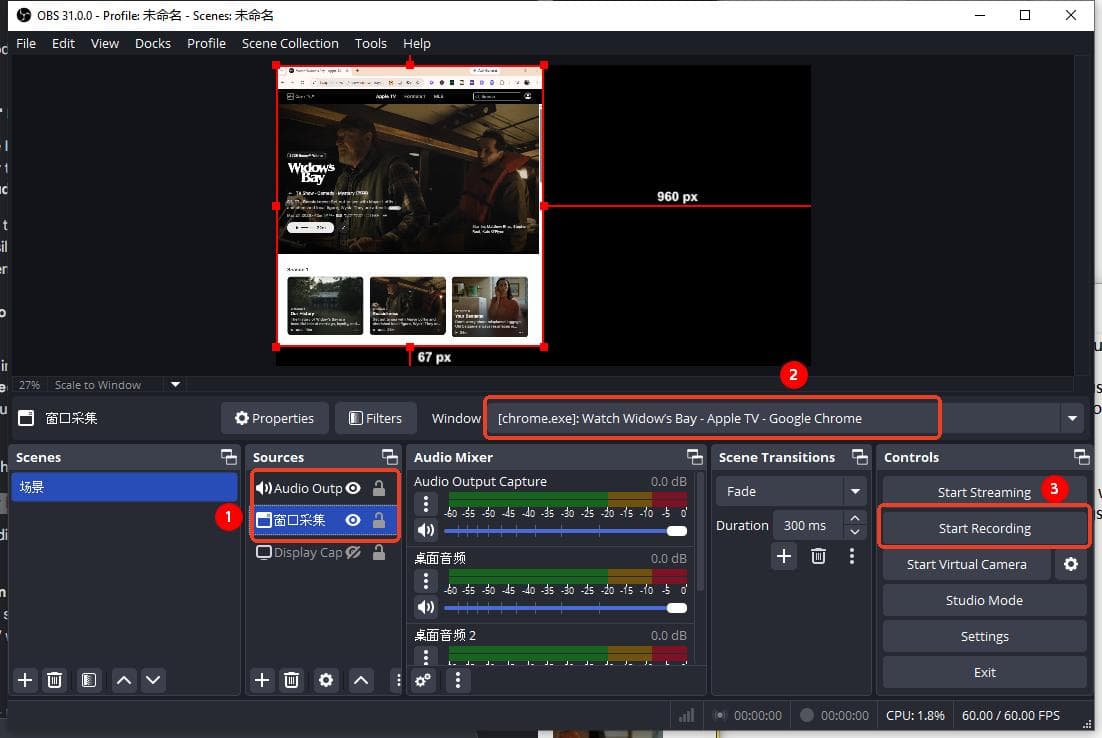
Step 3. In the main OBS window, find the Sources box at the bottom and click the "+" icon:
- Add a Window Capture source and select your browser window where Apple TV is open.
- Add an Audio Output Capture (or Desktop Audio) source to ensure OBS captures the movie's sound cleanly without microphone background noise.
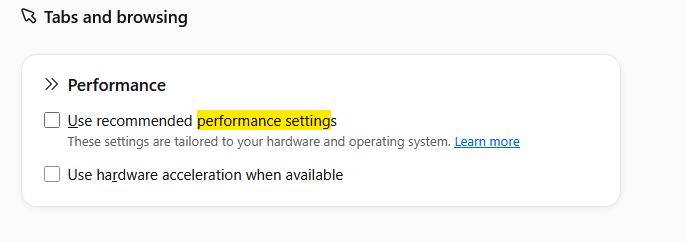
Step 4. Open Google Chrome or Firefox, go to its Settings, search for "Hardware Acceleration" or "Graphics Acceleration", and toggle it OFF. Restart the browser, navigate to the Apple TV website (https://tv.apple.com), log in, and open your movie.
Step 5. In OBS, click Start Recording. Switch back to your browser, put the Apple TV movie into Full-Screen mode, and press play.
Step 6. Once the movie finishes, click Stop Recording in OBS. Your newly recorded video will be saved directly into your destination folder as a standard, DRM-free MP4 file. You can now transfer it to an external drive or watch it offline on any device.
- I tried recording an Apple TV show on Windows 10 using Google Chrome. Even though Apple TV streams in 1080p on Chrome, my OBS recording quality dropped to around 480p. Plus, because it is 1:1 real-time recording, the process was very slow. I also ran into occasional lagging and stuttering, which ruined the video. If you're looking to back up several movies or TV shows, screen recording isn't the best choice.
Part 4. How to Manage and Watch Your Downloaded MP4 Movies
Once you have downloaded your Apple TV movies as DRM-free MP4 files, you are no longer limited to the Apple TV app. You can store the files on an external hard drive, back them up to a NAS, or stream them across multiple devices in your home.
Option 1. Store Movies on an External Drive
You can simply drag and drop your MP4 files to an external hard drive or USB flash drive. This helps free up storage space on your computer while keeping your movie collection accessible for offline viewing whenever you need it.
Option 2. Build Your Own Home Media Server
If you want to access your movies from different devices, consider creating a personal media library with Plex, Emby, or Jellyfin.
Simply add your MP4 files to your server library, and you can stream them to smart TVs, Android devices, iPhones, tablets, and web browsers on your local network.
Note: If you're interested in using Plex, you can also check out my guide on adding downloads to a Plex Media Server. The workflow is very similar for Apple TV MP4 files.
Option 3. Stream MP4 Movies to Apple TV with Home Sharing
If you own an Apple TV 4K, Apple's built-in Home Sharing feature allows you to stream your downloaded MP4 movies directly from your Mac or Windows PC.
Step 1. Import MP4 Files to Your Computer
- On Mac: Open the Apple TV app, click File > Import, and select your MP4 videos. The imported files will appear in your library.
- On Windows: Open iTunes, then choose File > Add File to Library (or Add Folder to Library) and select your MP4 videos. They will typically appear under Home Videos unless metadata identifies them as movies.
Step 2. Enable Home Sharing on Your Computer
- On Mac: Go to System Settings > General > Sharing. Turn on Media Sharing, click the ⓘ button next to it, enable Home Sharing, then sign in with your Apple ID.
- On Windows: In iTunes, choose File > Home Sharing > Turn On Home Sharing, then sign in with your Apple ID.
Step 3. Turn On Home Sharing on Your Apple TV Box
Turn on your 4K Apple TV streaming box. Go to Settings > Users and Accounts > Home Sharing, then sign in using the same Apple ID used on your computer.
Step 4. Open the Computers App and Watch
Keep your computer powered on and connected to the same network as your Apple TV. Then open the Computers app on Apple TV, select your shared library, and start streaming your imported MP4 movies.
Part 5. FAQs
Is it legal to convert Apple TV movies to MP4?
Can I download Apple TV+ movies directly to a USB flash drive?
Can I convert MOVPKG files directly to MP4?
Can I transfer purchased Apple TV movies to an external hard drive?
Do downloaded Apple TV movies expire?
Can I download Apple TV movies in 4K resolution for offline viewing?
Final Thoughts
Apple's .movpkg format makes it hard to move your video files around, but you can use a video downloader or set up Apple Home Sharing to download Apple TV movies as MP4 files. This way, you can watch your favorite purchases and subscriptions offline on any device and save space on your download device.
 Free Download
 Secure Download
 Free Download
Secure Download
Free Download
Secure Download


I'm a video tech specialist with over 10 years of experience in digital media and streaming. I focus on making complex workflows simple and practical. Through my guides, you'll learn how to convert media, keep high-quality playback across devices, and manage your streaming video library with ease.
 Leave Your Comment