How to Watch Netflix on Peloton Without a Subscription (5 Methods Compared)
 By Miles Kent
Want to watch Netflix on your Peloton without paying the $49.99/month membership fee? Officially speaking, you need an active Peloton All-Access Membership to unlock the Netflix app on your bike for entertainment. However, there are some ways to get Netflix playing on your Peloton screen without bearing this subscription cost. This guide will offer you 5 methods, each complete with a step-by-step guide and the pros and cons you need to know before trying.
Part 1. Watch Netflix via Peloton Entertainment (Membership Required)
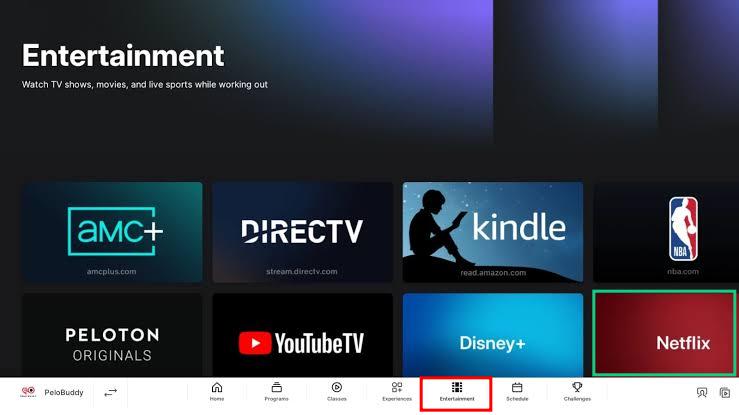
If you already have a Peloton All-Access Membership, the built-in Peloton Entertainment hub natively includes the Netflix app across all Peloton Bike, Bike+, Tread, Tread+, and Row touchscreens. You can simply locate the app, log in with an active Netflix subscription, and start watching your favorite videos while tracking your real-time workout metrics.
-
01
Turn on your Peloton touchscreen. Look at the bottom navigation bar and tap the Entertainment tab, or tap the More Rides (or More Runs / More Rows) menu on the home screen.
-
02
Tap the Entertainment sub-tab if prompted.
-
03
Select Netflix from the list of available streaming providers (you will also see options like Disney+, YouTube, and NBA League Pass depending on your region).
-
04
Log in with your personal Netflix credentials and tap Start Workout before you begin pedaling or running to ensure your cadence and output are recorded.
Part 2. How to Watch Netflix on Peloton Without a Subscription
If you don't want to pay for a Peloton All-Access Membership just to watch Netflix, there are several workarounds worth exploring. Not every method works on every Peloton model or software version, so start with the simplest option and move on if it doesn't work for your device.
Method 1. Check Device Settings > Apps > Netflix
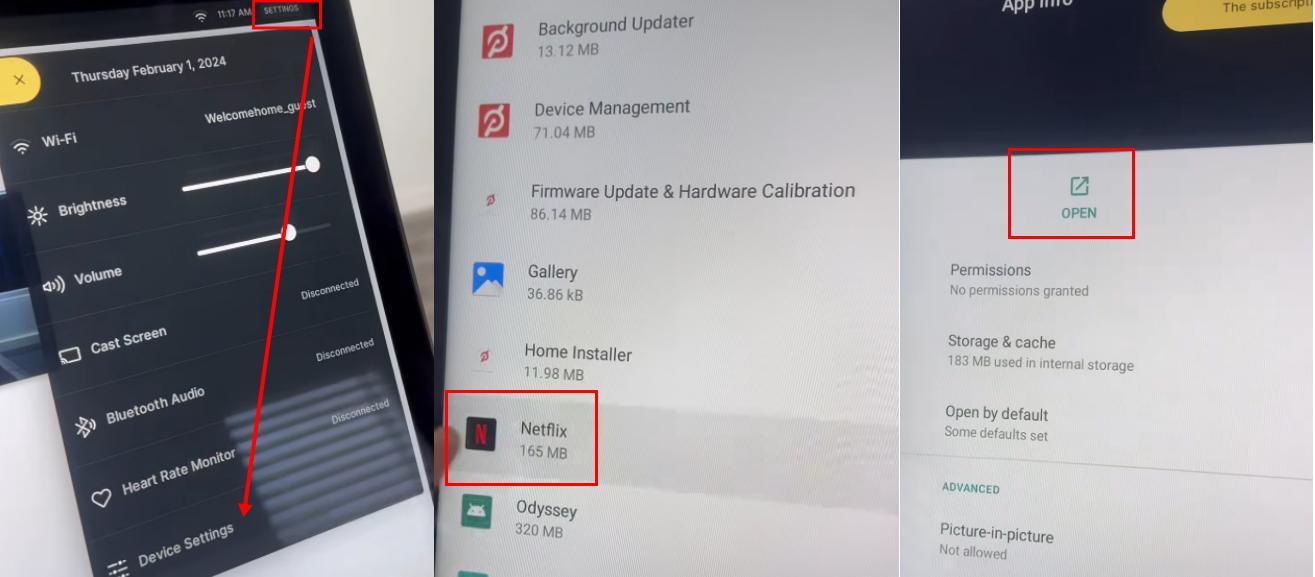
This is one of the most widely shared and simplest Netflix workarounds for Peloton. Some users have found Netflix preinstalled in their device's app list, allowing them to launch it without navigating through Peloton's regular Entertainment interface.
-
01
Tap the SETTINGS in the bottom right corner of your Peloton home screen.
-
02
Select Device Settings from the pop-up menu.
-
03
Tap Apps and scroll through the installed applications.
-
04
Look for Netflix and tap it.
-
05
If an Open button appears, tap it and sign in to your Netflix account.
- During my hands-on testing on a standard Peloton Bike, I could navigate to the Apps section and find Netflix. However, there was no option to open the app. The only available action was to uninstall it.
- This may be because Peloton restricted access to the app after initially making it available to some users. In July 2023, Pelo Buddy reported that Peloton had hidden Netflix from the app list, apparently to prevent users from accessing it through this workaround. The behavior I observed is consistent with that report, although I couldn't independently confirm Peloton's reason for restricting access.
Method 2. Open Netflix in a Hidden Browser
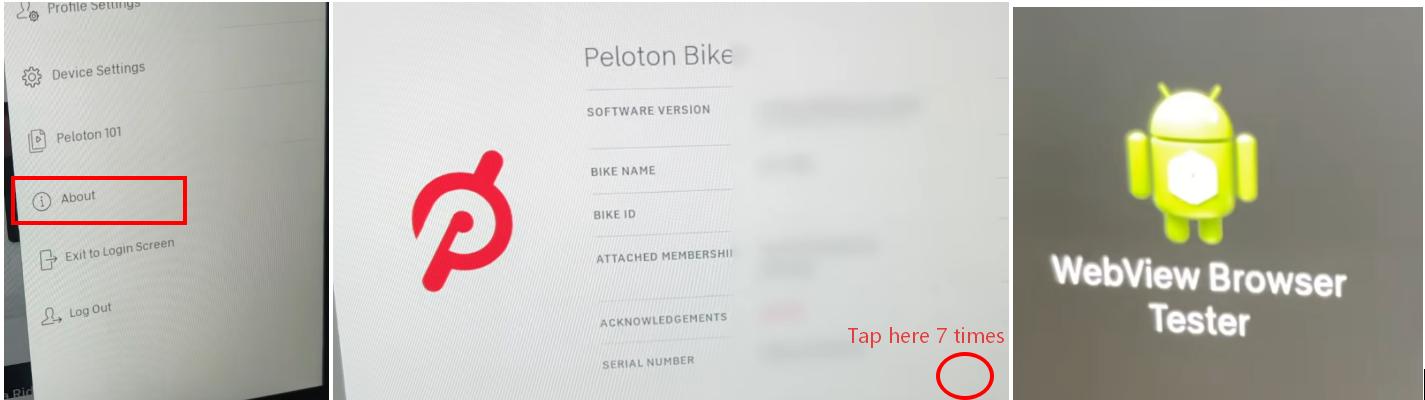
Another workaround is to use the hidden web browser built into some Peloton touchscreens. Since Peloton devices run on Android, some models have offered access to a browser or browser-testing utility that can open websites, including Netflix.
-
01
On your Peloton home screen, tap the three-dot menu in the bottom-right corner.
-
02
Select About to open the device information window.
-
03
Tap the bottom-right corner of the info window rapidly 7 times.
-
04
If WebView Browser Tester appears, open it.
-
05
Enter https://www.netflix.com in the browser's address field.
-
06
If Netflix loads successfully, sign in with your Netflix account and try playing a title.
Method 3. Try Streaming Netflix from Your Computer to Peloton
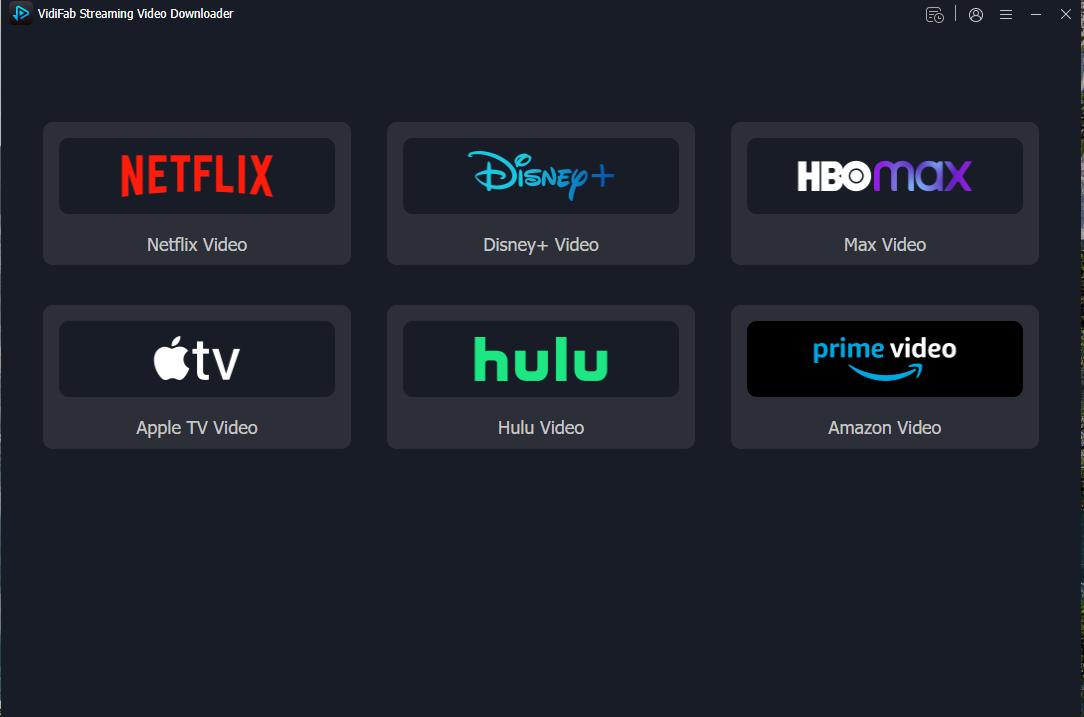
Paying for both Peloton and Netflix can add up. One alternative is to save eligible Netflix movies and TV episodes to your computer with VidiFab Streaming Video Downloader, then access the files through a cloud storage service or media server, such as Google Drive or Plex, if your Peloton browser supports playback.
VidiFab lets you save Netflix videos as MP4 or MKV files with available multilingual audio tracks and subtitles. It also supports Amazon Prime Video, Hulu, Disney+, HBO Max, Apple TV+, Crunchyroll, and Pluto TV. With local video files, you can watch without streaming directly from Netflix, and eligible downloads won't automatically expire when your Netflix subscription ends. Videos downloaded from ad-supported plans can also be saved for playback without the original streaming ads.
 Free Download
 Secure Download
 Free Download
Secure Download
Free Download
Secure Download
-
01
Install and launch VidiFab Streaming Video Downloader on your Windows or Mac computer. Open Menu > Preferences, choose MP4 or MKV as the output format, and click OK. Select Netflix and sign in through the built-in web player.
-
02
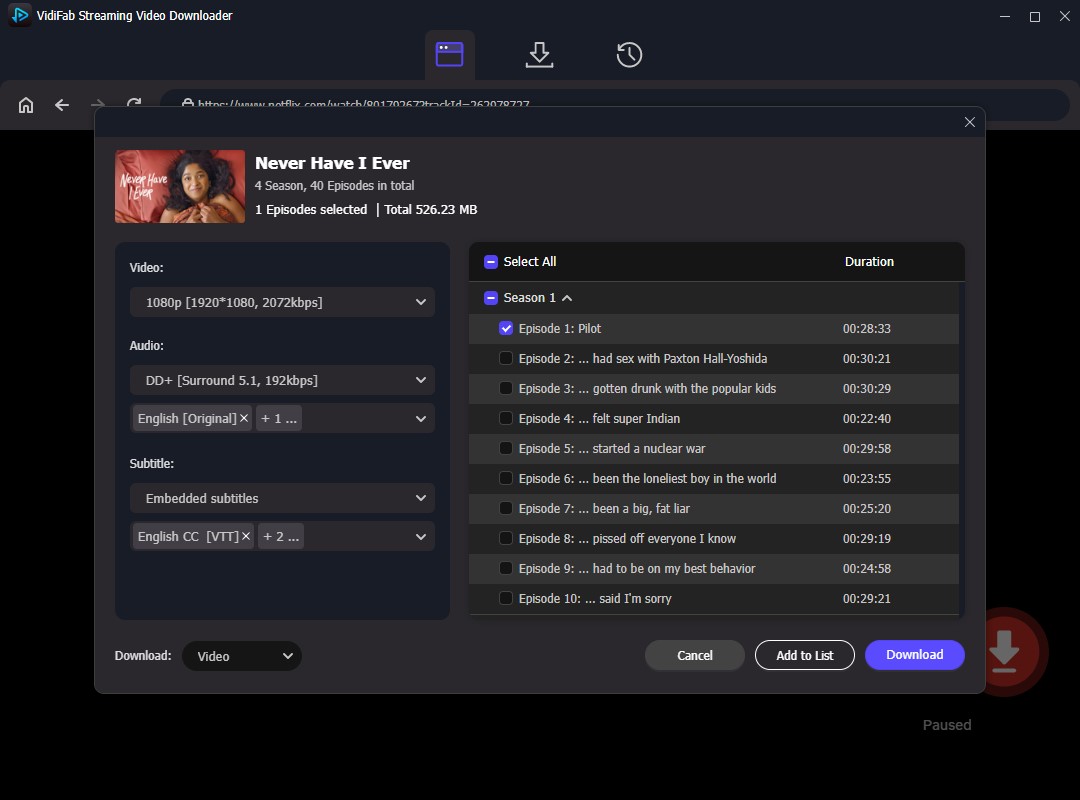
Search for the movie or TV show you want to watch, open its details page, and click the Download icon. Select the episodes you want and customize the available video quality, audio tracks, and subtitle settings.
-
03
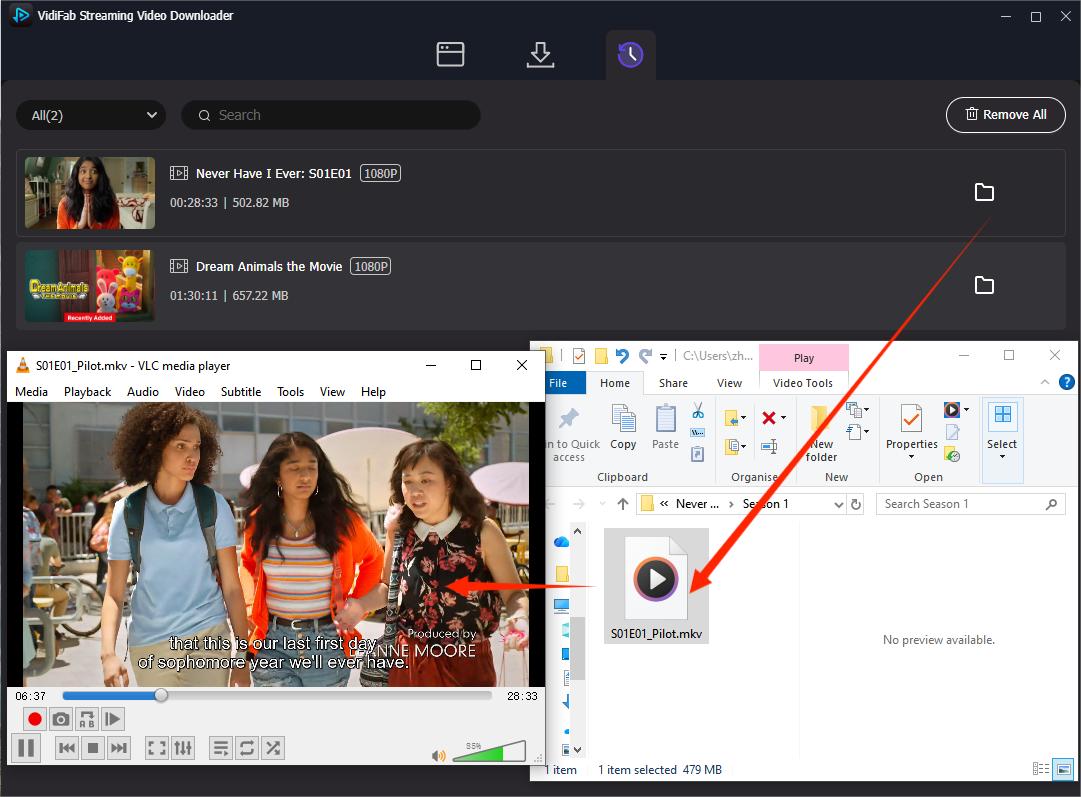
Click Download and wait for the videos to save to your computer. Once finished, click the folder icon to open the output folder to find the MP4 or MKV files.
-
04
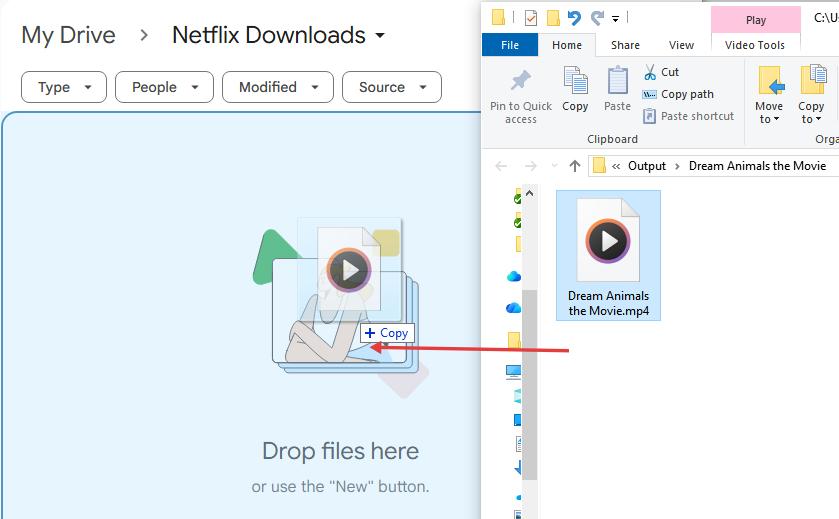
Find the downloaded Netflix files on your computer. Upload them to Google Drive, or add the Netflix video files to your Plex media library if you use a media server.
-
05
On your Peloton touchscreen, access the hidden browser like I mentioned in Method 2. Log into Google Drive and play the video you uploaded, or open your Plex web interface and choose a video from your library.
Method 4. Use FitSwitch to Add Netflix
If you're looking for an easy way to turn your Peloton into something like the Peloton Entertainment hub without the monthly fee for the All-Access Membership, check out FitSwitch. It's a USB adapter that lets you transform your Peloton into a regular Android tablet, so you can download apps like Netflix, YouTube, and Spotify.
Note: FitSwitch costs $139.99, so consider whether the one-time expense is worth it compared with other workarounds before making a purchase. Alternatively, FitSwitch works with the Peloton Bike, Peloton Bike+, and Peloton Tread. If you have a different Peloton model, it probably won't be compatible.
-
01
Purchase FitSwitch on the official FitSwitch website if you decide it's worth the cost.
-
02
Plug the FitSwitch USB adapter into the service port on the back of your Peloton monitor.
-
03
Power on your Peloton screen. The adapter will automatically load up a brand-new, open tablet home screen.
-
04
Open the built-in app store on the FitSwitch interface and download the official Netflix app.
-
05
Launch Netflix, log into your account, and turn on the floating stats overlay so you can track your speed and resistance while you watch.
Method 5. Sideload Netflix Using ADB
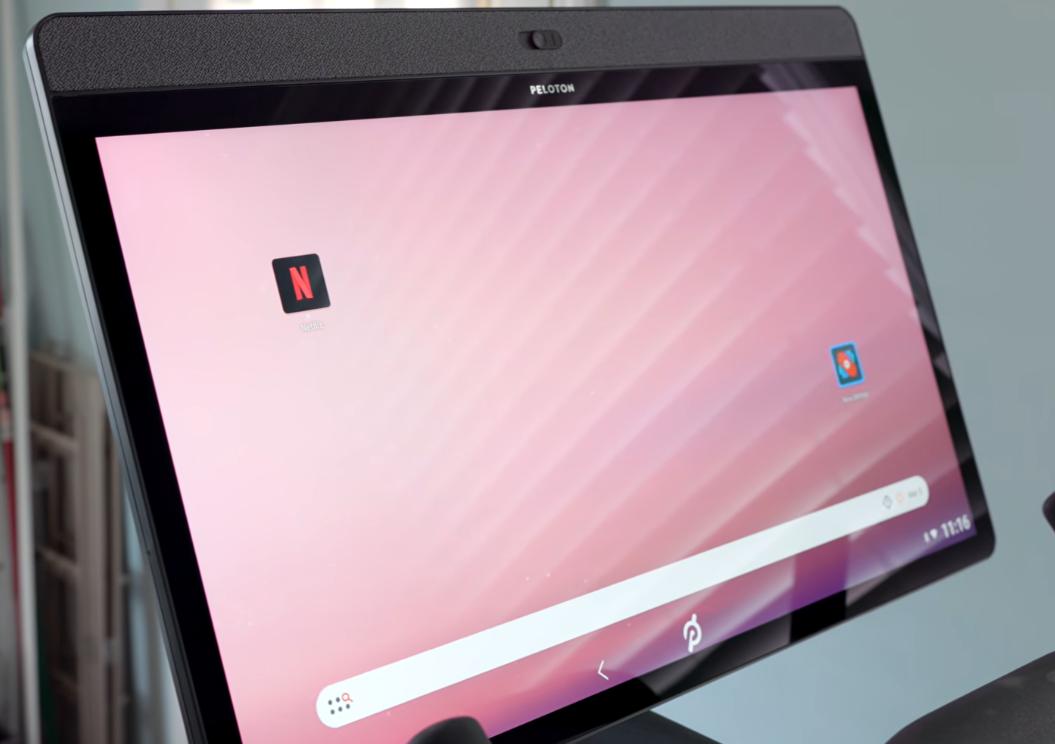
If you're comfortable with a more technical setup, you can use Android Debug Bridge (ADB) to install the Netflix app directly on your Peloton. You'll need a computer and a compatible USB cable to connect the two devices. Once setup, you may be able to access Netflix without a Peloton All-Access Membership, although a separate Netflix subscription is still required.
-
01
Enable Developer Options. On your Peloton touchscreen, go to Settings > Device Settings > System > About Tablet and tap Build Number seven times. Then open Developer Options and enable USB debugging.
-
02
Connect your Peloton to a computer. Use a compatible USB-C or micro-USB cable. Install AGoogle's Android SDK Platform-Tools on your computer, then run adb devices in the terminal to check the connection and approve the debugging prompt on your Peloton.
-
03
Install an app launcher. Use ADB to install a compatible launcher, such as Nova Launcher, so you can find and open sideloaded apps more easily.
-
04
Install Netflix. Download a compatible Netflix APK from a reputable source and use the adb install command to install it. Open Netflix through the launcher, sign in, and test playback.
If you prefer a video guide, this YouTube tutorial walks you through enabling Developer Options, connecting your Peloton to a computer, and sideloading Netflix and other Android apps using ADB.
Part 3. Which Method Is Best for Watching Netflix on Peloton?
The best way to watch Netflix on Peloton depends on your device, budget, and technical skills. Some methods are quick to try, while others require extra software, a computer, or more setup. Compare the six options below to find the one that best fits your needs.
| Method Name | Needs Peloton Membership? | What You Need | Best For | Pros | Cons |
|---|---|---|---|---|---|
| 1. Official Route (Entertainment Tab) |
Yes ($49.99/mo) |
Active Peloton & Netflix subscriptions | Heavy Peloton users who want official coaching classes and metrics. | • Native integration • Perfect real-time workout metrics tracking. |
• Extremely expensive • Subject to online buffering and quality drops. |
| 2. Device Settings (Apps Loophole) |
No | Basic Peloton login & Netflix subscription | Quick testers with newer Peloton hardware models. | • Free • No extra hardware or computer files required. |
• High crash risk (times out every 15 mins) • Gradually blocked by recent updates. |
| 3. Hidden Browser (WebView Tester) |
No | Developer settings toggle & Netflix subscription | Users with older bikes where the app button is grayed out. | • Free • Universal hardware access across all models. |
• Heavy 15-minute system timeout locks • Horrible video lagging and tablet stuttering. |
| 4. Local Server ⭐ (VidiFab + Cloud/Plex) |
No | VidiFab Downloader, PC/Mac, Netflix subscription, Google Drive or Plex | Budget-conscious users who want stable, premium, ad-free streaming. | • No Timeouts • Strips out Netflix Ads • Permanent video backups that don't expire. |
• Requires downloading files on a computer beforehand. |
| 5. FitSwitch (Hardware USB) |
No | FitSwitch USB device (one-time $139.99) and Netflix subscription | Membership dropouts who still want floating metric overlays. | • Plug-and-play simplicity • Keeps workout stats visible over the video. |
• High upfront hardware cost • Still vulnerable to internet buffering and freezing. |
| 6. ADB Sideloading (Technical Route) |
No | PC/Mac, diagnostic data cable, Android APKs, and Netflix subscription | Advanced tech geeks who love custom launcher setups. | • Deeply customizable layout • Fully unlocked Android desktop interface. |
• Highly complex terminal script setup • Overnight software updates wipe everything. |
To wrap up: If you want the easiest option, check Peloton Entertainment first, then see whether Netflix is accessible through Settings or the hidden browser. If those workarounds fail and you want to prepare videos ahead of time, VidiFab with Google Drive or Plex may be worth exploring, provided your Peloton can play the files through its browser. FitSwitch offers another route but comes with a substantial upfront cost. ADB sideloading gives technically experienced users more control, although it requires more setup and maintenance.
Keep in mind that most methods require an active Netflix subscription and your login. VidiFab is the exception: you need access to Netflix to download eligible titles, but once the videos are saved locally, you can play those files without an active Netflix subscription, as long as the files remain accessible and playable.
Part 4. FAQs About Watching Netflix on Peloton
Can you watch Netflix on a Peloton while working out?
If you use the Official Route or a hardware bypass like FitSwitch, your workout will not be affected. However, if you use free software hacks like the Hidden Browser or direct ADB Sideloading, your Peloton metrics layout will completely disappear while the movie is playing. Alternatively, using VidiFab with Google Drive or Plex via the hidden browser allows for uninterrupted viewing without lag, though you will still need an external tracker for performance metrics.
Can you watch Netflix on a Peloton screen using an Amazon Firestick or Roku?
No. Peloton screens do not have an HDMI-Input port or video-capture hardware. You cannot physically plug an external streaming device like a Firestick, Roku, or Apple TV into the monitor to display its video signal.
Can I use a Peloton screen as a regular computer monitor?
Generally, no. Peloton touchscreens are designed to work with Peloton equipment rather than serve as external computer monitors. They typically do not provide a standard video input, such as HDMI, for displaying a computer's screen.
Can I watch Netflix on a Peloton screen using a USB flash drive?
No. The USB port on the back of the Peloton monitor is only for power and troubleshooting. It's locked down, so it won't recognize any external storage devices, including movie files on a USB drive.
Is it safe to install Netflix APKs on a Peloton?
It's usually safe, but can be pretty unstable. Installing a third-party Netflix APK using computer commands (ADB) won't damage your bike's hardware, but getting installation files from unofficial online sources can put your system at risk for security issues.
Make Your Peloton Work for Your Entertainment
Cardio doesn't have to be a dull task, and you shouldn't need to pay a monthly fee just to watch something on a screen. Sometimes, hidden menus and sideloaded apps can crash during your workout because of system issues, but having a reliable backup option can really help. Check out VidiFab Streaming Video Downloader, save your favorite ad-free Netflix shows on Google Drive or Plex, and upgrade your Peloton workout experience today!
Free Download
Secure Download
Free Download
Secure Download



I'm a video tech specialist with over 10 years of experience in digital media and streaming. I focus on making complex workflows simple and practical. Through my guides, you'll learn how to convert media, keep high-quality playback across devices, and manage your streaming video library with ease.
 Leave Your Comment