How to Play Netflix Videos in VLC Media Player on Different Devices
 By Miles Kent
Can you play Netflix in VLC Media Player? No, you can't.
Some users may attempt to use VLC's "Open Network Stream" option or paste a direct URL into the player to stream Netflix videos. However, I tested this feature, and VLC cannot play the link, as shown in the error window below.
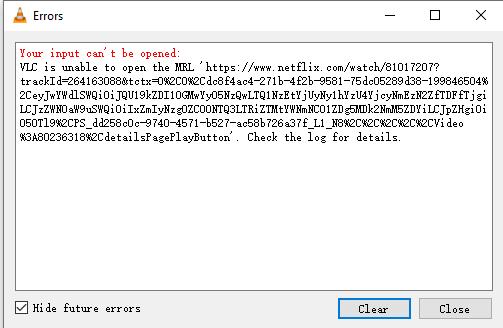
This happens because Netflix uses strict DRM (Digital Rights Management) encryption to lock its streams, which prevents unauthorized players like VLC from decrypting the video layer.
But don't worry! This guide will show you how to download Netflix videos as MP4 or MKV files with VidiFab Netflix Video Downloader and play them smoothly in VLC on desktop, mobile, and TV devices.
Part 1. How to Make Netflix Playable on VLC Player
VLC Media Player is well-known for playing nearly any file format. However, it can't open encrypted streams. By using VidiFab Netflix Video Downloader, you can convert a restricted Netflix stream into an MKV or MP4 video file that VLC can read.
VidiFab Netflix Video Downloader
Download Netflix videos as MP4/MKV in 1080p with Dolby Atmos for offline viewing on your iPhone, Android, desktop, and more devices.

Here is a quick comparison of why VidiFab and VLC work well together:
| Media Feature | VLC Player Capabilities | VidiFab Downloader Outputs | Compatibility Result |
|---|---|---|---|
| Video Format | MP4, MKV, AVI, WMV, MOV, FLV, WebM | Saves as universal MP4 or high-fidelity MKV | 100% perfect (plays natively without converting) |
| Audio Layout | Stereo, Dolby Digital 5.1, Dolby Atmos | Extracts clean stereo or Dolby Atmos 5.1 surround | Cinematic (full surround sound works in VLC) |
| Subtitles | Embedded SRT, multi-tracks, external files | Saves SRT formats as embedded or independent tracks | Highly flexible (toggle or customize text in VLC) |
Step-by-Step Guide: Download Netflix to MP4/MKV for VLC Playback
In the following, I will show you how to use VidiFab to download videos from Netflix to your computer.
Step 1. Launch VidiFab and Select Output Settings
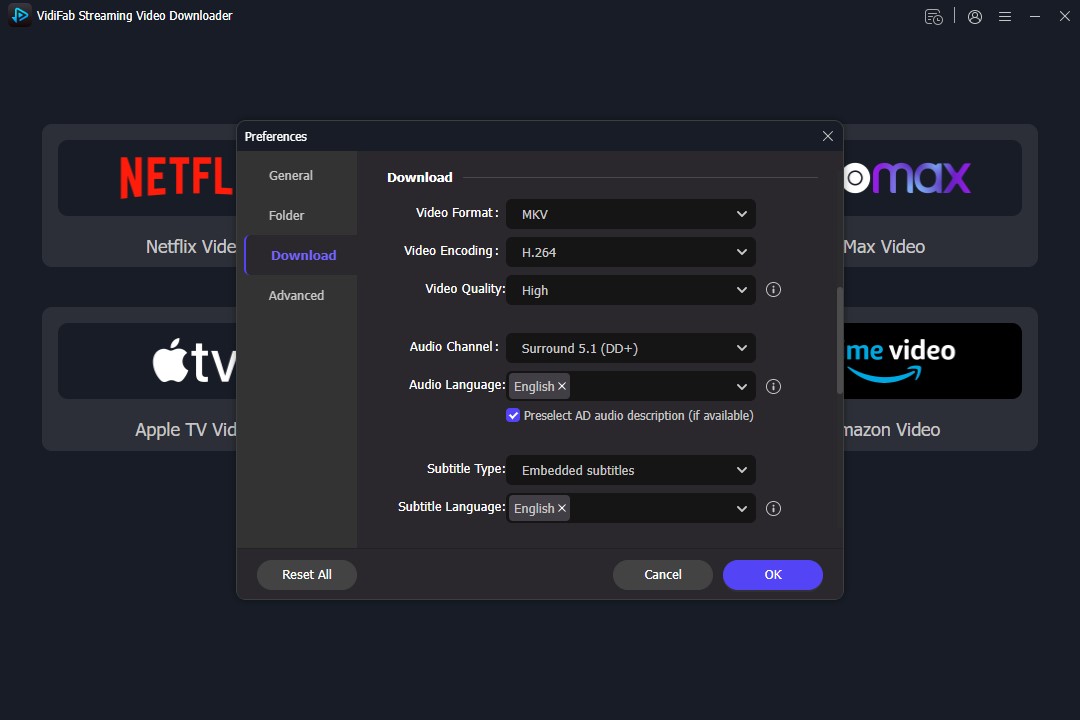
Download and install VidiFab Netflix Video Downloader on your Windows or Mac. Open the software, click the menu icon in the top right, and select Preferences. Choose your target format (MP4 or MKV), video quality (up to 1080p), and video codec (H.264 or AV1). Set your output folder for downloads, then click OK to save.
Next, click the Netflix icon on the main screen and log into your account using the built-in browser.
Step 2. Search for Your Favorite Movie or Show
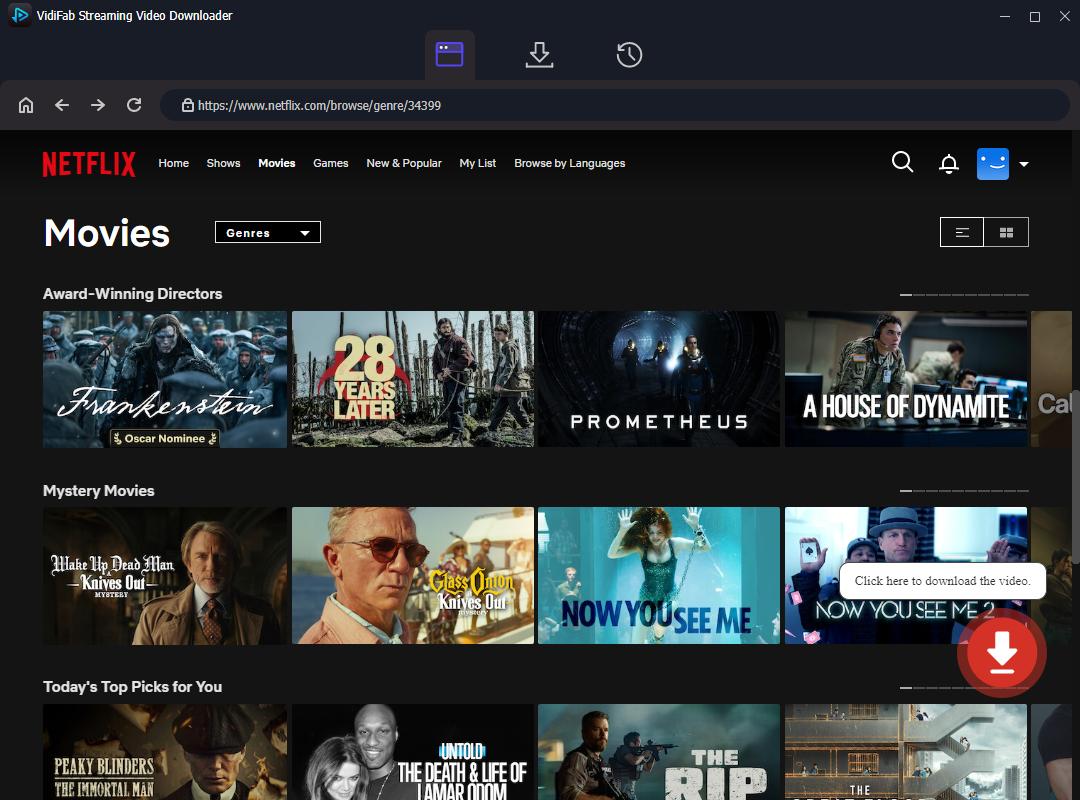
Browse the Netflix homepage in VidiFab like you would in a regular browser. Open the detail page of the movie or TV show episode you want to watch. The software will analyze the video stream and show a download button in the bottom right corner. Click it.
Step 3. Customize Subtitles and Audio Tracks for VLC
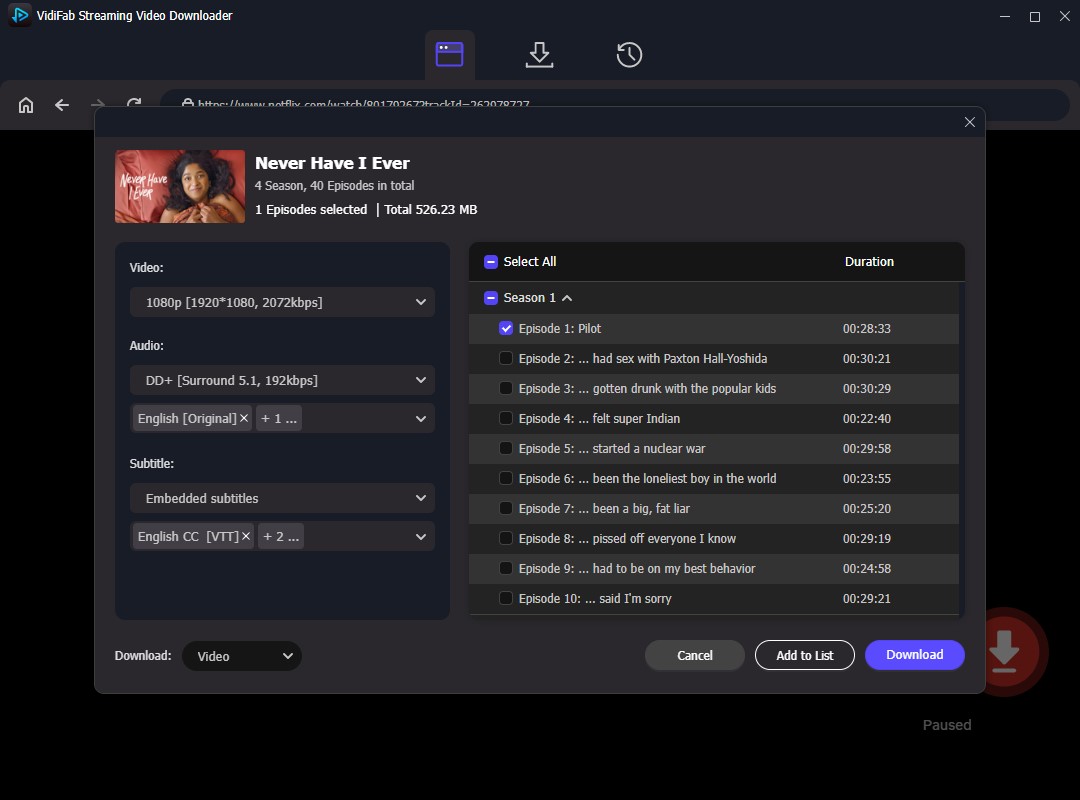
A download settings window will appear. Select 1080p for high resolution. VLC handles multiple languages well, so check the boxes for all audio tracks and subtitles you want. Set the subtitle type to "Embedded Subtitles" to easily toggle them on or off in VLC. Click the Download button to start the extraction.
Step 4. Save Netflix Files Locally and Open with VLC
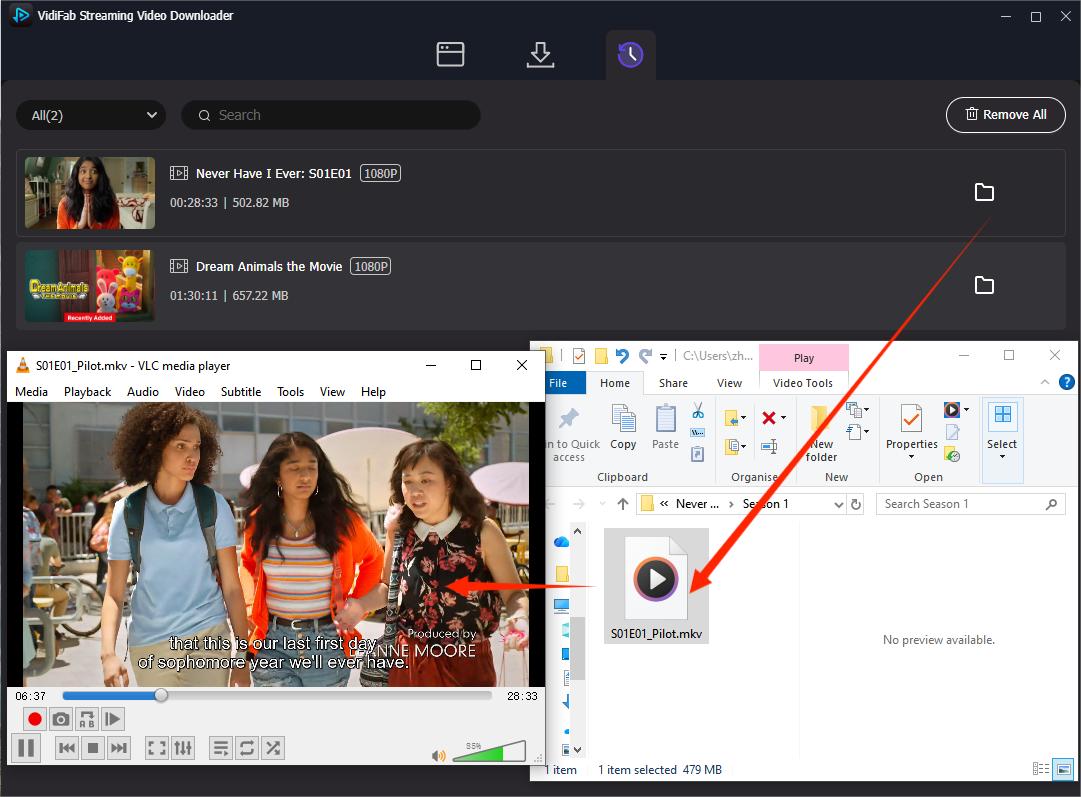
Once the download finishes, VidiFab saves a standard MP4 or MKV file to your chosen folder. Now, you can proceed to play Netflix videos in VLC Media Player.
Part 2. How to Watch Netflix Videos on VLC on Different Devices
Since the videos are saved as regular media files, you can move them between devices and watch them without opening the Netflix app. The steps are slightly different depending on the device you use.
2.1 Play Netflix Videos in VLC on Windows and Mac
Download VLC Media Player from the VideoLAN official website and install the software on your computer.
-
01
Open VLC Media Player on your Windows PC or Mac.
-
02
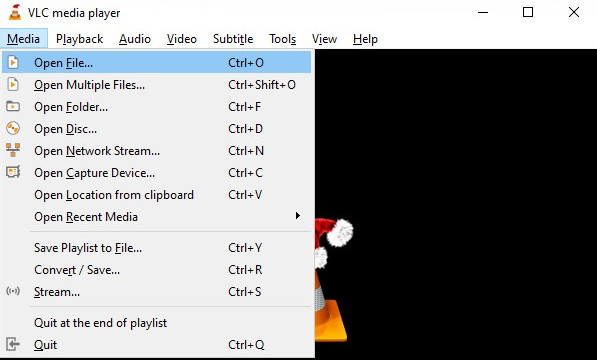
Click Media > Open File on Windows or File > Open File on Mac. You can also drag and drop the downloaded Netflix video directly into the VLC window.
-
03
Select the downloaded Netflix MP4 or MKV video.
-
04
Click Open to start playback.
Doing this not only unlocks Netflix offline playback on Windows and Mac but also avoids browser-related playback issues, such as Netflix Error Code M7361-1253. Although it takes some time to download videos through VidiFab first, it offers a more stable and seamless Netflix viewing experience.
- Audio Track Selection: If you downloaded multiple languages using VidiFab, you can click Audio > Audio Track in VLC and select your preferred language or descriptive audio track.
- Subtitle Control: To enable your saved subtitles, click Subtitle > Sub-Track from the top menu in VLC and choose your preferred language. Because VidiFab saves subtitles as embedded tracks, they will stay perfectly synchronized with the video.
2.2 Play Netflix Videos on VLC on Android and iPhone
Step 1. Transfer Netflix Videos to Your Mobile Device
First, move the downloaded Netflix videos from your computer to your phone or tablet.
For Android devices:
-
01
Connect your Android phone to your computer using a USB cable.
-
02
Copy the downloaded MP4/MKV files to your phone's Movies or Download folder.
-
03
You can also upload the files to cloud storage, such as Google Drive, and download them to your device.
For iPhone and iPad:
-
01
Install the VLC mobile app from the App Store.
-
02
Connect your iPhone or iPad to your computer.
-
03
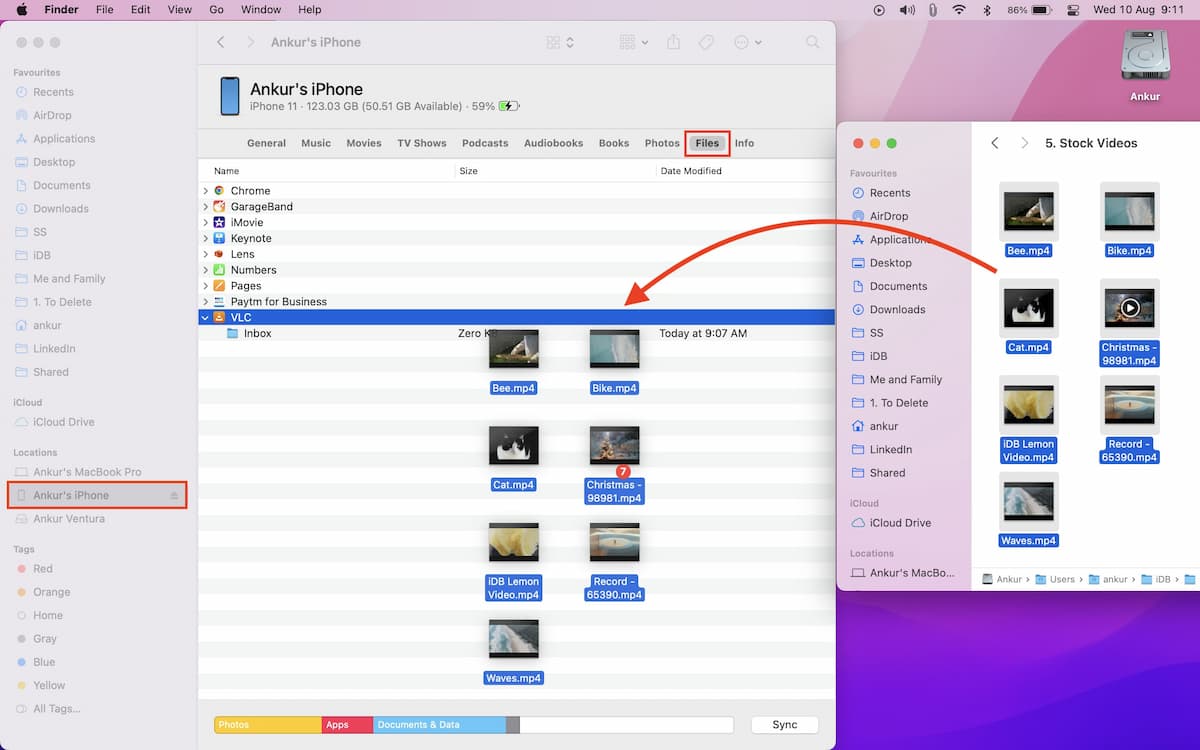
If you are using a Mac computer: open Finder, select your iPhone under Locations, choose Files, and drag the downloaded Netflix videos into VLC.
-
04
If you are using a Windows computer: open iTunes, select your iPhone, go to File Sharing, choose VLC, and add the video files to the VLC documents area.
Once the transfer is complete, the videos will be available inside the VLC app.
Step 2. Open Netflix Videos in VLC Player
For Android users:
-
01
Open the VLC app.
-
02
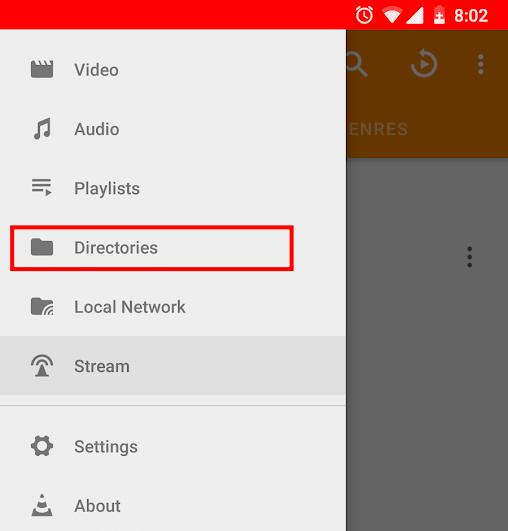
Tap Directories on the left menu. Browse and locate the folder where you saved the videos.
-
03
Select the downloaded Netflix MP4/MKV file.
-
04
Tap the video to start playback.
For iPhone and iPad users:
-
01
Open the VLC app.
-
02
Go to the Video section.
-
03
Select the transferred Netflix video.
-
04
Tap the file to begin watching.
2.3 Play Netflix Videos on VLC on Smart TV
If you want to watch downloaded Netflix videos on a bigger screen, you can transfer the MP4/MKV files to a Smart TV and play them with VLC or another compatible media player.
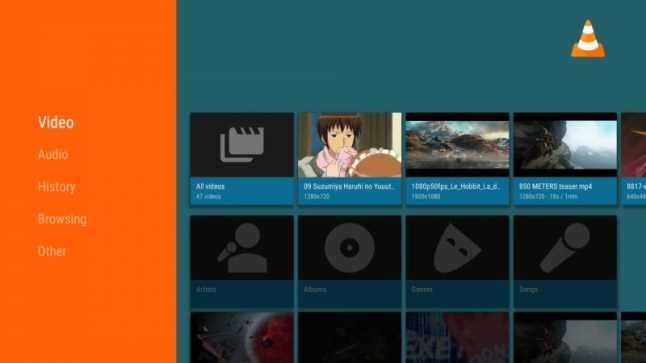
The free VLC app is fully available on Android TV, Apple TV, Amazon Fire TV, and Xbox consoles. Make sure you have installed the player on your TV. You can download and install it safely from the built-in App Store on your smart TV dashboard.
-
01
Connect a USB flash drive to your computer.
-
02
Move your VidiFab-downloaded Netflix files onto a standard USB flash drive.
-
03
Safely eject the USB drive from your desktop after the file transfer is complete.
-
04
Insert the USB drive into an available USB port on your Smart TV.
-
05
Open the VLC app or your TV's native media player utility.
-
06
Browse the USB storage directory and find the downloaded Netflix video file.
-
07
Select the video file to start high-definition playback immediately.
Since VidiFab saves Netflix videos as standard MP4/MKV files, VLC can play them directly without requiring the Netflix app or an internet connection.
Part 3. VLC Tips for Playing Netflix Videos
To enhance your viewing experience on a computer, phone, or TV, make these small adjustments for smoother playback.
Tips for Watching Netflix Videos in VLC on Windows and Mac
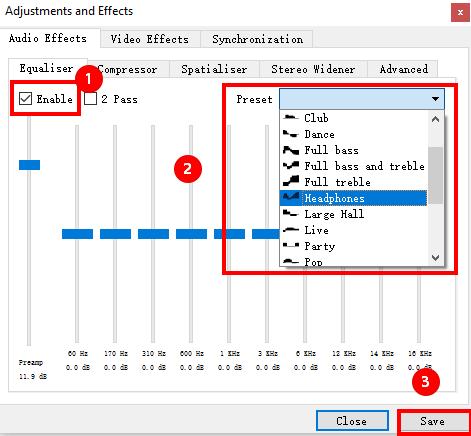
1. Boost Quiet Voices Automatically: Many Netflix movies have soft dialogue and loud background sounds. To improve this on your PC or Mac, open VLC, go to Tools > Effects and Filters > Audio Effects. Check the Equalizer box and choose the "Headphones" or "Soft" preset. This will clarify speech without altering the overall volume.
2. Skip Boring Intros Faster: To fast-forward through theme songs or recap videos, hold Shift + Right Arrow to skip 3 seconds, or Alt + Right Arrow to skip 10 seconds.
Tips for Watching Netflix Videos in VLC on Android and iPhone
1. Lock Your VLC Screen: When watching Netflix on your phone in bed or on a train, you might accidentally touch the screen and pause the video. To avoid this, tap the Lock icon in the bottom menu while playing a video in VLC. This will disable all touch controls.
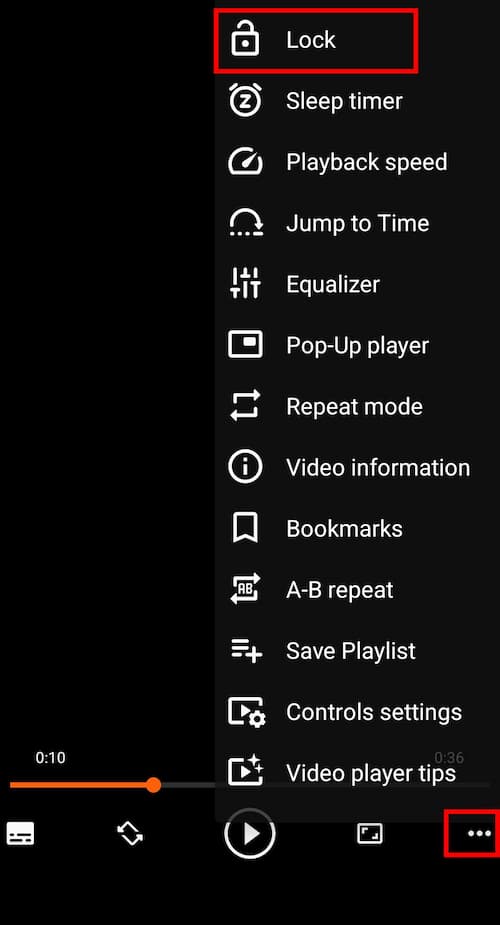
2. Use the Pop-up Player: You can chat with friends or check emails while watching your movie. Tap the three-dot icon and select Pop-Up player to enable the floating Picture-in-Picture mode.
Tips for Watching Netflix Videos in VLC on Smart TV
1. Adjust Picture Stretching: A downloaded movie may appear stretched or have black bars on your TV. To fix this, use your TV remote, press the options button while the video is playing, and choose Aspect Ratio. Cycle through options like 16:9 or Fit Screen until the picture looks right.
2. Use the Audio Boost Feature: If your TV speakers are not loud enough, VLC can increase the volume beyond 100% up to 125% or 200%. Find the volume control slider in the playback menu on your TV screen to safely boost the audio.
Part 4. FAQs About Netflix and VLC
Is it Legal to Download Netflix Videos for VLC Playback?
The rules around downloading and storing streaming content vary by country and depend on how the content is used. Check Netflix's terms and the laws that apply to you before saving or sharing downloaded content.
Can VLC App Convert Netflix Files to MP4?
No. VLC has a built-in 'Convert' tool, but it cannot remove DRM copy protection. VLC cannot convert official Netflix cached files or streaming links into standard MP4 files. You must use a dedicated tool like VidiFab to save them as MP4 files first.
Can You Capture Netflix Streaming Video with VLC?
No, not effectively. If you try to use VLC to screen record a Netflix video, you will get a completely black screen due to copyright safety blocks. Even if you turn off your browser's hardware acceleration to bypass the black screen, the recorded video will be very laggy, low quality, and out of sync.
Can I Watch Netflix Videos on VLC Without an Internet Connection?
Yes, absolutely. Once you use VidiFab to download the Netflix videos onto your laptop, phone, or USB drive as regular MP4 or MKV files, you can play them in VLC offline. You do not need Wi-Fi or cellular data to watch them.
Can VLC Play Netflix Videos in 1080p?
Yes, it can. VLC player can easily handle 1080p, 4K, and even higher resolutions. Since VidiFab downloads your Netflix movies in true Full HD 1080p quality, the files will look crisp and clear when you open them inside VLC on your computer or TV.
Part 5. Conclusion
VLC is a great media player, but it cannot directly open Netflix streams because of DRM protection. The easiest way to watch Netflix videos with VLC is to save them as compatible MP4 or MKV files first. With VidiFab Netflix Video Downloader, you can prepare Netflix videos for smooth playback on computers, phones, and supported Smart TVs. Once downloaded, you can enjoy your favorite movies and shows offline anytime.
 Free Download
 Secure Download
 Free Download
Secure Download
Free Download
Secure Download
I write about streaming services, video playback, and digital media management. My articles cover practical ways to convert video files, troubleshoot playback issues, and manage digital content across devices. I aim to make technical topics easier to understand and help readers find practical solutions to common challenges.
 Leave Your Comment