How to Download Movies on Disney Plus
 By Miles Kent
Want to watch Disney+ on a flight, during a commute, or somewhere with poor internet? Disney+ includes an offline download feature, but this feature is limited to iPhone or Android phones and tablets, Apple Vision Pro, and Meta Quest devices. As for desktop or TV users, there's no download button for offline viewing in the app.
Don't worry. This guide shows you how Disney+ downloads work and provides a step-by-step guide on how to download movies on Disney+ on supported devices, plus a workaround for Windows PC and Mac. I'll also cover some fixes if the download feature does not work on your device.
Part 1. Can You Download Movies on Disney Plus?
Yes, but only on supported mobile devices and only on a plan that allows downloads.
Devices that support Disney+ downloads:
- Apple Devices: iPhone, iPad, and Apple Vision Pro
- Android devices: Android phones and tablets (Android OS 6.0 or later)
- Amazon Devices: Amazon Fire tablets
- VR/XR Headsets: Meta Quest headsets
Devices that do NOT support Disney+ downloads:
- Computers and Laptops: Windows PCs and Mac computers
- Smart TVs and Streaming Sticks: Roku, Fire TV, Apple TV, Chromecast, and similar
- Windows or Mac tablets and web browsers
Plan Requirements
- Premium Only: Official downloads require a Disney+ Premium subscription (or a partner bundle that includes Premium).
- Ad-Supported Restrictions: The basic ad-supported plans (Standard with Ads, Basic) and standard ad-free base plans do not grant official download capabilities.
If you are locked out by a desktop operating system (Mac/Windows) or are currently subscribed to a cheaper ad-supported tier, using a tool like VidiFab Streaming Video Downloader allows you to download videos directly into ad-free MP4 or MKV files for personal offline storage.
 Free Download
 Secure Download
 Free Download
Secure Download
Free Download
Secure Download
Part 2. How to Download Movies, TV Shows, and Entire Seasons on Disney Plus
If you have a Disney+ Premium subscription and a supported mobile device, downloading content is simple. The official Disney+ app lets you download individual movies, single TV episodes, or even entire show seasons with just a few taps.
How to Download a Movie on Disney Plus
Step 1. Launch the Disney+ app and sign in to a Disney+ Premium account.
Step 2. Search for the movie you want to watch offline.
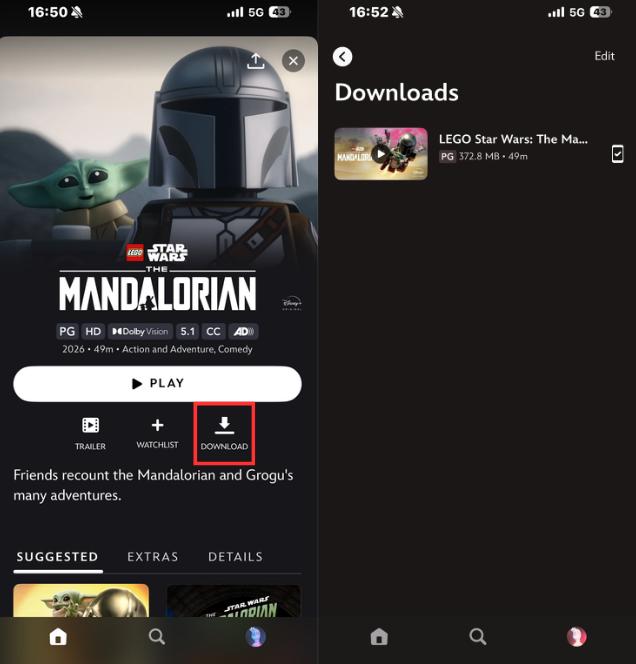
Step 3. On the movie's details page, tap the Download button located below the Play button.
Step 4. Wait for the circle to fill. Once the download completes, the arrow turns into a checkmark icon.
Step 5. To play the downloaded movie, tap the profile icon, then Downloads, then tap the play button on the cover.
How to Download a Single TV Episode on Disney Plus
Step 1. Navigate to the main page of the TV show you want to download.
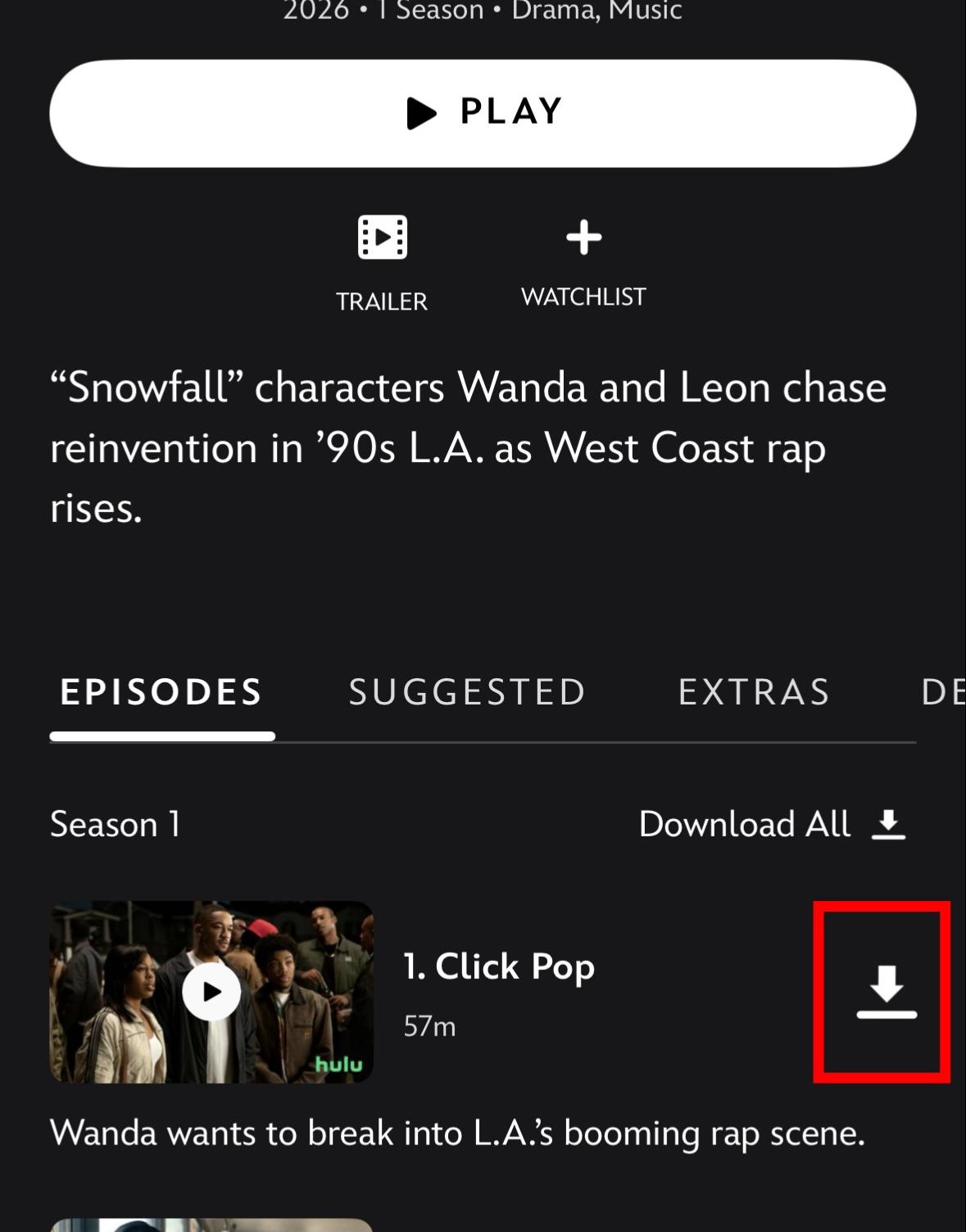
Step 2. Scroll down and locate the specific episode you want to save.
Step 3. Tap the b positioned directly to the right of the episode title and description.
Step 4. Wait for the download to complete.
Step 5. When the download is complete, go to the Downloads section to find it and play it offline.
How to Download an Entire Season on Disney Plus
Step 1. Go to the TV show page inside the Disney+ app.
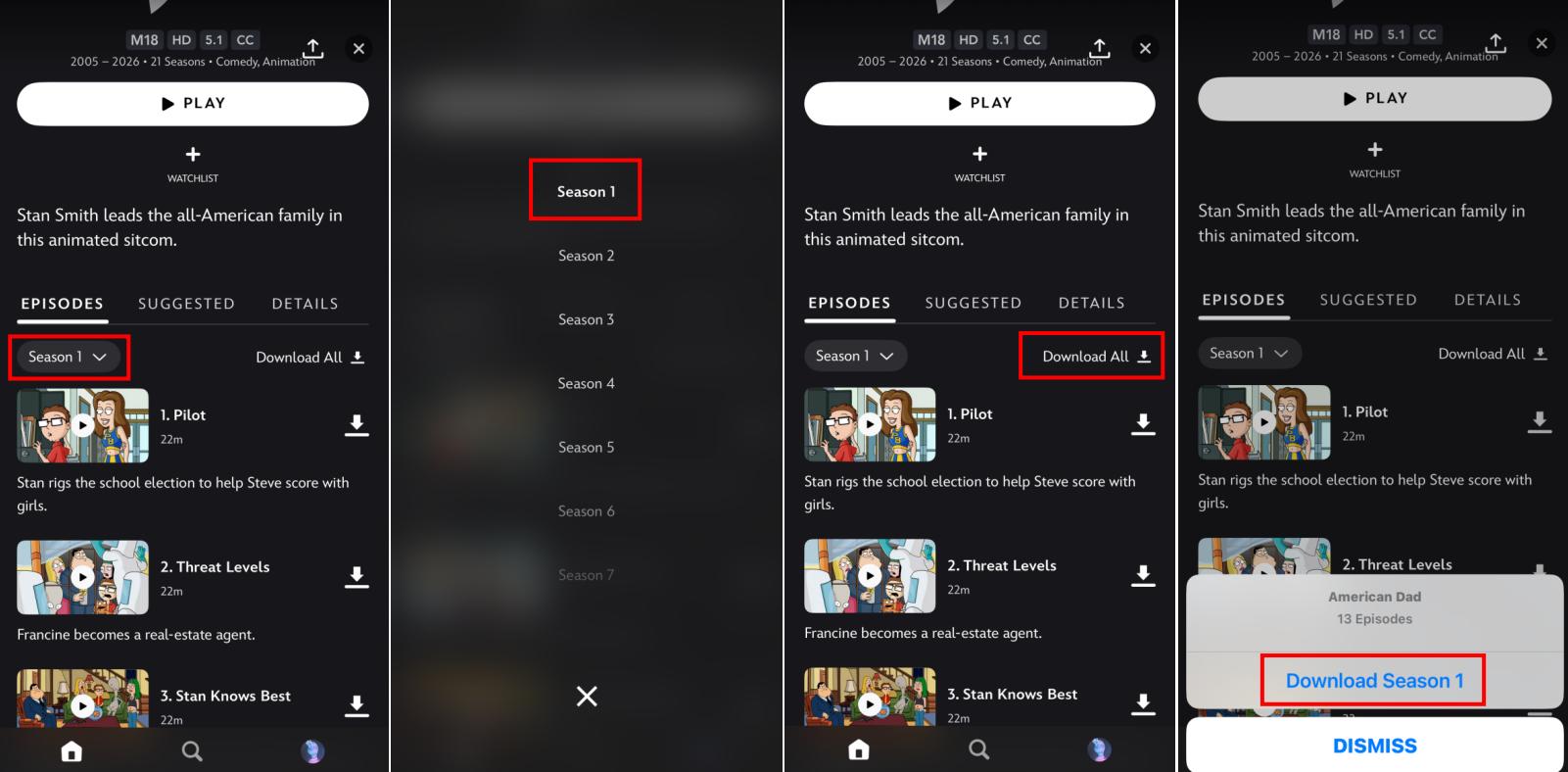
Step 2. Select the season you want from the season drop-down menu.
Step 3. Tap the Download All button.
Step 4. A pop-up will appear; tap Download Season 1 to start downloading.
- Save Your Mobile Data: Go to profile icon > App Settings > toggle on Download Over Wi-Fi Only.
- Adjust Your Download Quality: Go to profile icon > App Settings > Video Quality > choose High (up to 1080p), Medium (about 720p), or Standard (about 480p). For each quality, the app estimates how many hours of content you can download on this device.
Part 3. Disney Plus Download Limits Explained
Disney+ sets a few limits on official downloads:
- Plan: Downloads require Disney+ Premium or a bundle that includes Premium.
- Devices: Up to 10 supported mobile devices can hold downloads under one account.
- Titles: Up to 25 titles (movies or episodes) can be stored across the whole account at the same time, including all profiles.
- Validity: Downloads stay active as long as your subscription is live and you connect your device to the internet at least once every 30 days. Note: logging out of your account or uninstalling the app deletes all downloads instantly.
- Expiry: Unwatched downloads stay on your device for 30 days. Once you tap play and begin watching a title, you must finish it within 48 hours before the file expires.
- Region: Download availability for certain specific titles may vary by region due to local broadcasting and licensing laws.
Part 4. Can You Download Disney Plus Movies on a Laptop or Computer?
No, Disney+ does not officially support downloads on Windows PCs, Mac computers, or web browsers.
You can only stream Disney+ on your laptop, but there is no Download button available in Chrome, Edge, Safari, or the Disney+ app for Windows PC.
Part 5. How to Download Disney Plus Movies on Windows & Mac
If you want to watch Disney+ movies offline on a computer, use a dedicated video downloader for streaming platforms, such as VidiFab Streaming Video Downloader. This tool lets you download movies and shows from Disney+ in MP4 or MKV format for offline viewing.
VidiFab Streaming Video Downloader
Download Disney Plus videos in MP4 or MKV format for offline viewing on your laptop.

Disney+ Official Downloads vs VidiFab
| Feature / Limit | Official Disney+ App Method | VidiFab Streaming Downloader |
|---|---|---|
| Supported Systems | Mobile/Tablets only | Windows & macOS Laptops / Desktops |
| Plan Requirements | Must pay for Premium (No Ads) tier | Works on all plans (including basic Ad-Supported) |
| Maximum Video Resolution | Up to 1080p (High setting) | Up to 1080p Full HD |
| Output File Format | Encrypted DRM cache (Only playable inside Disney+ App) | Universal MP4 or MKV files |
| Total Download Caps | Hard limit of 25 titles per account | Unlimited downloads (limited only by your hard drive space) |
| Expiration Rules | Files expire after 30 days (or instantly if you log out) | Files never expire; permanent personal offline storage |
| Ad-Removal | Ads remain if you stream on an ad tier | Automatically strips out ads during download |
- Multilingual Audio & Subtitles: It saves your preferred language tracks and subtitles directly into the video or as separate SRT files.
- Flexible Playback Options: Play downloaded videos with compatible media players or move your personal files to other devices, such as smartphones, tablets, or USB storage for offline playback.
- Save Space Without Losing Quality: Choose between wider device compatibility with H.264 or smaller file sizes with AV1 while keeping your videos clear and detailed.
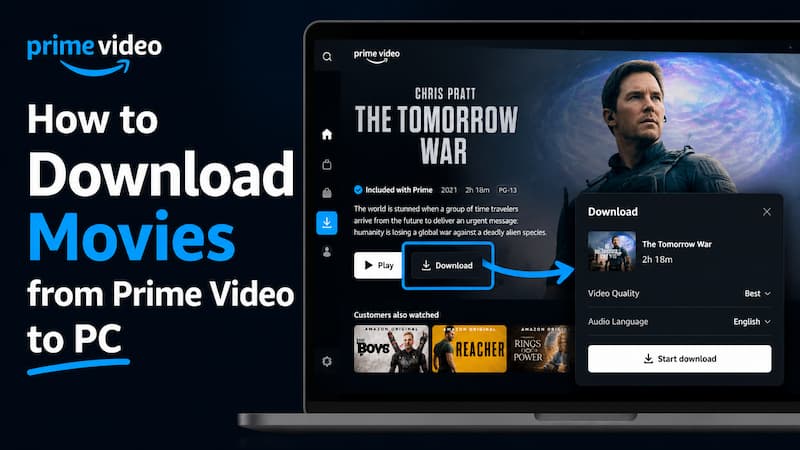
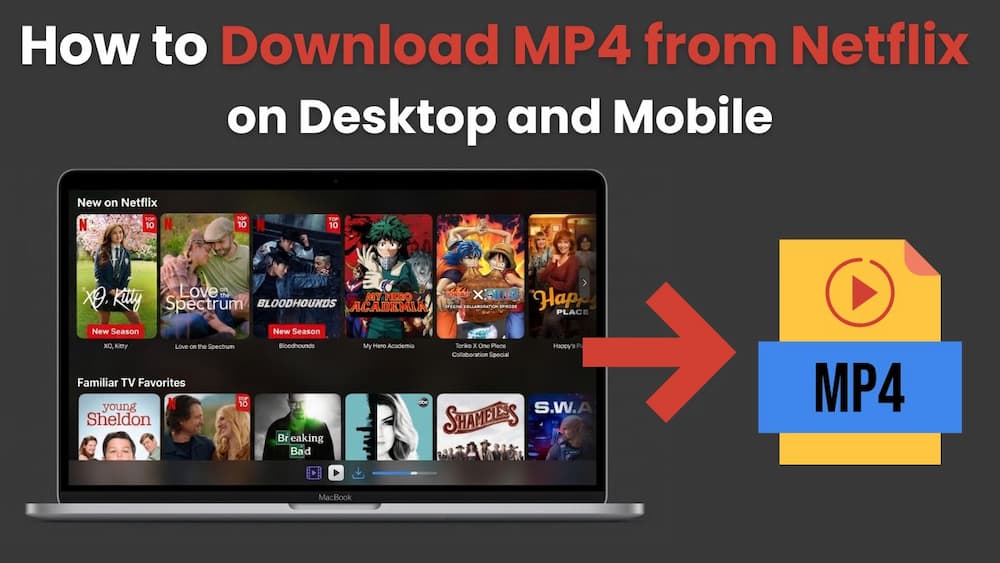
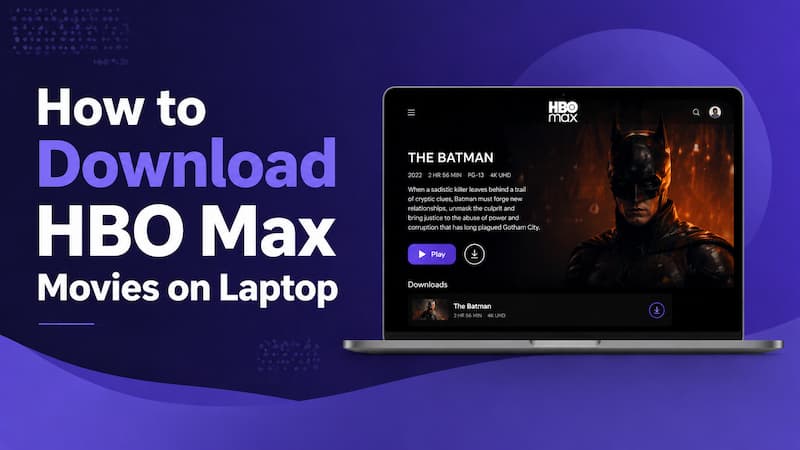
- Multi-platform Support: In addition to Disney+, you can also download from Netflix, Prime Video, Apple TV+, Hulu, HBO Max, and more.
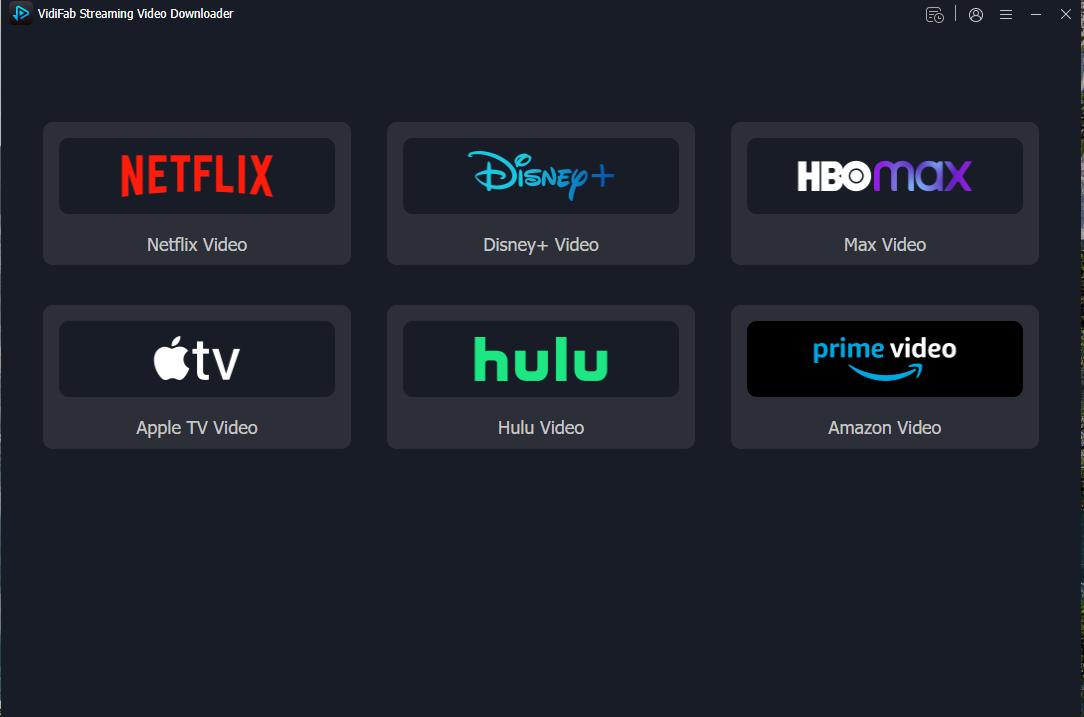
Step 1. Download and install VidiFab on your Windows PC or Mac, then open the program. Choose the Disney+ module from the list of supported streaming services. This launches the built-in browser in VidiFab, allowing you to log in with your Disney+ account.
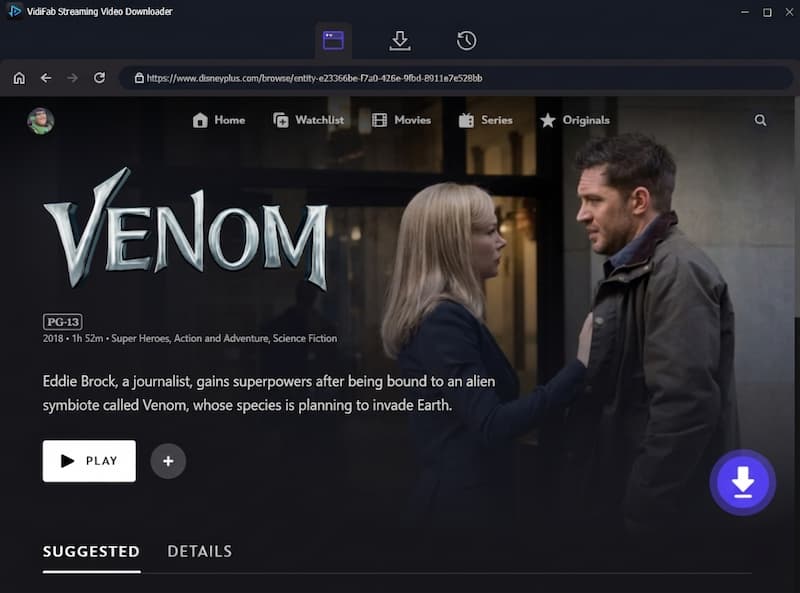
Step 2. Look for the Disney+ title you want to download for offline viewing. Open the title's detail page and click the download icon in the bottom right corner.
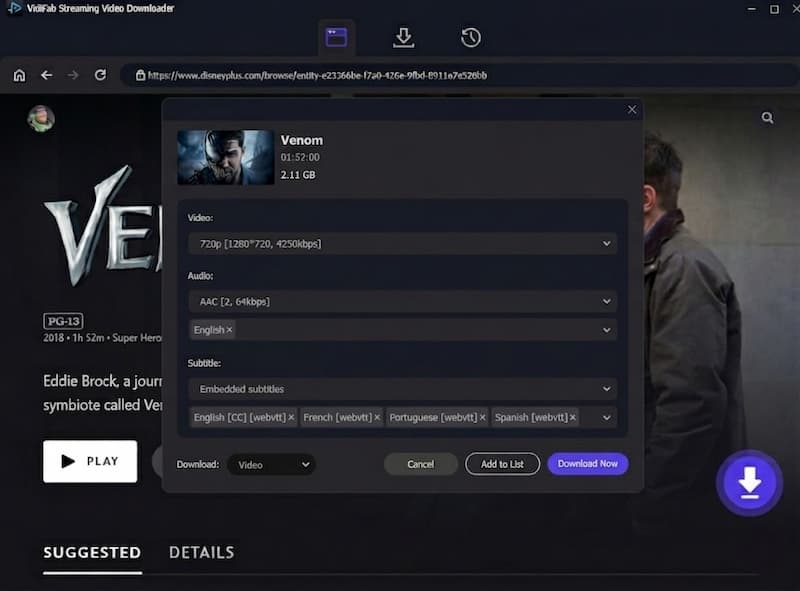
Step 3. Before starting the download, adjust your settings. Select your desired video quality, choose the audio track quality and language, and pick the subtitle format and language. Click Download to begin. Once the download is complete, go to the History section and click the folder icon to find the video file.
Part 6. Troubleshooting: Why Can't I Download Movies on Disney Plus?
If your download isn't working, it is usually due to device limits, storage issues, or account restrictions. Use this quick guide to find the issue and fix it instantly:
| What Is Happening | Why It Happens | How to Fix It |
|---|---|---|
| No download button appears | • You are on a laptop or browser. • You have an ad-supported plan. |
• Upgrade your plan to Disney+ Premium. • Use VidiFab to download on Windows/Mac. |
| The button is grayed out | • Your account hit the 25-title limit. • You hit the 10-device limit. |
• Delete old downloads from other profiles or devices to free up slots. |
| Download is stuck at 0% | • The app is waiting for Wi-Fi. • Your mobile data is blocked. |
• Connect to Wi-Fi. • Or go to Profile > App Settings and turn off Download Over Wi-Fi Only. |
| Error: "Download Expired" | • Device was offline for 30+ days. • You started playing it 48+ hours ago. |
• Connect to the internet to renew the file. • Redownload the title if it left the catalog. |
| Downloads disappeared | • You logged out of your account. • The app cache was cleared. |
• Do not log out of the official app. • Use VidiFab to save permanent MP4 files. |
| Error: "Not Enough Storage" | • Your phone or tablet is completely full. | • Go to Profile > App Settings > Download Quality and change it to Standard for smaller files. |
Part 7. FAQs About Downloading Disney Plus Movies
Can you download every movie on Disney Plus?
How many movies can you download on Disney Plus at once?
Can I download Disney Plus movies to a SD card?
Can you watch downloaded Disney Plus movies after canceling your subscription?
Can you download Disney Plus movies in 4K for offline viewing?
Final Thoughts
If you subscribe to the Premium plan and only need to watch offline on your phone or tablet, the official Disney+ app will do the job. But if you're on an ad-supported plan, want to watch on a laptop or TV, or prefer to keep your files forever without worrying about expiration, VidiFab Streaming Video Downloader is a great choice. It lets you control how, where, and when you enjoy your favorite shows.
Free Download
Secure Download
Free Download
Secure Download


I'm a video tech specialist with over 10 years of experience in digital media and streaming. I focus on making complex workflows simple and practical. Through my guides, you'll learn how to convert media, keep high-quality playback across devices, and manage your streaming video library with ease.
 Leave Your Comment