How to Download Movies from Amazon Prime Video to PC
 By Miles Kent
You can download movies from Amazon Prime Video to a PC, but it only works inside the Prime Video app for Windows. The website you open in Chrome, Edge, or Firefox is streaming-only. There is no download button there, and no extension or browser trick will create one, because Amazon's streams are protected by DRM and HDCP.
I tested this on both a Windows 11 laptop and an older Windows 10 desktop. The download process itself is simple once you are in the right app. Most problems happen before or after the download, such as a missing download button, files that are difficult to find, or titles that disappear after a few days. This guide covers all of those issues.
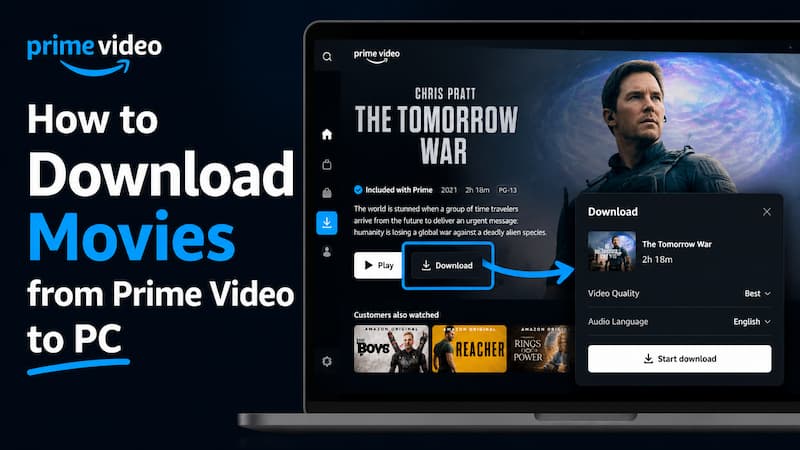
- Can you download Prime Video to a PC? Yes — on Windows 10 (version 19041.0 or higher) or Windows 11, using the free Prime Video app from the Microsoft Store. A Prime, Prime Video, or Prime Video Ultra membership is required.
- Can you download in a browser? No. Browsers can only stream. The download feature is only for Windows, macOS, iOS, Android, and Fire tablets.
- How long do downloads last? 30 days to press play, then 48 hours to finish.
- Can you move the files? Not as-is. They are encrypted and app-locked. To put Prime Video on a USB drive you first need a standard MP4 or MKV file.
Part 1. Can You Download Movies from Prime Video to a PC?
Yes, and it is officially supported. Amazon states that to download Prime Video titles for offline viewing you need a Fire tablet, or the Prime Video app for iOS, Android, macOS, or Windows 10 and 11. On Windows, that means the Microsoft Store app rather than a browser.
Before you start, check these five things to ensure that your Windows PC can download videos from Amazon Prime Video.
| Requirement | Details |
|---|---|
| Operating system | Windows 10 build 19041.0 or later, or Windows 11. |
| App | Prime Video for Windows, from the Microsoft Store. Verify the publisher is Amazon Development Centre (London) Ltd to avoid lookalike apps. |
| Account | An active Prime membership, a standalone Prime Video subscription, or Prime Video Ultra. |
| Storage | Free space on an internal drive. Amazon does not recommend saving downloads to USB-connected or external drives, since a dropped connection can corrupt the file. |
| Region | The Microsoft Store listing is regional. If the app will not appear, set Settings > Time & Language > Region to a supported country such as the United States. |
What You Can and Cannot Download
- Included with Prime: Amazon Originals and most licensed films that carry offline rights. These are the titles you can grab freely with a subscription.
- Purchased titles: You can hold a purchased title on up to four compatible devices at once.
- Rented titles: Downloadable, but locked to the single device you downloaded on. You cannot re-download a rental somewhere else.
- Add-on channel content: Some Prime Video Channels do not allow offline viewing at all, so no download button appears even though you pay for them.
- Not downloadable: Free ad-supported Freevee titles and anything whose rights holder has not granted offline playback. For those, see our Freevee offline download guide.

💡 On a Mac instead? macOS is also supported. Amazon provides the Prime Video app for both Windows and Mac. Download it from the Mac App Store. If installation fails, your macOS version may not meet the current requirements. Full walkthrough: how to download Amazon Prime Video on Mac.
Part 2. How to Download Movies from Prime Video on Windows 10 & 11 (Step-by-Step)
The Windows app is built as a Progressive Web App, which is why it behaves a little differently from a normal desktop program. Follow the install steps in order.
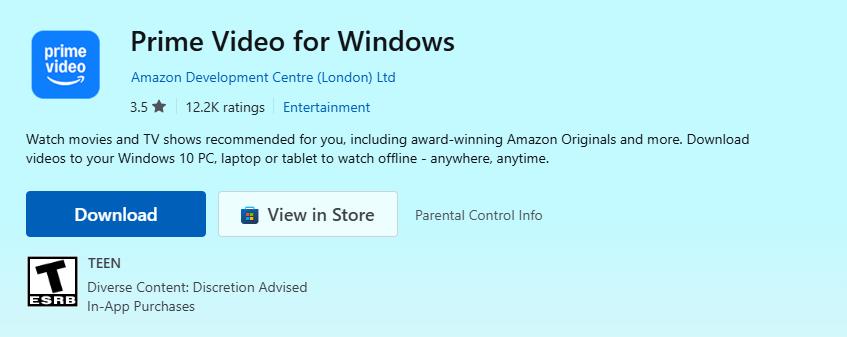
Install the Official Prime Video App for Windows
Step 1. Open the Microsoft Store from the Start menu.
Step 2. Search for the app: type Prime Video for Windows.
Step 3. Verify the publisher is Amazon Development Centre (London) Ltd.
Step 4. Click Download.
Step 5. Launch the app and sign in with the Amazon account that carries your Prime, Prime Video, or Prime Video Ultra membership.
Download a Movie from Prime Video
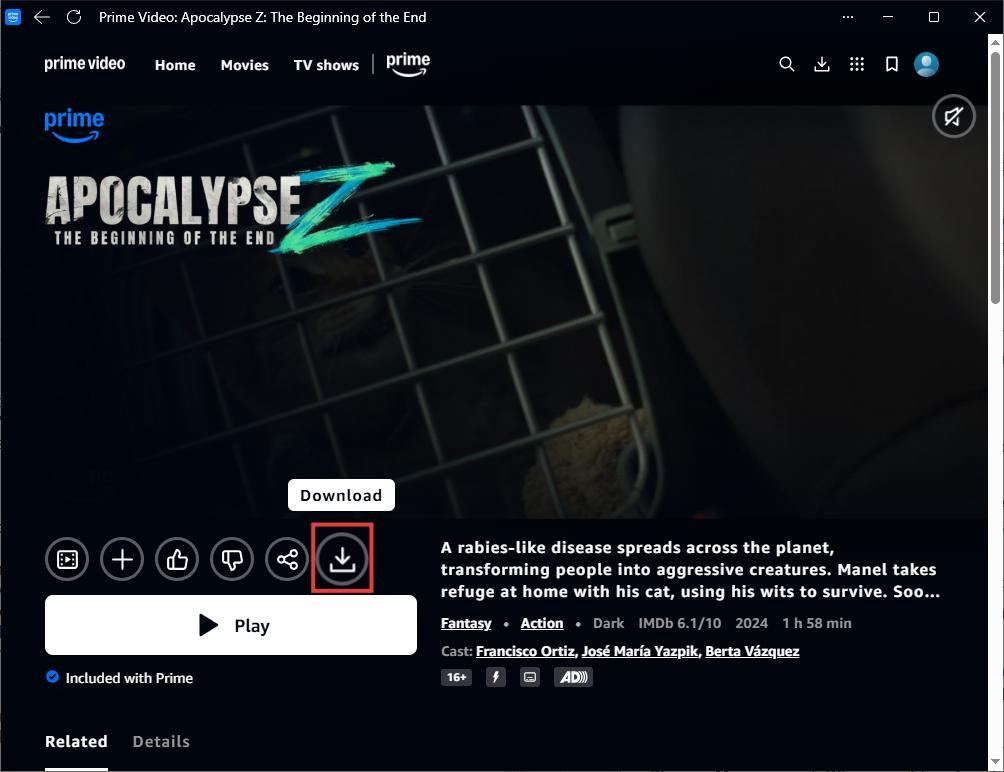
Step 1. In the app, find the film you want and open its detail page.
Step 2. Click the Download button, or the downward-arrow icon.
Step 3. Pick a quality and audio language in the pop-up, then confirm. The app offers three tiers rather than explicit resolutions:
- Good / Data Saver — standard definition, smallest file size.
- Better — balanced HD, fine on most laptop screens.
- Best — the highest quality the title allows on a PC.
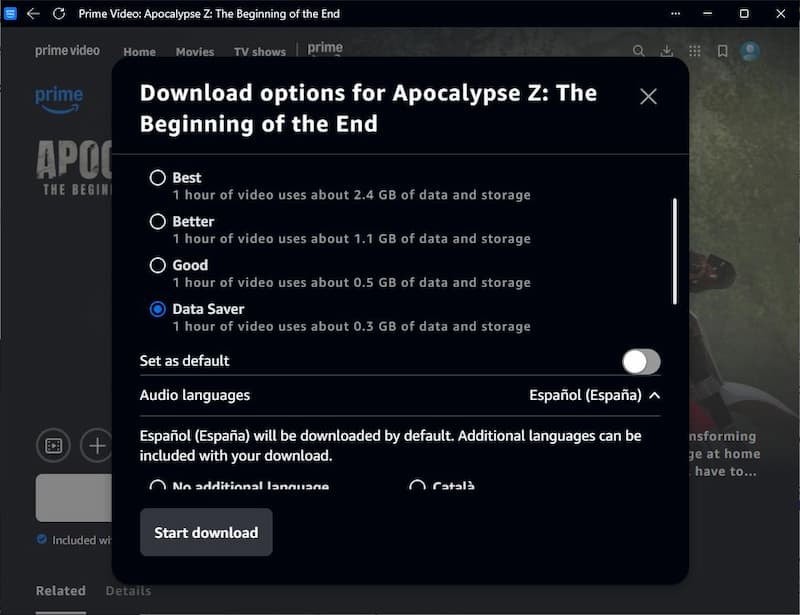

Don't expect 4K downloads on Windows. Even if you select Best quality, Prime Video downloads are usually limited to 720p or 1080p. Prime Video Ultra's 4K benefit is a streaming feature for supported TVs and devices, not a PC download feature.
Step 4. Wait for the progress wheel to finish, then open the Downloads section and press play.
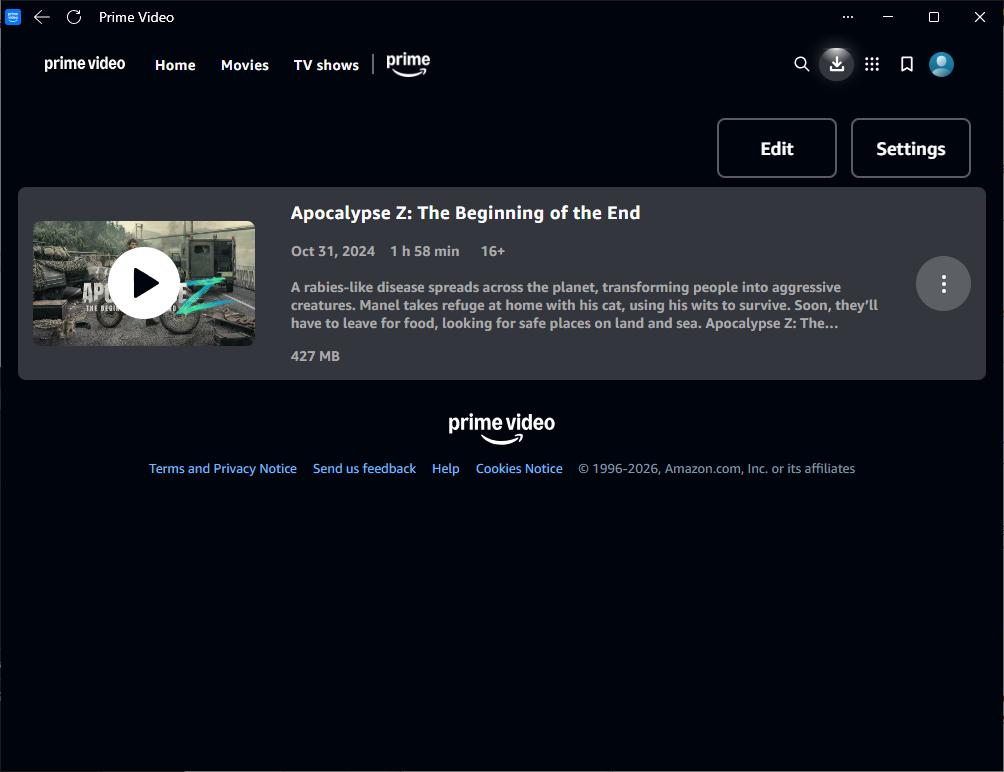
Part 3. Where Prime Video Downloads Are Stored on Windows
Prime Video downloads live in a protected application-data folder managed by the app. The content is encrypted and stored as fragments rather than a single playable file, which is why:
- You cannot open them in VLC, MPC-HC, or Windows Media Player.
- Copying or renaming the folder breaks playback permanently.
- Moving them to an external drive does not work.
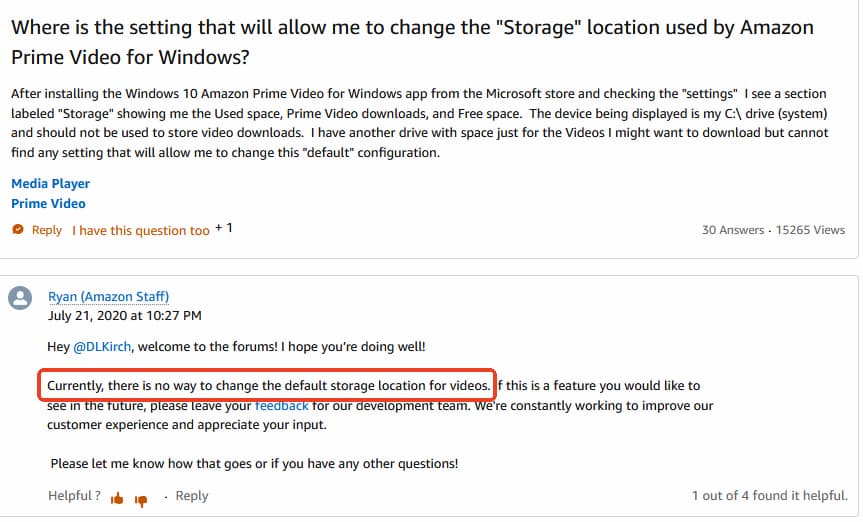
Amazon does not provide an option inside the Prime Video app to change the download location. In a response on the Amazon forum, Amazon staff confirmed that there is currently no built-in setting for choosing a different download folder.
How to Move Prime Video Downloads to Another Drive
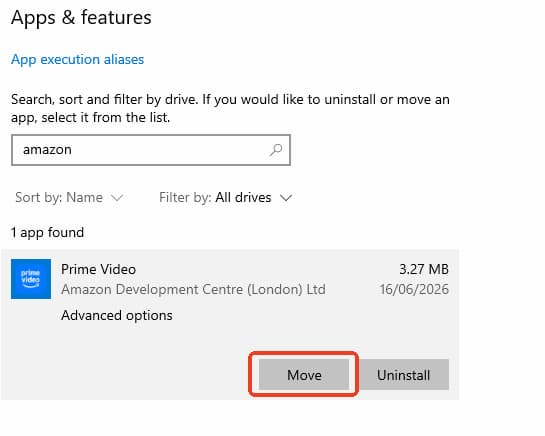
If your C: drive is running out of space, Windows allows you to move the Prime Video app and its data to another drive.
-
01
Open Settings in Windows.
-
02
Go to Apps > Installed apps. On Windows 10, select Apps & features instead.
-
03
Find Amazon Prime Video in the app list.
-
04
Click Move.
-
05
Select another drive and confirm the move.
Part 4. Prime Video Download Limits on PC in 2026
The official app works for offline viewing, but it does not behave like a file download. There are expiry timers, monthly allowances, and playback restrictions. Here is what to expect on a Windows PC in 2026.
| Limit | Prime / Prime Video | Prime Video Ultra |
|---|---|---|
| Downloads per month | ~25 | ~100 |
| Time to start watching | 30 days | 30 days |
| Window after pressing play | 48 hours | 48 hours |
| Max resolution on PC | Up to 1080p (often 720p in practice) | Up to 1080p |
| Ads | No ads during offline playback | No |
| Casting downloads | ❌ Not supported | ❌ Not supported |
| Transfer to USB / SD card | ❌ Not supported | ❌ Not supported |
Can you renew an expired download?
Part 5. Why Is the Prime Video Download Button Missing or Grayed Out?
If your download button is missing or grayed out, it is usually because of copyright rules, wrong account settings, or VPN issues. Here is how to fix it:
Scenario 1: The App Displays "Watch Trailer" Instead of "Play" or "Download"
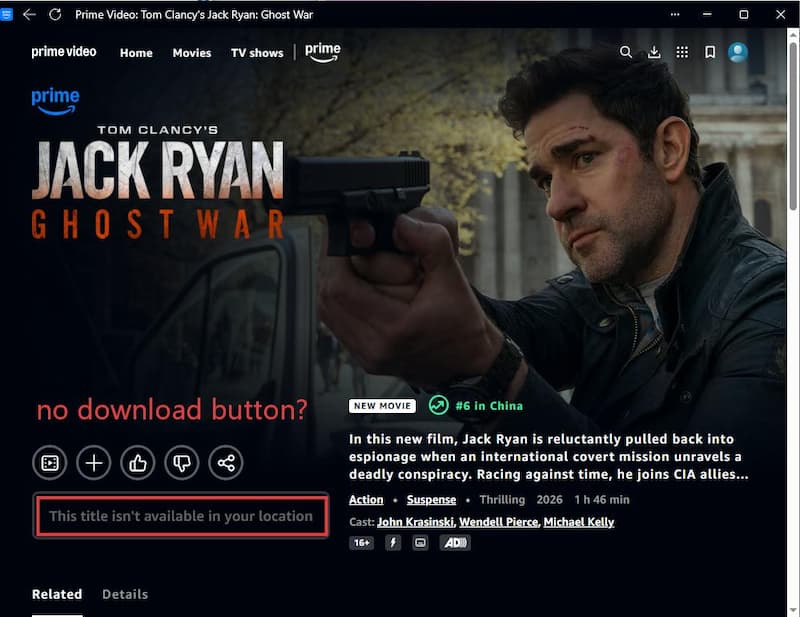
When a title only shows a trailer button, Amazon may not see an active entitlement. It may also mean the title is not licensed in your region. I ran into this while testing with a proxy enabled. I turned off the PC's proxy settings and restarted the app. The Play button came back right away, and the download button worked again.
- Turn off VPN and proxy tools. This is the single most common cause.
- Confirm your subscription is active. An expired or lapsed Prime membership shows trailers only.
- Check the badge. If the title needs buying or renting rather than saying "Included with Prime", no download button appears until you pay.
- Confirm Windows region matches your Amazon account country.
Scenario 2: The Download Button is Completely Grayed Out or Missing
If streaming works and only downloading fails, it is one of two things:
- Rights restriction. Freevee titles and some add-on channel content are contractually barred from offline download. No amount of troubleshooting will produce a button.
- Corrupted local cache. If it is not a rights issue, the app's cached data has likely glitched.
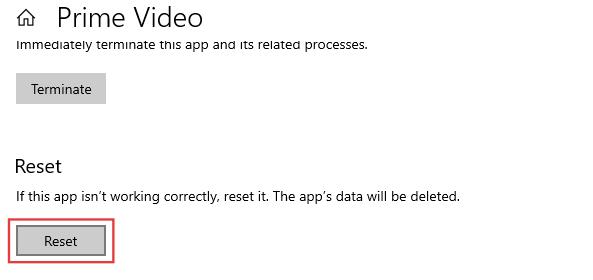
Repair and Reset the Prime Video Windows App
Step 1. Open Settings from the Start menu.
Step 2. Go to Apps > Installed apps (or "Apps & features" on Windows 10).
Step 3. Find Prime Video, click the three-dot menu, and choose Advanced options.
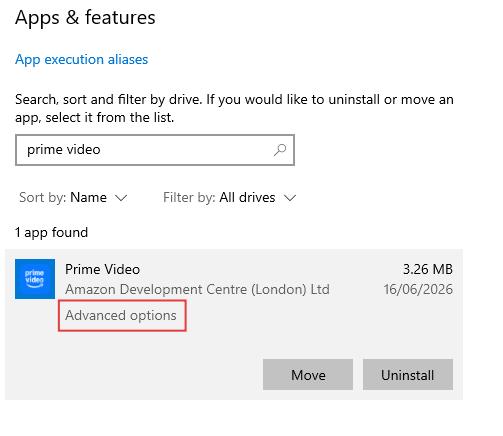
Step 4. Try Repair first; it keeps your data. If that fails, use Reset, which clears all cached data and returns the app to a clean state.
Part 6. Official App vs. MP4/MKV: Which Way Should You Save Prime Video?
If the official download feature isn't working, or you simply want permanent video files without expiration timers and device restrictions, there's a more advanced route: saving Prime Video content as standard .mp4 or .mkv files using a dedicated desktop downloader.
| Factor | Official Windows app | MP4 / MKV downloader |
|---|---|---|
| Cost | Free with membership | Free trial, then paid |
| Expires | 30 days / 48 hours | Never |
| Playable outside the app | ❌ No | ✅ Yes (VLC, TV, phone) |
| Transfer to USB / SD | ❌ No | ✅ Yes |
| Casting | ❌ No | ✅ Yes |
| Ads on standard tier | Present | Removed |
| Max resolution | 1080p (often 720p) | Up to 1080p |
How to Save Prime Video as MP4 or MKV on a PC
A desktop downloader such as VidiFab Prime Video Downloader uses a built-in browser to read the stream and save it as a normal local file — up to 1080p, with multi-language audio and subtitles preserved and ads removed. It runs on Windows 10 or later and macOS 11 or later.
VidiFab Prime Video Downloader
Download Prime Video titles into permanent 1080p MP4/MKV files on Windows and Mac.

Step 1. Set your output format. Launch the downloader, open Preferences, and pick MP4 for maximum compatibility or MKV if you want to keep several high-quality audio tracks. You can also choose a output folder for the downloads. Click OK to save.

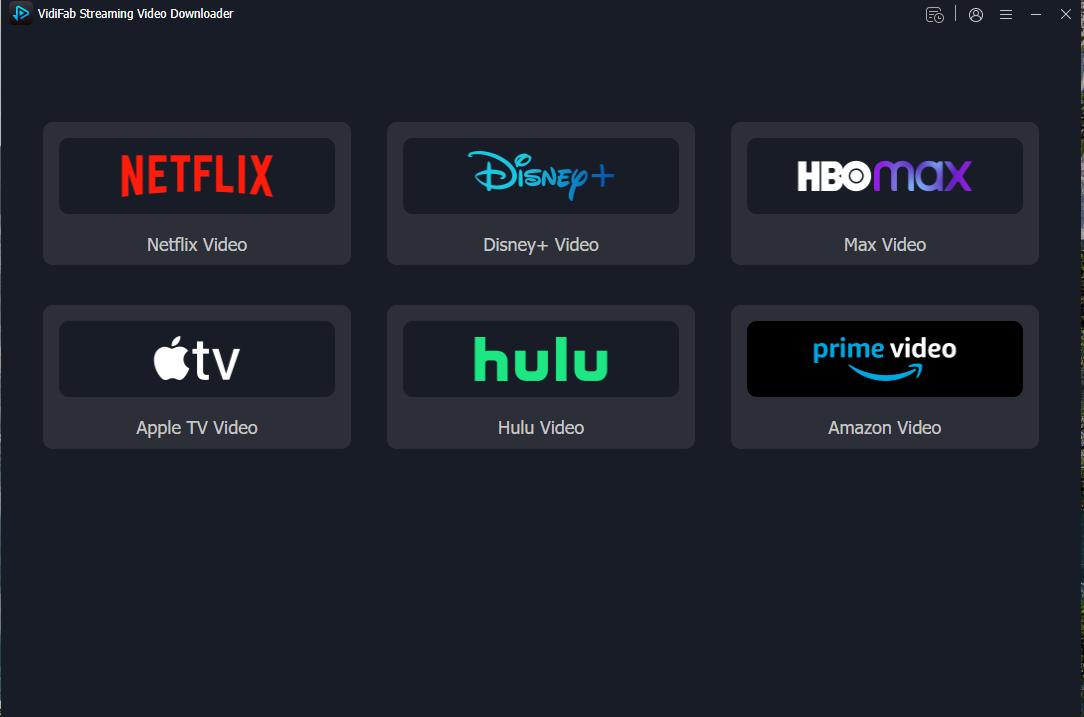
Step 2. Open Prime Video and sign in through the built-in browser.
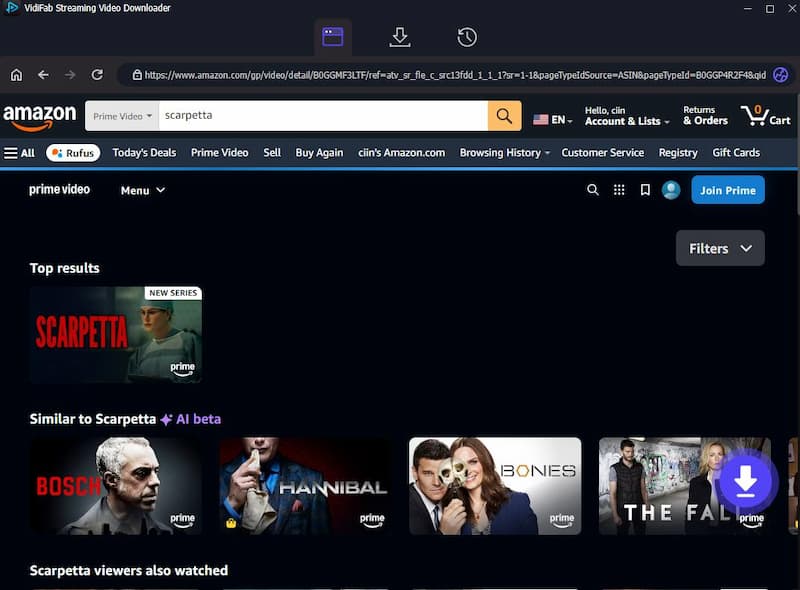
Step 3. Find your title. Search by name or paste the URL directly. Open the detail page and click the download button in the bottom right corner.
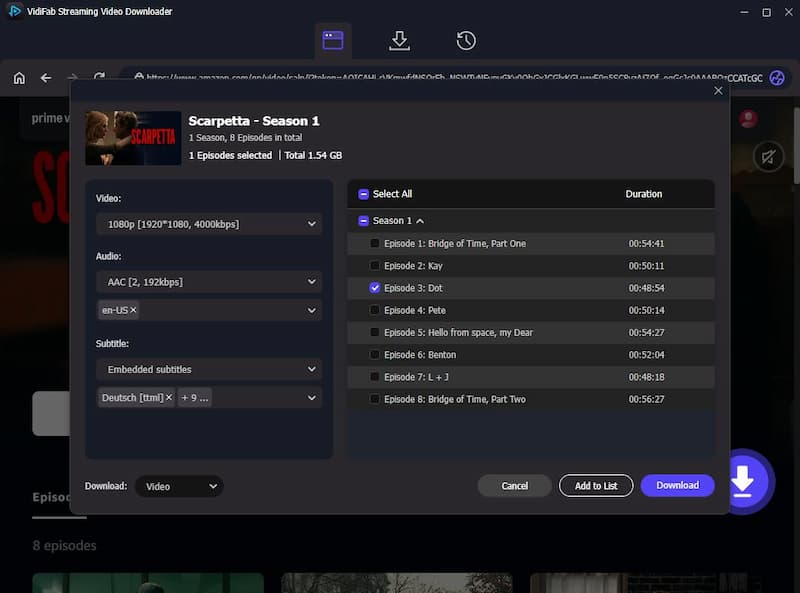
Step 4. Choose quality, audio, and subtitles. Select 1080p, tick the audio and subtitle languages you want, and use Batch Download if you want to queue a whole season at once. Click Download.
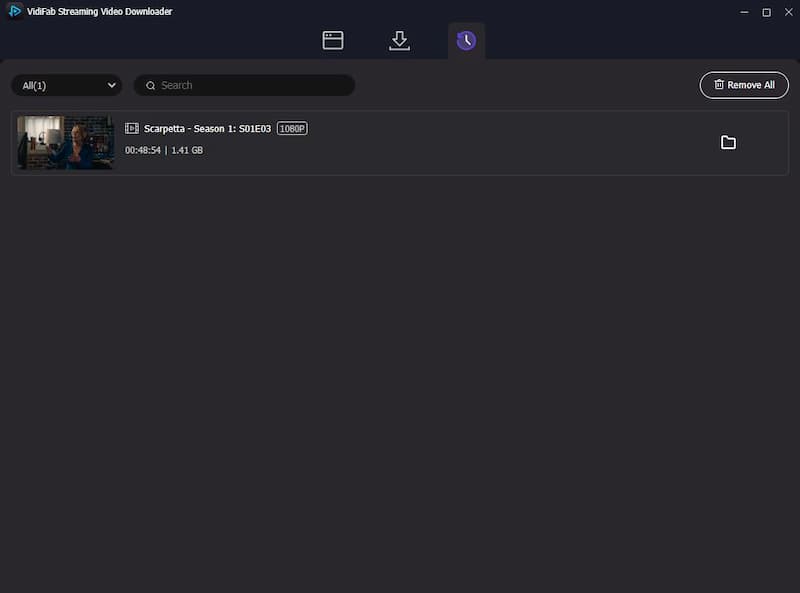
Step 5. Download and move the file. When it finishes, open the History tab and click the folder icon to locate your MP4 or MKV.
A note on the legal side. Downloading is intended for titles you are authorised to watch through your own account, for personal offline viewing. Keep copies to yourself and follow Amazon Prime Video's terms of use and the copyright law where you live.
Conclusion
Downloading movies from Prime Video to your PC is genuinely straightforward once you're using the right app. Install the official Amazon Prime Video app from the Microsoft Store, sign in, and you'll have offline access to your favorite titles in just a few clicks. Just keep the 30-day and 48-hour viewing windows in mind, and remember the download count is shared across your whole account.
If the download button is missing, start with the basics: check your account, turn off VPN or proxy tools, and reset the app if needed. If what you really want is a normal video file that does not depend on Amazon's app, VidiFab Prime Video Downloader is the more flexible route.
 Free Download
 Secure Download
 Free Download
Secure Download
Free Download
Secure Download



I'm a video tech specialist with over 10 years of experience in digital media and streaming. I focus on making complex workflows simple and practical. Through my guides, you'll learn how to convert media, keep high-quality playback across devices, and manage your streaming video library with ease.
 Leave Your Comment