How to Download Amazon Freevee Shows and Movies for Offline Viewing
 By Miles Kent
Can you download Freevee shows and movies? The short answer is frustrating: Amazon doesn't officially support offline downloads for Freevee content. But there are workarounds and I'll walk you through all of them.
First, though, a lot has changed with Freevee recently. If you're still looking for the standalone Freevee app, it's gone. Here's what actually happened and where to find that content now.
Part 1. What Happened to Freevee?
Amazon confirmed in November 2024 that it would phase out the Freevee brand, and an in-app notice later told viewers the standalone app would remain accessible until August 2025. The shutdown has now completed. The catalog did not disappear with it — it moved into Prime Video, where free titles are surfaced under labels such as "Watch for Free" and "Free with Ads."
- The Freevee catalog is still free; you need a free Amazon account, not a Prime subscription.
- There is no separate Freevee app to install any more. Old APKs open but no longer serve current content.
- Ads are still there. Moving to Prime Video did not change the ad-supported model. Those ads still exist when using ad blockers for Prime Video.
- The free on-demand library is joined by a large catalog of FAST channels (free ad-supported streaming TV), as Amazon described it.
- Availability is still geo-restricted by licensing, mainly the US, UK and Germany.
One frustrating side effect is that it's now more difficult to quickly identify what is free, what comes with Prime, and what requires a rental or an additional channel. This is why the three methods for finding free titles below are important to know.
Part 2. Where to Find Freevee Shows and Movies on Prime Video Now
Here are three ways to find the Freevee content on Prime Video. No matter whether you're using the Prime Video app or the web player, all of them work.
Method 1: Browse the "Free to Me" Section
The easiest starting point is Prime Video's dedicated "Free to Me" section. Think of it as your Freevee browse page. Amazon organizes it into subcategories like: Amazon Originals – Free with Ads, Free Popular TV, Free Action & Adventure Movies, Free Comedy Movies, and more.
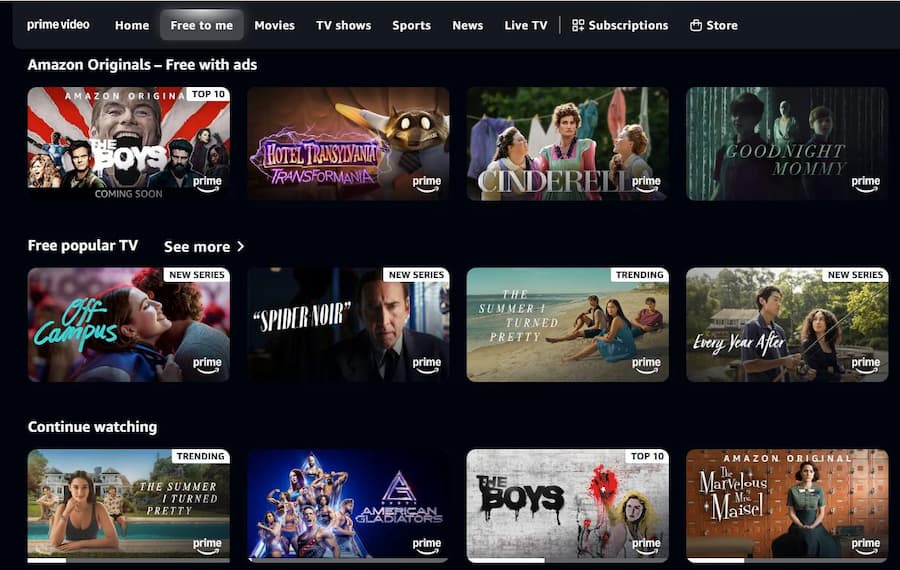
Method 2: Search with a "Free to Me" Filter
Already have a title in mind? Here's how to filter for free content:
-
01
Log in to your Amazon account and open Prime Video (web, mobile, or desktop app).
-
02
Search for the show or movie title.
-
03
Click Filter in the search results.
-
04
Toggle on "Free to Me."
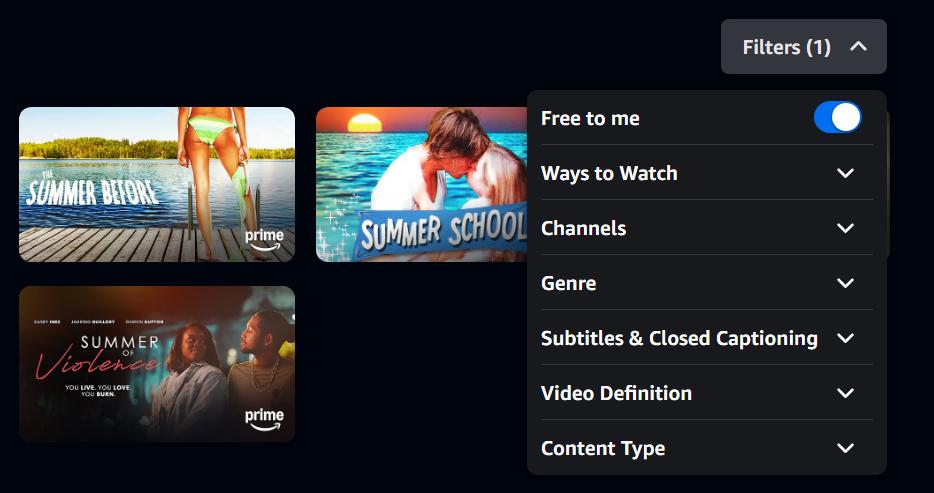
This filters out anything that requires a rental, purchase, or channel subscription, leaving only what you can watch at no cost.
Method 3: Look for the "Watch for Free" Tag
Amazon labels many free titles with a "Watch for free" badge directly on the thumbnail. If you see it, you can click and start watching without a Prime membership. It's the fastest visual indicator when you're browsing.
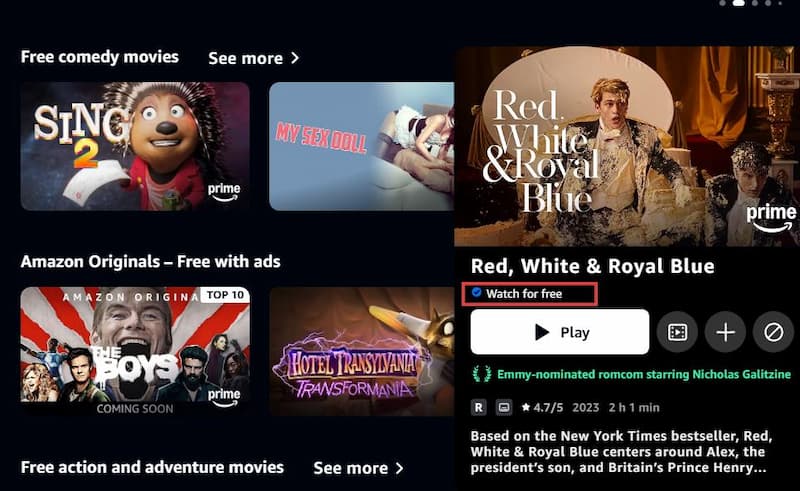
Part 3. Can You Download Freevee Shows and Movies?
No, not officially. Most content labeled "Watch for free" is restricted to online streaming only. Even though Prime Video supports offline downloads for some of its paid content, that feature doesn't extend to Freevee titles.
Why Amazon Blocks Downloads on Free Titles
There are three main reasons Amazon locks this down:
- Ads have to be delivered and counted. This is an AVOD (ad-supported video on demand) catalog. Amazon sells ad slots and reports impressions, frequency and completion. A downloadable file removes all of that measurement, so it does not fit the business model.
- Licensing windows are short and strict. A large share of the free catalog is licensed third-party content, often for a few weeks or months at a time. When a license expires the title has to leave, which is hard to reconcile with files sitting on a viewer's hard drive.
- Downloads are positioned as a Prime benefit. Offline viewing is one of the perks that makes a paid membership worth having. Giving it away on the free tier would flatten that distinction.
The One Official Route That Does Work
Before you reach for a workaround, check whether the title you want also exists in a Prime-included, rental, or purchase edition. Amazon often lists several editions of the same show or movie on one page. If a paid edition exists, the download button appears on it, and you get a genuine offline copy with subtitles, all inside the app.
The trade-offs are real: you pay, the file stays encrypted inside the Prime Video app, it expires, and official downloads have expiry windows and device limits. But for a single movie before a flight, it is the simplest option and the only one that is fully within Amazon's terms on every device, including phones.
Part 4. How to Download Amazon Freevee Shows for Offline Viewing: 3 Methods
Short answer: If it suits you, either rent or purchase a paid edition. If you prefer a free option and don't mind ads, record your screen. For a clean file that you can keep and move, use VidiFab Streaming Video Downloader.
| Paid edition (official) | Screen recording (OBS) | VidiFab downloader | |
|---|---|---|---|
| Cost | Rental/purchase fee ($3.99–$19.99/title) |
Free | Paid ($149.95/lifetime) Free trial available |
| Max quality | Up to 1080p (PC app: 720p–1080p) |
Browser render quality (Usually 1080p) |
Up to 1080p |
| Ads in the file | No ads | Yes (unskippable) | No ads |
| Time (2hr movie) | 5–15 minutes | 2 hours (real time) | 15–30 minutes |
| Whole-season batch | Yes (15–25 titles; Up to 100 for Ultra) |
No | Yes (Unlimited) |
| File flexibility | Locked inside official app | DRM-free (MP4/MKV) | DRM-free (MP4/MKV) |
| Permanent retention | No (Risk of expiry/exiting platform) | Yes (Forever) | Yes (Forever) |
| Works on phone | Yes (Direct download) | No | Yes (Need to transfer from PC/Mac) |
Method 1: Download a Paid Edition in the Official App
Many free, ad-supported titles offer a paid alternative. You can search for the title in Prime Video and see if there is a version that you can rent or buy. If there is, the download icon will then appear for that paid edition. On Windows and macOS, use the Prime Video desktop app; on mobile, use the mobile app.

Keep in mind: Official downloads are highly restricted. Purchased titles remain accessible longer but can still disappear if licenses expire. Rented titles are much stricter: you have 30 days to start watching, and the file expires 48 hours after you first hit play. Furthermore, a rental can only be downloaded onto a single device at any given time.
Method 2: Record Freevee Videos with OBS Studio (Free)
OBS Studio is a free, open-source recorder for Windows, Mac and Linux. Because Freevee titles play in a browser, you can capture the stream in real time. It costs nothing and it works, but it is a recording, not a download.
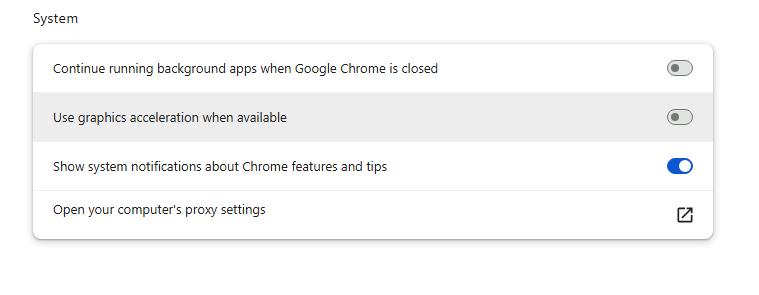
Step 1. Disable Hardware Acceleration in Your Browser
This step is critical. Skipping this step usually results in a black screen recording.
- Chrome: Settings → System → Turn off "Use graphics acceleration when available" → Relaunch browser
- Edge: Settings → System and Performance → Turn off "Use hardware acceleration when available" → Restart
Step 2. Download and Install OBS Studio
Head to obsproject.com, download the installer for your OS, and launch OBS.
Step 3. Configure Your Audio and Video Sources
-
01
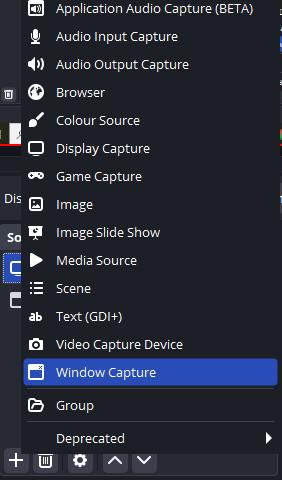
In OBS, go to the "Sources" box at the bottom and click the "+" button.
-
02
Choose Window Capture, then select the browser window where your Freevee video is playing.
-
03
Check the Audio Mixer section. Make sure Desktop Audio is turned on so the movie sound is recorded.
Step 4. Adjust Recording Settings
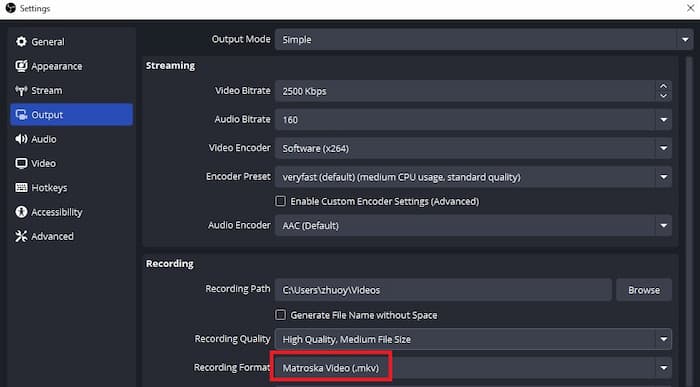
Go to Settings → Output → Recording and set MP4 or MKV as the format. Choose a quality option like "High Quality, Medium File Size" for a good balance between clarity and storage.
Step 5. Record
Put the Freevee video in full-screen, close any chat apps or notification popups, then click "Start Recording" in OBS. When the video ends, click "Stop Recording." The file saves automatically to your local drive.
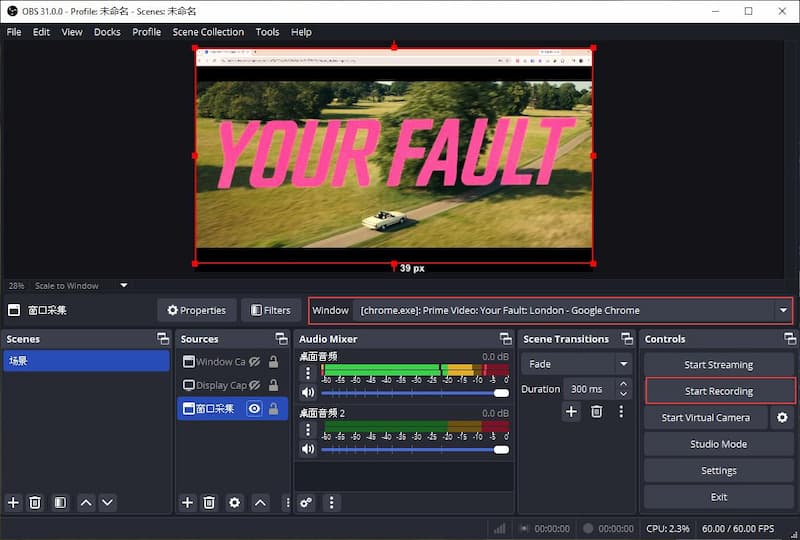
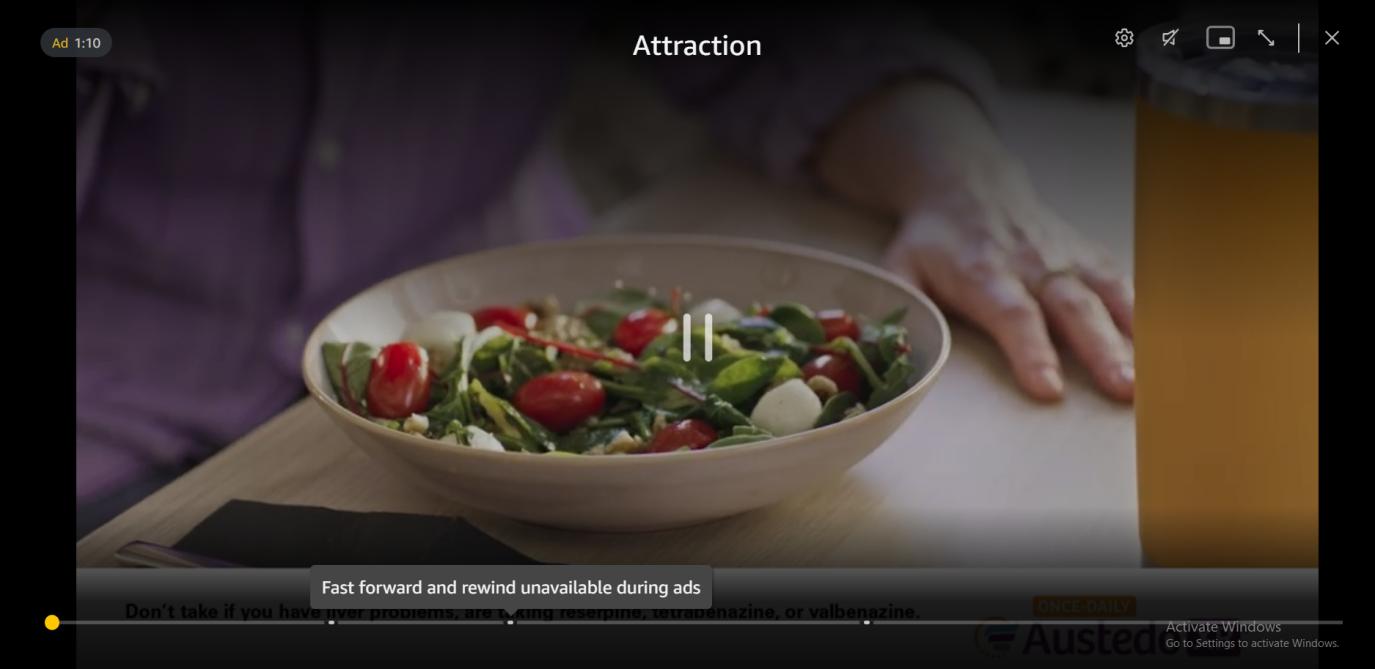
Note: Ads in Freevee videos will also be recorded, and they cannot be skipped during recording. You would need video editing software to remove them later, which can take extra time.
Pros:
- Completely free to use
- Decent quality at 1080p
Cons:
- Must record in real time
- Ads are recorded as well
- You cannot use your computer normally while recording
- Frame drops may happen during recording
Method 3: Save Freevee Titles as Ad-Free MP4 or MKV
Since the previous Freevee catalog is now available on Prime Video, a desktop downloader that supports Prime Video can also save many "Watch for Free" titles. Unlike screen recording, it downloads the video directly instead of recording it in real time. A two-hour movie can be saved in minutes, and ads are removed from the final file.
VidiFab Streaming Video Downloader is the one I have used for this. It saves titles at up to 1080p as MP4 or MKV, with the audio and subtitle tracks you pick, and it queues whole seasons in one batch.
VidiFab Prime Video Downloader
Download ad-free Prime Video Freevee titles into permanent 1080p MP4/MKV files on Mac and Windows.

How to Use VidiFab Downloader to Get Freevee MP4s (Step-by-Step)
Step 1. Set Format Preferences and Sign In
Launch VidiFab on your desktop, open Preferences, and select MP4 or MKV for advanced media players as your default format. You can also choose an output folder to store the downloads from Prime Video. Click OK to save these settings.

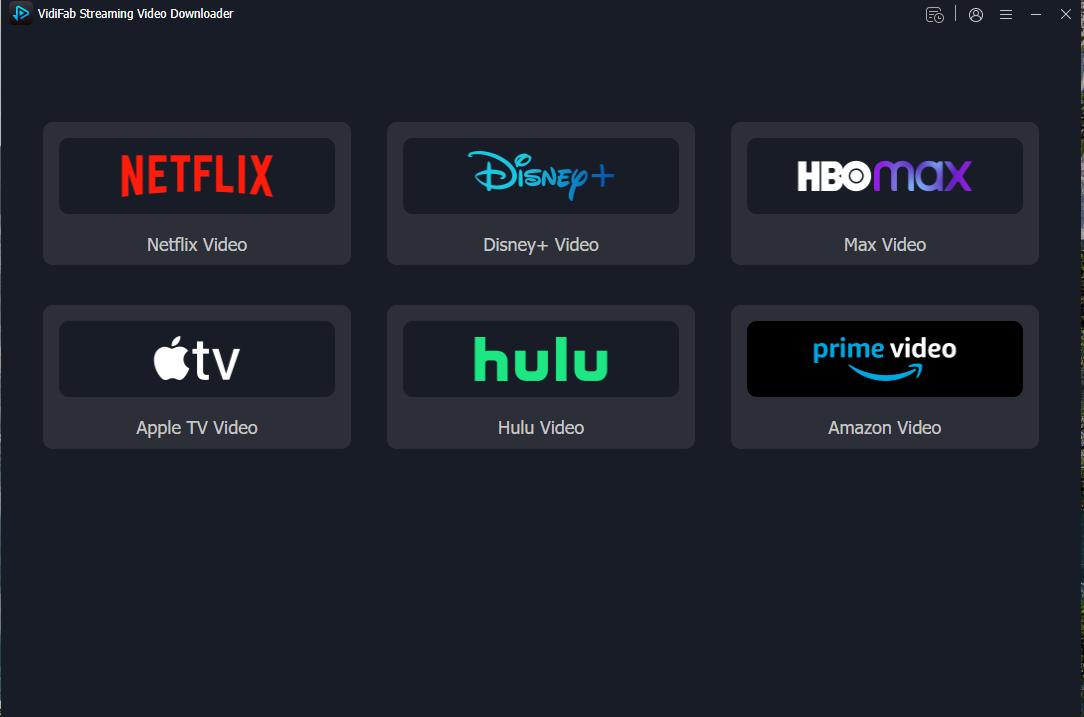
Go back to the main interface, click the Amazon Prime Video icon to launch the secure built-in browser. Log into your Amazon account. A standard, free account works perfectly since a paid Prime subscription is not required for Freevee content.
Step 2. Search for Your Freevee Content
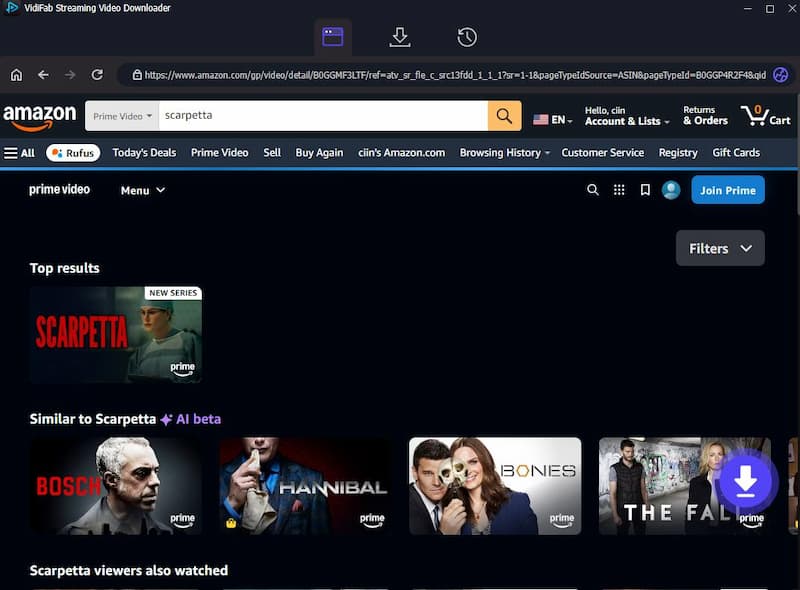
Browse the integrated library or type keywords into the search bar, looking for titles marked with "Watch for Free" or "Free with Ads" tags. You can also paste a copied Freevee video URL directly into the search field. Click on the video's details page, and VidiFab will automatically analyze the stream and give you a download button in the bottom right corner. Click on the download button.
Step 3. Customize Quality, Audio, and Subtitles
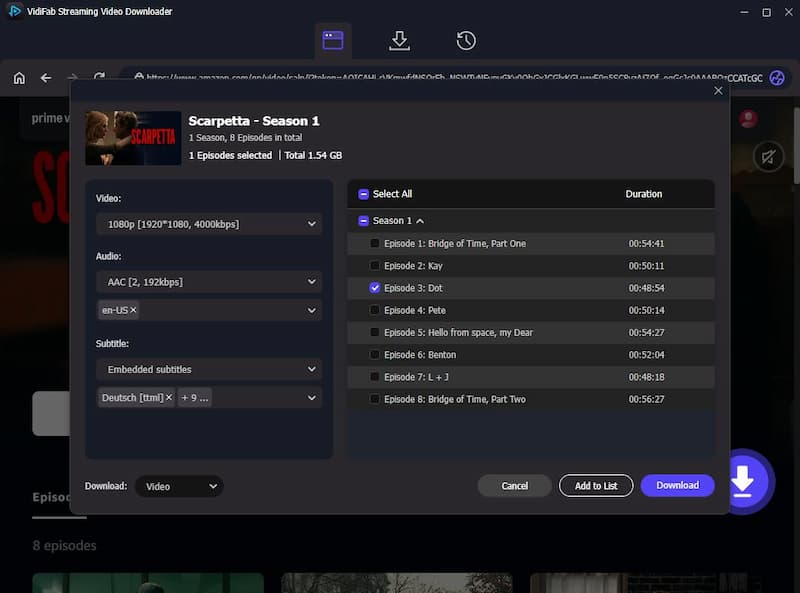
Once analyzed, a settings window will pop up. Select 1080p Full HD for the best resolution, then choose your preferred audio languages and subtitle tracks (as embedded soft subtitles or external .SRT files). For TV shows, use the Batch Download feature to queue multiple episodes or an entire season simultaneously.
Step 4. Download and Automatically Strip Ads
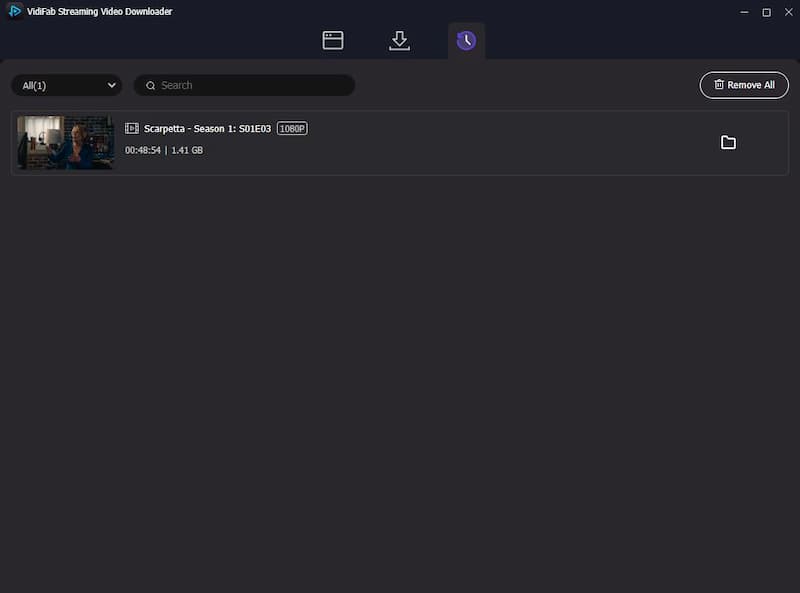
Click Download to start. VidiFab uses GPU hardware acceleration to pull the stream rapidly in the background. Simultaneously, its ad-stripping engine automatically detects and filters out every unskippable commercial break injected by Freevee. When finished, head to the History tab and click the folder icon to locate your DRM-free, ad-free file.
Pros:
- Removes ads automatically
- Downloads a 2-hour HD Freevee movie in about 15 minutes
- Supports up to 1080p Full HD quality
- Allows embedded subtitles or export as SRT files
- Can run in the background while you do other tasks
Cons:
- It is paid software
- Free version only allows downloading the first 3 minutes of a video
Which Method Should You Choose?
| If you are… | Use |
|---|---|
| Watching one movie once, on a phone | Rent or buy the paid edition and use the official app |
| Saving one title for free and don't mind ads | OBS Studio |
| Downloading a whole season | VidiFab (batch mode) |
| Wanting a clean, ad-free file you can keep | VidiFab |
| On a tight budget with time to spare | OBS Studio |
| Travelling often and want a library on a USB drive | VidiFab, then copy to USB |
Part 5. Is It Legal to Download Freevee Shows?
Saving a show you already have access to for private, offline viewing is generally treated as personal use; similar to recording a TV broadcast to watch later. However, this is strictly for your own use. You do not have the right to share, upload, or sell the file.
- Amazon's Terms: Amazon's Terms of Use strictly forbid sharing downloaded files or playing them in public.
- Copyright Law (DMCA): In the United States, Section 1201 of the DMCA makes it illegal to bypass digital locks (DRM) on videos. Downloader tools should only be used to make personal copies of shows you already have the right to watch.
- International Rules: Laws vary by country. If you live outside the US, make sure to check your local rules on digital recording and personal use.
Part 6. FAQs
Are Freevee shows still free on Prime Video?
Do I need an Amazon Prime subscription to watch Freevee content?
Is Freevee available in all countries?
Is it legal to record or download Freevee videos for offline viewing?
What's the difference between Freevee and Prime Video content?
Freevee content is free to watch with ads, and you don't need a Prime membership. It mainly includes movies, TV shows, and Freevee originals.
Standard Prime Video content is included with a Prime membership but still shows ads unless you upgrade to the Prime Video ad-free tier at an additional $4.99/month.
Given that, free Freevee content is honestly a solid deal, as you're already watching ads with a paid Prime subscription unless you pay extra.
Final Thoughts
Downloading Freevee shows officially isn't something Amazon supports, and given the ad-supported model, it probably won't change. But if you need offline access, OBS gives you a no-cost option for occasional use, and a dedicated downloader like VidiFab is worth it if you regularly watch Freevee content on planes, commutes, or anywhere without reliable Wi-Fi.
Either way, the content itself is still there and still free. Now you just know exactly how to find it and how to take it with you.
 Free Download
 Secure Download
 Free Download
Secure Download
Free Download
Secure Download


I'm a video tech specialist with over 10 years of experience in digital media and streaming. I focus on making complex workflows simple and practical. Through my guides, you'll learn how to convert media, keep high-quality playback across devices, and manage your streaming video library with ease.
 Leave Your Comment