How to Make Netflix Download Faster
 By Miles Kent
- Set Download Video Quality to Standard instead of Higher.
- Change Cellular Data Usage to Maximum Data when downloading on mobile data.
- Turn Smart Downloads off to avoid background download interruptions.
- Keep the Netflix app open and avoid switching to other apps during large downloads.
- Pause other downloads, streaming services, and bandwidth-heavy devices on the same network.
- If a download is stuck at 0%, force-close Netflix and reopen it to refresh the DRM license.
- Test your connection at Fast.com before troubleshooting download speed.
- Remember that Netflix downloads one title at a time, and download quality can limit speed.
Slow Netflix downloads aren't a new problem. Even though Netflix officially recommends at least 15 Mbps for streaming in UHD, I've seen people in forums complaining that their downloads are stuck at 0% when they're on 190 Mbps connections. I've been there too, and I think it is one of the Netflix download limits everyone should know how to cope with. So, here are 9 practical fixes for you to make Netflix downloads quicker and faster. These fixes work for your iPhone, Android, and also for anyone who wants to download Netflix onto PC computers.
Part 1. Why Are Netflix Downloads So Slow?
Slow Netflix downloads can be caused by network issues, device settings, or app problems. For a complete understanding of Netflix downloads and common fixes, check out our Netflix Download Guide. In the meantime, here are some possible reasons to help you troubleshoot:
- The download quality is set too high. High/Higher files are several times larger than Standard ones.
- Smart Downloads is fetching titles you didn't ask for in the background.
- Another app or device is using the bandwidth — cloud sync, game updates, other downloads.
- Your Wi-Fi is weak or congested, or you are on the slower 2.4 GHz band.
- Storage is nearly full, or on Android you are saving to a slow SD card.
- Your carrier is throttling video traffic, or the network is busy at peak hours.
- The app itself needs a reset or reinstall.
Part 2. How Long Should a Netflix Download Take?
If Netflix downloads feel unusually slow, it helps to know what is normal. Download time mainly depends on two things: the video quality you choose and your actual download speed.
| Content | Standard Quality | High Quality |
|---|---|---|
| 45-minute TV episode | 1-5 minutes | 5-20 minutes |
| 2-hour movie | 5-10 minutes | 10-30 minutes |
These are rough estimates based on a typical home internet connection. Actual download times vary depending on your network speed, device performance, Netflix server load, and the bitrate of the title you're downloading.

If a single episode takes over 30 minutes or a movie takes more than an hour to download, something is likely slowing the process down. The fixes below can help identify and resolve the problem.
Part 3. 9 Ways to Make Netflix Downloads Faster on Phone
Below are nine practical fixes that can help speed up Netflix downloads on both iPhone and Android devices. Start by checking your download quality, network connection, and app settings. These factors have a much bigger impact on download speed than most people realize.
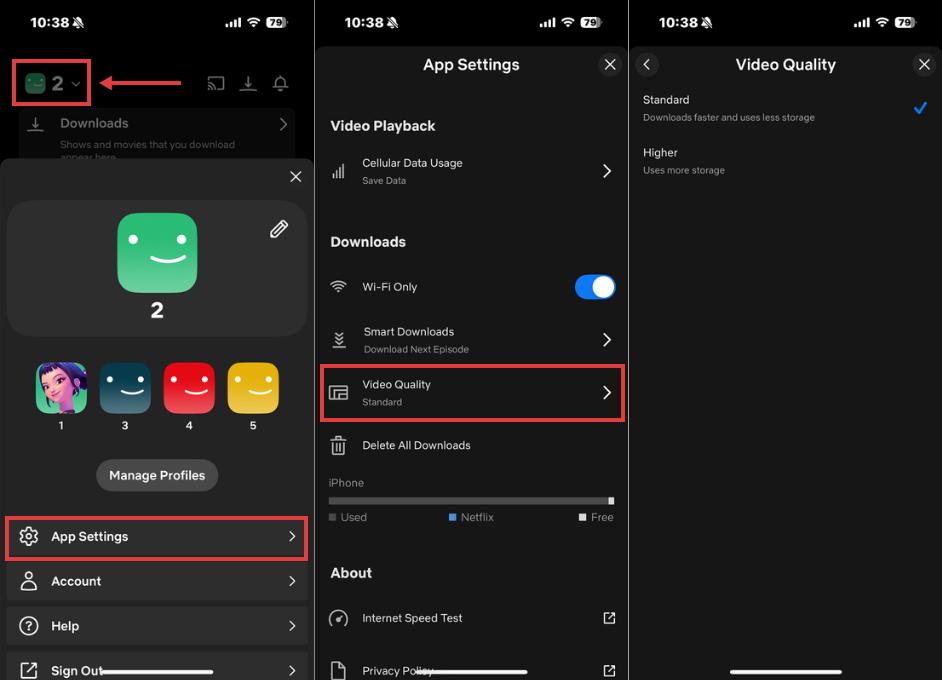
Fix 1. Change Netflix Download Video Quality to Standard
Step 1. Open the Netflix app and tap My Netflix in the bottom right corner.
Step 2. Tap your profile name in the top left to open App Settings.
Step 3. Tap Video Quality.
Step 4. Select Standard.
Fix 2. Set Data Usage Settings to Maximum
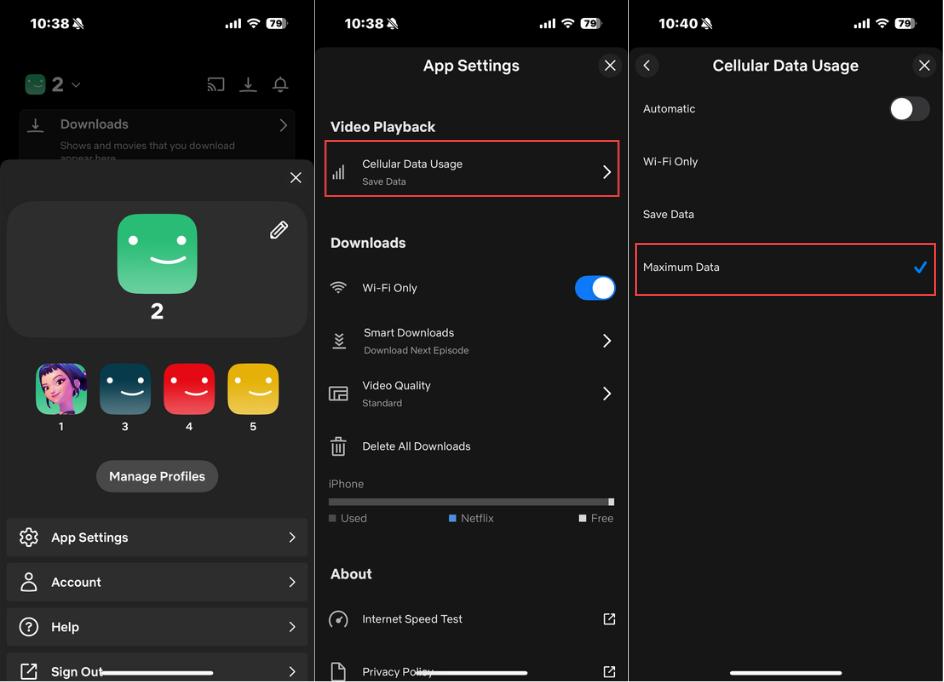
If you download over mobile data, check the data usage settings in the Netflix app. Netflix gives you several usage levels, and Maximum Data tells the app to use your full connection which may speed up the download on Netflix.
This can help if Netflix is limiting the connection too aggressively on cellular. It is especially useful when Wi-Fi is slower than your phone's mobile data.
Step 1. Open Netflix.
Step 2. Go to My Netflix.
Step 3. Open App Settings.
Step 4. Find Cellular Data Usage.
Step 5. Turn off Automatic if needed.
Step 6. Choose Maximum Data.
Note: This can consume 1 GB or more per 20 minutes of content. Make sure your cellular data can handle this.
Fix 3. Turn Off Smart Downloads
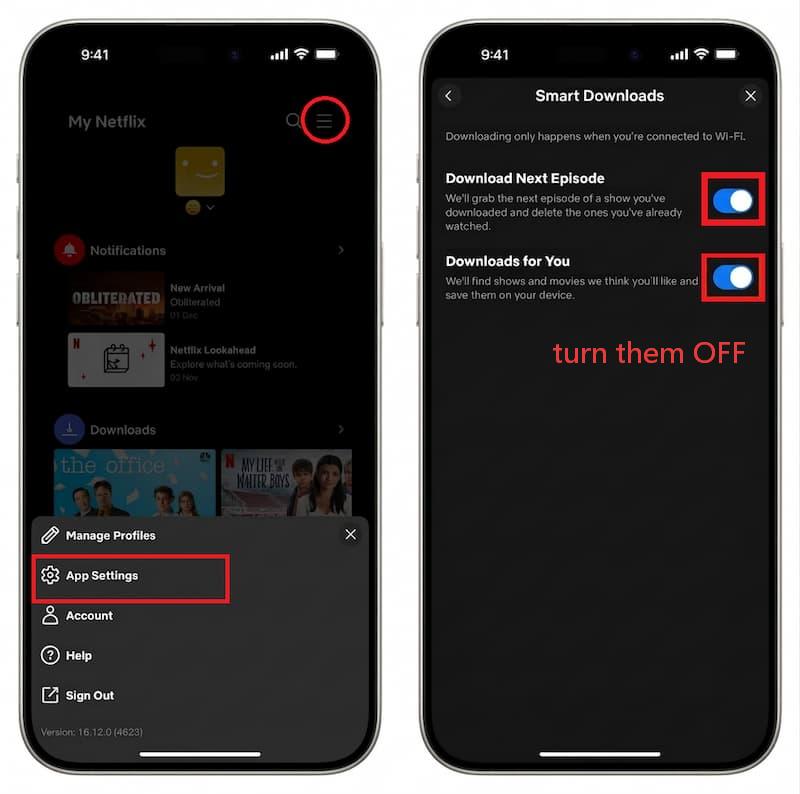
Smart Downloads can be useful when you want to always have some movies or episodes from Netflix downloaded on your mobile, but it can also conflict with the title you are trying to download manually.
- Download Next Episode: It automatically queues the next episode while deleting ones you've already watched.
- Downloads for You: It pre-downloads content Netflix thinks you'll like based on your viewing history.
If you want to reduce background activity, simply go to App Settings in the Netflix app. Find the Smart Downloads section. From there, you can toggle off Download Next Episode and Downloads for You.
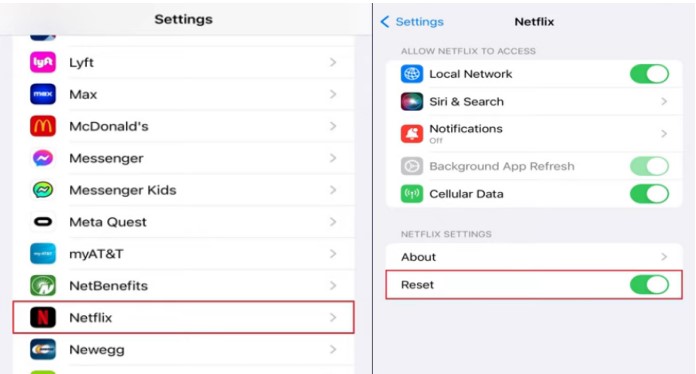
Fix 4. Use the Netflix App Reset (iPhone/iPad)
If your Netflix download isn't just slow but completely stuck at 0%, showing "Queuing," or frozen on a progress bar that won't move, you can try an iOS fix from the Settings app. It's a soft reset through the system settings rather than just force-quitting the app.
Step 1. Close the Netflix app and go to your iPhone/iPad's Settings.
Step 2. Scroll down and tap Netflix.
Step 3. At the bottom of the Netflix settings page, enable the Reset toggle.
Step 4. Go back to your home screen and reopen Netflix. It will force you to log in again.
Step 5. After logging back in, return to Settings → Netflix and turn the Reset toggle back off.
Step 6. Try your download again.
Is there a Netflix Reset Option for Android?
If you are using an Android phone or tablet, you will not find a "Reset" toggle in your system settings. Instead, Android OS provides a native "Clear Data" function that accomplishes the exact same result: forcing a complete app reset and clearing stuck download loops.
How to Reset Netflix on Android:
Step 1. Long-press the Netflix icon on your home screen and tap App Info or the "i" icon.
Step 2. Tap on Storage & cache.
Step 3. Tap Clear Data or Clear Storage.
Step 4. Reopen Netflix, log back into your account, and restart your download.
Note: This will log you out of Netflix and delete any partially corrupted downloads, completely resetting the app's network protocols.
Fix 5. Clear Netflix Cache on Android or Reinstall the App on iPhone
Over time, Netflix accumulates a surprising amount of cached data, such as temporary files, fragments of old downloads, and metadata. Deleting the app cache can accelerate Netflix downloads.
On Android:
Step 1. Long-press the Netflix icon on your home screen.
Step 2. Tap App Info.
Step 3. Tap Storage & cache.
Step 4. Tap Clear Cache.
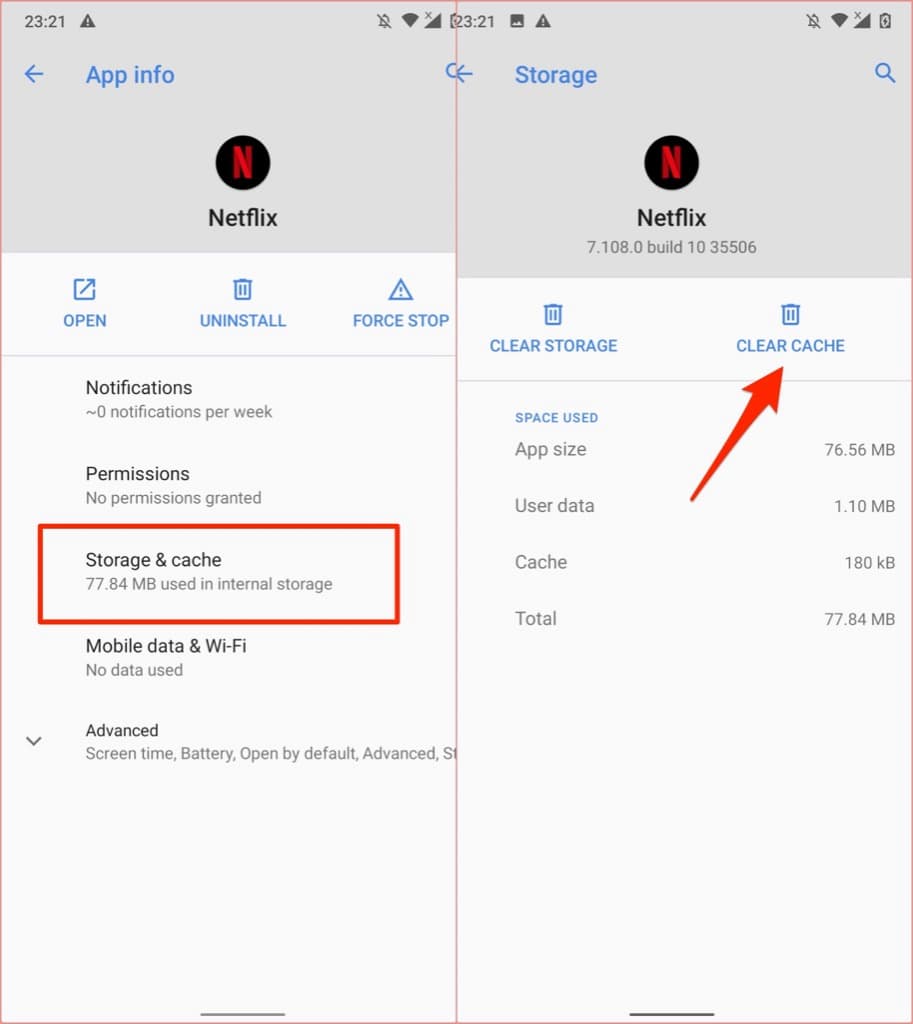
- Please do not tap "Clear Data" unless you want to reset the Netflix app. This will log you out and delete your downloads. Of course, if clearing the cache does not boost the download speed, tapping "Clear Data" is a smart choice.
On iPhone:
iOS doesn't offer a standalone cache-clearing button. Your best option is a clean reinstall:
Step 1. Long-press the Netflix icon and select Remove App → Delete App.
Step 2. Reinstall Netflix from the App Store.
Fix 6. Close Other Background Downloads and Heavy Apps
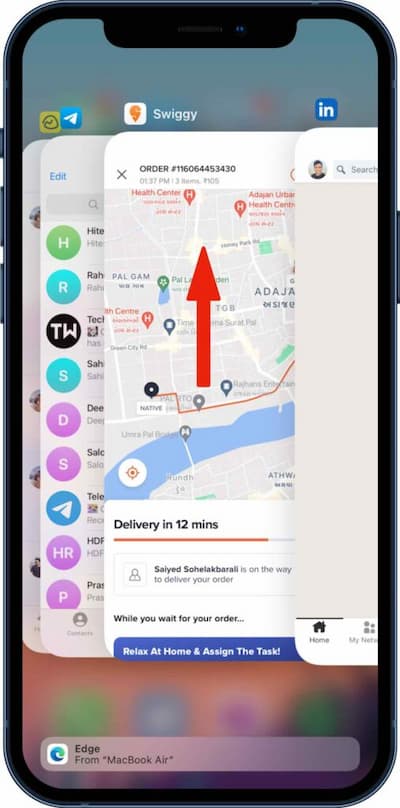
Background apps, especially games, social media, and cloud sync tools like iCloud or Google Photos quietly consume CPU cycles and network bandwidth even when you're not actively using them. On mobile, this adds up fast.
Step 1. Swipe up from the bottom (or double-tap the Home button) to open your app switcher.
Step 2. Swipe away everything except Netflix.
Step 3. Return to Netflix and check if download speed improves.

One more thing worth mentioning: If you are downloading multiple titles inside Netflix at the same time, try one title at a time. That often finishes faster than letting the app handle several downloads in parallel.
Fix 7. Pause Other Network-Heavy Activities
Your Netflix download doesn't just compete with apps on your phone; it shares bandwidth with every device on your home network. When you are downloading a movie or show on Netflix, you'd better pause or stop:
- Steam or Epic Games updates
- Torrent downloads
- 4K or 8K video streaming
- Cloud sync tools
- Large software updates on other devices
Fix 8. Switch Between Wi-Fi and Cellular Data, or Try Another Network
From my personal experience, sometimes cellular data downloads faster than Wi-Fi. You can try pulling down your status bar, turning off Wi-Fi, and enabling mobile data to see if your download speeds improve.
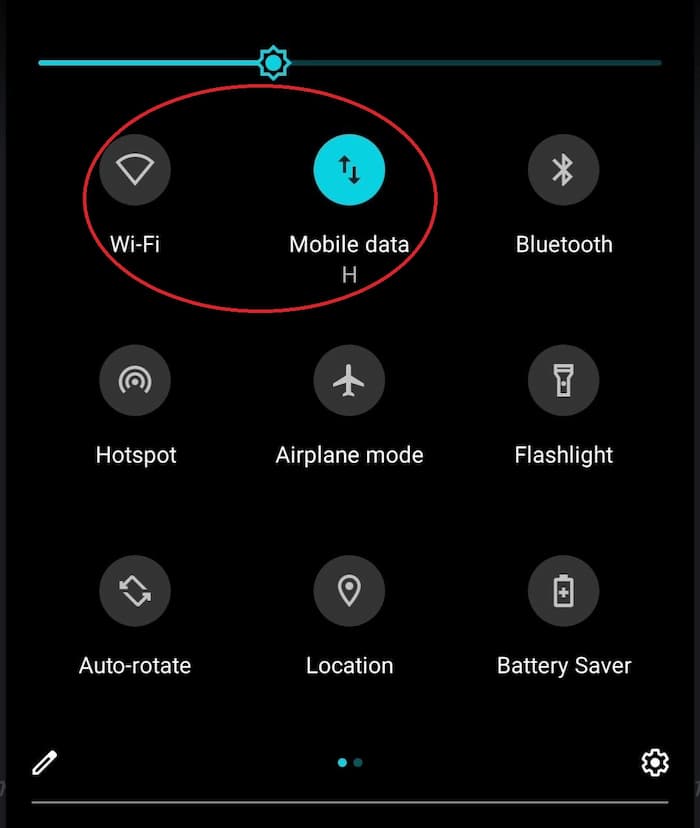
If mobile data is slower, toggle Airplane Mode on for about 10 seconds, then turn it off. This forces your phone to reconnect to the nearest cell tower and can fix routing issues.
If you're trying to decide which network performs better, I've found that AT&T's download speeds are usually faster than Verizon's, especially on the Netflix app. This observation is also mentioned in some Reddit discussions.
Fix 9. Upgrade to a 5GHz Wi-Fi Band
If you are on Wi-Fi, 5GHz is usually faster and less crowded than 2.4GHz. It also tends to suffer less interference from nearby devices.
Here's how to connect to 5G or 5GHz Wi-Fi:
Step 1. Open your phone's Wi-Fi settings.
Step 2. Look for your network name with a _5G or _5GHz suffix and connect to it.
Step 3. Stay close to your router during the download — 5 GHz has shorter range and struggles more with walls.
Part 4. Need More Than Netflix's Built-In Downloads?
The fixes above can help improve download speed in the Netflix app, but the built-in download feature still has some limitations. Netflix does not support downloads on Windows or Mac, and using a phone to download an entire season or manage a large offline library is not always practical.
If you want to save Netflix videos on your computer and keep them as regular video files, a desktop downloader can be a more flexible option. VidiFab Netflix Video Downloader lets you save videos as MP4 or MKV files in up to 1080p, with audio tracks and subtitles preserved. Its batch download mode can also speed up the download process by up to 7× compared with real-time playback, making it easier to download multiple episodes at once.
VidiFab Streaming Video Downloader
Download Netflix videos as MP4/MKV in 1080p with Dolby Atmos for offline viewing on your iPhone, Android, desktop, and more devices.

Will VidiFab solve slow Netflix downloads? Not necessarily. Download speed still depends on your network and the title itself. In our tests, a 40-minute Netflix episode in 1080p typically downloaded in about 10 minutes. While the process may take longer than saving content inside the Netflix app, VidiFab downloads a permanent MP4 or MKV file that you can keep, transfer, and watch offline without expiration limits.
Part 5. FAQs about Netflix Download Speed
How can I speed up Netflix downloads without losing quality?
Remove the obstacles around the download instead of lowering the resolution: turn off Smart Downloads, close bandwidth-hungry background apps, move to a 5 GHz Wi-Fi band, and set Cellular Data Usage to Maximum Data. Then leave Download Video Quality on High/Higher. If it still crawls, the limit is the download route itself, not your settings.
How long does it take to download a Netflix movie?
A two-hour movie is about 0.6–1.4 GB on Standard quality and about 2–6 GB on High quality. At a steady 50 Mbps that is roughly 5–15 minutes at High quality, or under 10 minutes on Standard; on a slower 15 Mbps line, budget 20–55 minutes. Real-world times often run longer because Netflix downloads use a single connection rather than your full bandwidth.
Why is my Netflix download so slow when my Wi-Fi is fast?
Because a download does not use your connection the way a speed test does. Netflix downloads run one title at a time through a single connection and are capped by the Download Video Quality setting, so a 300 Mbps line is a ceiling, not a target. A fast Wi-Fi speed test and a slow Netflix download can both be true at the same time.
Why does my Netflix download keep pausing?
Two common reasons. On cellular, the app has a Wi-Fi Only toggle under Downloads that blocks mobile downloads and pauses them if Wi-Fi drops. And on some mobile builds the app pauses downloads when it is backgrounded or the screen locks, or when a battery-saver mode kicks in. Keep Netflix open and exempt it from battery optimisation.
What should I do if my Netflix download is stuck at 0%?
A download stuck at 0% or showing "Queuing" is usually waiting on a DRM licence, not bandwidth. Force-quit and reopen the Netflix app first, then switch between Wi-Fi and cellular to bypass a stalled connection. On iOS use Settings → Netflix → Reset; on Android clear the app cache. Clearing app data or reinstalling is a last resort because it deletes your downloads and signs you out.
Does downloading use more data than streaming?
A download stores the whole file, so it moves roughly the same data as streaming that title once at the chosen quality — you just choose when that data is spent. Netflix's data settings are the clearest guide: Save Data targets about 6 hours per GB, Automatic about 4 hours per GB, and Maximum Data can use 1 GB per 20 minutes or more. Download over Wi-Fi where you can.
Can I make Netflix download faster on a PC?
Netflix does not offer downloads on Windows or in a web browser, so there is no in-app download to speed up on a computer. Desktop users either download on a supported phone, tablet, or Chromebook, or use a desktop video downloader that saves titles as MP4 or MKV files.
Final Thoughts
If you want to speed up Netflix downloads, start with Standard download quality, Smart Downloads off, and fewer background apps. Then move to network changes, 5GHz Wi-Fi, and finally reset or reinstall if the app still misbehaves.
If you're preparing for a long trip and need to download a lot of content fast, the VidiFab Streaming Video Downloader is worth trying. It avoids the mobile Netflix app bugs or caches, performs more stably, and gives you the best chance to boost Netflix download speed.
 Free Download
 Secure Download
 Free Download
Secure Download
Free Download
Secure Download


I'm a video tech specialist with over 10 years of experience in digital media and streaming. I focus on making complex workflows simple and practical. Through my guides, you'll learn how to convert media, keep high-quality playback across devices, and manage your streaming video library with ease.
 Leave Your Comment