How to Get and Watch Netflix on PS5, PS4, PS3, and Portal
 By Miles Kent
On March 2, 2026, streaming Netflix on PlayStation changed drastically when official support ended for 87 million legacy devices. While PlayStation 5 and PlayStation 4 users can still download the Netflix app for free, older systems like the PS3 now face permanent error blocks. Meanwhile, PlayStation Portal users face frustrating DRM blackouts.
In this guide, I will walk you through the official setup for PS5 and PS4, the offline USB workaround for PS3, the trick for PlayStation Portal, and the most common fixes when things go wrong. By the end, you will know exactly what your PlayStation can do with Netflix.
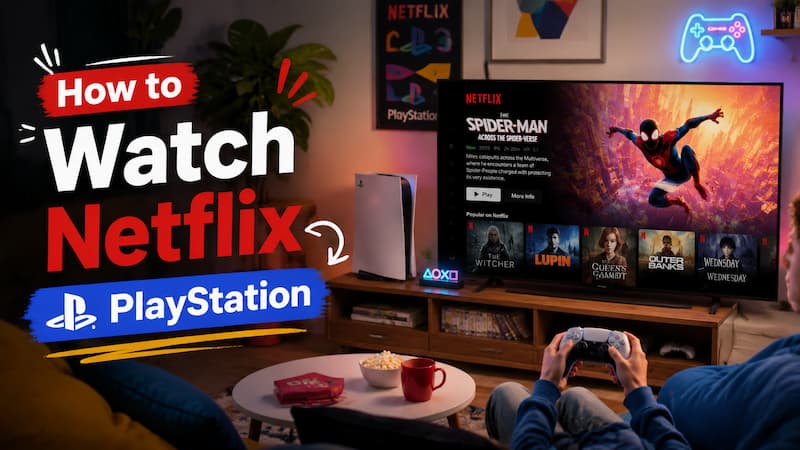
Part 1. Can You Watch Netflix on PlayStation?
Yes, you can watch Netflix on PlayStation, but your experience depends entirely on which console you own. Modern systems like the PS5 and PS4 fully support the official Netflix app for online streaming. Older devices like the PS3 and PS TV have been officially discontinued and no longer support the app. The PlayStation Portal, Sony's handheld remote player, blocks Netflix video playback entirely due to DRM restrictions.
Here is the official compatibility breakdown so you can see exactly where your device stands:
Netflix on PlayStation: Compatibility at a Glance
| PlayStation Model | Official App Support | Maximum Resolution | Streaming or Offline? | Jump to Tutorial |
|---|---|---|---|---|
| PlayStation 5 (PS5) | Fully Supported | 4K Ultra HD / HDR | Streaming Only | PS5 Setup Guide |
| PlayStation 4 Pro | Fully Supported | 4K Ultra HD | Streaming Only | PS4 Setup Guide |
| PlayStation 4 (Slim / FAT) | Fully Supported | 1080p Full HD | Streaming Only | PS4 Setup Guide |
| PlayStation 3 (PS3) | Discontinued (Error R40) | N/A | Offline Only (MP4) | PS3 Workaround |
| PlayStation Portal | Blocked (Black Screen) | N/A | Offline Only (MP4) | Portal Workaround |
Do You Need PlayStation Plus to Watch Netflix?
No, you absolutely do not need a PlayStation Plus subscription to watch Netflix on any PlayStation console. I want to make this crystal clear because Sony does not always do a great job of separating gaming subscriptions from media apps.
To watch Netflix on your PlayStation, you only need three things:
- A free PlayStation Network (PSN) account. You do not need PS Plus Essential, Extra, or Premium. The basic free account is enough to download the Netflix app.
- A stable internet connection. Netflix recommends at least 5 Mbps for Full HD and 15 Mbps for 4K streaming. I would aim for 25 Mbps or higher to avoid buffering.
- An active Netflix subscription. The app is free. The content is not. You need your own paid Netflix plan.

Tip: If you see a lock icon next to the Netflix app or a prompt asking you to upgrade to PS Plus, you are likely looking at a PlayStation Plus game promotion — not the Netflix app itself. Just ignore it and launch Netflix from the Media tab instead.
Part 2. How to Get and Watch Netflix on PlayStation 5
PS5 users can watch Netflix by installing the official Netflix app from the Media section. The setup process only takes a few minutes, and once you sign in with your Netflix account, you can stream movies and shows directly on your console.
-
01
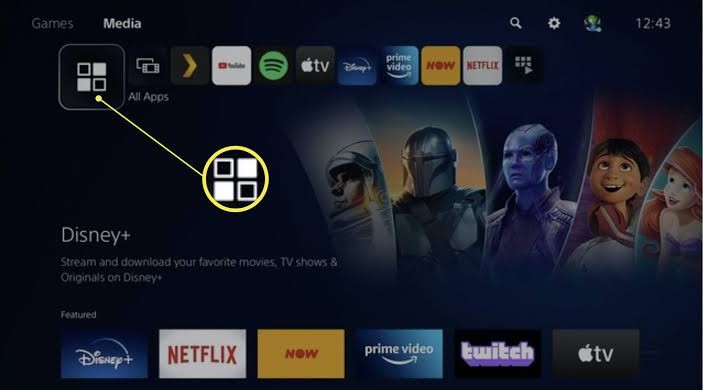
Turn on your PS5 and go to the home screen. From the top navigation bar, move to the Media tab. This section holds all your streaming apps and entertainment services; it is separate from your game library.
-
02
In the Media tab, select All Apps to see the full list of available streaming applications. Browse through the list or use the search bar to find Netflix.
-
03
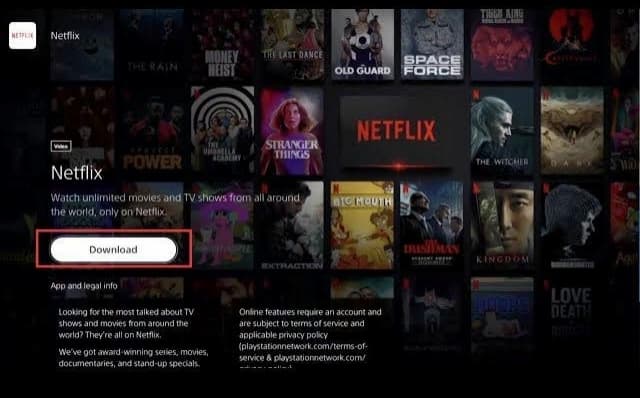
Select the Netflix app and choose Download. Wait for the installation to finish. Once done, the Netflix icon will appear in your Media section.
-
04
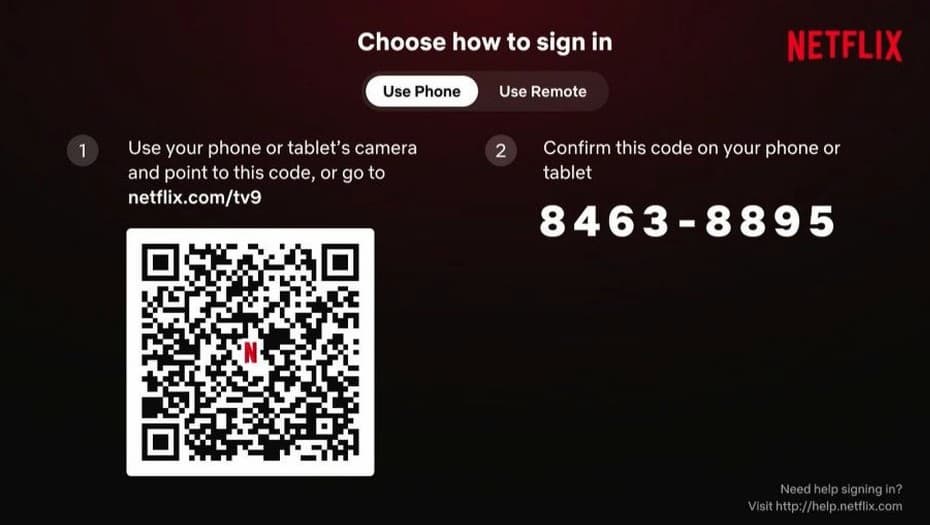
Launch Netflix from the Media tab. Select Sign In, then pick one of two login methods:
- Quick Sign-In: Use your phone camera to scan the QR code on screen, then enter the code shown on your PS5 to confirm.
- Manual Sign-In: Use your DualSense controller to type in your Netflix email and password.
Does PS5 Support Netflix 4K and HDR?
Yes, the PlayStation 5 fully supports Netflix in 4K Ultra HD and HDR. If you have the right setup, the picture quality is stunning. Here is what you need:
- A Netflix Premium plan that includes Ultra HD streaming.
- A 4K TV or monitor with active HDR support.
- A stable internet connection. Netflix recommends at least 15 Mbps for 4K. I recommend 25 Mbps or higher to avoid mid-movie quality drops.
- A High-Speed HDMI cable (HDMI 2.0 or 2.1) connecting your PS5 to your display.
When everything is set up correctly, look for the "4K Ultra HD" or "HDR" badge on movie detail pages. Playing a title with these badges unlocks sharper detail, richer contrast, and a noticeably wider color range on your console.
Part 3. How to Get and Watch Netflix on PlayStation 4
If you are using a PlayStation 4, whether it is the original FAT model, the Slim, or the 4K-capable PS4 Pro, you need to grab Netflix from the PlayStation Store or the TV & Video section. The process is slightly different from the PS5, so let me walk you through it:
-
01
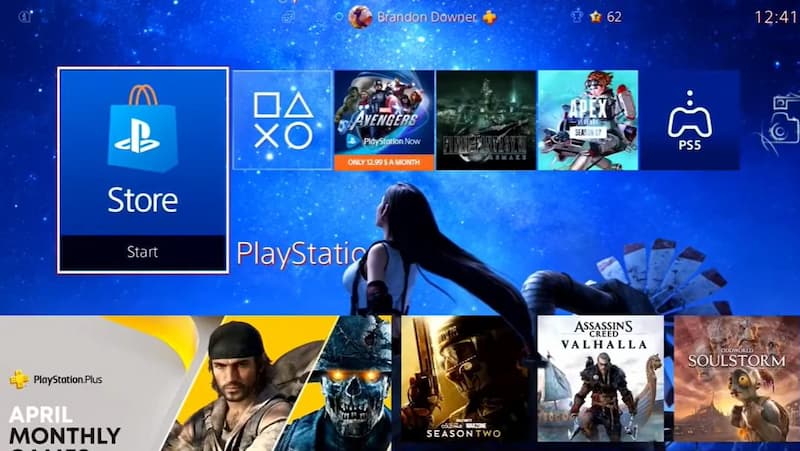
Turn on your PS4 and go to the home screen. Open the PlayStation Store to browse available games and apps.
-
02
Scroll down and select the Apps category. This section lists entertainment apps you can download for free.
-
03
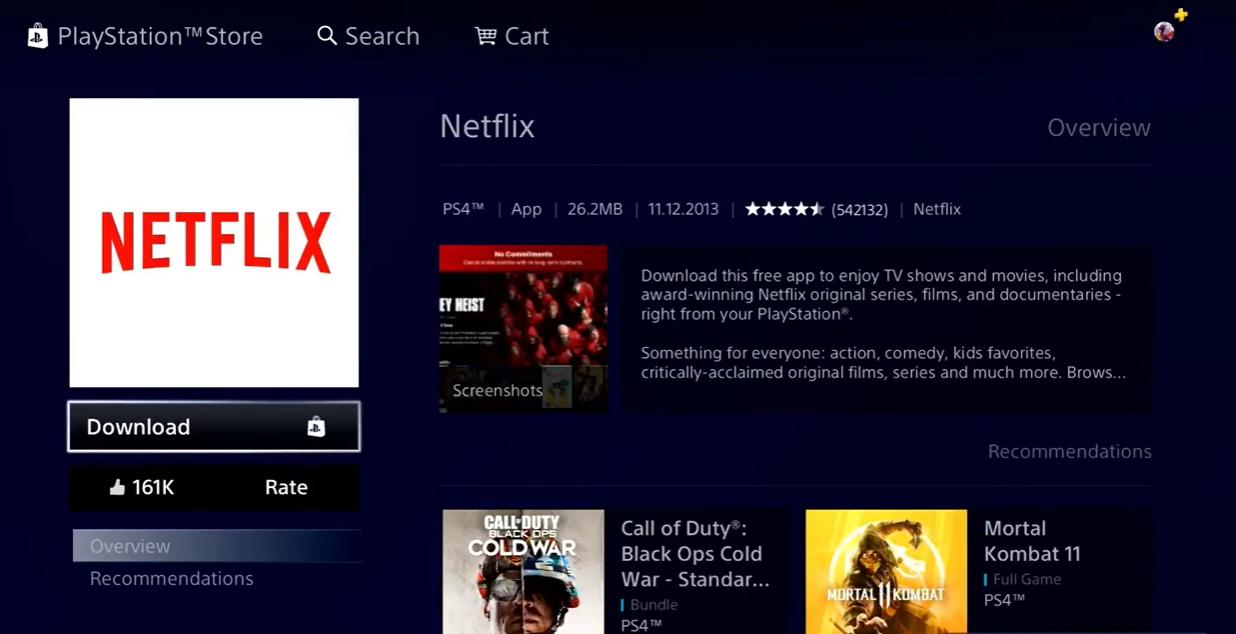
Look for Netflix under the Movies & TV section. If you cannot find it, use the search bar and type "Netflix" to locate the official app.
-
04
Select the Netflix app and choose Download. The app is free, so the download starts right away.
-
05
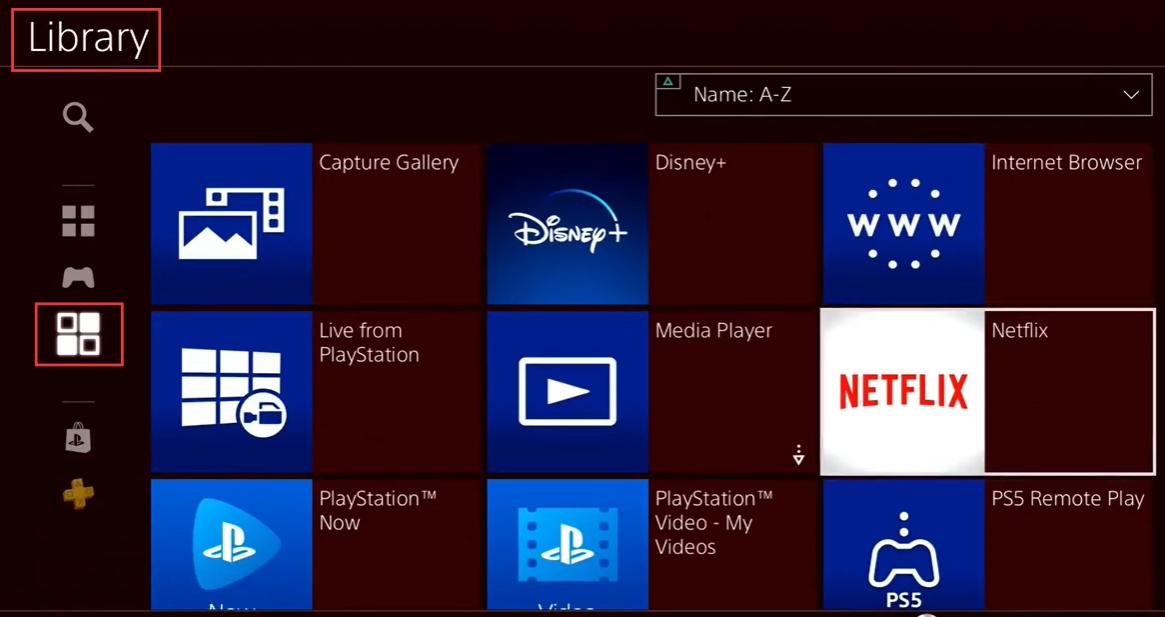
Wait for the installation to complete. Netflix will then appear in your PS4's Library under the Applications tab.
-
06
Launch the Netflix app and select Sign In. Enter your Netflix email and password, then pick your profile.
Does PS4 Support Netflix 4K Streaming?
Only the PS4 Pro can stream Netflix in 4K Ultra HD — and only if you have a Premium Netflix plan and a 4K TV. The standard PS4 Slim and the original FAT PS4 top out at 1080p Full HD, no matter what plan or TV you pair them with.

Note: If you own a PS4 Pro with a 4K TV and Netflix still plays in 1080p, double-check your HDMI cable. You need a Premium High-Speed HDMI cable (18 Gbps or higher) to carry a 4K signal. The cable that came with your launch PS4 may not be fast enough.
Part 4. How to Watch Netflix on PlayStation 3
On March 2, 2026, Netflix officially ended support for 87 million legacy devices around the world, including the PlayStation 3 and PlayStation TV. If you try to launch the Netflix app on a PS3 today, it will not get past the loading screen. Instead, you will see a discontinuation notice or error code R40. Sony has confirmed that Netflix is no longer supported on PS3 consoles after this date.
The official app is dead. But the PS3 still has one thing going for it: a solid built-in media player that reads video files straight from a USB drive. And that is exactly how I got Netflix running on my launch-model PS3.
Here is the approach: download the movies you want to watch onto your computer first, save them as standard MP4 files, and transfer them to a USB stick. The PS3 reads them instantly through the Video menu. No app. No internet. No errors.
For the downloading part, I used VidiFab Netflix Video Downloader. It pulls videos directly from Netflix and saves them as DRM-free MP4 files, with 1080p resolution, Dolby Atmos 5.1 surround sound, and multilingual subtitles all baked in. The PS3 plays these files natively without any extra conversion.
VidiFab Netflix Video Downloader
Download Netflix videos as MP4/MKV in 1080p with Dolby Atmos for offline viewing on your PlayStation console, iPhone, Android, desktop, and more devices.

Note: Downloading Netflix videos should always comply with Netflix's Terms of Use and applicable laws. VidiFab is intended for personal video management and offline viewing where permitted.
How to Save Netflix Videos for PS3 Offline Playback
Step 1. Install VidiFab and Set the Output Format
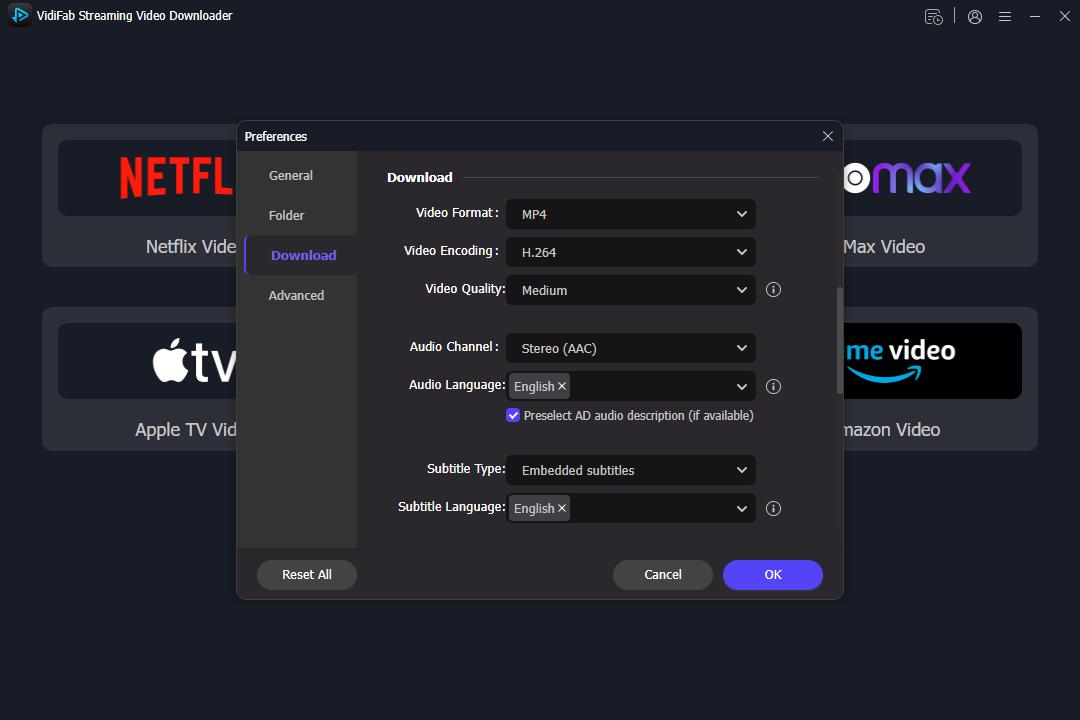
Download and open VidiFab Netflix Video Downloader on your computer. Before downloading, open the settings menu and choose your preferred output format. For better compatibility across different devices, select MP4 with H.264 codec as the output format. This format is the perfect native profile for PlayStation hardware playback. Click OK to save your settings. Next, click the Netflix icon on the main screen and log into your account using the secure, built-in browser.
Step 2. Search for the Netflix Content You Want to Watch
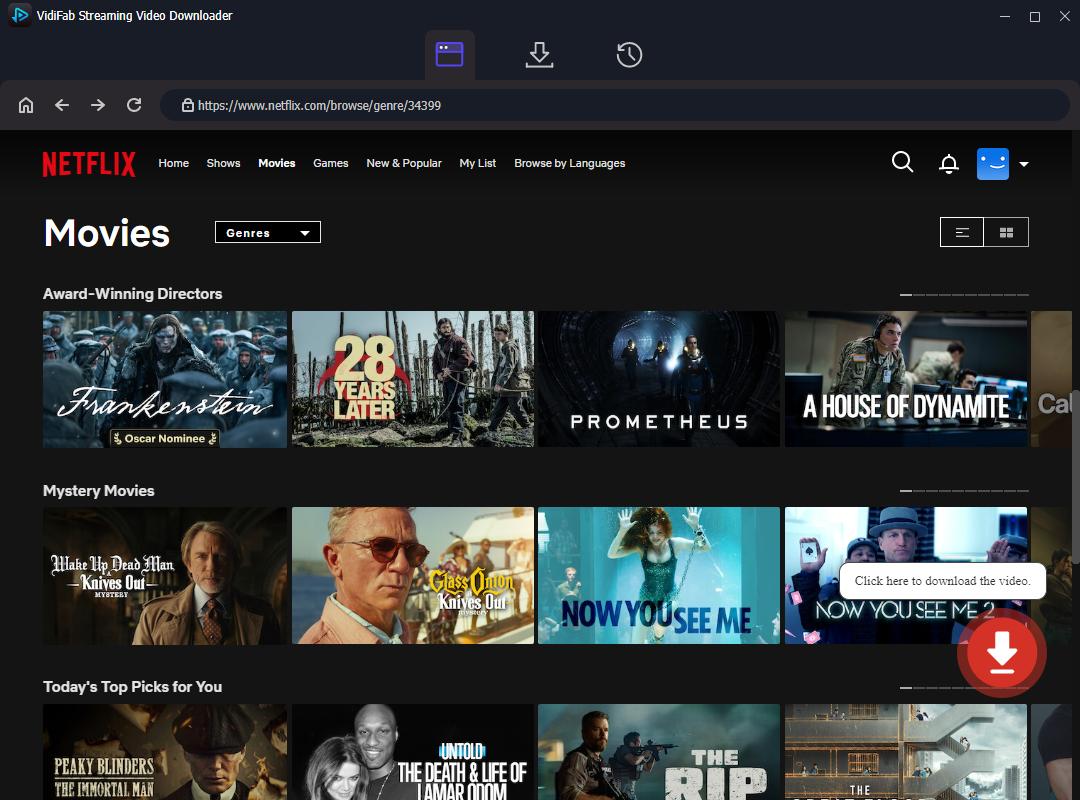
Browse the library using the built-in browser, or paste the direct URL of the movie or TV show episode into the search bar. Once you open the video's detail page, VidiFab will analyze the video stream automatically. Click the red Download button in the bottom right corner to access your formatting options.
Step 3. Optimize Resolution and Audio for the PlayStation Screen
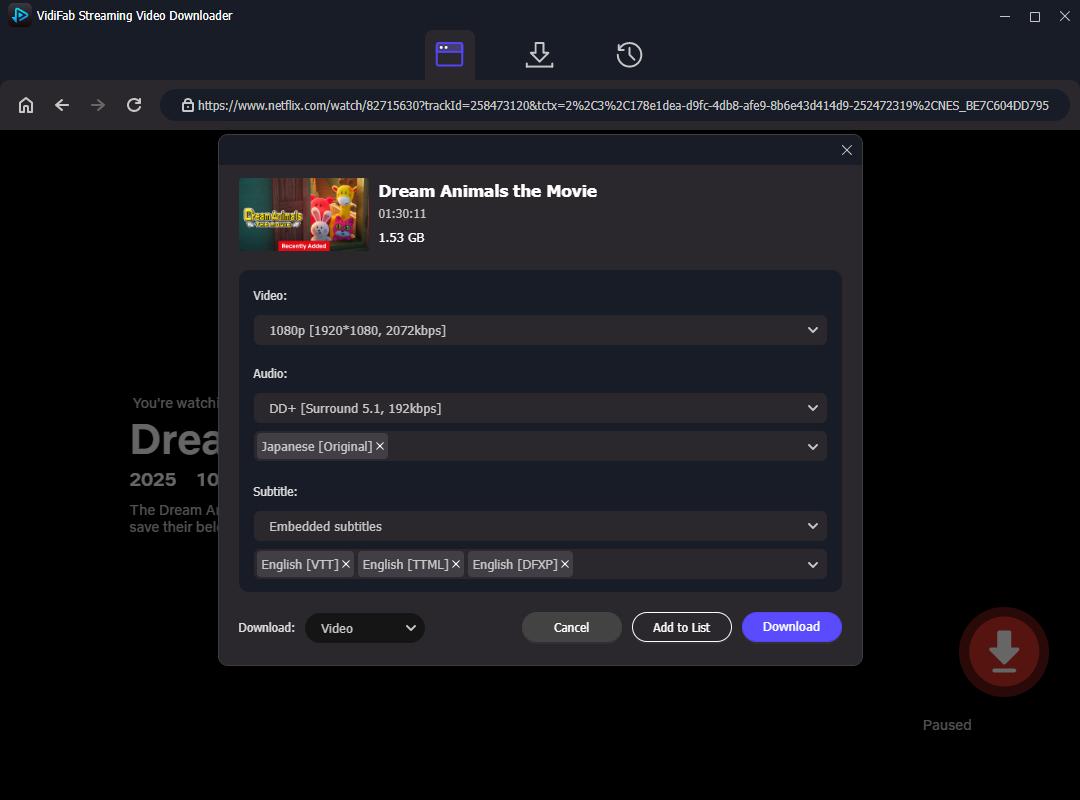
In the customization window, select your desired resolution. For standard PS3 setups, 1080p or 720p works beautifully. Choose standard AAC stereo audio to guarantee flawless audio processing on older AV receivers. Set the subtitles to your preferred language, choosing embedded subtitles to ensure they render directly on screen without needing external SRT plugins.
Step 4. Save Netflix as Universal, Playable Media Files
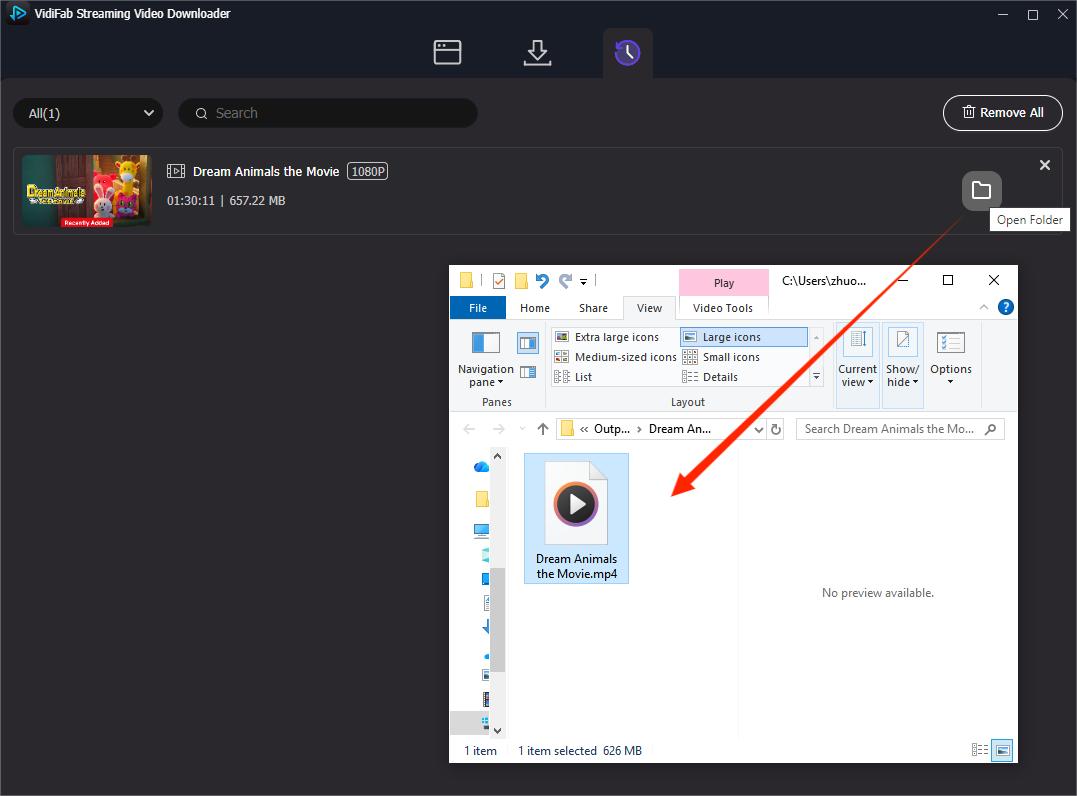
Click the Download button to start the extraction process. VidiFab will save a clean, permanent video file directly to your local storage. Once the download completes, navigate to the History tab and click the folder icon to locate your finished MP4 files.
Step 5. Transfer and Play Content on Your PS3 Console
Grab a standard USB flash drive or external hard drive and ensure it is formatted to FAT32 (the primary file system recognized by the PS3). Create a folder named VIDEO in all capital letters on the root directory of the USB drive, and drop your downloaded MP4 files inside it.

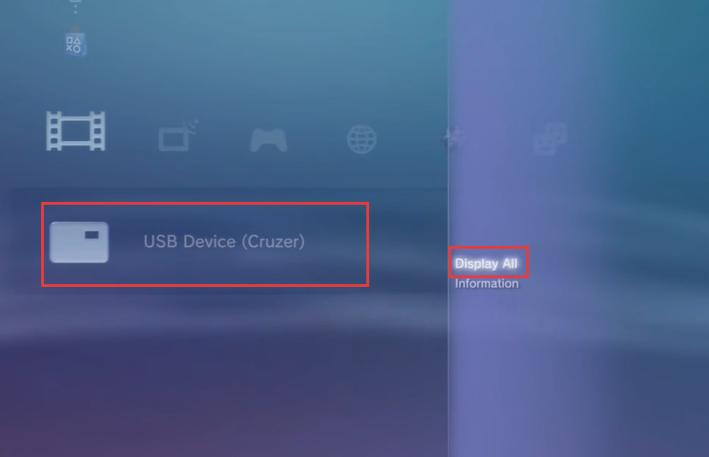
Insert the USB drive into your PS3. Turn on your PS3 and go to the Video section from the XMB (Cross Media Bar) menu. Select your USB drive. If the PS3 shows "No titles" or does not display your videos immediately, press the Triangle button on your controller and choose Display All. The PS3 will then show the compatible video files stored on the USB drive. Select the Netflix video file you want to watch and press the X button to start playback.
Part 5. How to Watch Netflix on PlayStation Portal
Unlike PS5 and PS4, PlayStation Portal does not have a built-in Netflix app, so you cannot download Netflix from a store or stream Netflix directly on the device.
PlayStation Portal is mainly designed for PS5 Remote Play. However, if you open the official Netflix app on your PS5 and try to mirror the screen to your PlayStation Portal, you will immediately hit a wall. Due to strict Digital Rights Management (DRM) and anti-piracy protocols, you might hear audio playing but with a black screen.
But there is a way around this. If you play a standard MP4 file on your PS5 through the Media Gallery app instead of the Netflix app, the Portal streams the video feed without any black screen lockout. And that is exactly what we are going to do.
How to Stream Offline Netflix Videos to PlayStation Portal
Since you already know how to save Netflix videos as MP4 files using VidiFab (covered in Part 4), here is how to get those finished files onto your Portal screen:
-
01
Plug a USB flash drive or external hard drive into your computer. Format it to exFAT.
-
02
Create a new folder on the root of the drive (name it something simple like "Movies") and copy your downloaded Netflix MP4 files into it.
-
03
Safely eject the USB drive from your computer and plug it into one of the high-speed USB ports on the back of your PS5.
-
04
Turn on your PlayStation Portal and connect to your PS5 through Remote Play. You should now see your PS5 dashboard on the Portal's screen.
-
05
On your PS5 dashboard, stay on the Games tab. Scroll through your games and open the Media Gallery app.
-
06
Inside Media Gallery, switch to the USB tab. Your custom folder should appear. Open it, select your downloaded Netflix movie or episode, and press play.
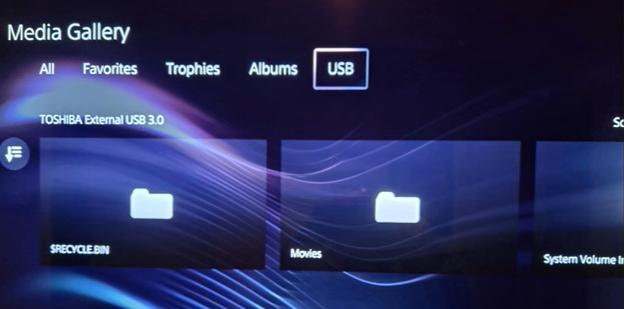
Because the video is running as a standard, unprotected MP4 file rather than inside the restricted Netflix app, the video feed will sync flawlessly to your PlayStation Portal screen!
Part 6. How to Sign Out of Netflix on PS5 and PS4
If you share your PlayStation with family, are selling your console, or just want to switch to a different Netflix account, signing out is straightforward. Here is how to do it on both PS5 and PS4:
-
01
Turn on your PS5 or PS4 and launch the Netflix app from the Media section or your applications list.
-
02
Once Netflix loads, press the left button on your controller to open the side navigation menu.
-
03
Scroll down and select Get Help.
-
04
In the Get Help menu, choose Sign Out.
-
05
A confirmation message will pop up. Select Yes to confirm.
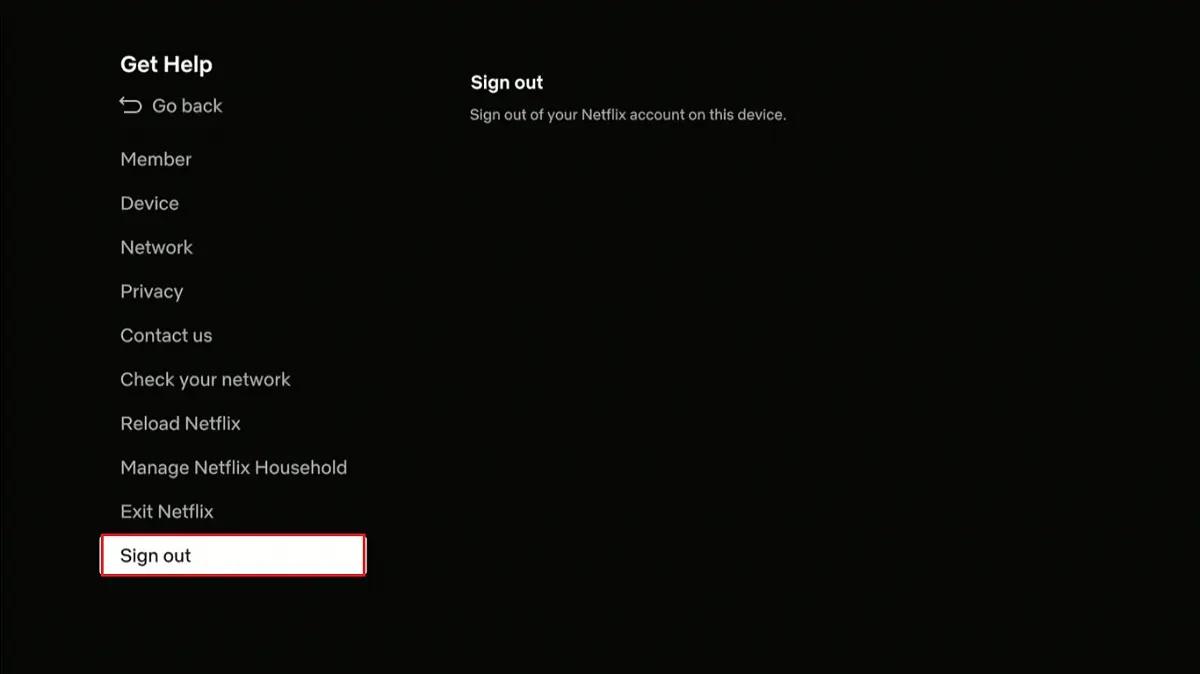
After signing out, the Netflix app returns to the login screen. You can now sign in with a different account or let someone else log in.
How to Sign Out of Netflix on PS5 or PS4 Remotely
If you no longer have access to your PlayStation console, you can also sign out through your Netflix account from the Manage Access and Devices page. From there, you can remove access from specific PlayStation devices or sign out of all devices if needed.
Part 7. What to Do When PlayStation Netflix Not Working
If the Netflix app on your PS5 or PS4 crashes, freezes, or refuses to connect, here are the fixes I have used that actually work. Start from the top and work your way down:
- Check for App Updates: Go to the Media tab on PS5 or the TV & Video hub on PS4, highlight the Netflix app, press the Options button, and select Check for Update.
- Restart the Console and App: Close the Netflix app, turn off your PlayStation completely, unplug the power cable for 30 seconds, then restart the console.
- Restore Licenses on PS4: If Netflix shows a lock icon or fails to open, go to Settings → Account Management → Restore Licenses to refresh your app access.
- Check Your Internet Connection: Go to Settings → Network → Test Internet Connection to make sure your PlayStation has a stable connection.
- Reinstall the Netflix App: Delete Netflix from your PlayStation storage, reinstall it from the Media tab (PS5) or TV & Video hub (PS4), and sign in again.
- Check the Netflix Error Code: If Netflix displays an error code, identify the specific issue and follow a dedicated troubleshooting guide, such as fixes for NW-2-5, M7361-1253, buffering problems.
Part 8. FAQs About Netflix on PlayStation
Is Netflix free on PlayStation?
The Netflix app is completely free to download from the PlayStation Store. However, you still need an active paid Netflix subscription to watch any content.
Can you download Netflix movies on PlayStation?
No. Netflix does not support offline downloads on PS5, PS4, or any other PlayStation console. The PlayStation Netflix app only allows online streaming. If you want to watch Netflix offline on your PlayStation, use the VidiFab USB workaround described in Part 4 (for PS3) or Part 5 (for Portal).
Why is Netflix not working on my PlayStation?
Netflix may stop working on PlayStation because of internet connection issues, an outdated app version, system software bugs, or Netflix service outages. Restart your console first. Then check for app updates, test your internet connection (Settings → Network → Test Internet Connection), and reinstall Netflix if needed. For step-by-step instructions, see Part 7.
Does Netflix support spatial audio on the PS5?
No, Netflix does not support spatial audio natively through the Netflix app on PS5. While the PS5 hardware supports 3D Audio for gaming and Dolby Atmos for Blu-ray playback, streaming apps like Netflix are currently limited to standard surround sound formats like 5.1 Dolby Digital.
Does Netflix work on PS5 Pro?
Yes, Netflix is fully supported on the PlayStation 5 Pro. The app works exactly like the standard PS5 version. You can stream in 4K Ultra HD and HDR, provided you have a Netflix Premium plan and a stable internet connection of at least 15–25 Mbps.
Final Thoughts
Watching Netflix on PlayStation is a great entertainment experience on consoles like the PS5, PS5 Pro, and PS4. Although the 2026 phase-out of older devices and strict portable DRM restrictions pose challenges for older hardware and handheld users, you can still use your devices. With VidiFab Netflix Video Downloader, you can convert your favorite shows into universal, DRM-free MP4 files, allowing you to enjoy seamless streaming on your PS3 and PlayStation Portal.
 Free Download
 Secure Download
 Free Download
Secure Download
Free Download
Secure Download


I'm a video tech specialist with over 10 years of experience in digital media and streaming. I focus on making complex workflows simple and practical. Through my guides, you'll learn how to convert media, keep high-quality playback across devices, and manage your streaming video library with ease.
 Leave Your Comment