How to Fix Netflix Black Screen with Sound on PC, Smart TVs, & Mobile
 By Miles Kent
If Netflix opens with sound but the screen stays black, the problem is not your device. Why does Netflix have sound but no picture? The root cause almost always comes down to one of three things: a DRM (digital rights management) encryption handshake failure, a hardware acceleration conflict in your browser, or a corrupted app cache. The fix depends on which device you're on.
Here's a quick map so you can jump straight to your situation:
| Your Device | Top Fix | Jump To |
|---|---|---|
| Chrome (PC/Windows) | Disable Hardware Acceleration | Chrome fix |
| Mac / Safari | Check Screen Recording permissions | Mac fix |
| Smart TV | Cold boot (unplug power) | General TV fix |
| Apple TV | Change Video Format to SDR & turn off "Match Content" | Apple TV fix |
| Samsung TV | Cold boot + reinstall Netflix | Samsung TV fix |
| Amazon Fire Stick | Disable HDR / clear cache | Fire Stick fix |
| Android | Disable overlay apps | Android fix |
| iPhone / iPad | Force close + reset Netflix | iPhone fix |

Dealing with the opposite problem? If your video is playing perfectly but you can't hear anything at all, check out this dedicated guide on Netflix No Sound on TV? How to Fix No Audio & Keep Watching to get your sound back in minutes.
Part 1. Quick Fixes: Top 3 Ways to Fix Netflix Black Screen
Before diving into device-specific steps, try these three universal fixes first.
Fix 1. Cold Boot Your Device
A cold boot clears cached DRM certificates and corrupted temporary files that a normal restart won't touch.
- TV / streaming stick: Unplug the power cable from the wall. Wait 60–180 seconds. Plug back in and relaunch Netflix.
- Phone / tablet: Hold the power button and fully power off. Wait 30 seconds, then power back on.
- Mac: Shut down completely, unplug from power if possible, wait 30 seconds, then restart.
Fix 2. Disable Hardware Acceleration (Browser Users)
If you're watching Netflix in a browser, disabling hardware acceleration forces video decoding off the GPU and back onto the CPU. This bypasses the layer where most DRM-related black screens occur.
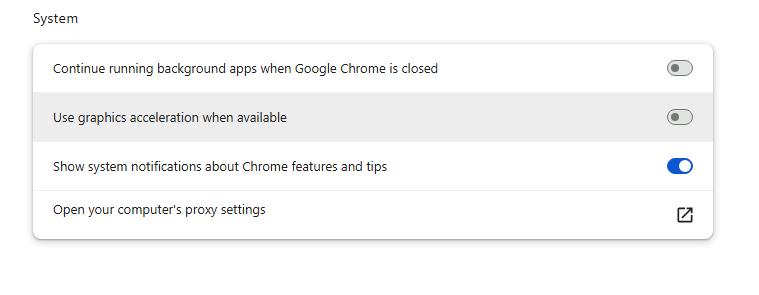

The tradeoff: Netflix will cap your playback at 720p when hardware acceleration is off. For many people, this is acceptable. If you need 1080p or 4K, see the workaround section for a 1080p viewing experience.
Fix 3. Reset the Physical HDMI Connection
(Applicable to: Smart TVs, Streaming Sticks, Gaming Consoles, and PC/Mac External Monitors)
Unplug the HDMI cable from both ends, wait 30 seconds, then plug it back in. If the problem persists, try swapping it for a cable that's certified HDMI 2.0 or higher with HDCP 2.2 support. Non-certified or older cables can fail the encrypted "handshake" that Netflix requires before it'll display video.
Important: Avoid HDMI splitters or switches that aren't HDCP 2.2 compliant — these are a very common cause of Netflix audio-only black screens, even if they work fine with other streaming services.
Part 2. How to Fix Netflix Black Screen with Sound on PC / Mac (Browsers)
First, rule out a content-specific issue: open Netflix on a second device (your phone, for example) and try playing the same title. If it's also black there, go to Viewing Activity in your Netflix account, find the affected title, and click Report a Problem. If it plays fine on another device, the issue lies with your device setup. Next, proceed to these device-specific fixes.

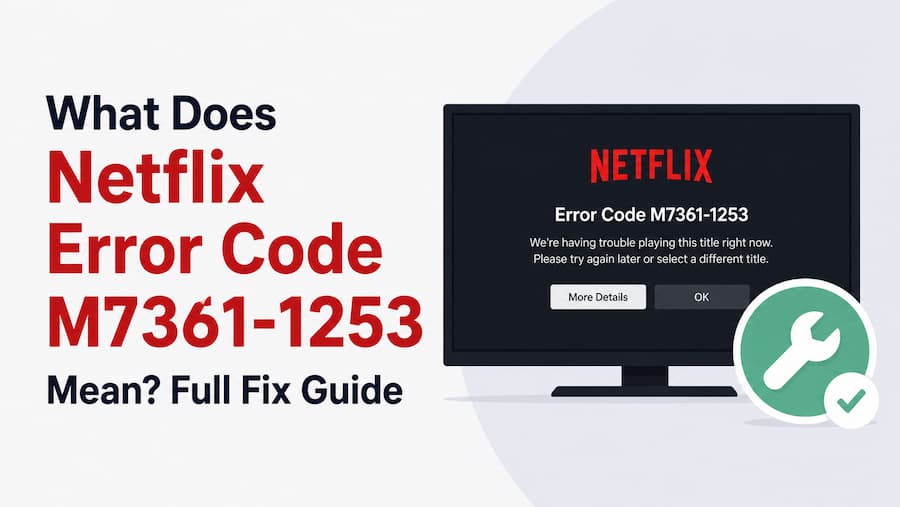
If the black screen is accompanied by a browser playback error, such as Netflix Error Code M7361-1253, you may need to troubleshoot your browser settings before trying the fixes below.
Google Chrome (PC/Windows)
As mentioned in the Quick Fixes section above, you'd first make sure Chrome's hardware acceleration is turned off.
If you have already disabled it and Netflix still plays audio over a black screen, try these two advanced Chrome browser fixes:
Fix 1: Change the ANGLE Graphics Backend
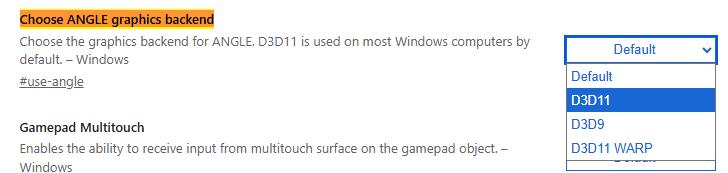
Chrome uses a graphics engine called ANGLE to render video. Sometimes its default setting triggers an encryption bug with Netflix.
In the address bar, type chrome://flags/#use-angle. Change "Choose ANGLE graphics backend" to OpenGL or D3D11, then relaunch.
Fix 2: Tweak NVIDIA Control Panel Settings (For NVIDIA GPU Users)
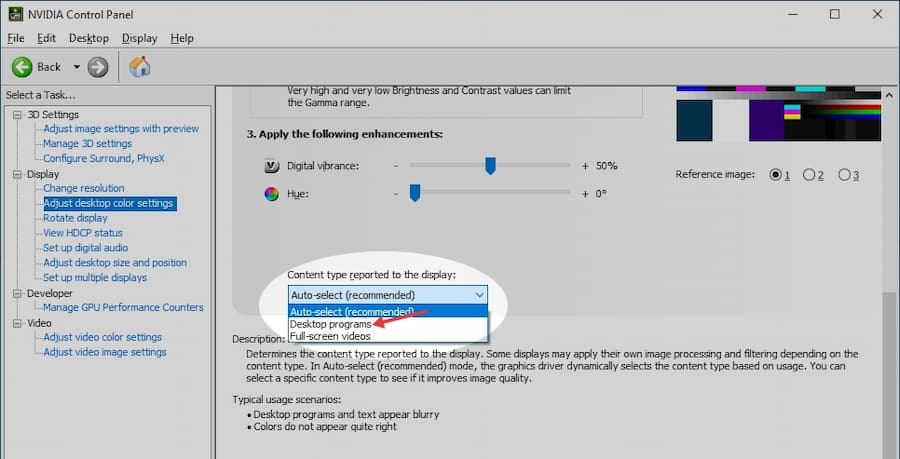
If your PC uses an NVIDIA graphics card, a faulty display signal handshake often triggers Netflix's anti-piracy protections, shutting off your video feed.
Open the Nvidia Control Panel → Adjust desktop color settings, find "Content type reported to the display," and switch it from "Auto-select" to "Desktop Programs." This stops the GPU from signaling a display mode that triggers Netflix's DRM protection.
Mac / Safari
Safari is deeply integrated with Apple's DRM stack, which makes it particularly sensitive to anything that looks like screen capture software running in the background.
Fix 1. Review Screen Recording Permissions
Go to System Settings → Privacy & Security → Screen Recording. Look for any installed apps like screen recorders, productivity tools, or video capture utilities, and revoke their access. Then restart your Mac and try Netflix again.
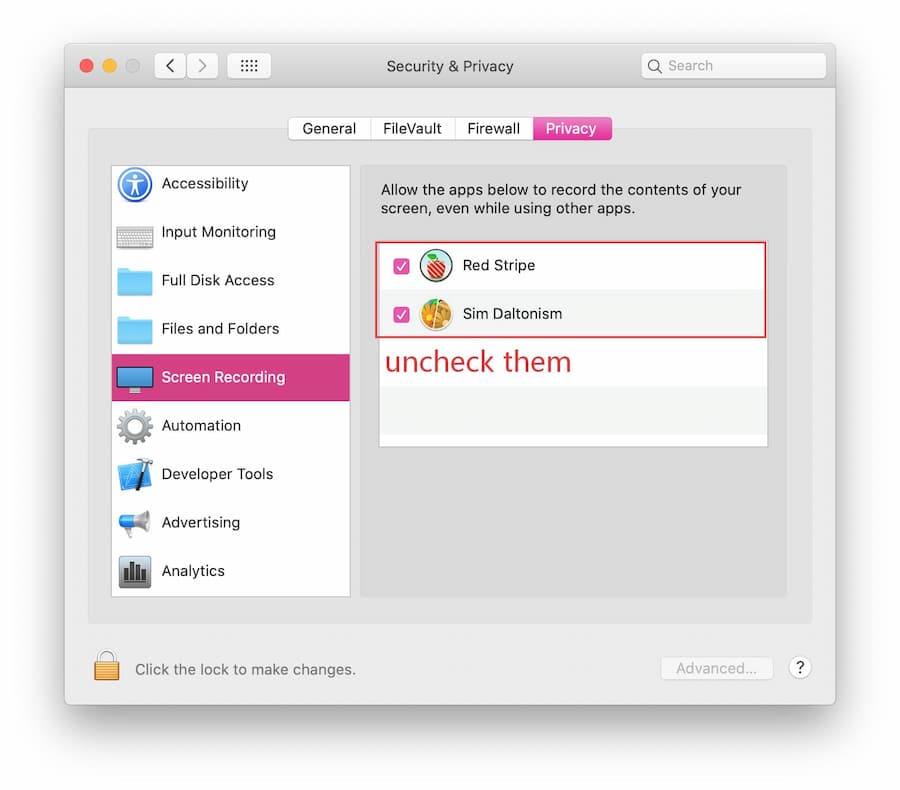
Tip: This is the single most effective fix for Mac users who suddenly started getting Netflix black screen with sound after installing a new app.
Fix 2. Try a Different Browser
Safari's tight coupling with Apple's DRM means some conflicts simply can't be resolved at the browser level. Firefox or Chrome (with hardware acceleration disabled) generally handle Netflix better on external displays and in edge cases where Safari fails.
Fix 3. Reset Hardware Configuration (Intel Macs only)
If the above don't work and you're on an Intel Mac, try these resets:
- Reset NVRAM/PRAM: Restart your Mac and immediately hold
Option + Command + P + Runtil you hear the startup chime a second time. This reinitializes hardware parameters including display and GPU handshake settings. - Reset SMC: Shut down completely. On the built-in keyboard, hold
Left Shift + Control + Option + Powerfor 10 seconds, then release and power on normally. An SMC reset can fix cases where the Mac doesn't correctly power the video output channel when switching from sleep to high-load tasks like 4K HDR streaming.
Part 3. How to Fix Netflix Black Screen with Sound on Smart TVs
TVs and streaming sticks usually need a different approach from browsers. Here, the issue is often caused by a stalled video output, an HDMI handshake problem, or a device that needs a deeper restart.
On Most Smart TVs
Fix 1. Cold Boot First
Step 1. Press Power on the remote to turn the TV off.
Step 2. Unplug the power cable from the wall.
Step 3. Wait 60–180 seconds (longer is better).
Step 4. Plug back in and launch Netflix.
Fix 2. Also Check Your HDMI Cables
Unplug from both ends, swap the source and display end, and make sure you're not using an unauthorized HDMI splitter or switch.
On Apple TV
The most effective combination for Apple TV Netflix black screen with sound is: restart first, reinstall if needed, then adjust output settings.
Fix 1. Restart Apple TV
Go to Settings → System → Restart, or unplug the power cable for 30 seconds.
Fix 2. Reinstall Netflix
If restarting doesn't help, delete the Netflix app and reinstall it from the App Store.
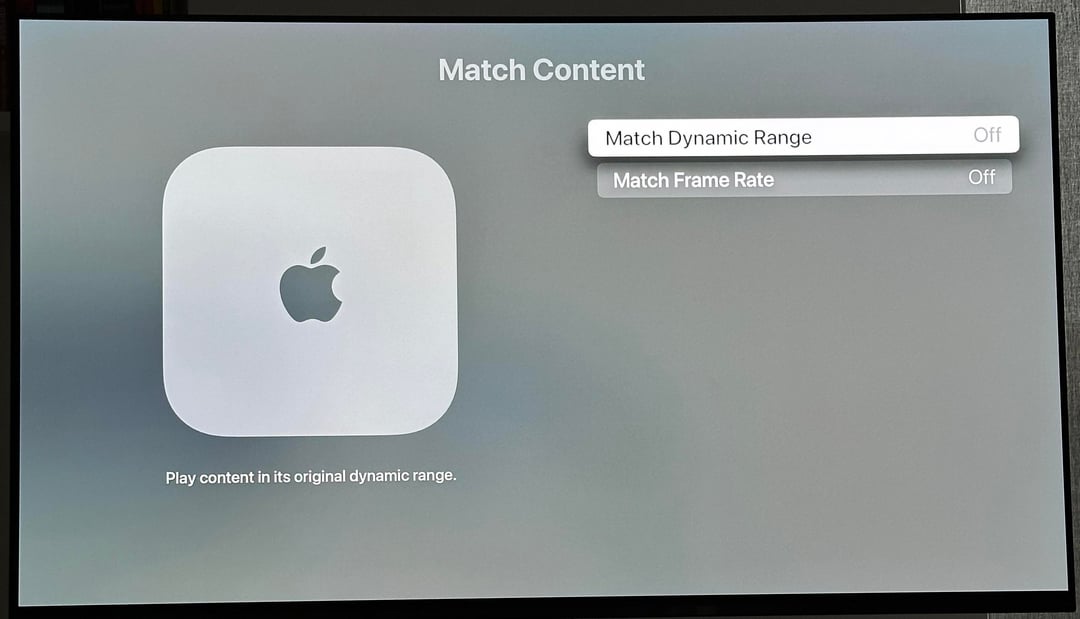
Fix 3. Disable Match Content Settings
These settings cause Apple TV to switch color spaces and frame rates dynamically, which can trigger a DRM decryption deadlock:
Step 1. Go to Settings → Video and Audio → Match Content.
Step 2. Set "Match Dynamic Range" to Off.
Step 3. Set "Match Frame Rate" to Off.
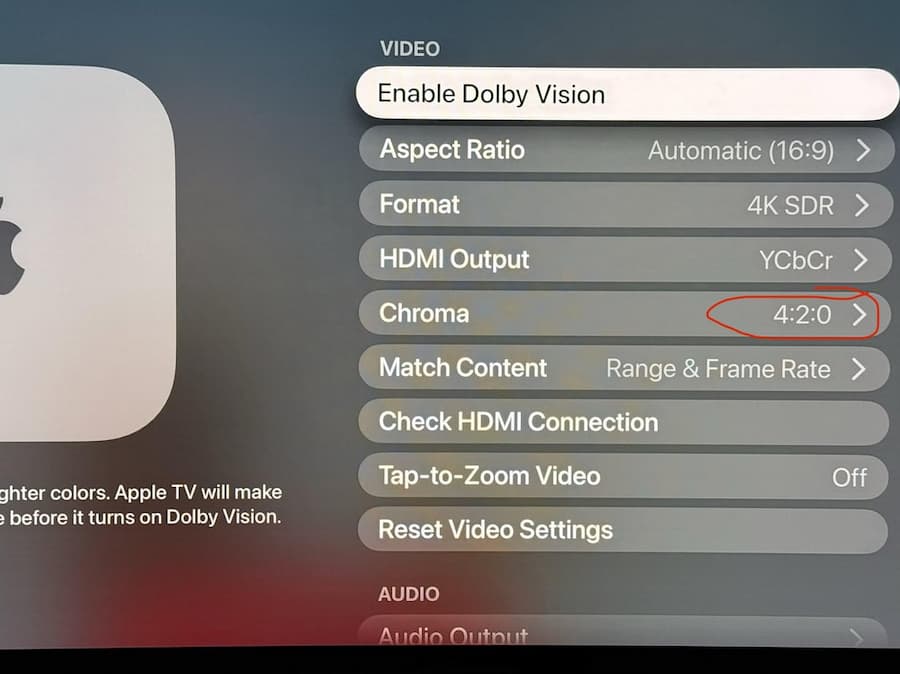
Fix 4. Adjust Output Format and Color Space
Step 1. Go to Settings → Video and Audio → Format.
Step 2. Change it to 4K SDR 60Hz (or 1080p SDR 60Hz depending on your TV).
Step 3. Scroll down to HDMI Output and change the setting to YCbCr.
Step 4. Select Chroma and change it to 4:2:0.
On Samsung TV
The two most effective fixes for Samsung TV Netflix black screen with sound are a real cold boot and a Netflix reinstall.
Fix 1. Cold Boot via Remote
With the TV on, press and hold the Power button on the remote for 5–7 seconds until the screen goes dark and the Samsung logo appears on restart. This is a genuine cold reboot, not standby.
Fix 2. Reinstall Netflix
Go to Apps → gear icon (⚙) → find Netflix → select "Reinstall." This rewrites the security package that Netflix uses for DRM and often resolves persistent black screens.
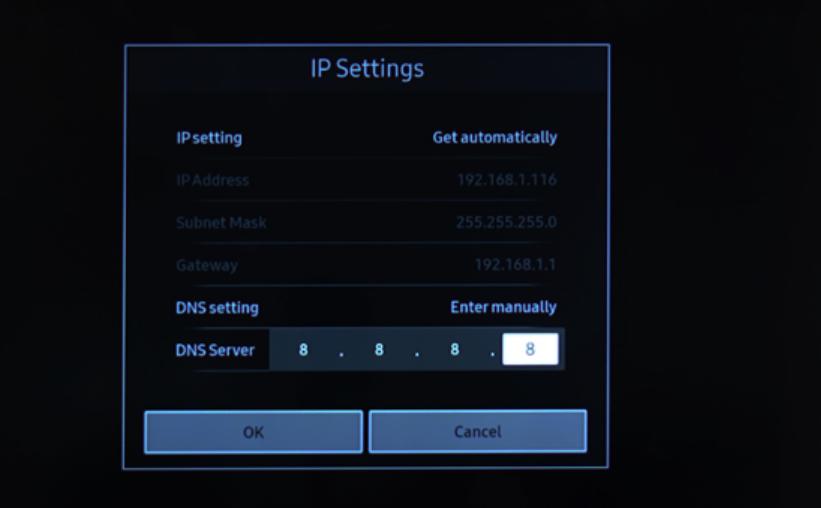
Fix 3. Change DNS
Step 1. Go to Settings menu → Network → Network Status.
Step 2. Select IP Settings → DNS Setting, and switch to Enter Manually.
Step 3. Type 8.8.8.8 and save changes.

On Amazon Fire Stick
Amazon Fire Stick Netflix black screen with sound is often triggered by HDR incompatibility between the Fire Stick and your TV.
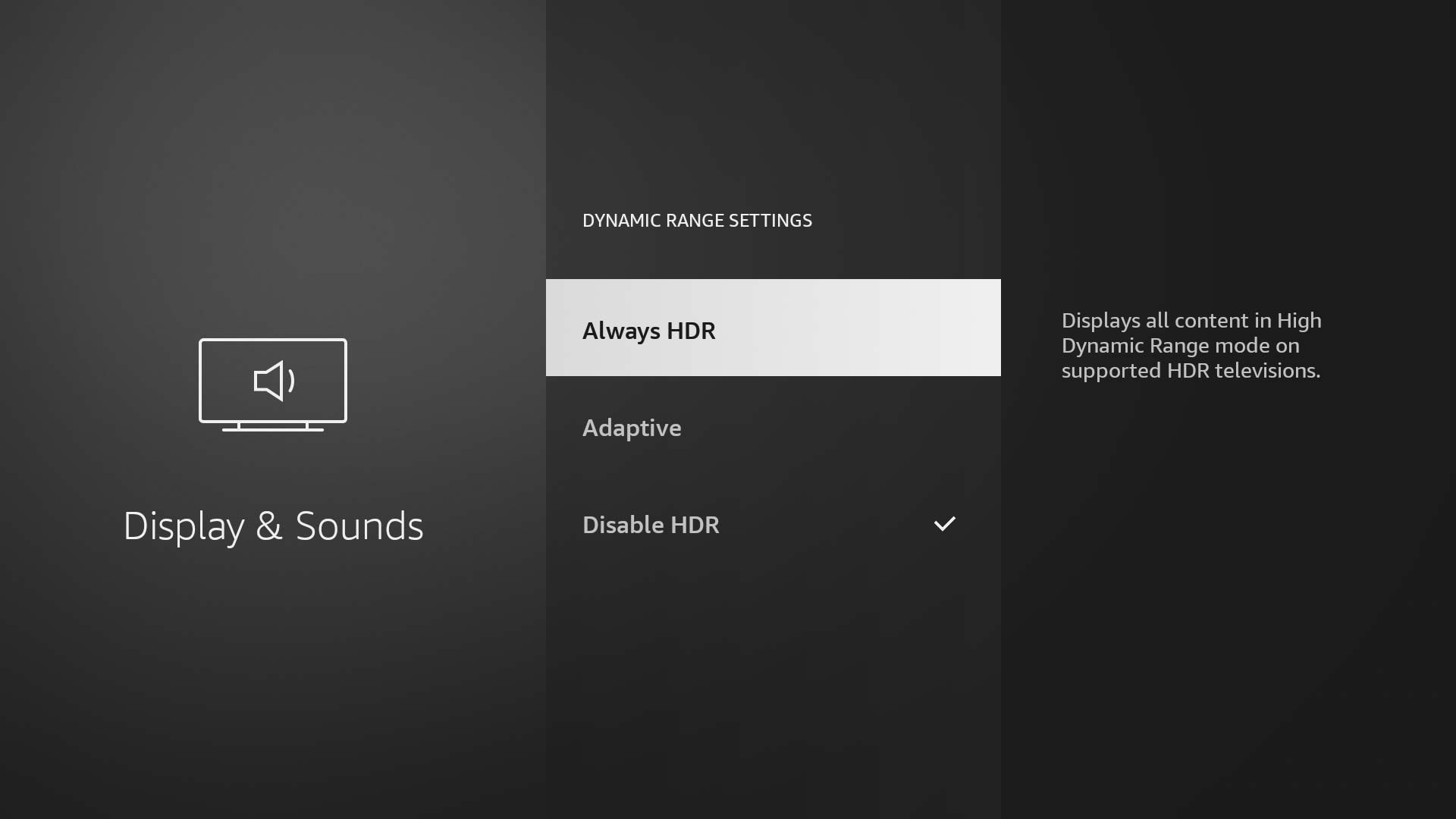
Fix 1. Disable or Adjust HDR
By default, the Fire Stick often forces an "Always HDR" signal. This constant encryption stress can overflow the video decoder, causing Netflix to drop the video feed while keeping the audio.
Step 1. Go to Settings → Display & Sounds → Dynamic Range Settings.
Step 2. Change HDR to "Adaptive" or turn it off entirely.
Fix 2. Turn off Test Participation
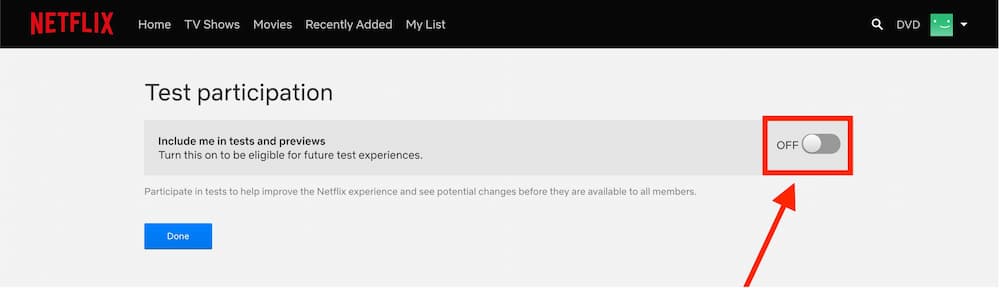
Netflix frequently runs experimental server-side code and HDR ad delivery protocols on streaming devices. These tests can break decoder compliance on older Fire Sticks. You must disable this using a web browser:
Step 1. Open a browser on your phone or computer and log into your Netflix Account.
Step 2. Go to Account → Settings → Test Participation.
Step 3. Toggle the setting to OFF and restart your Fire Stick app.
Fix 3. Hardware Restart Shortcut
With the Fire Stick selected as input, press and hold the Select button (center of the ring) + Play/Pause simultaneously for 5 seconds. This forces a hardware restart.
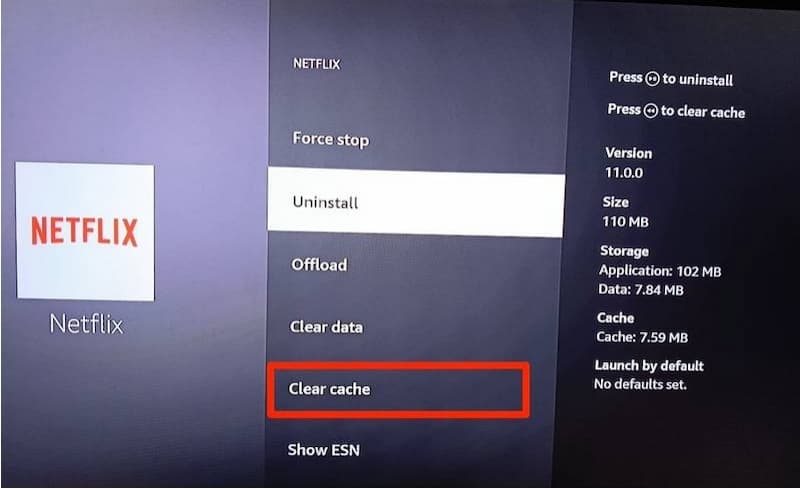
Fix 4. Clear Netflix Cache and Data
Step 1. Go to Settings → Applications → Manage Installed Applications → Netflix.
Step 2. Tap Clear Cache and Clear Data, then relaunch Netflix.
Part 4. How to Fix Netflix Black Screen with Sound on Mobile
Mobile troubleshooting is usually simpler, but it still helps to follow the right order.
On Android
Fix 1. Full Power Cycle
Don't just lock the screen or restart; please fully power the device off, wait 30 seconds, then power it back on.
Fix 2. Disable Screen Overlay and Display Filters
Go to Settings → Display and turn off Eye Comfort Mode, Night Mode, or any third-party blue light filter app. These overlays can interfere with Netflix's protected video rendering layer.
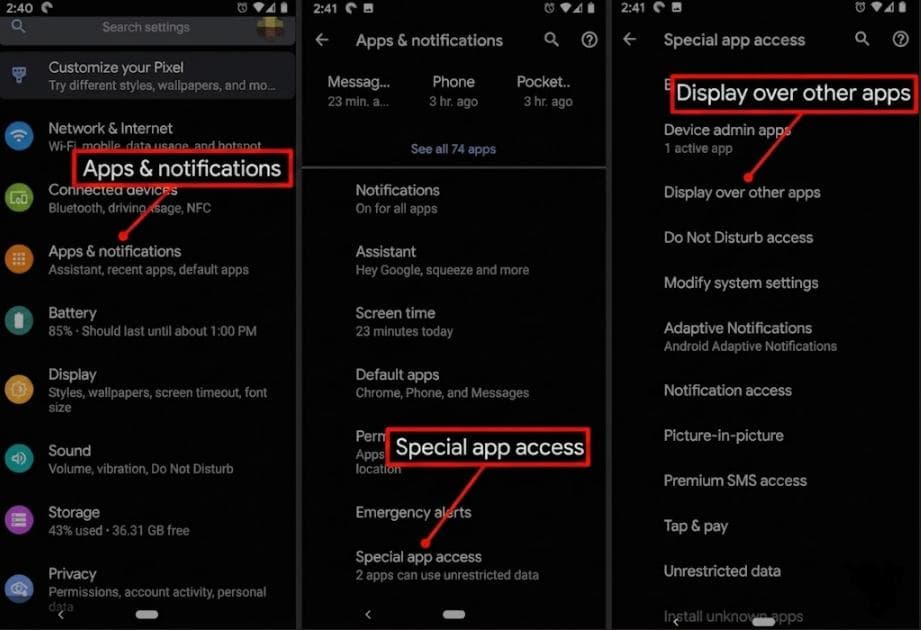
Fix 3. Revoke "Display over other apps" Permissions
Step 1. Go to Settings → Apps → Special App Access.
Step 2. Tap Display over other apps and revoke permissions for any unnecessary overlay tools.
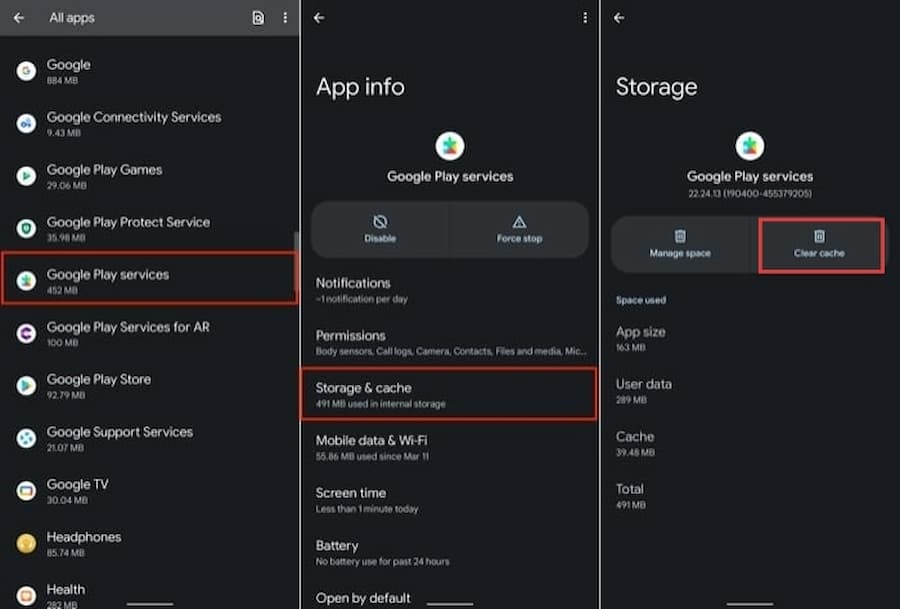
Fix 4. Clear Google Play Services and Android System WebView
Step 1. Go to Settings → Apps.
Step 2. Locate Google Play Services and Android System WebView.
Step 3. Clear their cache and storage data individually.
On iPhone / iPad
Fix 1. Force Close and Restart
Swipe up from the bottom to open the App Switcher. Swipe Netflix off the screen to force close it, then fully restart your iPhone. Reopen Netflix.
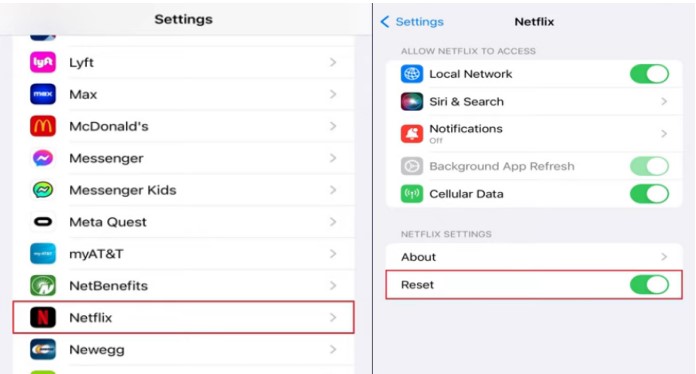
Fix 2. Reset Netflix Client Data
Go to Settings (iOS) → Apps → Netflix and toggle the "Reset" switch to on. This wipes local decryption tokens and forces the app to fetch fresh ones.
Fix 3. Switch Networks and Try the Flip Trick
Switching from Wi-Fi to cellular data and then, when the audio starts playing on the black screen, rotating the phone 180 degrees (upside-down landscape) prompts the video layer to re-render. This sounds odd, but it's a known workaround in the iOS Netflix community and is worth trying before more drastic steps.
Note: If the black screen happens specifically in the last few minutes of each episode, this is a known iOS bug (most prevalent on iOS 14.8). Try downloading the episode for offline playback or switching to Picture-in-Picture mode as a workaround
Part 5. A Workaround: How to Watch Netflix Without Black Screen Issues
The fixes above, such as disabling hardware acceleration, solve the black screen, but they come with a real cost: sometimes, your playback gets locked to 720p, and HDR/Dolby Vision is disabled entirely. If a browser or OS update hits, the same issue can come back.
If you want to watch Netflix without sacrificing picture quality, one practical approach is to use a Netflix video downloader like VidiFab Netflix Video Downloader to save videos as standard MP4 or MKV files at up to 1080p with 5.1 audio. Once downloaded, you can play them in VLC, your smart TV's media player, or any device, with no HDCP handshake, no DRM layer, no black screen.
VidiFab Netflix Video Downloader
Download Netflix videos as MP4/MKV in 1080p with Dolby Atmos and multi-language subtitles for offline viewing on your TV, iPhone, Android, desktop, and other devices.

How to Download Netflix Videos with VidiFab to Watch Without Black Screen Issues
Step 1. Set Your Output Format
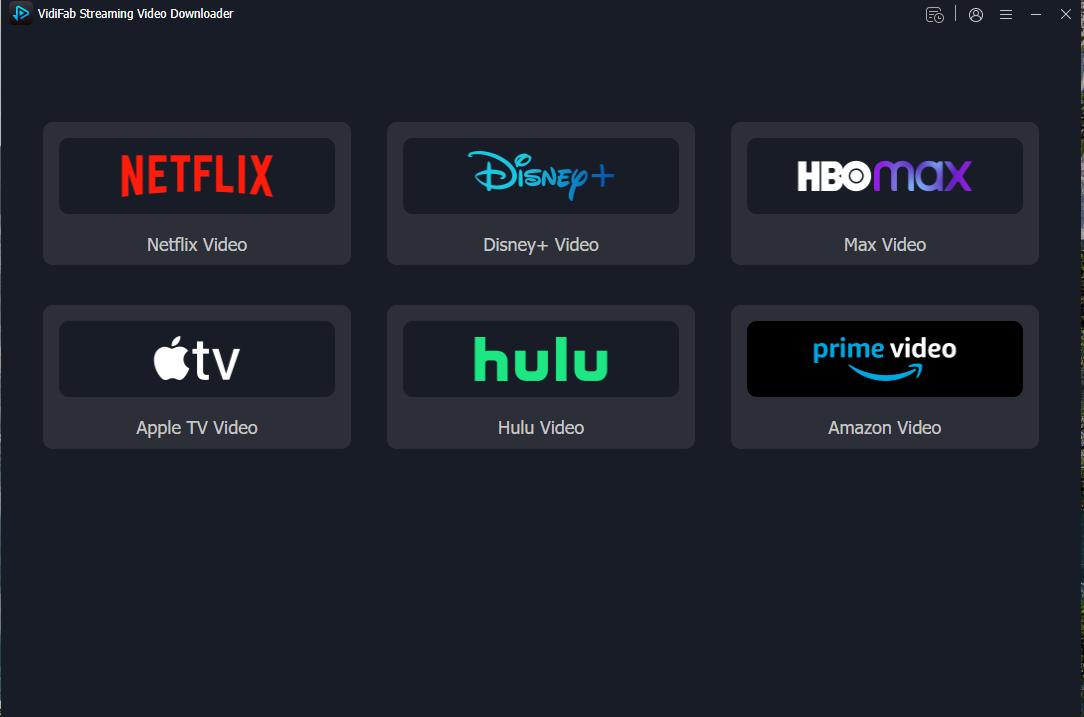
Open VidiFab Netflix Video Downloader. Click the menu icon in the top-right corner, go to Preferences, and set your default output format to MP4 or MKV; both are universally supported by smart TVs, media players, and VLC. Set your preferred download folder.

From the main screen, click the Netflix logo to open the built-in web player and log into your account.
Step 2. Find the Problem Title
Navigate to the movie or show that's been giving you a black screen, or paste the URL directly into the address bar. VidiFab will analyze the stream automatically. Click the Download button that appears in the bottom-right corner when it's ready.

Step 3. Choose Resolution and Video Settings
In the settings window, select your resolution up to 1080p. This is the step where you reclaim the picture quality you'd lose by disabling hardware acceleration in a browser. Select your preferred audio tracks and subtitle language and format, then click Download.

Step 4. Play on Any Screen, Black Screen–Free
Track progress in the Downloading tab. Once done, go to History (the clock icon) and click the folder icon to locate your file. From here you have two options:

- Play directly on your computer in VLC or any media player.
- Transfer to your TV by copying the MP4 or MKV to a USB drive and plugging it into your Samsung TV, Fire Stick, Roku, or Android TV box for smooth playback with perfectly synced audio and no black screen risk.
Part 6. FAQs About Netflix Taking No Video But Audio
Why do other apps like YouTube work fine, but Netflix goes black?
Why can I see the subtitles and progress bar, but the movie is black?
Can a VPN fix the screen-mirroring black screen issue?
Conclusion
If Netflix gives you sound but no picture, start with the fastest fix that matches your device. On computers, check the browser first. On TVs and streaming sticks, do a full restart and inspect the HDMI path. On mobile devices, clear the app cache or reinstall the app if needed.
For a permanent fix that also restores full 1080p quality, download with VidiFab and watch Netflix content locally for a better experience. Try the quick fixes first, and bookmark this page if the issue comes back after a system update.
 Free Download
 Secure Download
 Free Download
Secure Download
Free Download
Secure Download


I'm a video tech specialist with over 10 years of experience in digital media and streaming. I focus on making complex workflows simple and practical. Through my guides, you'll learn how to convert media, keep high-quality playback across devices, and manage your streaming video library with ease.
 Leave Your Comment