How to Sign Out of Netflix on a Hotel TV: Complete Guide
 By Miles Kent
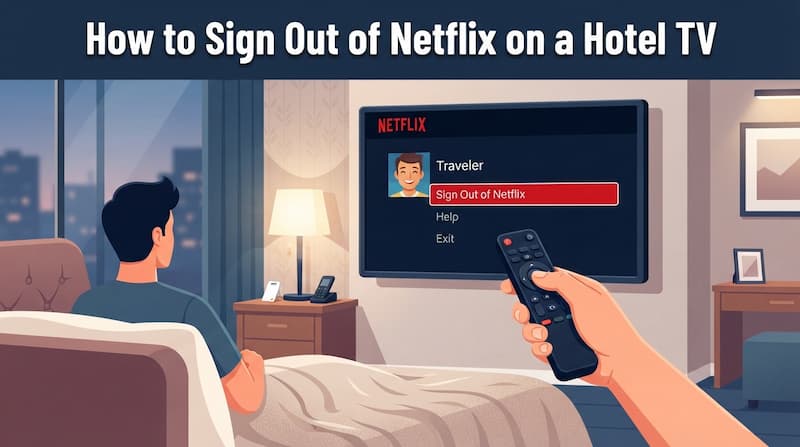
If you used Netflix on a hotel TV, do not just exit the app. Exit only closes Netflix. It may not log out your account. The safest fix is to sign out from the TV, remove the device from your Netflix account, and clear any saved email. If you already left, use your phone or computer. Some hotel systems clear guest data at checkout. Still, you should not rely on that alone.
In this guide, I will walk you through five methods to log out of Netflix on a hotel TV. Whether you are still in the room with the remote or already checked out and worried about your account, there is a solution here for you.
Which Netflix Hotel TV Logout Method Should You Use?
Use the table below to choose the safest method. If you still have the remote, sign out on the TV first. If you already left, remove the hotel TV from your Netflix account on your phone or computer.
| Method | When to Use | What You Need |
|---|---|---|
| Method 1. Remove the Hotel TV from Your Netflix Account on Phone/PC | You already left the hotel or forgot to sign out. | Your phone or computer and your Netflix account login. |
| Method 2. Sign Out from the Hotel TV Remote | You are still in the hotel room and can open Netflix on the TV. | Hotel TV remote and access to the Netflix app. |
| Method 3. Use the Reset Code If Logout Is Missing | The Netflix menu has no clear Sign Out option. | Hotel TV remote and access to the Netflix app screen. |
| Method 4. Ask the Hotel Front Desk to Clear the Netflix Session | The TV is locked, managed, or you cannot identify the device remotely. | Your hotel name, room number, and checkout date. |
| Method 5. Wait for Checkout Auto-Logout, But Do Not Rely on It | The TV is part of a managed hotel system that may clear guest data. | A hotel-managed TV system and a backup check from Netflix account settings. |
For the strongest privacy protection, combine Method 1 with Method 2. Then check whether your email still appears on the Netflix login screen.
Method 1. Remove the Hotel TV from Your Netflix Account Remotely (Most Recommended)
According to the "How to Sign Out of a Device" guide on the Netflix Help Center, users can use the Manage Access and Devices page to sign out of one or all devices.
You can use this method if you forgot to sign out before leaving. It is the best fix after you check out. You do not need the hotel TV remote for this. Follow these step-by-step instructions to revoke access:
-
01
Open Netflix on your phone, tablet, or computer.
-
02
Navigate to your Account settings page.
-
03
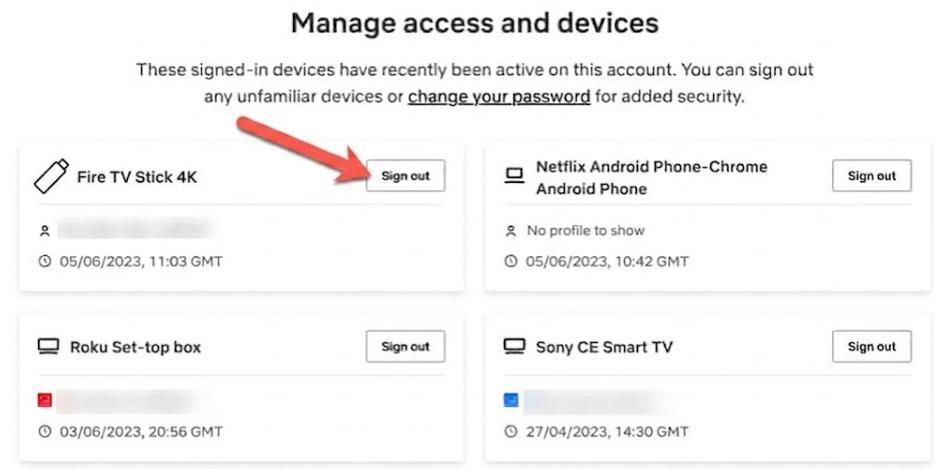
Select Manage Access and Devices.
-
04
Locate the hotel TV from the list. Click or tap Sign Out next to that device. It immediately disconnects your Netflix account from that specific hotel TV.
How to Identify the Hotel TV
The device name on your list will not explicitly say "Hotel." Instead, you must look for clues based on the hardware type and your travel history.
- Look for device types: It will likely show as a Smart TV, Android TV, Roku, Fire TV, Apple TV, or Samsung TV.
- Check the location: Netflix often displays a rough geographic location next to the device. Look for the city or region you just visited.
What to Do If the Hotel TV is Missing
If you cannot find the specific hotel TV, use the Sign Out of All Devices option at the bottom of the management page. This option completely removes your account from every single signed-in screen worldwide.
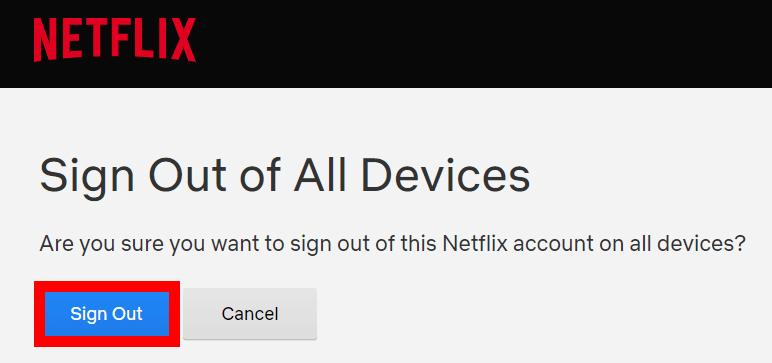

Tip: After using "Sign Out of All Devices," you will need to log back in on every device you actively use. This is a small inconvenience compared to leaving your account exposed on a hotel TV.
Method 2. Sign Out of Netflix from the Hotel TV Remote
The most direct way to log out is using the TV remote. It removes your Netflix account from that hotel TV. Many hotel TVs hide this option inside nested menus. Follow these steps to find it quickly:
How to Log Out of Netflix on Regular Smart TV
Hotel TVs often use Samsung, LG, Android TV, Roku, or Fire TV systems. The Netflix menu can look slightly different on each one. However, regardless of the TV brand, your first step should always be finding the "Get Help" option. Here is how to do it:
-
01
Open the Netflix app on the hotel TV.
-
02
Press Left on your remote to open the sidebar menu.
-
03
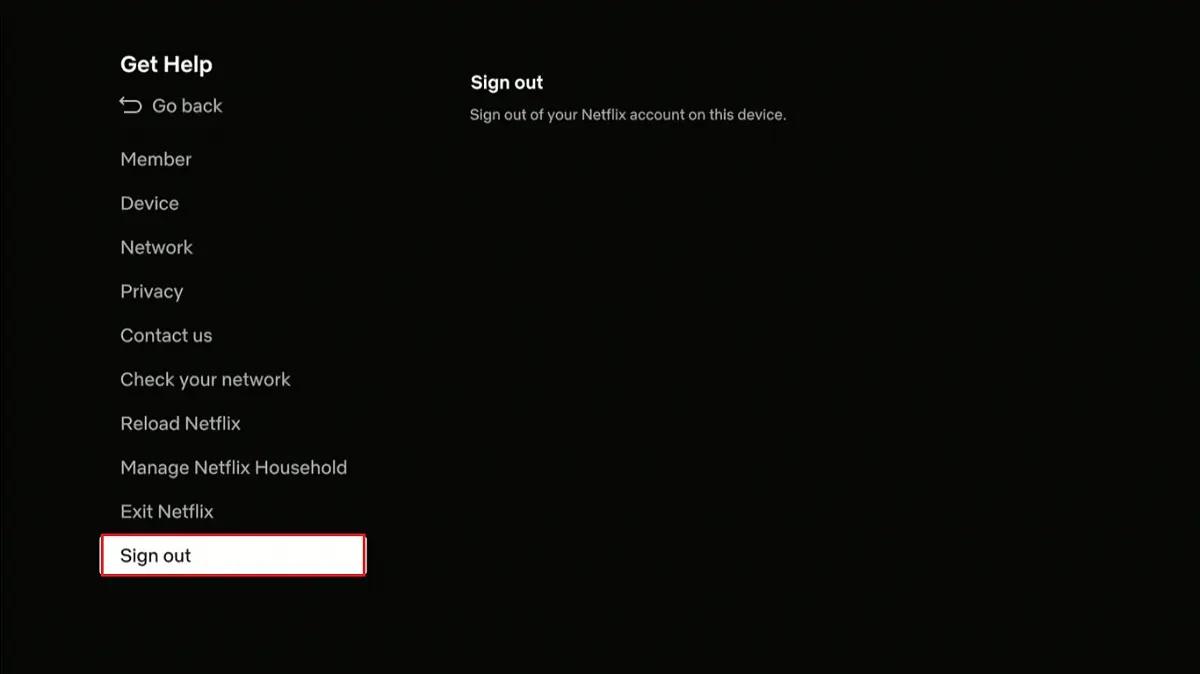
Scroll down and click Get Help or the Gear icon (Settings).
-
04
Scroll to the bottom and select Sign Out.
-
05
Click Yes to confirm.
If the hotel room uses a Samsung TV, this guide to using Netflix on Samsung TV can help you understand where the app, login screen, and TV controls usually appear.
How to Log Out of Netflix on Amazon Fire TV
Amazon Fire TV devices differ from regular Smart TVs by incorporating apps into the Amazon operating system. To log out of Netflix on a Fire Stick, especially if the app is frozen or slow in a hotel, the most effective method is to use the Fire TV system settings.
-
01
Press the Home button on your Fire TV remote to go to the main dashboard.
-
02
Navigate to Settings (the Gear icon) on the far right of the home screen menu.
-
03
Select Applications, then scroll down and click Manage Installed Applications.
-
04
Find and select Netflix from the list, then click Clear Data.
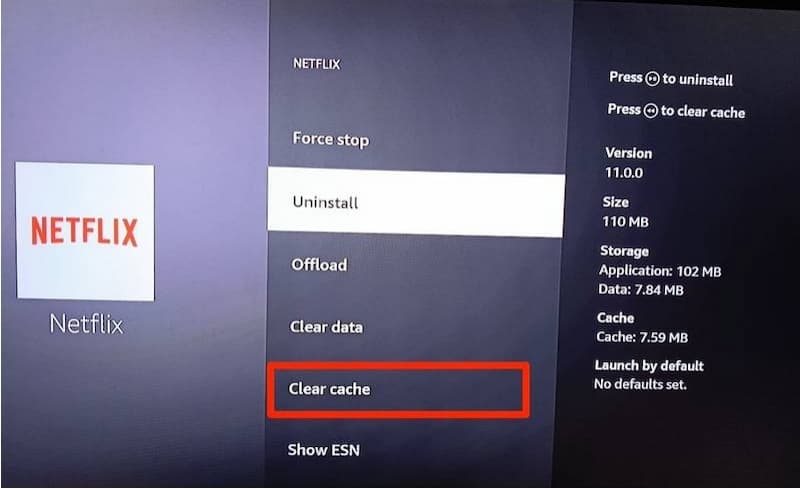
(Note: If the Netflix app is working smoothly, you can still use the regular Smart TV method by opening the Netflix sidebar, going to Get Help, and selecting Sign Out.)
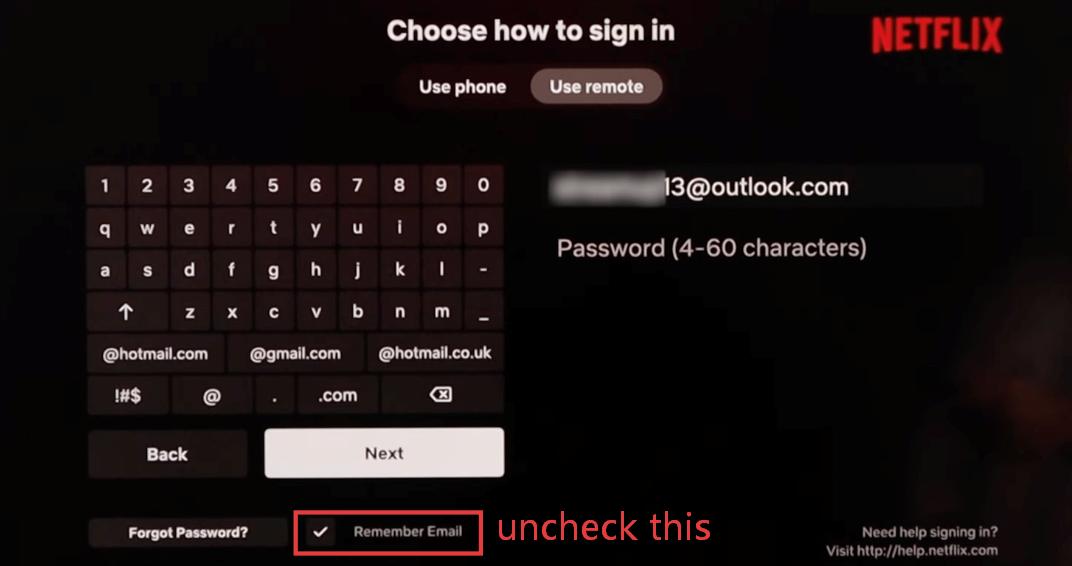
Crucial Step: Deselect "Remember Email"
Many travelers make a major mistake here. They click "Sign Out" but leave their email address behind. If you do not clear it, the next guest can see your login email.
Before you exit the screen completely, look at the login fields. If you see your email address, look for a checkbox below it. Uncheck the box that says "Remember Email" or "Remember Me."
Method 3. Use the Reset Code If Logout Is Missing
Sometimes, hotel TV interfaces are modified or frozen. You might look for the "Get Help" or "Settings" menus and find they are completely missing.
If you get stuck, you can force the app to reset using a secret remote control combination:
- Up, Up, Down, Down, Left, Right, Left, Right, Up, Up, Up, Up
Once you enter the code correctly, a hidden diagnostic screen will pop up. This menu gives you direct access to the app's backend settings.
To log out of your Netflix account, follow these:
-
01
Scroll through the diagnostic menu options.
-
02
Select Sign Out, Log Out, or Deactivate option.
-
03
Confirm your choice if prompted.
This action instantly force-closes your active session. It wipes all cached profiles, removes your username, and leaves the Netflix app fresh for the next guest.

Warning: The reset code works on most smart TV platforms including Roku, Fire TV, and Android TV. However, some heavily customized hotel TV systems may block the code entirely. If nothing happens after entering the sequence, move on to Method 4 and contact the front desk.
Method 4. Ask the Hotel Front Desk to Clear the Netflix Session
Many modern hospitality chains use centralized, managed hotel TV systems. These smart networks securely link the room's television to your guest name, room number, Wi-Fi access, and checkout status.
When you notice a TV displaying your name or Hilton Honors tier information, it means your profile is deeply integrated into that room's hardware.
If you forget to log out, call the hotel front desk. Be clear and friendly when you speak to the staff. Depending on their system setup, they have a few ways to assist you:
- Remote Session Clear: Many hotels can instantly clear Netflix app data directly from their central management office.
- Engineering Dispatch: The front desk can send an on-site IT or engineering team member up to the room to factory reset the TV.
- Housekeeping Check: Staff can instruct housekeeping to manually sign out of the app while preparing the room for the next guest.

Note: Never share your actual Netflix password with the hotel staff. The hotel does not need it. They only need to wipe the active session from the television hardware.
What to Say to the Front Desk
Call the hotel directly and use this simple template to get fast help:
"Hi, I stayed in Room [Your Room Number]. I think I accidentally left my Netflix account signed in on the TV. Could someone please clear the Netflix app data or reset the streaming session for that room? Thank you so much!"
Method 5. Wait for Checkout Auto-Logout, But Do Not Rely on It
Will Netflix automatically log out on hotel TVs? Sometimes.
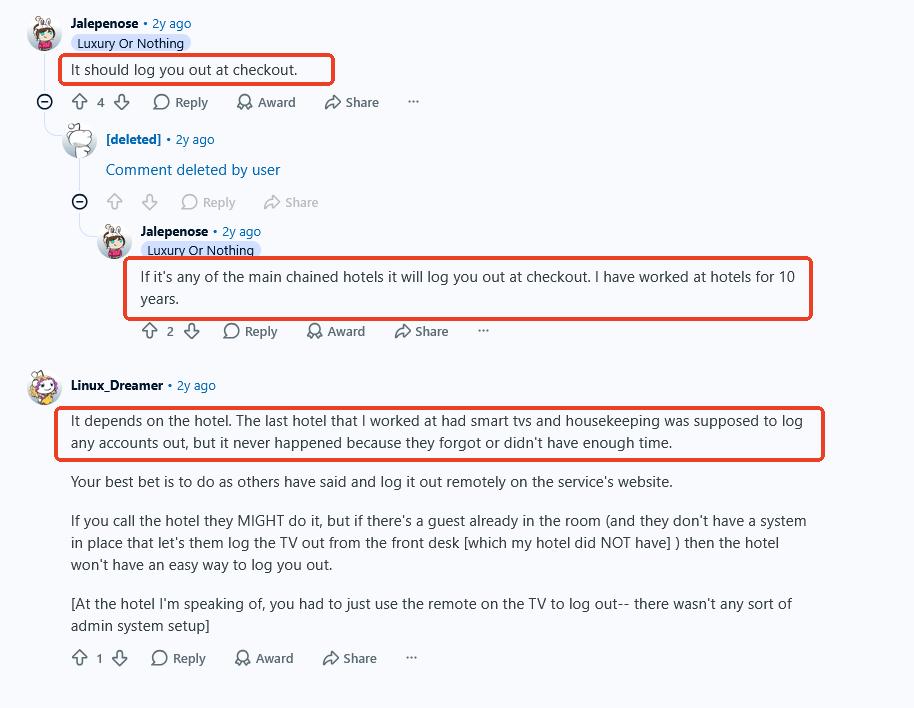
Many hotels use managed TV systems that are connected to your room stay. When these systems are properly configured, they may automatically remove your streaming accounts after checkout.
Some hotel employees have shared that large chain hotels often have systems that sign guests out after checkout. However, others point out that this depends on the individual property. In some cases, staff may forget to reset a TV, or they may not have enough time to manually check every room before the next guest arrives.
Remember to Verify After You Leave
Never trust the automation blindly. System glitches happen, and regular smart TVs will leave your account exposed to the next guest.
Once you leave the hotel, always verify your status. Open your phone or computer, go to Manage Access and Devices in your Netflix settings, and remove any hotel TV you still see on the list. This gives you total control over your data.
Bonus Tip: How to Watch Netflix on a Hotel TV Without Signing In
The safest way to watch Netflix on a hotel TV is that you never log in to your account. This is true for any shared screen. It includes hotel TVs, Airbnb TVs, and public media rooms.
The Safest Travel Option: Use VidiFab
You can avoid all login risks by preparing your videos before your trip. The VidiFab Netflix Video Downloader lets you watch Netflix offline. You can put these files onto a USB drive and play them on your travels without ever entering your account details.
VidiFab Netflix Video Downloader
Download Netflix videos as MP4 or MKV in 1080p with Dolby Atmos for offline viewing on any device, forever.

- Total Privacy: You do not leave your email or password behind on a public screen.
- No Wi-Fi Hassles: Hotel internet is often slow, laggy, and expensive. Because your Vidifab files play directly from the USB drive, you get smooth playback with zero buffering and no internet connection required.
- Permanent Access: Standard mobile downloads inside the official Netflix app expire quickly and often stop working when you cross international borders. Vidifab downloads Netflix to MP4 so that the video files won't expire.
How to Use VidiFab to Download Netflix Videos for Your Hotel Stay
Step 1. Launch VidiFab and Select Your Output Format
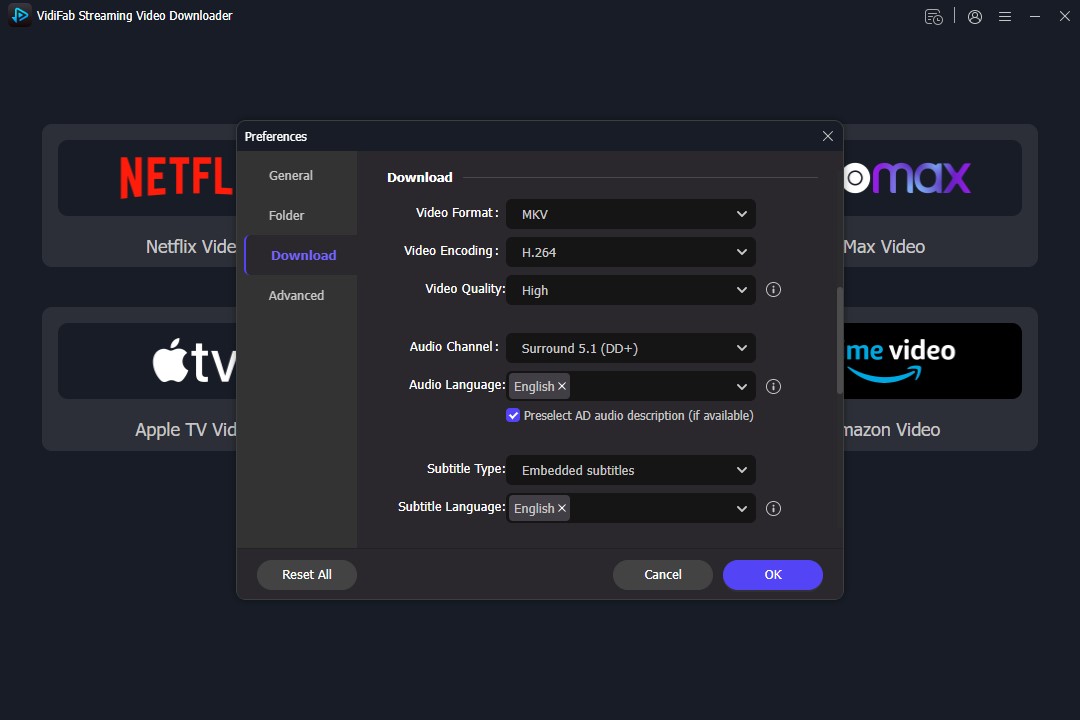
Download and open the VidiFab Netflix Video Downloader on your computer. Click the menu icon in the upper right corner and select Preferences. Under the Download tab, set your output format to MP4 or MKV. You can also adjust your video quality and output folder settings here. Click OK, then select the Netflix icon from the main dashboard. A secure browser window will open for you to log into your account.
Step 2. Search for the Movies or Shows You Want to Pack
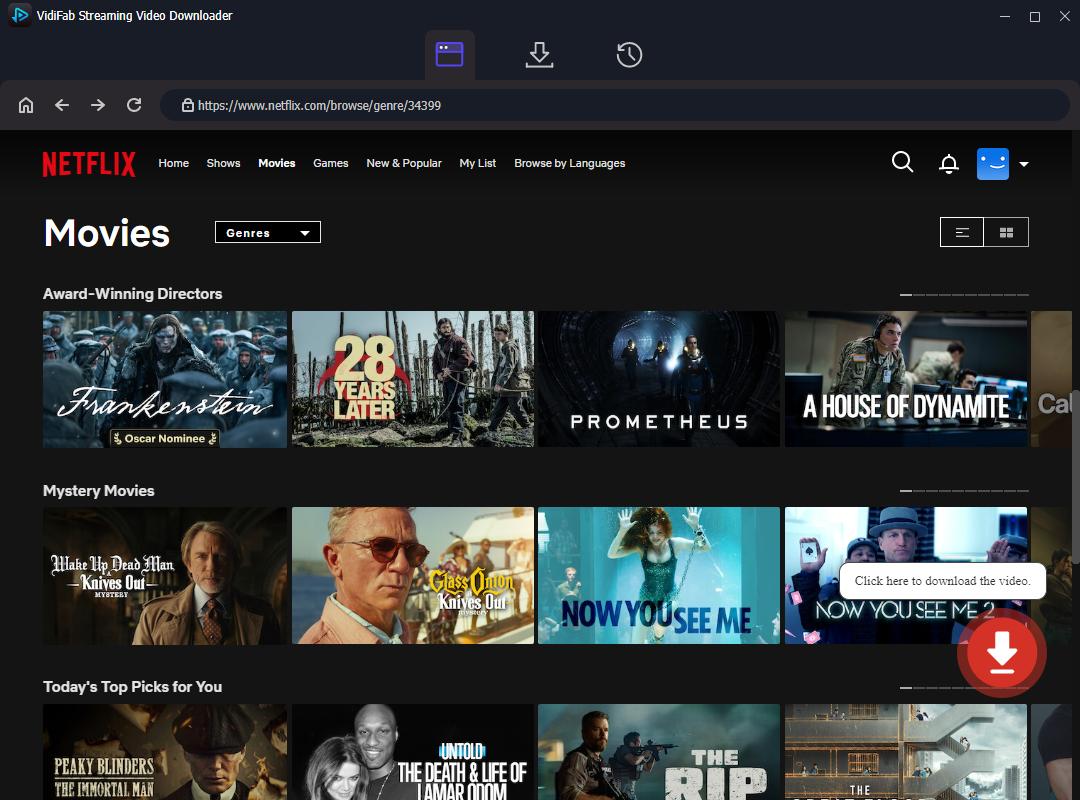
Browse the Netflix library directly within the built-in browser. Open the page of the content you want to take on your trip. Look for the red Download button in the bottom right corner of the interface and click it.
Step 3. Choose Travel-Friendly Settings and Start Downloading
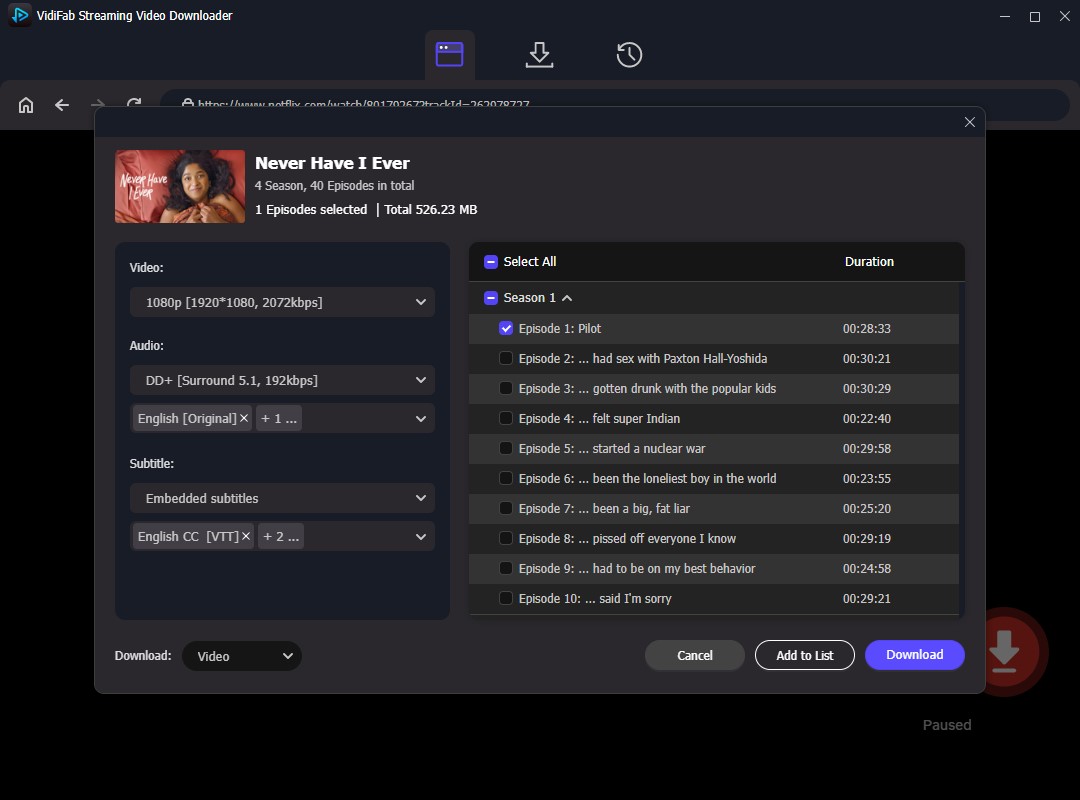
A download setup window will pop up. Choose your preferred video resolution such as crisp 1080p. Select your audio language tracks and subtitle types. Click Download to start saving your Netflix content at ultra-fast 7x speed.
Step 4. Locate Your Finished Downloads
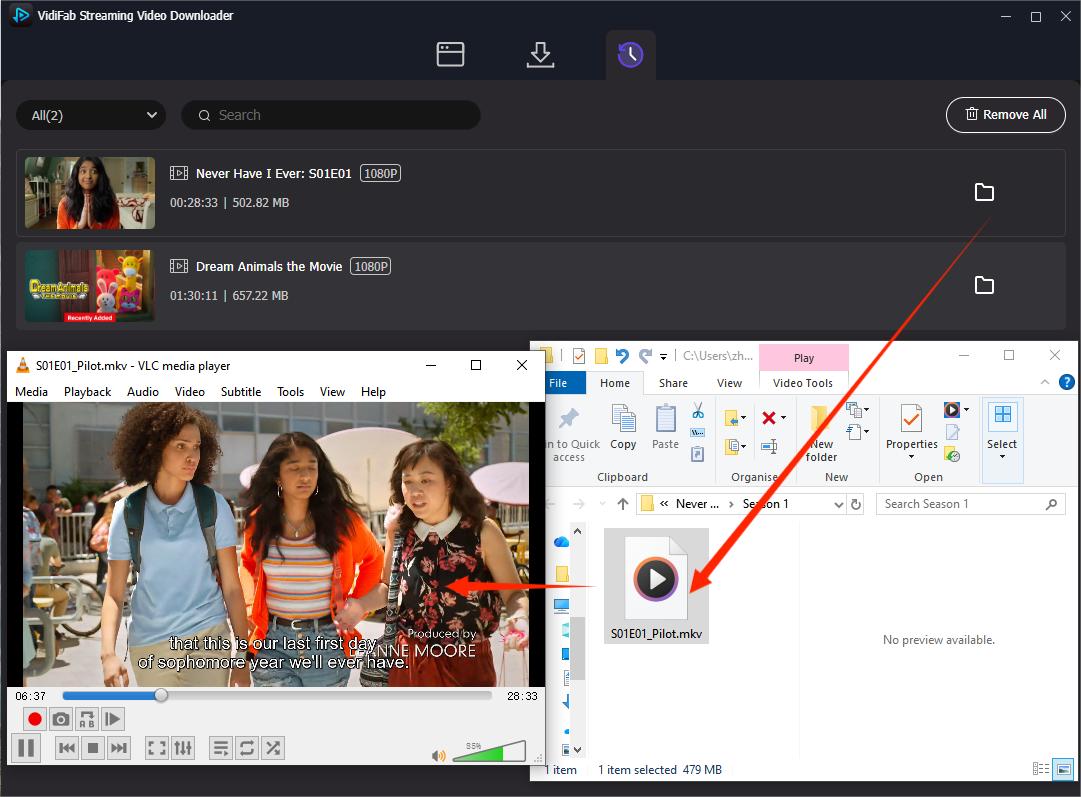
Once the download finishes, navigate to the History section. Click the folder icon next to your downloaded video title. This action immediately opens the destination folder on your computer containing your clean, standalone video files.
Step 5. Transfer to USB and Plug Into the Hotel TV
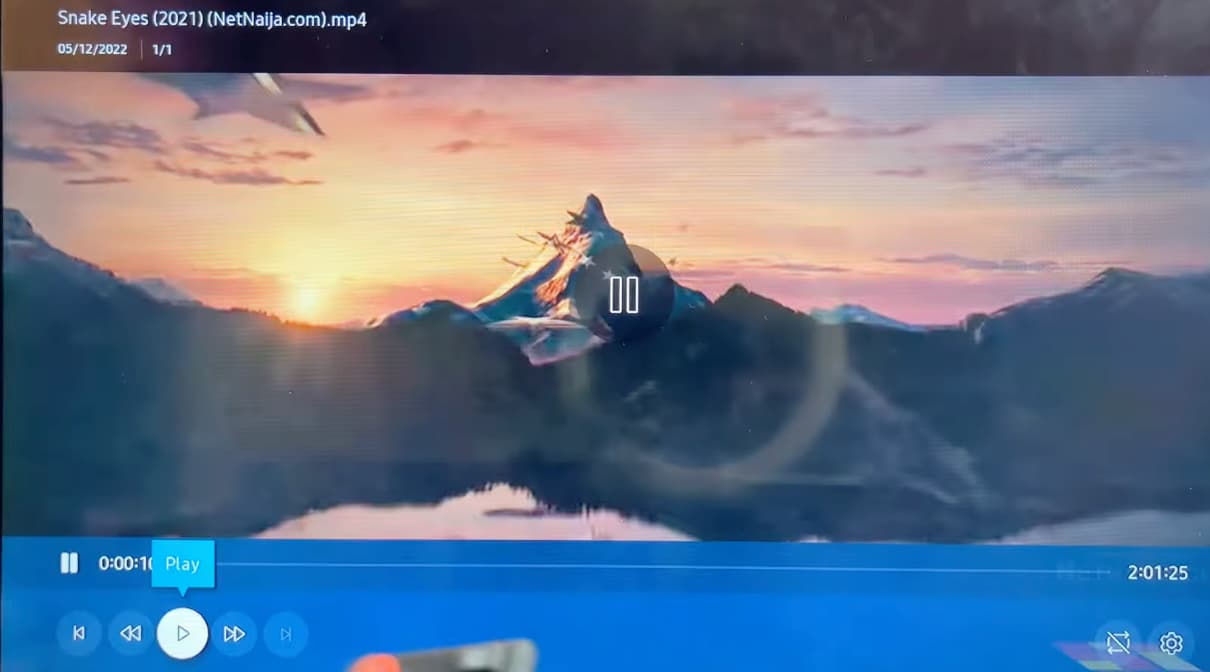
Insert your portable USB flash drive into your computer. Copy the downloaded video files directly from your VidiFab output folder onto the USB drive. Once you arrive at your hotel room, simply plug the USB drive into the media port on the side or back of the TV. Use the hotel remote to switch the TV input source to Media Player or USB, select your file, and enjoy full privacy with zero login risks.
Tip: If the TV blocks your USB drive, plug your laptop directly into the TV's HDMI port. This bypasses the restricted hotel interface completely and gives you total control over the screen.
Conclusion
The best way to sign out of Netflix on a hotel TV is through Get Help > Sign Out. If you already left, use Manage Access and Devices from your phone or computer.
If the logout option is missing, try using a Netflix remote code sequence or contact the front desk for assistance. For future trips, consider using the VidiFab Netflix Video Downloader. You can download titles and export them to a USB flash drive for offline viewing on a hotel TV without signing in. This ensures your account credentials are never entered or stored on a shared hotel device.
 Free Download
 Secure Download
 Free Download
Secure Download
Free Download
Secure Download

I write about streaming services, video playback, and digital media management. My articles cover practical ways to convert video files, troubleshoot playback issues, and manage digital content across devices. I aim to make technical topics easier to understand and help readers find practical solutions to common challenges.
 Leave Your Comment