How to Cast Netflix from Phone to TV: A Step-by-Step Guide
 By Miles Kent
Want to cast Netflix from your phone to your TV? You can use Google Cast on supported devices, connect your phone with an HDMI adapter, or try Samsung DeX on compatible Galaxy devices. However, not every TV supports casting, and Netflix may block certain screen mirroring methods. If the Cast icon is missing or playback shows a black screen, this guide explains what to check and which alternatives you can try to watch Netflix on your TV.
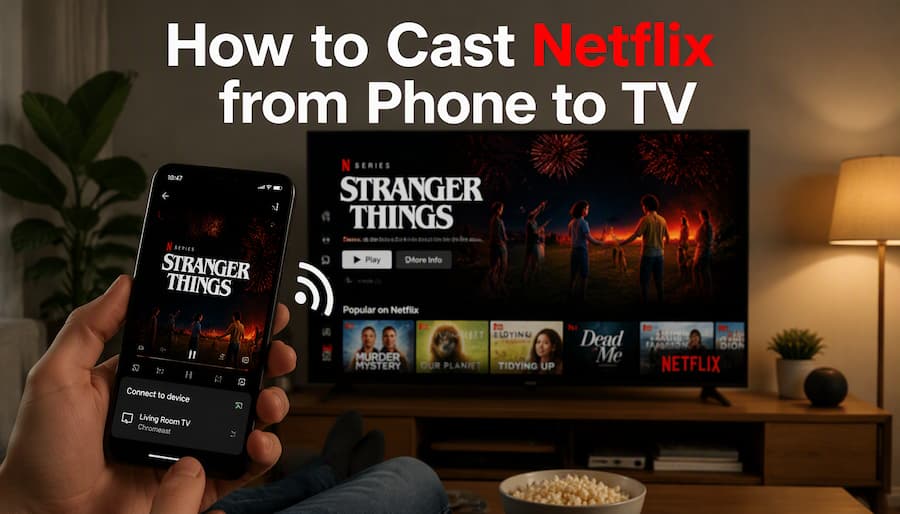
Part 1. Can You Cast Netflix from Your Phone to Your TV?
Yes, you can stream or cast Netflix from your phone to your TV. However, there are specific rules you must follow depending on your subscription plan, your phone, and your TV setup.

Important Note: Apple AirPlay is no longer supported by Netflix, so you cannot use AirPlay to mirror your iPhone or iPad to your TV.
What Do You Need to Cast Netflix Wirelessly?
- A Compatible Receiving Device: Wireless in-app casting works with standalone Chromecast devices (3rd generation or older, which do not have a physical remote), Google Nest Hub Smart Displays, and select cast-enabled Vizio or Compal TVs
- The Same Wi-Fi Network: Your phone and your TV or Chromecast must be connected to the exact same Wi-Fi network and router subnet.
- An Ad-Free Netflix Subscription Plan: Wireless casting to older Chromecast devices requires a Standard or Premium ad-free plan.
- Updated Android System: Your phone needs Android OS version 7.0 or higher to run the app, and Android 9.0 or higher for full casting support.
- Updated iPhone System: iPhone / iPad: Your device must be running iOS 16 or higher.
- Local Network Permission (iPhone & iPad): On iOS devices, you must open your phone's Settings, select Netflix, and turn ON the Local Network permission so Netflix can find your TV on the Wi-Fi network
Newer streaming devices, such as Chromecast with Google TV, run their own built-in TV app instead of headless casting
If you are on an ad-supported plan, casting to these legacy devices is blocked and will show an error message, such as Error Code E118.
Part 2. How to Cast Netflix from Android or iPhone (Step-by-Step)
There are several ways to connect your phone to a TV and watch Netflix, including Google Cast, a wired HDMI connection, and Samsung DeX on compatible Galaxy devices. Use the table below to find a suitable option before following the steps.
Ways to Cast Netflix from Your Phone to Your TV
| Connection Method | Supported Netflix Plans | What Devices Do You Need? |
|---|---|---|
| Wireless In-App Cast (Legacy Chromecast) | Ad-Free Plans Only (Standard & Premium) | Older Chromecasts (no remote), Google Nest Hub, select built-in Cast TVs. |
| Wired HDMI Cable (Best for Travel/Hotels) | Ad-Free Plans Only (Standard & Premium) | Phone-to-HDMI adapter cable. (iPhone 15+/Android: USB-C to HDMI; Older iPhones: Lightning adapter). |
| Samsung DeX Mode (Best Android Workaround) | Ad-Free Plans Only (Standard & Premium) | Samsung Galaxy Flagship phone (S-Series/Fold) connected via USB-C to HDMI cable to a TV. |
Method 1. Use the Cast Button in the Netflix App (The Official Icon Method)
With Netflix's Cast button on an ad-free plan, you can easily watch shows on a compatible screen while controlling everything from your phone. Once connected, your smartphone works like a remote, letting you browse titles, pause, skip scenes, and change subtitles or audio settings. Except for live streaming events, standard movies and TV shows will stream directly in full screen on your cast receiver.
How to Cast Netflix from Android
Step 1. Make sure your Android phone and Chromecast or compatible TV are connected to the same Wi-Fi network.
Step 2. Launch Netflix on your phone and select your profile on an ad-free account.
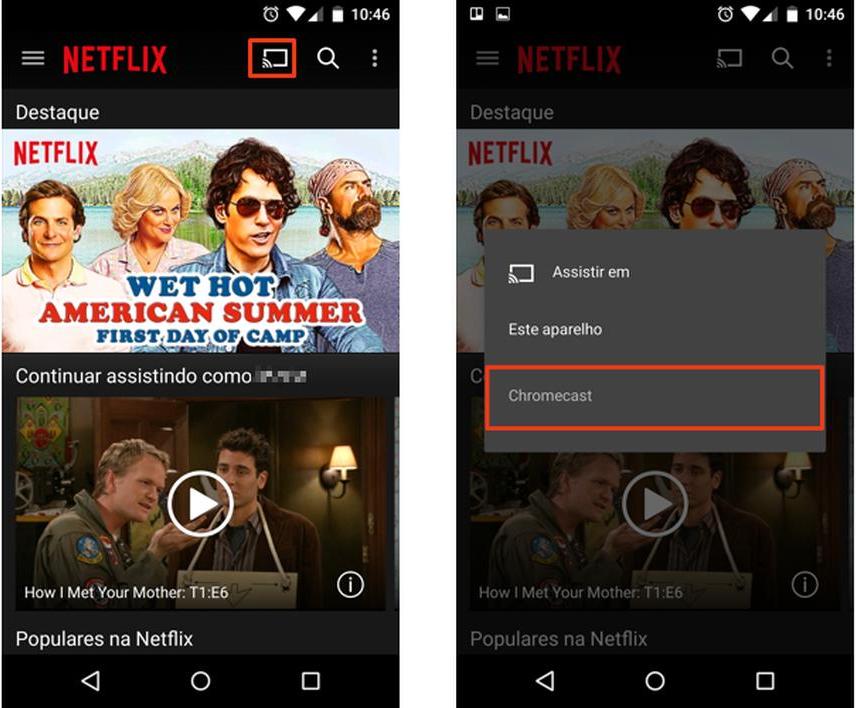
Step 3. Look for the Cast icon (a rectangle containing Wi-Fi signal waves) in the top-right or bottom-right corner of your screen.
Step 4. Tap your Chromecast or TV name from the pop-up list.
Step 5. Choose a show or movie. You can control playback, audio, and subtitles directly from your phone.
How to Cast Netflix from iPhone or iPad
Step 1. Make sure your iPhone or iPad and casting device are connected to the same Wi-Fi network.
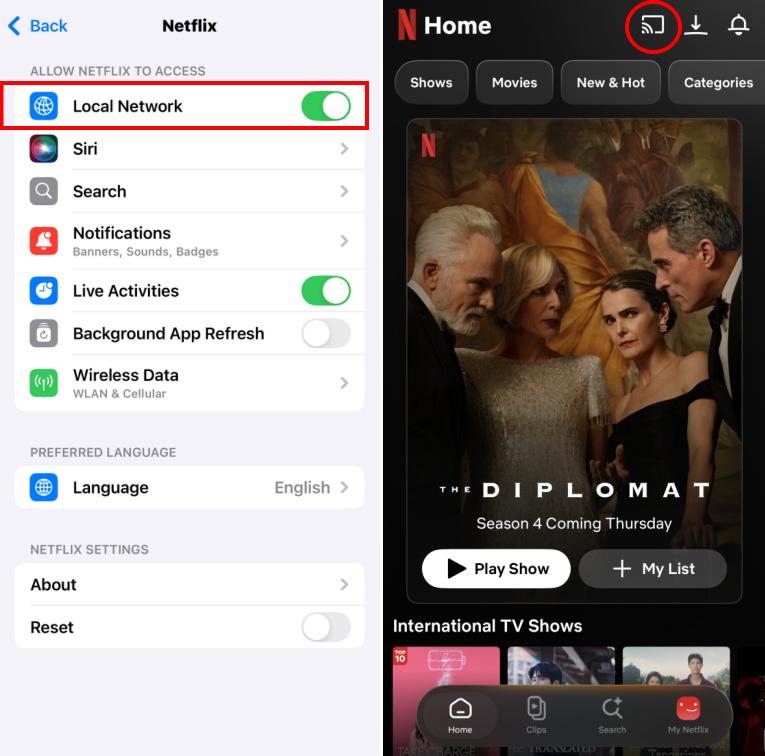
Step 2. Go to iPhone Settings > scroll down to Netflix > toggle Local Network to ON.
Step 3. Connect to the same Wi-Fi network, open Netflix, and select your profile.
Step 4. Tap the Cast icon, select your Chromecast device, and start watching.
- Tip 1: If your phone fails to discover the Chromecast, open the Google Home app. If the Chromecast appears as "Offline" there, reboot your router and Chromecast before reopening Netflix.
- Tip 2: If the Cast icon disappears during your session or says "No Devices Found," try force-closing the Netflix app. Then, switch on airplane mode and turn on your phone's Wi-Fi. After that, reopen Netflix.
Method 2. Connect Your Phone to Your TV with an HDMI Cable
If your Wi-Fi network is unstable, connecting your phone directly to your TV using a video cable is the most reliable backup solution available.
For iPhones and iPads with a Lightning Port
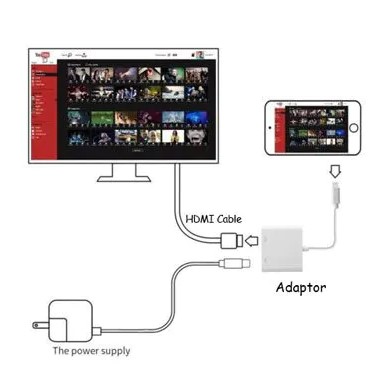
Step 1. Prepare an official Apple Lightning Digital AV Adapter (Model A1438 or A1621) paired with a standard HDMI cable.
Step 2. Plug the Lightning Digital AV Adapter into your iPhone or iPad.
Step 3. Connect one end of the HDMI cable to the adapter and the other end to your TV.
Step 4. Use your TV remote to select the correct HDMI input, such as HDMI 1 or HDMI 2.
Step 5. Open Netflix on your phone, choose a title, and press Play.
Step 6. If playback works, keep your phone connected while watching. If your adapter has a charging port, you can connect a charger to it as well.
For USB-C iPhones and Android Phones
USB-C doesn't automatically mean your phone can output video. Your Android needs to support DisplayPort Alt Mode for that. High-end models like the Samsung Galaxy S/Note/Fold series, Google Pixel 8 Pro, and OnePlus flagship phones have this feature included. All iPhone 15 and 16 models with USB-C can also output video.
To check if your Android supports DP Alt Mode: Open the Settings app, tap the search bar, and look for features like Samsung DeX, Motorola Ready For, or Huawei EasyProjection. If you find any of these, your phone can output video via USB-C.
Step 1. Prepare a USB-C to HDMI cable or adapter rated for USB 3.1 / Thunderbolt that explicitly supports HDCP 2.2.
Step 2. Plug the USB-C connector directly into your phone.
Step 3. Connect the HDMI end to your TV's HDMI port.
Step 4. Switch your TV input source to the corresponding HDMI channel.
Step 5. Open Netflix on your phone and press Play. The video will automatically display on your TV in full screen (up to 1080p or 4K depending on display capabilities).
- Getting a black screen with sound? Unplug the HDMI cable from both the adapter and the TV, wait 10 seconds, and plug it back in firmly. If your TV has multiple HDMI ports, switch to a port labeled HDCP 2.2 or eARC/ARC. If the problem persists, follow our guide on how to fix Netflix black screen with sound for more troubleshooting tips.
- Seeing the Netflix Error S7336 or Error 30103? Disconnect the cable, restart your mobile device, ensure the Netflix app is updated to the latest version in the app store, and reconnect the adapter.
- Is the video stuck in portrait mode? Ensure your phone's Auto-Rotate setting is turned ON if the video appears in portrait mode or doesn't automatically expand to full screen on your TV.
Method 3. Use Samsung DeX on Compatible Galaxy Devices
If you have a Samsung Galaxy phone that supports Samsung DeX, you can connect it to a TV and use a desktop-style interface on the larger screen. This is another option to try if wireless casting isn't available, but Netflix playback isn't guaranteed on every device or plan.
How to Connect Samsung DeX to Your TV
Step 1. Use a USB-C to HDMI cable or a multi-port USB-C hub to connect your Samsung phone directly to your TV's HDMI port.
Step 2. Enable DeX mode from your phone's Quick Settings menu so the desktop interface appears on your TV screen.
Step 3. Launch the Netflix Android app (or open Netflix in a web browser within DeX) and press Play to watch your show on the big screen.
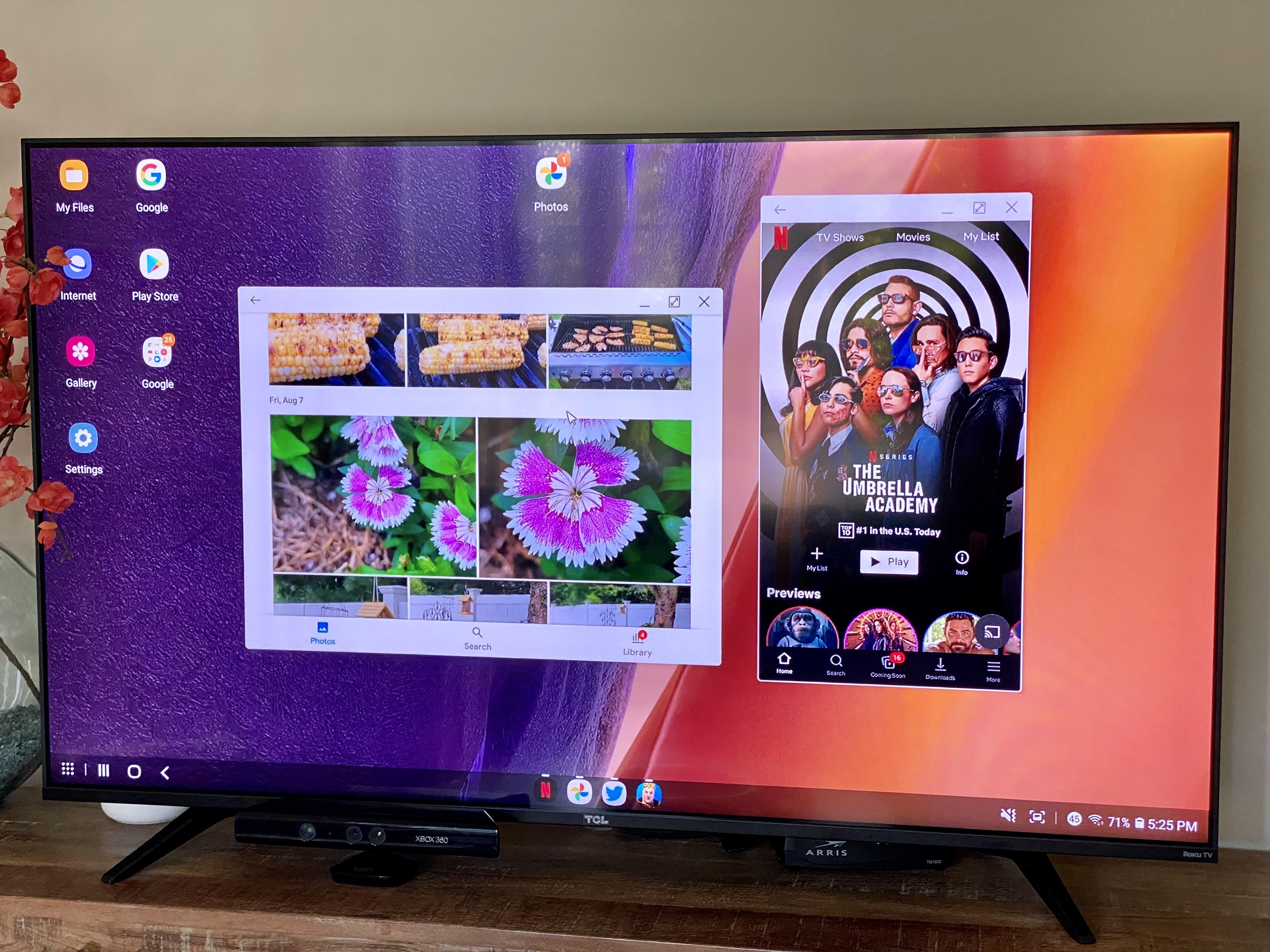

Quick Note: If the app window doesn't automatically resize to full screen or displays audio without video, turning on "Force apps to resize" under DeX Labs in your phone's settings will usually fix the window layout.
Part 3. Netflix Casting Alternatives: Other Ways to Watch on Your TV
If Netflix casting isn't working, you still have other ways to watch on a bigger screen. Depending on your TV setup and hardware, several reliable alternatives allow you to stream your favorite movies and shows seamlessly.
Alternative 1. Use the Netflix App on Your Smart TV
If you have a Smart TV like Samsung, LG, Sony, or Vizio, it probably has the Netflix app already installed or you can easily download it from the app store. This means you can watch Netflix on your TV using an ad-supported plan and enjoy live streaming, which casting doesn't allow.
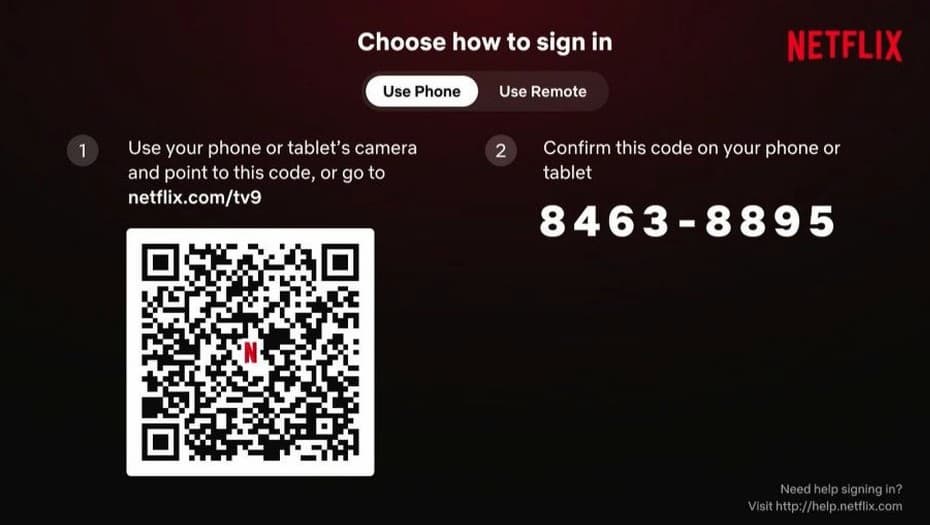
If your smart TV has the official Netflix app, just open it and log in using your phone. Take your smartphone camera and scan the QR code that shows up on the screen. This will quickly link your account from your phone. After that, you can use your remote to stream Netflix on your TV.
The setup process varies by brand and model. For example, if you can't find the Netflix app or it won't open on your Samsung TV, see our guide on how to use Netflix on Samsung TV. If you're setting up Netflix on an LG TV for the first time, follow our guide on how to get Netflix on LG TV. Vizio TV owners can also check our guide on how to use Netflix on Vizio TV for setup and sign-in instructions.
If your TV doesn't have Netflix, check out our guide for ways to watch Netflix on a non-smart TV.
Alternative 2. Connect a Streaming Device to Your TV
If your TV doesn't support the Netflix app, a dedicated streaming device can add streaming features without requiring you to buy a new television. Most devices connect through an HDMI port and run Netflix independently of your phone.
Popular Compatible Devices: Amazon Fire TV Stick, Roku, Apple TV, Chromecast with Google TV, Android TV boxes, and game consoles (such as PlayStation or Xbox) all run official native Netflix apps. If you're using a Fire TV Stick, follow our guide on how to watch Netflix on Firestick for more details.
Alternative 3. Consider Offline Viewing Options
If you don't want to buy a streaming device or a new TV, you can download Netflix videos as MP4 files and save them on a USB drive. Then, just plug the USB into your TV and play the videos using the media player.
To do this, you'll need a third-party Netflix downloader since the official downloads can only be played in the app. One option is VidiFab Streaming Video Downloader, which allows you to download unlimited Netflix videos as MP4 or MKV files on your Windows or Mac computer. It supports downloads up to 1080p and includes multiple audio tracks and subtitles. After downloading, you can transfer the videos to a USB stick and watch them on your TV without needing an internet connection.
 Free Download
 Secure Download
 Free Download
Secure Download
Free Download
Secure Download
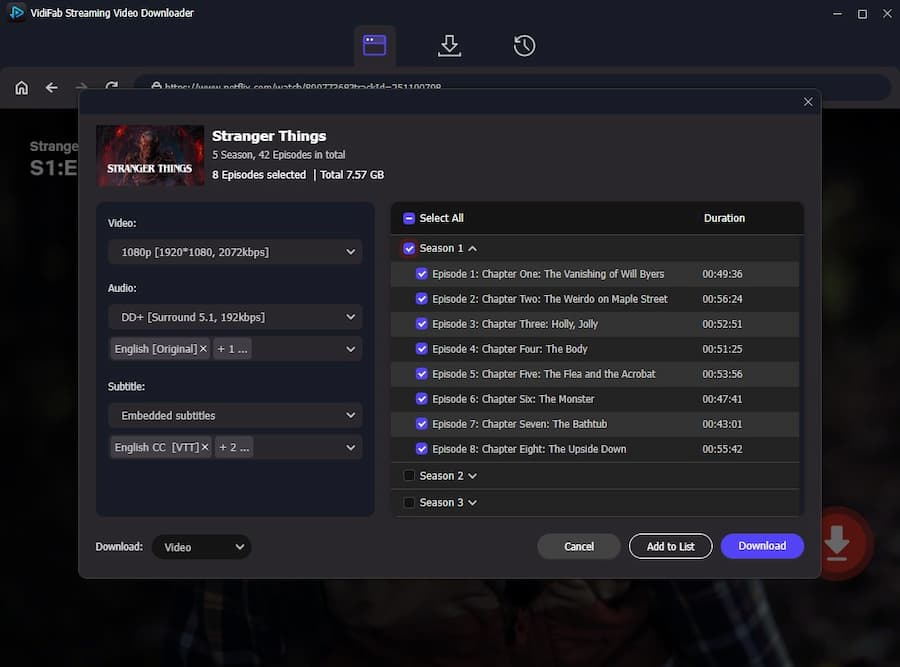
How to Download Netflix Videos with VidiFab
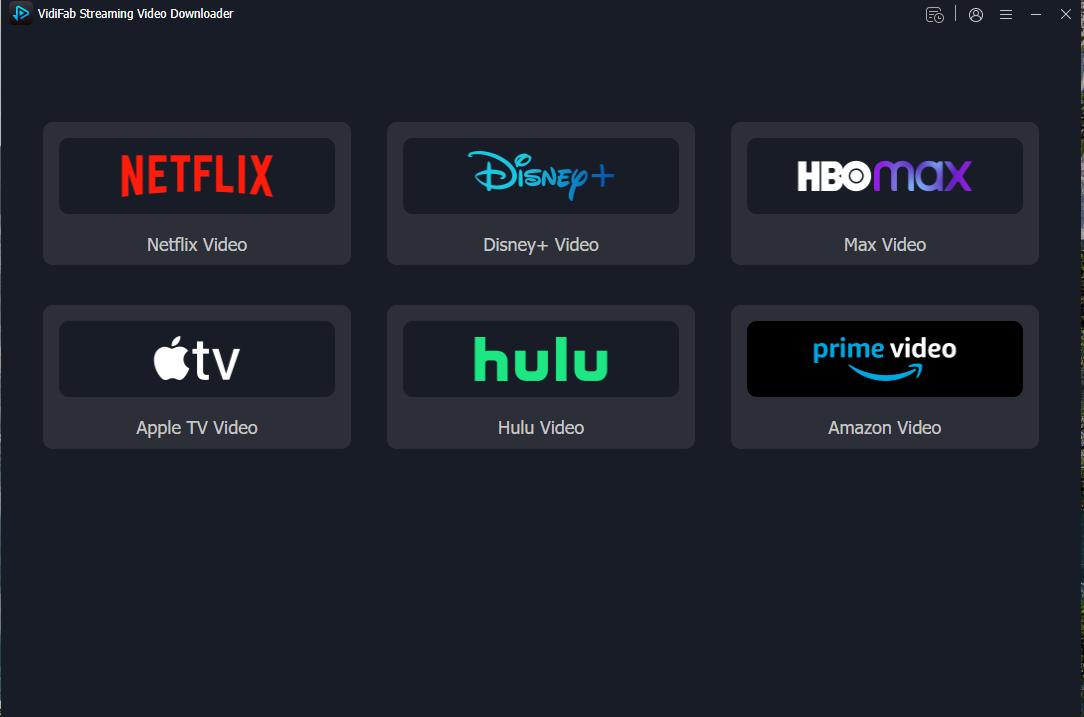
Step 1. Install and launch VidiFab Streaming Video Downloader. Click the menu icon > Preferences > set the download format as MP4 or MKV > Click OK. Select Netflix, and sign in through the built-in web player.
Step 2. Find a movie or TV show. Search for the title you want to download and open its details page. Click the Download button to view the available episodes and settings.
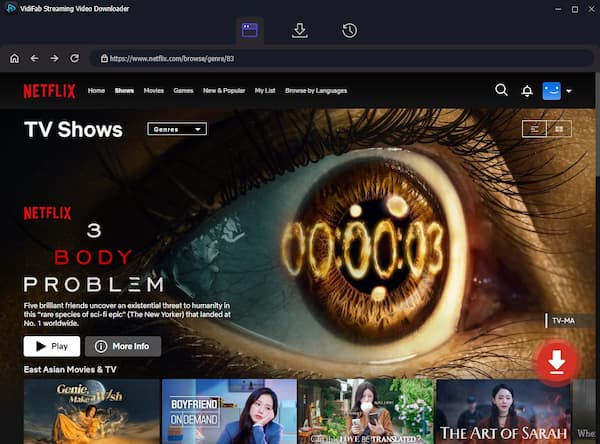
Step 3. Customize and download. Select the episodes you need, choose your preferred video quality and audio tracks, and configure subtitle options. Click Download to save the videos to your computer. When the download finishes, open the output folder to locate your files.
Which Netflix Casting Alternative Should You Choose?
| Your Situation | Recommended Option |
|---|---|
| Your smart TV supports Netflix | Open the Netflix app directly on your TV and log in using the quick QR code on your phone screen. |
| Your TV doesn't support Netflix | Connect a compatible streaming device like an Amazon Firestick, Roku, or Chromecast with Google TV to your HDMI port. |
| You are using a non-smart TV or your internet connection is unreliable | Check your TV's supported file formats and use the VidiFab downloader to save Netflix video files onto a USB flash drive for offline playback. |
Part 4. FAQs About Casting Netflix from Phone to TV
Why can't I cast Netflix to my TV even though other apps work?
Netflix restricts wireless casting to select headless receivers like older Chromecasts. Smart TVs, Firesticks, and Rokus must use native Netflix TV apps instead. Additionally, Netflix disabled AirPlay, blocks casting on ad-supported plans, and requires iOS Local Network permissions and identical Wi-Fi subnets.
Can I cast Netflix from my phone to a TV without Wi-Fi?
No, you cannot cast wirelessly without Wi-Fi, but you can connect using a physical USB-C to HDMI cable. Wired cable connections do not require any Wi-Fi internet or network connections to mirror your phone screen onto a TV.
Can I cast Netflix from my phone to a hotel TV?
Yes, but wireless casting usually fails on hotel Wi-Fi because public networks block devices from talking to each other. The easiest workaround is to bypass the Wi-Fi completely by bringing your own USB-C to HDMI cable and plugging your phone directly into the back of the hotel TV.
Can I cast Netflix from my phone to multiple TVs at once?
No, you can only cast to one TV at a time. The casting protocol establishes a strict one-to-one link between your phone and a single streaming receiver. If you want to watch on a second TV, you must disconnect from the first one.
Does casting Netflix from my phone use more data?
No, it uses the exact same amount of data as streaming the movie normally. If you use wireless casting, your TV pulls the data directly from the internet instead of your phone. If you use an HDMI cable, your phone uses the standard data required to play the video on its own screen.
Can I use my phone while Netflix is playing on the TV?
Yes, if you use the wireless in-app cast button. Once you tap the cast icon and the movie starts, your TV takes over the streaming. You can lock your phone, take calls, text, or play games without interrupting the movie. However, if you use an HDMI cable, your phone screen is mirrored, so whatever you do on your phone will show up on the TV.
Ready to Watch Netflix on Your TV?
Casting Netflix from your phone to your TV depends on your device, TV compatibility, and Netflix plan. If casting doesn't work, try a compatible HDMI connection or use the Netflix app on your TV or a supported streaming device. For offline viewing, use VidiFab to download your favorite movies and shows directly to a USB flash drive. With the right setup, you can find a convenient way to enjoy your favorite shows on the big screen.
Free Download
Secure Download
Free Download
Secure Download


I'm a video tech specialist with over 10 years of experience in digital media and streaming. I focus on making complex workflows simple and practical. Through my guides, you'll learn how to convert media, keep high-quality playback across devices, and manage your streaming video library with ease.
 Leave Your Comment