How to Get and Use Netflix on Vizio TV: Install, Sign In & Manage Your Account
 By Miles Kent
If you just got a Vizio TV and want to start watching Netflix, this guide walks you through everything step by step. You'll learn how to get the Netflix app, sign in with your remote or a QR code, switch profiles or accounts, and update the app. I'll also explain where casting still works and what to do if your Vizio is too old to run Netflix.
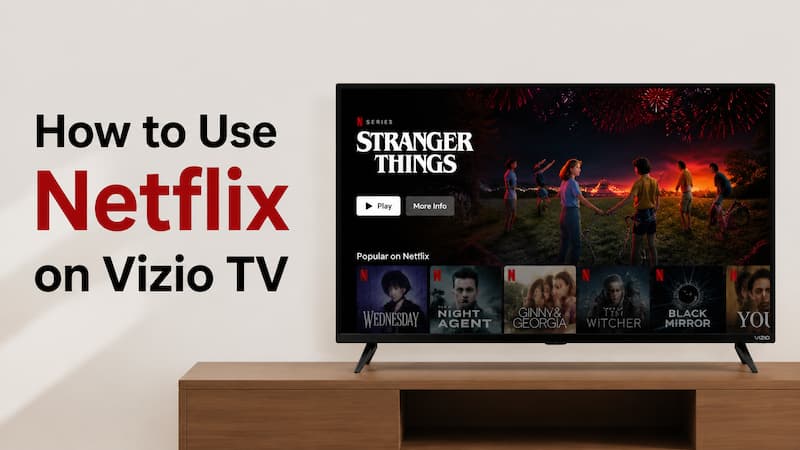
Part 1. Can You Watch Netflix on Vizio TV?
Yes. Netflix works on Vizio TVs and Blu-ray players sold in the United States and Canada, but support depends on your TV's model year and platform. Vizio SmartCast TVs (2016 and newer) generally support Netflix. Some older TVs that use the VIA platform lost Netflix in December 2019.
| Model Era | System | Netflix Support |
|---|---|---|
| 2016 and newer | SmartCast (Vizio Home) | ✅ Fully supported |
| Older models (mainly 2012–2014) | VIA / VIA+ | ❌ Many were dropped in December 2019; some VIA / VIA+ models still work |
| Any model outside the US and Canada | Any | ❌ Not officially available |
Supported models include any Vizio SmartCast TV from 2016 onward, including the V-Series, M-Series, P-Series, OLED, and others. These come with Netflix pre-installed.
Unsupported models are older Vizio TVs running the VIA or VIA+ system. Netflix officially dropped these on December 1, 2019, citing hardware limitations and security requirements.
How to check your TV: Look at the model number on the back of the TV or in Menu > System > System Information, then check whether your TV is a SmartCast model or an older VIA model.
- Plug in an external streaming device via HDMI: Roku, Amazon Fire TV Stick, Chromecast, Apple TV, or a gaming console (PS5, Xbox) all work great.
- Cast from your phone or tablet (see Part 6 for the full guide before you cast, as there are some important restrictions to know first).
- Download Netflix content to a USB drive using the VidiFab Streaming Video Downloader and play Netflix videos directly on any Vizio TV with a USB port. This works for almost all Vizio TVs.
Part 2. How to Get Netflix on a Vizio TV
How you get Netflix depends on what your Vizio TV came with. Use the table to find your method, then follow the steps below.
| What you see on your TV | Use |
|---|---|
| A Netflix button on the remote, or a Netflix icon on the home screen | Method 1 |
| A tablet remote that came with the TV (Google Cast model) | Method 2 |
| No Netflix app at all, or an older model that lost support | Method 3 or Method 4 |
Method 1. Open the Built-In Netflix App
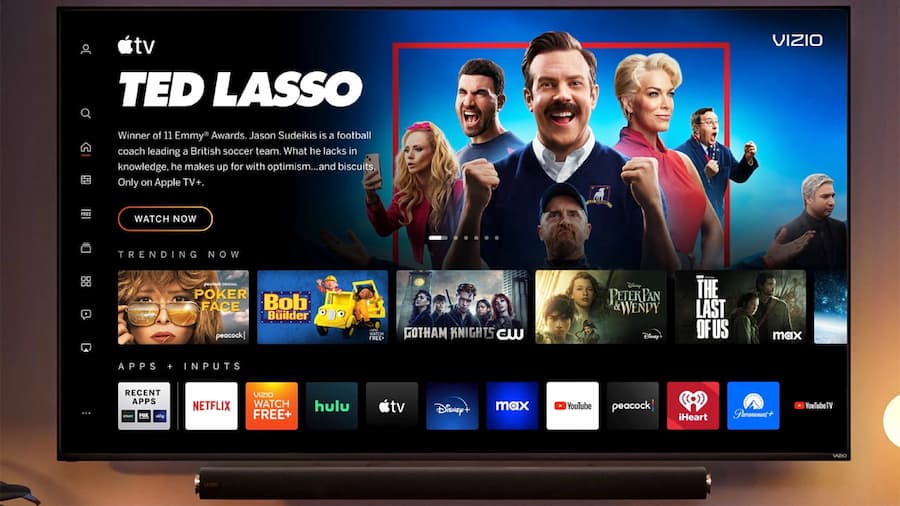
On Vizio SmartCast (now called Vizio Home) TVs, Netflix is a cloud-based, pre-installed service. You won't find an "install" button in an app store. However, you can get the Netflix app on your Vizio TV directly from these methods:
- Option A. Netflix Button (Fastest): Most Vizio remotes have a dedicated red Netflix button at the top. Press it while the TV is on, and the app opens instantly.
- Option B. Vizio Home Screen: Press the V (Home) on your remote → scroll through the App Row or Favorites → highlight the Netflix icon → press OK.
- Option C. Older remotes with a large V button. Press the Vizio Internet Apps button on the remote (below the red, yellow, green, and blue buttons), select Netflix, and press OK.
- Option D. Voice Control: If your remote has a microphone button, press and hold it, then say "Open Netflix."
- Make sure the TV is connected to the internet.
- Check for a firmware update: press Menu, go to System, and select Check for Updates.
- Restart the TV: press Menu, go to System > Reset & Admin, and select Reboot TV.
- If Netflix is still missing, your model may no longer be supported. Go to Method 3.
- If the app opens but crashes or shows an error, see our guide: Netflix Not Working on Vizio TV? Here's How to Fix It.
Method 2. Install Netflix from the Play Store on the Included Tablet
Some Vizio TVs that work with Google Cast came with a tablet. On these models, Netflix is not compatible with the Vizio SmartCast app, so you install the Netflix app from the Google Play Store on the tablet:
-
01
Open the Play Store on the tablet that came with your TV.
-
02
Search for Netflix and tap the Netflix app.
-
03
Tap Install and wait for the installation to finish.
-
04
Open the Netflix app and sign in with your email and password.
-
05
Tap the Cast icon in the upper right corner of the screen.
-
06
Select your Vizio TV from the list. Netflix launches on the TV.
Method 3. Use a Streaming Device on Older Vizio TVs
If your Vizio TV is an older model that no longer supports Netflix, or the app is missing and won't come back, the easiest fix is to add a streaming device:
-
01
Plug a Roku, Amazon Fire TV Stick, Apple TV, or Chromecast into an HDMI port on your Vizio TV.
-
02
Press the Input button on the remote and select that HDMI port.
-
03
Open the Netflix app on the device and sign in.
Method 4. Play Netflix on Unsupported Vizio TVs via USB
If you don't want to buy a streaming device, you can download your Netflix content to a computer, copy them to a USB drive, and play them on your TV.
VidiFab Streaming Video Downloader lets you download videos from streaming services like Netflix as MP4 or MKV files for offline viewing. You can choose up to 1080p with subtitles embedded. Then you don't need the Netflix app on your TV at all.
VidiFab Streaming Video Downloader
Download videos from streaming services like Netflix as MP4/MKV in 1080p with Dolby Atmos for offline viewing on your TV, iPhone, Android, desktop, and more devices.

Step 1. Set Up VidiFab
Download and install VidiFab on your laptop. Open the menu (top-right icon) → Preferences → set your output format to MP4 or MKV, choose your preferred video quality and encoding, then click OK.

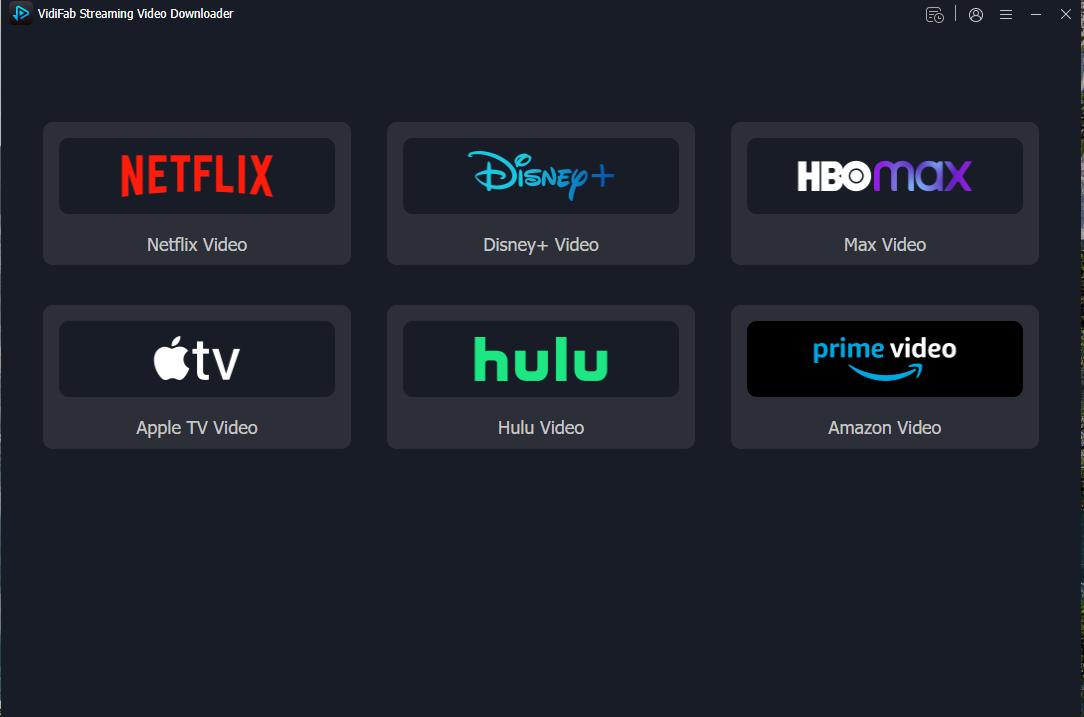
Back to the main interface. Select Netflix from the service list and log in through the built-in browser.
Step 2. Find the Netflix Video You Want to Play on Vizio TV
Browse the Netflix library inside VidiFab or paste a direct movie or show URL into the search bar. Open the video's detail page; VidiFab automatically analyzes the stream. Click the Download button in the bottom-right corner.

Step 3. Choose Your Quality Settings
Select 1080p for the best picture quality. Set your preferred audio language and quality. Choose subtitle language and set them to embed so they're built into the video file. If downloading a TV series, you can check Select All to queue an entire season and download in one batch.

Step 4. Download and Locate Your Files
Click Download to start. VidiFab saves standard video files directly to your computer. When done, go to the History tab and click the folder icon to find your files.

Step 5. Play on Any Vizio TV via USB
-
01
Format a USB drive or portable hard drive as FAT32.
-
02
Copy your MP4 or MKV files onto the drive.
-
03
Plug the drive into the USB port on your Vizio TV, which is usually on the left or bottom side of the back panel.
-
04
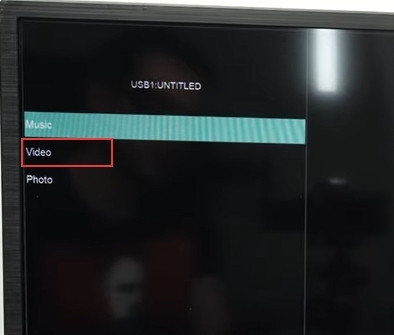
Press Input on your Vizio remote → select Media.
-
05
Browse the file list, select your video, and play.
Part 3. How to Sign In to Netflix on Vizio TV
Once you've opened the Netflix app on your smart Vizio TV, you have two ways to sign in.
Method 1. Sign In with Your Remote
-
01
Select Sign In. If you see "Are you a member of Netflix?", select Yes first.
-
02
Use the on-screen keyboard to type your email and password.
-
03
Confirm Sign In. Now, your credentials are saved to the TV.

Tip: Typing with a TV remote is painful. If your remote supports voice input, dictate your email address to save time.
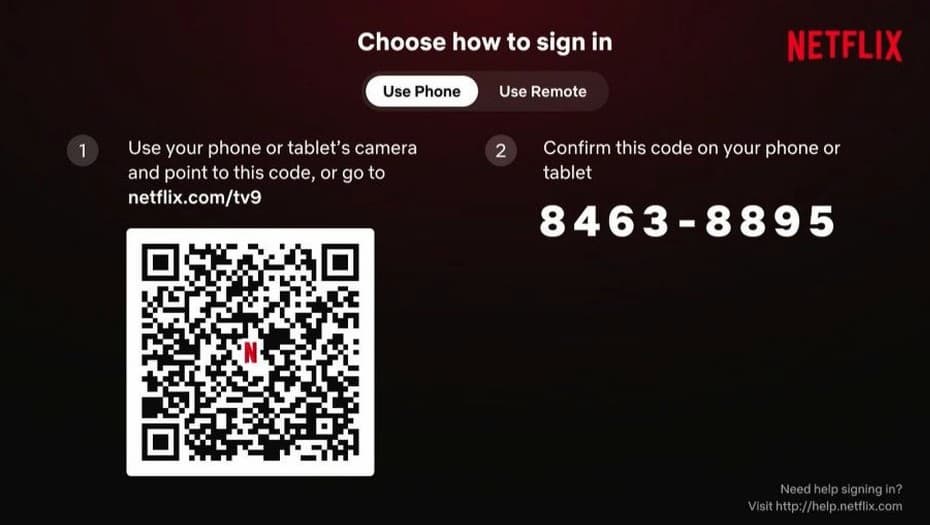
Method 2. Sign In with a QR Code
-
01
Open Netflix on your TV and select Sign In.
-
02
The TV screen will show both a QR code and an 8-digit activation code.
-
03
Open your phone's camera and scan the QR code.
-
04
Log into your Netflix account on your phone if needed.
-
05
Enter the 8-digit code shown on the TV screen, then tap Activate. Your Vizio TV refreshes and logs you in automatically.
Part 4. How to Switch Profiles or Change Netflix Accounts
If you share the TV with family or roommates, you can profile switching without logging out. If you need to change to a completely different Netflix account, you should sign out first. Here's how to do it:
How to Switch Profiles Without Logging Out
-
01
On the Netflix home screen, press the Left arrow on your remote to open the hidden side menu.
-
02
Press Up repeatedly to reach the top of the menu where your avatar appears, then press OK.
-
03
The "Who's Watching?" screen appears.
-
04
Select the profile you want to switch to and press OK.
How to Log Out of Netflix to Change Account
The menu can appear in two places, depending on your Netflix version.
-
01
From the Netflix home screen, press the Left arrow to open the side menu.
-
02
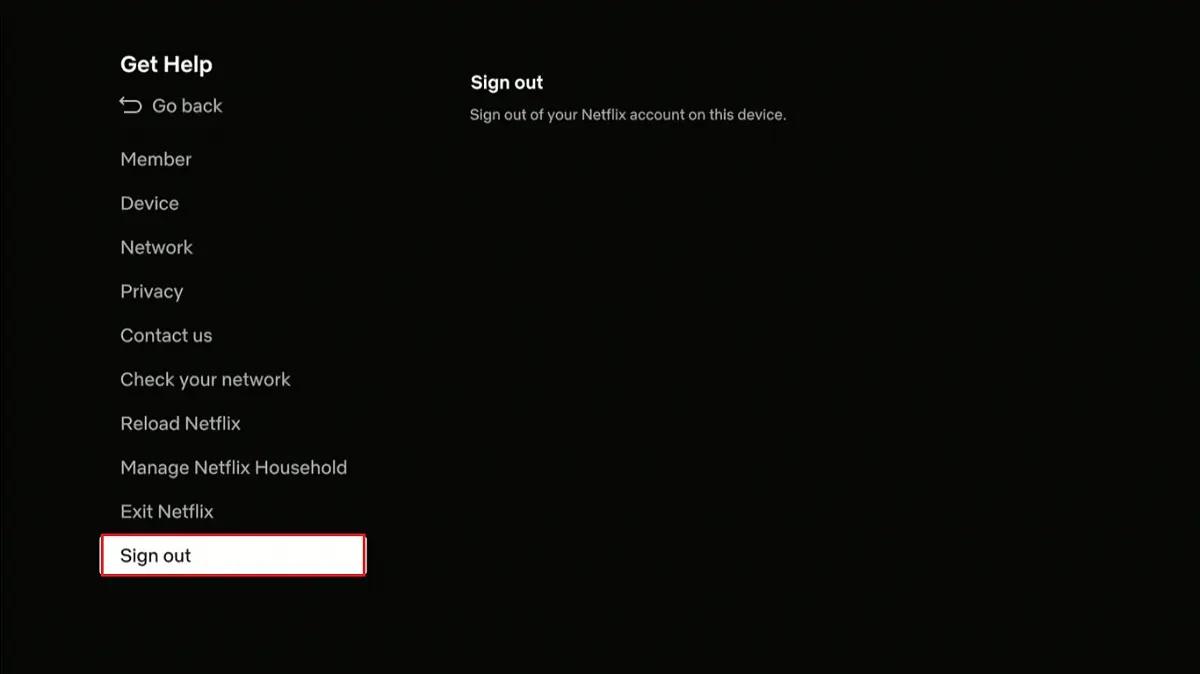
If the menu is at the top: press Left to reach your profile icon, select Get Help, then Sign out, then Yes.
-
03
If the menu is on the left: scroll to the bottom, select Get Help, then Sign out, then Yes.
-
04
Can't see Get Help? Go up and select Settings, then look for Sign out there.
After you confirm, the TV returns to the sign-in screen. You can now sign in with another account
How to Use the Netflix Remote-Code Sign-Out Method
If you can't find Get Help, Settings, or Sign out (for example, after an app update changed the menu), Netflix has a remote-code shortcut.
With the Netflix app open, press this sequence on your remote:
↑ ↑ ↓ ↓ ← → ← → ↑ ↑ ↑ ↑
A hidden diagnostics menu pops up immediately. Select Sign Out to force-exit the current account.

Note: This code also gives you access to the Start Over option, which clears the app's cache. It is a useful trick if Netflix is behaving strangely after a firmware update.
How to Sign Out of All Devices From Your Phone or Computer (Optional)
If you can't reach the TV, or you sold or gave the TV away, you can sign out from netflix.com. Log in, open Account, choose Manage Access and Devices, and choose Sign out of all devices. This signs you out everywhere, not just on the Vizio TV. You can check out the guide on how to sign out of Netflix on a hotel TV for more sign-out methods.
Part 5. How to Update Netflix on Vizio TV
Do Vizio TVs Have a Netflix Update Button?
On most Vizio TVs, no. Netflix is built into the TV's system software, so it is updated together with the TV's firmware. Vizio TVs usually download these updates automatically while the TV is off, so you normally don't need to do anything.
Update Your Vizio TV Firmware
-
01
Press Menu (or the gear icon) on your remote.
-
02
Go to Admin & Privacy (older models may show System or Help).
-
03
Select Check for Updates.
-
04
If an update is available, the TV downloads, installs, and restarts automatically.
- Older VIA models: Press the Vizio Internet Apps button, highlight Netflix, and press the yellow button on your remote. Choose Updates if it appears. If it doesn't, choose Delete App, then find Netflix in the app store and install it again.
- TVs that came with a tablet remote: Update the Netflix app in the Play Store on the tablet.
Part 6. How to Cast Netflix to Vizio TV from Phone or Laptop
This is where things get a little complicated and where a lot of guides give outdated advice. Let me be upfront about the current situation.
- AirPlay is no longer supported: Netflix has completely removed Apple AirPlay support.
- Casting from your phone is also mostly blocked: When I checked with Netflix support about SmartCast TVs, they confirmed that if a device has its own remote control, casting is no longer allowed. Since Vizio SmartCast TVs (2016 and later) already include a built-in system and physical remote, the Cast icon won't show up in the Netflix app for these models.
What Actually Works to Cast Netflix to Vizio TV: HDMI Cable Connection
Firstly, to cast across devices, make sure you are using an ad-free Netflix plan. Then, check if you have the following hardware, as Netflix enforces strict HDCP (High-bandwidth Digital Content Protection).
Step 1: Get the Right Cable or Adapter
| Device | What You Need |
|---|---|
| Laptop | Standard HDMI cable |
| iPhone / iPad (Lightning) | Apple-official Lightning Digital AV Adapter (Model A1438 or A1621) + HDMI cable |
| Modern phone / tablet (USB-C) | USB-C to HDMI cable with DisplayPort Alt Mode, USB 3.1 or higher |
Step 2: Connect the Cable
-
01
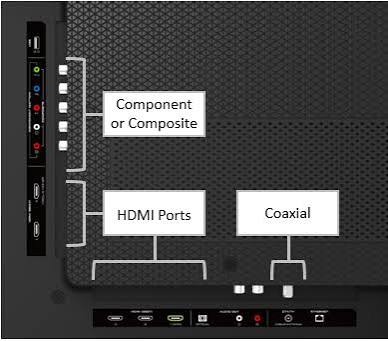
Plug the HDMI cable into any open HDMI port on the back of your Vizio TV. Note the port number (e.g., HDMI 1, HDMI 2).
-
02
If using a phone, connect the adapter to your phone first, then plug the HDMI cable into the adapter.
-
03
Connect the other end of the HDMI cable to your laptop or phone.
Step 3: Switch the TV Input
-
01
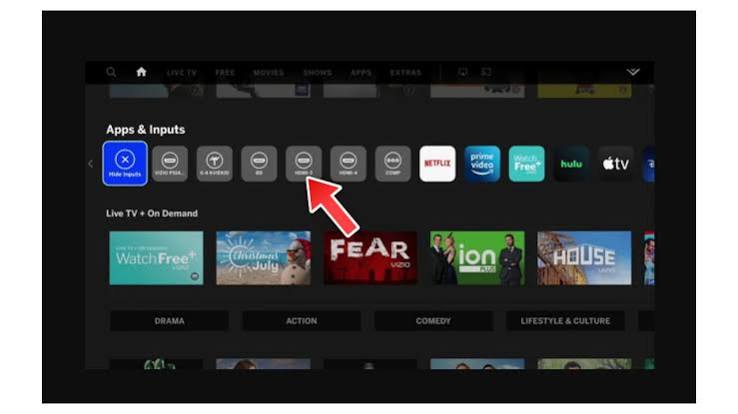
Press the Input button on your Vizio remote.
-
02
Select the HDMI port you just used (e.g., HDMI 1), then press OK.
-
03
Your phone or laptop screen should now mirror on the TV.
Step 4: Configure Your Device (Laptop Only)
- Windows: Press Win + P → select Duplicate.
- Mac: Go to System Settings > Displays → set Vizio TV to Mirror Display.
Step 5: Open Netflix and Play
Open Netflix on your phone or laptop, pick something to watch, and hit play. You're now watching Netflix on the big screen.

Note: If you're playing a Netflix title you previously downloaded offline to your phone and mirror it via HDMI, you may see a black screen on your TV due to copyright protection.
Part 7. FAQs About Netflix on Vizio TV
What's the best alternative if Netflix no longer works on my Vizio TV?
Does Netflix support Dolby Atmos on Vizio TVs?
Can I use Netflix on a Vizio TV without the remote?
Does Netflix support 4K on Vizio TVs?
Conclusion
The easiest way to use Netflix on a Vizio TV is still the built-in app on a newer smart TV. Sign in once, keep the TV updated, and rely on the remote instead of trying to force a phone-casting workflow that has many restrictions and requires some hardware.
If your Vizio is older and unsupported, you can consider trying VidiFab Streaming Video Downloader to get the videos from Netflix to a USB stick and watch them via local playback.
 Free Download
 Secure Download
 Free Download
Secure Download
Free Download
Secure Download


I'm a video tech specialist with over 10 years of experience in digital media and streaming. I focus on making complex workflows simple and practical. Through my guides, you'll learn how to convert media, keep high-quality playback across devices, and manage your streaming video library with ease.
 Leave Your Comment